Use the "Planning" function to manage availability on several calendars at the same time
Easily manage the availability of your teams with CrocoClick schedules. Centralize, automate and synchronize your schedules across all your calendars to avoid duplication and save time.
Written By CrocoTeam
Last updated 7 months ago
Schedules allow you to manage user availability across all CrocoClick calendars in one place.
By configuring times once and applying them everywhere, you save time, reduce errors, and ensure a consistent booking experience.
What is a Schedule?
Schedules are shared availability templates that combine:
Weekly working hours
Specific date exceptions
And individual staff time zones
Instead of editing each calendar individually, you can attach a Schedule to multiple calendars for centralized, simple, and consistent management.
💡 Note: Schedules and Custom Schedules are different.
A Schedule is managed centrally.
A Custom Schedule is specific to a single calendar and can only be managed within that calendar.
Key benefits
✅ Manage all availability from one place—no need to edit each calendar manually.
✅ Reuse the same Schedule across multiple calendars or services.
✅ Provides new users with a ready-to-use default schedule.
✅ Create custom schedules for specific needs.
✅ Automatically migrate old settings — no loss or interruption.
Each user can have multiple schedules.
Each calendar can only have one schedule per user at a time.
How to access Schedules
From your CrocoClick account, go to Calendars > Calendar Settings > My Availability (or Settings > Calendars > My Availability).
How to use the Schedule feature
Select a user
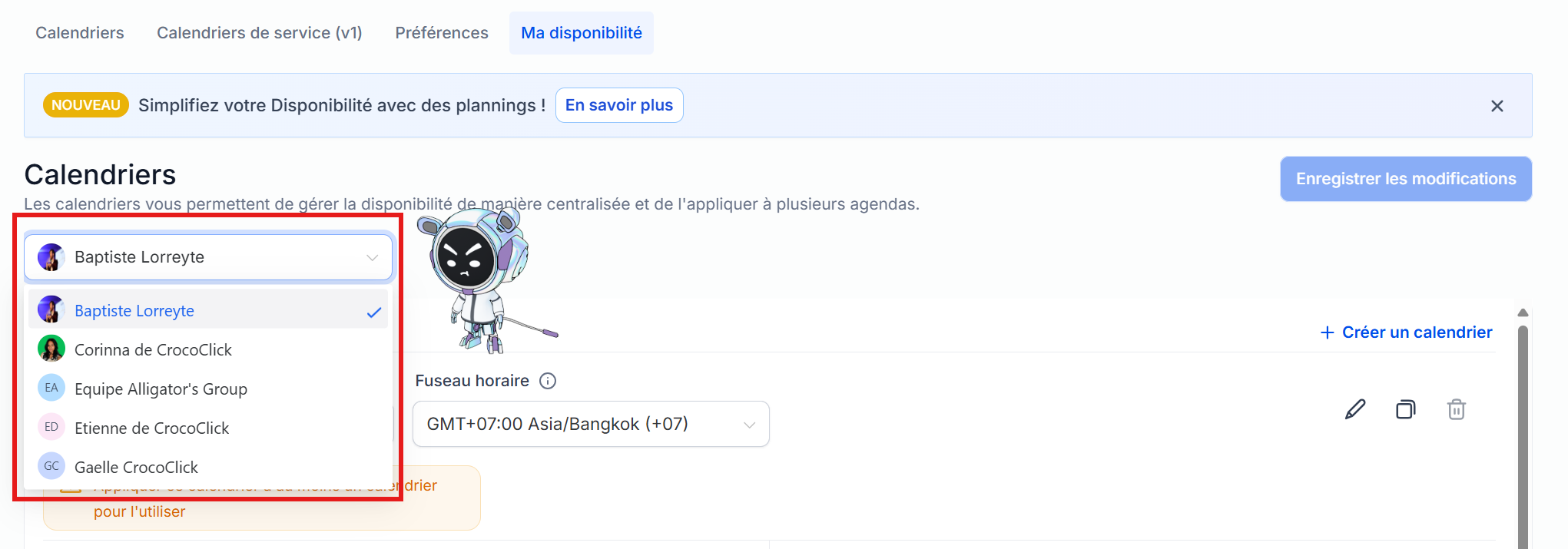
Choose the team member whose availability you want to manage from the "User" drop-down menu.
Create a new Schedule
Click on Create a schedule
Give it a name (e.g., "Consultations," "Demos," "In-person")
Configure:
Weekly working hours
Time zone
Date exceptions (unavailability or special availability)
Use the Active on menu to choose which calendars this schedule applies to
Save
Modify a Schedule
From the list of schedules, several actions are possible:
📌 Set as default: automatically applied to any new user added to a calendar.
✏️ Rename: change the name for clarity.
📄 Duplicate: creates a variant of an existing schedule.
🗑️ Delete: only if the schedule is no longer active on any calendar.
Modify a schedule from a calendar
You can also manage schedules directly from a calendar:
Go to Calendars > Calendar Settings > Edit > Availability Tab
Choose to:
Use another existing schedule, or
Create a custom schedule for this calendar
⚙️ Any changes made to a central schedule are automatically applied to all calendars linked to it.
Custom schedules (specific to a calendar)
Custom schedules:
Only apply to a single calendar
Have their own hours, time zone, and exceptions
Are created directly from the Availability tab of a calendar
👉 To create one:
Open the calendar
Go to Availability > Select the member > Edit > Customize for this calendar only
These schedules do not appear in the global list.
They are only visible and editable in their original calendar.
Transition from old calendars
When updating to the Schedules system:
CrocoClick automatically creates a customized schedule for each old calendar
Nothing changes for existing reservations
You can then replace them with reusable schedules whenever you want
FAQ (Frequently Asked Questions)
Q: What happens to my old availability settings?
🟢 They have been automatically migrated to personalized schedules. No action is required.
Q: Can I use the same schedule for a "Round Robin" calendar?
🟢 Yes, simply select this schedule for each user in the group.
Q: Do date exceptions apply to all calendars linked to this schedule?
🟢 Yes. If you want an exception specific to a single calendar, create a custom schedule.
Q: Is there a limit to the number of schedules?
🟢 No, you can create as many as you need.
Q: How can I avoid double bookings?
🟢 If several calendars use the same schedule, CrocoClick automatically blocks slots that are already taken.
Q: Does modifying a schedule cancel appointments that have already been made?
🟢 No, only future availability is updated.
Q: How does the time zone work?
🟢 The schedule respects the time zone of the staff member. The booking interface automatically converts according to the visitor's time zone.
Q: Can schedules be imported via API?
🔴 Not yet. For the moment, management is only possible from the interface.