Configure the cookie consent banner on your CrocoClick sites and funnels
Learn how to configure and customize the CrocoClick cookie consent banner to inform your visitors and stay compliant.
Written By CrocoTeam
Last updated 8 months ago
CrocoClick's cookie consent banner helps you inform your visitors and obtain their consent to the use of cookies.
It is an essential tool for enhancing transparency, improving the user experience, and supporting your compliance efforts (e.g., GDPR, CCPA).
⚠️ Important: this tool facilitates compliance, but does not in itself ensure compliance with the law. You remain responsible for ensuring your site's compliance.
🚀 Setting up the banner
1. Enable cookies
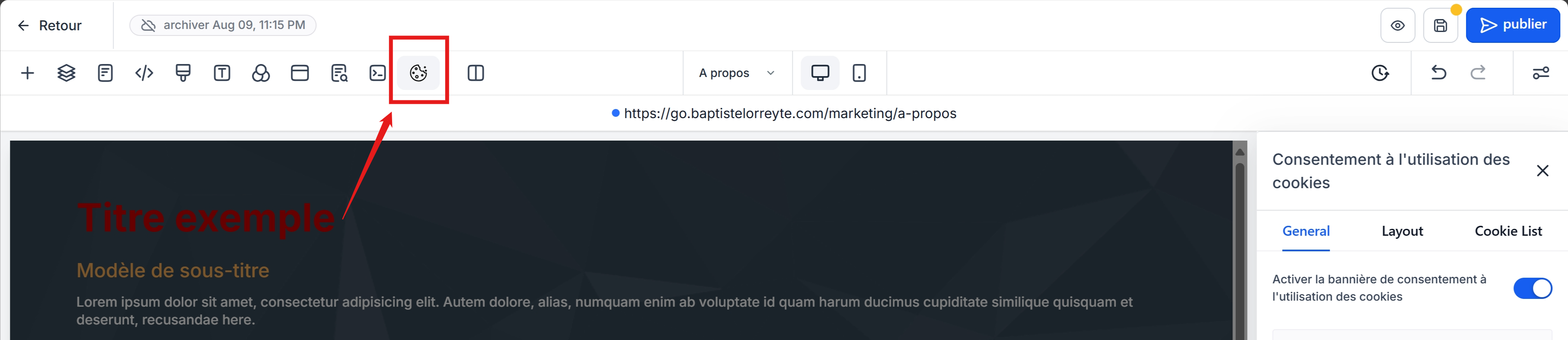
Open your website or funnel in the CrocoClick Builder.
Click on the cookie icon.
Enable/disable the banner using the button.
2. Configure the buttons
Accept Essential: only cookies necessary for operation.
Accept All: all cookies (including tracking and analytics).
Customize: opens the preferences window.
3. Customize preferences
In the preferences pop-up, visitors can:
Reject: only essential cookies.
Save preferences: saves the user's choice.
Cancel: closes the popup and returns to the main banner.
🎨 Banner customization
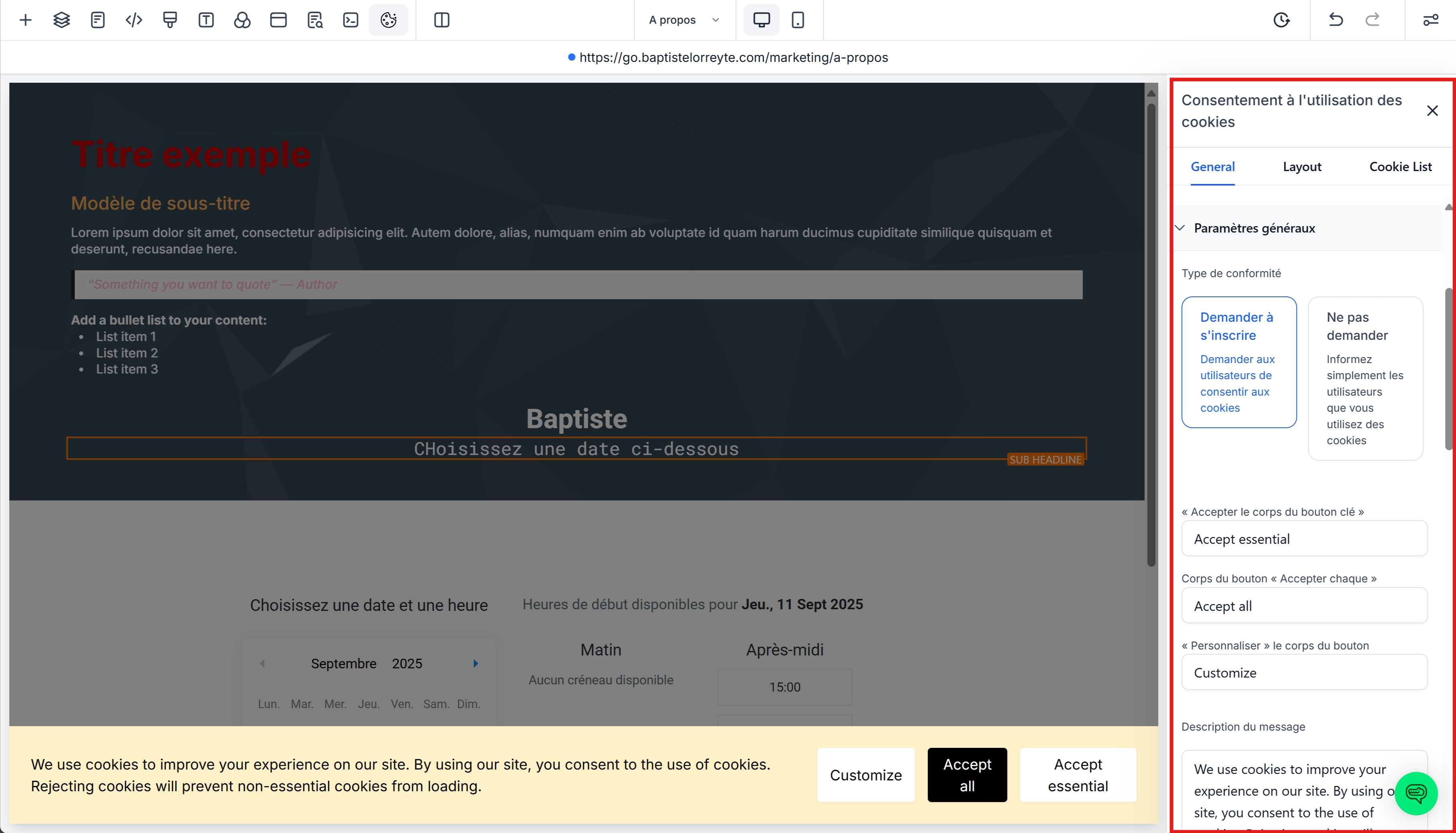
General settings
Enable/disable the cookie list.
Choose the type of consent:
Opt-In (Ask to accept): "Accept essential" button + "Accept all" button.
No request: single "OK" button.
Add descriptive text and a link to your privacy policy.
Customize the appearance (colors, fonts, sizes).
Advanced settings
Consent validity period: set the number of days before it is requested again.
Layout: several styles available to adapt the banner to your site.
Customizable text: change the labels on buttons and messages.
⚠️ Warning: once the text has been modified, automatic translation is disabled. Remember to provide your own translations if you have a multilingual site.
Control by region 🌍
Worldwide: banner visible to everyone.
EU & UK: display only in Europe and the United Kingdom.
Specific countries: manual selection.
→ Ideal for limiting unnecessary display to visitors outside the regulated area.
🍪 Cookie list management
Predefined categories
Essential (always active)
Functional
Analytics
Performance
Advertising
Uncategorized
Add cookies
For each cookie, enter:
Name/Key (regex possible)
Duration (1 day, 30 days, 1 year, etc.)
Domain
Description
Examples of regex:
ga-*→ all Google Analytics cookies beginning with "ga-"._fbp→ Meta Pixel cookie._ga.*→ All GA variants.
Scan your site
Temporarily disable the banner (otherwise cookies will be blocked).
Use a free tool (e.g., CookieServe).
Analyze the cookies detected and classify them into the correct categories.
🔗 Integration with your marketing tools
Advertising: Meta Pixel (
_fbp,_fbc), advertising cookies.Analytics: Google Analytics (
_ga,_gid), Google Tag Manager.
⚠️ Categorizing your cookies correctly is essential to ensure that tracking works properly.
✅ Best practices
Scan your site regularly.
Provide simple and clear descriptions.
Use regex to organize similar cookies.
Check the duration and validity of cookies.
Keep your categories aligned with your marketing tools.
❓ FAQ
1. Why do I need this banner?
To inform your visitors and comply with laws such as the GDPR (EU) or CCPA (California).
2. Can users change their choice later?*
No, once defined, the choice cannot be changed by the user.
3. What happens if a visitor refuses everything?
Only essential cookies will be stored; tracking and analytics cookies will be blocked.
4. Can I customize the appearance?
Yes, colors, fonts, text, buttons: everything can be customized.
5. Does the banner apply to all pages?
Yes, it covers the entire domain (complete website or entire funnel).
👉 In summary: The CrocoClick consent banner allows you to offer transparency and control to your visitors, while supporting your compliance efforts.