How to personalize your notification email sequences
Set up a sequence of feedback mails to improve your customer feedback.
Written By CrocoTeam
Last updated 8 months ago
Automatically sending an email to collect customer reviews is good. But personalizing this message to reflect your brand is even better! In CrocoClick, you can modify the email templates used for follow-ups, create several new ones, and adapt the content to each stage of your review request sequence.
In this article, you'll learn how to customize these recurring emails to increase your chances of collecting quality testimonials while strengthening your brand image.
Why customize these sequences?
Save time: No need to rewrite your emails every time.
Strengthen your image: You remain consistent with your editorial guidelines.
Boost your reviews: A well-written email makes people more likely to respond.
Steps to customize your review request email sequence
Step 1: Enable email requests
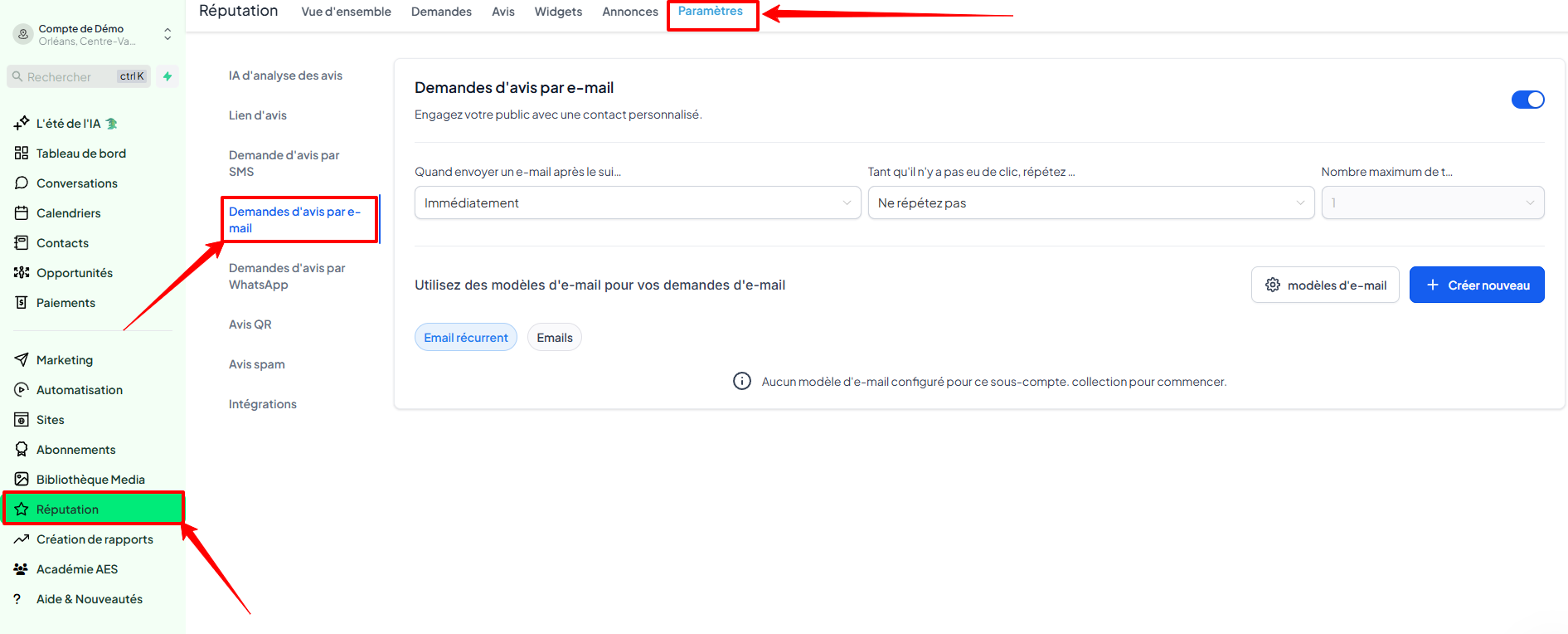
Go to Reputation > Settings > Email review requests
Ensure that email review requests are enabled, as shown below. Then set the "Maximum number of attempts" to a value greater than 1 to allow multiple follow-up attempts.
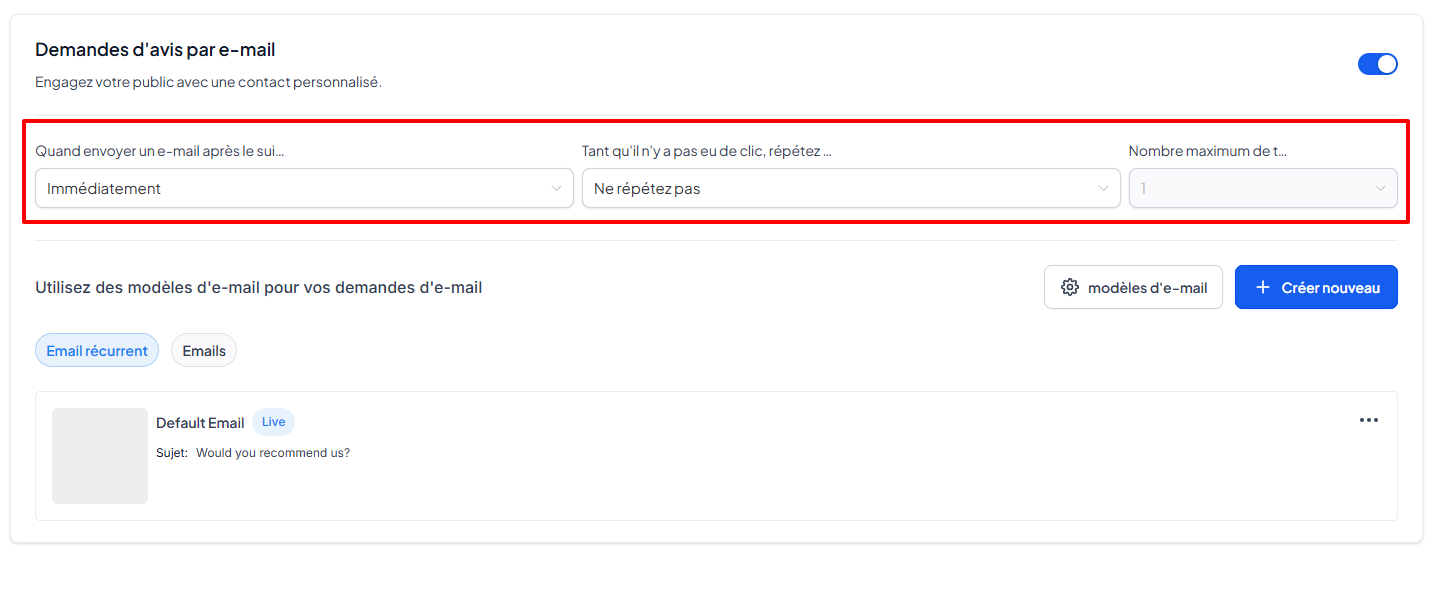
Step 2: Customize or create email templates
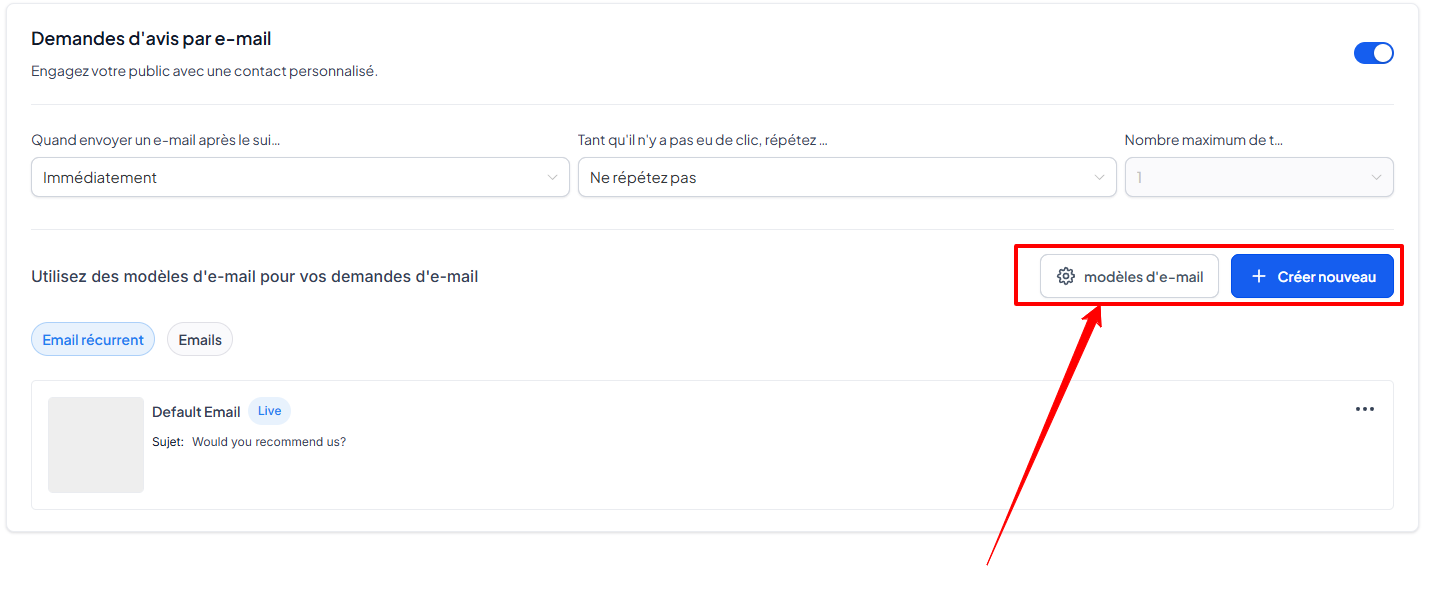
In the Choose email templates for reminders section, you can:
Create a new template (using the +Create New button)
Choose an existing template for each follow-up (1st, 2nd, 3rd, etc.)
By clicking on Set email templates, you can assign a different template to each follow-up depending on the number of attempts chosen.
Step 3: Create a custom email template
Click on Create a template
In the builder, drag and drop the desired elements: text, button, image, etc.
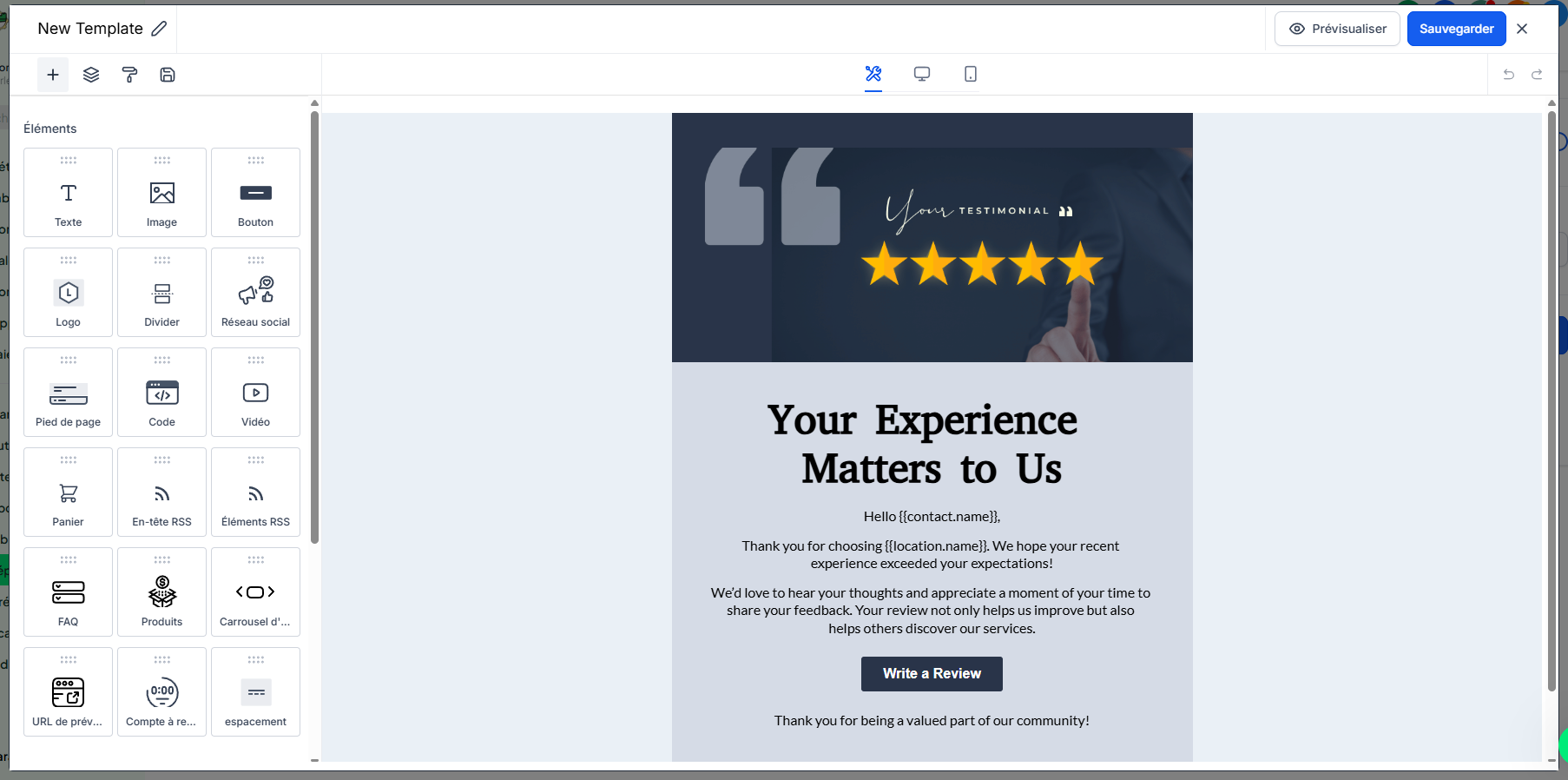
Rename your template, preview it, then save it
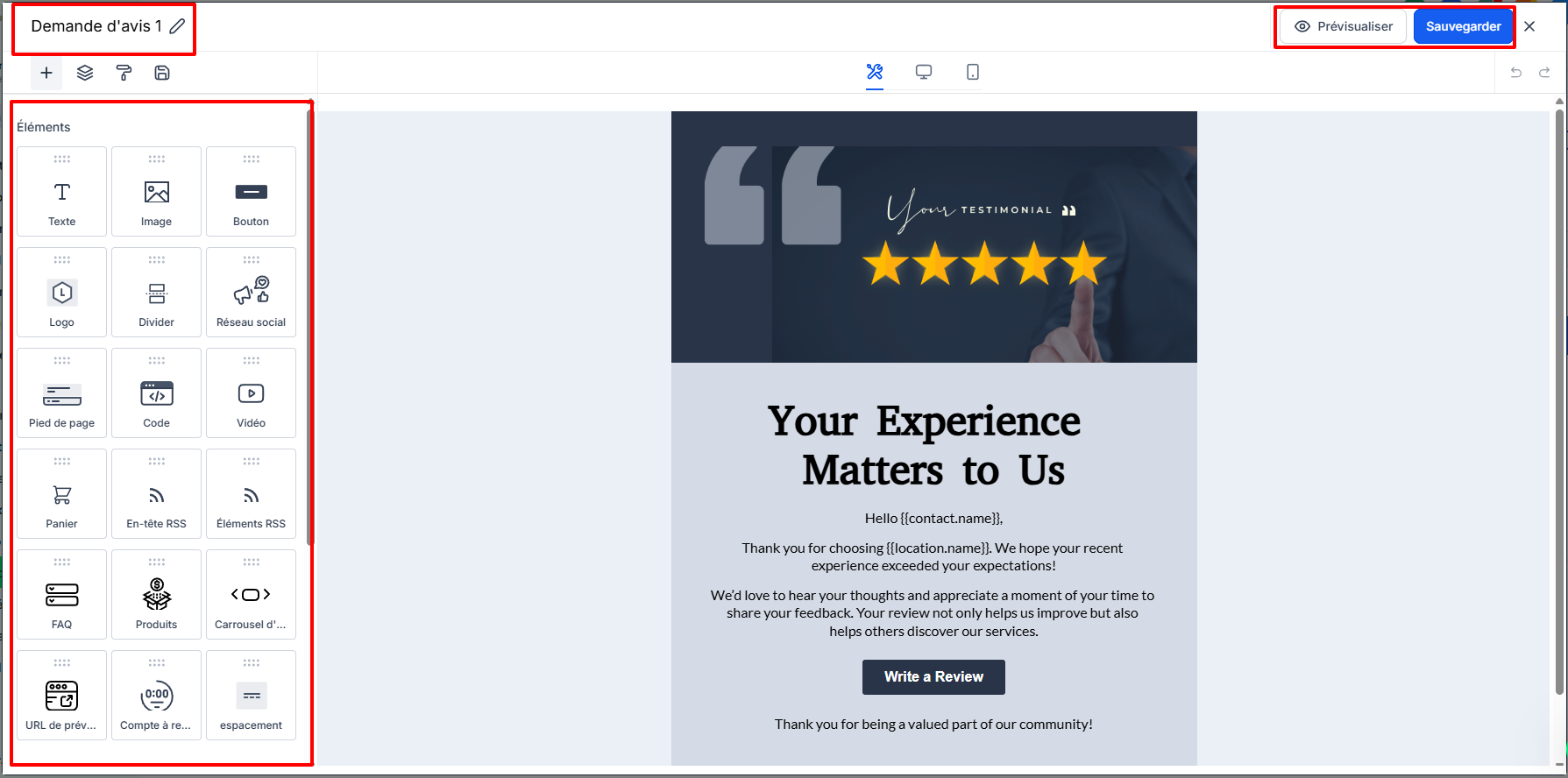
Step 4: Assign templates to follow-ups
In the follow-up menu, choose the email template to use for each step
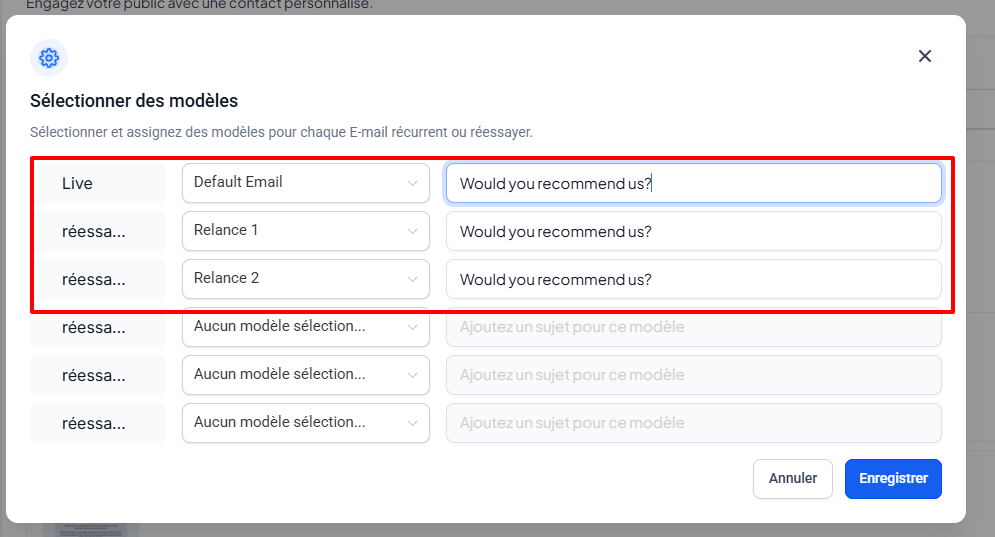
Change the subject line of the email
Click Save to confirm your settings
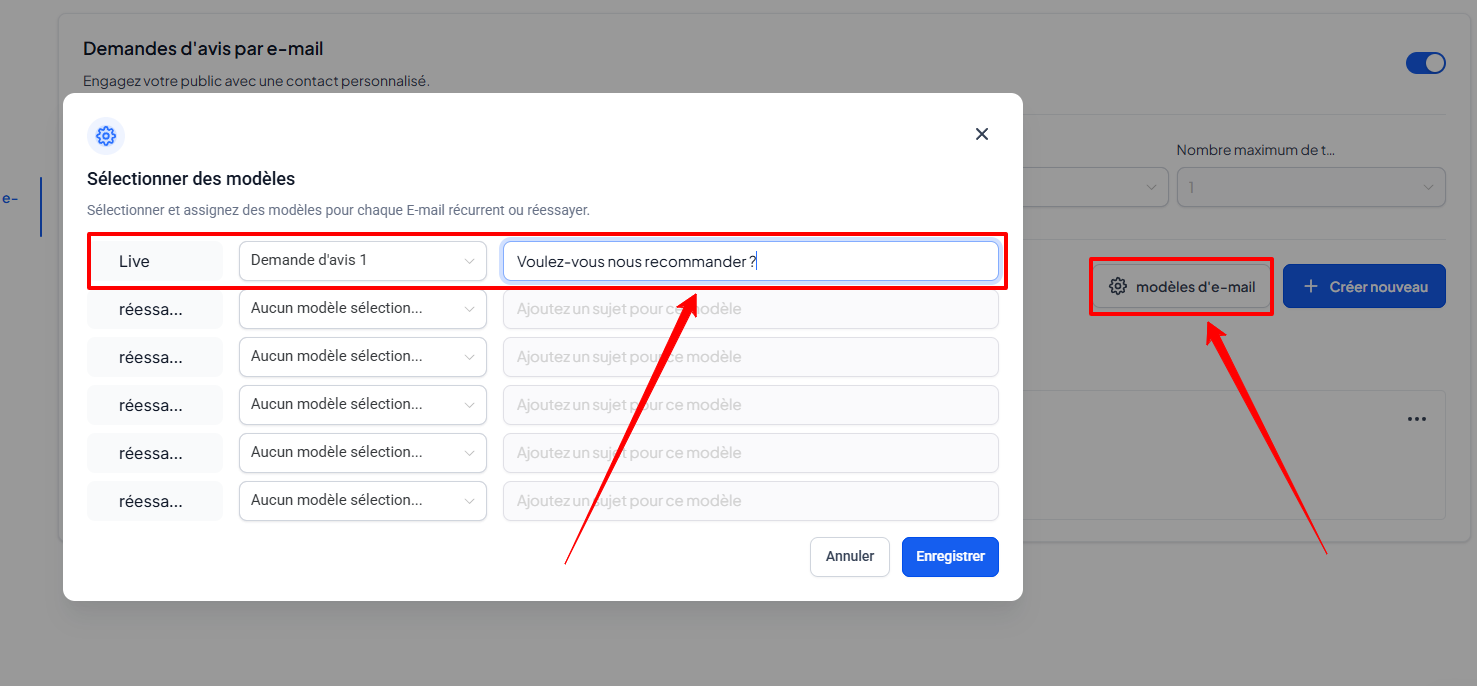
💡TIP: You can create other email templates for follow-ups
Manage and edit your templates
From the Email Templates area, you can:
Preview or edit a template
Duplicate to save time
Delete
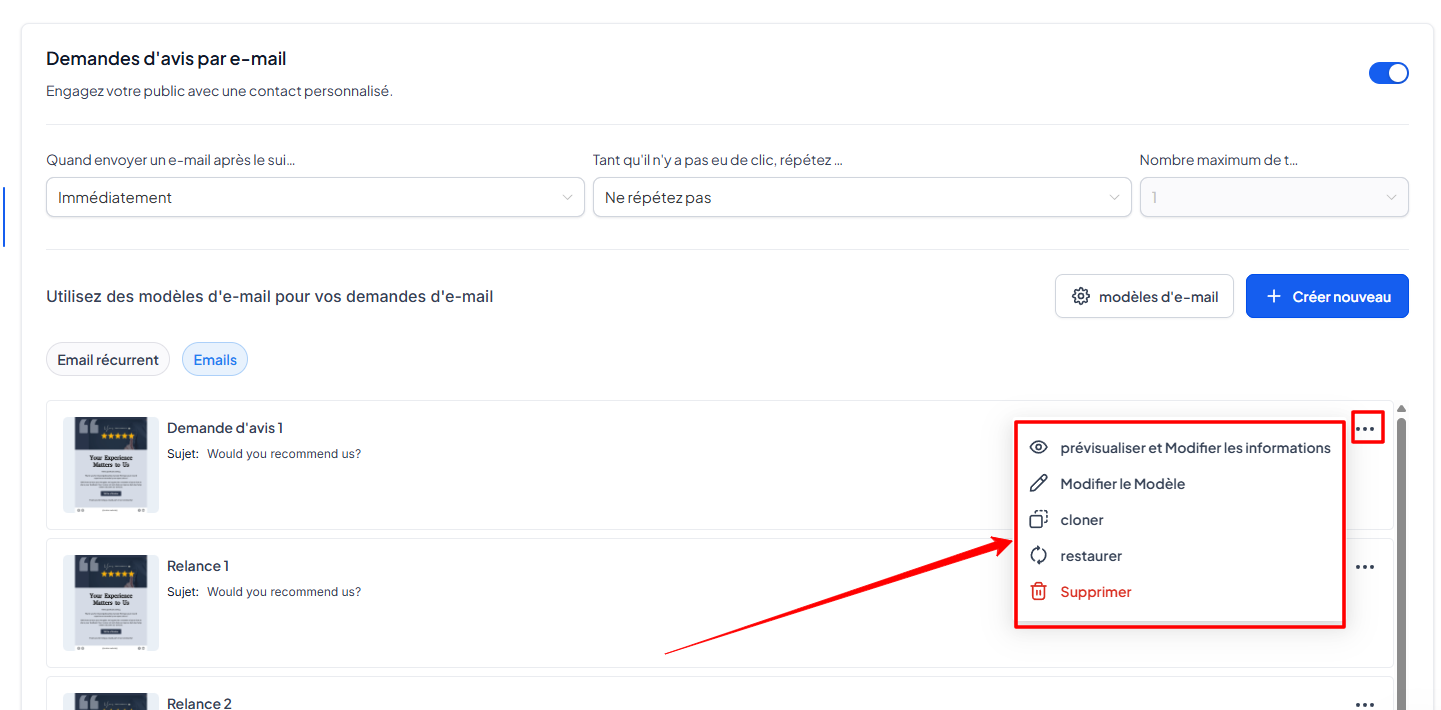
💡TIP: You must reassign another template before deleting an active template.
Conclusion
By customizing your review request emails, you demonstrate your professionalism while strengthening customer relationships. Most importantly, you increase your chances of receiving positive feedback to boost your online credibility.