How to import contacts into CrocoClick
Easily import your contacts into CrocoClick: guide to preparing a CSV, mapping fields, managing duplicates and launching the import.
Written By CrocoTeam
Last updated 8 months ago
Importing a complete contact list is the basis for effective CRM management. When done correctly, it ensures that your contacts are organized, enriched, and ready to fuel your marketing and sales operations.
Prerequisites:
Administrator role: Only users with the "Director" role can import or export contacts. To change a role, go to Settings > My Team > Team Management.
File format: CSV, single sheet, maximum size 50 MB.
Required headers: The first row must contain at least one header corresponding to a CrocoClick field (first name, last name, email, phone number, etc.).
Step 1: Prepare the contact file
Add headers
In the first row, enter the column names used in CrocoClick:first_name(First name)last_name(Last name)email(Email address)phone(Phone number)tag(Tag)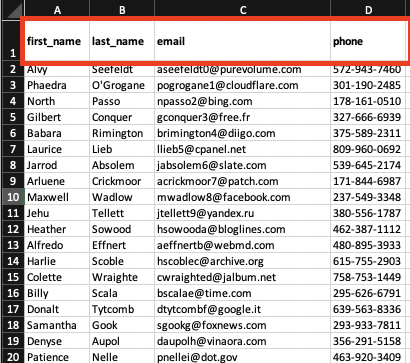
Format phone numbers
Add the country code with a "+" preceded by an apostrophe if necessary (e.g.,
'+33123456789).
Clean up the list
Delete duplicates and correct errors (formats, missing values) before importing to preserve data quality.
Once you are satisfied with the file, save it in xls format.
💡 TIP: If you are importing contacts from an autoresponder, the downloaded file will be a .csv file and you will need to convert it to xls to edit it.
Step 2: Convert the file to .csv
To convert an .xls file (standard Excel file with columns) to .csv (comma-delimited file with a single column), you can use converters such as Convertio
Step 3: Import your contacts
1. Start the import
In CrocoClick, go to Contacts and click on the import icon (up arrow).
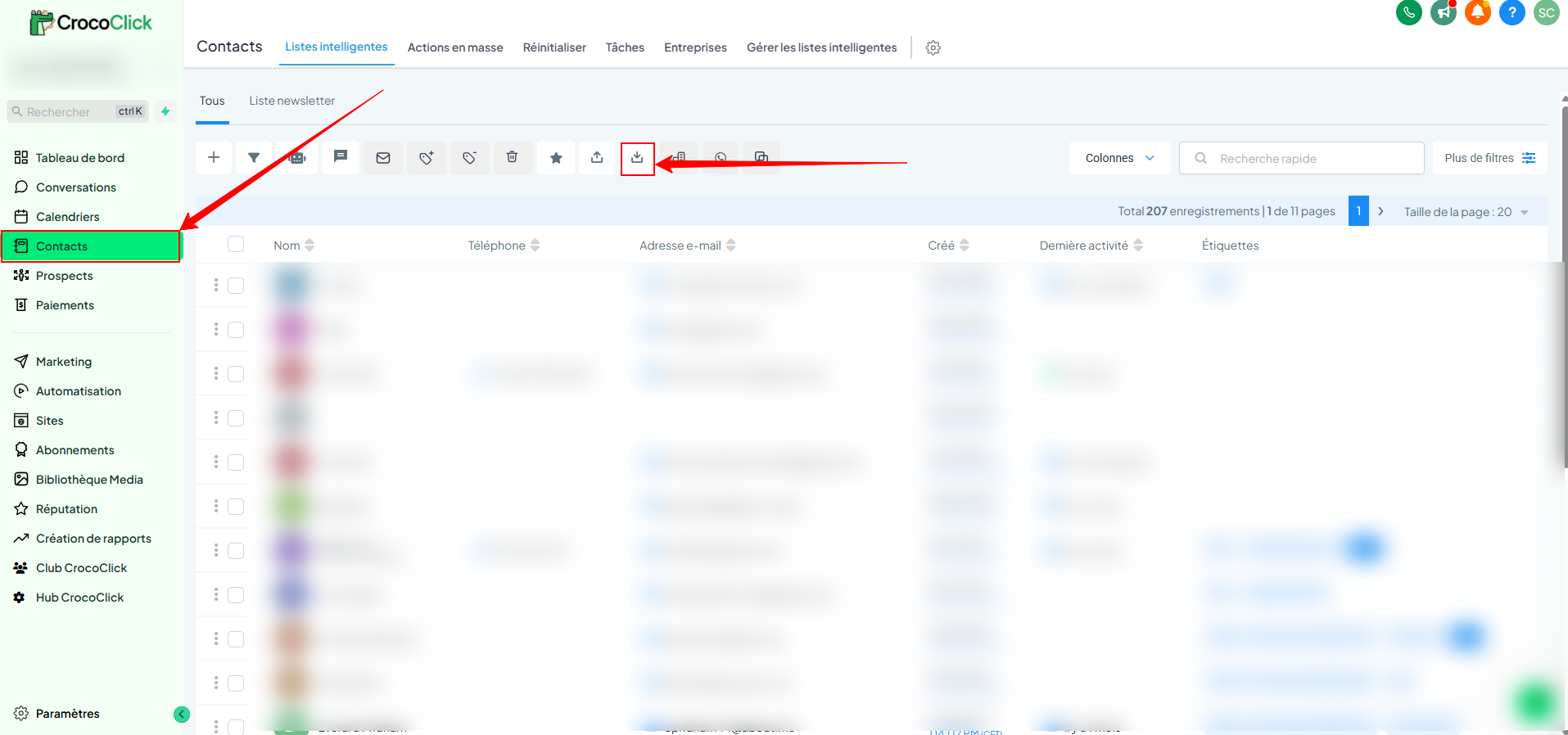
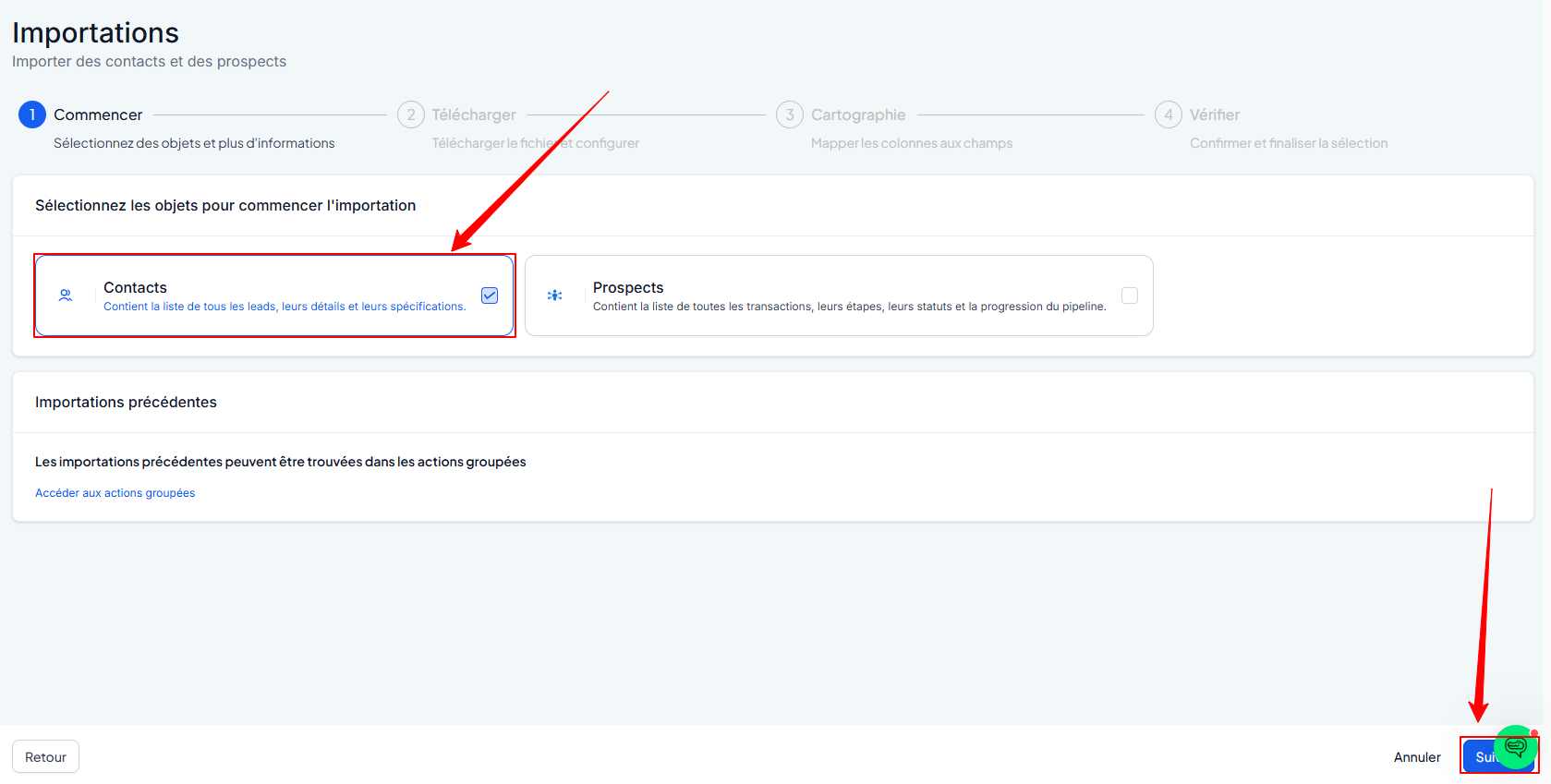
Select "contacts" (you can also check "prospects" to import prospects into a pipeline) and click Next to proceed to the next step.
2. Upload the file
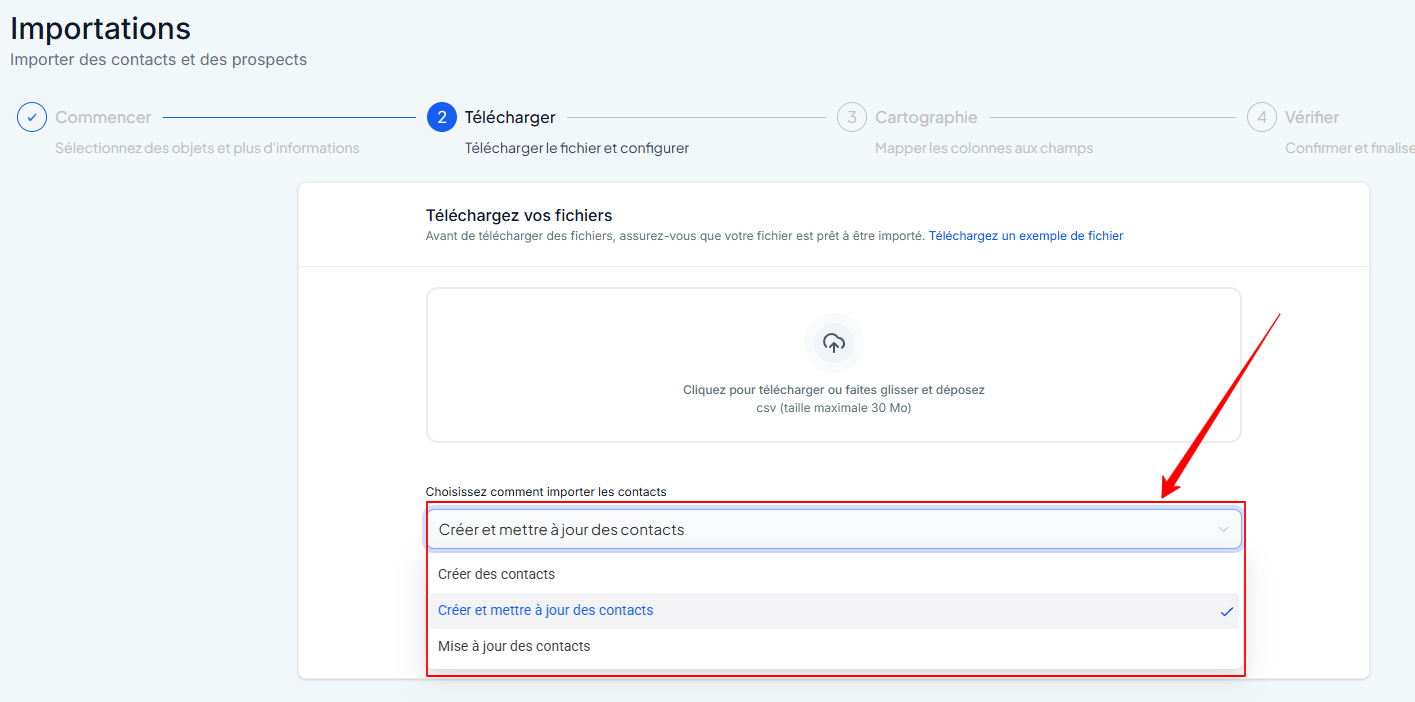
Drag and drop your CSV file or click on the upload box and select your file.
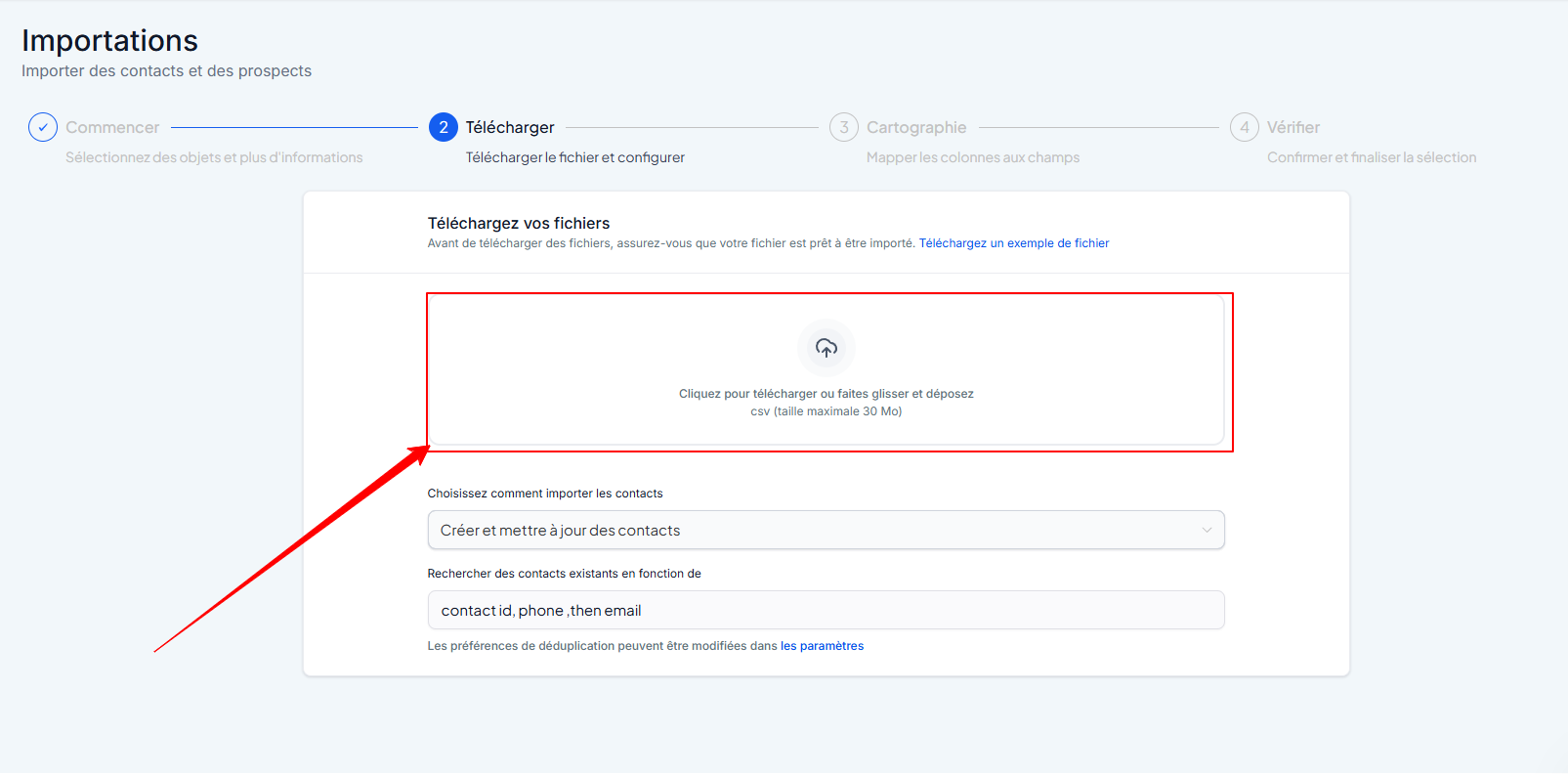
Choose the option to import your contacts and click Next.
3. Map columns and fields
Field mapping is necessary to specify how the data will fit into CrocoClick fields.
Match the fields in your CSV file with the appropriate fields in the system to ensure data accuracy.
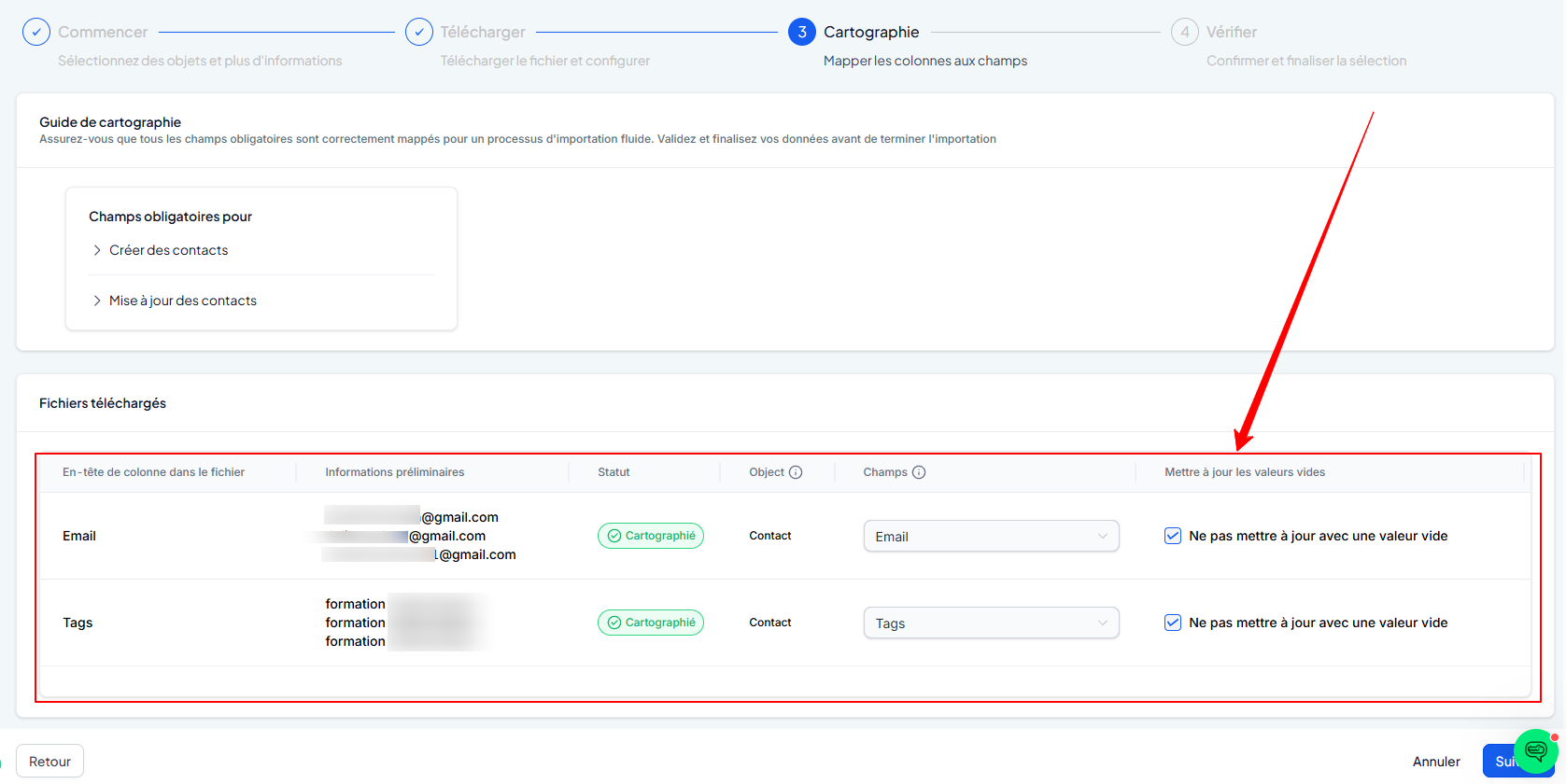
Click Next.
4. Verify and finalize the import
You can:
Create a smart list for your imported contacts
Add them to an automation
Assign one or more tags to them
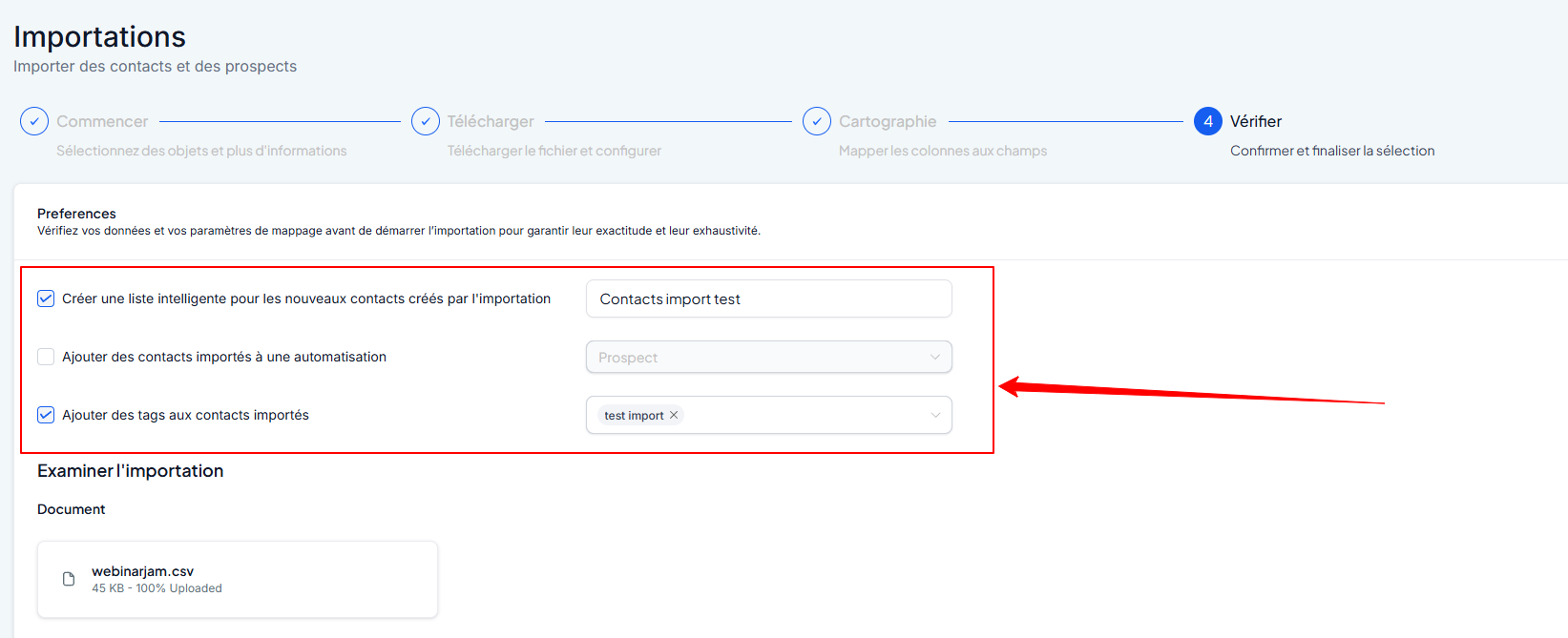
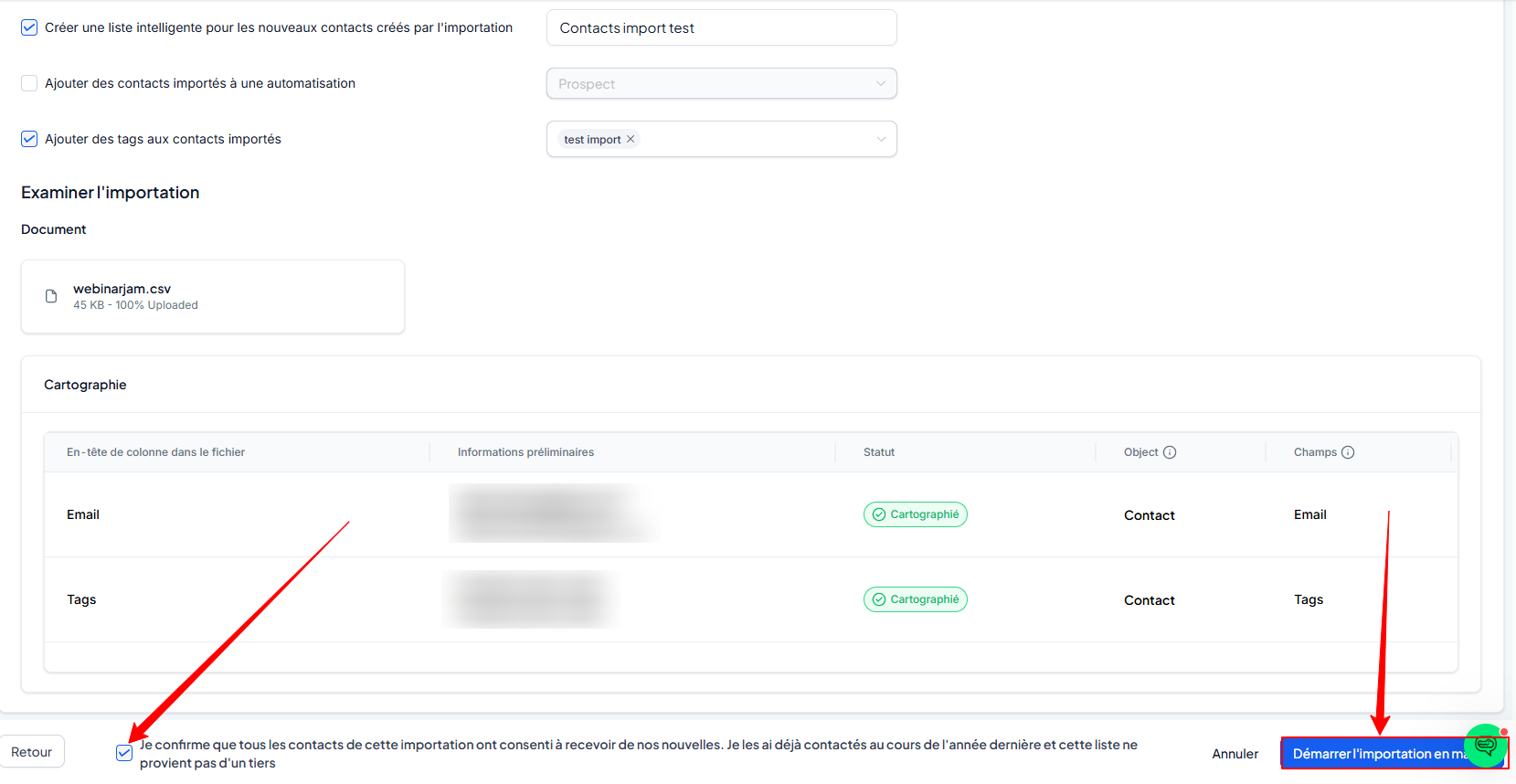
Check your matches to ensure that each data field is correctly associated, and then:
Check the consent confirmation box
Click "Start bulk import"
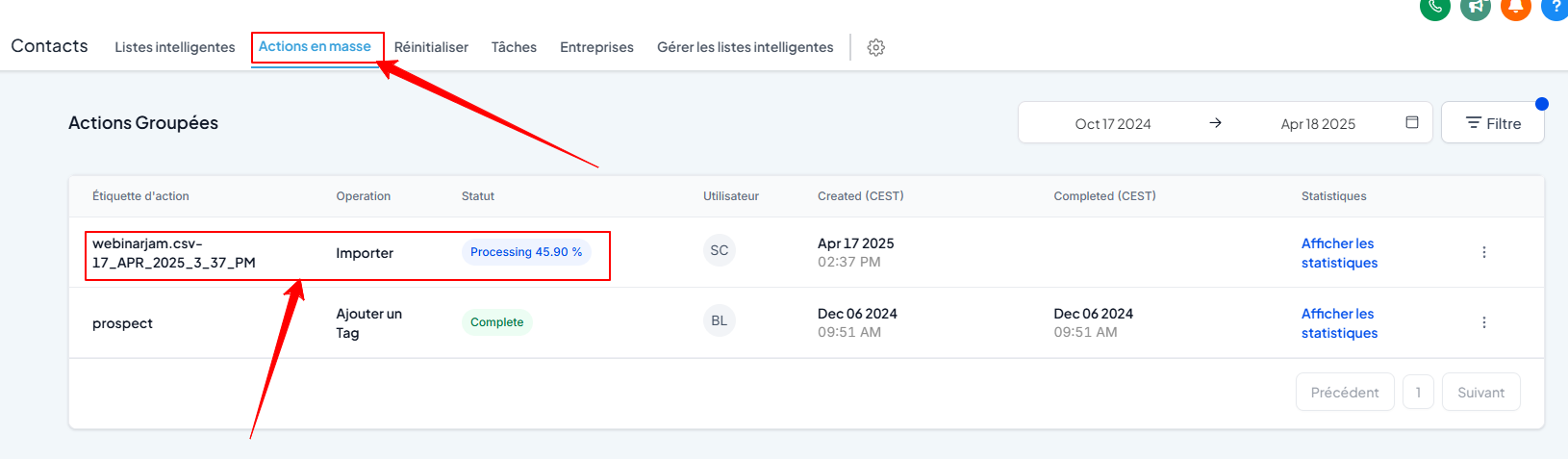
5. Track the progress of the import
Refresh the Contacts page.
Go to Contacts > Bulk Actions to check the status and details of the import.
💡 TIP: Each contact record must contain at least one phone number or email address for the import to be successful. A simple list of names will not work.
FAQ
1. Some of my contacts have multiple email addresses and/or phone numbers. What should I do?
If a contact has multiple phone numbers or emails, split the contacts into several so that they can be uploaded.
Example:
Original with two columns of phone numbers:
Cleaned up for the downloaded version:
Conclusion
With CrocoClick's CSV import feature, you can quickly centralize and enrich your contacts. By following these steps, you can ensure that your database is clean and ready to power your campaigns. If you have any questions, our support team is here to help.
To perform the reverse operation, learn how at export your contacts..