Managing "Tasks" in CrocoClick
Discover how to manage your tasks in CrocoClick: creation, assignment, advanced filters, intelligent sorting, grouped actions and automation via workflows. Optimize your organization and collaborate effectively with your team.
Written By CrocoTeam
Last updated 8 months ago
Task management in CrocoClick allows you to organize your actions, track your deadlines, and collaborate effectively with your team. Here is a comprehensive guide to help you take advantage of all the features.
1. Access the Task List view
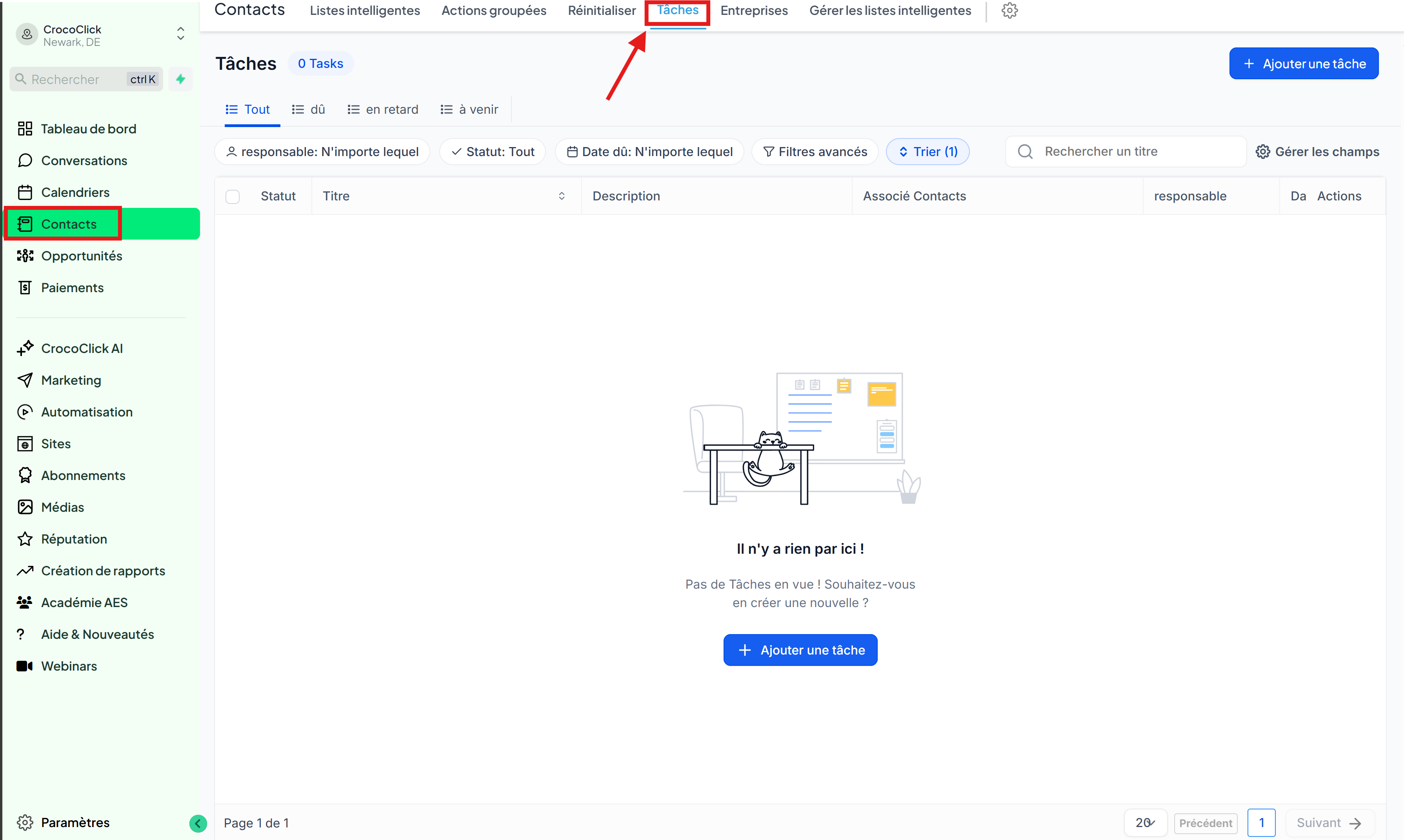
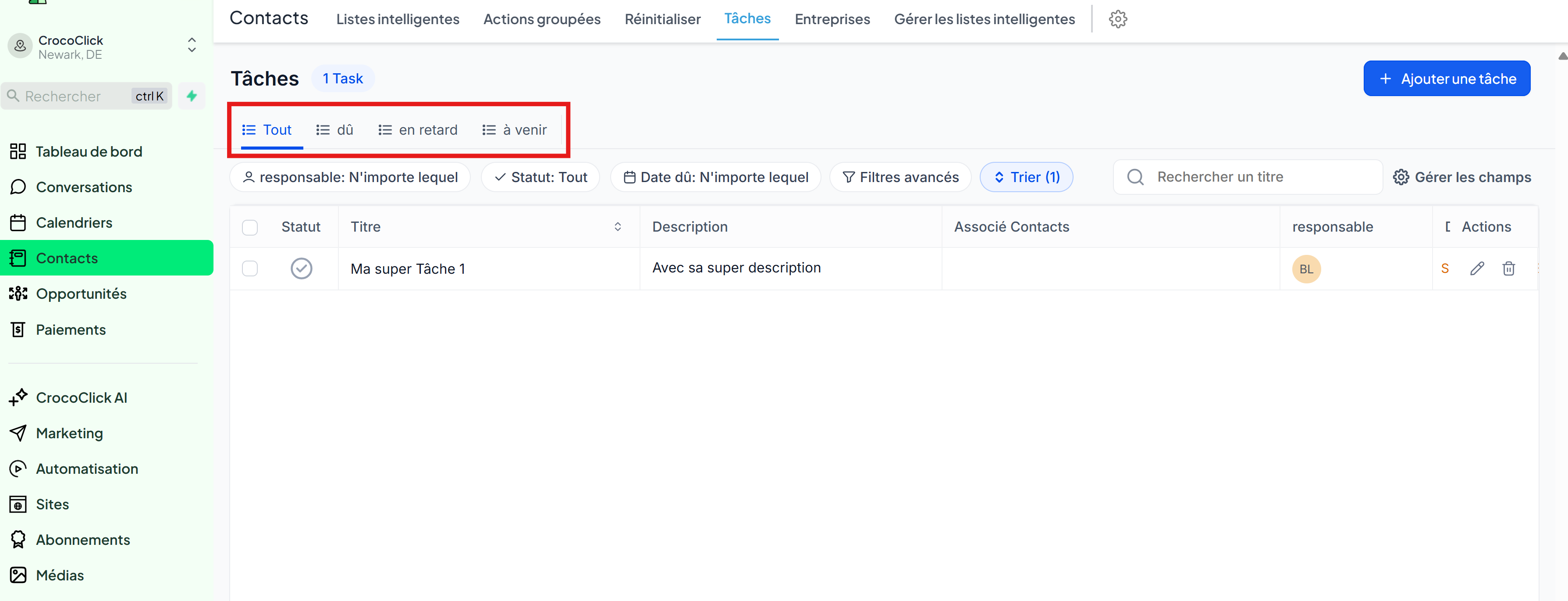
Go to Contacts > Tasks from the main menu.
Explore the enhanced view with filters, sorting options, and bulk actions available at the top of the list.
👉 Ideal for getting a clear view of your upcoming deadlines.
2. Create a New Task
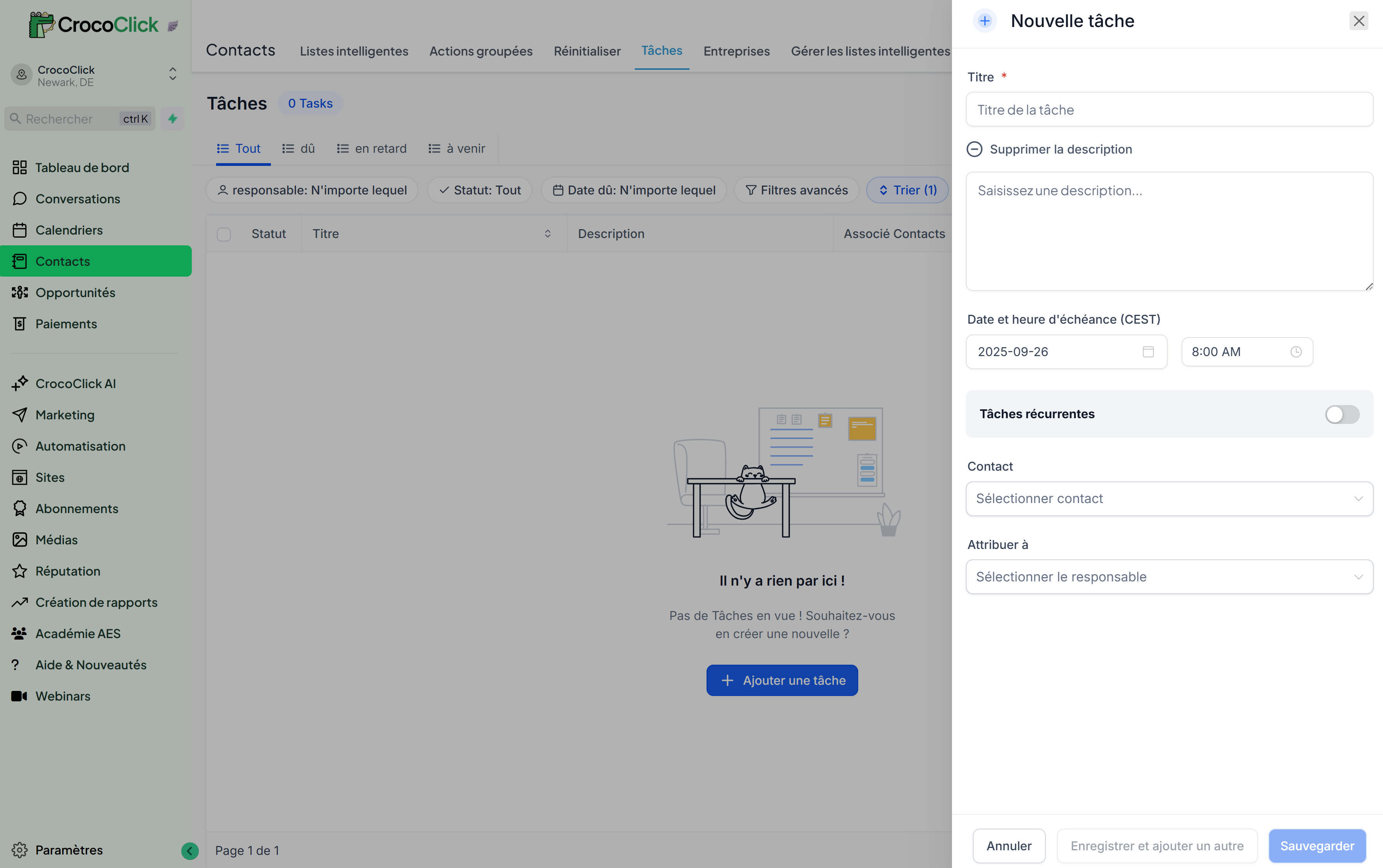
Click on + Add Task at the top right.
Fill in the following fields:
Title: a short description of the task.
Description (optional): add more details with rich text (bold, colors, links, etc.).
Due date and time: set a specific deadline.
Recurring task (optional): enable to create a repeat task with a custom frequency.
Contact (optional): associate the task with a specific contact.
Assigned to (optional): designate a team member to be responsible.
Click Save (to switch to edit mode) or Save and Add Another (to continue creating).
3. Manage Tasks
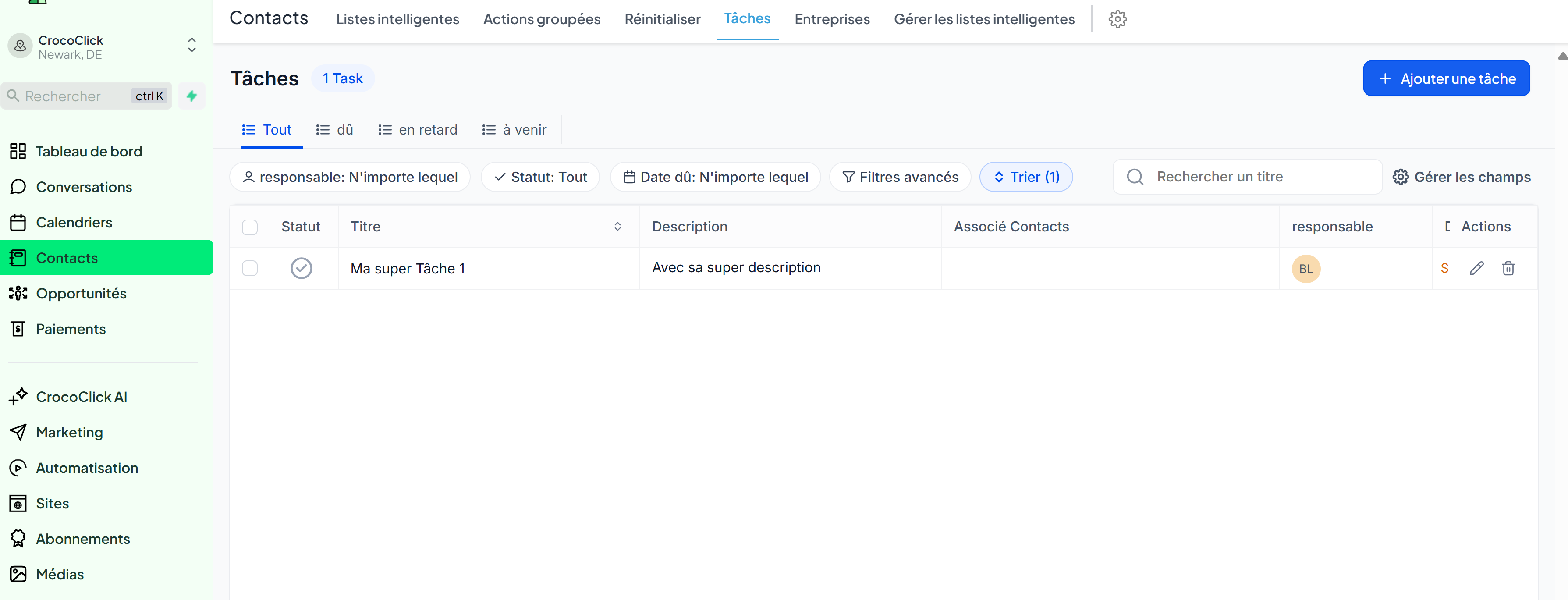
Edit a task: click on the title or pencil icon.
Delete a task: select the task and click Delete.
ℹ️ Deleted tasks can be restored for 2 months.
Bulk actions: select multiple tasks and apply an action (mark as complete, delete, etc.).
4. Advanced Filters
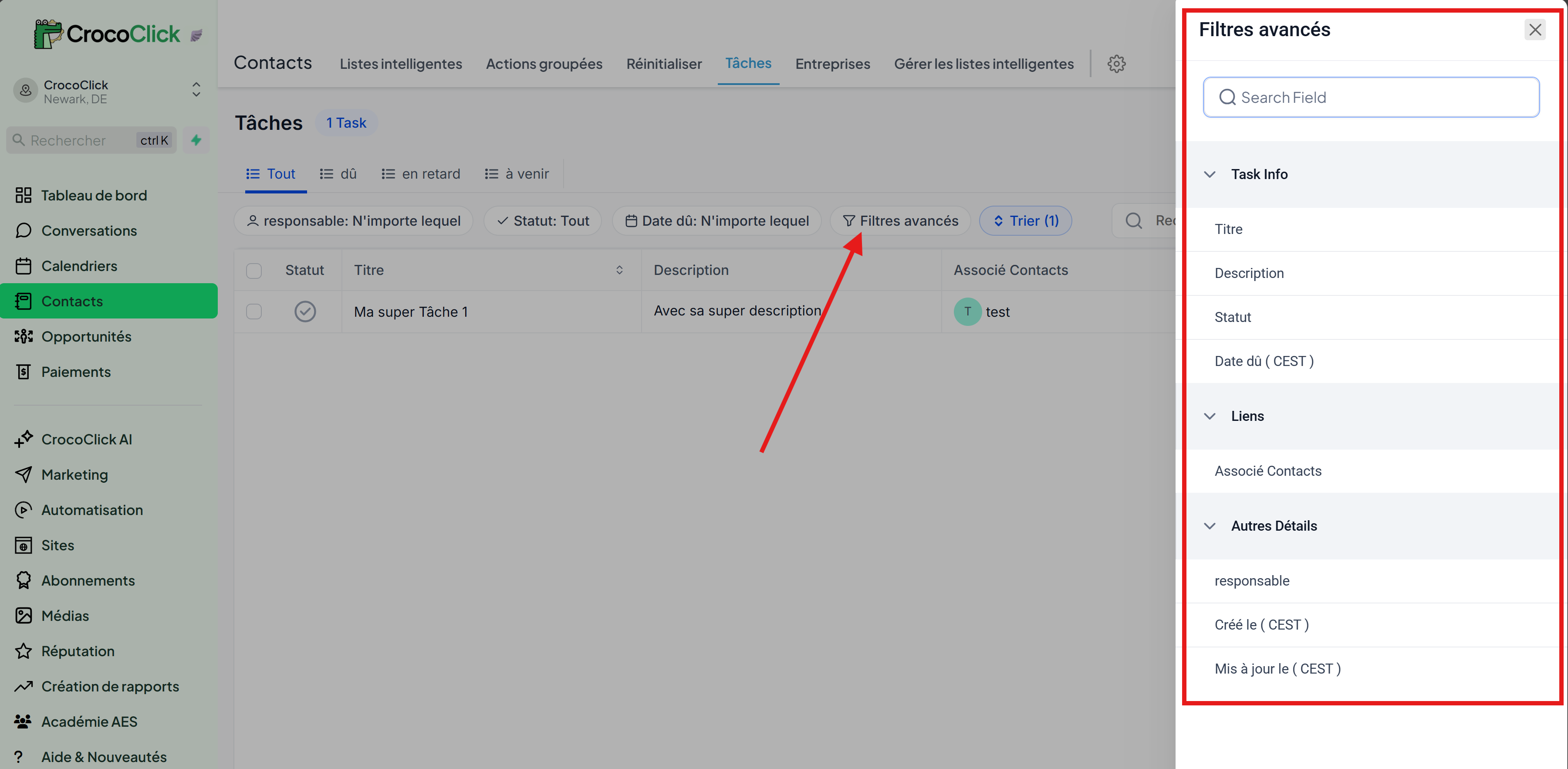
Refine your searches with Advanced Filters:
Assigned to
Status: All, Today, Overdue, Upcoming
Due date
Custom Fields (if configured)
5. Sort Options
Reorganize your tasks for clarity:
Due Date
Title
Creation date
Update date
Frequently Asked Questions (FAQ)
Q: How do I schedule a task with a specific date and time from an automation?
A: Use the "Add Task" action in the automation. Switch the Due Date field to Dynamic Mode to enter an exact date and time (e.g., 05-30-2025 3:00 PM) via a custom value or dynamic variable.