How CrocoClick handles unsubscribes with its DND (Do Not Disturb) function
CrocoClick uses the 'Do Not Disturb' (DND) function to manage unsubscriptions and respect your contacts' preferences.
Written By CrocoTeam
Last updated 8 months ago
The Do Not Disturb (DND) feature in Crococlick allows you to prevent your contacts from receiving certain communications while keeping their information in your database.
This helps you respect your contacts' preferences, such as their desire to receive estop receiving e-mailss or text messages, without deleting their records.
Here is a detailed guide on how to use this feature, why it is important, and how you can apply it in CrocoClick.
Why use the Do Not Disturb (DND) feature?
Respecting contact preferences: Your contacts may unsubscribe from certain communications (such as emails) while still wanting to receive text messages or other notifications. The DND feature allows you to manage this effectively.
Improved deliverability: By offering the option to unsubscribe, you reduce the risk of your communications being marked as spam, which can damage your sender reputation.
Contact retention: Even after unsubscribing, you retain contact information for other possible interactions, such as a follow-up via a different channel.
How do I enable or disable the Do Not Disturb (DND) feature for a contact?
Here are the steps to manage your contacts' DND preferences:
1. Access the contact record:
Go to the Contacts section of CrocoClick and select the contact you want to modify.
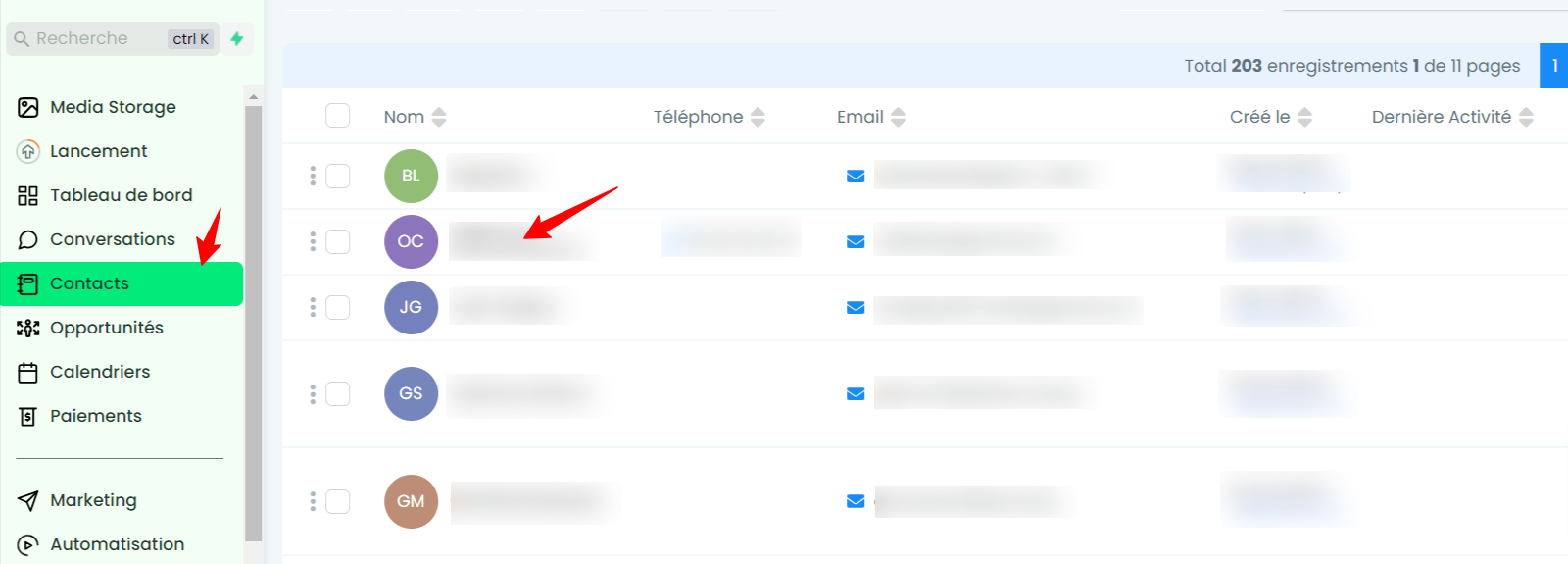
2. View the Do Not Disturb (DND) status:
In the left panel, scroll down to the DND section.
You will see several checkboxes corresponding to different communication channels (email, SMS, Facebook Messenger, WhatsApp, etc.).
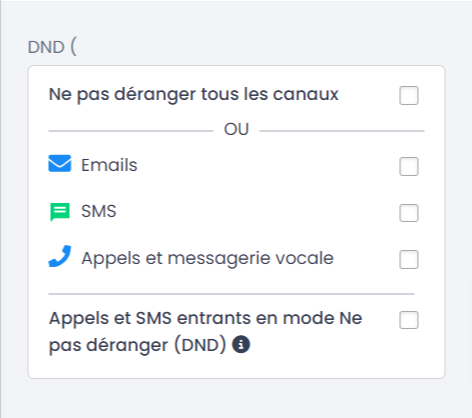
3. Enable or disable DND:
Check the boxes for the channels for which you want to enable DND mode (e.g., to block SMS but allow emails).
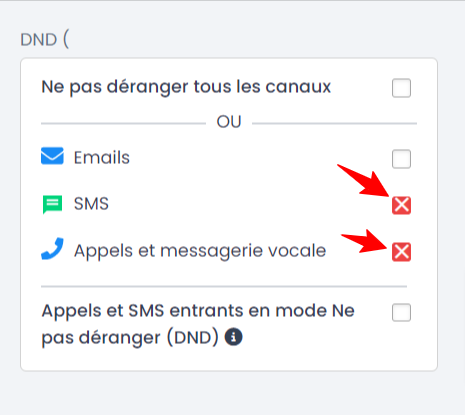
💡 TIP: If a contact informs you that they want to continue receiving emails but no longer want to receive SMS messages, simply check the "SMS" box and leave the "Emails" box unchecked.
3 ways to automate crococlick's DND feature
The NPD feature can be automated in several ways to make it easier to manage your contacts' unsubscriptions and communication preferences.
1. Use an unsubscribe link:
Add an unsubscribe link directly to your emails or SMS messages. When your contacts click on this link, their Do Not Disturb status will be automatically activated for the relevant channel (email or SMS). This ensures that you respect their communication preferences without the need for manual management.
💡 TIP: By default, we include an unsubscribe link at the bottom of all your emails. To customize this link, see our dedicated page.
2.Set up keyword triggers:
Set up automatic triggers based on keywords in your account settings.
If a contact sends one of these keywords via a channel (WhatsApp, Messenger, SMS, etc.), DND status will be activated for that channel. This prevents unwanted communications and improves the user experience.
💡 TIP: For example, if a user replies "STOP" to a marketing SMS, the system automatically activates DND mode for SMS.
3.Automate events in automations:
Integrate DND status into your automations. For example, you can create automations that trigger specific actions when DND status is enabled or disabled for a contact. This allows you to automatically manage communication preferences without manual intervention.
💡TIP: For example, you can set it up so that filling out a registration form disables DND, allowing former unsubscribers to re-subscribe to your email list.

💡 TIP: If a contact unsubscribes from a communication in CrocoClick (for example, an email), DND status will be enabled by default for all channels. This means that the contact will no longer receive any communications, unless you manually adjust their DND status for specific channels.
DND management for emails
Automatic DND management for emails
Do Not Disturb mode for emails is automatically activated in the following cases:
→ In case of deliverability failures (such as permanent bounces or spam complaints).
→ If a recipient unsubscribes or marks your email as spam.
Removing DND status for emails
You can manually disable DND for an email by unchecking the box in the contact record or by setting up an automation. For example, you can create an automation so that when a prospect fills out a registration form, DND is disabled (allowing the contact to resubscribe).
Create a smart list with all contacts except DND emails
The active list is essential to ensure that your email campaigns are not sent to contacts who have enabled the DND option. This allows you to maintain accurate statistics.
Go to the "Contacts" section
.Create a new smart list
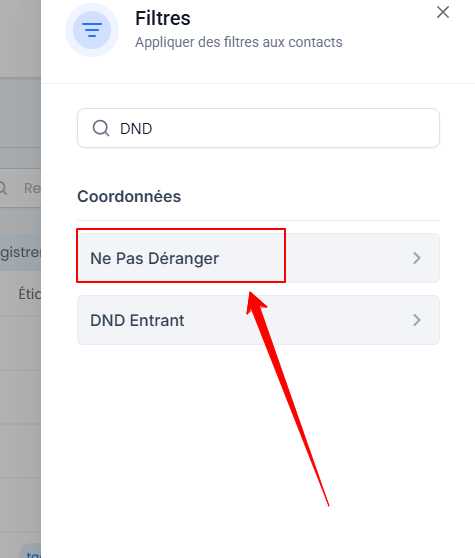
Click on More filters in the top left corner.
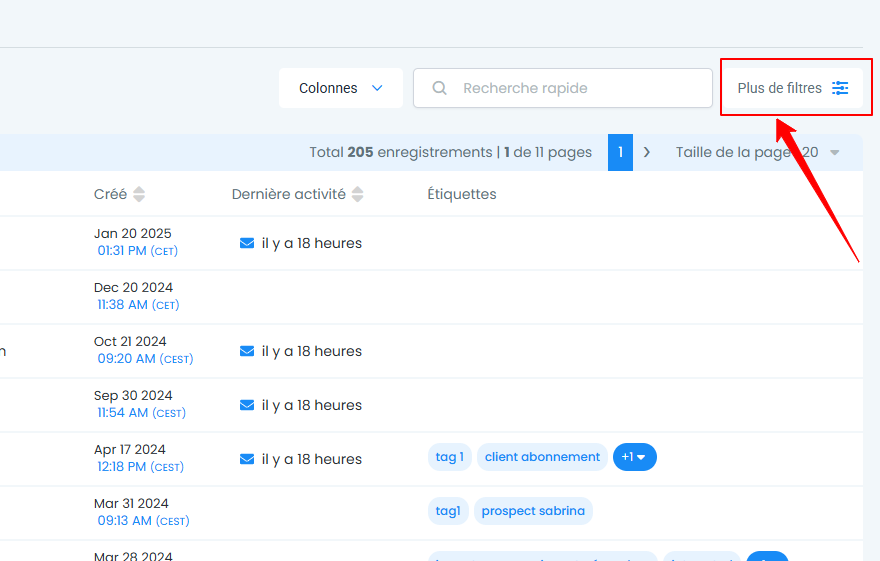
Add a filter to exclude DND contacts
In the filter options, select the DND or Do Not Disturb criterion.
Configure it to include only contacts with the DND option disabled.
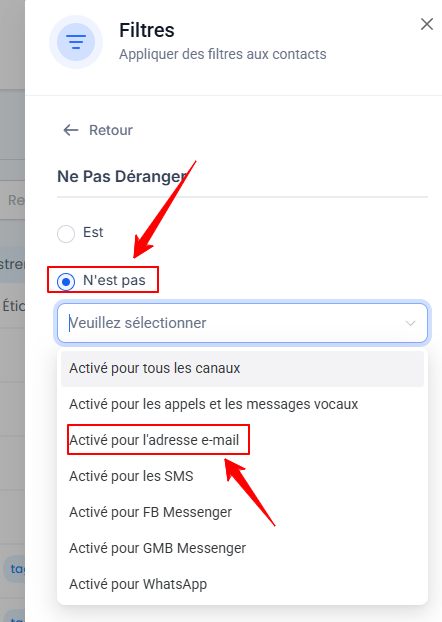
Add other filters if necessary
If you want to refine the list even further (for example, to include only contacts with a certain etag), you can add other filters.
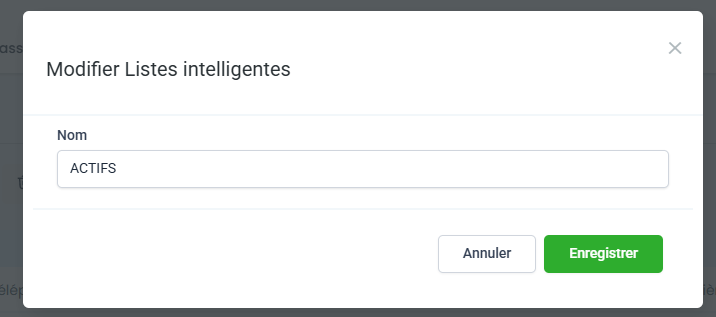
Save the list
Give your list a name, such as "ACTIVE."
Click Save to confirm.
Managing DND for SMS
Automatic activation of DND via SMS
DND mode for SMS is activated in two main situations:
→ If a contact uses an unsubscribe keyword (such as "STOP" or "UNSUBSCRIBE").
→ If specific error codes are received, indicating problems such as number inactivity or blocking by the operator.
Types of DND for SMS
→ Temporary DND: This status applies to temporary error codes (e.g., codes 30003, 30005, 30006). You can update this status directly in the contact record.
→ Permanent DND: This status applies to permanent error codes (such as code 30004 or the use of an unsubscribe keyword). To remove this status, the contact must send a new keyword such as "START," or you must provide proof of acceptance to justify removing the block.
Conclusion
CrocoClick's Do Not Disturb (DND) feature allows you to respect your contacts' communication preferences while maintaining the ability to interact with them through their preferred channels.
With this feature, you can not only improve the user experience, but also protect your sender reputation by avoiding spam reports.