One-click registration for CrocoLive events
Discover how to use CrocoLive one-click registration links to automatically register your contacts for your CrocoClick webinars, without the need for a form, thanks to dynamic CRM variables.
Written By Baptiste Lorreyte
Last updated 6 months ago
CrocoLive lets you register your contacts for an event (live, automated, or series webinar) with a single click, without having to fill out a form.
This feature is ideal for speeding up registration when you already have the contact’s information in your CRM or email marketing tool.
What are one-click registration links used for?
A one-click registration link allows you to:
Automatically pre-fill the participant’s information
Register a contact for a CrocoLive event without them having to enter anything
Streamline the user experience
Increase attendance at your events
Here’s how it works:
👉 The contact clicks the link
👉 They are immediately registered for the scheduled session
⚠️ Important: Terms of Use
This feature is intended for advanced users only.
It should only be used in the following cases:
You already have the contact’s explicit consent
The contact’s data already exists in your CRM or email tool
You simply want to avoid having the contact re-enter their information
❌ It is strictly prohibited to use one-click sign-up links to:
Automatically sign up contacts retrieved without consent
Scraping emails from a website
Send unsolicited sign-ups
Any misuse may result in immediate account suspension.
If in doubt, contact CrocoClick support.
Compatible CrocoLive events
One-click sign-up links work with:
Live webinars
Automated webinars
Instant/Just-In-Time webinars
Webinar series
Step 1: Get the one-click registration link
Go to the CrocoLive dashboard
Open the links menu for the relevant event
Click on Get Links
Select Get one-click registration links
Select One-click Registration Links
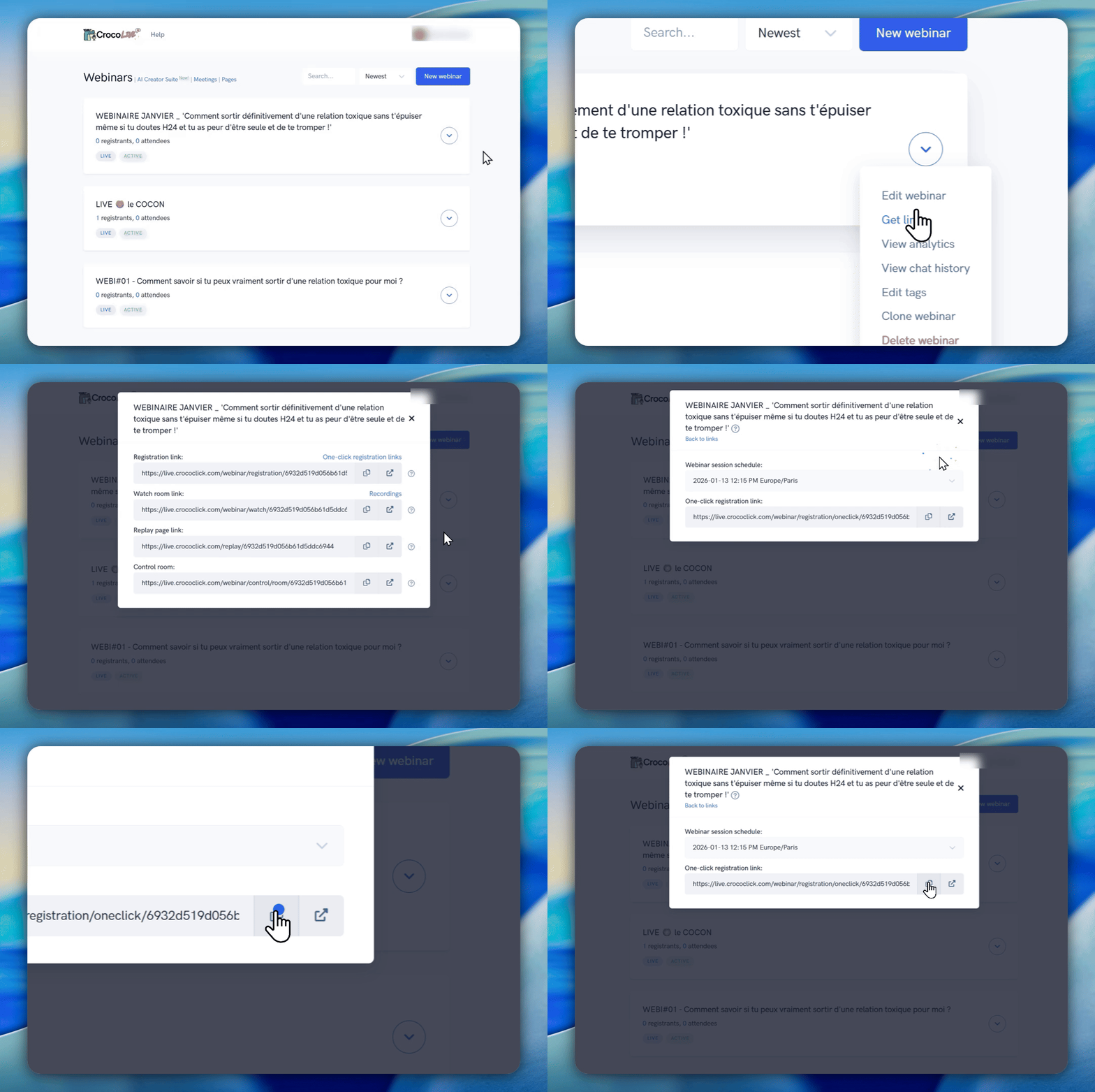
Step 2: Choose the event session
When generating the link, you can choose:
A specific date and time
A recurring session (e.g., next session Friday at 3:00 PM)
A Just-In-Time session
An instant session
Then copy the generated link.
Step 3: Add the contact’s information to the link
The principle is simple: you add the contact’s data directly to the URL by adding &
Simple example with an email address
https://votre-lien-crococlive-copié.com?date=jit_15&email=contact@email.com
Here:
&email=contact@email.comautomatically populates this specific contact
Fields supported in registration links
You can pass the following fields:
emailfirst_namelast_namephone_number_country_codephone_numbercustom_field_1tocustom_field_5
For each field, add a &
Example of a complete link with multiple fields
https://votre-lien-crococlive.com?date=jit_15&email=contact@email.com&first_name=Joe &last_name=Schmo&custom_field_1=Information+personnalisée Use with your CrocoClick CRM (or another)
The true power of one-click signup links becomes apparent when combined with the dynamic personalization of your CRM or email tool.
Simply replace the fixed values with dynamic variables.
Examples of personalization with CrocoClick
Here are the dynamic variables to use in your CrocoLive one-click sign-up links:
email={{contact.email}}
first_name={{contact.first_name}}
last_name={{contact.last_name}}
phone_number={{contact.phone}}
Example of a CrocoLive link with CrocoClick
https://votre-lien-crococlive.com?date=jit_15&email={{contact.email}}&first_name={{contact.first_name}}&last_name={{contact.last_name}}
Every contact who receives the email will be automatically registered with their own data, without any form.
💡TIP: To make your job easier, here’s the part to paste at the end of your URL
&email={{contact.email}}&first_name={{contact.first_name}}&last_name={{contact.last_name}}&phone_number={{contact.phone}}
💡TIP: And if you only ask for the “first name” and “email” during registration, just paste this at the end of your URL
&email={{contact.email}}&first_name={{contact.first_name}}
Examples with other platforms
ActiveCampaign
email=%EMAIL%
first_name=%FIRSTNAME%
last_name=%LASTNAME%
Aweber
email={!email}
first_name={!firstname}
last_name={!lastname}
ClickFunnels
email=#EMAIL#
first_name=#FIRST#
last_name=#LAST#
phone_number=#PHONE#
ConvertKit
email={{ subscriber.email_address }}
first_name={{ subscriber.first_name }}
GetResponse
email=[[email]]
first_name=[[firstname]]
last_name=[[lastname]]
Keap
email=~Contact.Email~
first_name=~Contact.FirstName~
Mailchimp
email=*|EMAIL|*
first_name=*|FNAME|*
last_name=*|LNAME|*
👉 Each tool has its own syntax. Be sure to check your platform’s documentation.
Typical use case
You have a list of qualified contacts in CrocoClick
You send an email invitation to a CrocoLive webinar
Each contact receives a personalized link
One click = immediate registration
Result:
✔ less friction
✔ more registrants
✔ more participants
In summary
CrocoLive one-click registration links provide:
A seamless experience for your contacts
Advanced automation of your registrations
Seamless integration with your CRM and email campaigns
To be used methodically, with consent, and with systemic intelligence 🐊