[GUIDE] Create and broadcast your first CrocoLive
Discover how to create and broadcast your first CrocoLive: configuration, registration, live or automated broadcasting, replay, emails and automations. The complete step-by-step guide.
Written By CrocoTeam
Last updated 7 months ago
Welcome to the complete guide to launching your first CrocoLive 🎉
Whether you're organizing an interactive live event, an automated webinar, or a series of sessions (challenge, summit, etc.), this guide will walk you through the steps to set up, customize, and broadcast your events.
Create a new CrocoLive
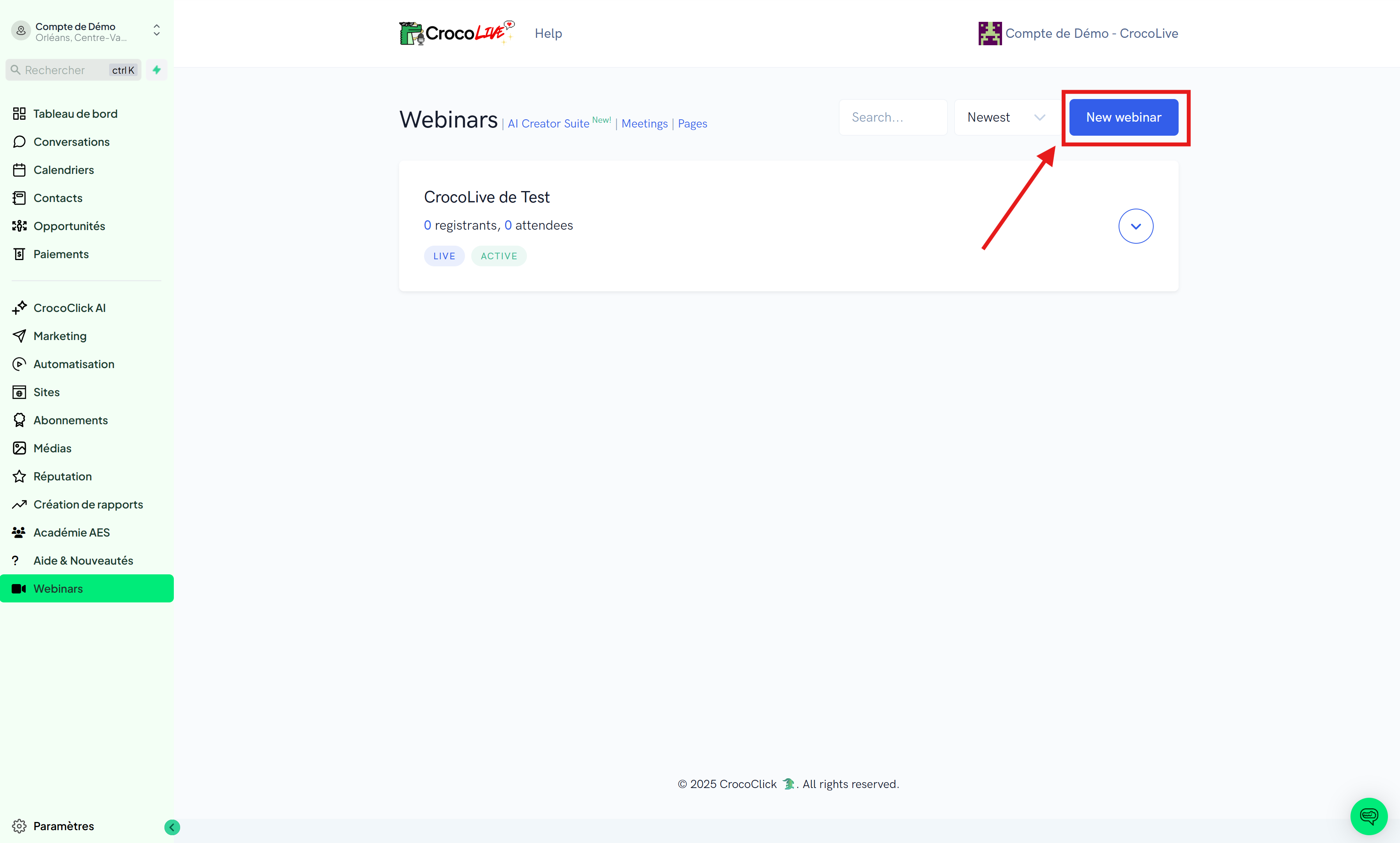
Access the CrocoLive dashboard
When you log in to your account for the first time, you will be taken to the CrocoLive dashboard.
On this page, you will see:
A list of all your previously created CrocoLives.
A "New CrocoLive" button, which allows you to start creating a new event.
This dashboard is your control center: here you can manage your past, current, and scheduled sessions.
Choose the type of CrocoLive
When you click on "New CrocoLive," a drop-down menu will offer you several options:
LIVE WEBINAR (CrocoLive Live): a classic live session where you interact with your audience.
AUTOMATED WEBINAR (Automated CrocoLive): a pre-recorded webinar broadcast as if it were live.
WEBINAR SERIES (CrocoLives Series): a series of several sessions over several days, ideal for organizing a challenge or summit.
Access settings
Once the CrocoLive has been created, you are automatically redirected to the settings page.
This is where you will configure the details, schedule, registration page, broadcast room, and automations.
Configure the Live Webinar (STEP 1)
Set up the Basic Details
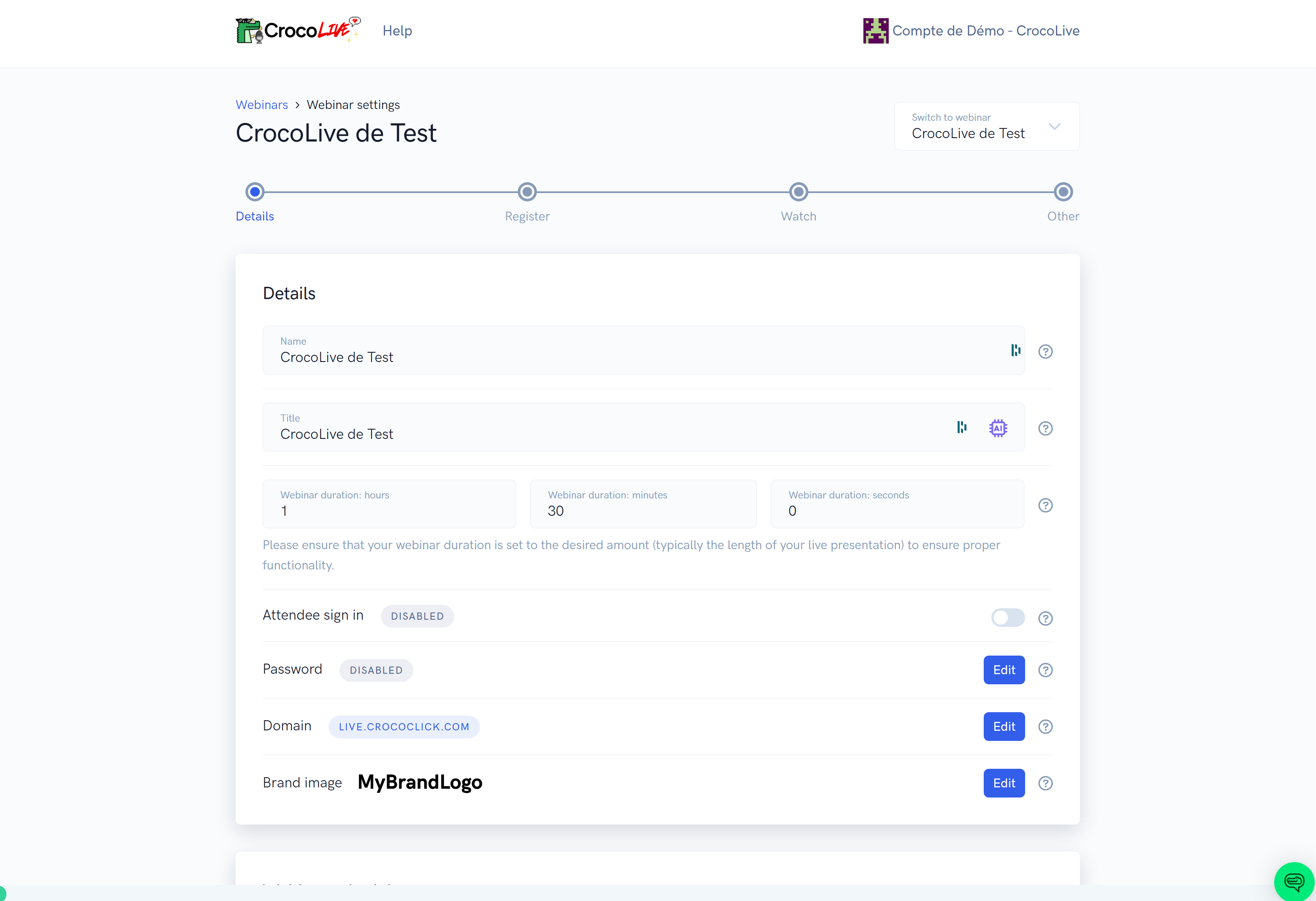
Name (internal)
The CrocoLive name is reserved for internal use. It will never be visible to your registrants or participants.
Title (public)
The title is visible everywhere: embedded emails, browser tabs, registration pages. Choose it carefully, as it is the first thing that will draw attention to your event.
CrocoLive Duration
Specify a precise duration. For a live event, estimate your broadcast time. For an automated event, enter the exact duration of the video.
This affects your statistics and the triggering of reminders or post-event emails.
Attendee Sign-in
We recommend enabling this option so that your participants are required to register with their email address before entering the room.
This allows for more accurate tracking of participants and better segmentation.
💡TIP: Read our article dedicated to the "Attendee Sign-in" option for more information.
Password Protection
You can set a password to secure access to your broadcast room. Ideal for content reserved for a specific audience.
Custom domain and logo
Add your logo and select a custom domain (coming soon) to reinforce your branding throughout the participant journey.
Schedule your sessions
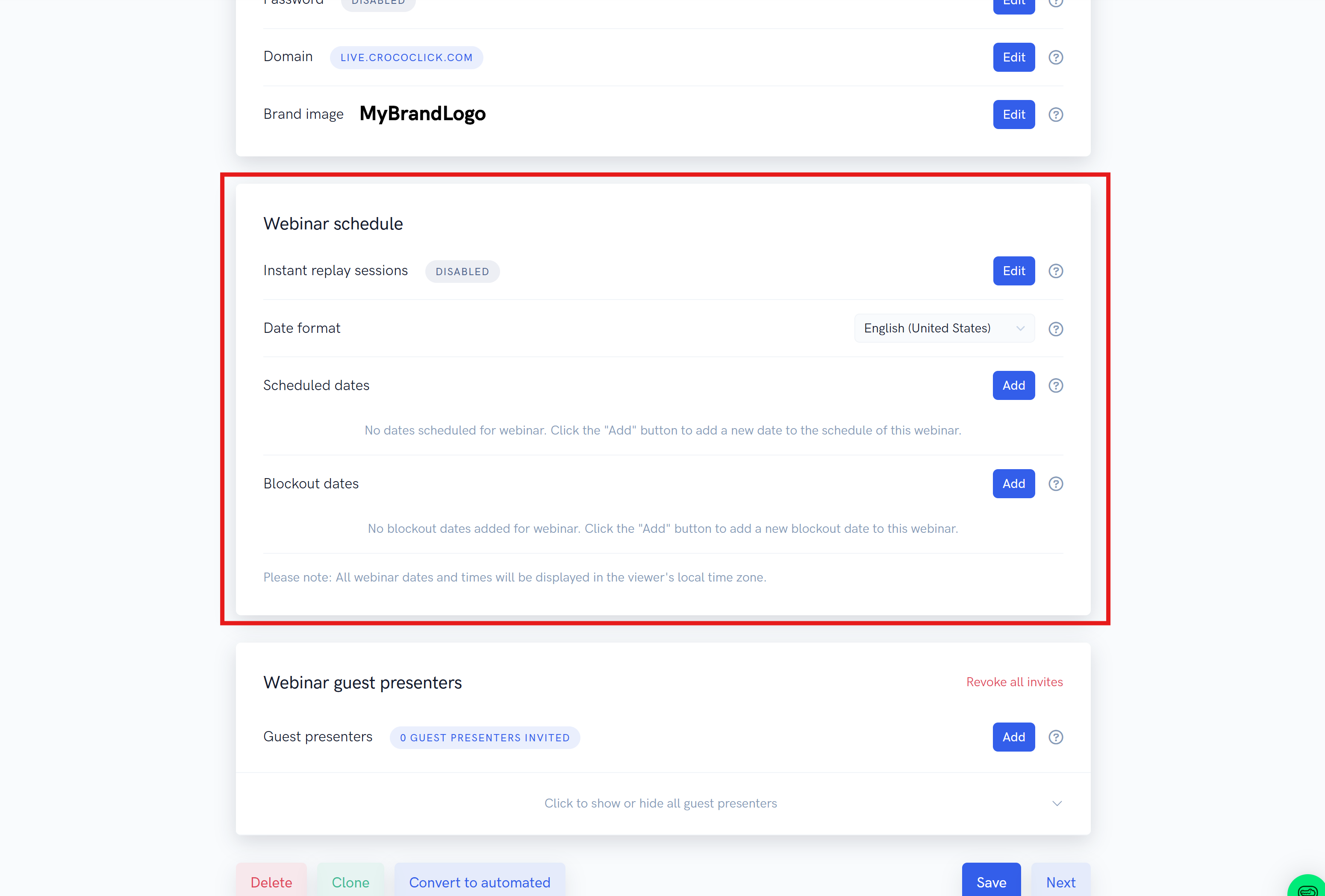
Instant Replay Session
Activate a "Watch Now" option directly from the registration page. Registrants will then have the choice of immediately accessing a replay or an automated webinar.
Date format
Customize the format according to the language and country of your audience (FR, US, etc.).
Scheduled Sessions
Add specific or recurring dates: for example, every day at 7 p.m.
You can also allow entry during the session.
You also have the option to block specific dates. For example, you can set up a live session every Friday at 11 a.m., but block Friday, September 24 so that this session is skipped.
Additional Options
Depending on whether it is a "Live" Webinar or an "Automated" Webinar, you have additional options:
Just-in-time sessions (automated webinars): This feature is reserved for automated CrocoLives. These sessions recreate the effect of a live event, with regular slots that give the impression of a permanent live event.
Webinar Guest (only visible for live webinars): You can add "guests" who will immediately receive a link by email allowing them to connect as a presenter when your live session begins.
💡TIP: Read the article on how to add several guest presenters to your live webinars for more information.
Customize registration (STEP 2)
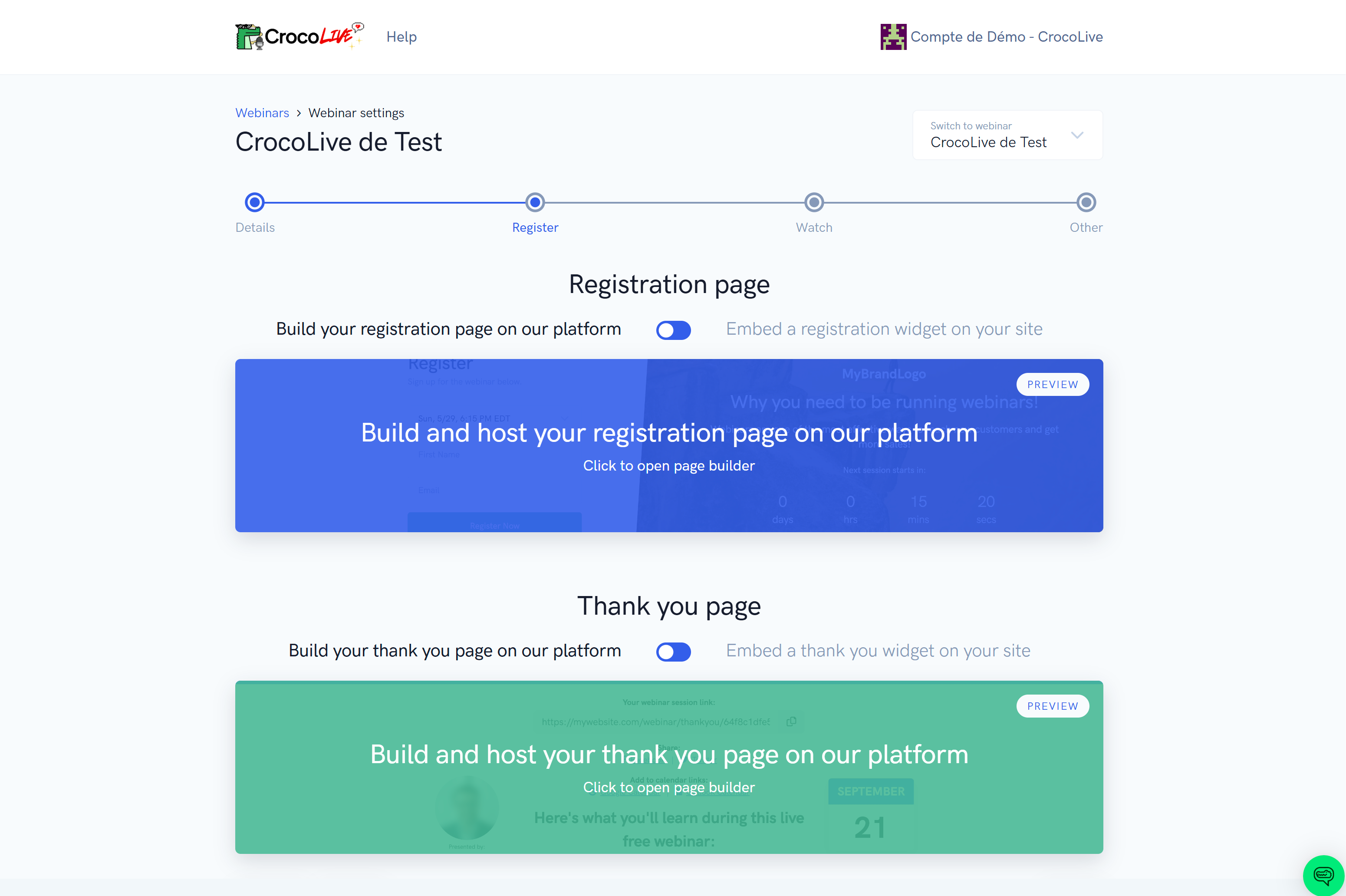
Registration page
Option 1: Created on CrocoLive (On our Platform)
CrocoLive generates a ready-to-use registration page that you can customize with text, images, videos, and forms.
Option 2: Embedded
You can insert the registration form directly on a CrocoClick page or elsewhere to collect registrations.
Thank You Page
Option 1: Created on CrocoLive (On our Platform)
CrocoLive automatically generates a thank you page after registration.
You can customize it with your text, images, and videos.
Option 2: Embedded
You can also choose to embed a thank you page widget directly on a CrocoClick page (or on your own website).
This allows you to maintain complete consistency with your design and control the user experience from start to finish.
Customize the Live and Replay Room (STEP 3)
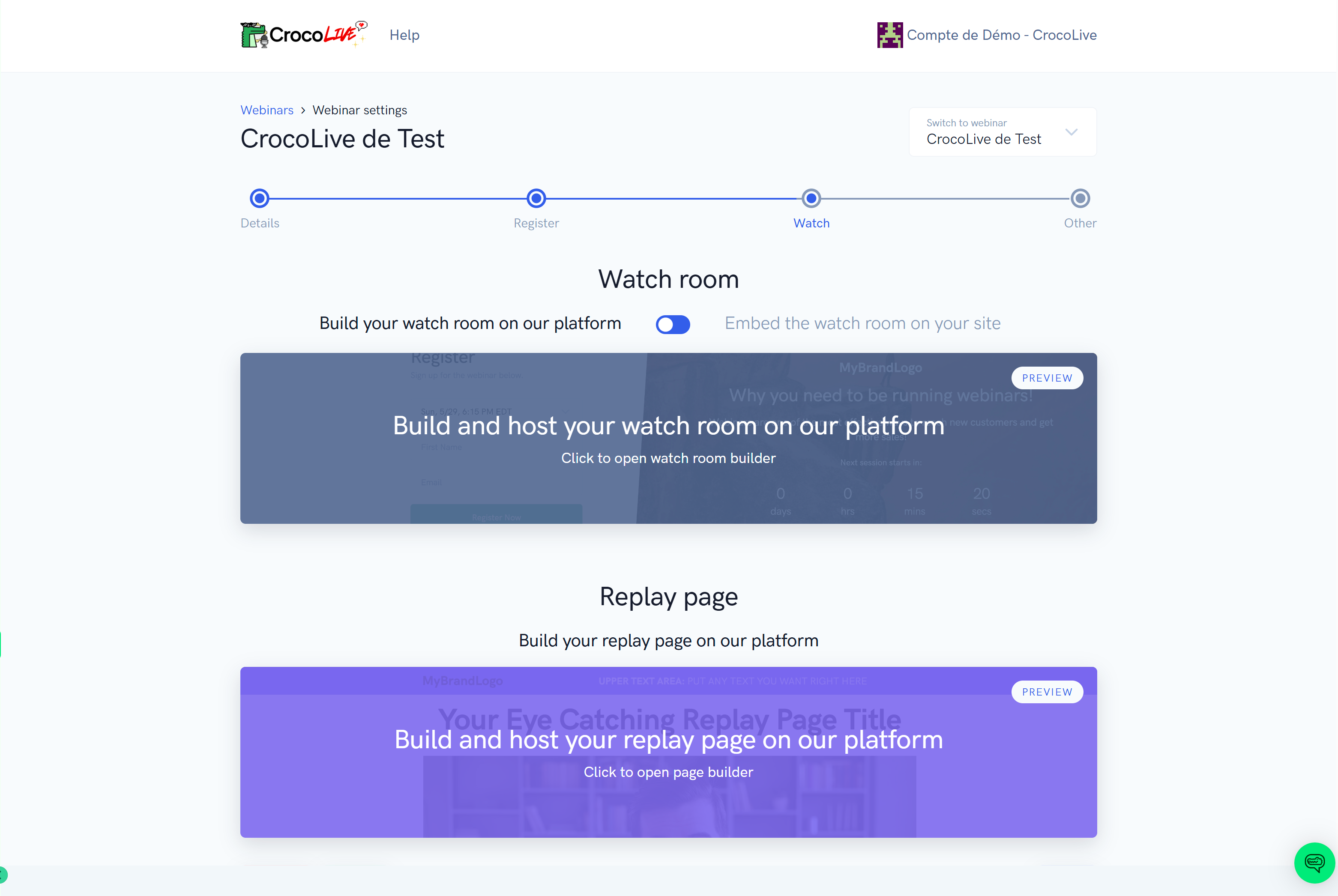
Customize the Watch Room
Add your colors, a welcome banner, a personalized message, and even a pre-live video.
You can even choose to embed the Live Room directly on one of your pages if you want!
💡TIP: To learn moreall the possible settings for the Live room, read this article
Customize the Replay page
Offer a replay page that is accessible immediately or after the event. Perfect for extending the life of your CrocoLive.
By default, all CrocoLives are recorded without you having to configure anything.
💡TIP: There is no option to embed the Replay page on your site, as you can simply download the live replay and put it on any page to turn it into a Replay page.
Configure advanced options (STEP 4)
Integrated emails
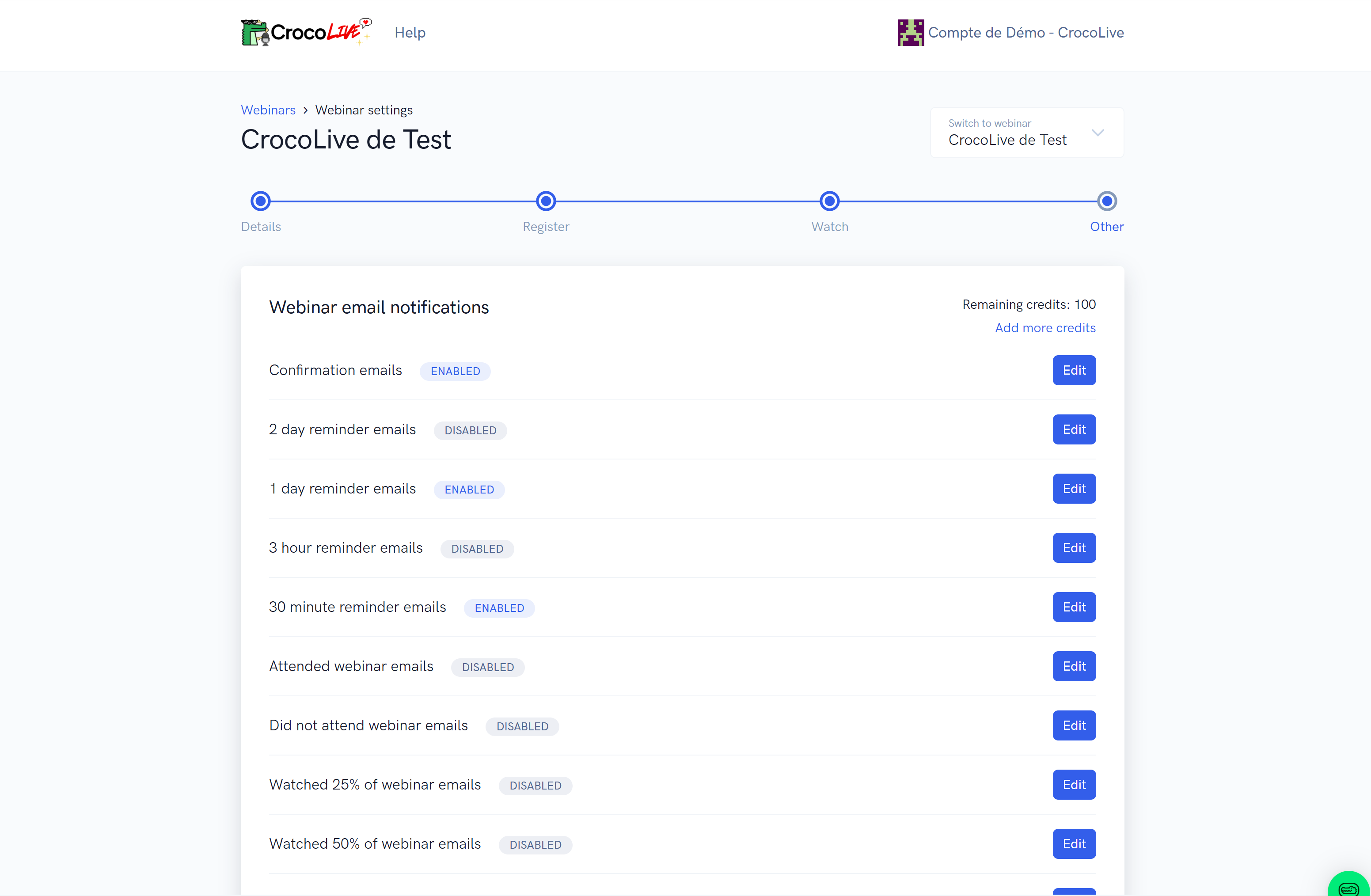
Activate automatic sequences: confirmation, reminders (1 day/30 min before), follow-up based on attendance, percentage viewed, or access to the replay.
💡TIP: Please note that this is a separate email system from the CrocoClick system. To understand the difference, read this article.
Integrated SMS
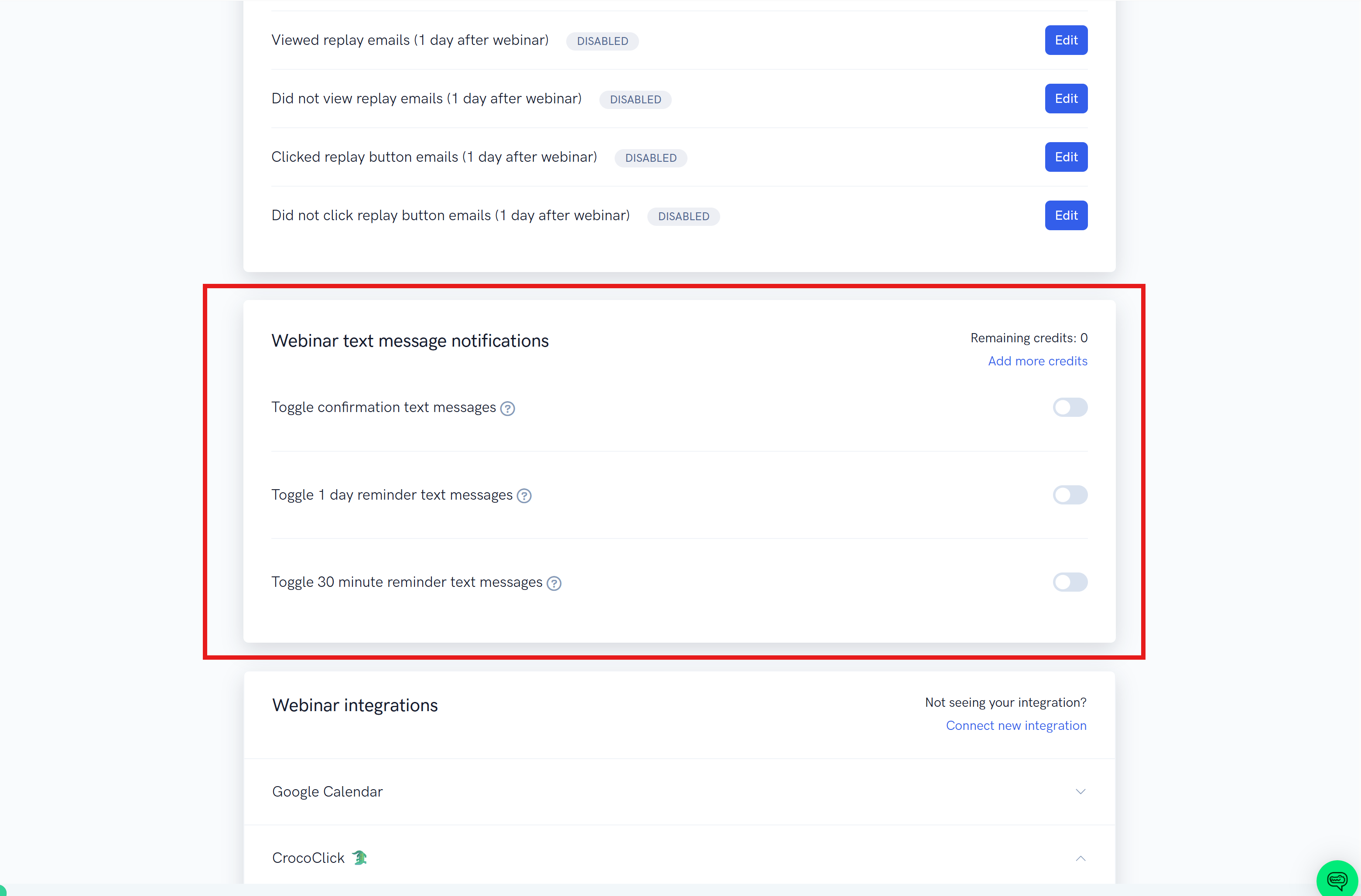
Send confirmations and reminders by SMS (1 day before and 30 minutes before). Ideal for boosting participation rates.
Automations with CrocoClick
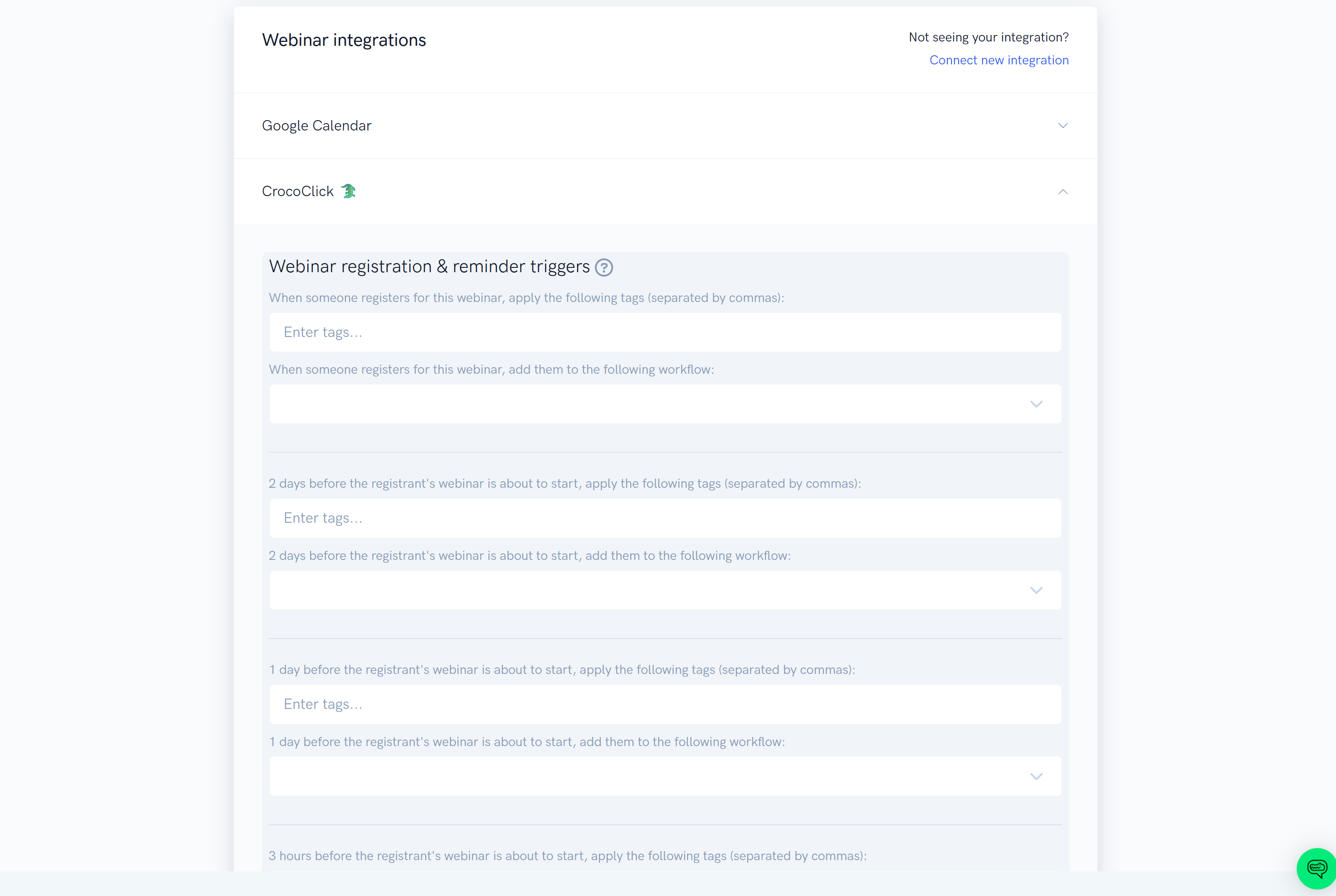
By default, CrocoLive is already integrated with your CrocoClick account. This means you can add tags and trigger automations with just one click.
In addition, those who register for your webinars are automatically added to the "Contacts" section of CrocoClick, and 4 custom fields are created in their file so that you can use them in your automations:
Webinar Date & Time - the date and time of the webinar, in "human" format (e.g., September 8, 2038, at 11 a.m.)
Webinar Date TimeStamp - the date and time of the webinar, in "machine" format, usable in your automations (e.g., 08-09-2038 11:00AM)
Webinar Live Room Link - the link to the live event (actually, the link to the confirmation page, which redirects to the live event at the appropriate time)
Webinar Replay Room Link - the link to the CrocoLive replay page
Launch your live stream (STEP 5)
When everything is ready, all you have to do is start your CrocoLive!
1️⃣ Access the live room
Go to the Webinar tab.
Click on the arrow to the right of your event, then on Get Links.
Copy or open the Watch Room link: this is your broadcast room.
2️⃣ Join the room
Allow your browser to use your camera and microphone.
Click Join Room: you will enter the room with your co-presenters.
The live stream is not yet broadcasting: participants will see a screen saying "The live stream has not yet started."
3️⃣ Start the live stream
Click Start Webinar to switch to LIVE mode.
The status changes from Not Live to Live: your audience can now hear and see you.
You can already use the chat before the launch to welcome your registrants.
4️⃣ Control the live stream
From the toolbar:
Turn the camera or microphone on/off.
Share your screen, documents, polls, or an offer.
Move or resize your camera window.
Invite other presenters if necessary.
5️⃣ Recording and ending the live session
Recording starts automatically as soon as you enter the room.
When everything is finished, click End Webinar: the live stream will stop and the replay will be saved automatically.
💡TIP: For more information, read our article"How to start a live session with CrocoLive"
Conclusion
With CrocoLive, you have a powerful tool for organizing your live or automated webinars.
In just a few minutes, you can create an event, customize it, automate your reminders, and broadcast it on a large scale.
👉 Explore our sub-guides to master each feature and turn your CrocoLives into real growth drivers.