How to start a live session with CrocoLive
Discover how to launch a CrocoLive live session step by step: accessing the Watchroom, activating the microphone and camera, starting the webinar, managing the chat and automatic recording. The complete guide to mastering your live sessions from within CrocoClick.
Written By Baptiste Lorreyte
Last updated 7 months ago
💡TIP: We assume that you have already created and configured your live stream 🙂 If you want to know more about this, read ourcomplete guide to creating a CrocoLive
This tutorial shows you how to launch a live stream with CrocoLive from your CrocoClick space.
You will learn how to:
Access your webinar interface,
Open your broadcast room (Watchroom),
Set up your microphone and camera,
Invite your presenters,
Start and end your live stream,
And use all the interactive options during the presentation (chat, polls, offers, etc.).
1. Access the CrocoLive interface
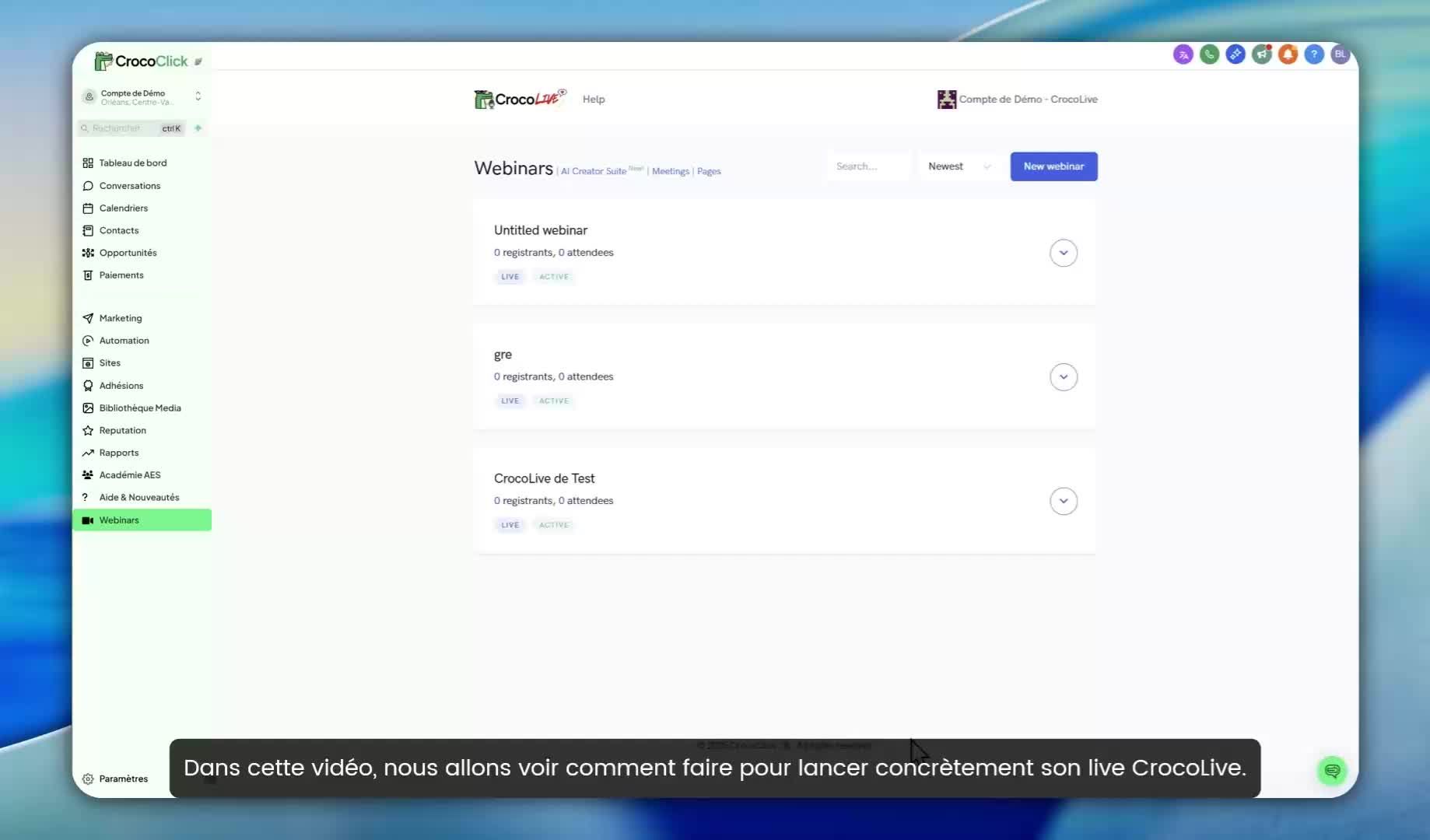
Open the Webinar tab in your CrocoClick account.
This space brings together all your configured webinars and live streams.Select the live stream you want to launch.
(Make sure it has been properly configured: title, description, date, and access settings.)Click on the arrow to the right of the live stream, then select "Get Links."
This option gives you access to all the necessary links: broadcast link, viewing link, invitation link, etc.
2. Copy the Watchroom link
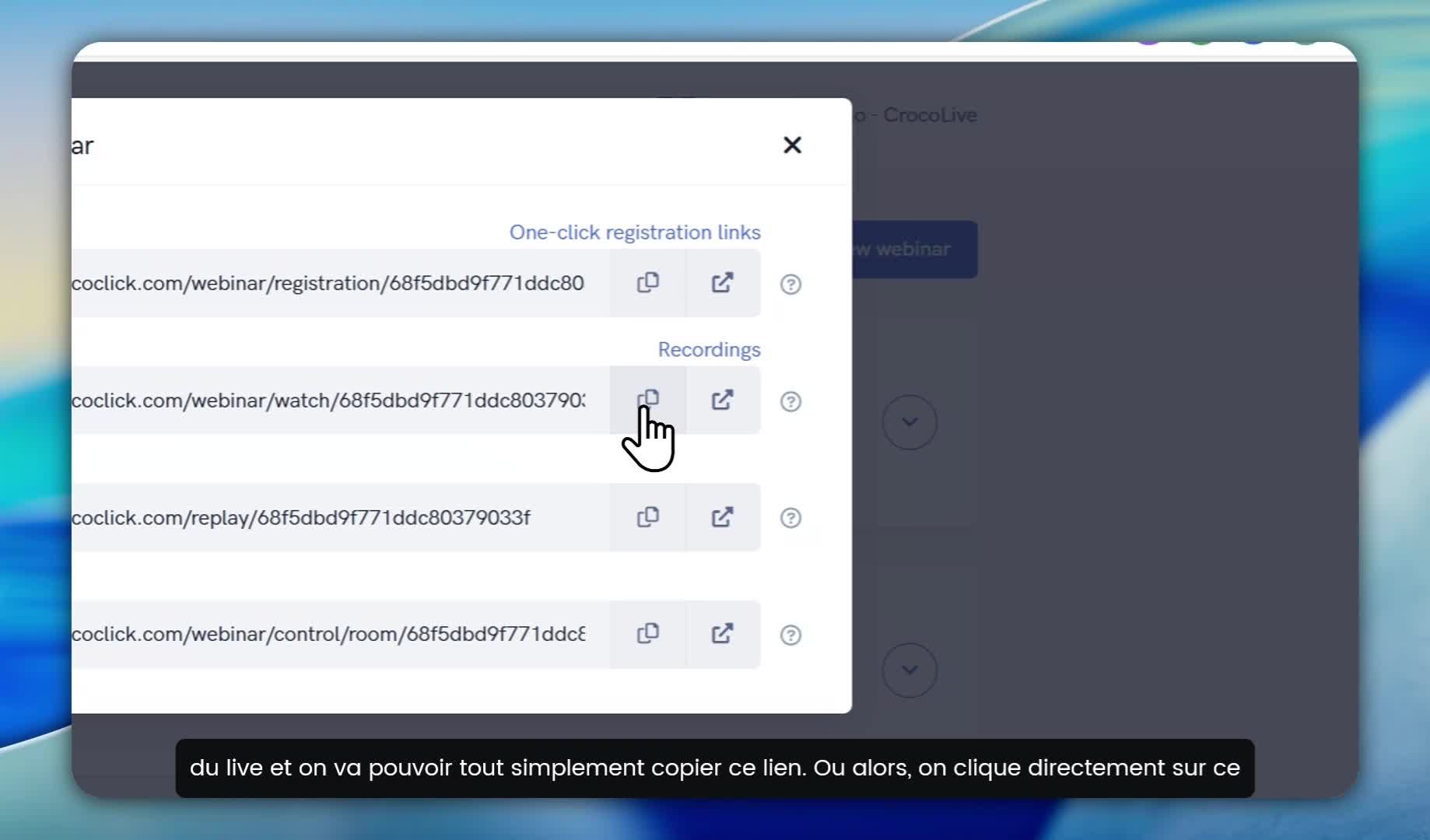
The Watchroom is the live room: it's where you'll present and where participants will connect.
Copy the link or click on the button to open it in a new tab.
👉 From this interface, you can start, manage, and end your live stream.
💡 Tip: save this link in your favorites or dashboard, as it's the most useful way to quickly launch your webinar.
3. Turn on your camera and microphone
When you open the Watchroom, your browser will ask you to allow access to your camera and microphone.
Click "Allow" to enable the use of these devices.You will then be taken to the main interface, which displays:
your video preview,
the configuration buttons,
presentation and interaction tools.
⚠️ Without this permission, your audience will not be able to see or hear you.
4. Join the live room
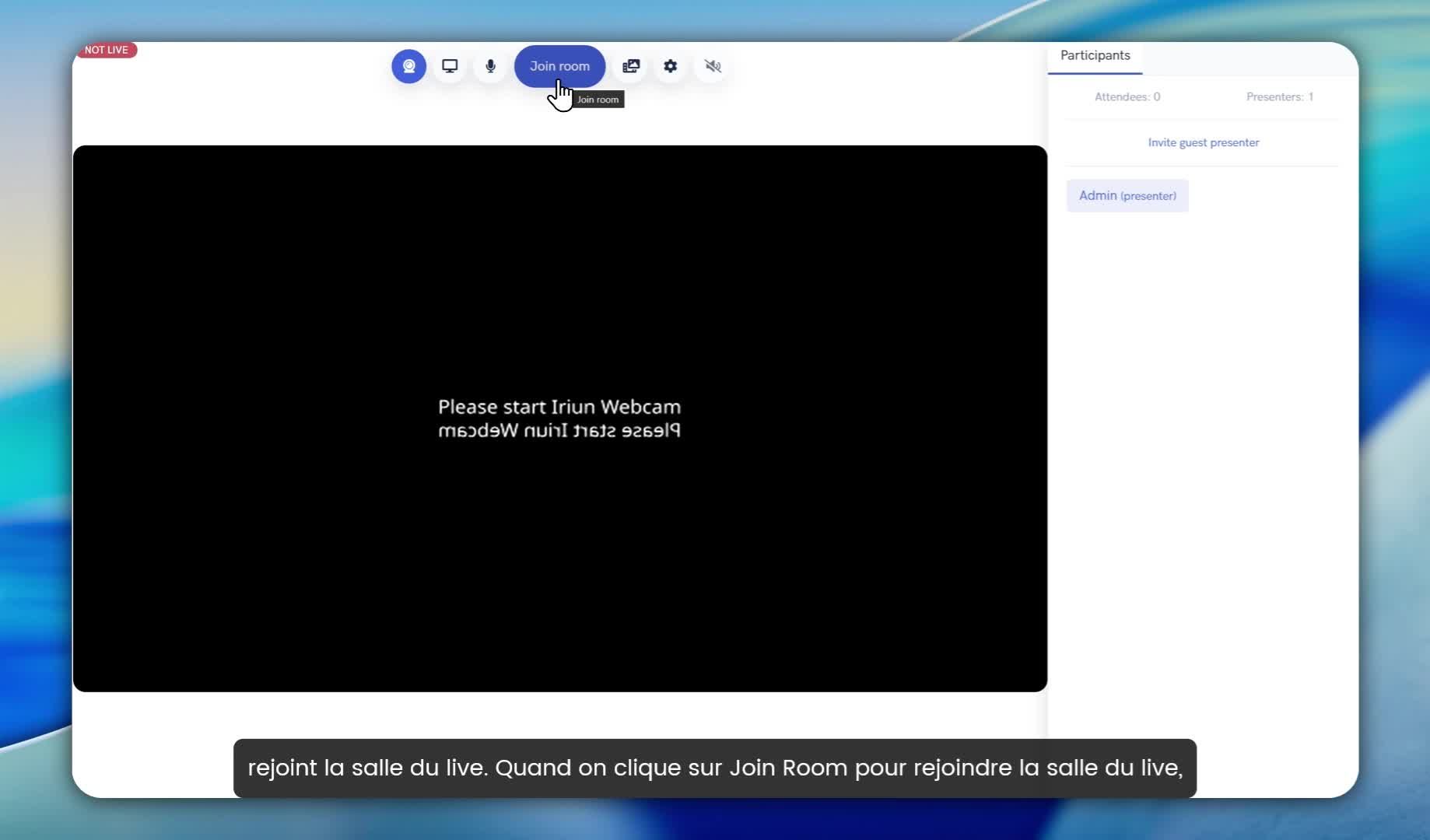
Click on "Join Room" to join the virtual room.
You will then be connected with the other presenters (if there are any), but the live stream will not yet be visible to the audience.
This is a preparation area: you can test your microphone, screen sharing, and chat with co-hosts before the official launch.
5. Prepare for the live stream
Once in the room, you will see:
the list of other presenters,
the chat (if enabled),
the audio/video settings,
the participants waiting for the event to start.
For their part, participants will see a message:
"The live stream has not started yet."
💡 This is the perfect time to check your lighting and framing and make sure everything is working perfectly before clicking "Start Webinar."
6. Start the live stream
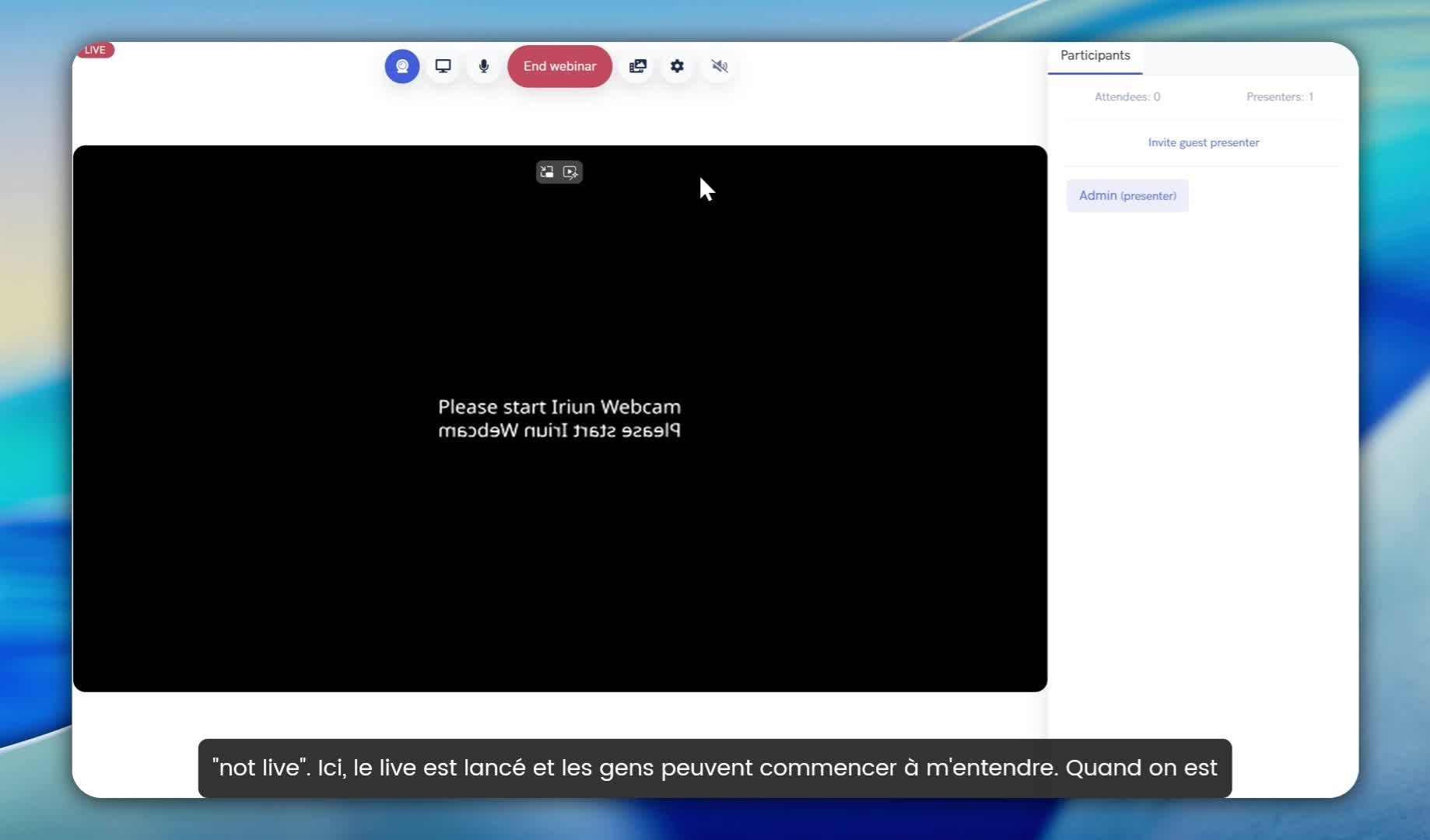
Click "Start Webinar" to officially start your live stream.
The status will change from "Not Live" to "Live."
Viewers will see your live video stream and hear you immediately.
📊 From this point on, everything you say and show will be recorded and broadcast live.
7. Use the chat before the live stream
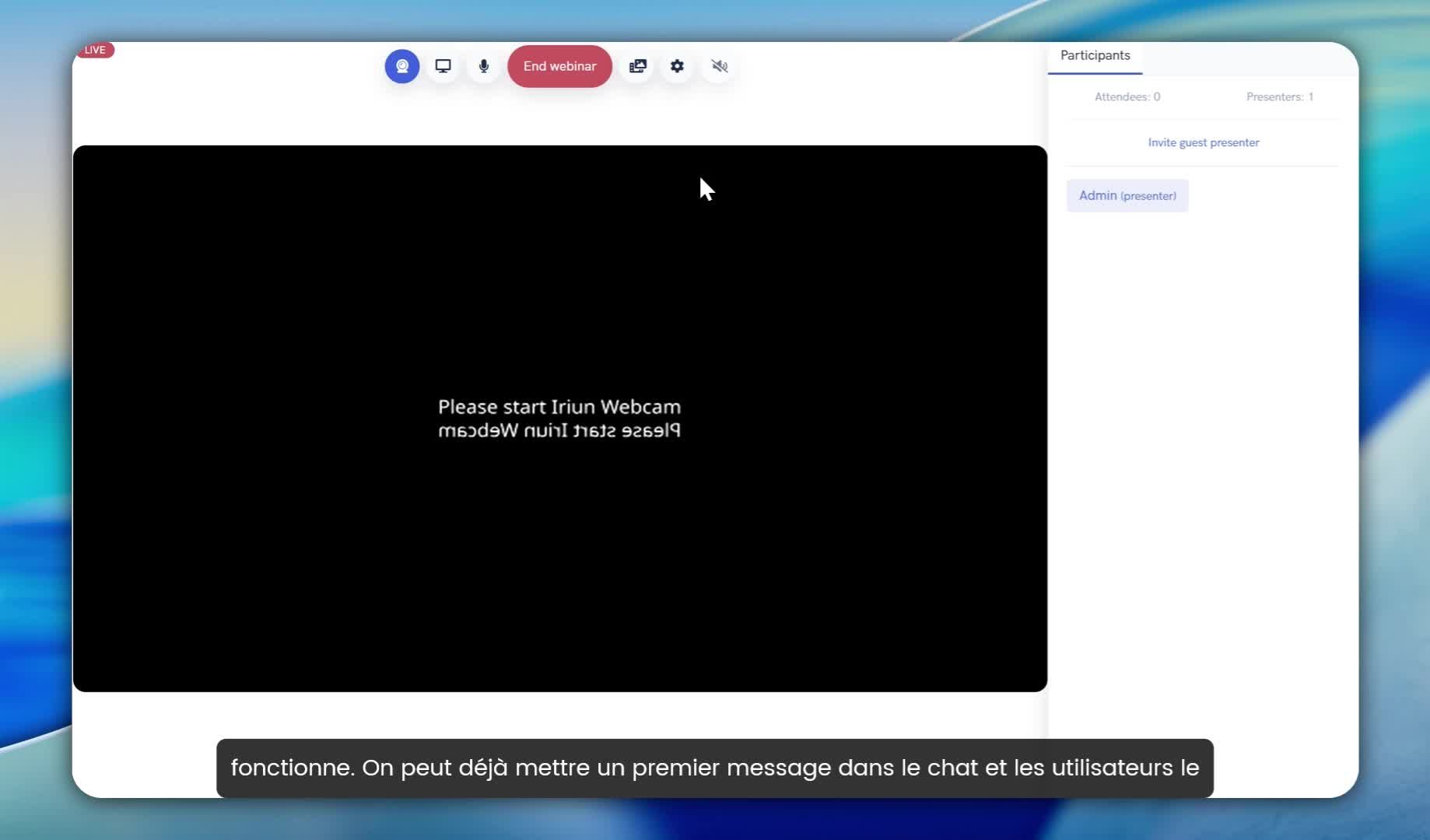
Chat is available even before the live stream starts.
You can use it to welcome participants, remind them of the program, or simply test the communication.Messages sent before the start will remain visible when the live stream begins.
💬 Example: "Welcome, everyone! The live stream will begin in a few moments 👋"
8. Recording the live stream
Recording starts automatically as soon as you join the room, not just when you click "Start Webinar."
This includes the few minutes of preparation before the official start.
You can then find the full replay in your CrocoLive dashboard.
💡 If you want to avoid your preparation being visible in the replay, remember to cut or trim the beginning when replaying.
9. Change presentation options
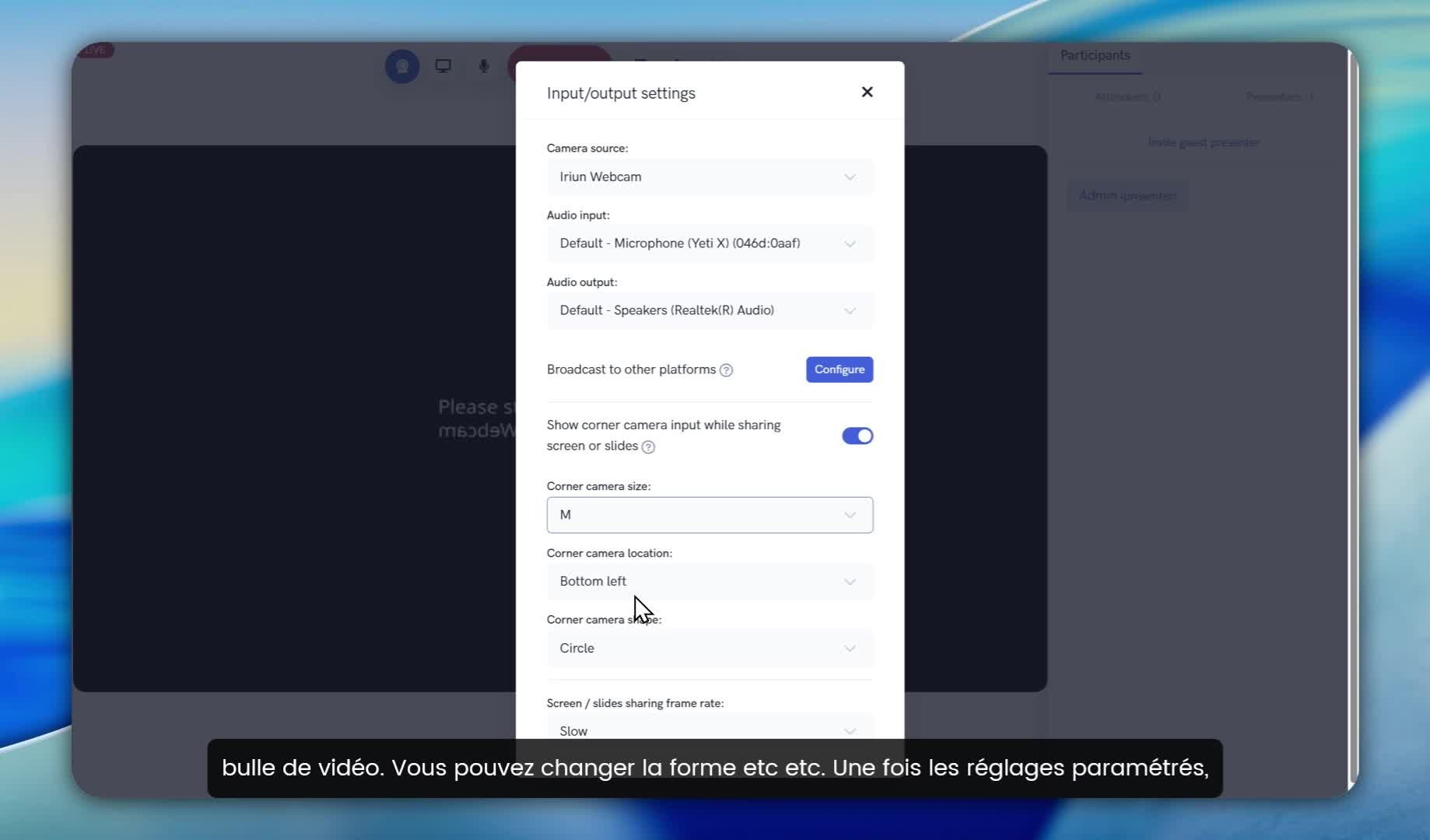
Click on the gear icon ⚙️ to customize your display.
In particular, you can:
enable/disable the camera during slides,
move your video (bottom left, top right, etc.),
adjust its size or shape (circle, rectangle, etc.).
🎨 This is ideal for adapting your framing to suit your content: for example, placing your camera at the bottom left during a PowerPoint presentation.
10. Presentation options
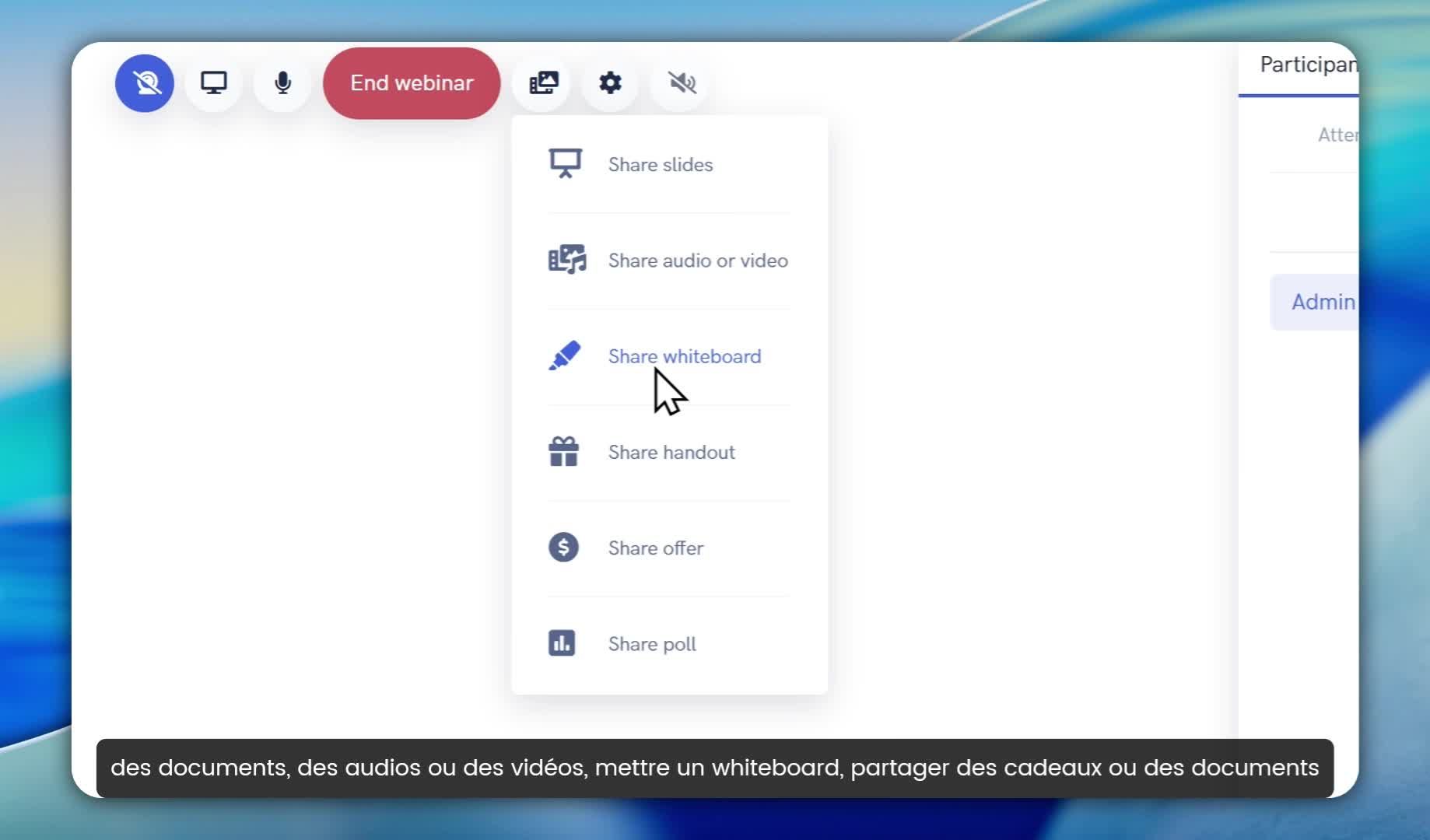
During the live stream, you have access to many interactive features:
🎥 Turn the camera on/off
🎙️ Mute/unmute the microphone
🖥️ Share your screen
📄 Share a document, video, or audio file
🧠 Open a whiteboard (collaborative whiteboard)
💰 Display a live offer
📊 Launch a poll
🧑🤝🧑 Manage co-presenters (volume, microphone, camera)
💡 These tools allow you to make your webinar more lively and interactive. Use them strategically according to your objective (sales, training, coaching, etc.).
11. End the live stream
Click on "End Webinar" to end the broadcast.
The live stream will be cut off for all participants and the recording will be automatically saved.
You will find the replay in your CrocoLive dashboard, in the "Webinars" section.
💡 Before leaving, thank your audience in the chat—it's a small gesture that makes a big difference.