Set up a Verified Caller ID (Use your own number for voice calls)
Learn how to use your own phone number as Caller ID with CrocoClick. Follow the step-by-step guide to verify your number and display it on your outgoing calls, directly from CrocoClick.
Written By CrocoTeam
Last updated 7 months ago
It is sometimes useful to use your own phone number as your caller ID rather than the number you purchased on CrocoClick.
This article provides step-by-step instructions on how to set up a verified Caller ID with CrocoClick that will "replace" the CrocoClick number with your number, while still allowing you to make calls with CrocoClick.
Step 1: Open Settings
Once you are in your CrocoClick account, click on Settings in the left side menu.
Step 3: Access phone numbers
Click on Phone Numbers in the left menu.
Step 4: Add a Verified Caller ID
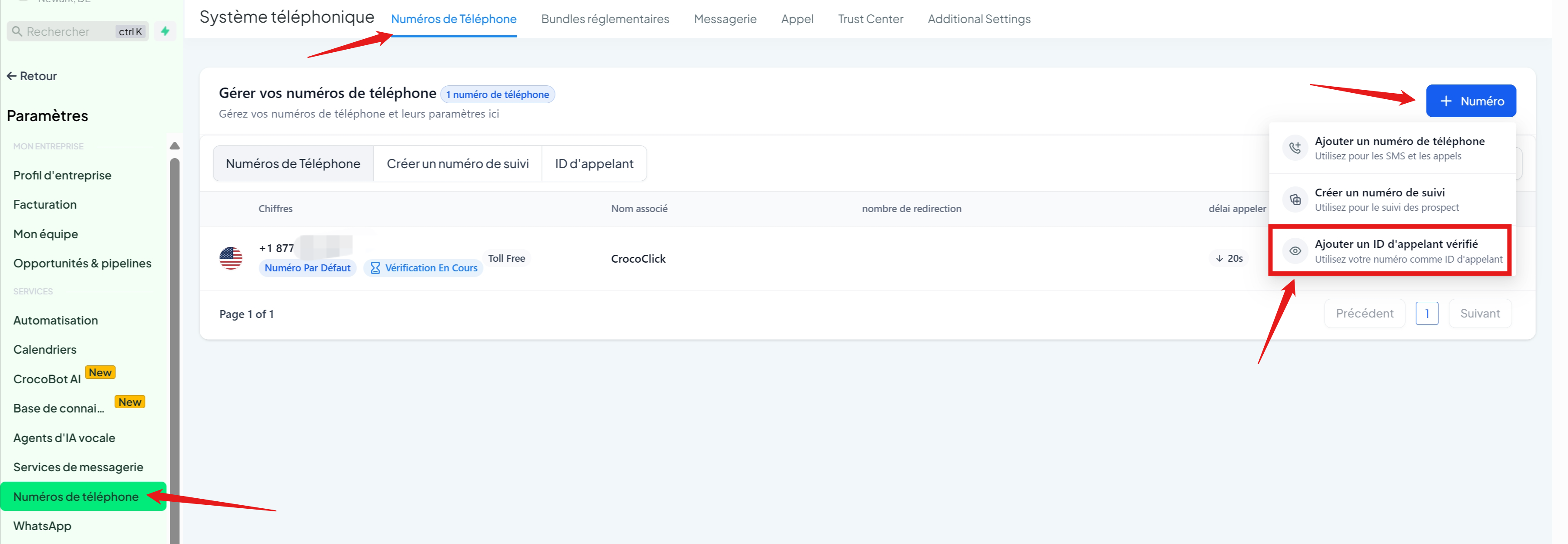
Under the Add a Number tab, click Add a Verified Caller ID.
Step 5: Verify your own number
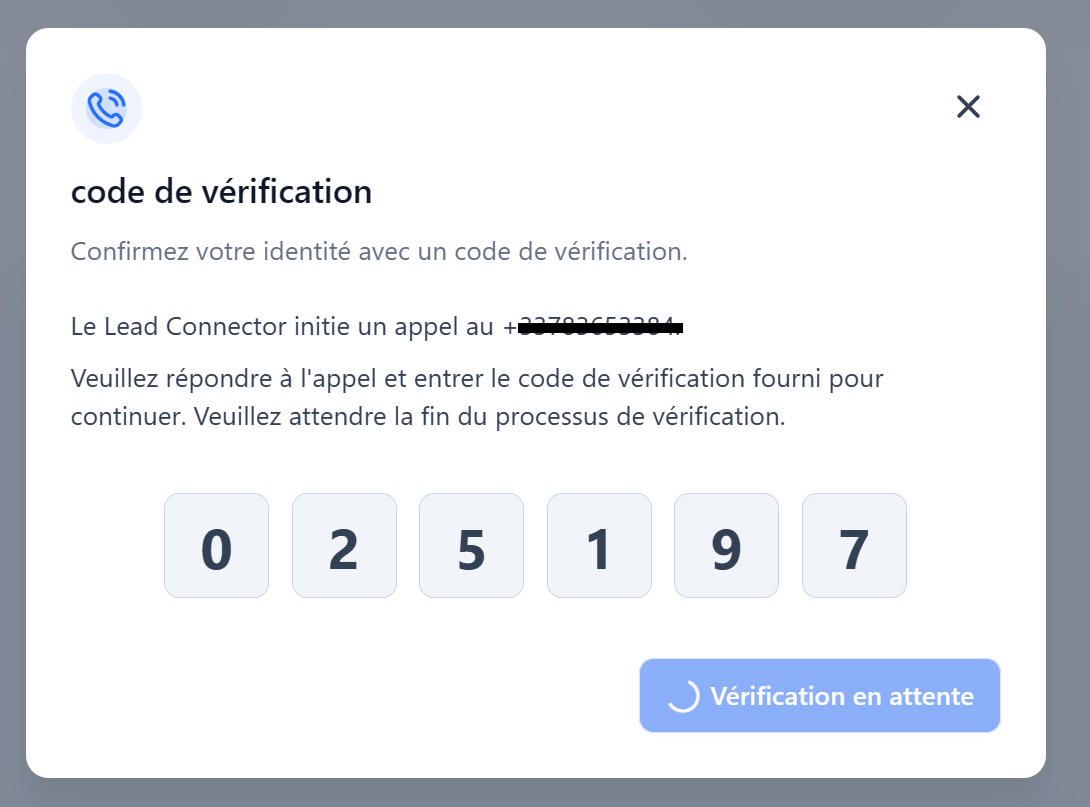
Enter your personal phone number.
Click Verify Number.
A window will open with a verification code. You will receive a call on your number—answer the call and enter the code provided on the screen.
Once verification is complete, your number will be added to the Verified Caller IDs tab.
Step 6: Use your verified number as Caller ID
Go to the Phone Numbers tab.
Click on the three dots (...) to the right of the LC Phone number you want to change.
Select Edit Configuration.
Enable the Use your verified number as caller ID for outgoing calls option.
Choose the verified number from the drop-down list.
Click Save.
Once this option is enabled, your outgoing calls will now display your own number as the caller ID.
Please note
Limit: Each account can register up to 10 verified numbers.
To increase this limit, contact CrocoClick support.Indian regulations: as of August 1, 2024, calls made from a +91 number to another +91 number will no longer work due to new local laws.