Customize the CrocoLives watch room
Learn how to personalize the live room in CrocoLive: videos, offers, polls, handouts, chat, branding and redirects. Create an engaging and professional experience.
Written By CrocoTeam
Last updated 6 months ago
The broadcast room (or Watch Room) is where your registered participants watch your CrocoLive, interact with your content, and make their purchasing decisions.
A well-configured room transforms a simple webinar into an engaging and professional experience.
CrocoLive lets you fully customize this room, whether your CrocoLive is live or automated.
1. Get started with the room editor
Access settings
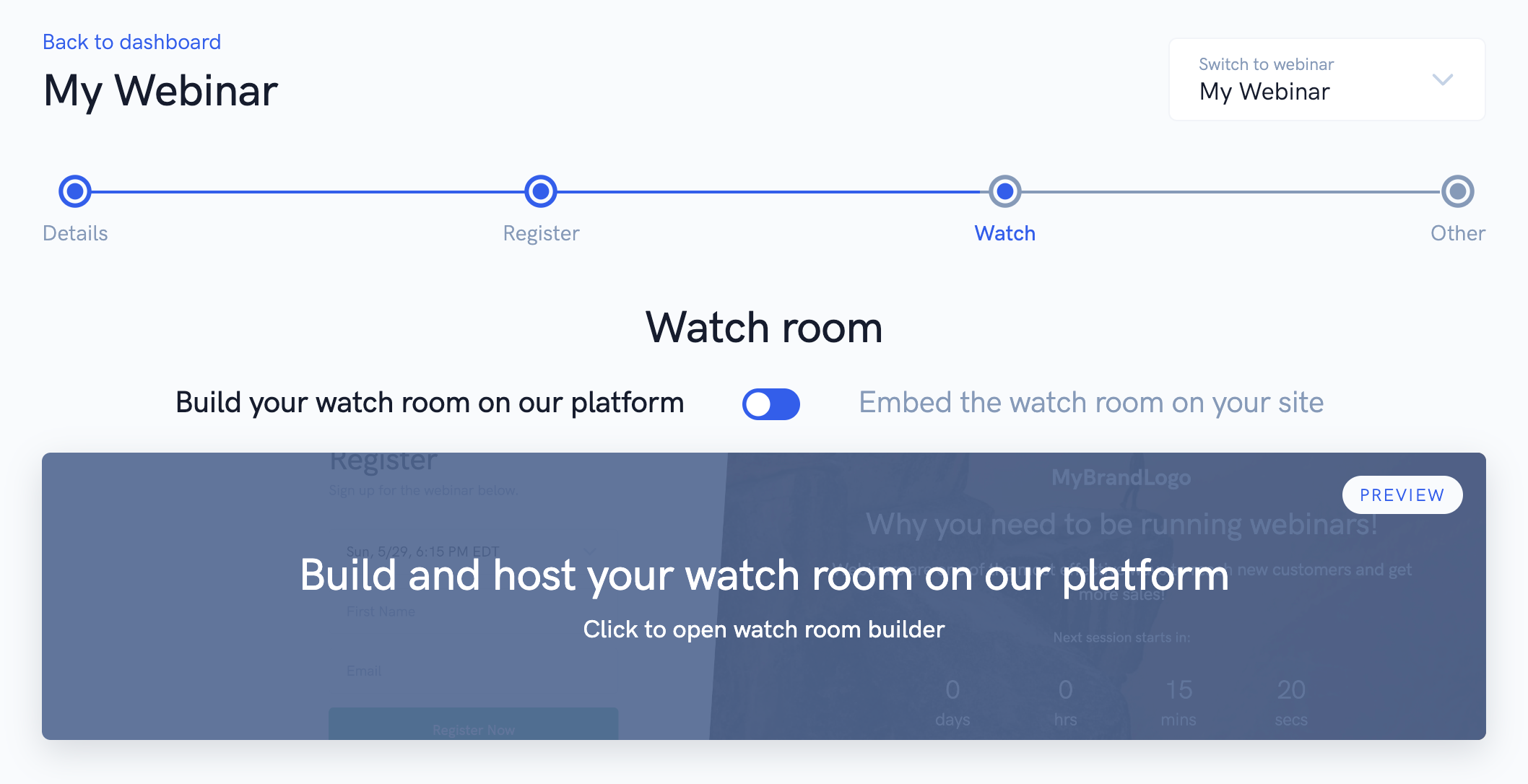
To access the Watch Room editor for a CrocoLive:
Log in to your CrocoLive dashboard.
Open the event you want to edit.
Click the Broadcast (Watch) tab in the event settings.
Choose whether the room will be:
The built-in CrocoLive room.
Or a room embedded on your own website via an embed code.
Click on Room Editor to open the customization interface
Overview of the Editor
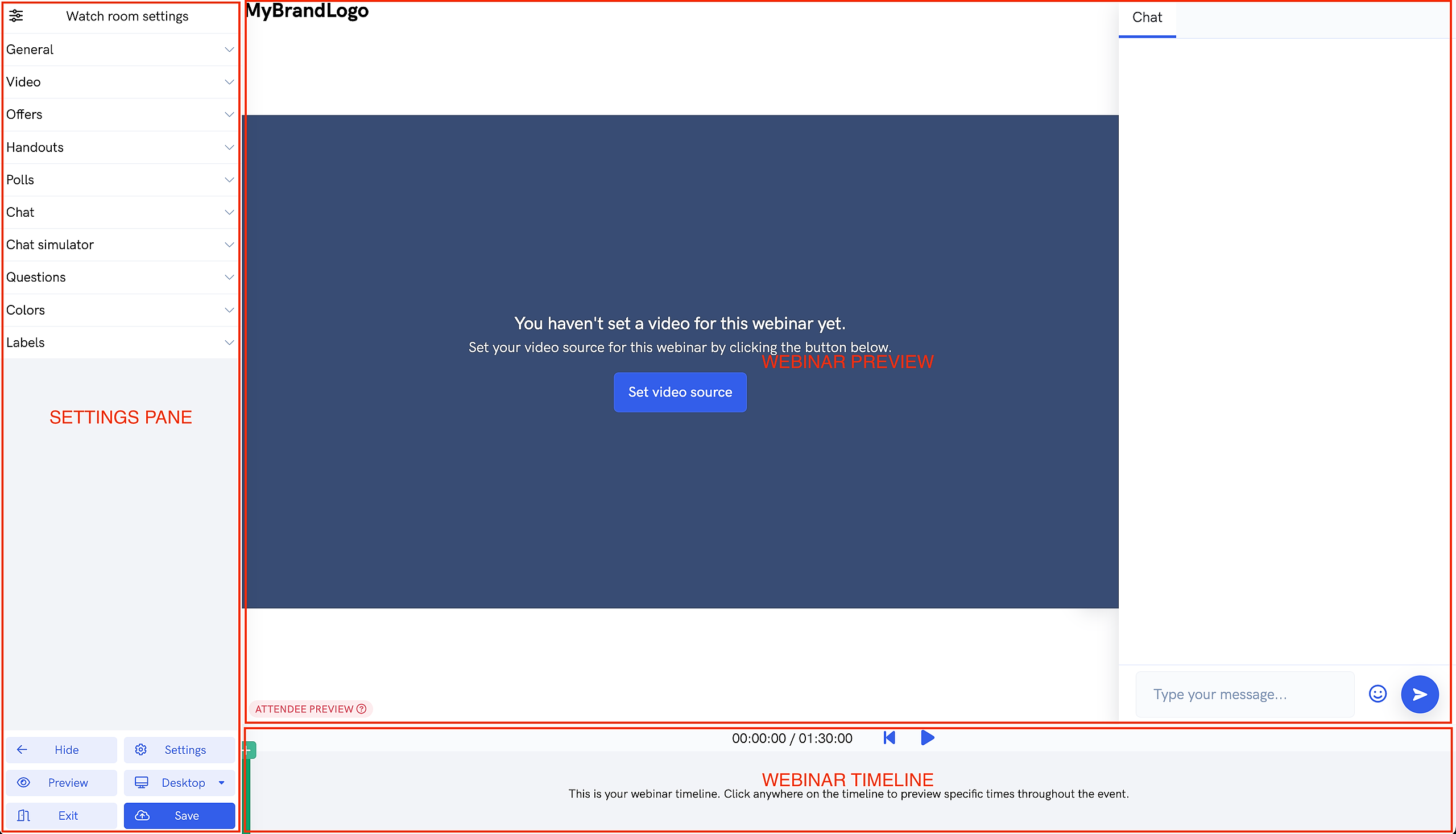
The room editor is divided into two main areas:
On the left: a visual preview of the room as seen by registered users (video, tabs, chat, offers, etc.).
On the right (or on the side): a settings panel with various sections (General, Video, Offers, Documents, Polls, Chat, Questions, Colors, Labels, Page Settings…).
Every change is visible in real time in the preview, allowing you to quickly test the layout.
Depending on the type of CrocoLive (Live or Automated), certain sections may or may not appear (for example, Video and Chat Simulator are only available for automated sessions).
2. How the Editor Works
For an Automated CrocoLive
For an Automated CrocoLive:
First, select the main video that will play throughout the webinar.
Then use the timeline to place interactive elements at specific points in the video:
Commercial offers (product/service CTAs).
Documents (Handouts) to download.
Polls to engage the audience.
Simulated chat messages (Chat Simulator) to recreate the atmosphere of a live event.
Enable or disable:
Live chat (to allow real messages from registered users).
The Questions tab (messages sent directly via email to the admin).
Adjust the room’s colors and labels to match your branding.
For a CrocoLive Live
For a Live-type CrocoLive:
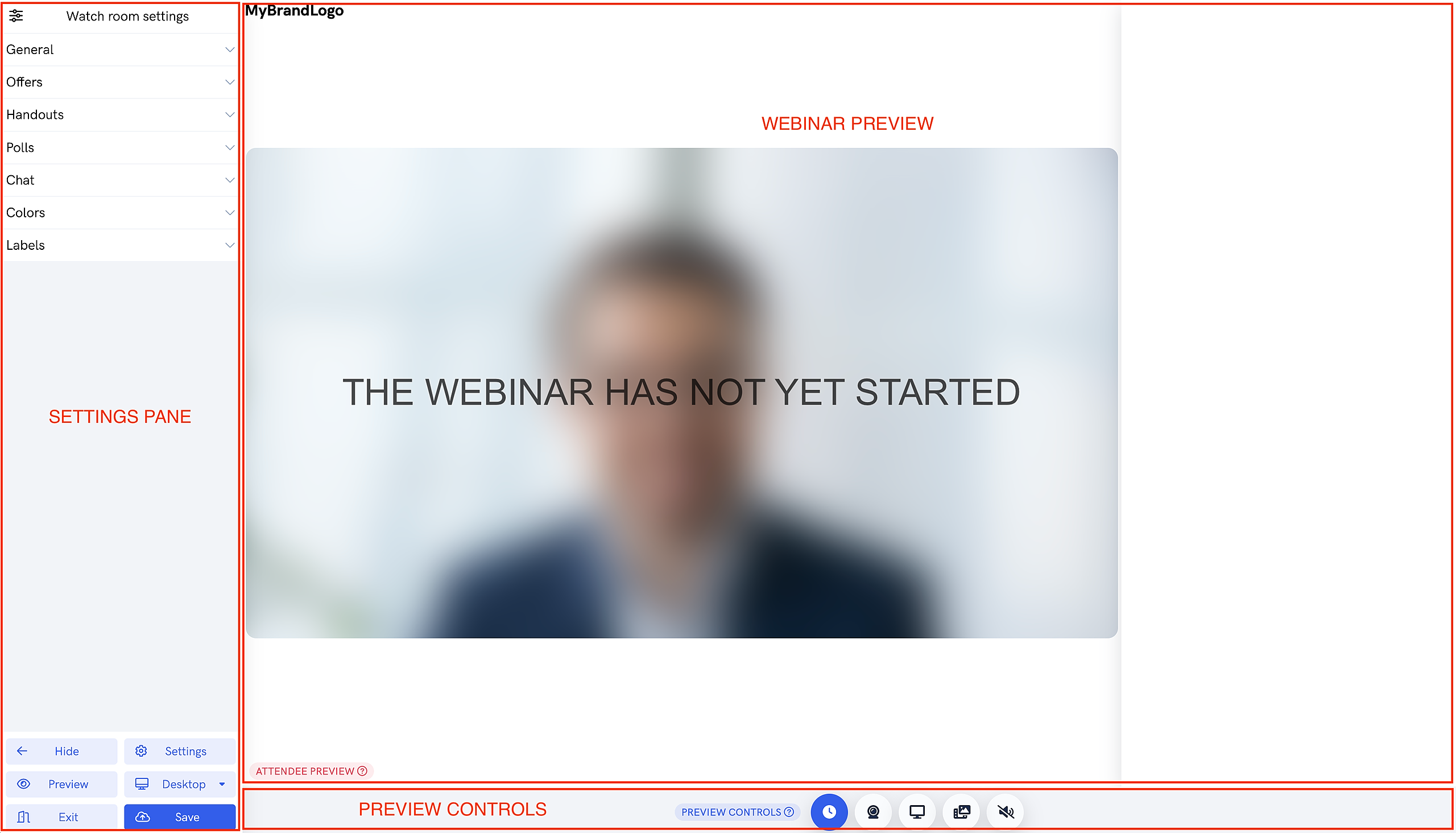
Configure your broadcast sources: webcam, screen sharing, slides, pre-recorded videos.
Add or remove offers, documents, and polls at any time from the live stream interface.
Enable or disable the live chat depending on your desired interaction strategy.
Customize the room’s appearance: colors, labels, logo, and loading image.
Use preview mode to test the webcam, audio, slides, and overall presentation before officially launching the live stream.
3. Detailed customization settings
General settings
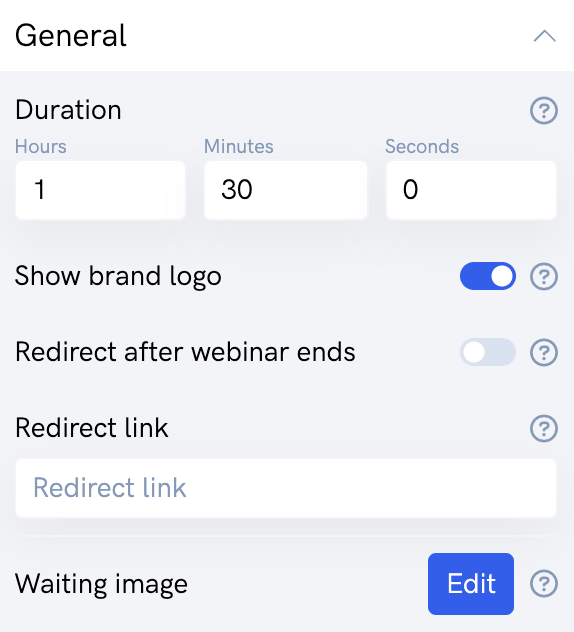
In the General Settings section of the editor:
Duration:
For a Live stream: set a realistic estimated duration.
For a Scheduled broadcast: specify the exact duration of the video. This information is used for statistics and automatic triggers (emails, SMS, integrations).
Logo: Enable this option to display the logo configured in CrocoLive settings (your account’s global logo or the brand logo).
Redirect after end (Automated only):
Set a URL to automatically redirect participants to at the end of the CrocoLive.
Example: sales page, appointment booking, upsell.
Loading Image: Upload a custom image that will be displayed before the live session begins (or while it is loading).
Video (Automated Webinar only)
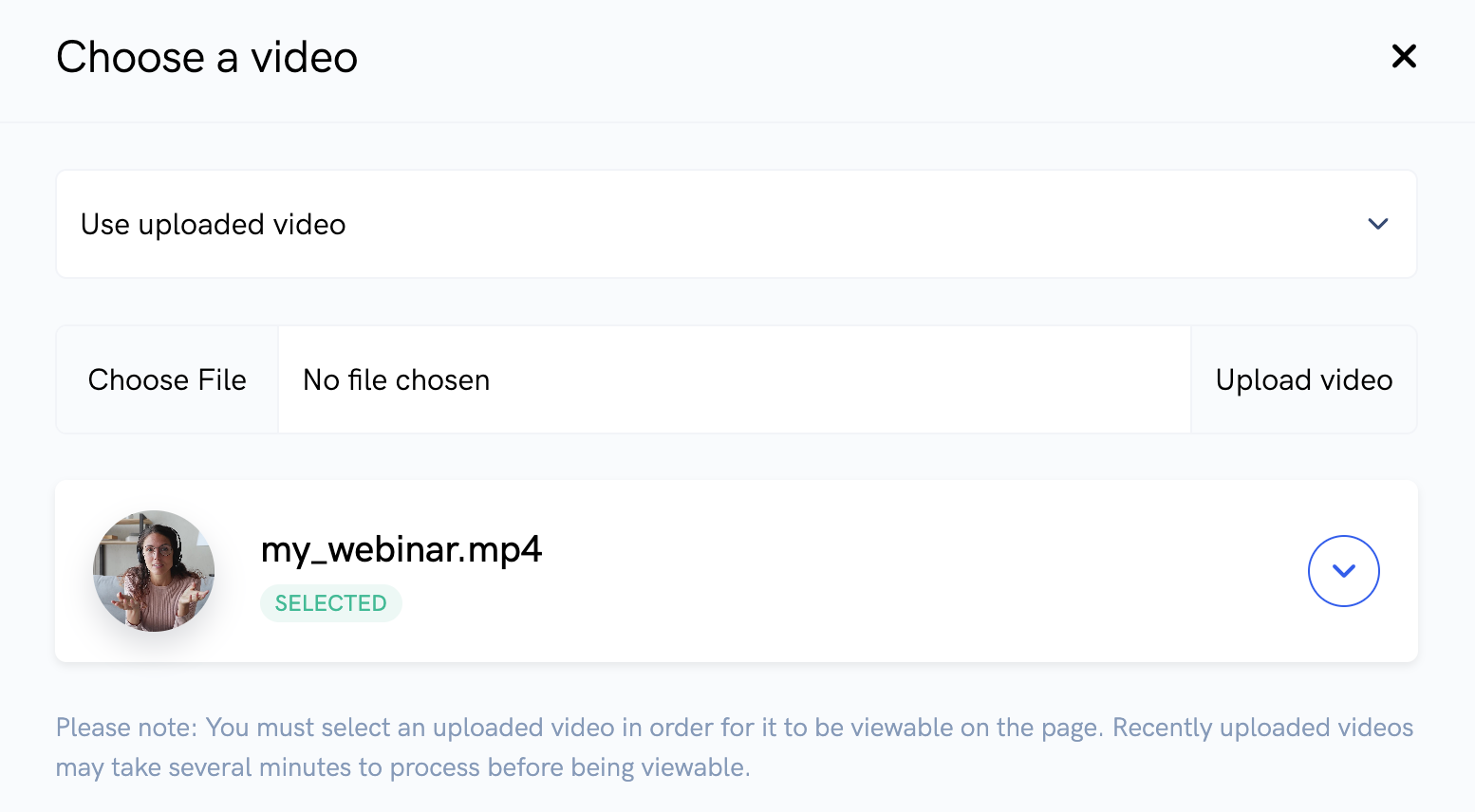
In Automated CrocoLives, the Video section allows you to define the source of the main content.
Three options are available:
Video uploaded to CrocoLive
Import a video file directly from your computer.
A quick, convenient solution fully hosted by CrocoLive.
External link
Use a video hosted on Amazon S3, Vimeo Pro, YouTube, Bunny.net, etc.
Note: With YouTube, the YouTube branding remains visible in the player.
Recording a previous live stream
Select a recording of a past CrocoLive Live to turn it into an automated webinar.
Offers
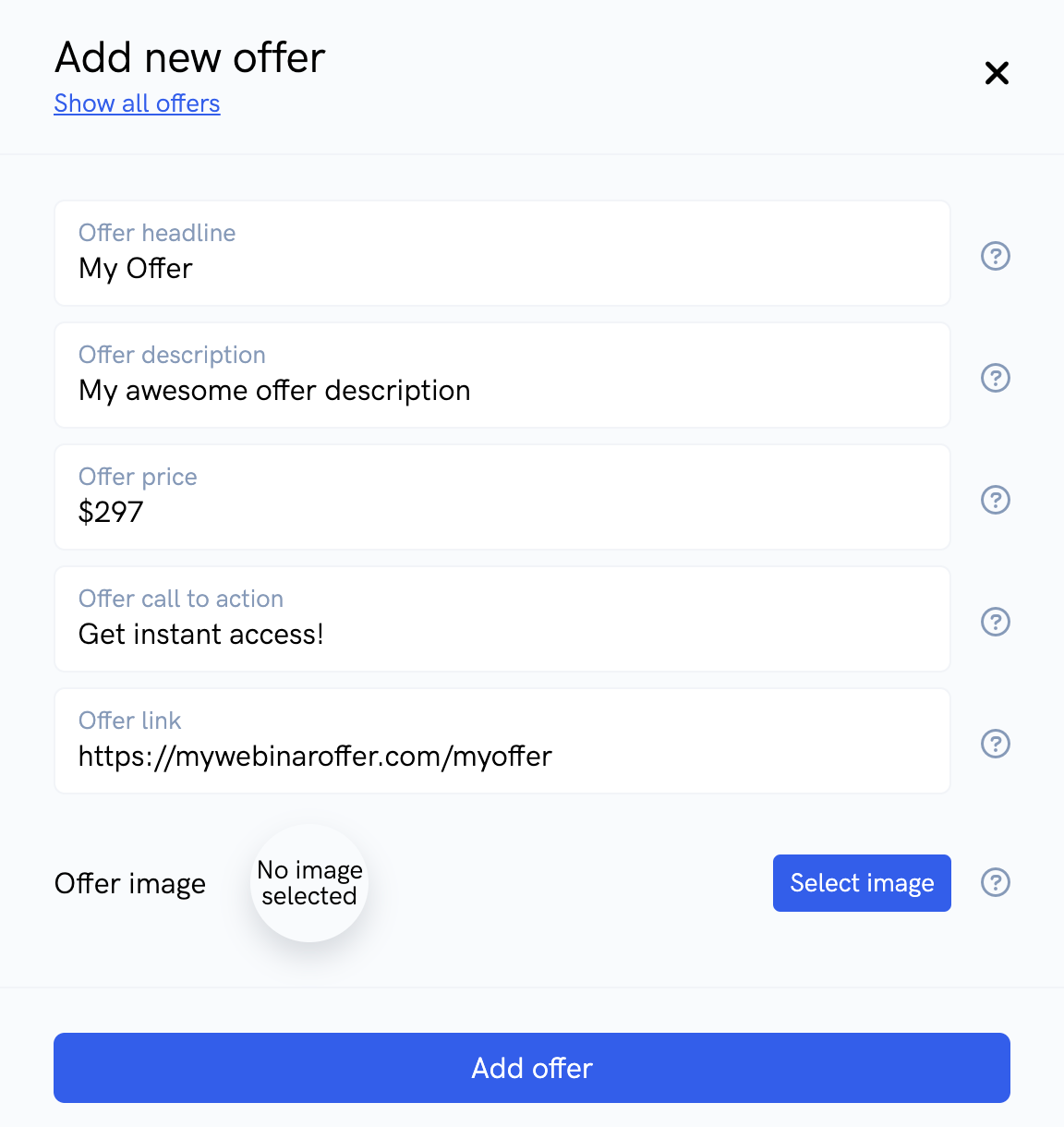
The Offers section allows you to add an "Offer" tab to the broadcast room.
You can:
Add an offer that includes:
A title.
A description.
An image (optional).
A CTA button with text and a destination URL.
Schedule the offer to appear at a specific time during the campaign (via the timeline for automated campaigns).
Use this tab to guide your subscribers toward taking action: purchase, schedule a call, download a product, etc.
Documents (Handouts)
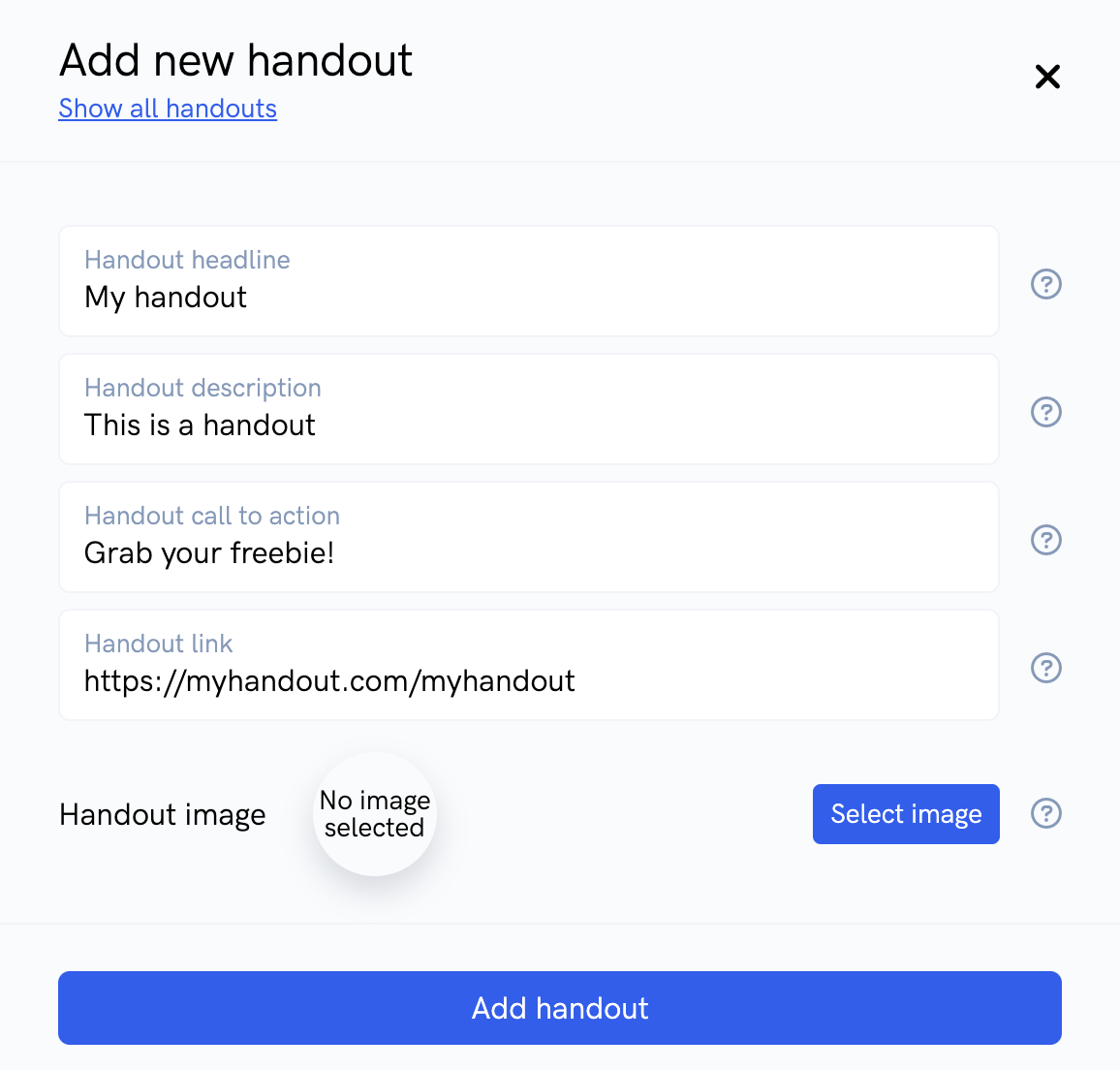
In the Documents (Handouts) section:
Add one or more downloadable files that will appear in a dedicated tab in the room.
Registrants can download them during the live stream or the replay.
Ideal for sharing: PDFs, practical guides, presentations, checklists, roadmaps.
Polls
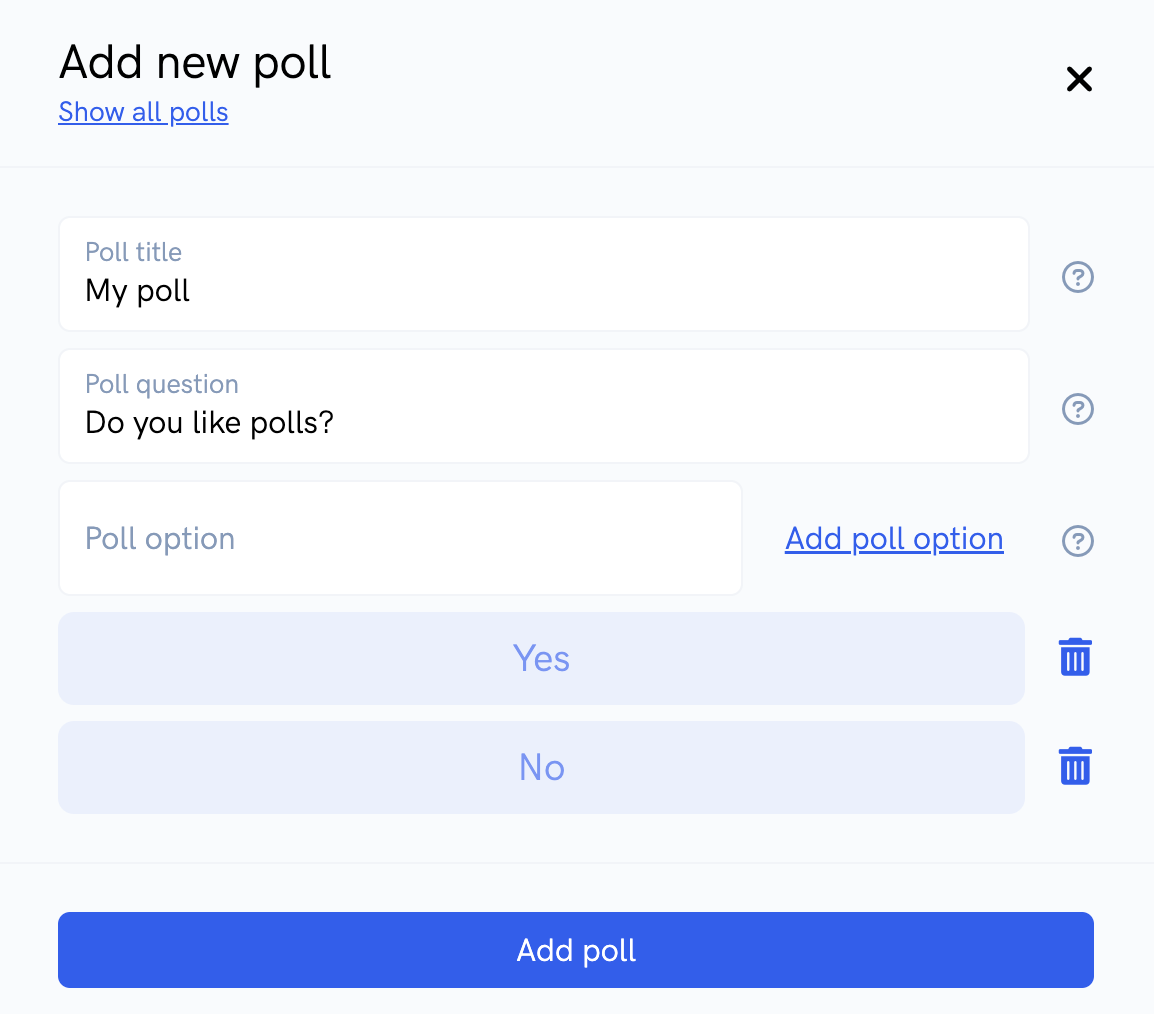
The Polls section lets you create polls to engage your audience.
Create a question, add answer options, and optionally set when it appears.
Results are visible immediately after the respondent answers.
Possible uses:
Break the ice at the start of the live stream.
Segment the audience based on their level or needs.
Prepare a personalized offer based on the responses.
Chat Simulator (Automated Webinars only)
The Chat Simulator is available only for Automated CrocoLives.
It allows you to:
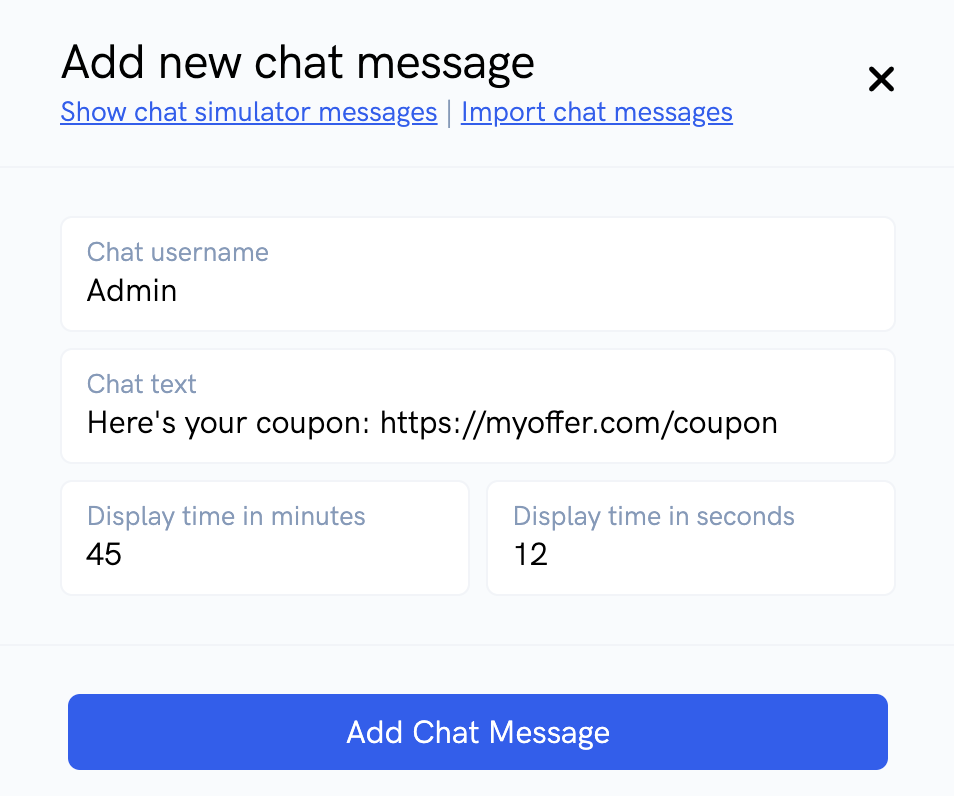
Add pre-programmed messages to the chat area, which trigger at specific times.
Simulate audience reactions:
Messages such as “Wow, that’s powerful!” or “So clear, thank you,” etc.
Add product links at strategic moments (e.g., during the offer pitch).
Recreate the atmosphere of a past live event by importing the chat history.
You can:
Add messages one by one in the interface.
Or import them in bulk via a CSV file or from a previous CrocoLive session.
Live Chat
The Chat section lets you manage the live chat between registered users and administrators.
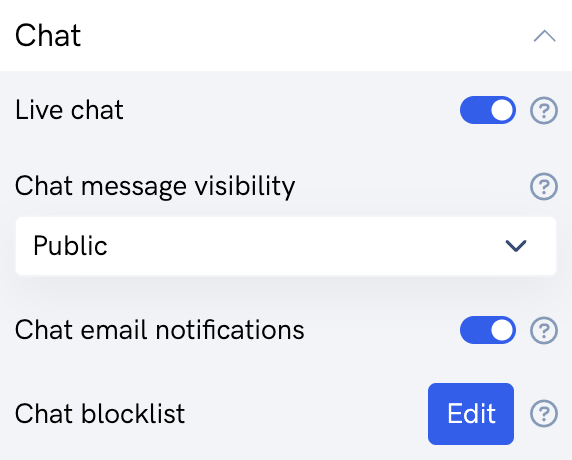
Enable live chat in a CrocoLive
To enable the live chat option in a CrocoLive room:
Open your CrocoLive room editor
In the settings panel, go to the Chat section.
Enable the “Live Chat” option by toggling the corresponding switch to ON.
Choose the chat visibility:
Public mode: all registered users can see all messages.
Restricted mode: only messages sent by administrators are publicly visible.
Save your changes and check in the preview that the chat area is displayed correctly in the room
Additional Live Chat Options
In this same section, you can also:
Enable email notifications (for automated webinars only) to receive an email whenever a new message is posted in the chat.
Define a list of blocked keywords to filter out messages containing certain terms (insults, spam, competitors, etc.).
Questions (Automated Webinars only)
The Questions section is available for Automated CrocoLives.
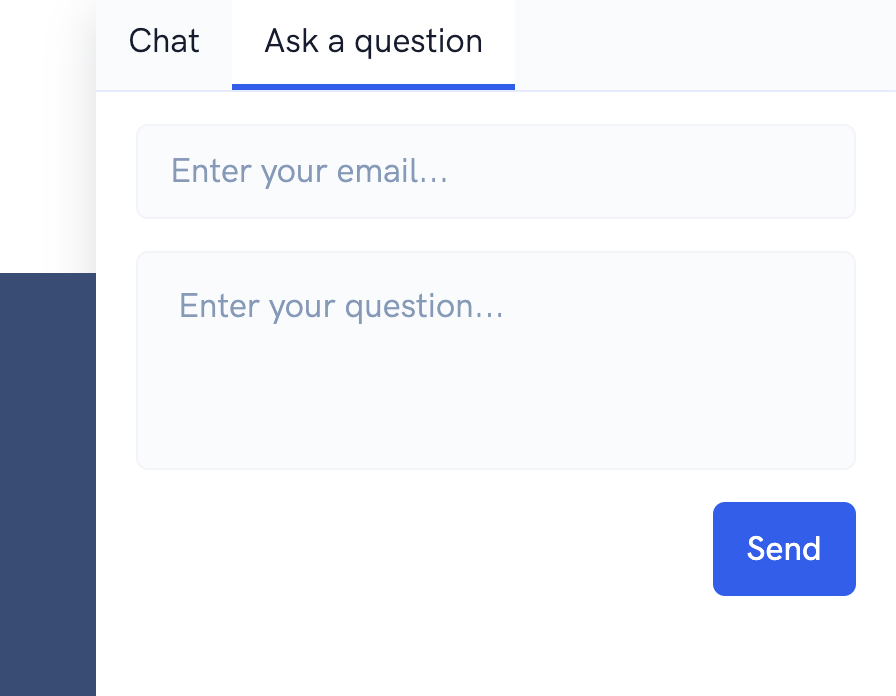
Enable the option to display an “Ask a Question” tab in the room.
Messages sent via this tab are forwarded directly by email to the CrocoLive admin.
This allows for a personalized interaction even if the webinar is fully automated.
Colors
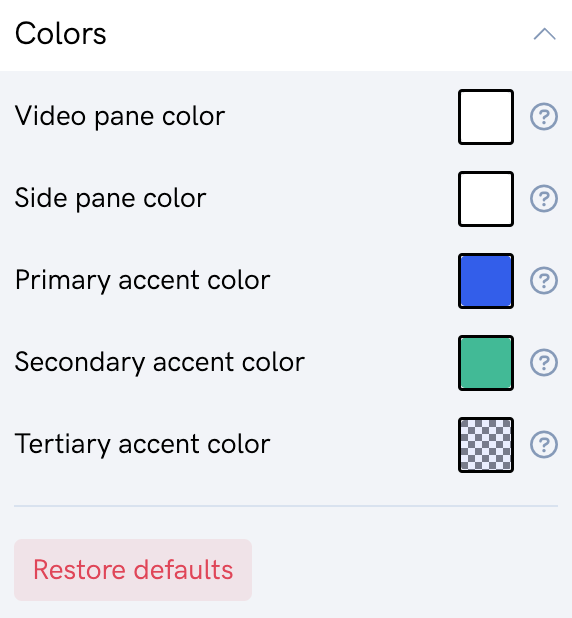
The Colors section lets you adjust the visual appearance of the entire room.
You can:
Change the colors of buttons, backgrounds, text, tabs, progress bars, etc.
Apply your brand colors to ensure consistency with your website and other marketing materials.
Labels
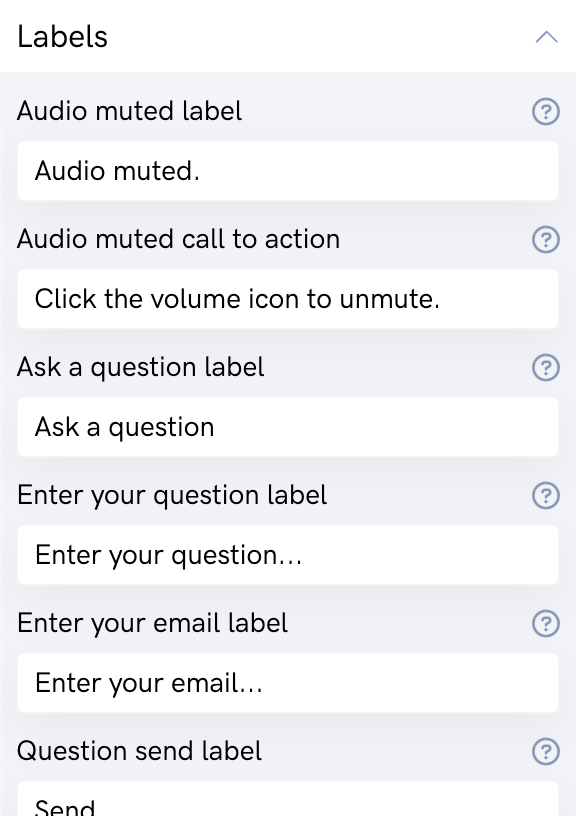
In the Labels section:
Customize the text displayed in the room interface (buttons, tab titles, system messages).
Example: replace “Join now” with “Join now,” “Replay” with “Access the replay,” etc.
Use this section to fully translate the experience into another language if necessary.
Page Settings
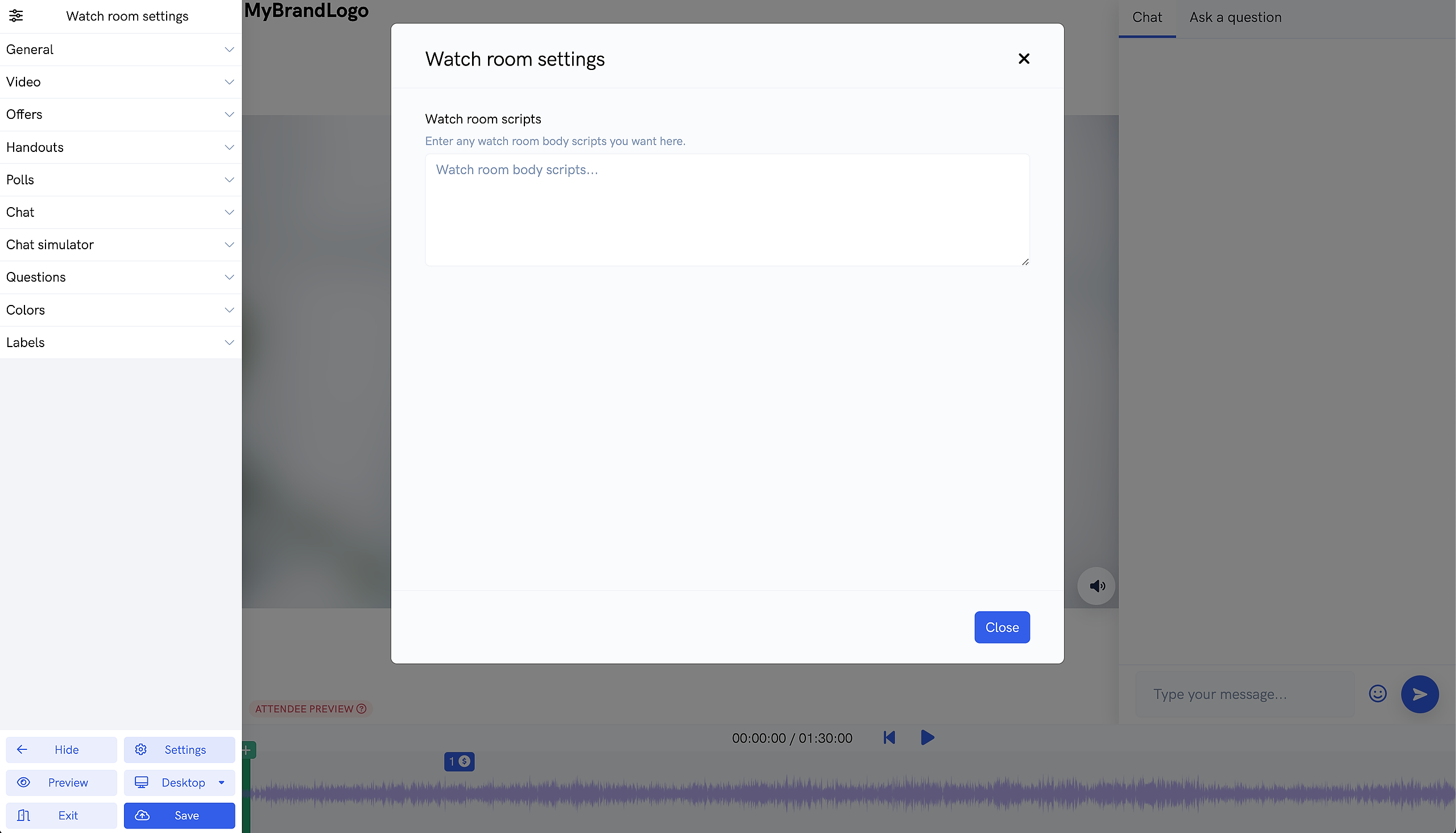
The Page Settings section allows you to add tracking scripts.
You can:
Insert your tracking pixels (Facebook, Google Analytics, etc.).
Add other tracking scripts or analytics tools.
Track the behavior of attendees in the room to optimize your marketing funnels and campaigns.
Conclusion
The CrocoLive broadcast room is much more than just a video player: it’s a fully interactive environment that can boost your conversions. With the room editor, you can:
Create an immersive and engaging experience.
Strengthen your branding.
Increase conversion opportunities (offers, handouts, polls).
Maintain full control over the user experience.
In just a few clicks, your CrocoLive becomes a complete professional experience, whether live or automated.