Add "End of Module" or "End of Training" Certificates
Find out how automatic certificates work in your CrocoClick training courses (end of course or end of category)
Written By CrocoTeam
Last updated 7 months ago
Thanks to the latest CrocoClick update, the awarding of course completion certificates is now automated and more flexible than ever.
Each new training course automatically comes with a certificate of completion.
And you can also add certificates to specific categories to reward step-by-step progress.
Key Benefits
Automatic default certificate: Each new training course already includes a ready-to-use certificate.
Simple and flexible management: Modify, replace, draft, or delete the default certificate as needed.
Direct integration into the builder: Attach certificates (default or custom) directly in the course builder interface.
Certificates by module: Add certificates to specific categories/modules to validate intermediate skill sets.
How to use default certificates
Step 1: Create a training course
Go to Membership > Training > Products
Create a new training course
A certificate of completion is automatically attached by default
Step 2: Manage the default certificate
Click on the three dots in the top right corner of the certificate
You can then:
Modify or replace the certificate template
Delete the certificate if you do not wish to offer it
Set it as a draft if you don't want it to be displayed anymore
💡TIP: You can also import your own custom certificate templates from the template library.
How to add a certificate to a specific category/module
Step 1: Add a certificate to the module
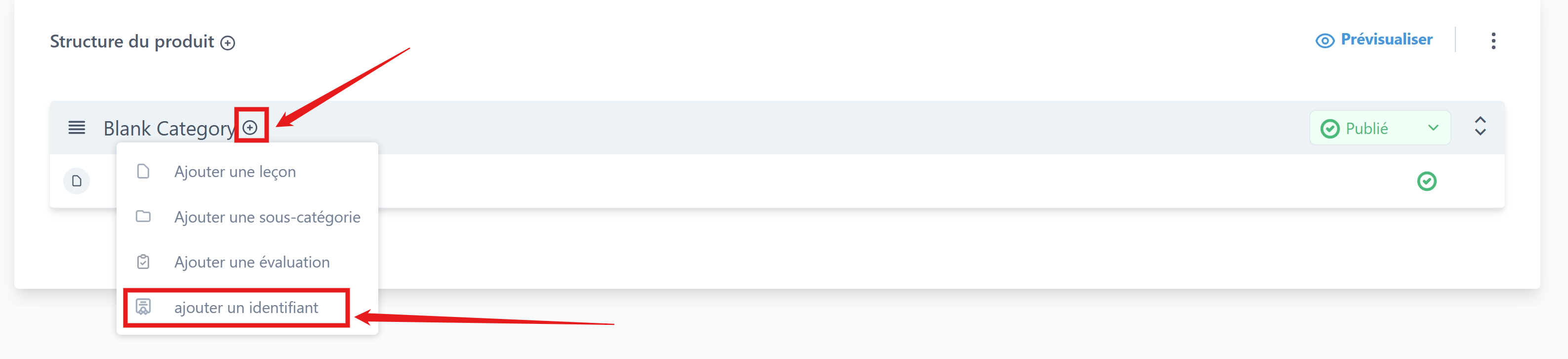
In your training course, click on the "+" next to the name of your module
Click on the "add an identifier" button (= add a certificate or badge)
Step 2: Choose the certificate
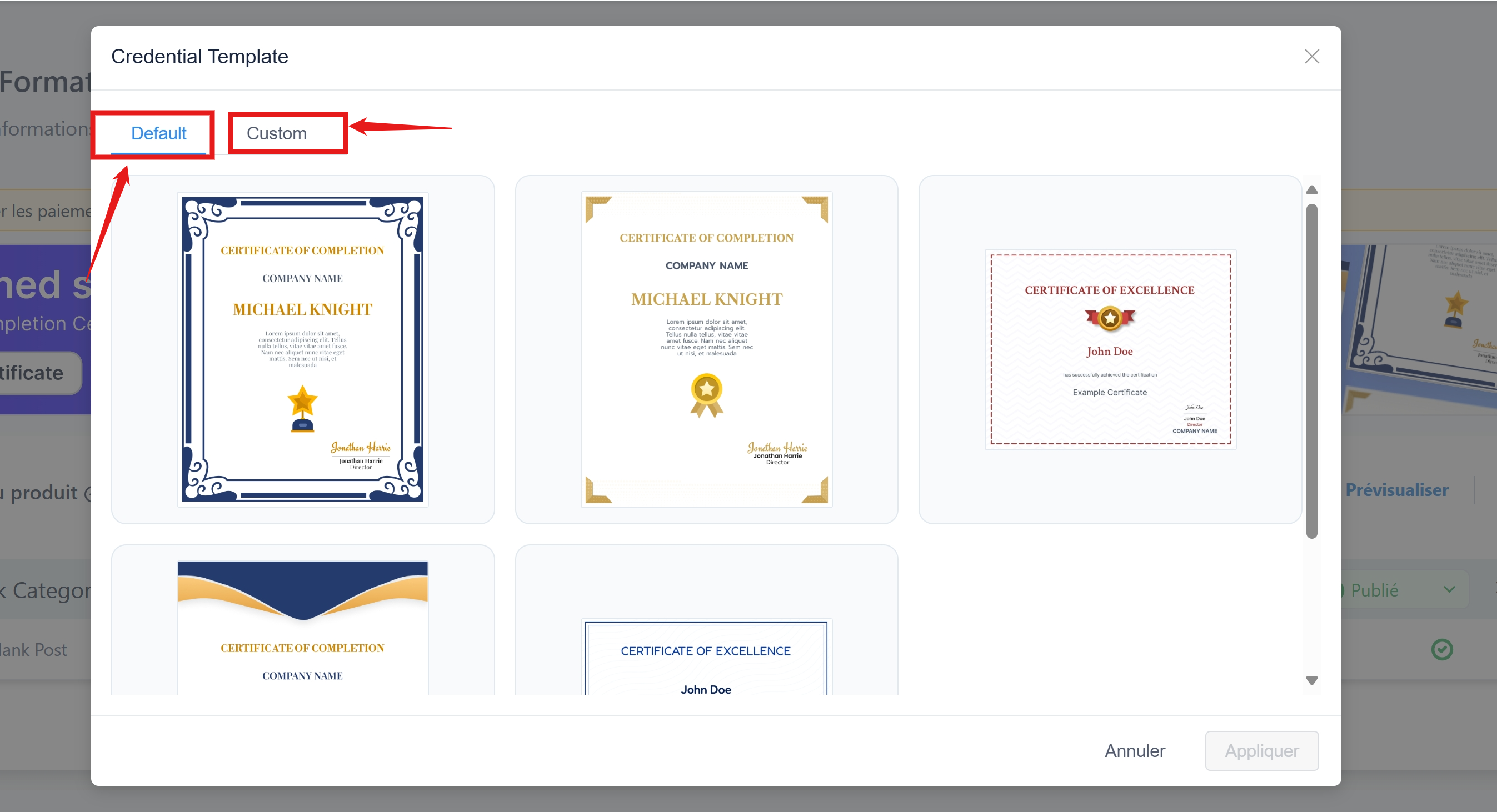
Select a template that you have created beforehand (in "Custom")
Or choose one of our default templates (in "Default")
How it works
The category certificate appears as the last lesson in the section
It is automatically triggered when the student has completed 100% of the lessons in the category
The certificate cannot be moved; it always remains at the end of the category
📌 Good to know
🎯 100% of the lessons must be completed to trigger a certificate (training or category)
You can use multiple certificates in the same training course to motivate learners at each stage
Certificates can be customized with the student's name, the title of the training course, the date of completion, etc.
💡TIP: For more information, see our article on creating a personalized certificate template with learner-specific information (training title, name, start date, etc.)
❓ FAQ – Frequently asked questions
Is the default certificate mandatory?
No. You can delete it or set it to draft at any time if you do not want a certificate to be issued at the end of the course.
Can I use my own certificate template?
Yes! You can create or import a custom template from the certificate library and attach it instead of the default certificate.
Is the certificate issued automatically?
Yes. The certificate is issued automatically as soon as 100% of the lessons are completed (either for the entire course or for a specific category).
Can I have multiple certificates in one training course?
Yes. You can award a certificate of completion for the entire course + one or more certificates of completion for specific categories.
Where can my students download their certificates?
All certificates issued appear directly in your students' customer portal.
With these automatic and contextual certificates, you offer your students concrete recognition of their progress—and reinforce their long-term commitment.