Automatically grant access to a private channel in a community
Automating access to a private channel in a CrocoClick community: a simple guide to managing your members efficiently via workflows.
Written By Lalaina de Crococlick
Last updated 7 months ago
Want to restrict access to a private channel to certain members of your community in a fully automated way? With CrocoClick, you can do this in just a few clicks using automations.
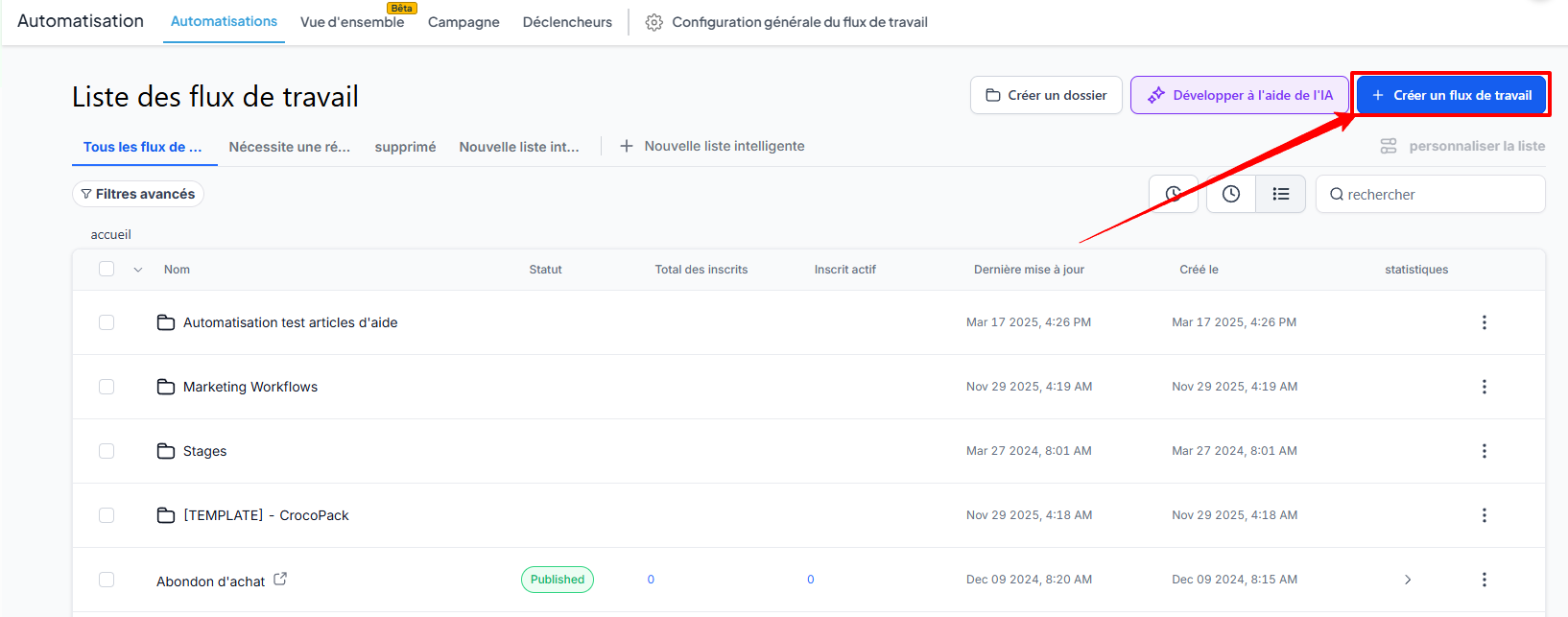
1. Access your automations
Go to Automation and click + Create a workflow or modify an existing automation according to your needs.
2. Choose a trigger
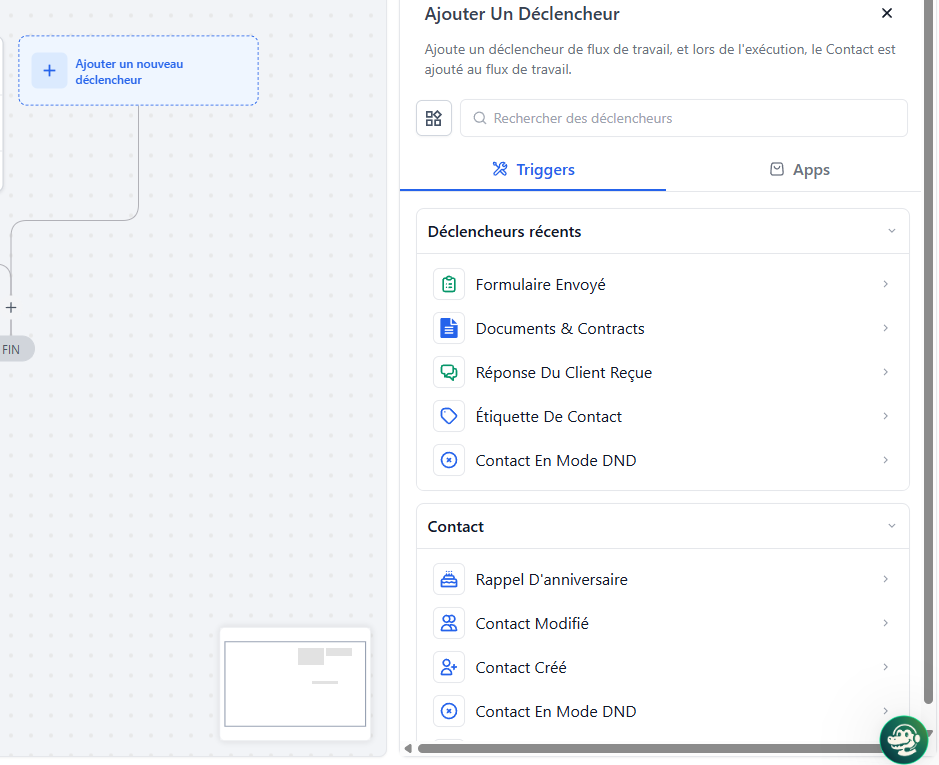
Select the trigger of your choice.
This trigger will define when the member should be granted access to a private channel.
3. Add an action
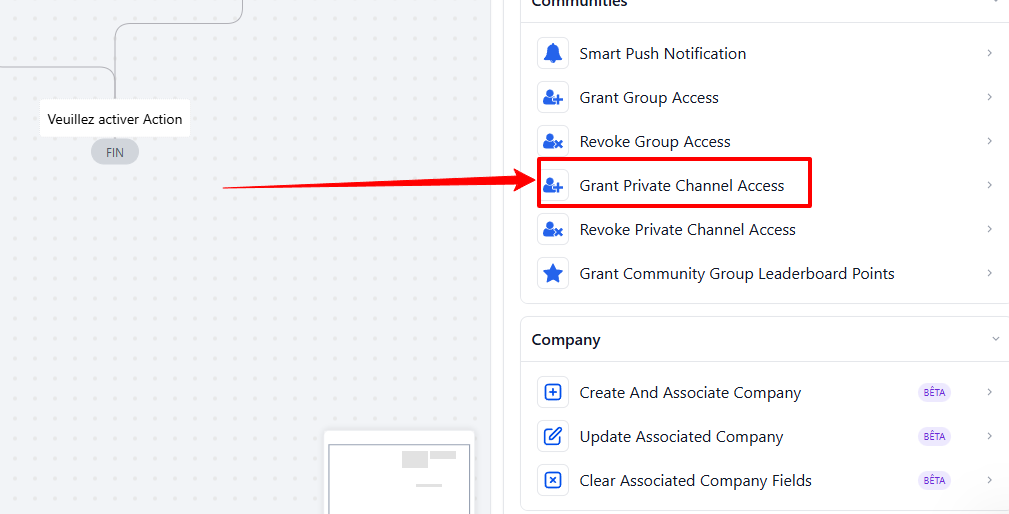
Click + Add action, then select Grant Private Channel Access from the list.
This action automatically adds a member to a specific private channel.
4. Configure the action
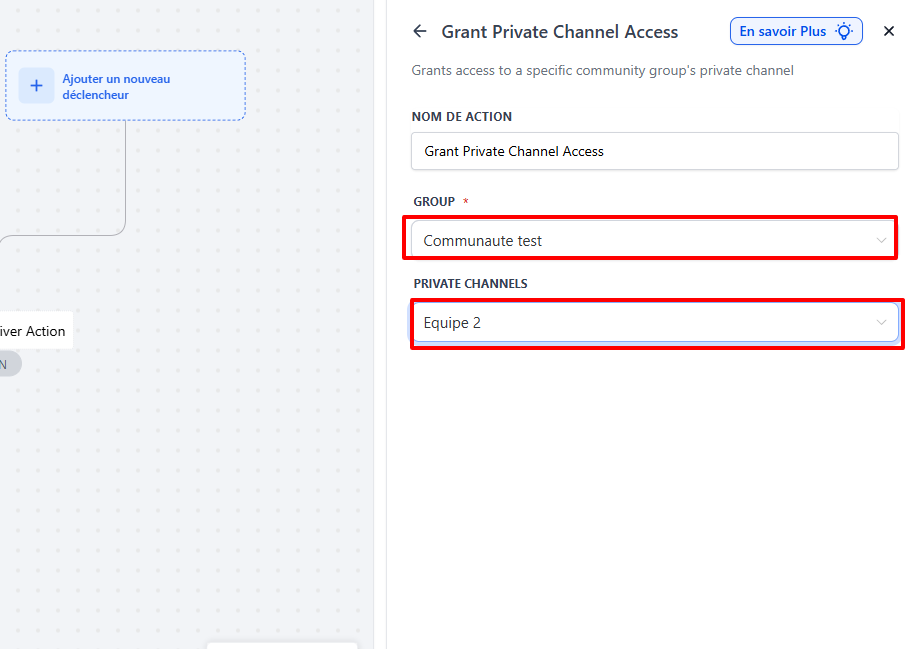
Once the action has been added:
Choose the relevant community
Select the private channel you want to grant access to
Make sure the channel in question already exists in your community.
5. Publish the automation
Click publish. The automation is immediately operational: as soon as a contact meets the trigger criteria, access to the private channel will be automatically granted.
The "Grant Private Channel Access" action is an excellent way to intelligently manage your access to private channels in a CrocoClick community. By adding it to an automation, you make it easier to manage your members while ensuring a smooth and consistent experience.