Introduction to CrocoClick countdown timers
Create and customize a countdown timer on CrocoClick to maximize conversions
Written By CrocoTeam
Last updated 6 months ago
Whether it’s for a limited-time promotion, an exclusive launch, or a special event, adding a countdown timer clearly shows the time remaining and boosts conversions.
You can customize the appearance of the countdown timer with animations to draw attention to your offer.
Different types of countdowns
CrocoClick offers several types of countdowns tailored to users' needs:
Fixed countdown
Countdown to a specific date.
Example: "The Black Friday sale ends in 2 days!"
Recurring countdown
Resets after expiration for ongoing promotions.
Example: "Sign up before the next session in 5 days!"
Dynamic countdown
Customized based on the user (e.g., when opening an email).
Example: "Your special offer expires in 1 hour!"
Create a countdown timer with CrocoClick
Access the tool
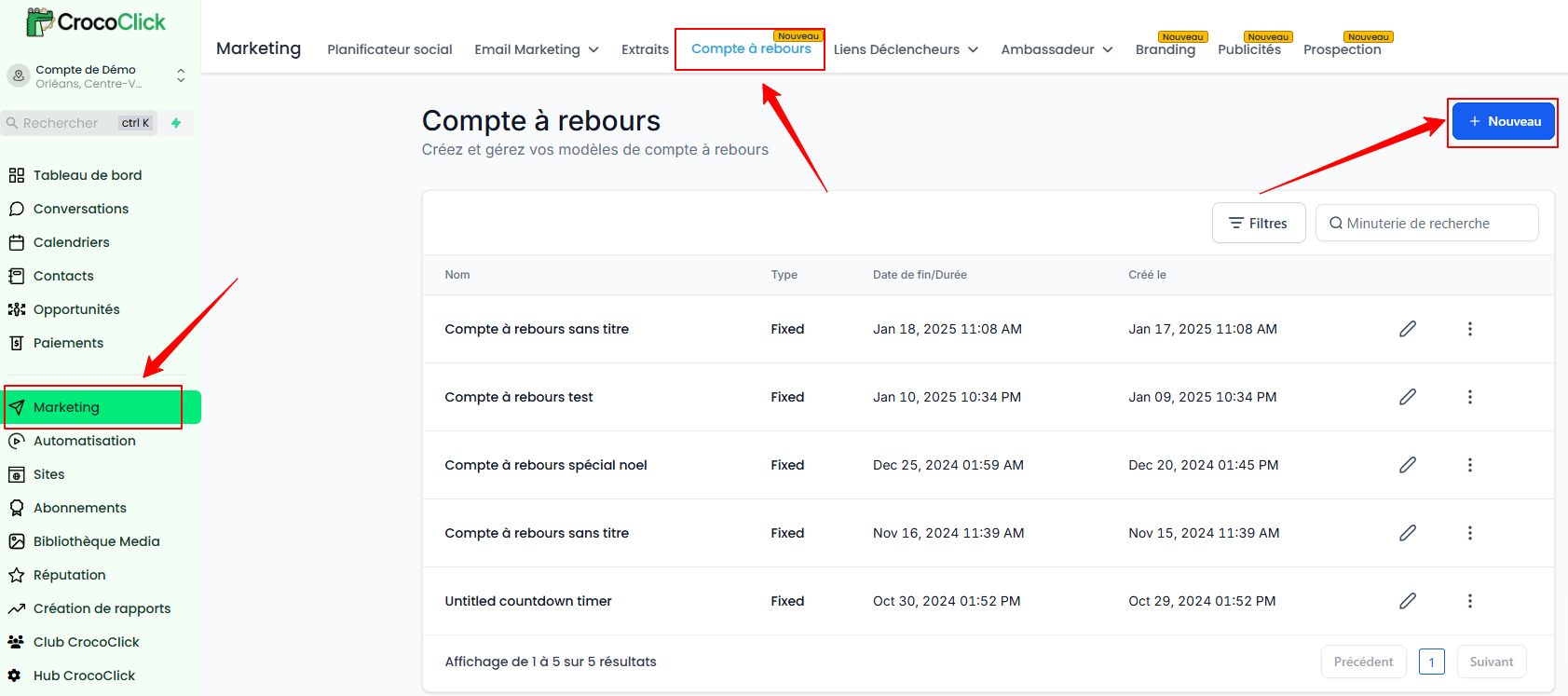
Go to Marketing > Countdown.
Click New Countdown.
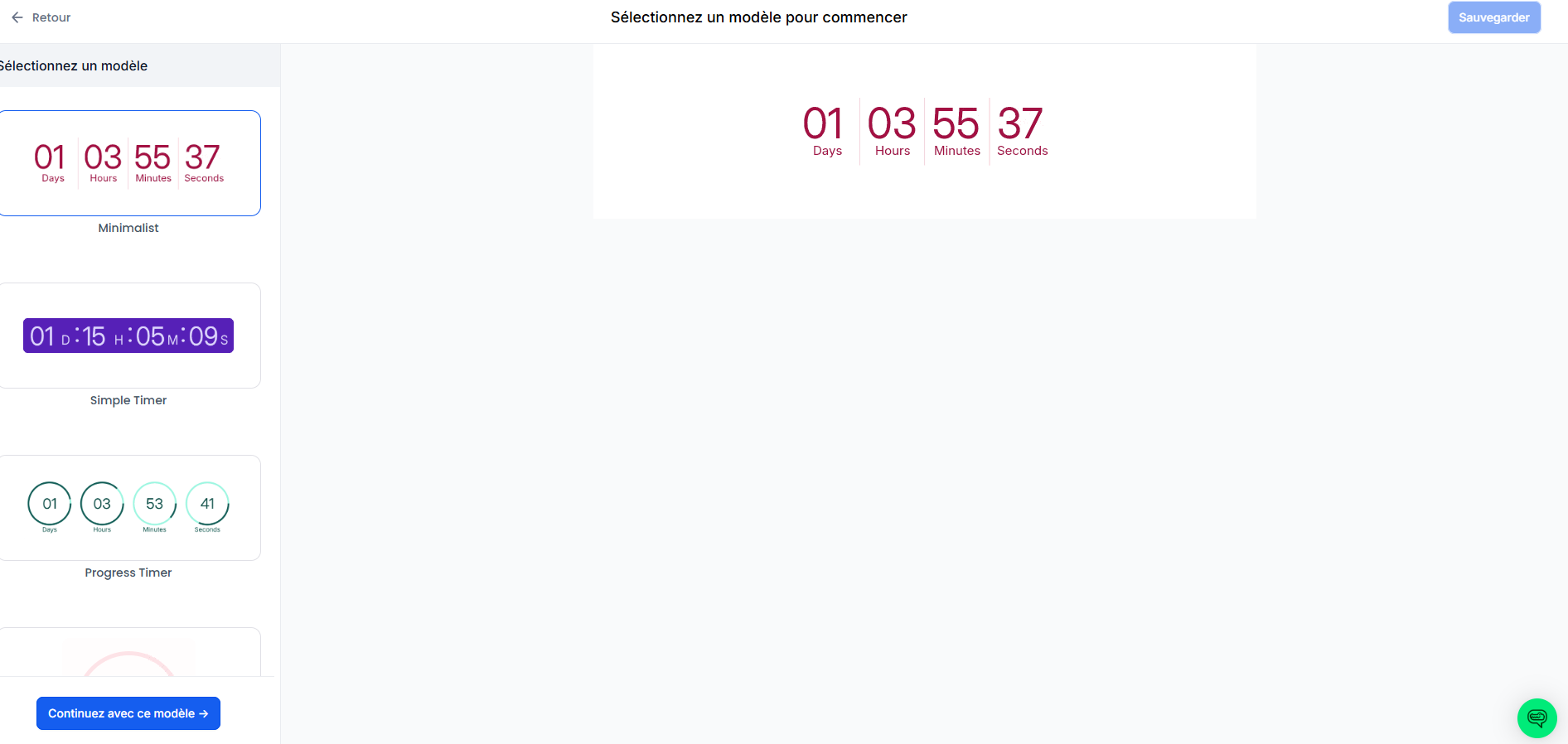
Select a template
Choose a design template and click Continue with this template.
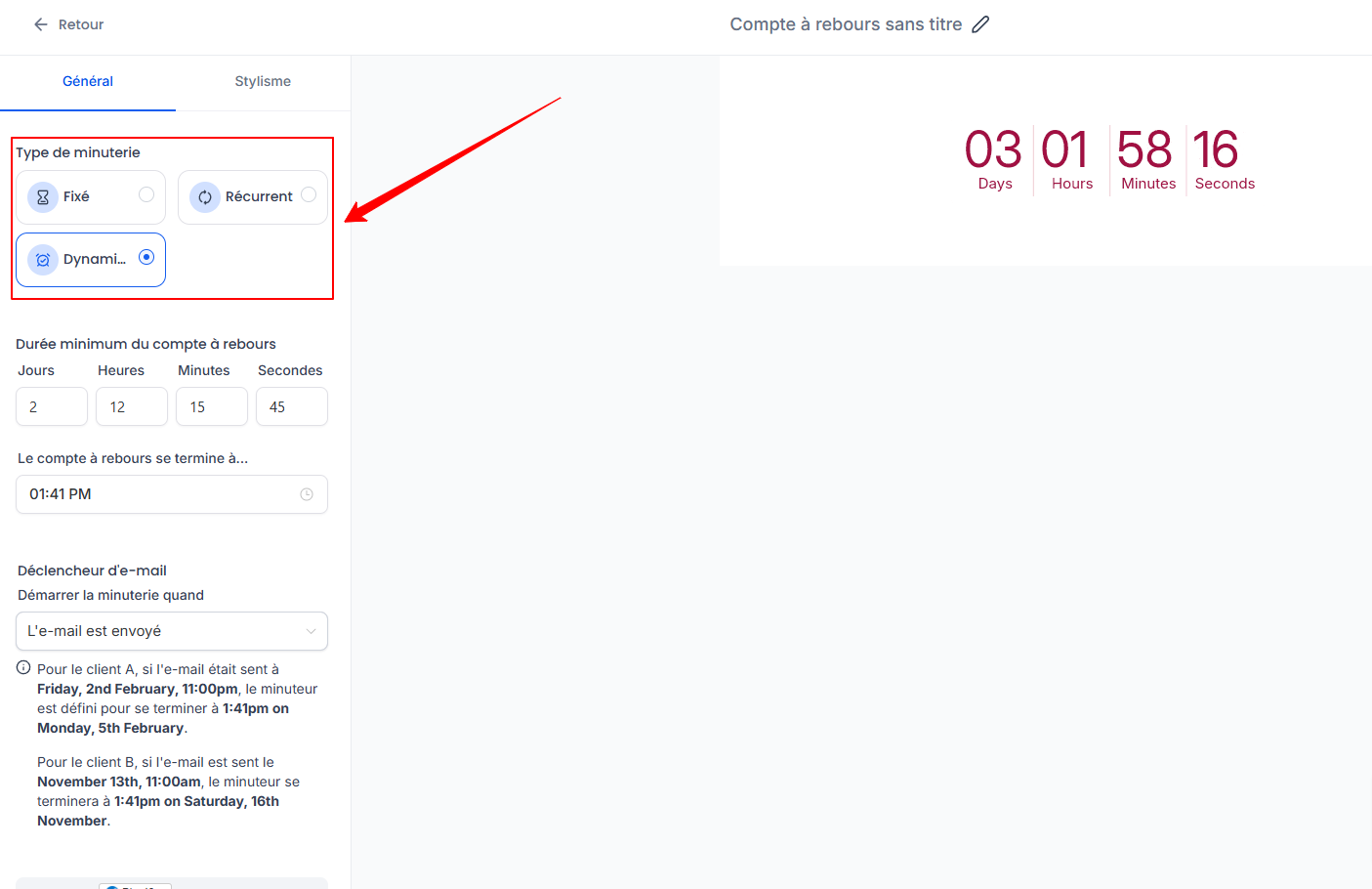
Choose the countdown type
Fixed: Select a specific end date and time.
Recurring: Set the countdown duration and the number of repetitions.
Dynamic: Customizable by user.
Set the end date and time
It is essential to set a specific end date and time for the countdown.
Select an end date from the calendar.
Set the exact time when the offer will expire.
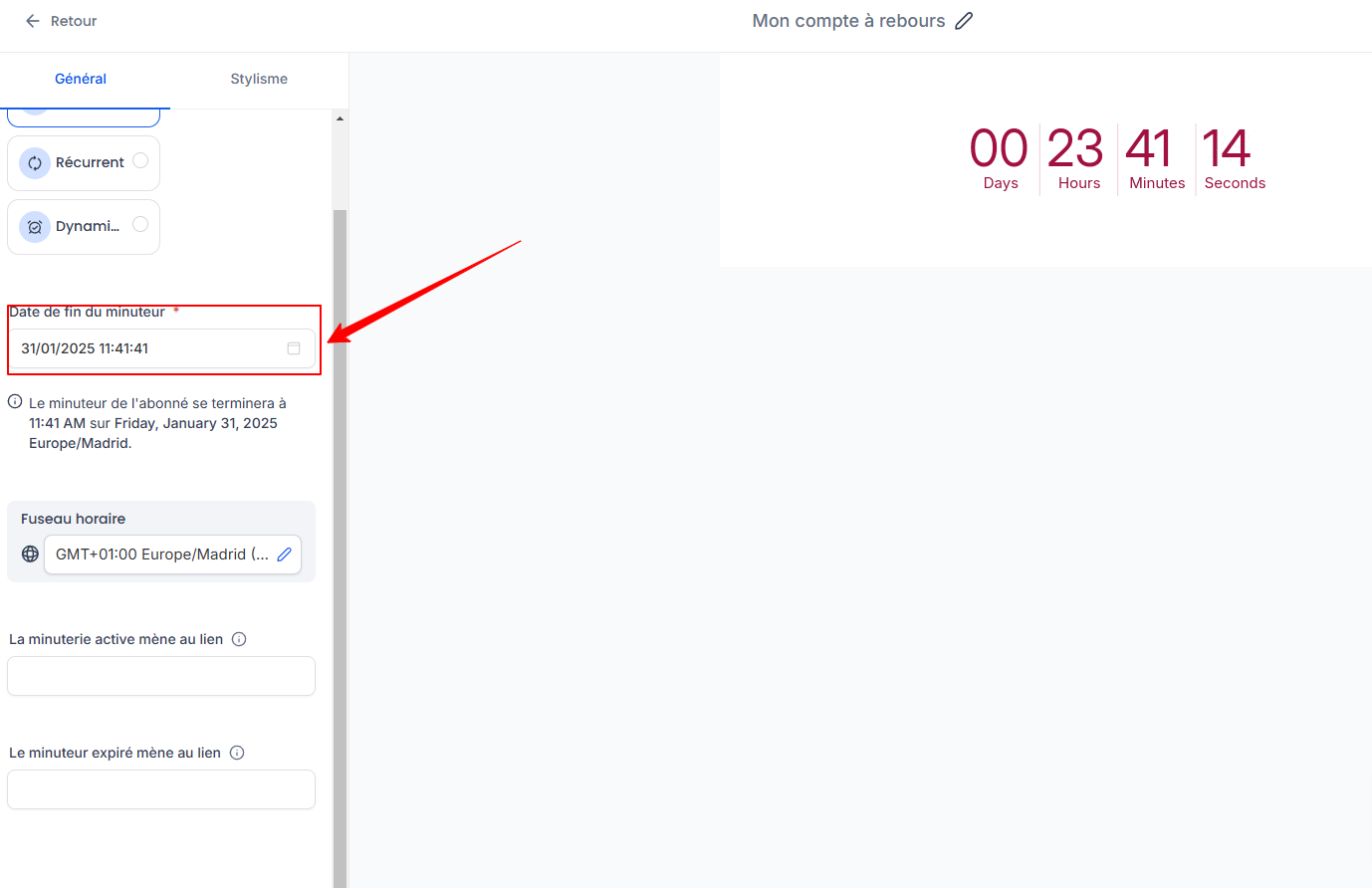
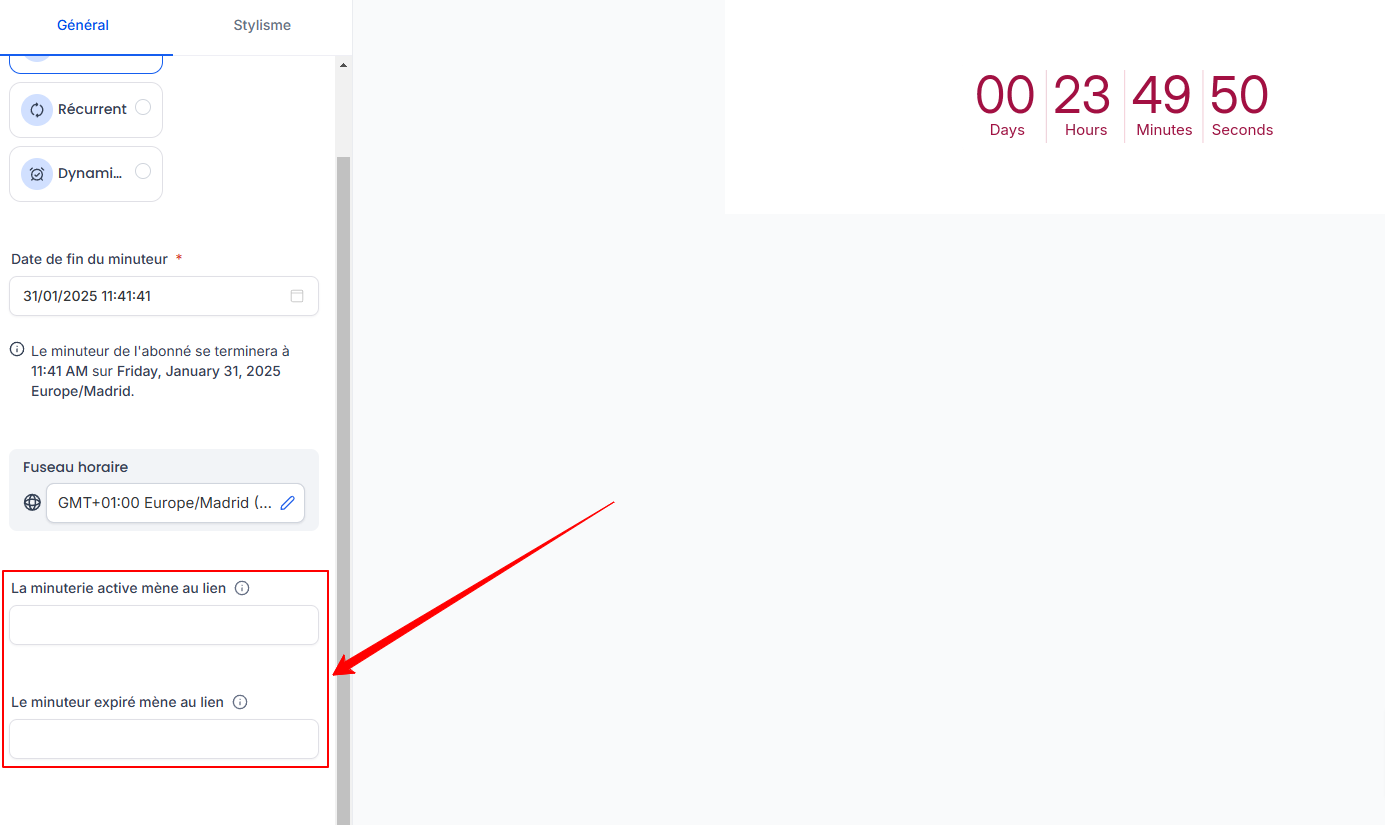
Configure links
Active link: Redirects users to the page where the offer is available.
Expired link: Redirects to an expiration page once the countdown has ended.
Customize the style
By going to Styling, you can customize your countdown.
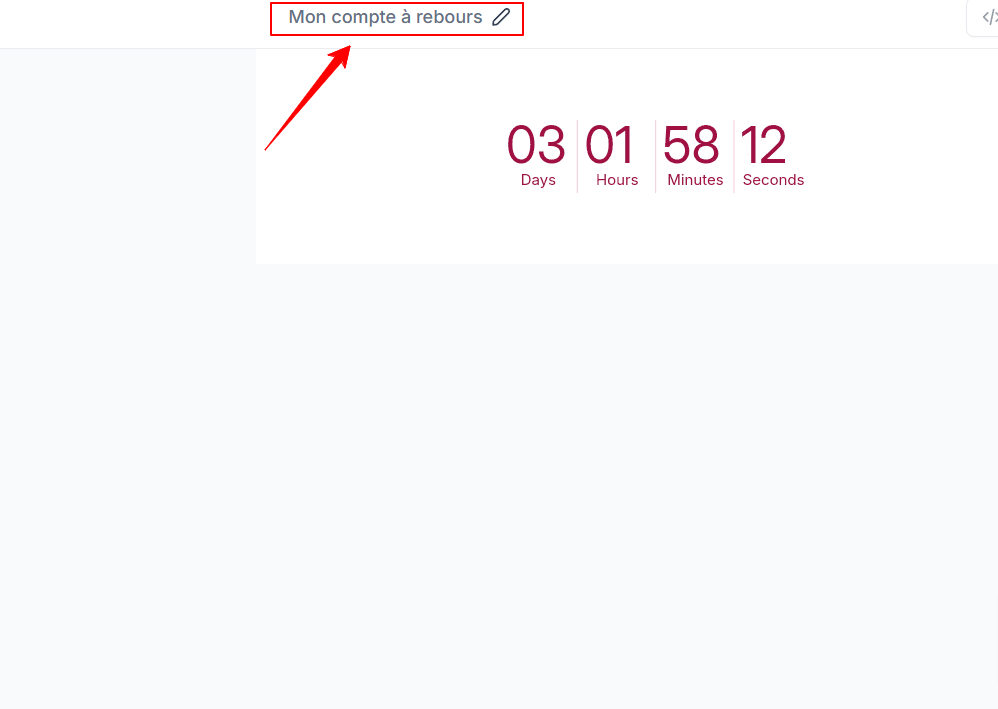
1. Element Name
Name your countdown to better organize your layout and easily identify your elements.
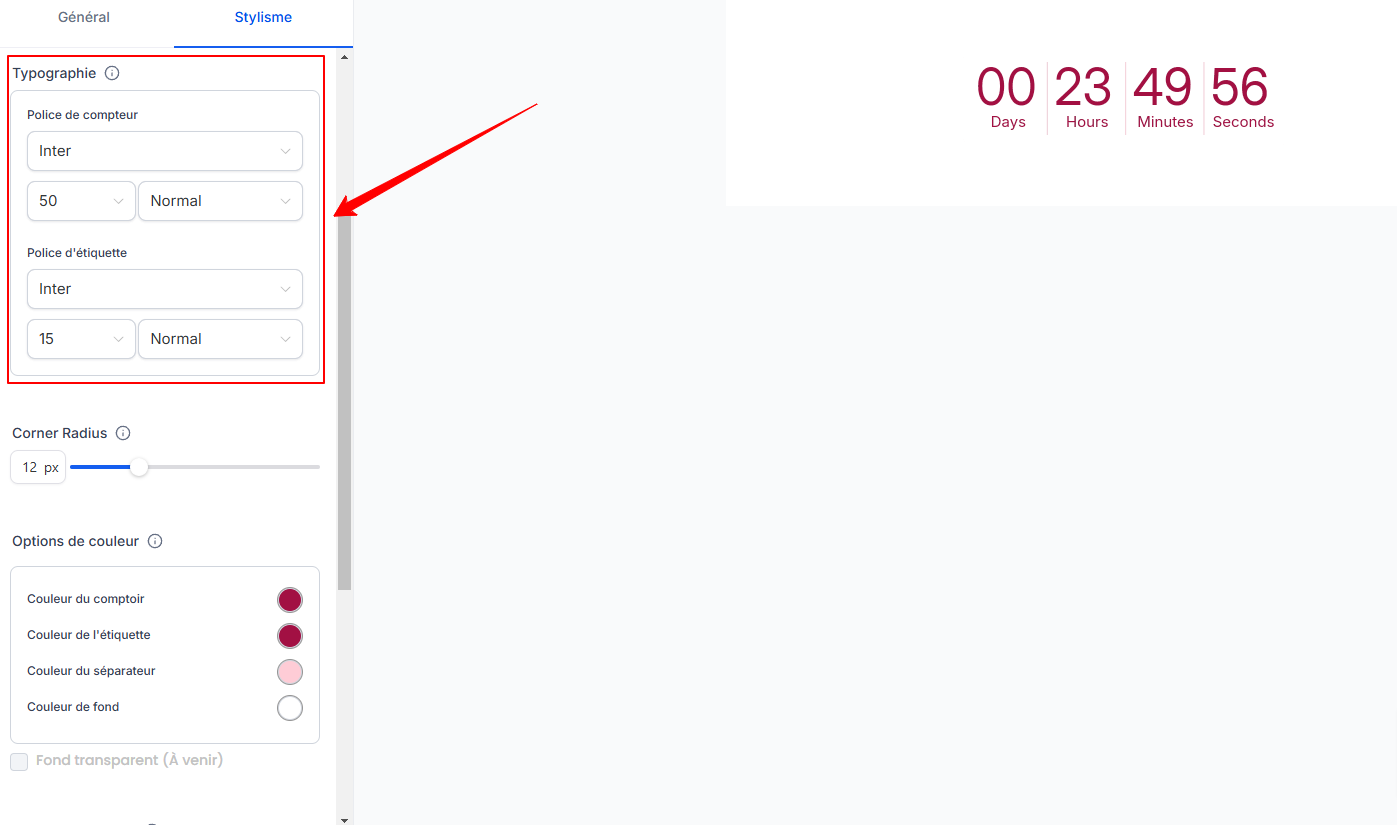
2. Font and typography
CrocoClick lets you customize the font of the countdown timer so it matches your site.
Select a specific font from the available options.
Adjust the font size on desktop and mobile by dragging the slider.
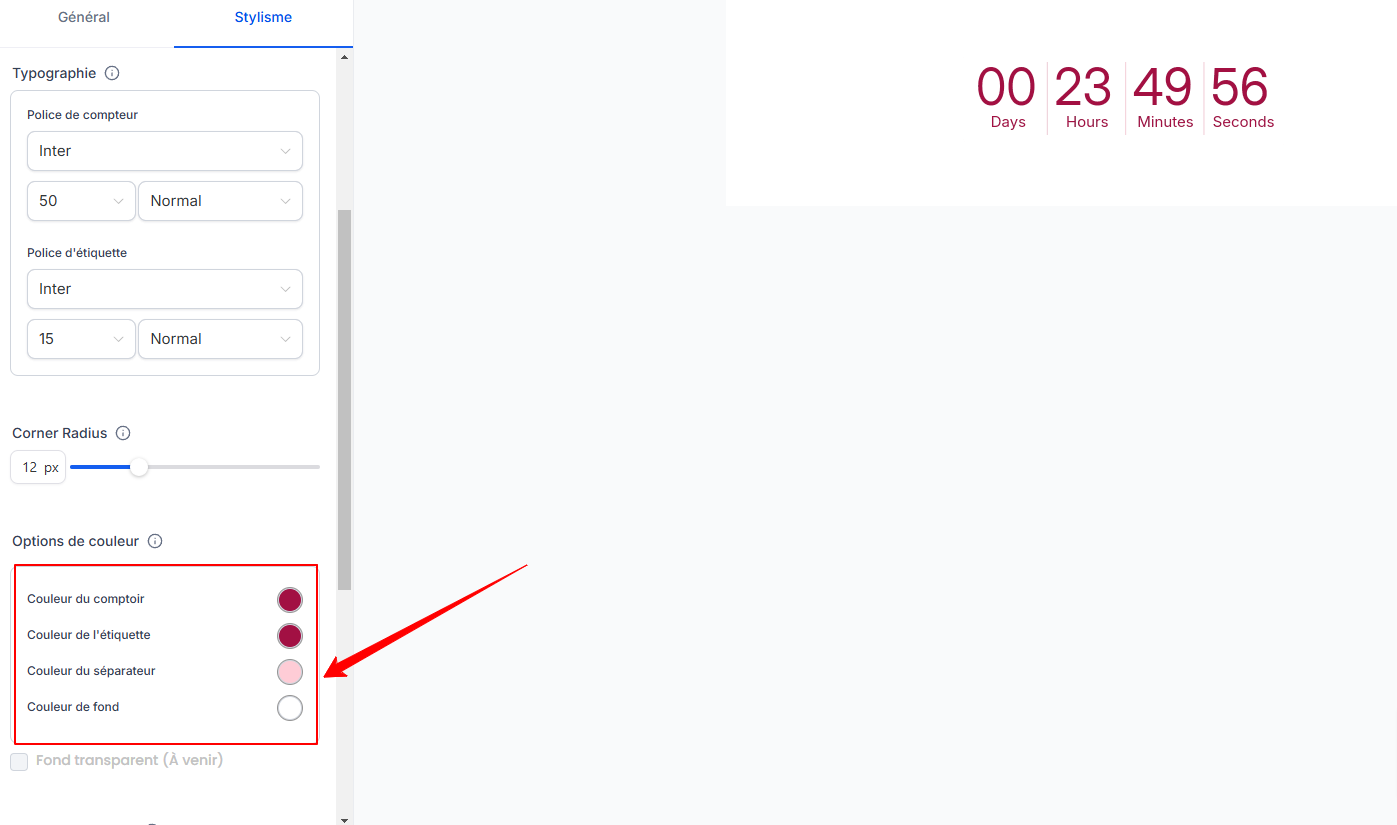
3. Colors and appearance
You can customize the countdown timer’s colors so it fits perfectly with your brand guidelines.
Countdown color
Label color
Separator color
Background color
4. Save and publish
Click Save to activate your countdown timer.
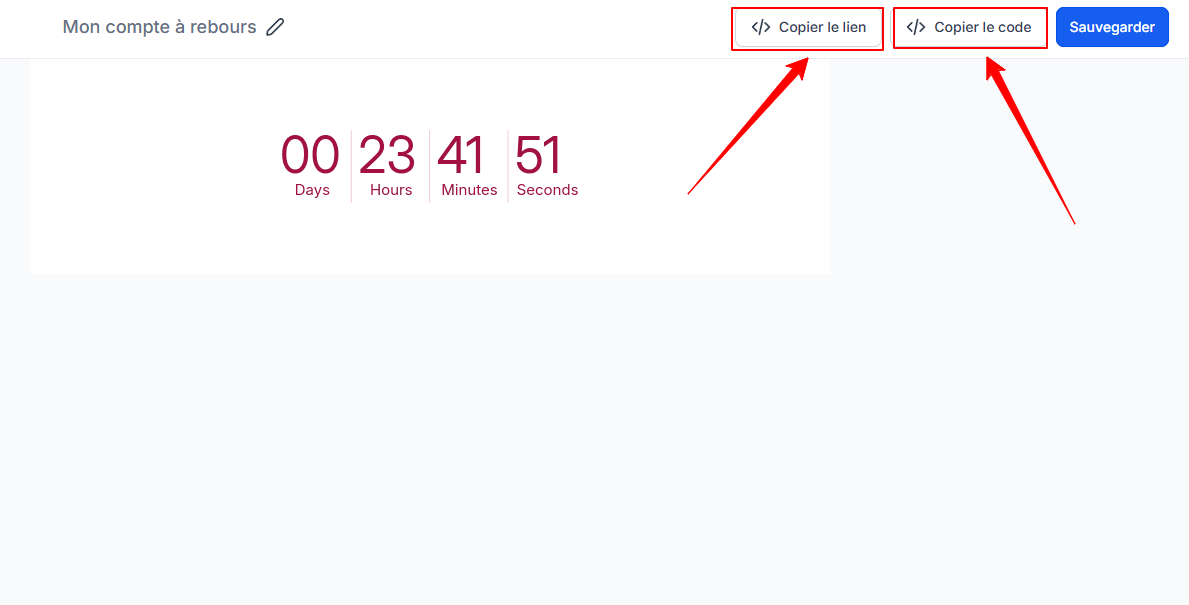
To share the countdown timer, you can either copy the link or copy the code and embed it in your emails or on your sales page.
Conclusion
A countdown timer is an effective tool for boosting your promotions and encouraging your visitors to take action. With CrocoClick, easily set up a countdown timer tailored to your strategy, whether for flash sales, events, or exclusive offers. Test different approaches to maximize the impact on your audience!