Create an unsubscribe link and a personalized unsubscribe page
Learn how to create a personalized unsubscribe page and a personalized unsubscribe link to enable your users to manage their email preferences, respect their choices and optimize your campaigns.
Written By CrocoTeam
Last updated 14 days ago
By default, an unsubscribe page is automatically created to notify your prospects when they click on the unsubscribe link in your emails.
However, it is possible to create a custom unsubscribe page.
This not only allows you to respect your contacts' preferences, but also to maintain consistent branding and link to some of your content if necessary.
In this article, we will show you all the steps you need to follow to easily create your unsubscribe page on CrocoClick.
1. Create an unsubscribe page
Go to your funnel editor:
Go to Sites > Funnels > +New funnel.
Add a new page and name it. (E.g., unsubscribe page)
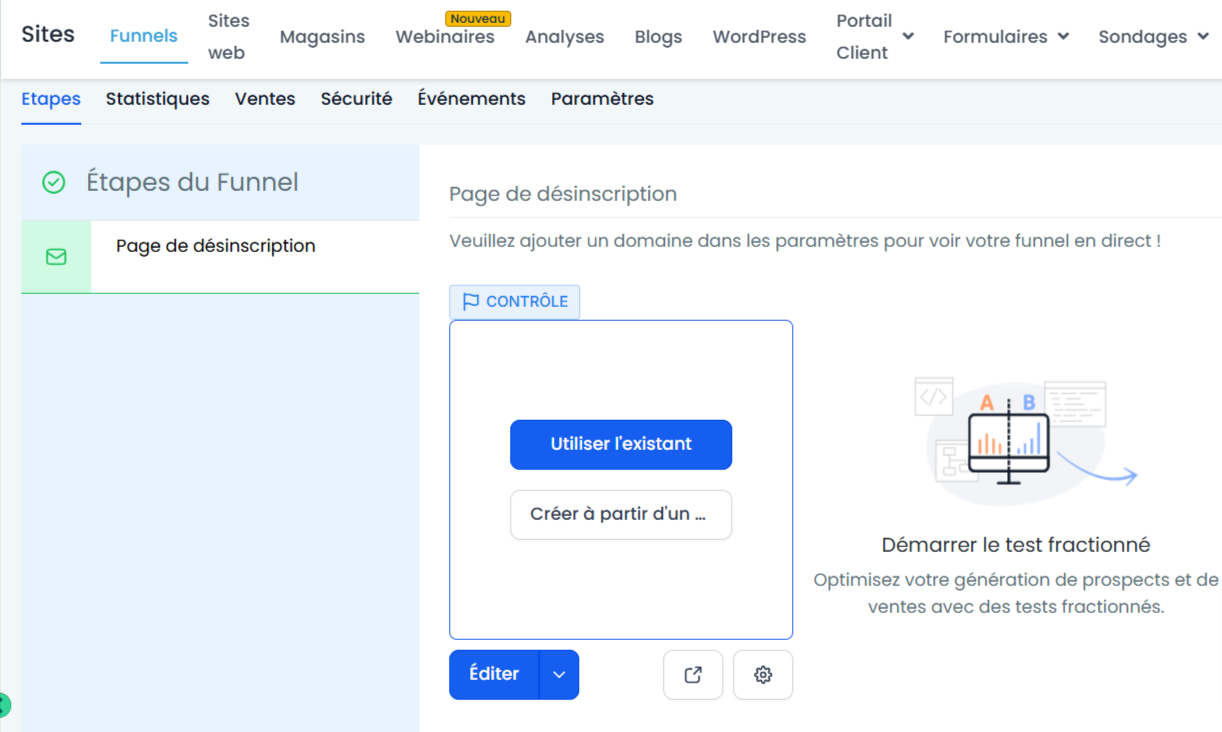
Design your page:
Access the editor menu by clicking on Edit and build your page according to your desires and preferences.
💡 TIP: Check out our article Page builder overview to learn how to create your page quickly and easily.
2. Create a trigger link for unsubscribing
1. Create the trigger link
Go to Marketing > Trigger Links > Links, create a new trigger link that redirects to the unsubscribe page you created earlier.
💡 TIP: Check out our article Understanding and using Trigger Links to follow all the steps for creating your trigger link.
3. Create an automation to unsubscribe contacts
Access automation:
Go to Automation > + Create a workflow.
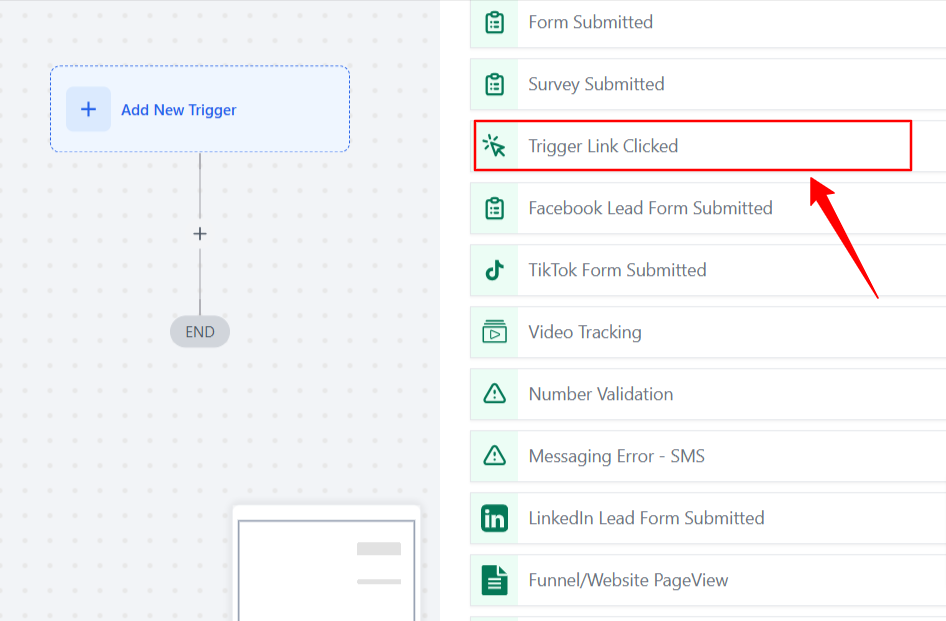
Add the trigger:
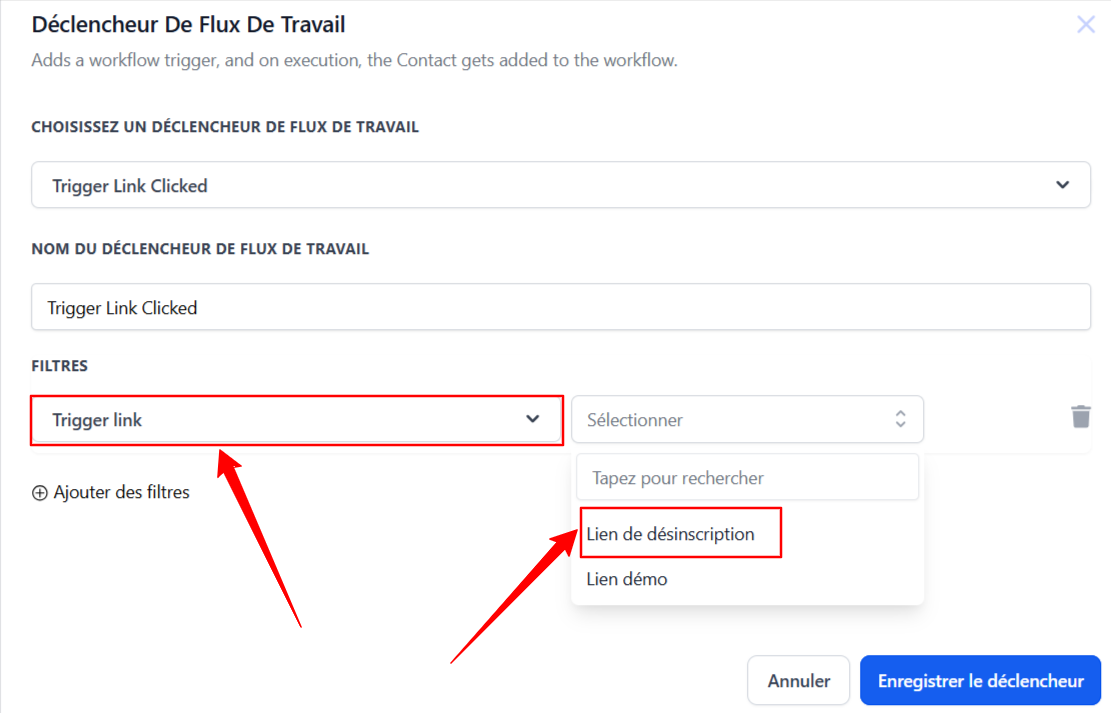
Select Trigger Link Clicked as the trigger.
Choose your unsubscribe link
.
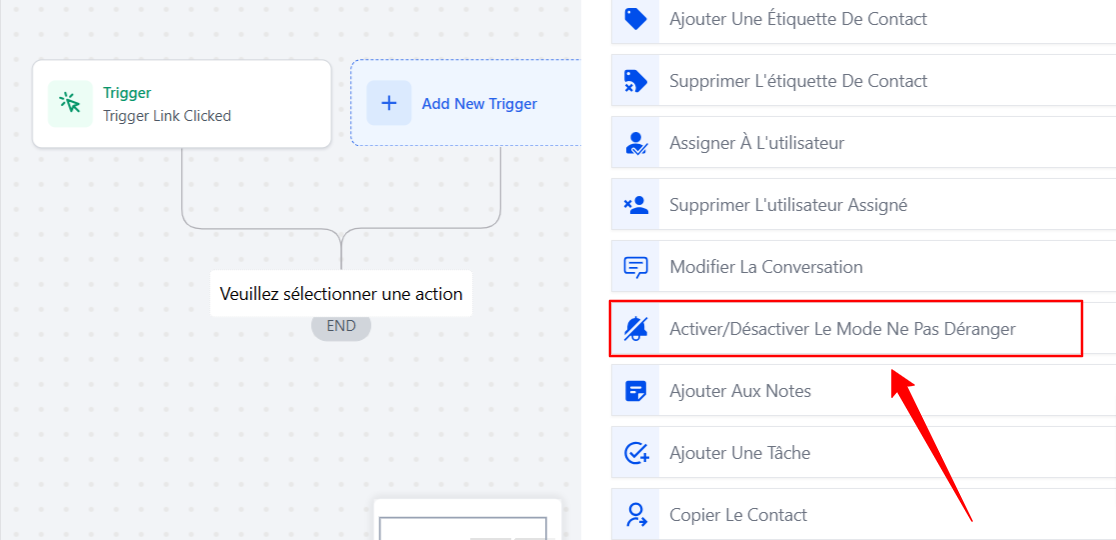
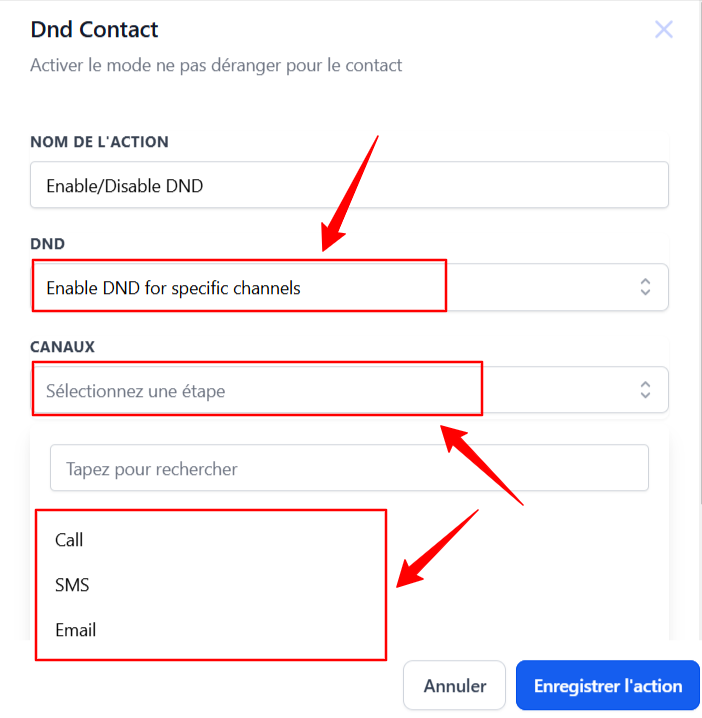
Enable Do Not Disturb mode
Select the Enable/Disable action EnDo Not Disturb mode.
In DND, select Enable DND for Specific Channel to choose one or more specific channels. Or select Enable DND for all channels to choose all channels.
Save and test your automation:
Click Save and test the flow to make sure it works correctly.
4. Insert the unsubscribe link into your emails
Insert the link into your campaigns and newsletter templates
Open your campaign or email template editor.
Add anchor text, such as "Unsubscribe."
Select the text, insert the trigger link by clicking on the add link icon, and choose your unsubscribe link from the list.
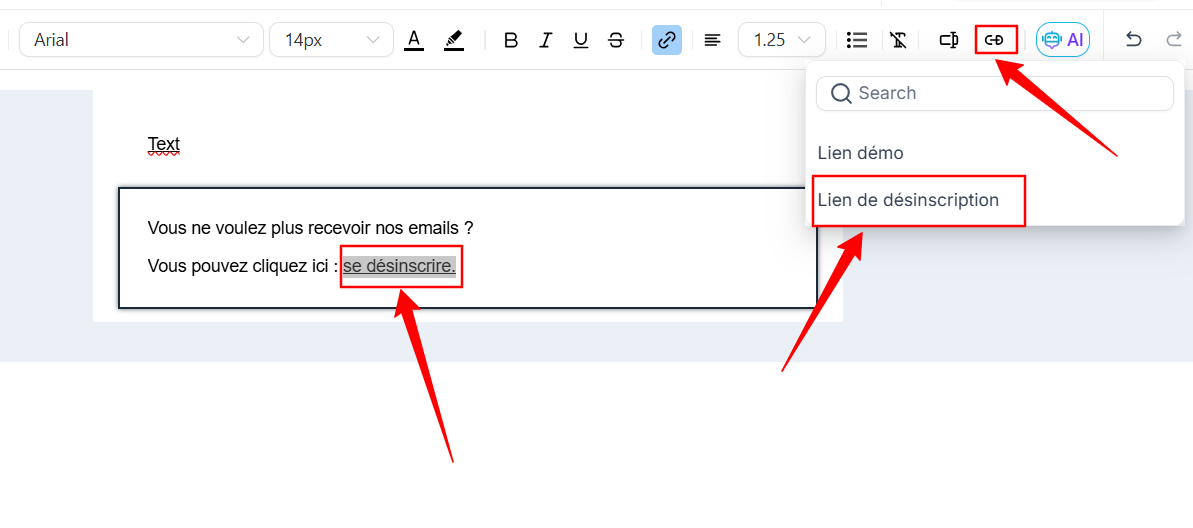
💡 TIP: You can save the section to reuse it in multiple email templates without having to recreate everything.
5. Disable the default link
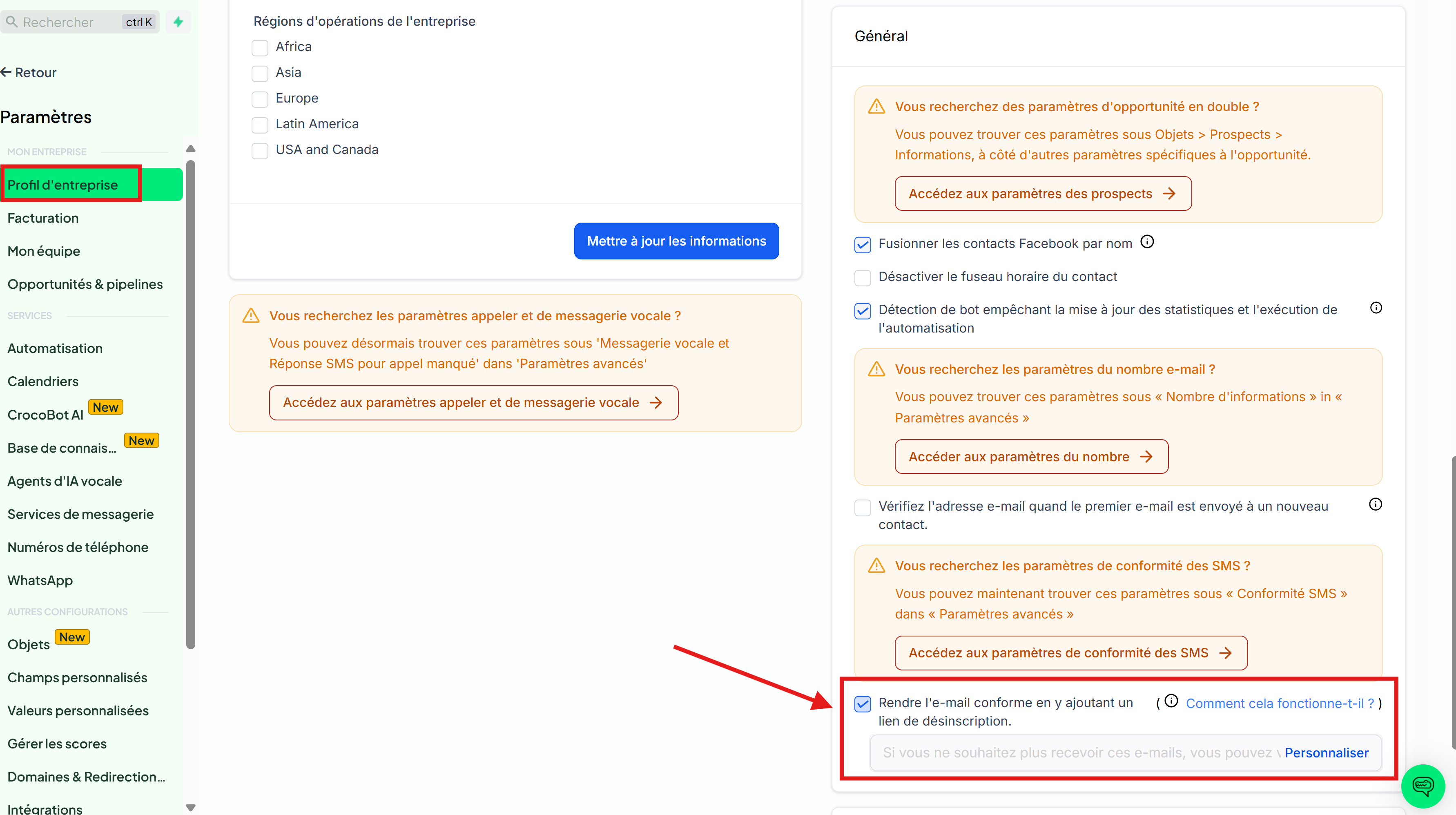
By default, CrocoClick includes an unsubscribe link in the footer of your emails.
You can disable it if you want to manually insert your own link.
Steps:
Go to Settings > Company Profile
Open the General tab
Enable/disable the Include unsubscribe link option
👉 When this option is enabled, the link will be automatically added to all your emails.
👉 If you disable it, you will need to manually add the tag {{unsubscribe}} to your emails (see step 4)
Conclusion
By following these steps, you give your contacts a clear option to unsubscribe, while taking advantage of CrocoClick's advanced features to optimize your campaigns.
Thanks to trigger links and well-designed automation, you simplify the process.