How to export answers to a form, survey or quiz
How to export and open CrocoClick form or survey responses correctly (and make them readable in Excel / Sheets)
Written By CrocoTeam
Last updated 7 months ago
CrocoClick allows you to collect valuable feedback, customer data, and responses via forms, surveys, or quizzes.
But once your users have responded... where does the data go? And how can you easily export it for analysis in Excel or Google Sheets?
This guide explains where to find submissions, how to export them properly, and how to avoid common mistakes when opening CSV files.
Step 1 – Accessing responses
Where are the submissions located?
In the left sidebar, click on Sites
Then click Surveys or Forms, depending on the type of content used
Click on the Responses tab
You will then see a table with:
The email or contact who responded
The time and date of submission
All the responses provided
You can also filter by form or survey name using the drop-down menu at the top left.
Where can you see the responses in the contact files?
Some responses (e.g., name, email, phone number) are directly integrated into the contact's profile if there was a corresponding field in the form.
The other responses are visible:
In the contact record
Under the Survey tab | [Form name]
📤 Step 2 – Export responses (CSV format)
To export submissions:
Go to the Responses tab of the relevant form or survey
Click on the Export button (top right)
A download link will be sent to you by email
You will receive a .csv file containing all the responses, line by line, for each participant.
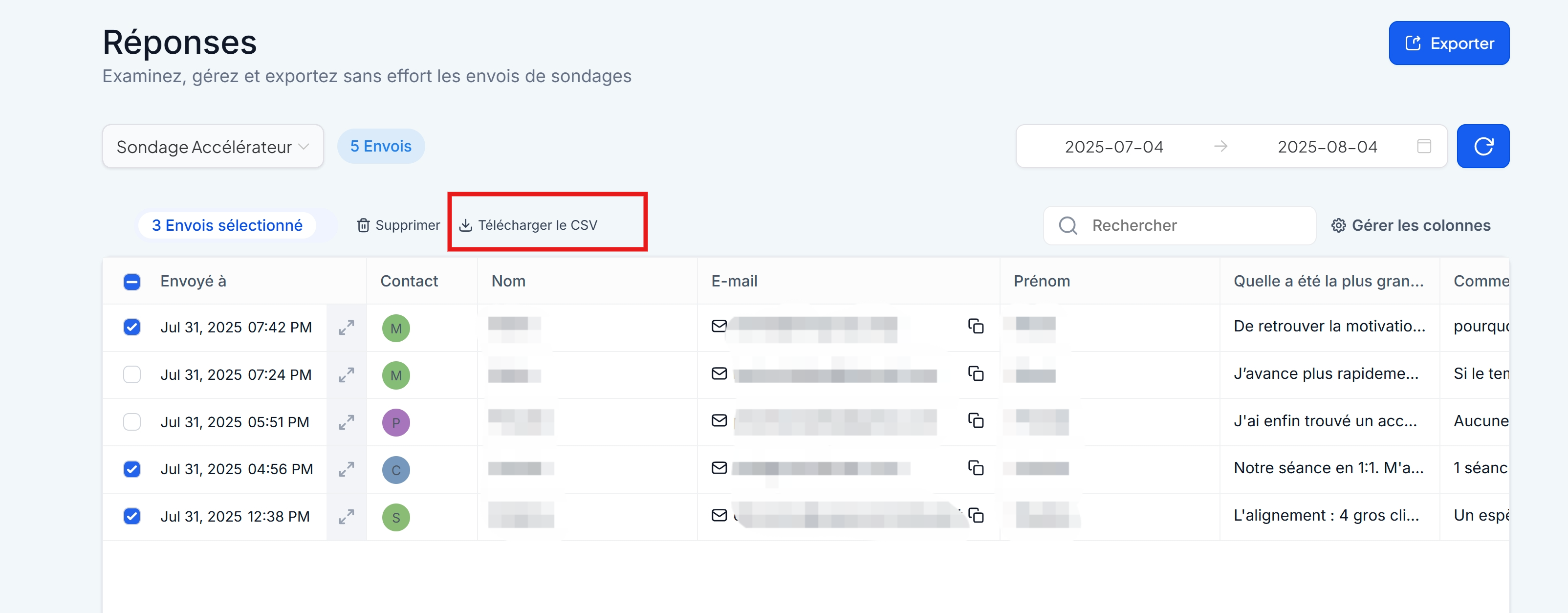
Alternatively, you can check the responses you want to export, then click "Download CSV" if you want to get the file immediately (rather than by email)
🔎 Step 3 - Open the CSV file (and make it "readable")
When you export a form or survey in CSV format, you may sometimes end up with a file that is... unreadable.
All the data is mixed up, some lines seem to be out of place, and nothing looks like a structured table.
👉 This guide explains why this happens... and how to solve the problem in 3 simple steps.
Why does this happen?
CSV (Comma Separated Values) files use commas , as column separators.
But if one of your users writes a response containing a comma, like this:
"J’avance plus rapidement dans mon travail, et dans ma clarté."➡️ Excel or other software may think that a new column needs to be created for each comma, which breaks the entire structure.
Good news: CrocoClick exports automatically encapsulate fields containing commas in quotation marks — which complies with the standard CSV format.
However, your Excel file is still in ".csv" format, which is difficult for the human eye to read.
This is where the three methods below come in:
✅ Three methods for correctly opening a CSV file with commas
Option 1 – Convert to Excel (.xlsx) for greater convenience
Open your CSV in Google Sheets (or Excel as described in option 2)
Save it in .xlsx format to avoid future problems
You will get a clean and readable table, with internal commas handled correctly
Does not work in 100% of cases...
Option 2 – Open correctly in Excel (most effective)
Open Excel
Go to Data > Get Data > From Text/CSV File
Select the relevant file
In the import window, choose:
Delimiter: Comma
Encoding: UTF-8 (if available)
Verify that responses with commas are in a single cell
Click Load
💡TIP: If everything is displayed in a single column, use Data > Convert > Delimited > Comma to force the conversion.
Option 3 – Use Google Sheets (often the simplest option)
Go to Google Sheets
Create a blank sheet
Click File > Import > Upload
Select your CSV file
Google automatically detects commas and quotation marks and displays the file correctly
FAQ
Q: Can I trigger automation following a response?
Yes, via the "Survey Submitted" trigger in workflows.
Q: Are responses visible in the contact record?
Yes, if they correspond to standard fields (email, first name, etc.), they are automatically added to the appropriate fields.
If they correspond to custom fields, a new category with the name of your form is created in the contact record.
Q: Can I track multiple submissions from the same contact?
Yes, each form submission is recorded separately—handy for recurring quizzes or monthly feedback.