Create a dedicated domain for sending e-mails (@mondomaine.com)
Learn how to create a dedicated email domain to send emails with a branded address and improve your deliverability
Written By Baptiste Lorreyte
Last updated 8 months ago
A dedicated sending domain is essential for boosting your brand's credibility and improving email deliverability.
This ensures that your messages reach your customers' inboxes and are not blocked by spam filters.
Also, a dedicated domain allows you to send emails using your own domain (@mydomain.com).
This article is therefore essential for any user wishing to create email marketing campaigns.
💡TIP: To configure your custom web domain, go to in this article
What is a Dedicated Sending Domain?
A dedicated sending domain allows you to send emails that come from your brand, which helps you maintain a better reputation with email services.
By default, all emails sent from our platform will display the name of our sending servers in the "sent on behalf of" or "sent via" headers.
If you use a dedicated sending domain, you can have the headers display your name and domain.
How to Create a Dedicated Sending Domain
1. Access the dedicated sending domain settings
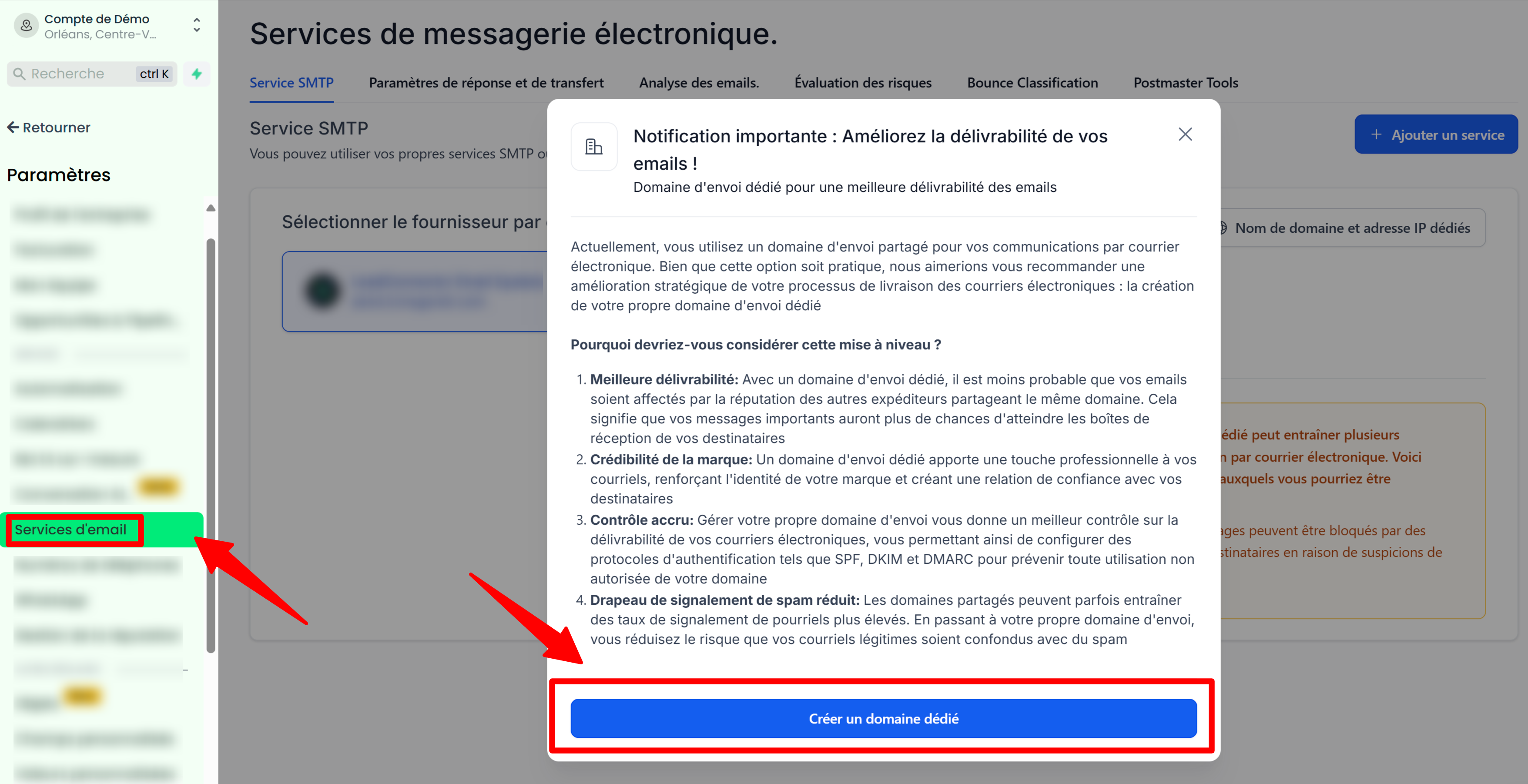
Go to Settings > Email Services.
Click the Create Dedicated Domain button.
Then add the details of the email domain you want to use.
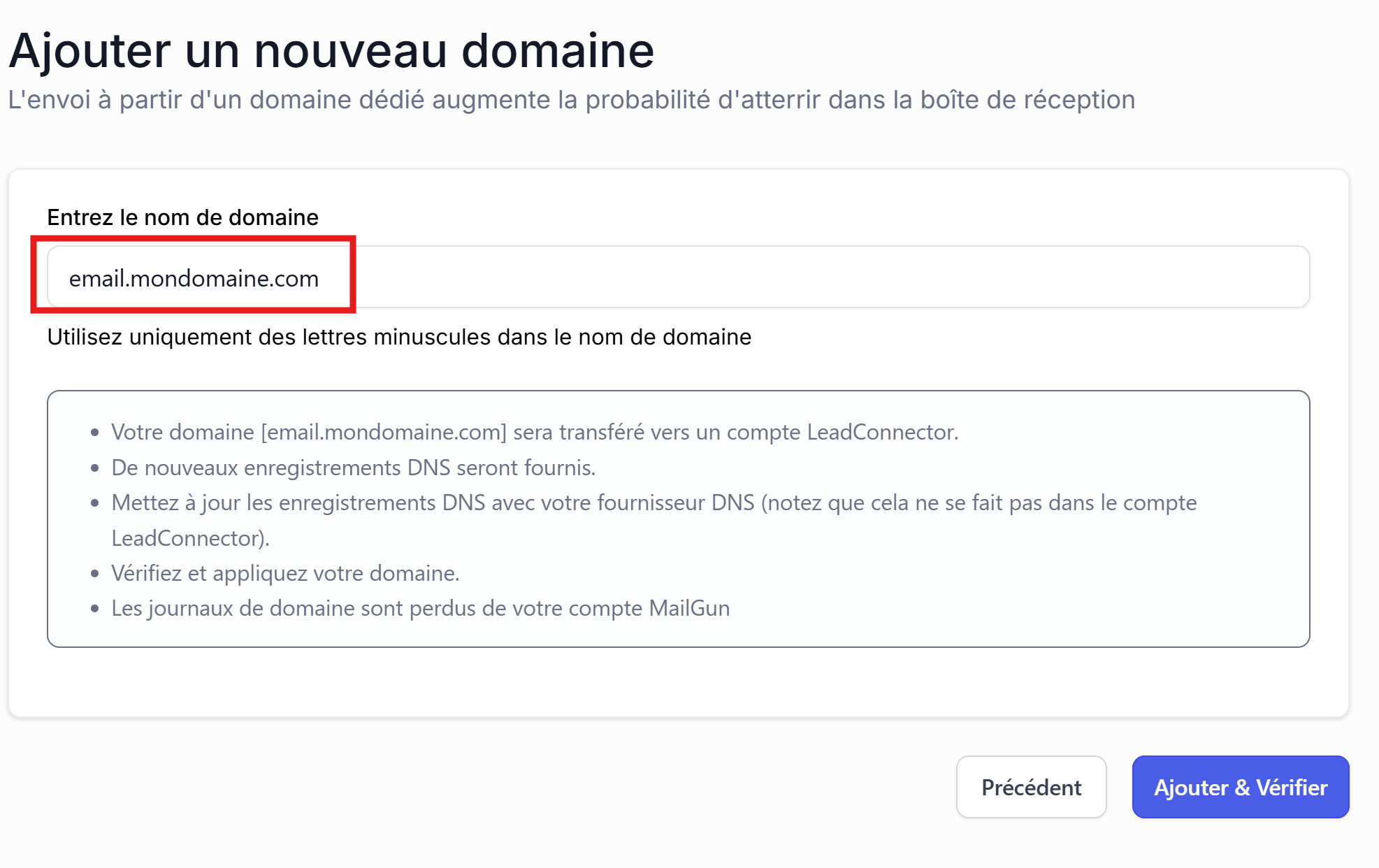
💡TIP: Domain or subdomain?
SUBDOMAIN: If you ALREADY have a professional email address (@yourdomain.com), we strongly recommend creating a subdomain email.
This
will take the form "@email.yourdomain.com" or "@mail.yourdomain.com."
With
a subdomain, you can keep your current email account while ensuring that emails in CrocoClick are sent from your main domain "@yourdomain.com."
DOMAIN: If you don't have an email account linked to your domain, you can connect your main domain to receive ALL your emails in CrocoClick.
This is ideal for people who want to centralize communications in and from CrocoClick.
2. Create the specified DNS records
Here are instructions for adding records for common DNS providers:
Note: The propagation process can take up to 24 hours. If it takes longer, please check your DNS settings again by following the steps above.
3. Verify the connection
Once the domain has been added, you can send emails. Please note that DNS changes can take up to 24 hours to propagate.
FAQ
How do I choose a sending domain name?
Use a unique subdomain that is not used for other purposes. For example, if your sending domain is hello@mg.votremarque.com, the subdomain is "mg."
How do I generate an SSL certificate for an unverified dedicated sending domain?
Go to Settings -> Email Settings -> Domain Services. Once the records have been added, click the verification button again.
How to delete a domain?
Go to Settings -> Email Settings -> Domain Services, click on the three dots, then click Delete.
How do I set a dedicated domain as active/default?
Check the box to set as active/default.
What should I do if the message "The domain already points to a mail server" appears?
This means that the domain or subdomain you want to use is already being used by another service. You will need to choose another subdomain (for example, "mail2.mydomain.com").
Can I send emails with my main domain even if I have set up a subdomain?
Yes, even if you have set up a subdomain, emails will be sent using your main domain (and will benefit from its reputation). For example, if you have entered mail2.mydomain.com as the domain, you can still send emails using, for example, the address contact@mondomaine.com.
Once the dedicated domain has been created, how do I create an email address?
In CrocoClick, you don't need to create anything. When sending your email, simply enter the address you want to use. As long as the address ends with @yourdomain.com, you can use it. For example, you can send an email with contact@votredomaine.com, prenom@votredomaine.com, hello@votredomaine.com, etc.: the possibilities are endless.
I can send emails and receive replies in CrocoClick. But if someone sends me an email directly (without replying to one of my emails), I don't receive it in CrocoClick.
If you have connected a subdomain to CrocoClick, your main email account is probably managed by another host.
This means that emails sent directly to your main address (without going through CrocoClick) will be received by your main host's platform (e.g., Hostinger, Gmail, OVH, etc.).
SOLUTION 1: You can set up automatic forwarding from your main mailbox to CrocoClick to centralize your emails and avoid missing any.
This allows you to keep your current configuration while receiving emails directly in CrocoClick.
To do this, go to your main email account and set up automatic forwarding of your emails to an address on your subdomain created in CrocoClick. For example, if you have connected mail.mydomain.com, you can forward emails to contact@mail.mondomaine.com
SOLUTION 2: If you want to manage everything directly in CrocoClick, you can connect your main domain (instead of a subdomain) to CrocoClick. This means that:
All emails (including those sent directly, without replying to your emails) will arrive in CrocoClick.
Please note: You will no longer have access to your main email inbox on your old host (e.g., Gmail, Outlook).
👉 Tip: If you choose this option, make sure you are ready to manage all your emails in CrocoClick. Otherwise, the redirection solution with a subdomain remains a flexible and practical alternative!