How to open access to a training course for a contact
The 3 easy ways to give access to a training course or community on CrocoClick: via funnel, automation, or manually.
Written By CrocoTeam
Last updated 7 months ago
In this article, we will explain three methods for granting access to training or a community for a contact on CrocoClick.
Whether through a funnel, automation, or manually, you can easily manage your members' access to your products.
Preliminary Information
Important reminder: Your training must be included in an offer in order to be distributed to your customers.
💡TIP: Check out our article on "Understanding the differences and links between Formation, Offer and Payment Products" to learn more.
Method 1: Via product purchase
Step #1: Link the offer to a product
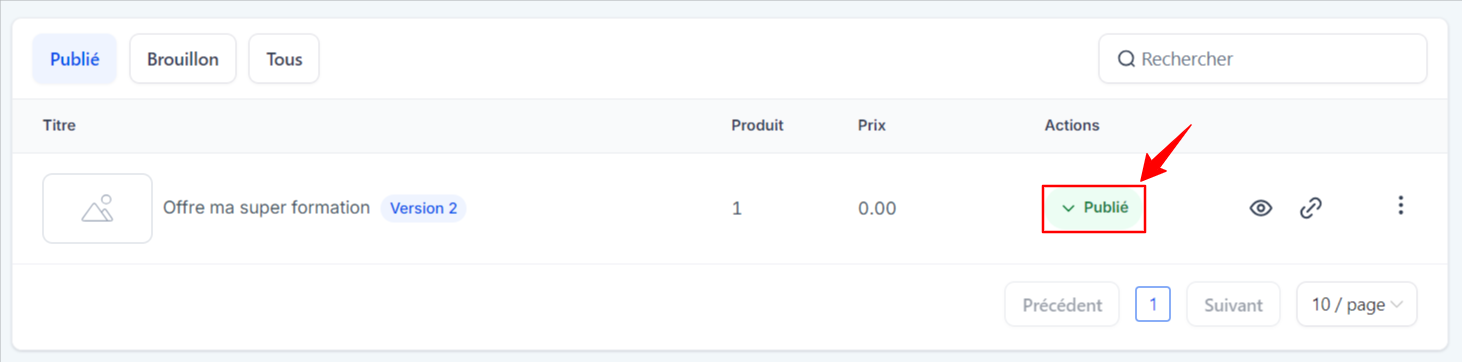
Note: Your offer must be published in order to be linked to a product. You can check this by going to Subscription > Offers and clicking on the Actions section of your offer.
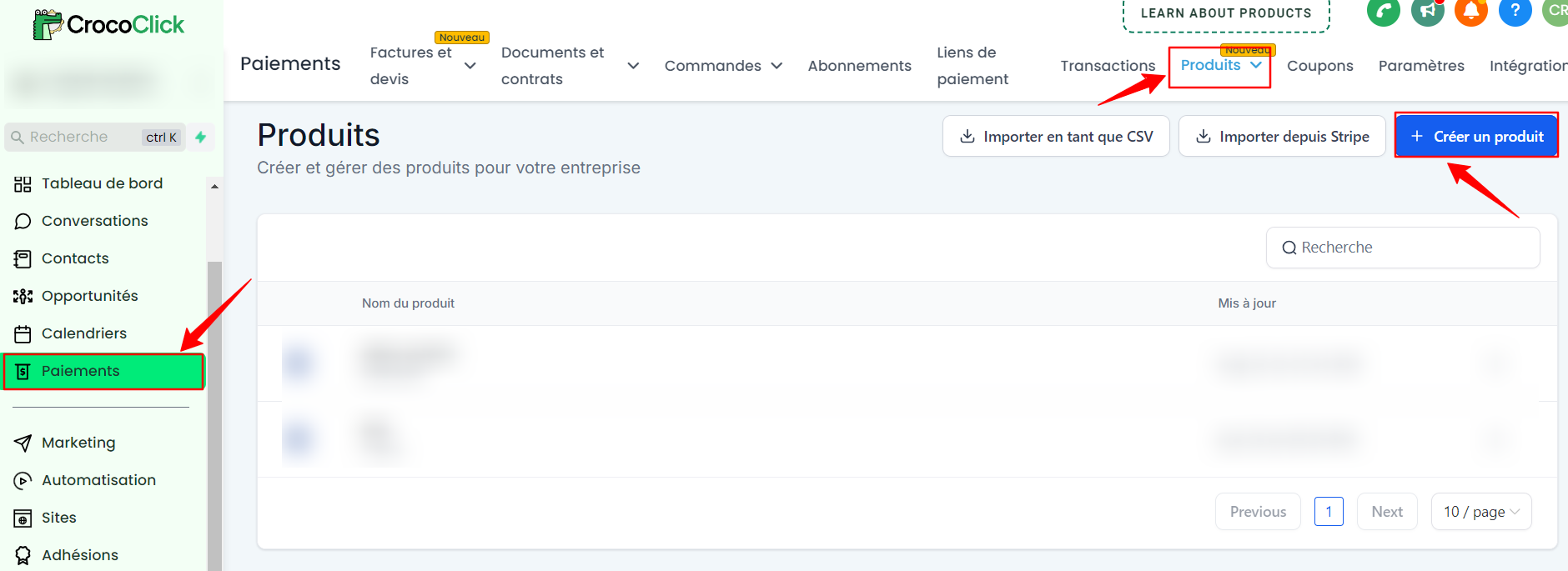
Go to Payments > Products and select Create Product.
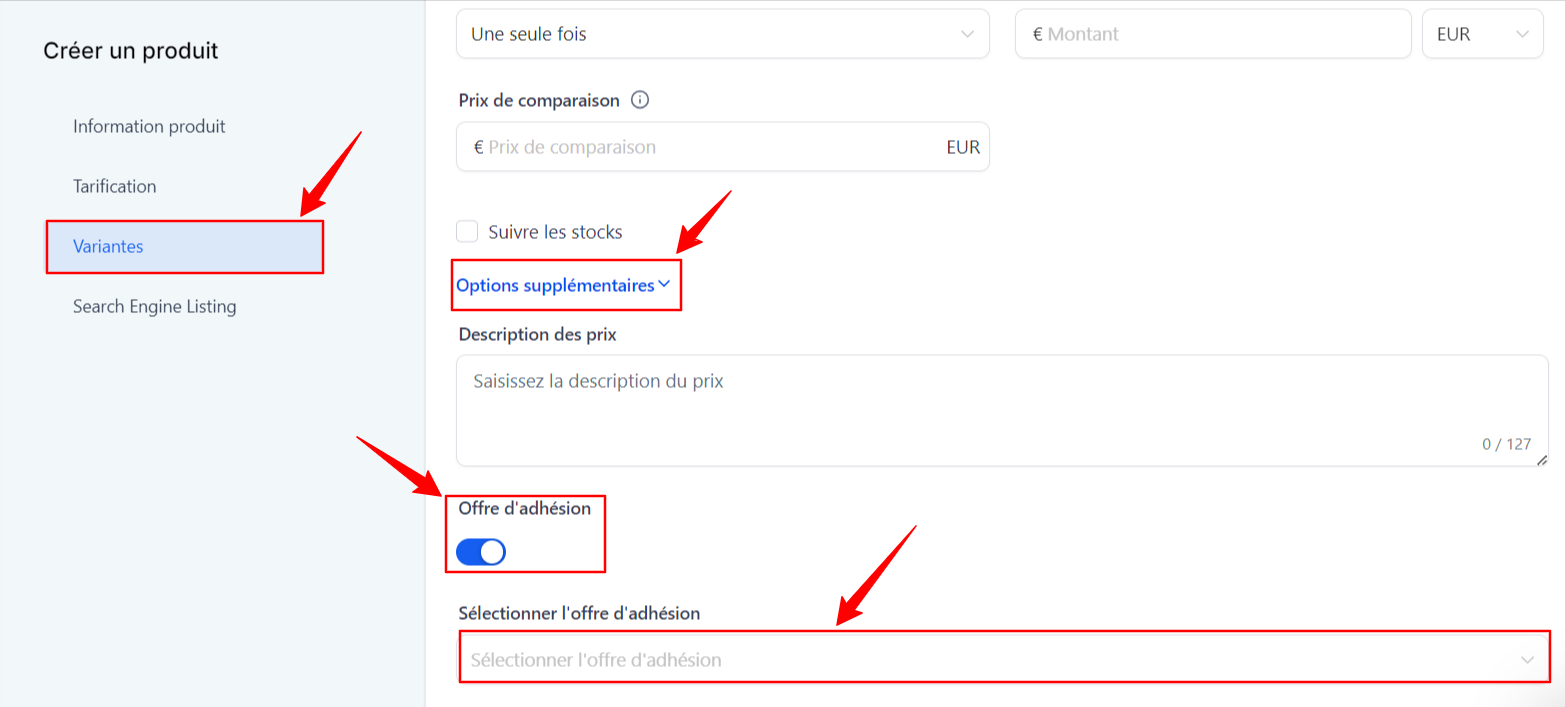
Fill in the necessary information and in Variants, click Additional Options. Enable the Membership Offer and select the membership offer you created earlier.
Click Save to save.
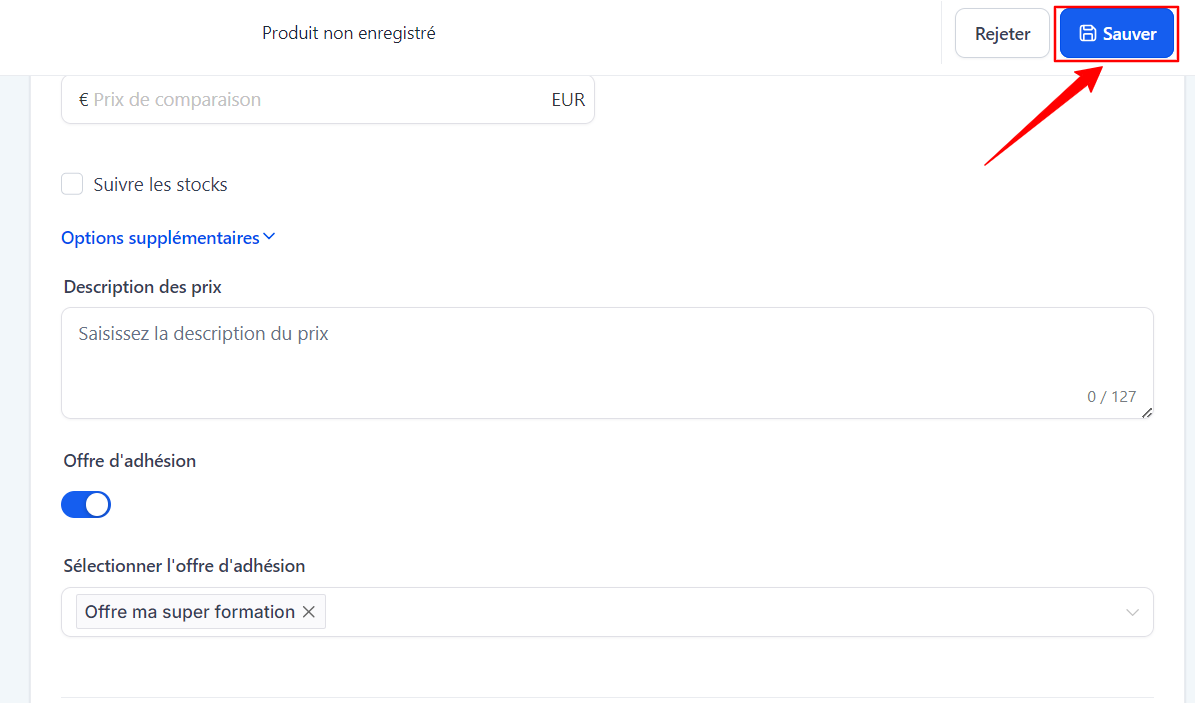
That's it! Your product is now linked to your training offer.
Note: If you are converting an existing product into a membership offer, simply change its price and activate the membership offer in the settings.
Step #2: Sell the product via a funnel
One of the most common methods for granting access to a training course or community is through a funnel (sales funnel). Here are the steps to follow:
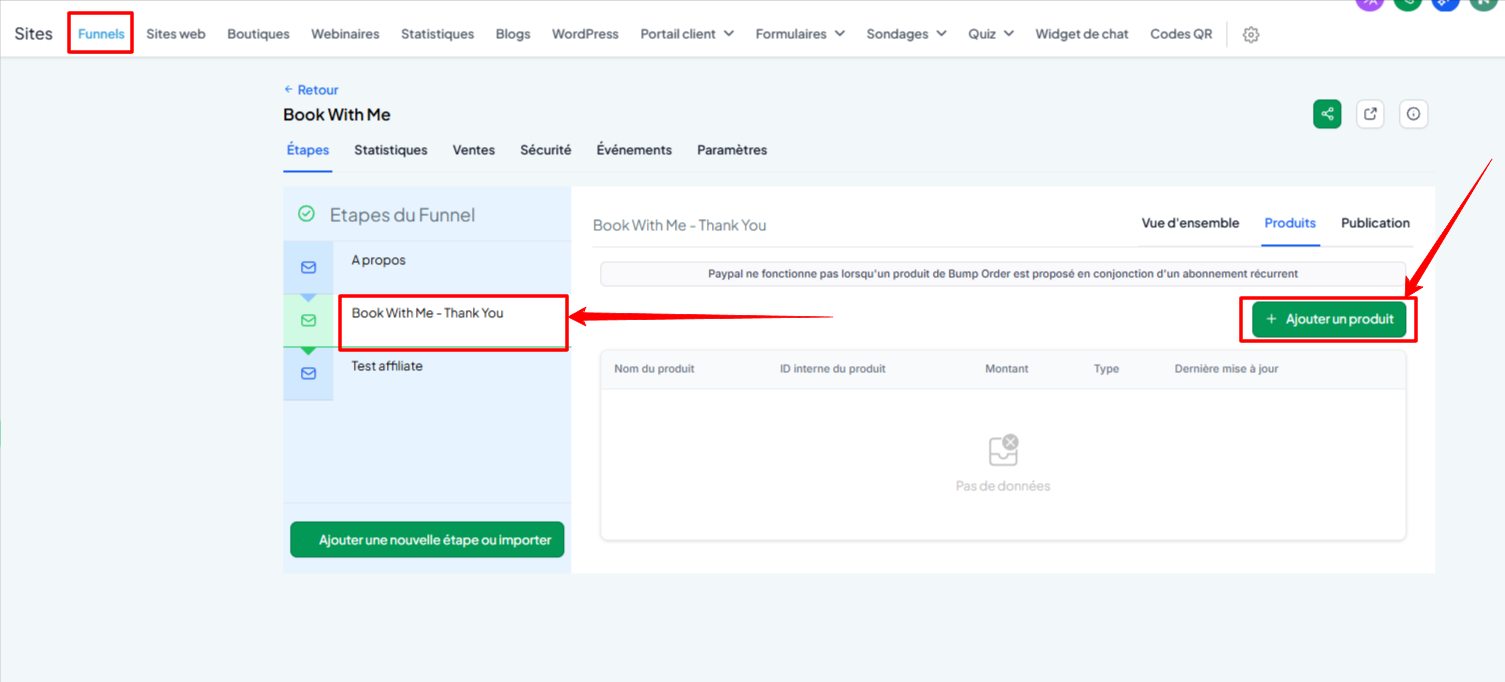
Go to your funnel in Sites > Funnels and create your sales funnel with at least one page containing an order form ("1-step-order" or "2-step-order" block - see our article on use of order forms if necessary).
Go to the page where the order form is located and click on Products > Add a product.
Select your product and its price, then click Save.
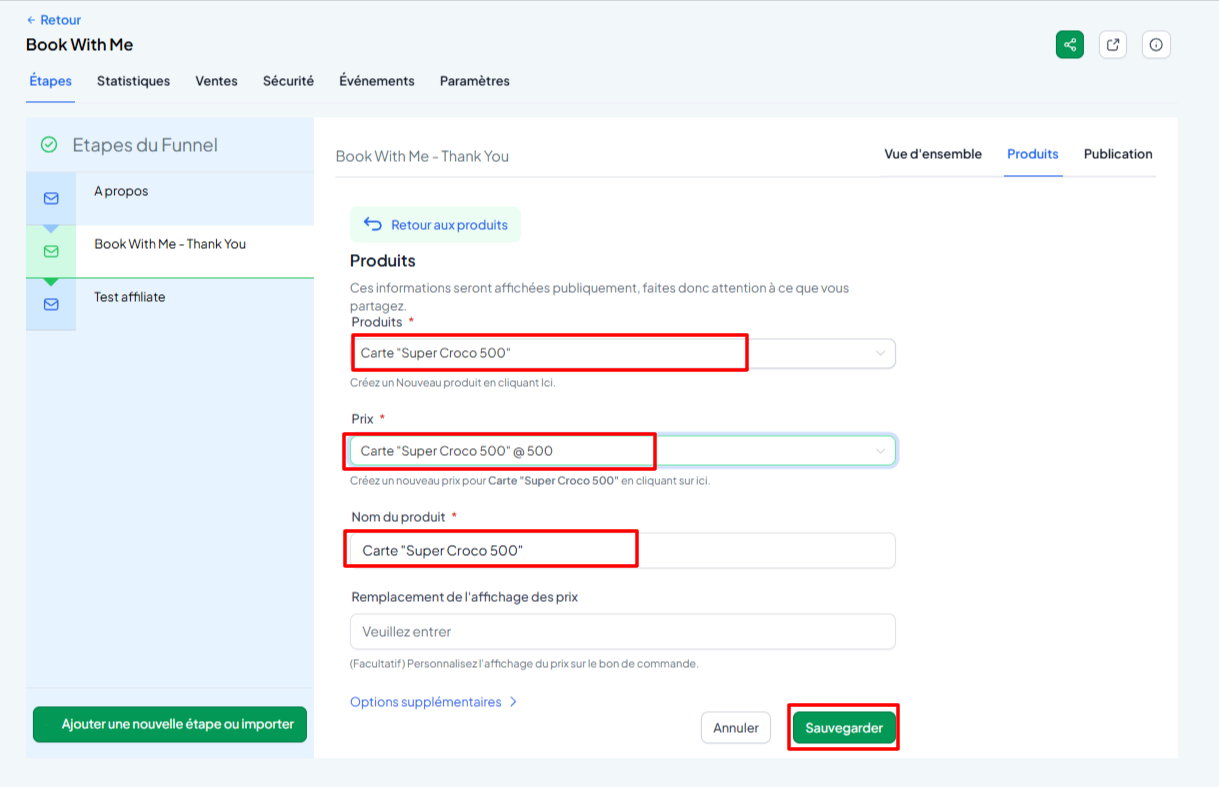
💡 TIP: If you have a product with multiple prices, add each price to the products so that they appear on the page.
Method 2: Grant access via automation
Automations allow you to automate access to a training course or community as soon as a specific action is triggered (e.g., a purchase, a completed form, etc.).
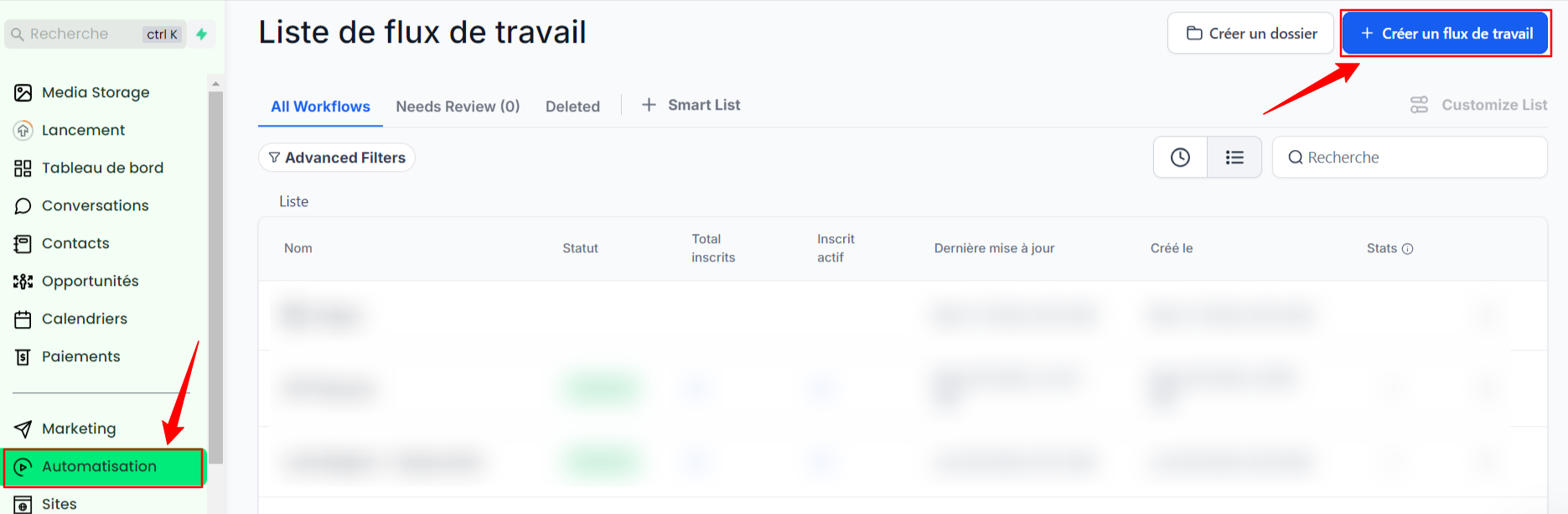
Go to Automation > Workflow and create a new workflow.
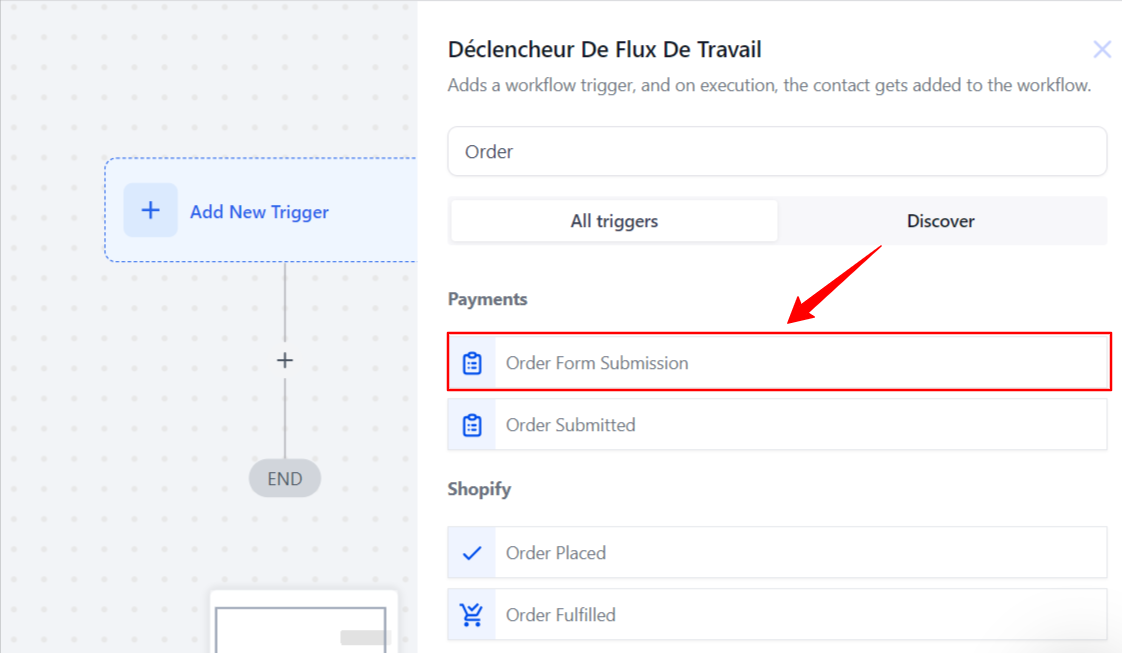
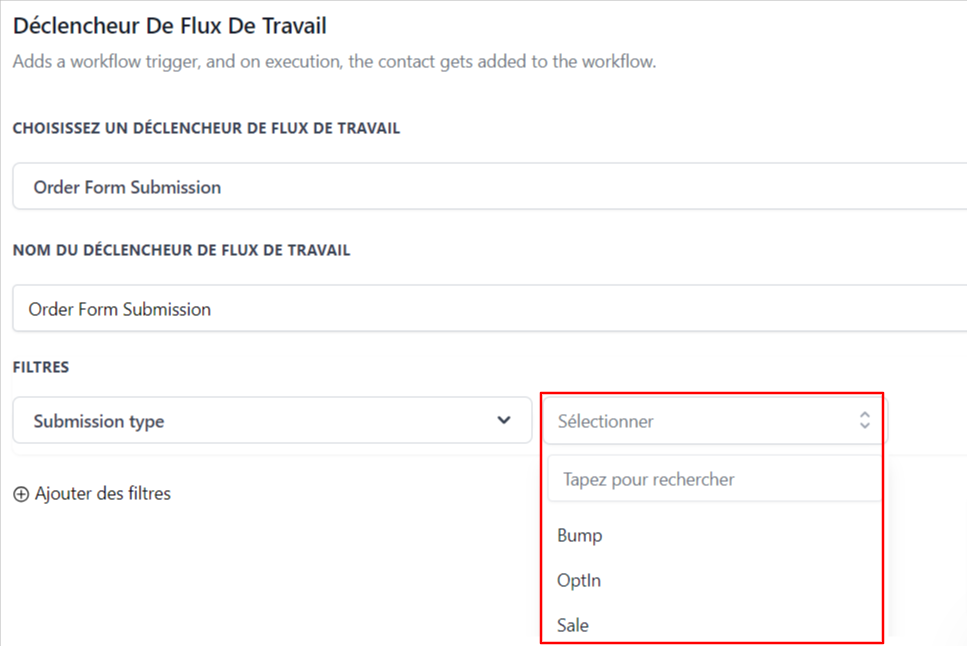
Add a Trigger. The most commonly used is Order Form Submission, with the "submission type" set to "sale" so that the automation is triggered after a product is purchased (more specifically, after the purchase form is filled out and validated). Alternatively, you can choose the "payment received" trigger so that the automation is triggered when you receive payment for a specific product.
As with actions, you can filter by specific funnel, page, and submission type.
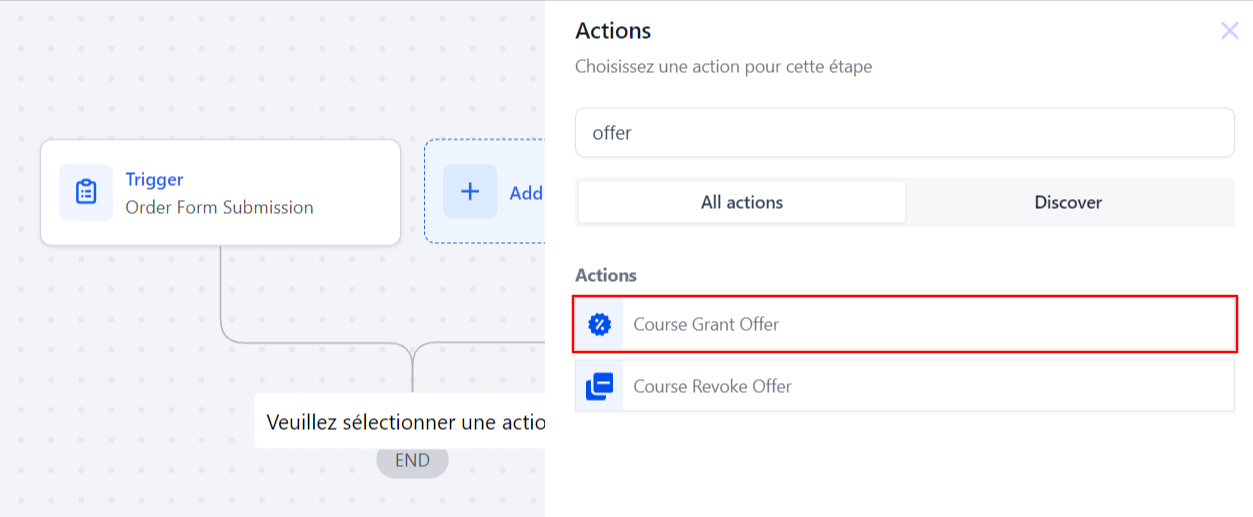
Select the Course Grant Offer action and choose the offer to grant.
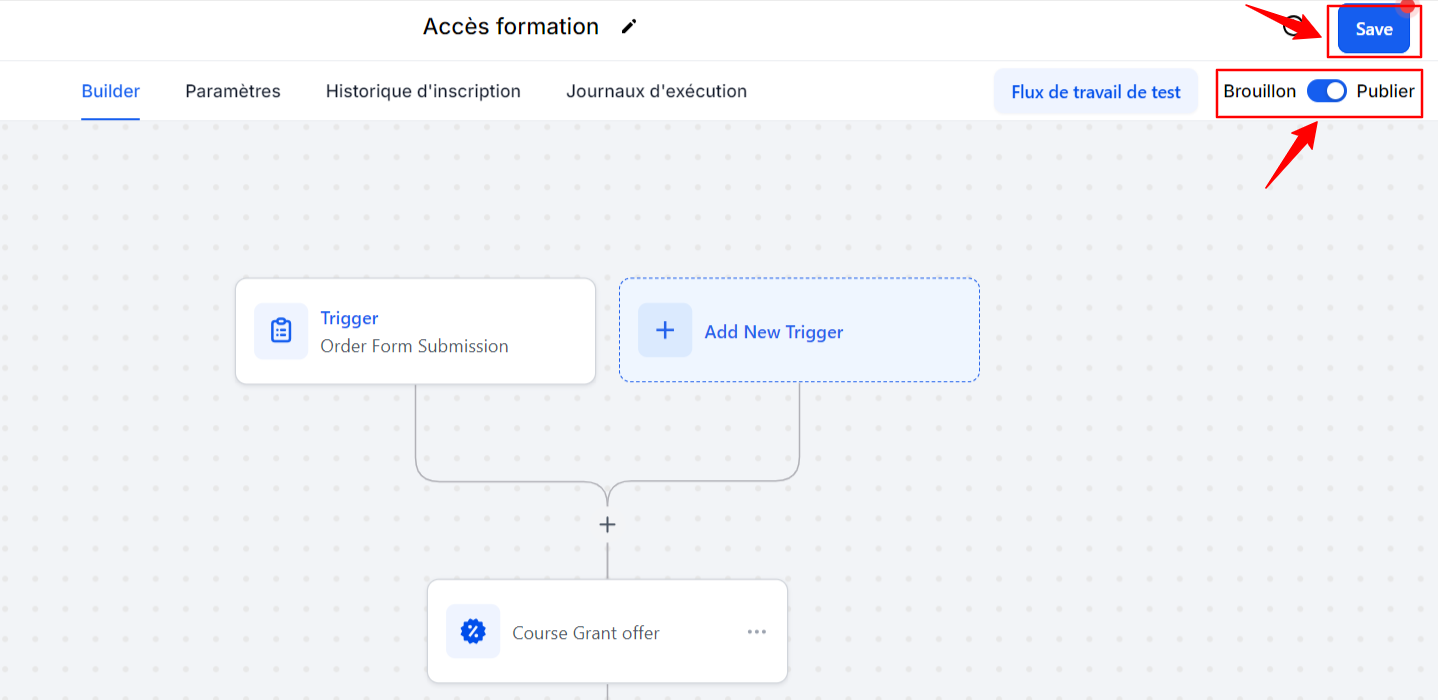
Publish and save your workflow.
💡 Tip 1: If you wish, you can add actions to this automation, such as sending a specific email, adding a tag to identify the product purchased, or adding to a community.
💡 Tip 2: If you want to be able to use this automation with something other than an order form, you can add triggers, such as the "tag added" trigger.
This way, you can manually trigger the automation by adding a specific tag to a contact. Here are the steps to follow:
In the Contacts area, select the contact you want to grant access to.
Add the tag defined in the automation to the contact, for example, "Offer A – Free Access."
The automation will trigger automatically.
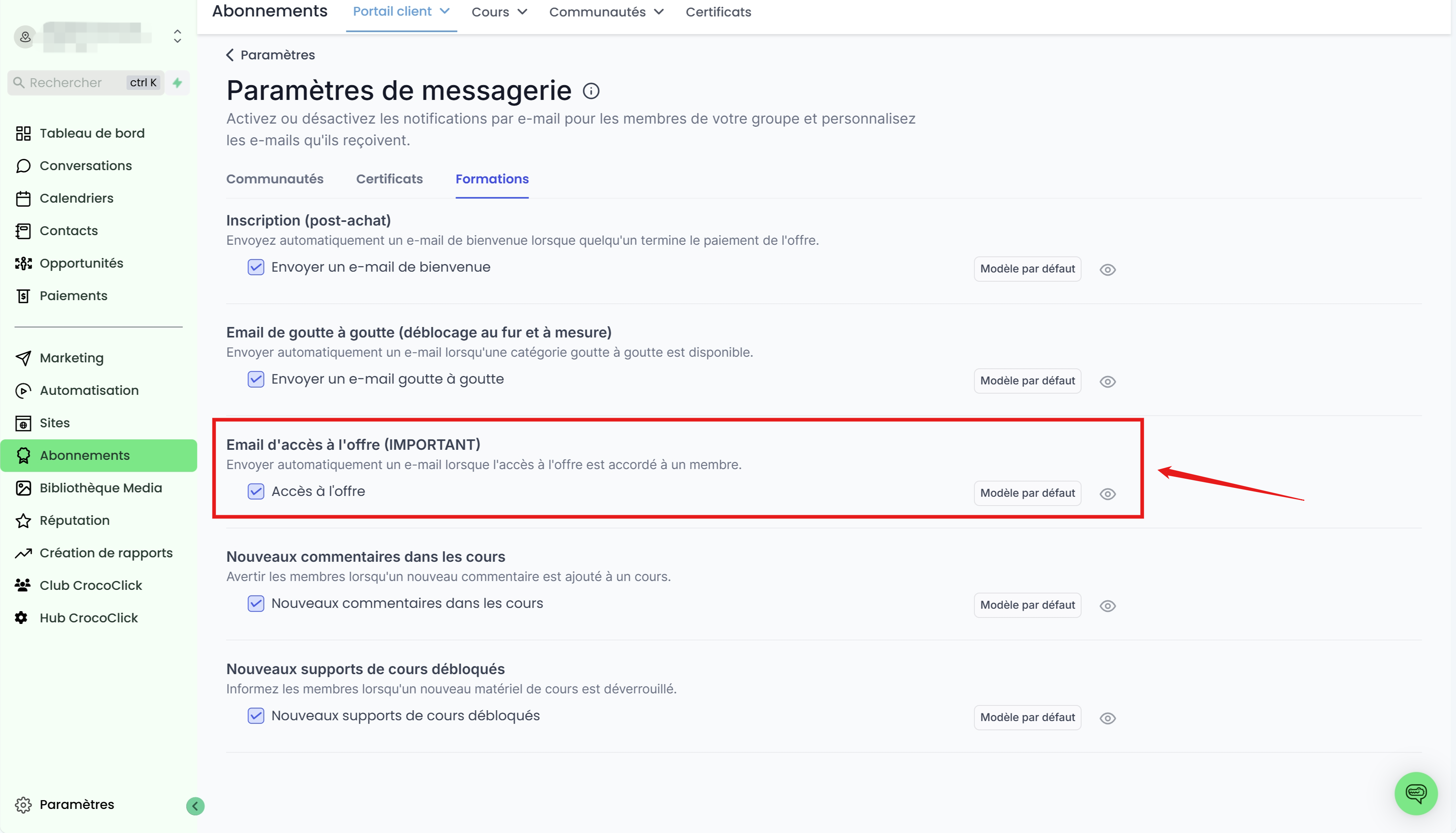
Important note: If the user already has access to the membership area (via another product or course), the system will not automatically resend the login information. You will need to create a separate email to inform users of their new access.
💡TIP: CrocoClick considers this method to be manual access to the
offer.
The default email triggered is therefore the "Offer Access Email."
Method 3: Grant access manually
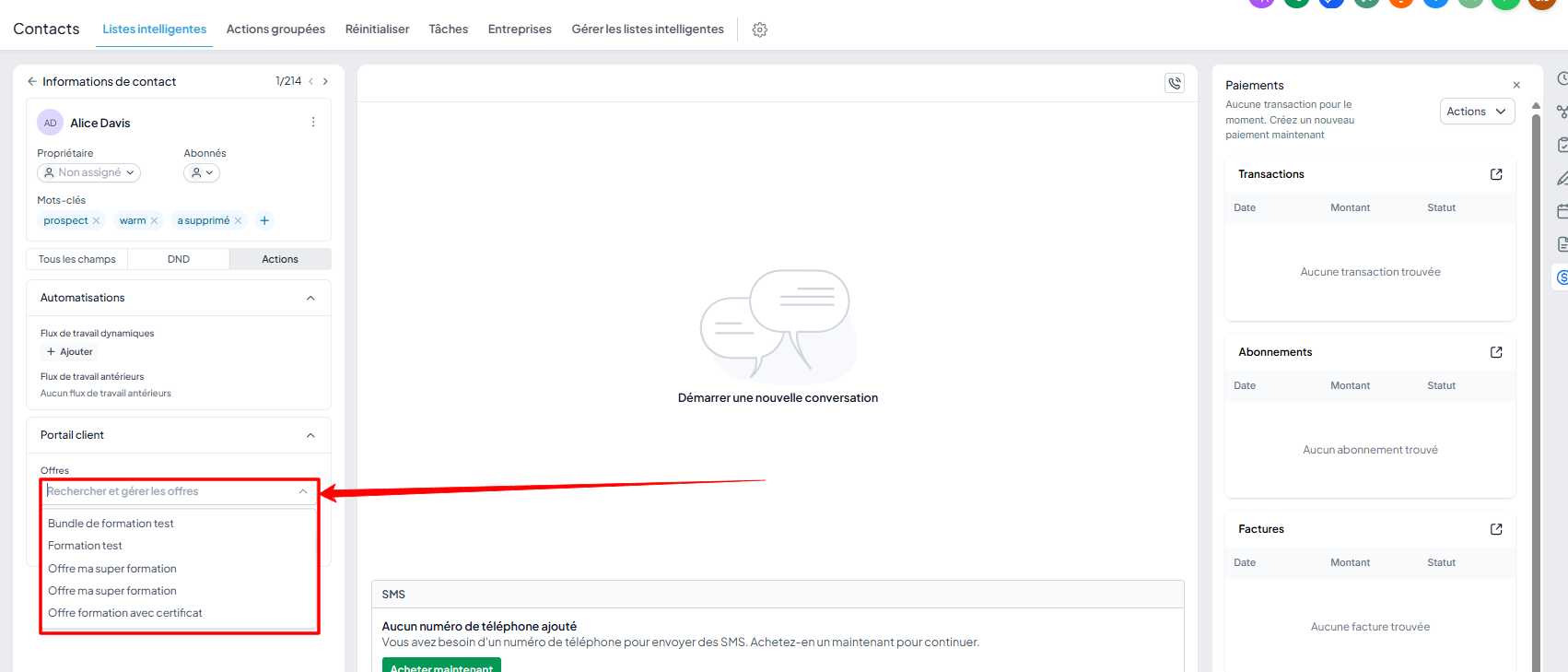
You can also manually grant access to a training course or community. This is particularly useful if you want to offer training or migrate to CrocoClick and do not want to:
Bill your customers (as with a sales funnel)
Trigger automation (as with automations)
To do this, simply go to the contact's file, go to the "Training Offers" section, and choose the offer you want to unlock for this customer.
FAQ
1. What happens if a user already has access to a product?
If a user already has access to the member area for another product, they will not automatically receive new login details. We recommend setting up a specific automation to inform them of their new access.
2. How can I ensure that login details are sent?
To avoid missing login details, disable default emails in Membership > Settings > Email and manage sending via custom automations (see our article "how to personalize welcome and login emails").
3. Can I grant access to multiple contacts at once?
Yes, using the automation method: simply add a tag to multiple contacts via the Contacts area or by importing a list. This will trigger the automation you have created, which will grant them access to the training.
Conclusion
By using one of the three methods described—via a funnel, automation, or manually—you can easily grant your contacts access to a training course or community on CrocoClick. Each of these methods has its advantages depending on your specific needs, whether it's automation or manual management.