Managing "Tasks" in CrocoClick
Discover how to manage your tasks in CrocoClick: creation, assignment, advanced filters, intelligent sorting, grouped actions and automation via workflows. Optimize your organization and collaborate effectively with your team.
Written By CrocoTeam
Last updated 10 months ago
Task management in CrocoClick allows you to organize your actions, track your deadlines, and collaborate effectively with your team. Here is a comprehensive guide to help you take advantage of all the features.
1. Access the Task List view
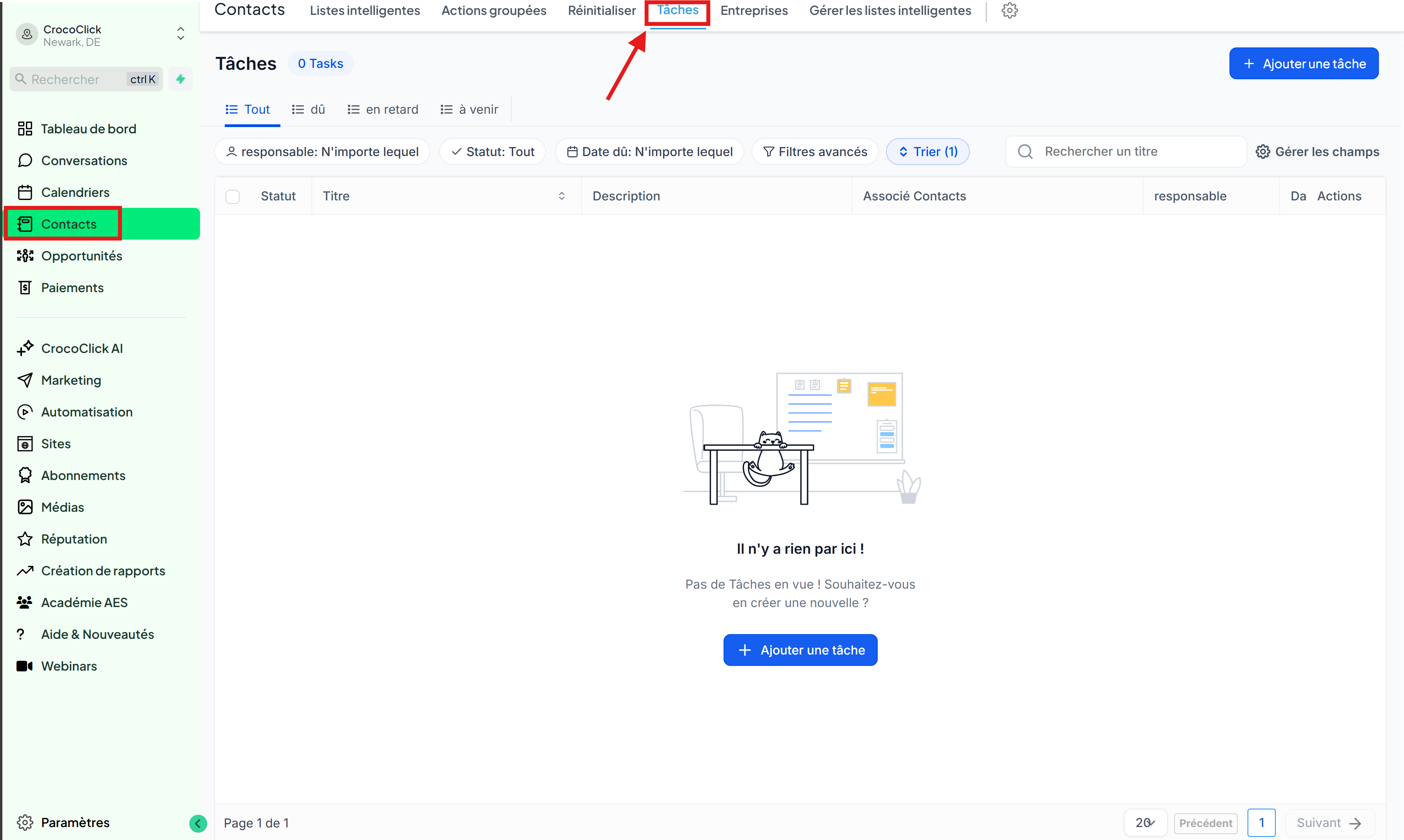
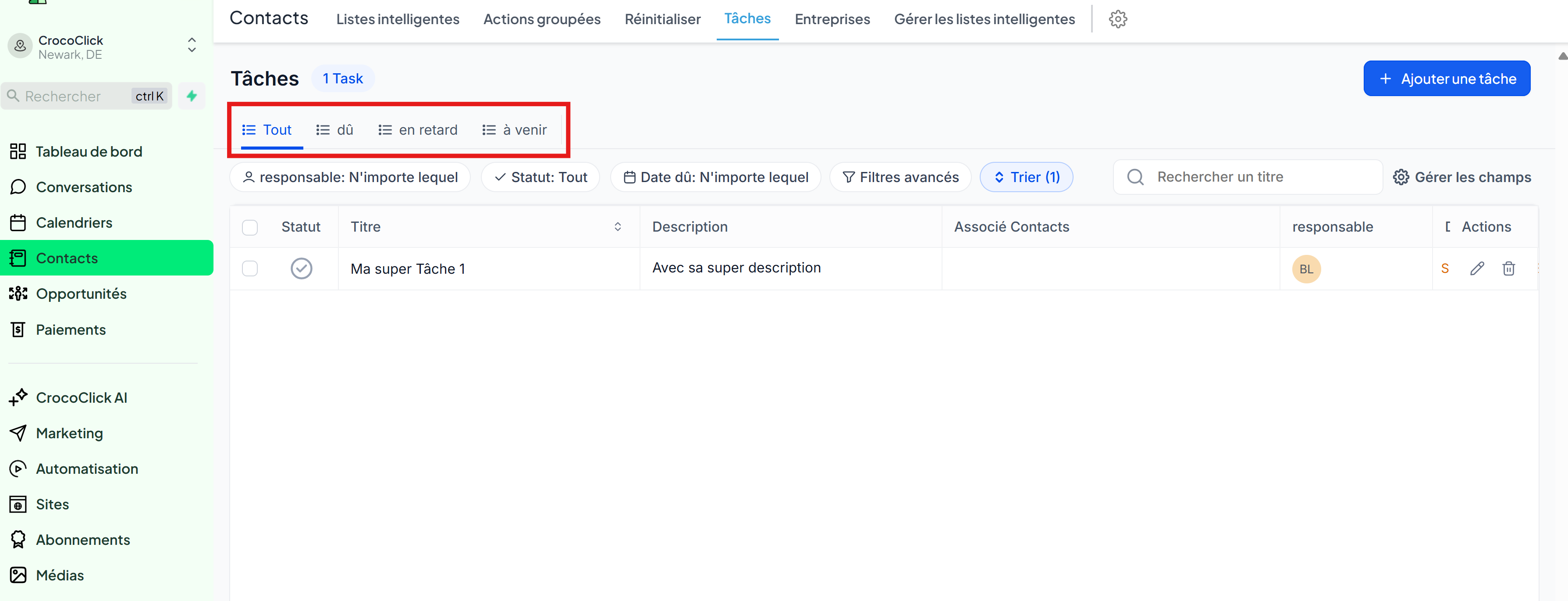
Go to Contacts > Tasks from the main menu.
Explore the enhanced view with filters, sorting options, and bulk actions available at the top of the list.
👉 Ideal for getting a clear view of your upcoming deadlines.
2. Create a New Task
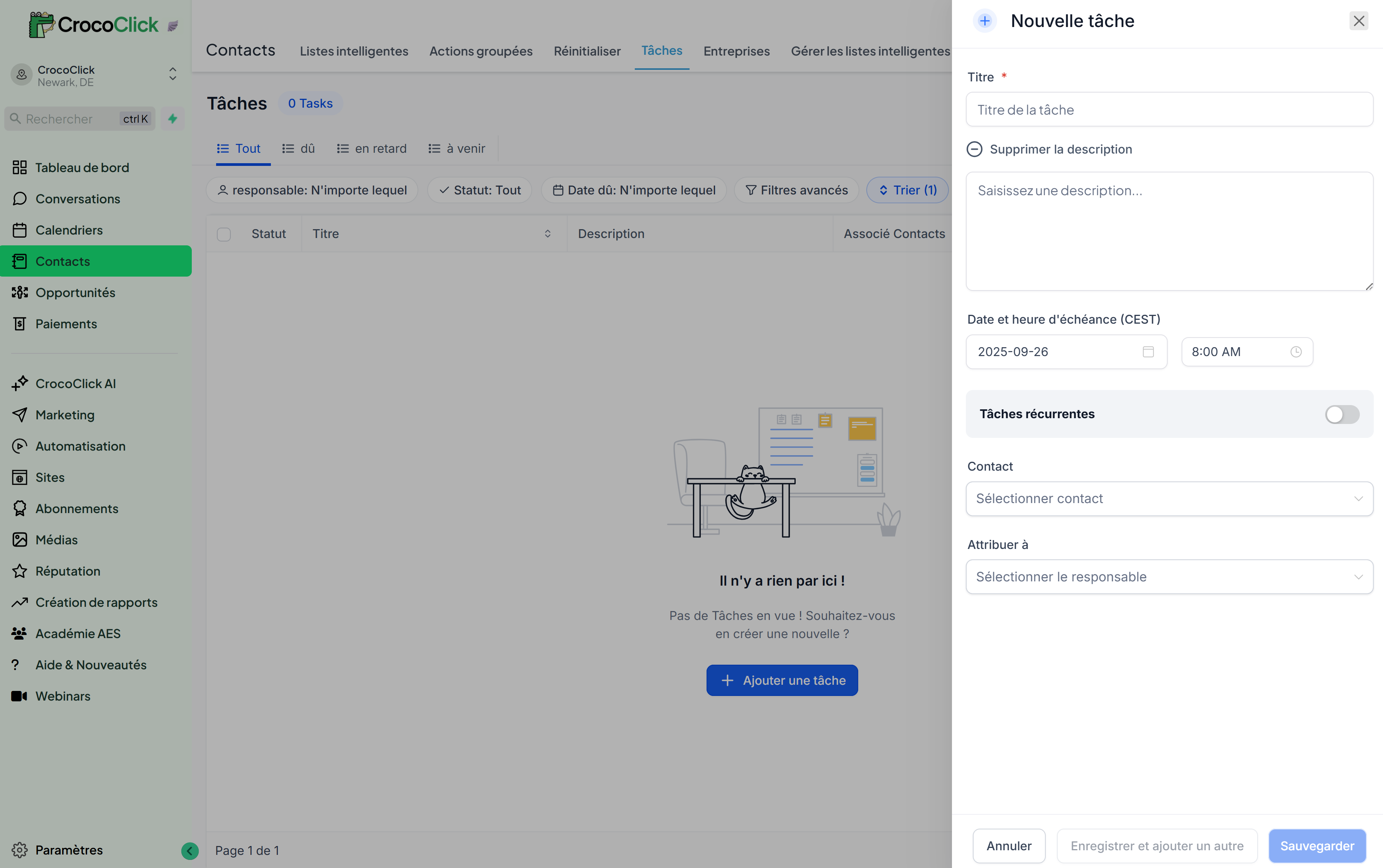
Click on + Add Task at the top right.
Fill in the following fields:
Title: a short description of the task.
Description (optional): add more details with rich text (bold, colors, links, etc.).
Due date and time: set a specific deadline.
Recurring task (optional): enable to create a repeat task with a custom frequency.
Contact (optional): associate the task with a specific contact.
Assigned to (optional): designate a team member to be responsible.
Click Save (to switch to edit mode) or Save and Add Another (to continue creating).
3. Manage Tasks
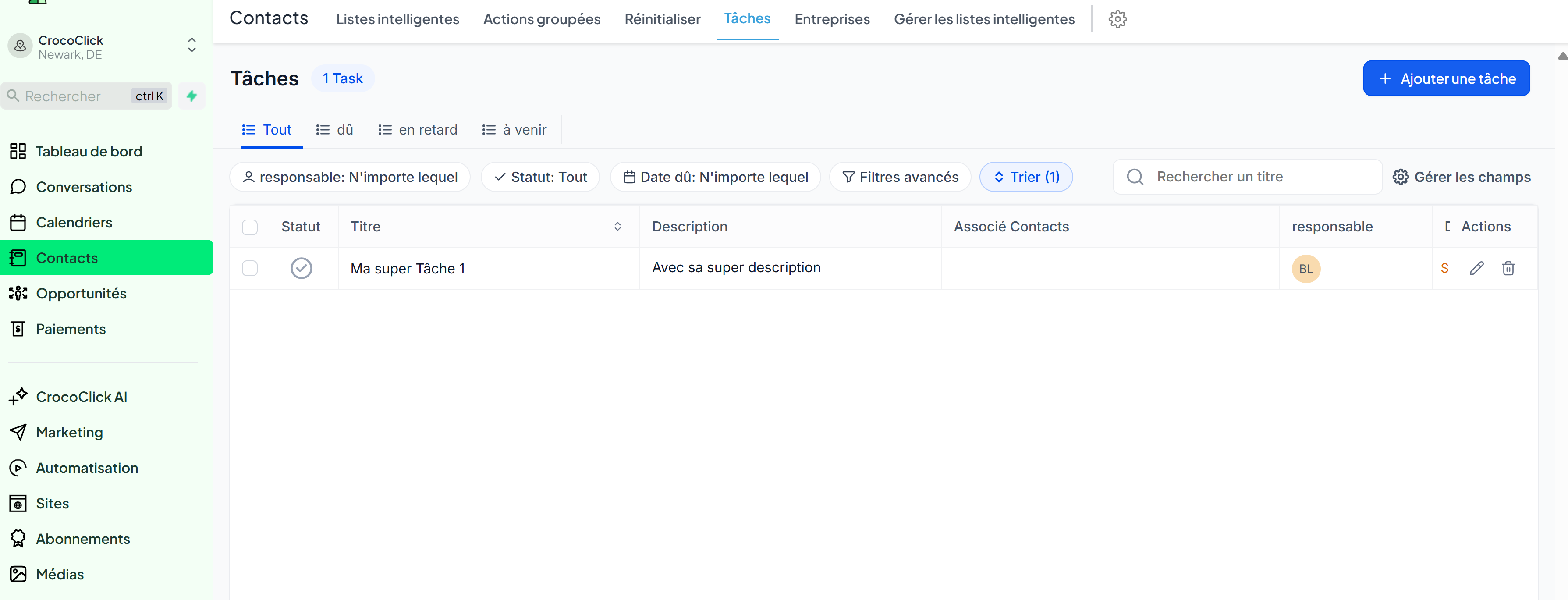
Edit a task: click on the title or pencil icon.
Delete a task: select the task and click Delete.
ℹ️ Deleted tasks can be restored for 2 months.
Bulk actions: select multiple tasks and apply an action (mark as complete, delete, etc.).
4. Advanced Filters
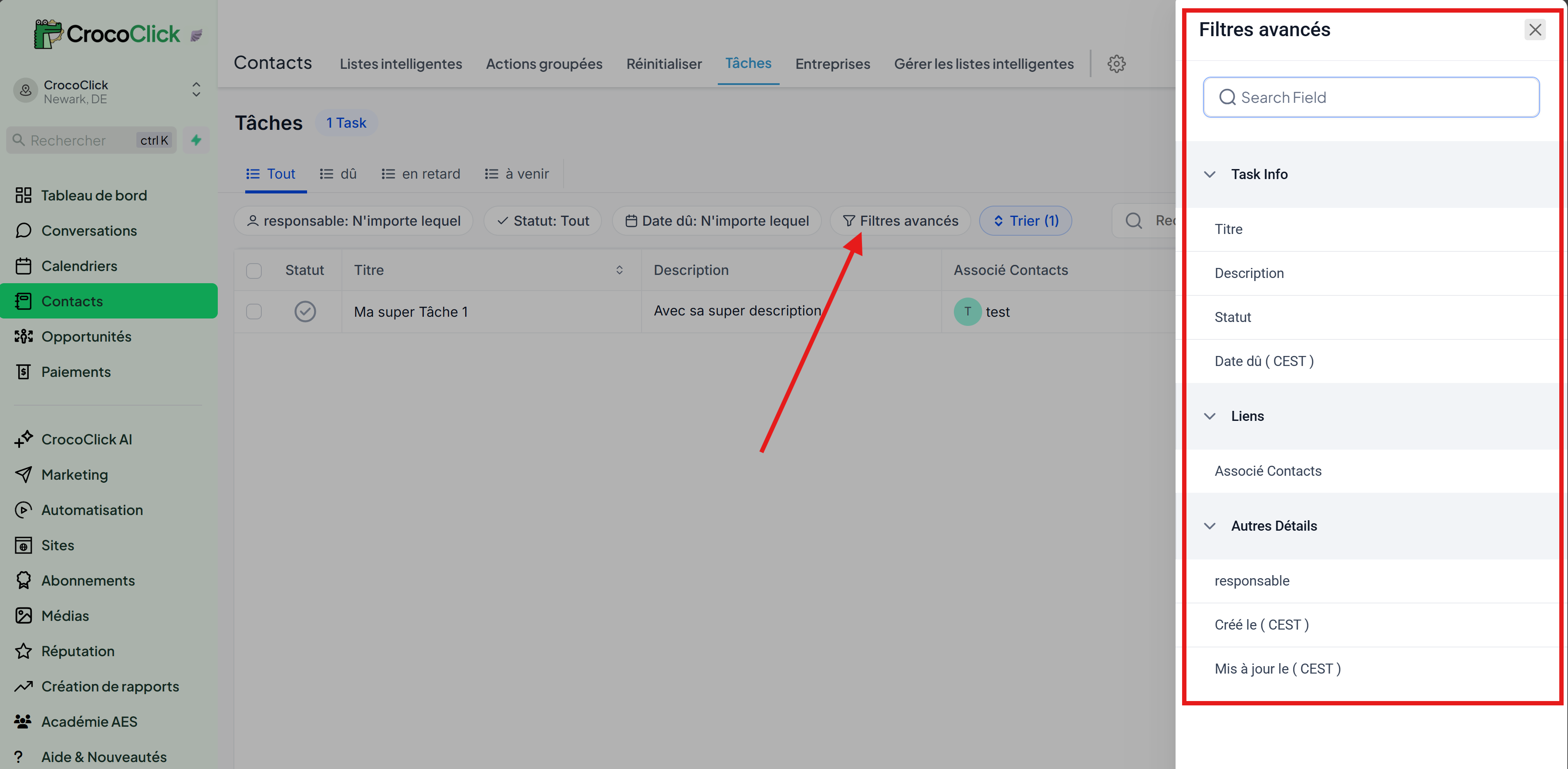
Refine your searches with Advanced Filters:
Assigned to
Status: All, Today, Overdue, Upcoming
Due date
Custom Fields (if configured)
5. Sort Options
Reorganize your tasks for clarity:
Due Date
Title
Creation date
Update date
Frequently Asked Questions (FAQ)
Q: How do I schedule a task with a specific date and time from an automation?
A: Use the "Add Task" action in the automation. Switch the Due Date field to Dynamic Mode to enter an exact date and time (e.g., 05-30-2025 3:00 PM) via a custom value or dynamic variable.
Was this helpful?
Still need help? Ask the team