[GUIDE] Create and sell gift cards with CrocoClick
Discover how to create, sell and send Gift Cards directly from CrocoClick. This step-by-step guide explains how to set up your Gift Card products, offer them via a checkout, send them free of charge to your contacts, track all cards issued, and understand how your customers can use them when paying.
Written By Baptiste Lorreyte
Last updated 7 months ago
Gift Cards are a powerful new way to engage your customers, increase sales, and build loyalty—directly from your CrocoClick ecosystem.
You can create fully customized Gift Cards: visuals, amount, expiration date, conditions, message sent to the recipient... everything is customizable.
Once created, they can be sold (dedicated checkout, link, QR code, embed) or sent free of charge to your contacts (loyalty, refund, commercial gesture).
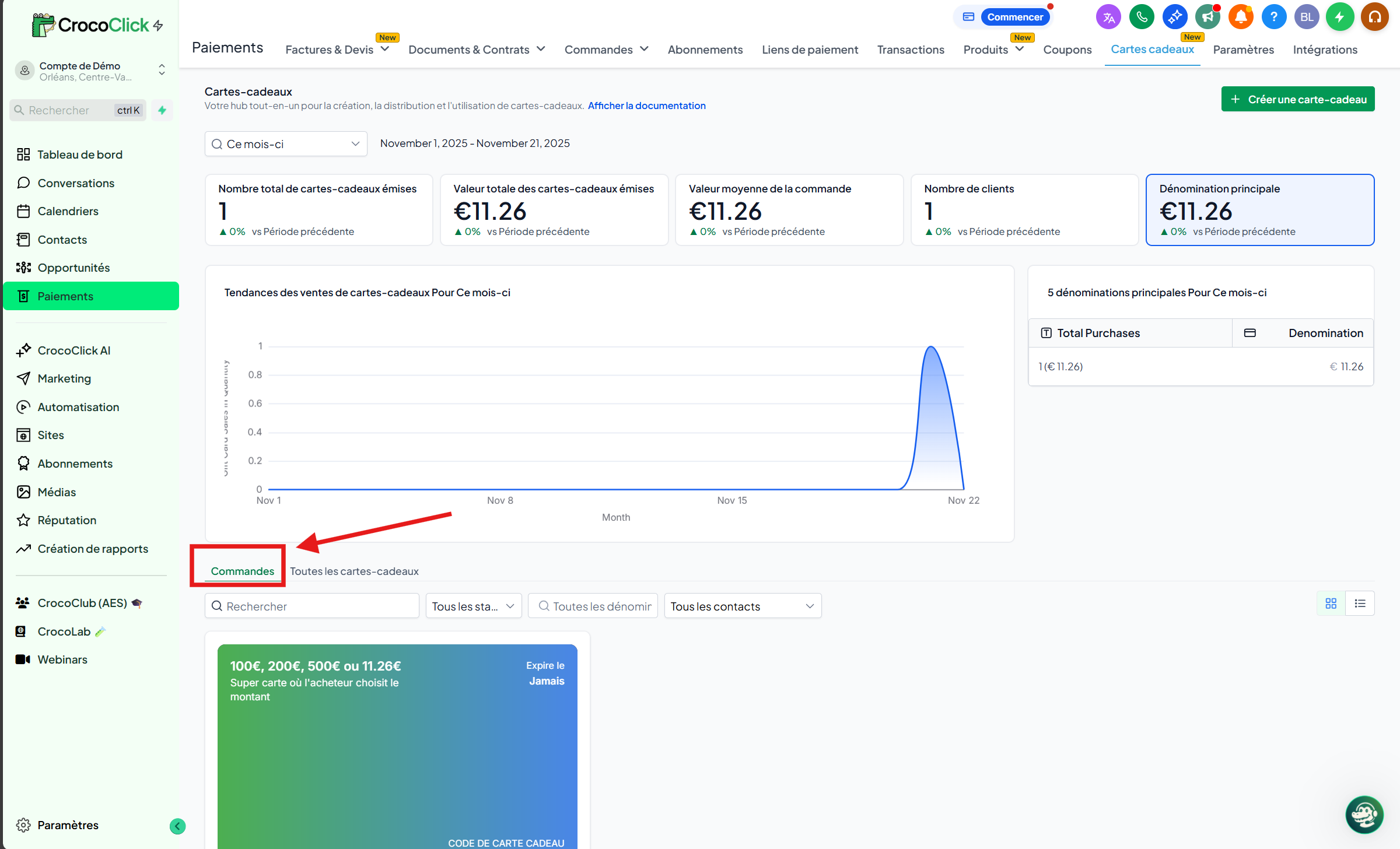
Each card issued is automatically tracked in Payments → Gift Cards → Gift Card Orders, with its balance, status, and usage history.
🔍 1. Overview
Gift Cards allow you to:
create branded digital products
sell them like any other product
or send them for free to your contacts
automatically track all cards issued
Everything is managed from:
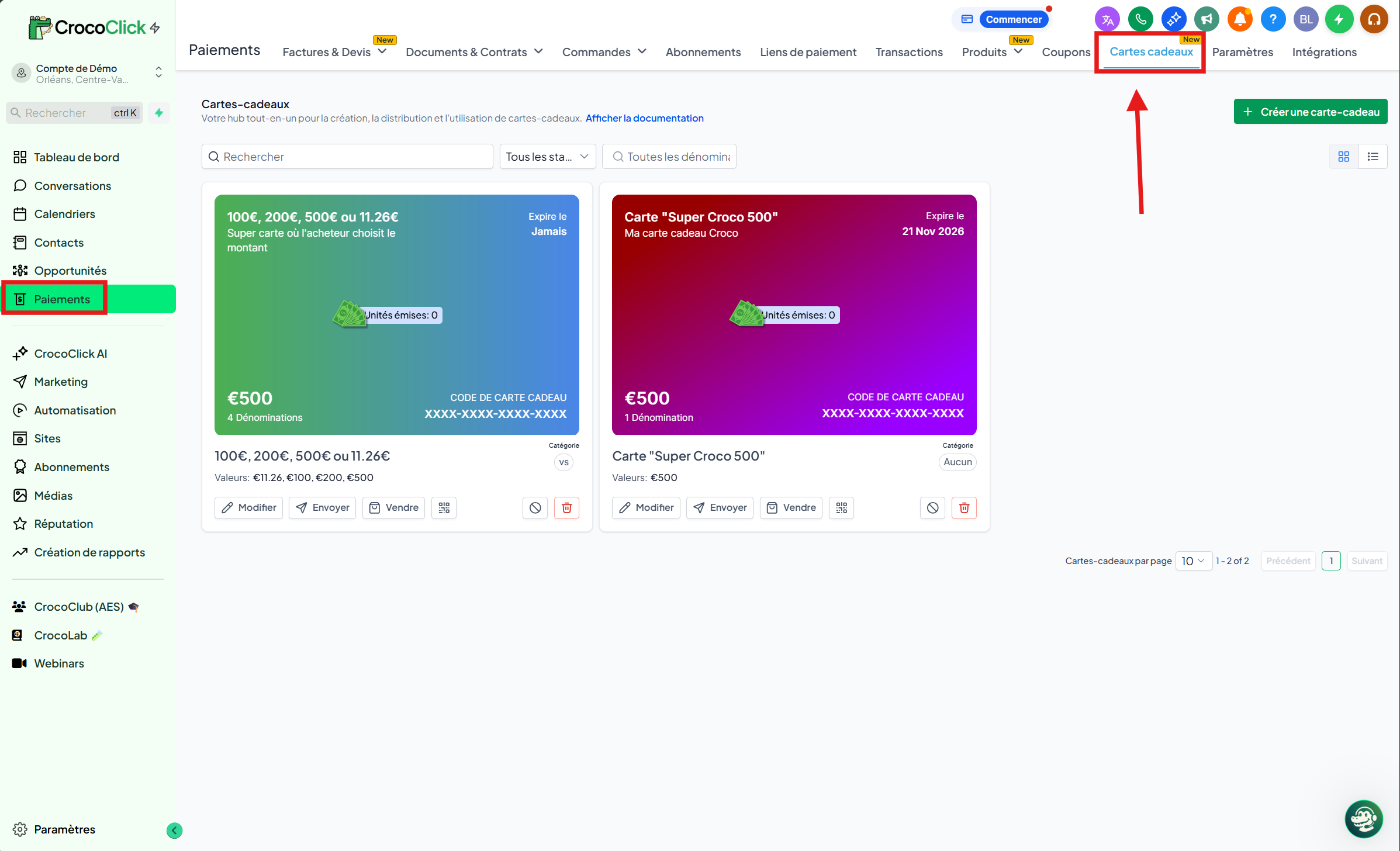
👉 Payments → Gift Cards
This guide covers the entire process: creation, sale, sending, tracking, and use.
🎨 2. What you can do with Gift Cards
With this feature, you can:
Create personalized Gift Card Products (branding, visuals, amounts, expiration, etc.)
Sell these cards:
via a dedicated checkout
via a link
via a QR code
or via an embed on your website
Send cards to your contacts for free (ideal for: rewards, customer service, promotions, loyalty programs)
Track all cards issued: status, remaining balance, recipient, history
Allow your customers to use these cards at all compatible checkouts
⚙️ 3. Prerequisites
To use Gift Cards, you must have:
Access to Payments → Gift Cards
Created a Gift Card
Active checkouts (Forms, Pages, Payment Links, Store, Invoices, Calendars, etc.)
(Optional) Visuals + terms of use for your branding
🧩 4. Create a Gift Card
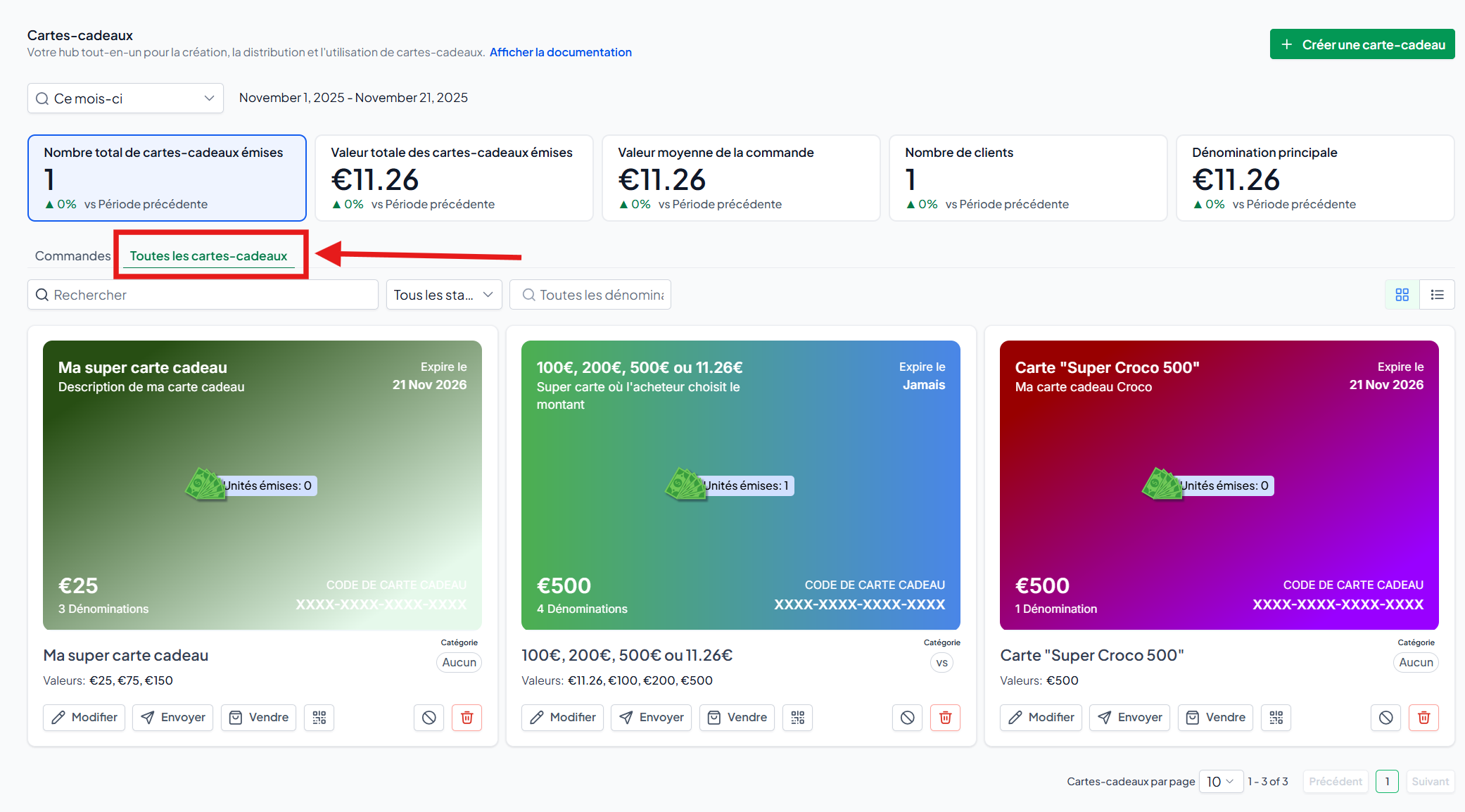
Go to Payments → Gift Cards → Products
Click on Create a Gift Card
(If this is your first card, only this option will appear.)Fill in the product information:
Name & description
Terms and Conditions
Expiration date
Visual/Image
Several amounts possible
Stock per amount
(Optional) Automatic tax
Click Save.
💡TIP: You can modify, archive, or deactivate a gift card at any time. As soon as a card is deactivated:
The sales link is disabled
You can no longer offer new cards
🛒 5. Selling Gift Cards
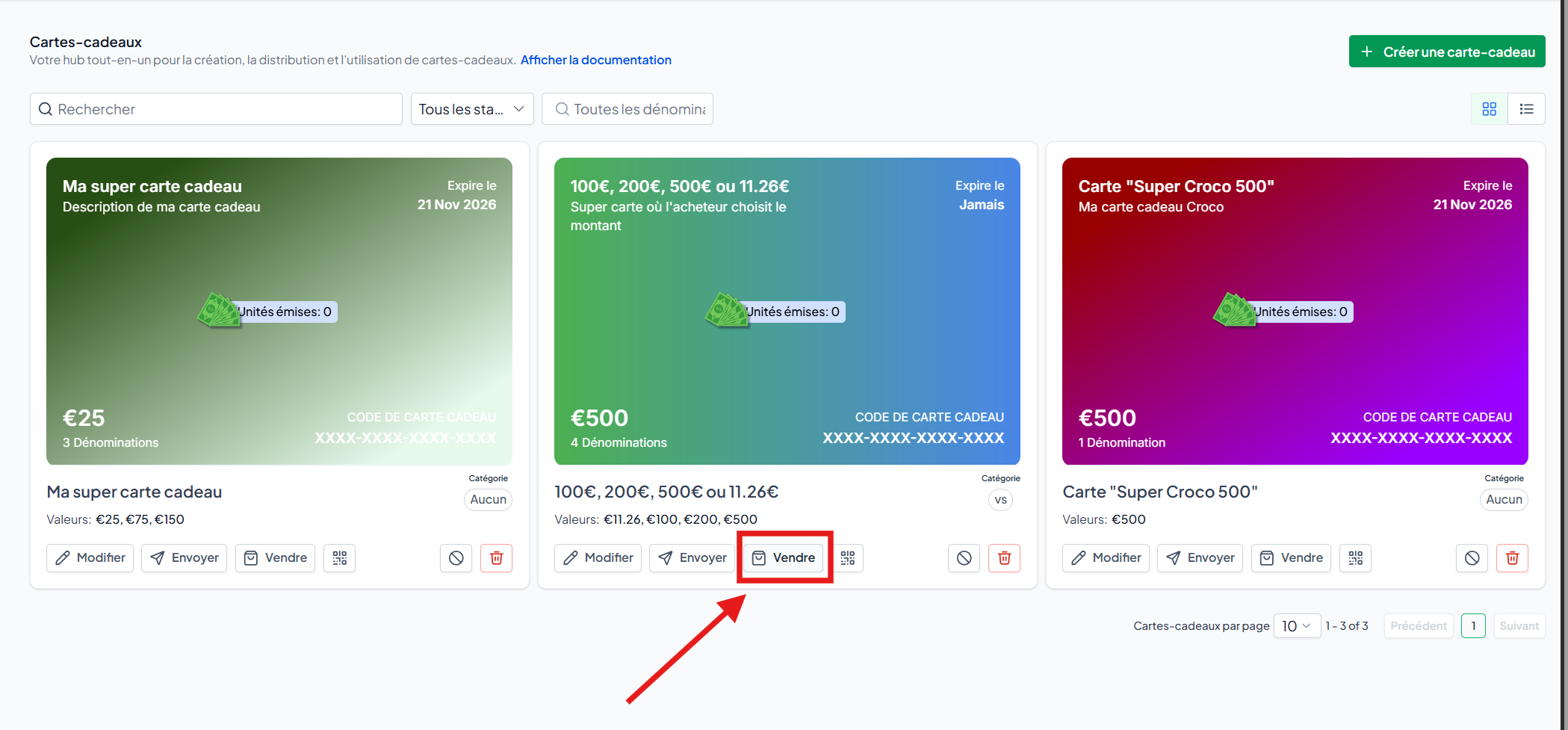
Open Payments → Gift Cards → Products
Choose a product
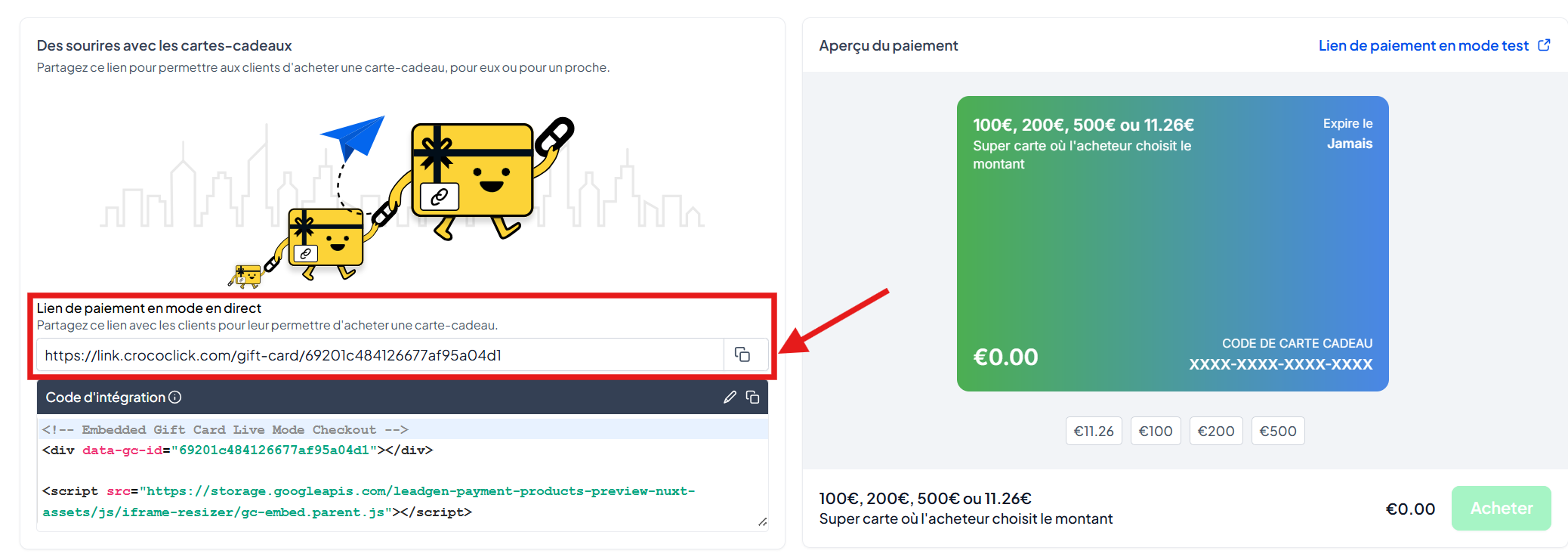
Click on Sell or on the QR Code icon
You can then choose between:
Checkout link (Live or Test mode)
Embed code for your website
Share the link anywhere: email, social media, landing page, etc.
🧑💻 Customer Experience:
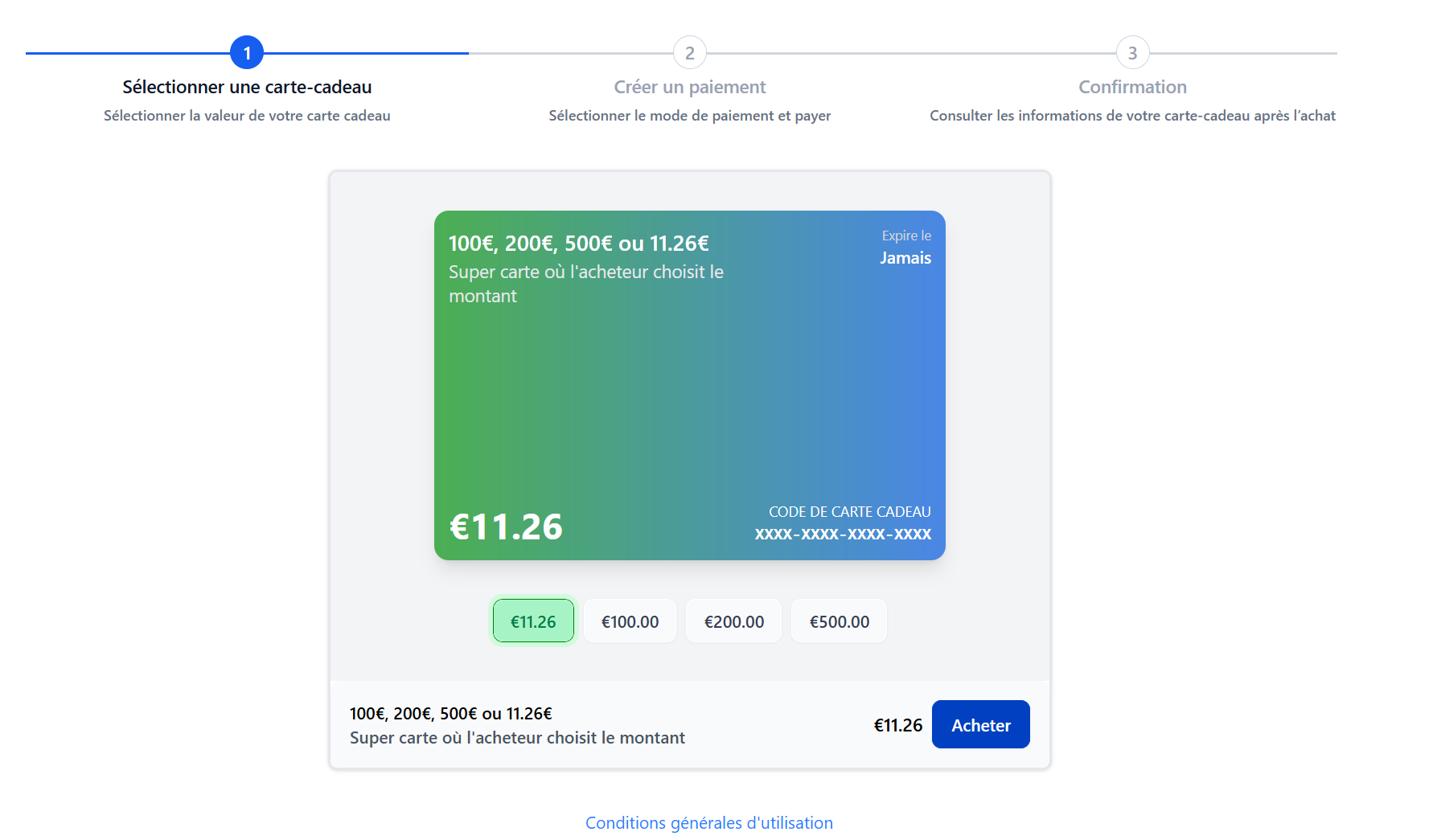
The customer can:
Choose an amount
Purchase for themselves or for someone else
Set up immediate or scheduled delivery
Pay via your usual checkout
Receive the card immediately after validation
🎁 6. Send a Gift Card for free (no payment required)
To issue a Gift Card as a gift/commercial gesture:
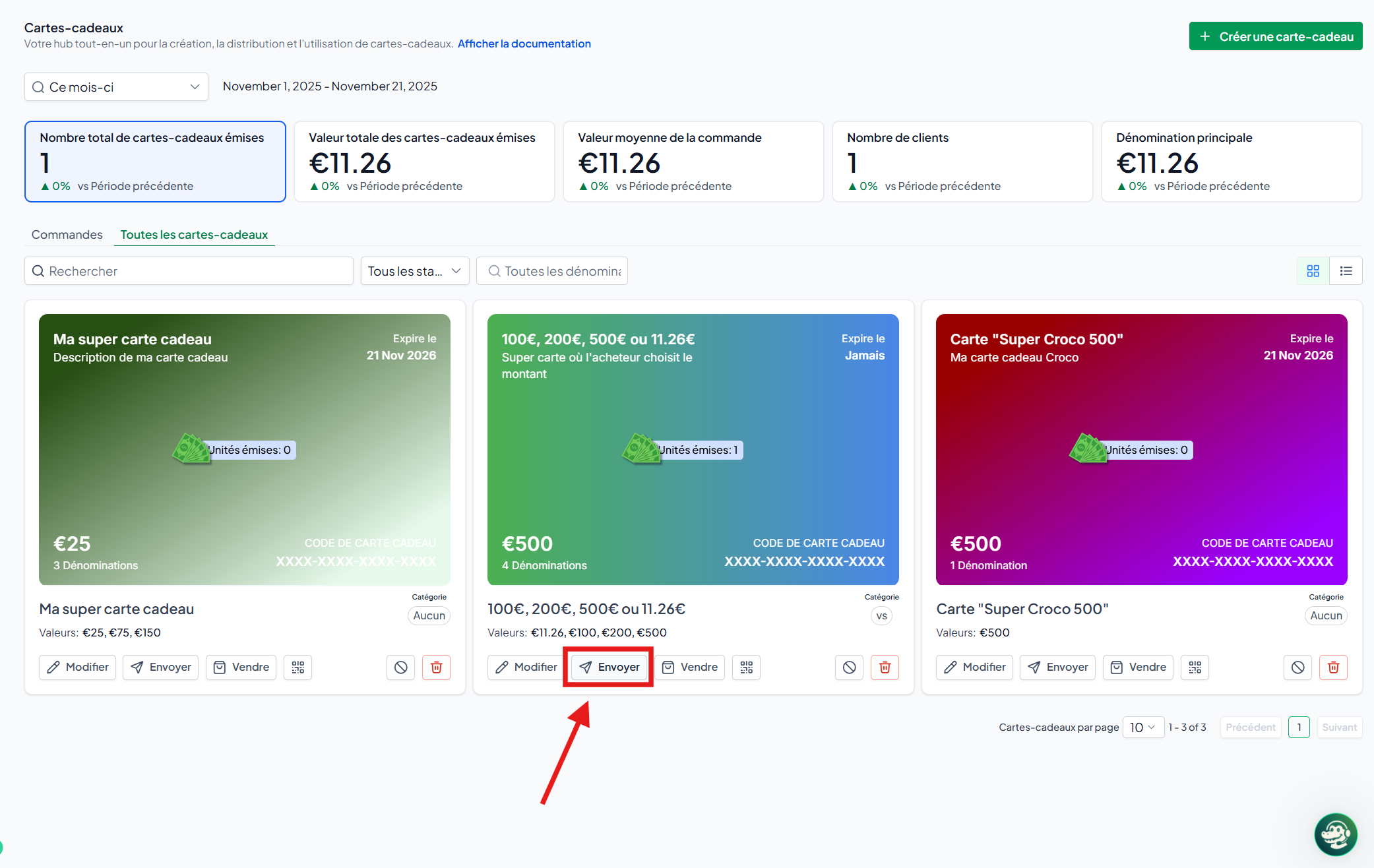
Go to Payments → Gift Cards → Products
Open the product
Click on Send
Select a contact
Add a personalized message
(you can use "Write with AI")Choose: Email, SMS, QR sent by email, or PDF
(Some choices depend on the contact's information)(Optional) Schedule the sending
Click Send
🎉 Result: A free Gift Card is issued. It appears in Gift Card Orders, but not in Payments → Orders (since there is no payment).
🧾 7. Track Gift Card Orders
💡TIP: Statistics only appear after the first gift card has been purchased
All cards (sold or sent) are visible in:
👉 Payments → Gift Cards → Orders
Each line contains:
Status
Remaining balance
Amount
Contact
Delivery details
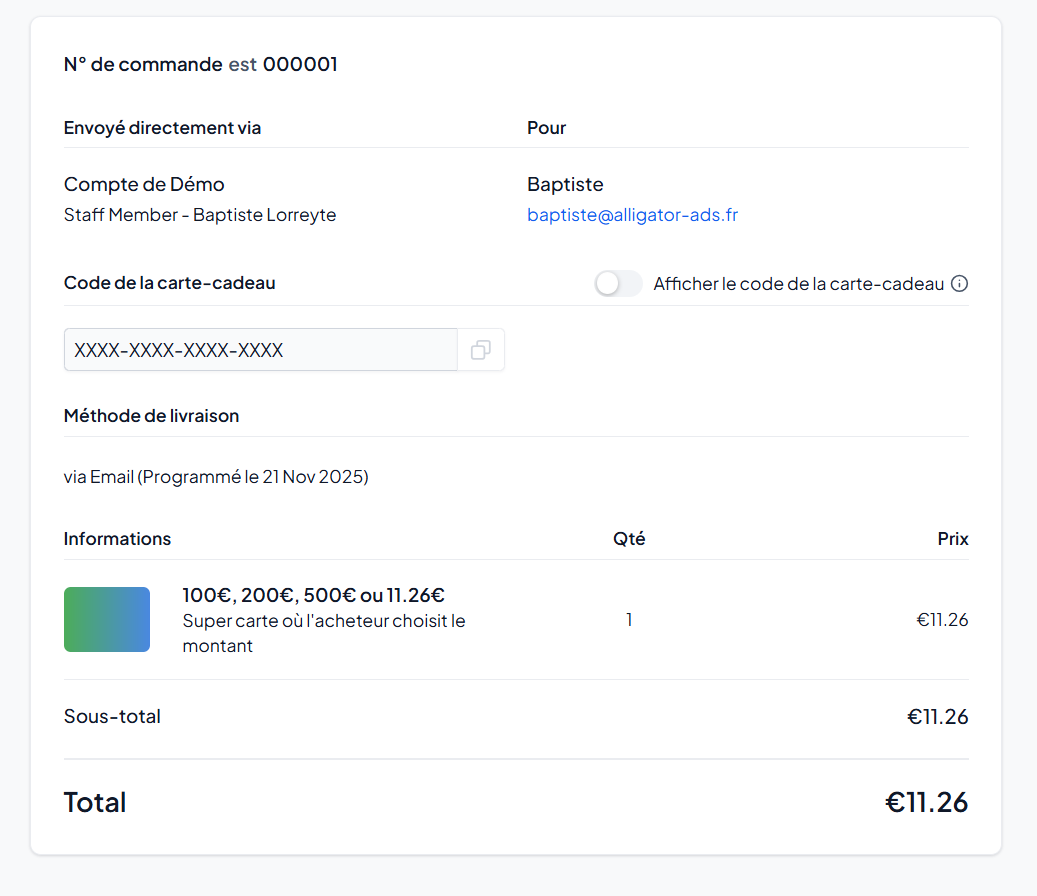
By clicking on an order, you can access the detailed information:
Buyer
Recipient
Name
Expiration date
Balance
Status: Scheduled / Active / Inactive
Card number (hidden but visible in the file)
Shipping method
Associated payment (if purchase)
📌 Important:
The Payments → Orders page only shows paid orders.
Cards sent free of charge do not appear there.
💳 8. How customers use their Gift Cards
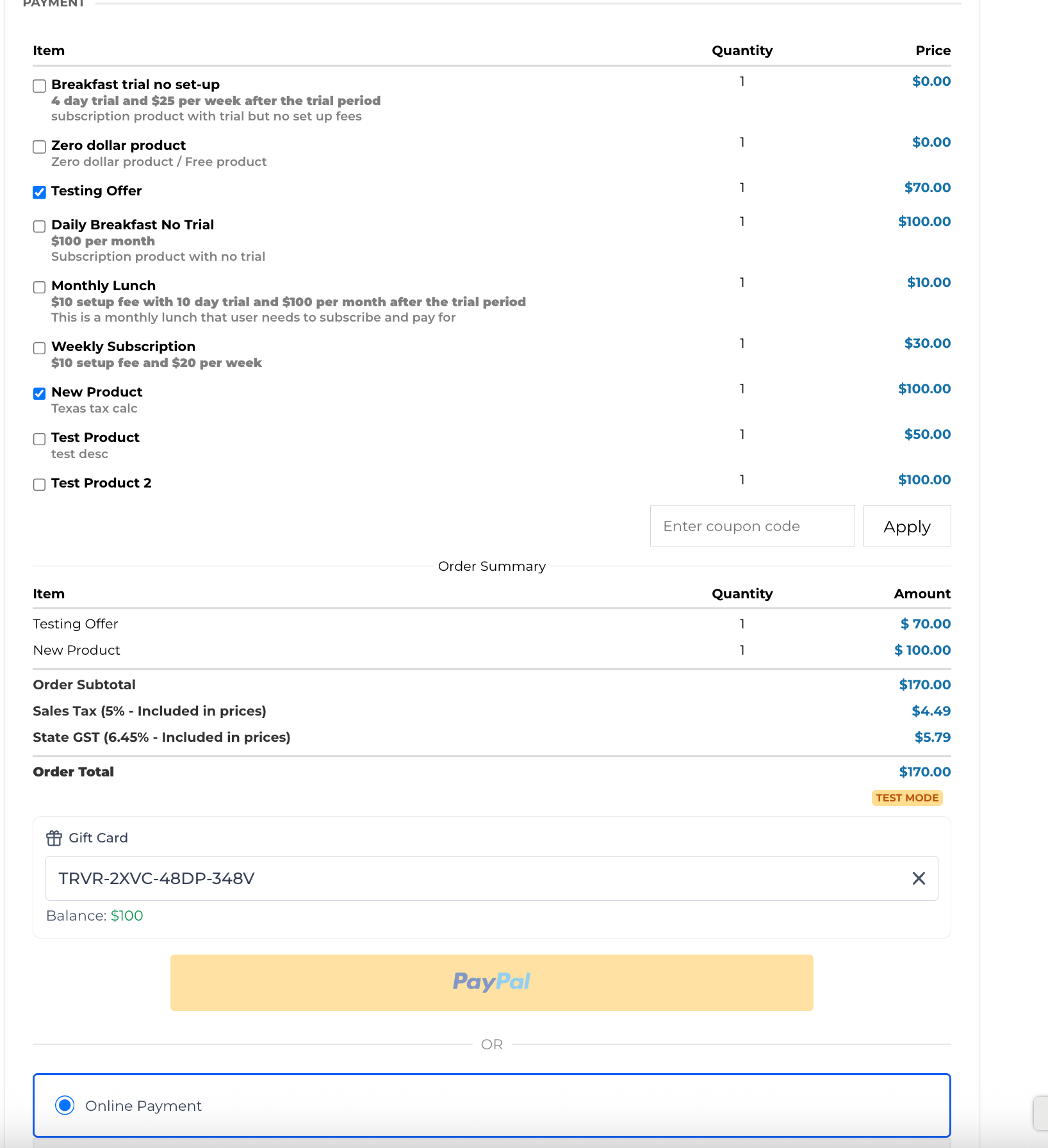
At a compatible checkout, the customer:
Enter their Gift Card Code in the dedicated field
The balance is displayed immediately
The total is automatically recalculated
🔒 Rules of use:
If the balance ≥ total amount → no credit card is required
If the balance < total → a credit card is required for the balance
If a subscription is included → credit card required for recurring payments
The receipt displays: "Gift Card Balance Used"
📊 9. Gift Card Dashboard
The Dashboard allows you to track overall performance:
Total number of cards issued
Total value issued (selected period)
Average order value
Number of unique customers who purchased/received
Top most used denominations
Graph of the 5 most popular amounts
This data helps you understand adoption, optimize the amounts offered, and plan your campaigns or inventory.
❓ 10. FAQ
What is the difference between "Gift Card Orders" and "Orders"?
Gift Card Orders: all cards issued (sold + gifted)
Orders: only paid transactions
Can I set a different expiration date for certain customers?
Not yet. Currently, the expiration date is set
at the gift card level. Individual card expiration will be available in a future version.
How does inventory work?
Inventory is set by amount.
Example: 3 amounts × 50 units = 150 cards. Concrete
example: I set 40 units for a gift card with a choice of $10 or $25; 2 amounts x 40 units = 80 cards
Can I limit where Gift Cards can be used?
Currently no: they can be used on all compatible checkouts.
Restrictions by product/variant are coming soon.
Can a customer check their balance without initiating a checkout?
Not yet. For now, the balance is displayed when entering the code at checkout.