Creating and modifying Custom Objects in CrocoClick
Learn how to create, configure and manage Custom Objects in CrocoClick: fields, associations, automations, limits and best practices.
Written By Baptiste Lorreyte
Last updated 6 months ago
Custom Objects allow you to model data that goes beyond Contacts and Opportunities, such as assets, animals, files, vehicles, or any other business-specific items relevant to your industry.
This article explains:
what a Custom Object is,
why and when to use it,
how to configure it correctly,
where it can be used in CrocoClick,
and the key points to keep in mind before structuring your data model.
What is a Custom Object?
A Custom Object is a new type of CRM record that is fully customizable, with:
its own fields,
its own associations,
and its own automations.
It allows CrocoClick to reflect your actual processes when standard objects (Contacts, Opportunities) are no longer sufficient.
Examples:
A Property object with price, square footage, and status
A Pet object with breed, vaccinations
A Contract object with start date, end date, and status
Once created, a Custom Object can be used in the platform’s views, filters, and automations.
💡TIP: To learn more, read our article on Overview of Custom Objects in CrocoClick
Key Benefits of Custom Objects
Understanding their value allows you to build a scalable and maintainable CRM over time.
Data model flexibility: You can define any business entity with its own fields, labels, and relationships.
Advanced automation: Custom Objects have dedicated triggers and actions in Workflows (creation, update, search, cleanup, webhooks).
Accurate analysis and reporting: Data can be leveraged in SmartLists, list views, advanced filters, and dashboards.
Governance and consistency: Object definition is restricted to administrators, preventing structural drift.
Access and limits: Custom Objects are available on all CrocoClick plans, with a limit of 10 custom objects per sub-account.
Field types and unique fields
Choosing the right fields and uniqueness rules is essential for maintaining a clean database.
Fields that can be unique
Currently, the following field types can be defined as unique:
Text (single line)
Text (multi-line)
Numeric
Phone
Uniqueness limits
Maximum of 10 unique fields per object
Uniqueness is enforced across the entire sub-account
It is enforced across all entry points (interface, workflows, forms, API)
Important note
Once a unique field is downgraded to a non-unique field, it cannot be made unique again.
Associations and labels
Associations allow you to link Custom Objects to each other and to standard objects to represent the actual relationships in your business.
Relationships between objects
You can create one-to-many or many-to-many relationships between Custom Objects, Contacts, Opportunities, and other objects.Using associations
Associations can be used in SmartLists, advanced filters, automations, and cross-object views.Association
labels Up to 10 unique labels can be defined between two objects to clarify the relationship (for example: “Owner of,” “Assigned to”).
Opportunities also support flexible associations with Custom Objects for a unified pipeline view.
Where to Use Custom Objects in CrocoClick
Not all CrocoClick modules currently support Custom Objects. It is important to know which interfaces are compatible before building your model.
Supported Features
Associations with Contacts and Opportunities
Workflows (triggers and actions)
Forms
Surveys and quizzes
SmartLists
List view
Advanced filters
Reports and dashboards
API and Webhooks
Tasks
Unsupported features
Email campaigns
Bulk email or SMS sends
Conversations Interface
Funnels and websites (dynamic data from Custom Objects)
Calendars and appointment scheduling
Reputation / Reviews
Payments and billing
Internal functions of the Company object
Upcoming features
Notes
Dynamic data in Funnels and Sites
AI Knowledge Base
Emails sent via Workflows to associated Contacts
Create a Custom Object in CrocoClick
A clean setup from the start ensures reliable automations and consistent reporting.
Step 1 — Create the object
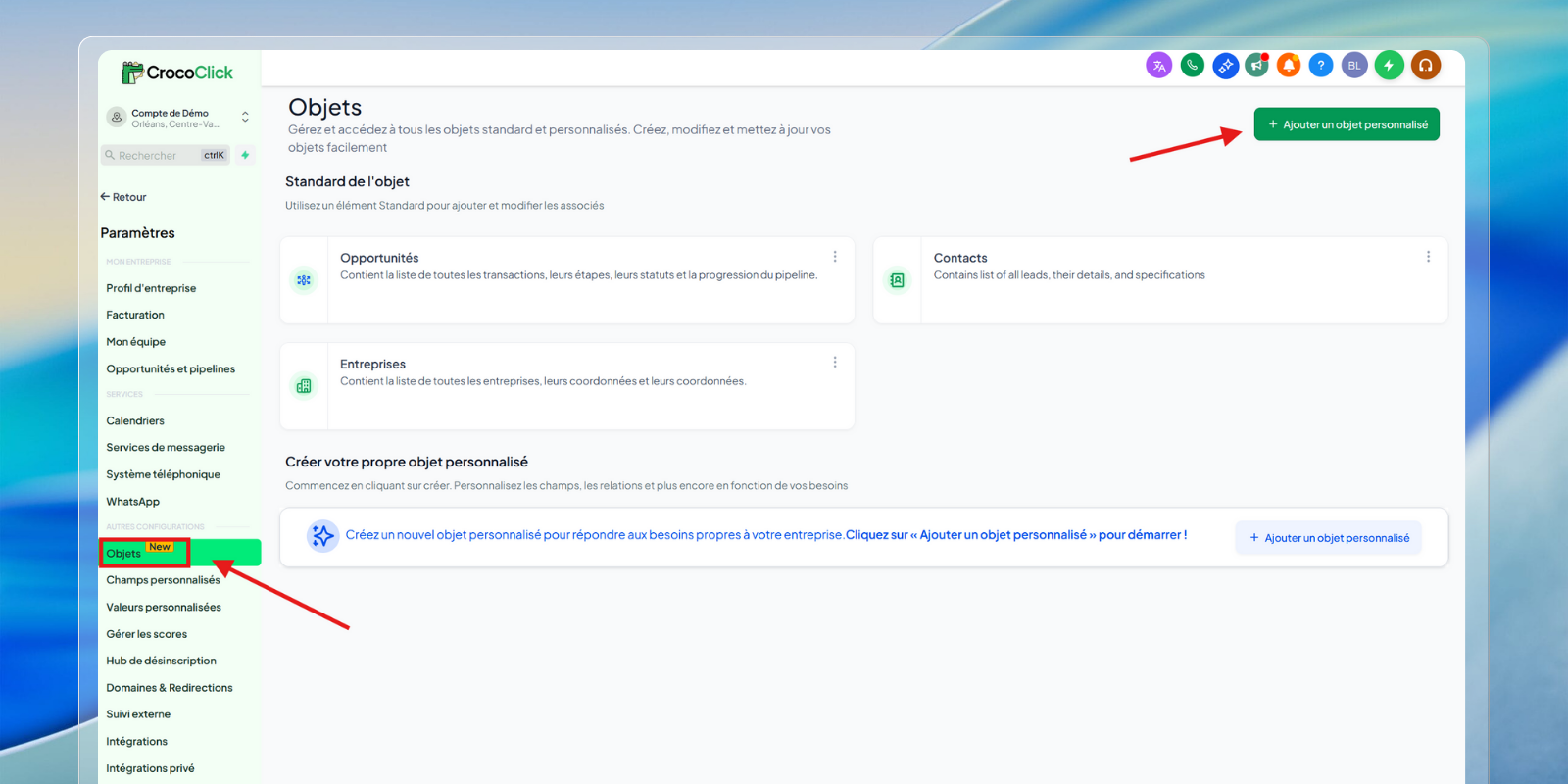
Go to the CrocoClick sub-account, then navigate to Settings → Objects and click Add a Custom Object.
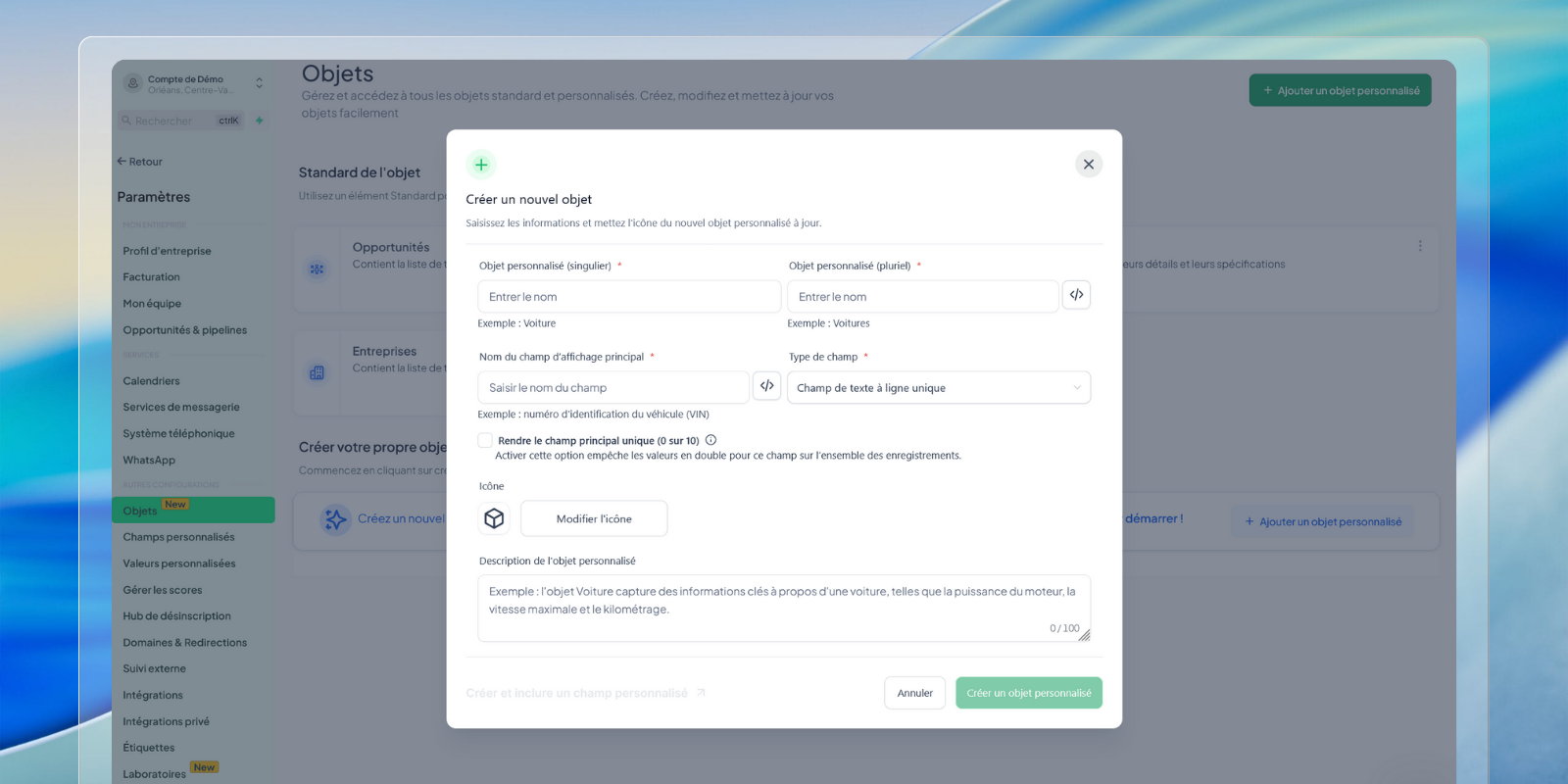
Step 2 — Define the object’s information
Enter:
the singular name (e.g., Animal),
the plural name (e.g., Animals),
the internal name and the main field (created by default),
the label for the primary field (e.g., Animal Name, Contract Reference),
an icon and a description to provide context for its use.
Then click Create Custom Object.
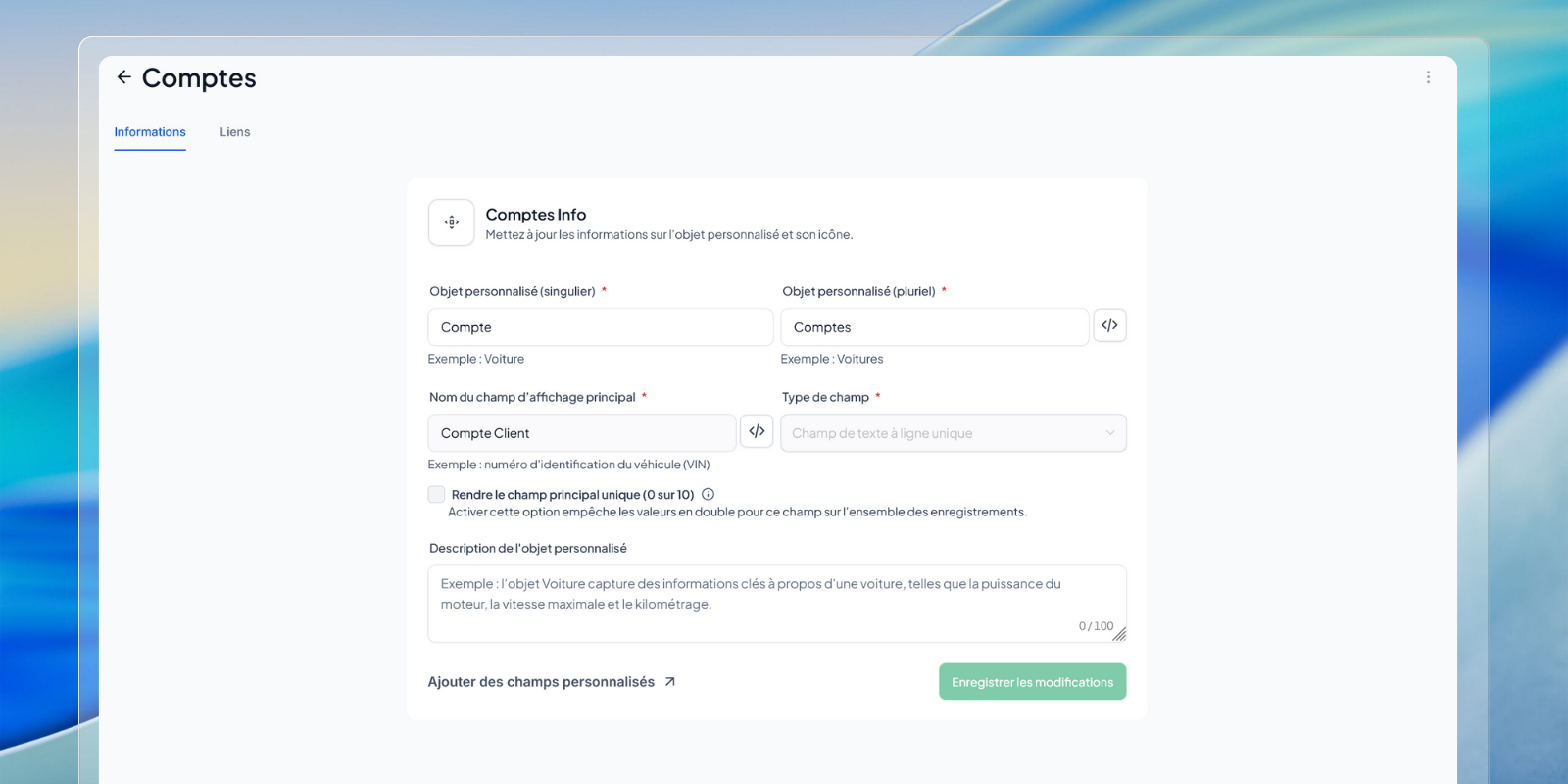
Step 3 — Edit settings
Once created, the object appears in the list.
You can then adjust its fields, associations, and settings.
Delete a Custom Object (irreversible)
Deleting a Custom Object is permanent.
Click the ⋯ menu next to the object, select Delete, then press DELETE to confirm.
Deleting the object will result in the loss of:
the object,
all its records,
its associations,
its workflows,
and its custom fields.