Setting up payment in instalments
Offer multi-payment in CrocoClick by configuring multi-payment products for greater flexibility.
Written By CrocoTeam
Last updated 14 days ago
This help article provides step-by-step instructions on how to set up installment payments on your CrocoClick epayment form. This will allow you to offer your customers the option of paying for their purchases in installments.
Step 1: Create a product
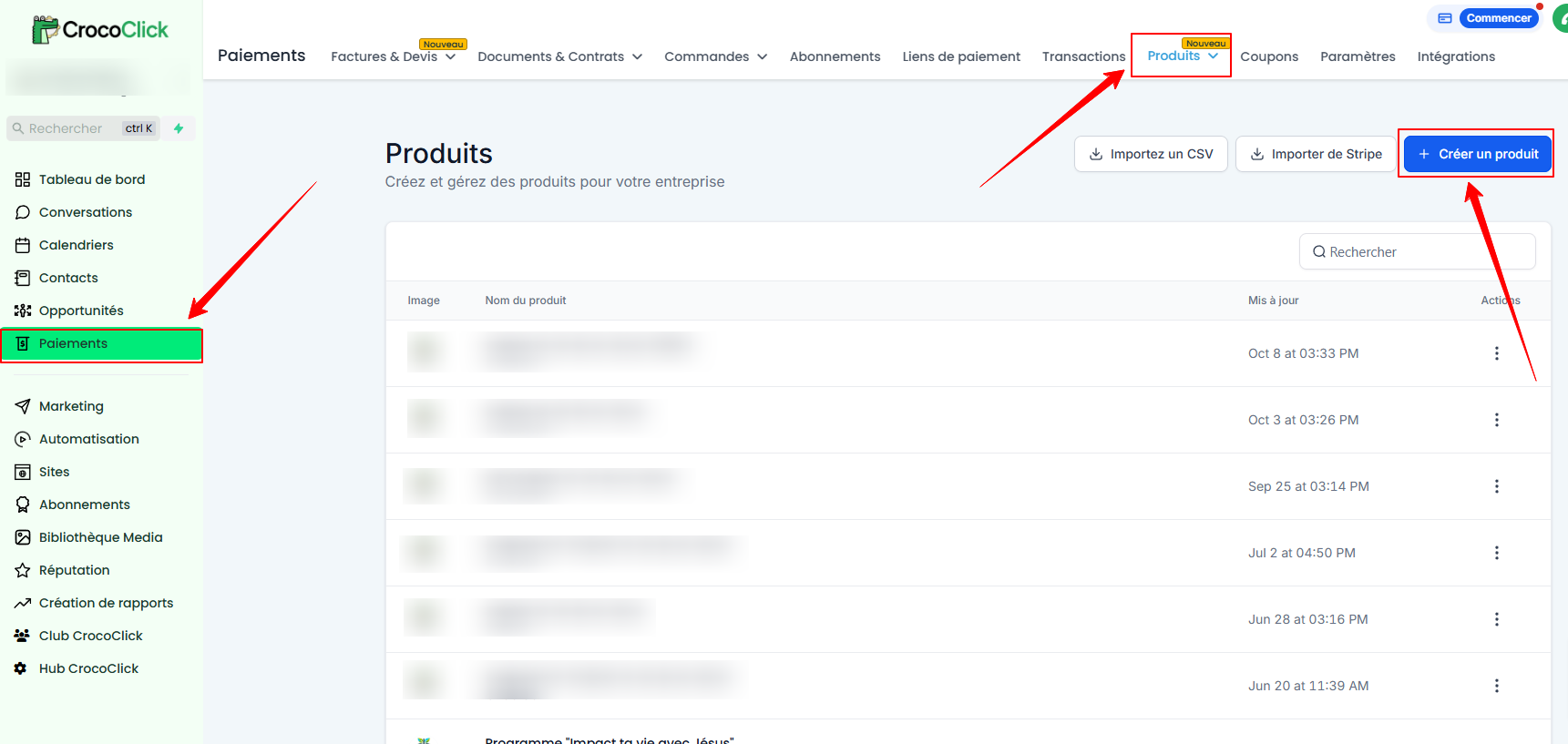
Go to Payments > Products in CrocoClick.
Click on + Create a product to start the configuration.
Step 2: Configure the product and set payment options
Configure your product according to your preferences.
Under Price, add different payment options, for example:
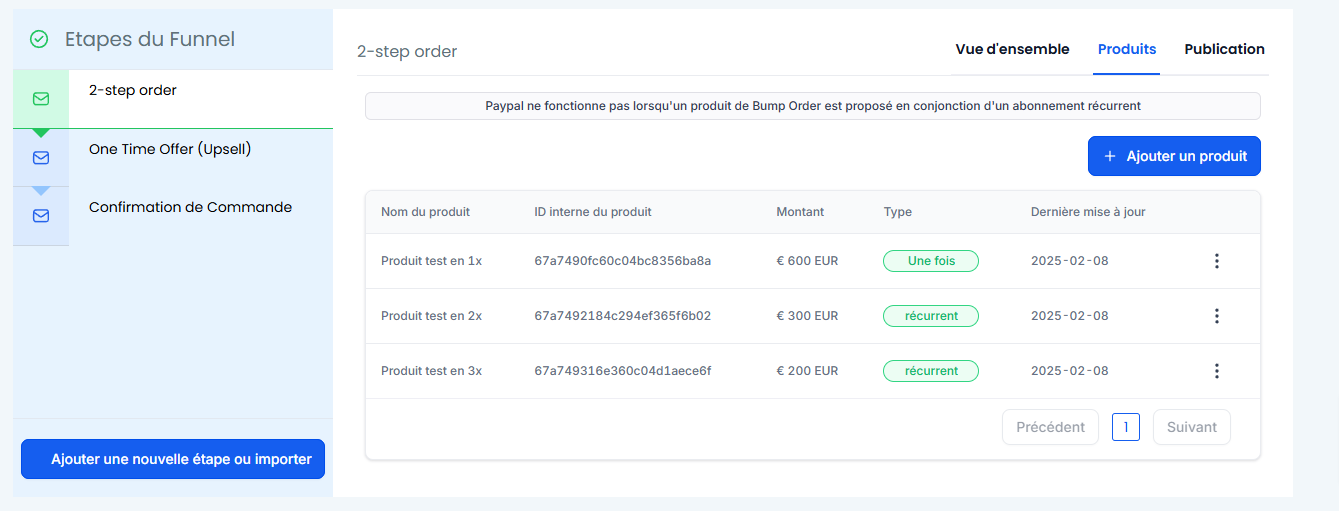
1 payment of $600
2 installments of $300
3 installments of $200
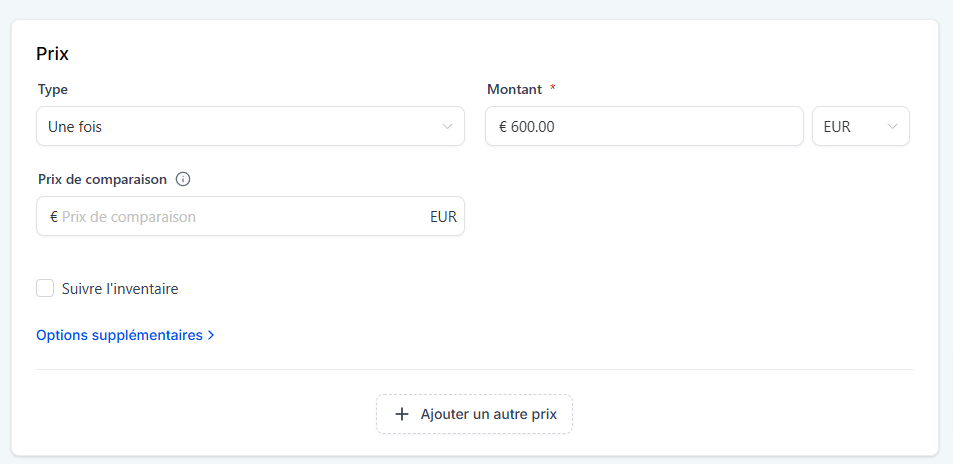
To set up payment in 3 installments (3 x $200 for a total of $600), proceed as follows:
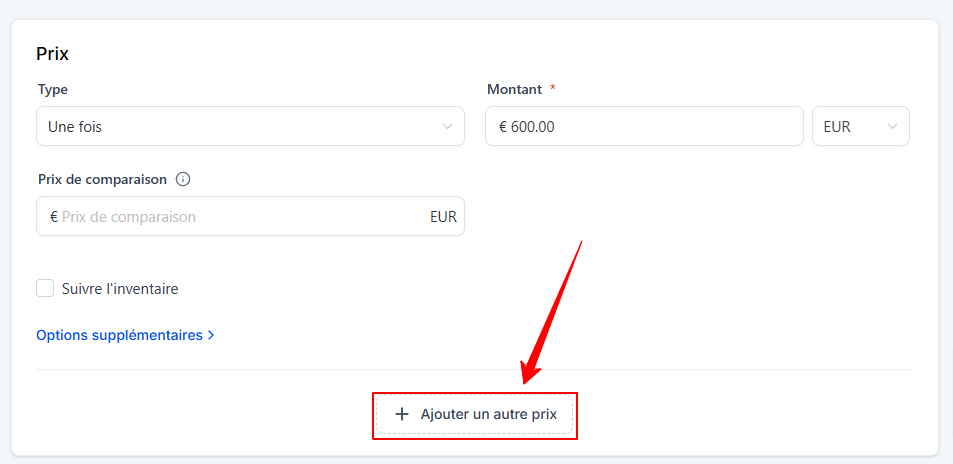
Click on Add a price.
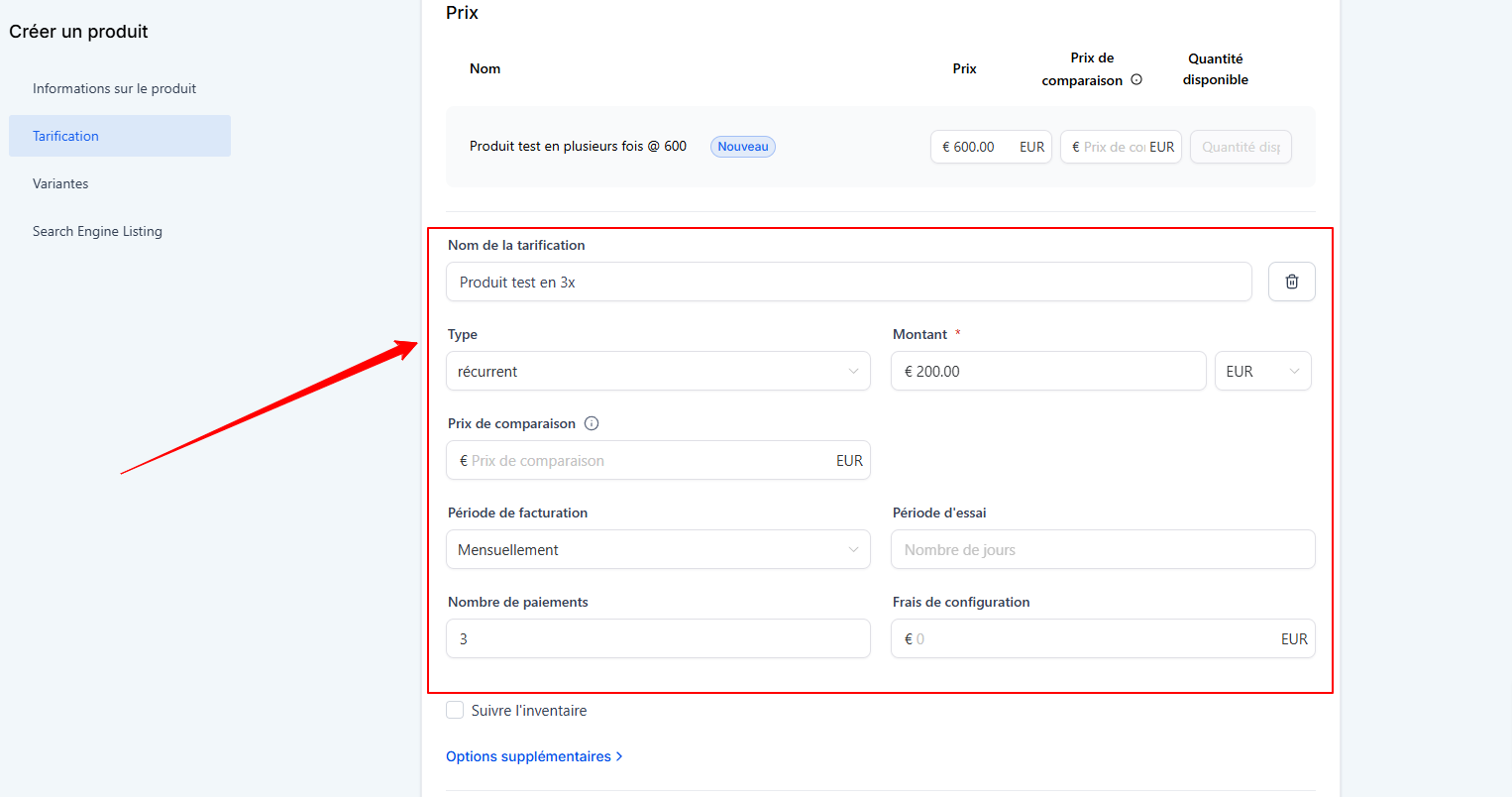
Type: Select Recurring.
Monthly payment amount: For our example, we will enter $200.
Billing period: Select the frequency (monthly, weekly, daily, yearly, or custom).
Number of payments: Enter 3 for a payment in three installments.
If your product is associated with an offer (e.g., training), enable the membership offer option in Additional Options and select the relevant offer.
This will automatically grant the offer to customers who purchase this product.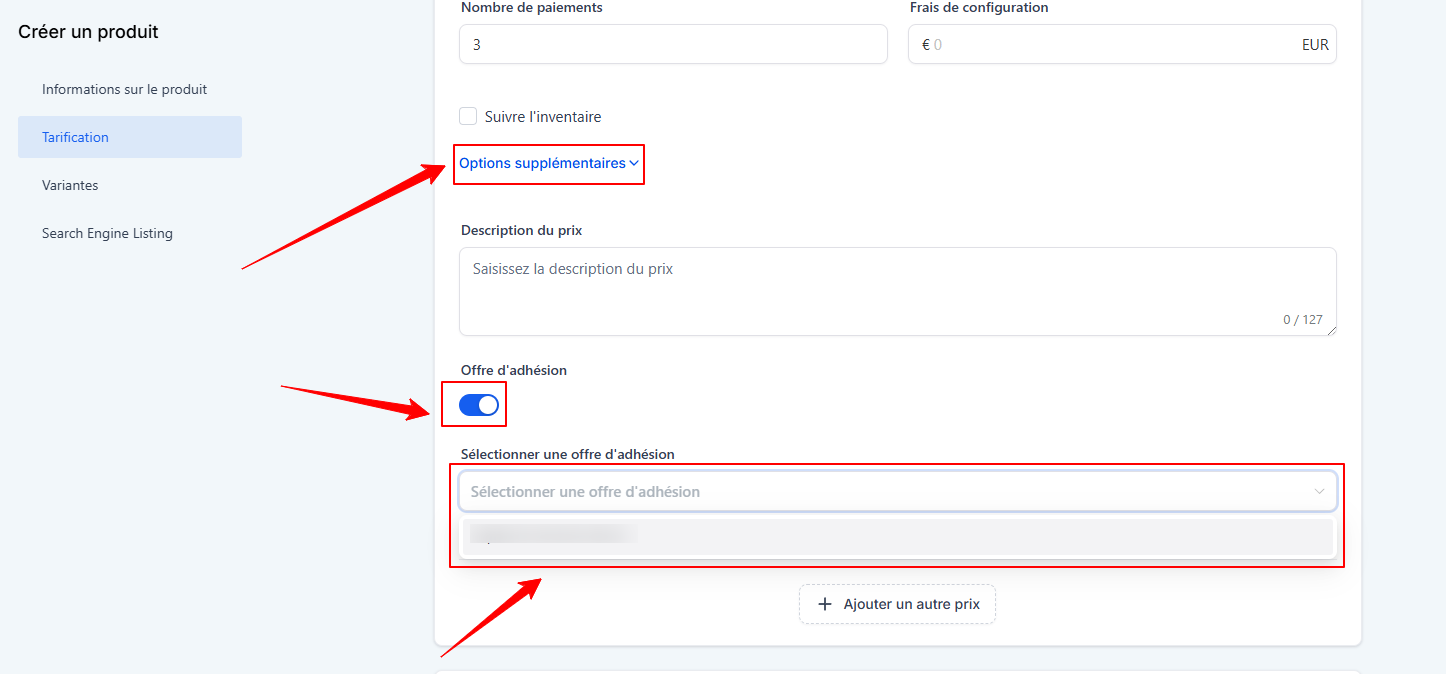
Click Save to save the change.
💡 TIP: The "membership offer" option is linked to the price and not to the payment product. You must therefore activate this option for each price of your payment product (1 time, 3 times, 6 times, etc.) to guarantee access to the offer, regardless of the number of payments chosen.
Step 3: Integrate the product into your sales funnel
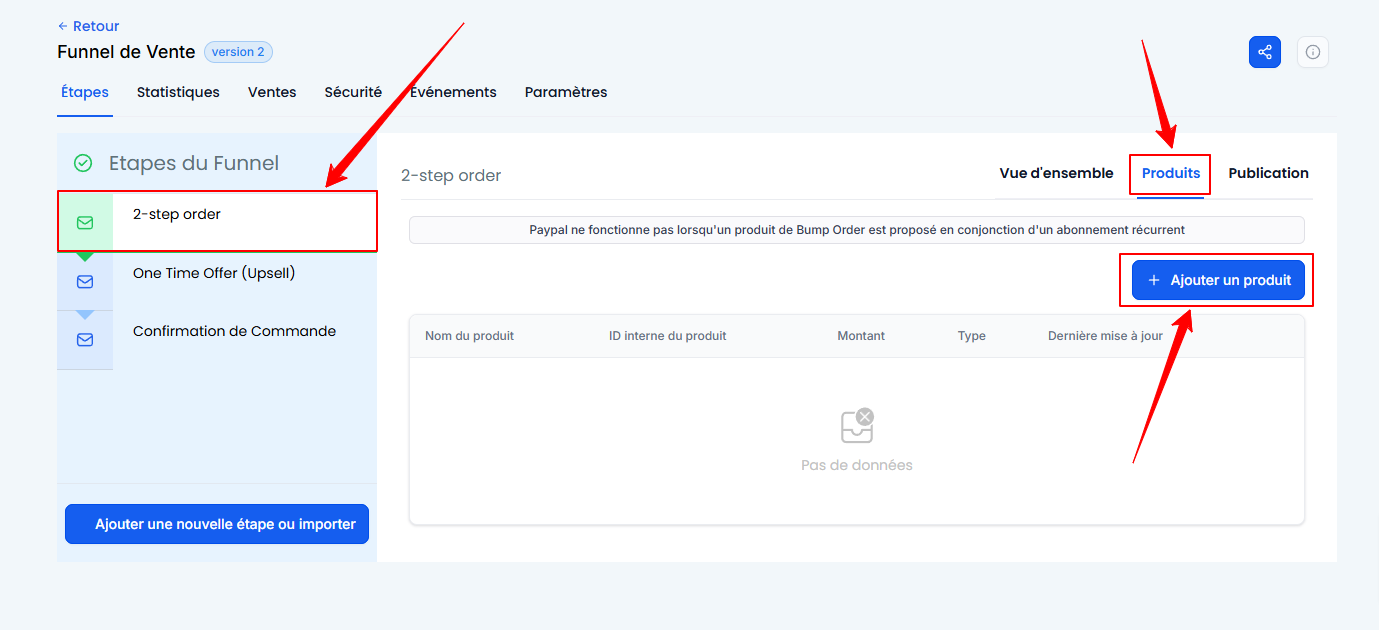
Go to the sales funnel that gives access to your product.
On the page containing the order form, go to the Products section.
Click on + Add a product.
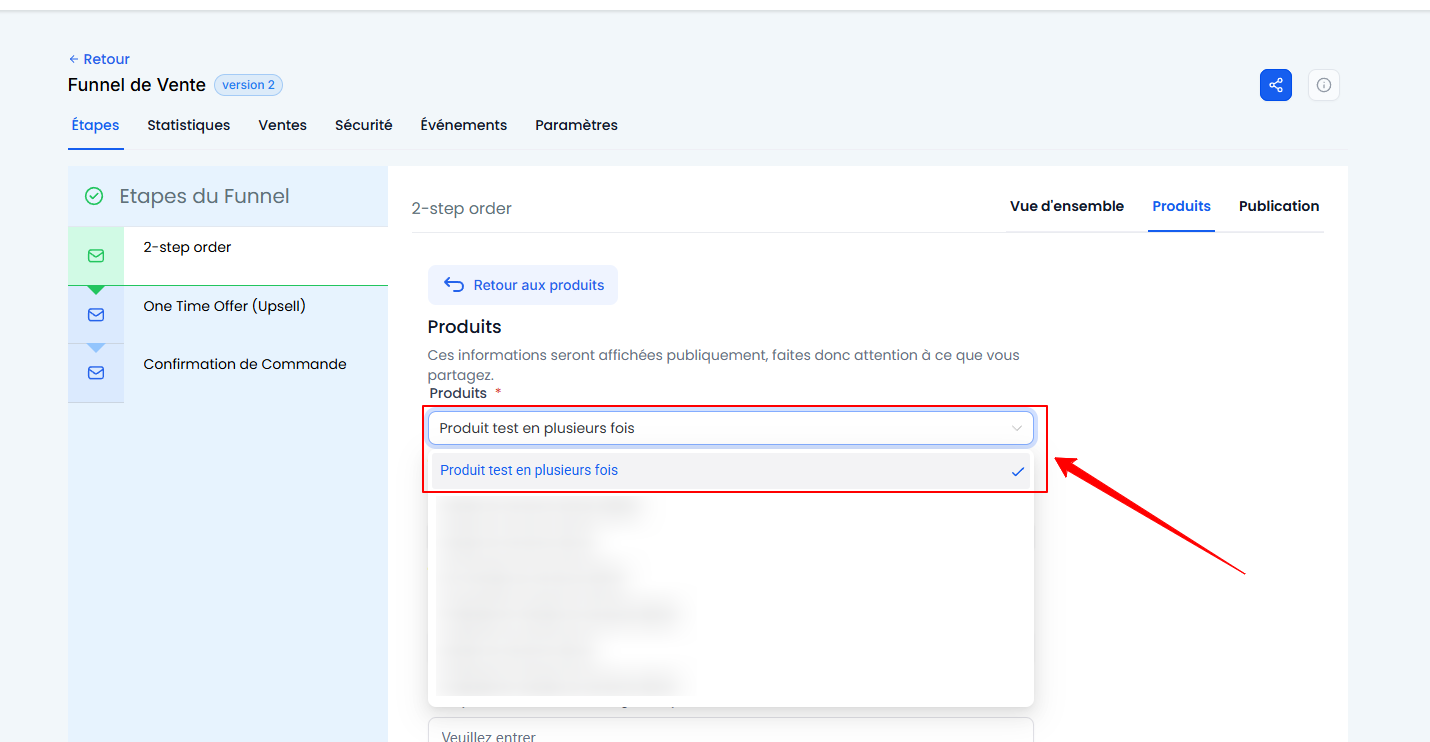
Select the product you created earlier.
Select the price.
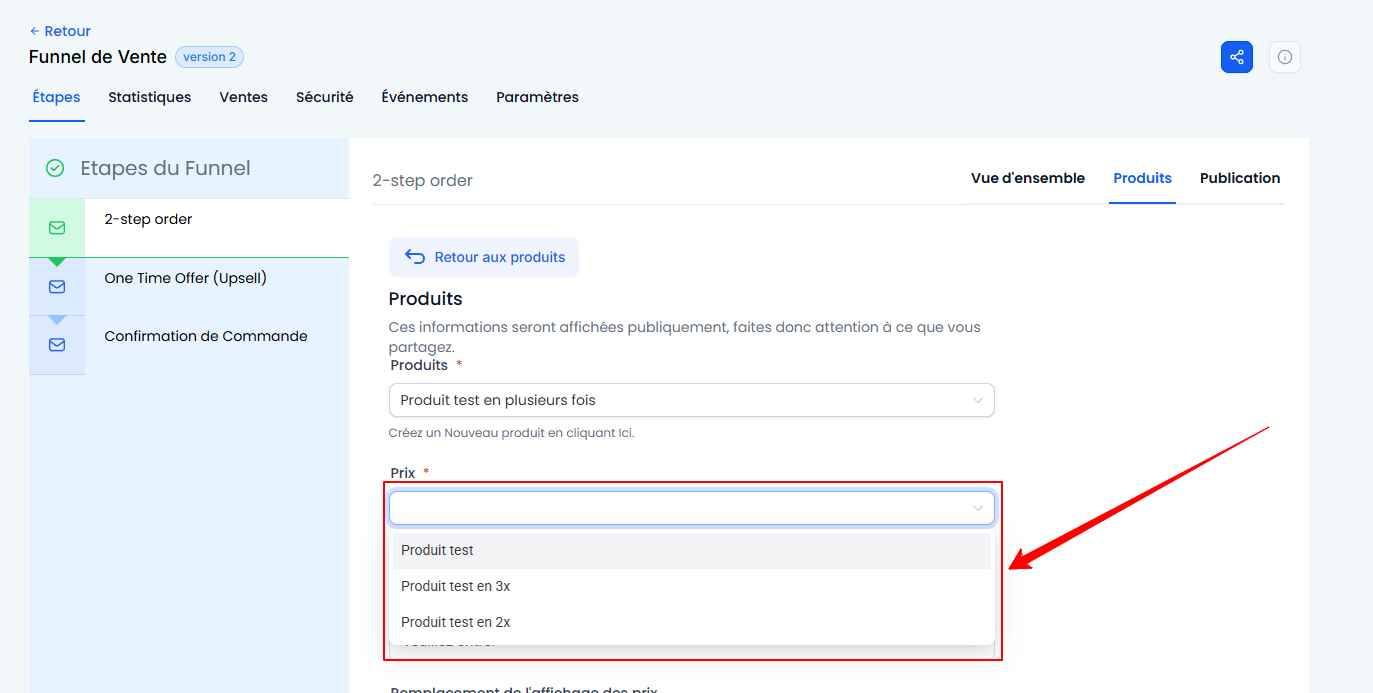
Customize the product name and click Save to save.
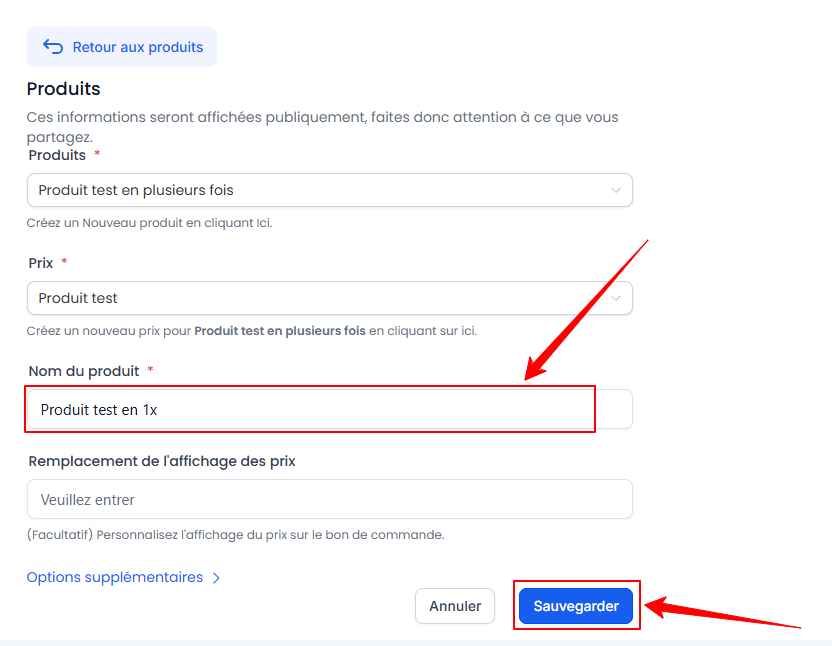
Repeat the same operation for the other payment options.
Step 4: Configure the order form
In your funnel, disable the shopping cart mode of the order form.
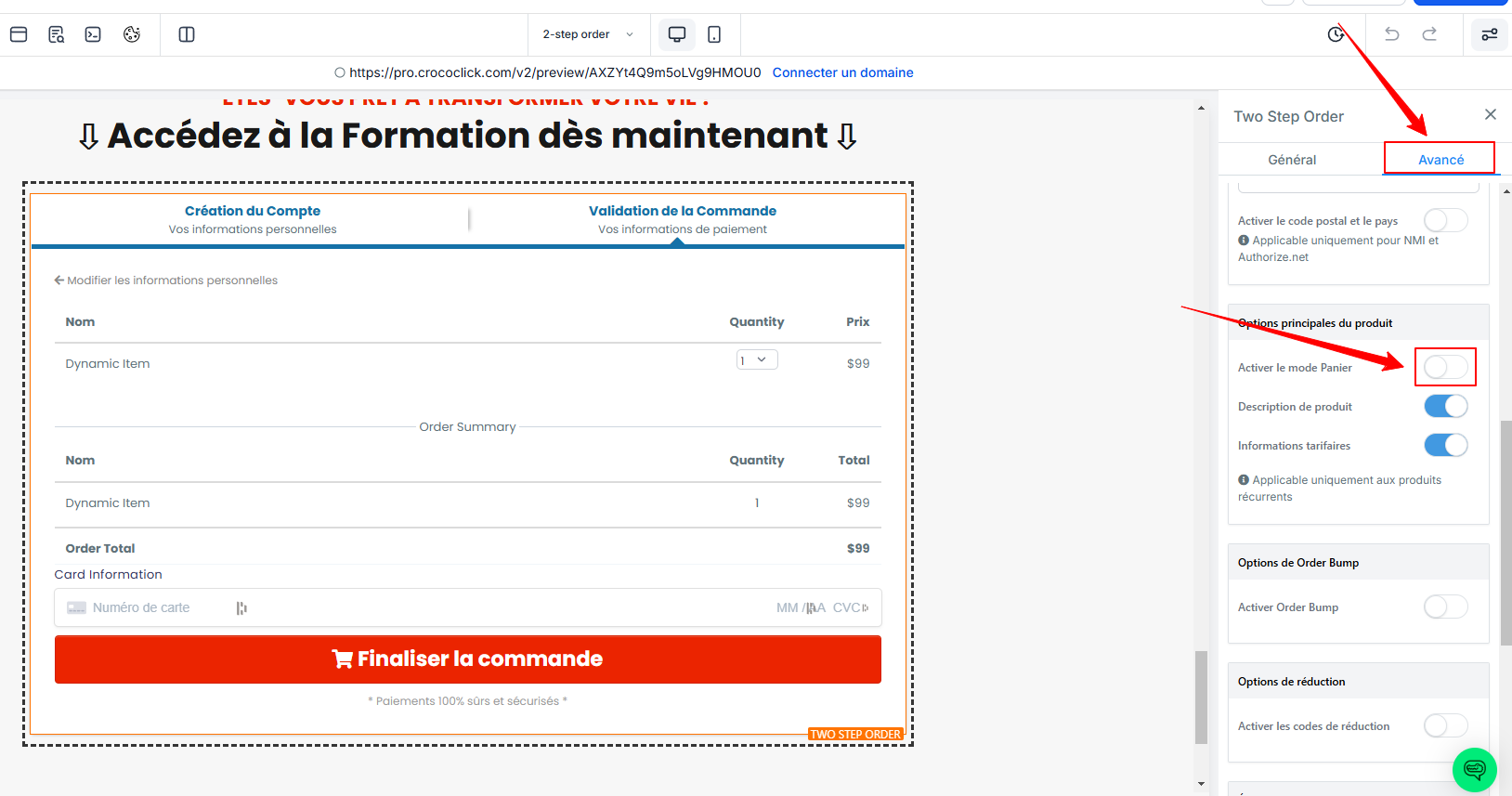
This will allow customers to select only one payment option at a time, avoiding any confusion.
The shopping cart mode makes all products "checkable," which means that a prospect can select payment in one installment AND payment in three installments.
💡TIP: Test your order form to make sure the settings have worked. If necessary, click here to find out how to put your form in "test" mode to use test cards.
Conclusion
By following these steps, you can offer your customers the option to pay in installments, while ensuring a clear and optimal configuration in CrocoClick.
You can also offer installment payments via a payment link shared directly.
If you have any questions or need additional assistance, please do not hesitate to contact our support team.