How to create an invoice on CrocoClick
Manage your invoices easily with CrocoClick: fast creation, flexible payments and automation to optimize your business
Written By CrocoTeam
Last updated 14 days ago
With CrocoClick, you can generate invoices directly from your CRM. This allows you to easily bill your customers for their purchases of products and services, while keeping your accounting and customer relations running smoothly.
STEP #1: Create a new invoice
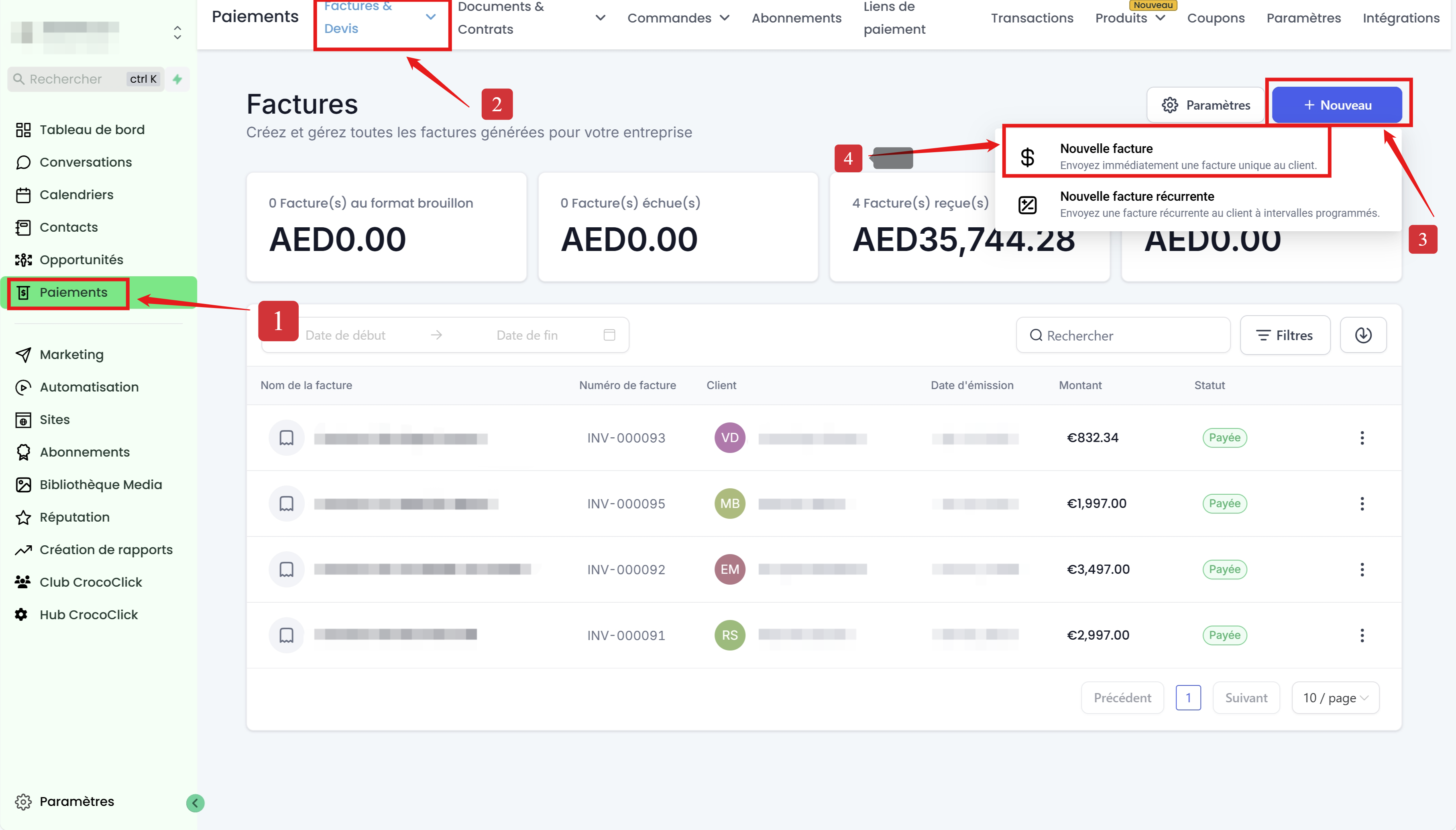
Go to the "Payments" section in the left-hand menu.
Go to "Invoices & Quotes," then click on the "+ New" button.
In the drop-down menu, click on New Invoice.
You will then be redirected to the invoice editor.
STEP #2: Customize the invoice
1) Name your invoice
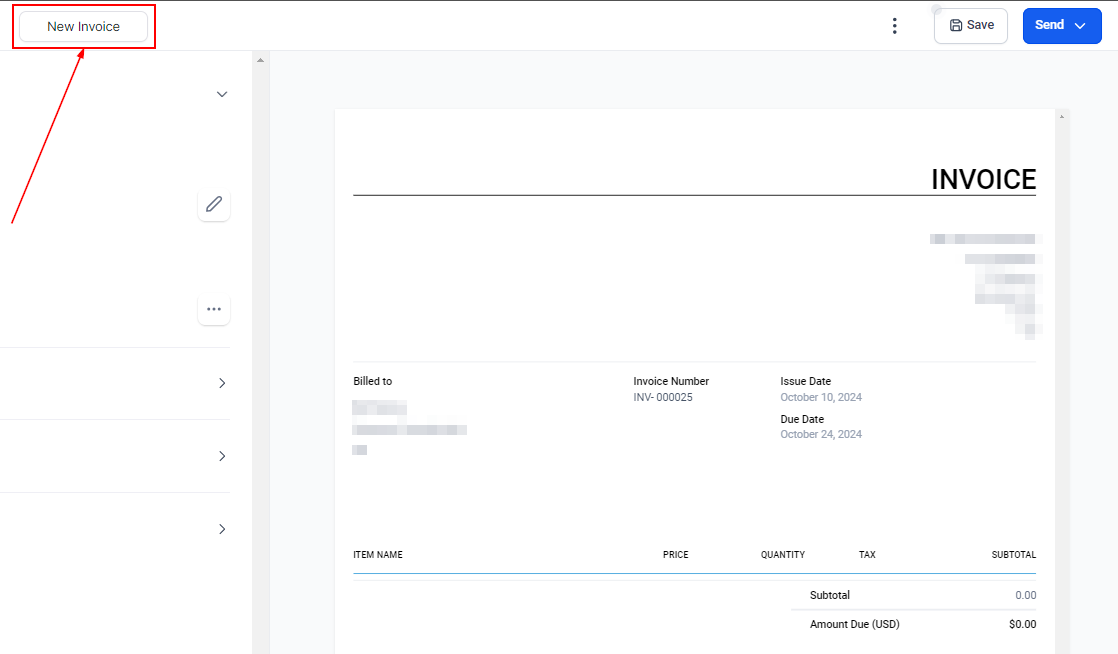
Add a unique name to your invoice to better organize and find your documents.
2) Add essential information
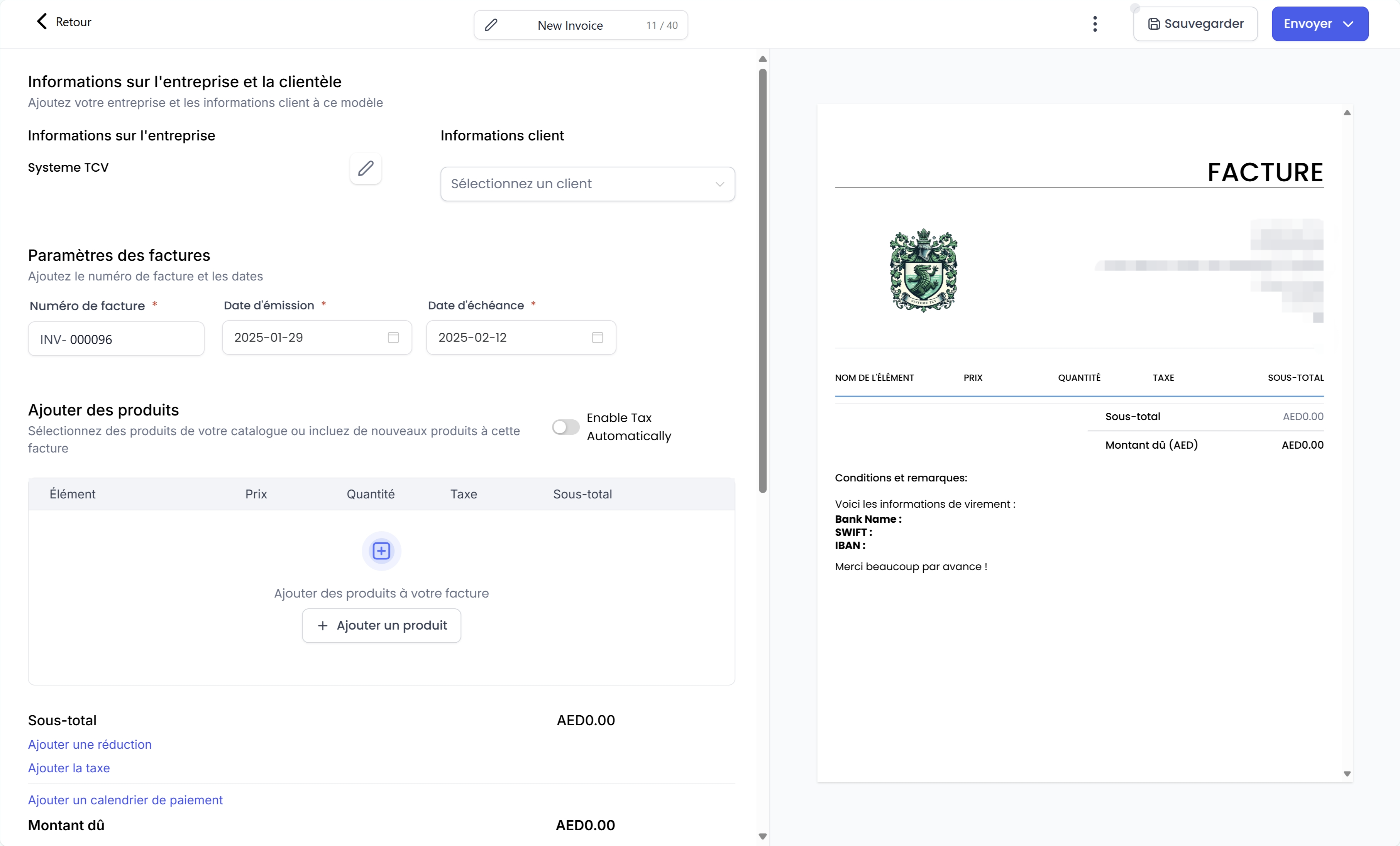
📌 Information about your company & the customer
Click on ✏️ to edityour company information.
Use the "..." button to edit or delete a customer.
📌 Invoice settings
Invoice number
Issue date
Due date
📌 Adding products/services
Click + Add products to insert items from your catalog.
Change prices and quantities by clicking on them.
Add taxes and get a detailed summary of the total amount.
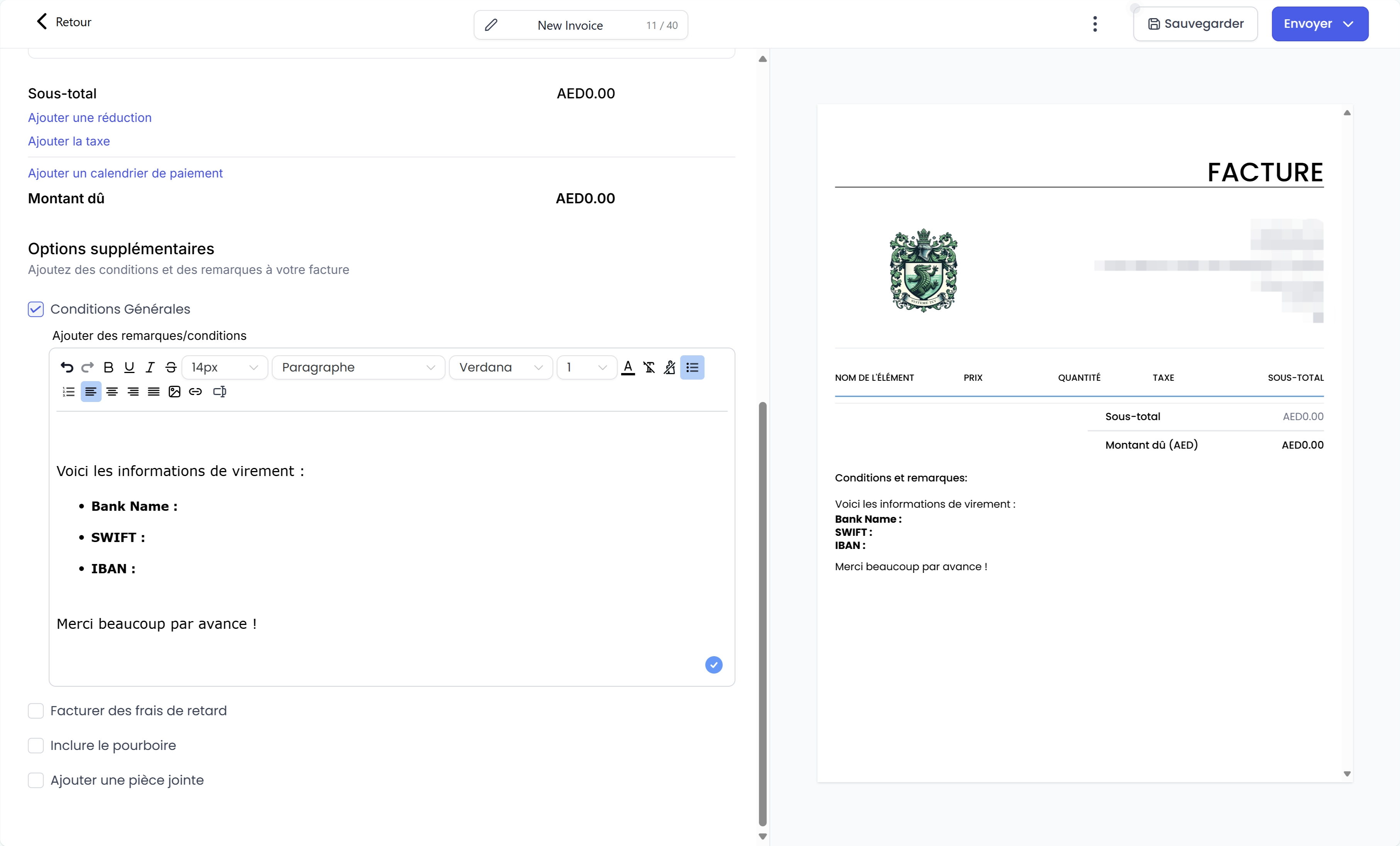
📌 Subtotal & additional options
Apply a discount
Add taxes (VAT, etc.)
Schedule a payment plan.
Add notes, terms and conditions, and attachments (up to 10 files, 20 MB max).
Apply late fees
Fixed amount: set a flat fee and frequency of application.
Percentage of remaining balance: apply a percentage to overdue invoices.
Manage tips
💡TIP: The right-hand column instantly displays any changes made.
3) Setting Additional Options
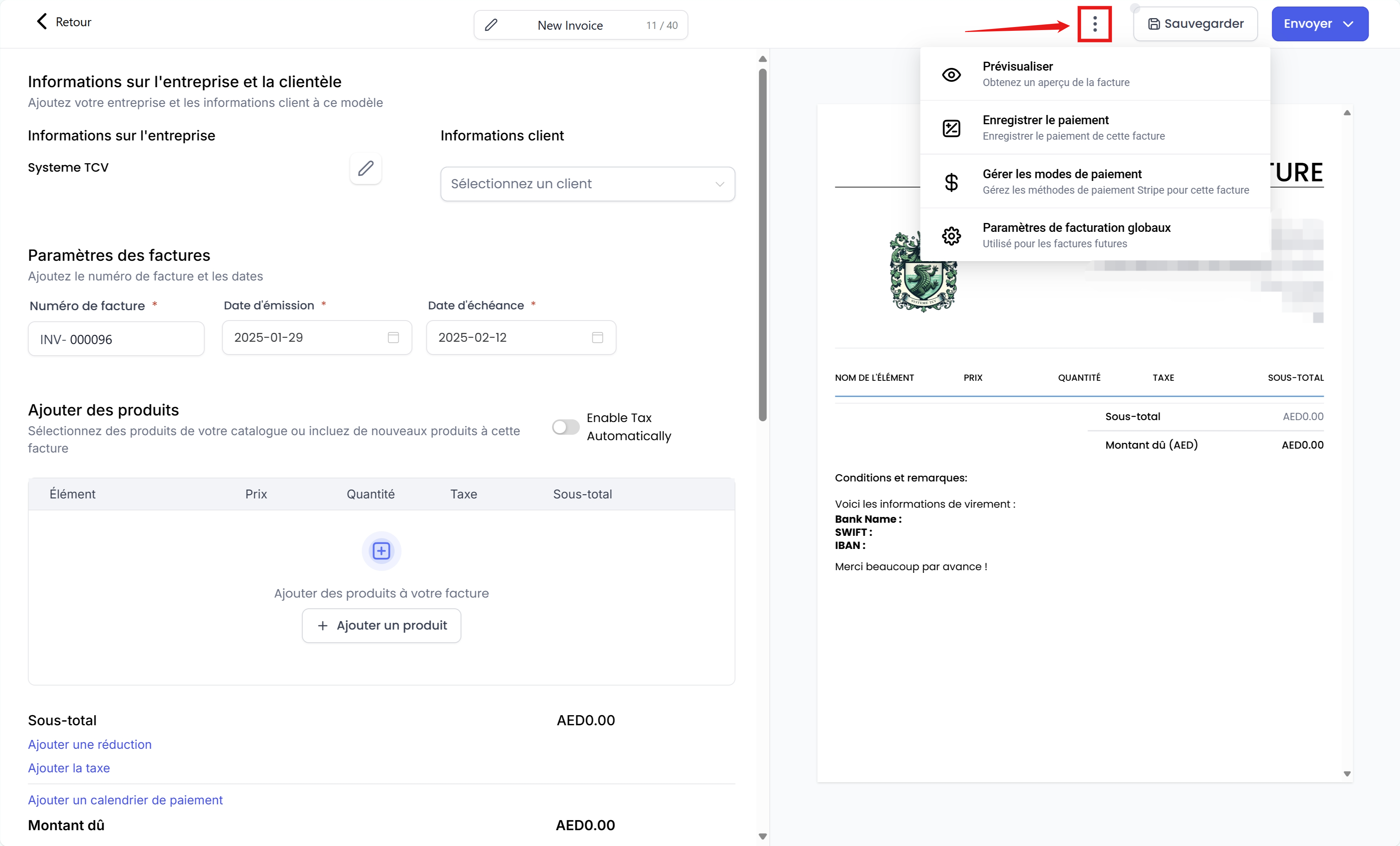
📌 Preview
Check the appearance of your invoice before sending it to your customer.
📌 Record a payment
Manually add a payment received outside of the CRM (cash, check, bank transfer).
Cash payment: Record the exact amount and add notes.
Bank transfer: Enter the amount and transfer details.
Card payment (via Stripe): Record or use an existing card
Check payment: Enter the check number and the corresponding amount.
📌 Manage payment methods
Choose how you want the customer to pay their invoice (card or bank transfer via Stripe)
📌 Convert to template
Save time by saving recurring invoices as templates.
STEP #3: Send the invoice
Send by e-mail or SMS directly from CrocoClick.
Copy & Mark as sent to duplicate an existing invoice in one click.
The emails used to send the invoice will be the ones you have set up in the "settings." For more information, visit read this dedicated article
Conclusion
With CrocoClick, managing your invoices becomes simpler, faster, and more efficient.
You can create, customize, and send your invoices in just a few clicks, while keeping a clear view of your payments and customers.
Thanks to templates, flexible payment options, and built-in automations, you save time and optimize the financial management of your business.