How to change the default emails when sending an Invoice, Estimate or Contract
Easily customize default billing emails to reflect your corporate tone and communicate more effectively.
Written By CrocoTeam
Last updated 6 months ago
When sending an invoice, it is often useful to customize emails to match your company's tone and better communicate with your customers.
Here's how you can easily modify default emails while maintaining optimal flexibility.
💡In this article, we will use the invoice email as an example. If you want to customize your emails for Quotes or contracts, follow the same procedure by going to the corresponding section.
Step 1: Access the billing settings
To begin, go to your dashboard and follow these steps:
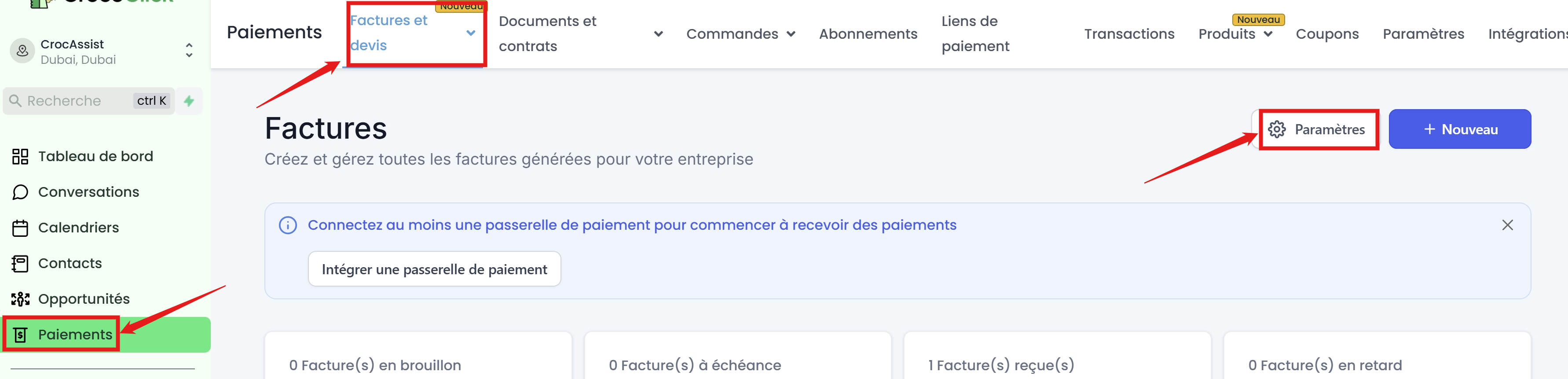
Navigate to Payments > Invoices and Quotes > Settings.
This will take you to the section where you can adjust the details related to billing and quote management.
Step 2: Access customer notifications
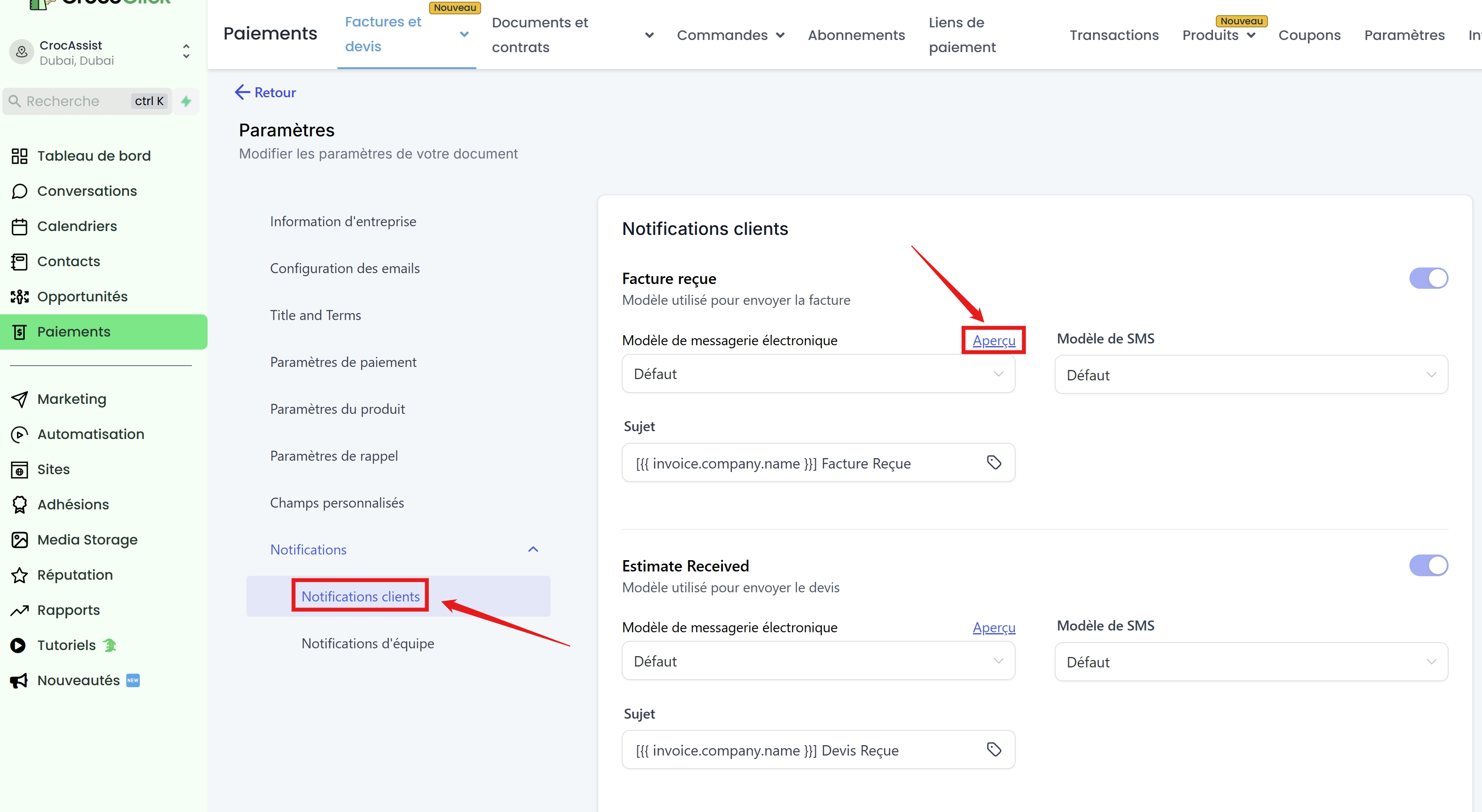
Once in the billing settings, go to the Notifications > Customer Notifications section.
Here, you can see the different email templates related to billing.
Step 3: Edit the email template
Find the email template you want to customize, then click Preview to see its current content.
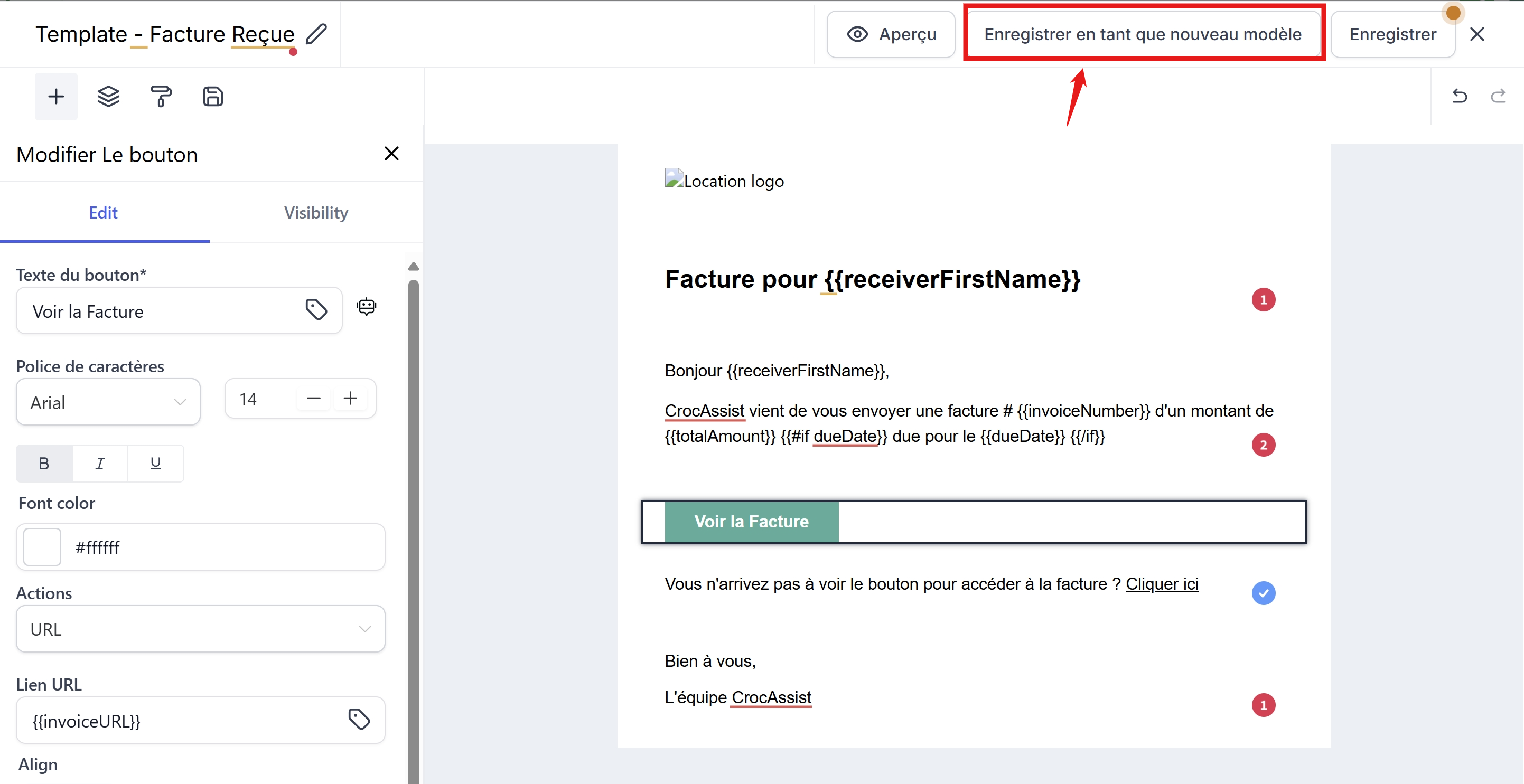
You can then edit the text while keeping the custom fields (these are the fields that will automatically fill in with relevant information such as the customer's name, invoice amount, etc.).
💡To avoid losing the default values of the original template, we recommend saving your customized version as a new template. This way, you can always revert to the original template if necessary, giving you greater flexibility.
Step 4: Select the new template
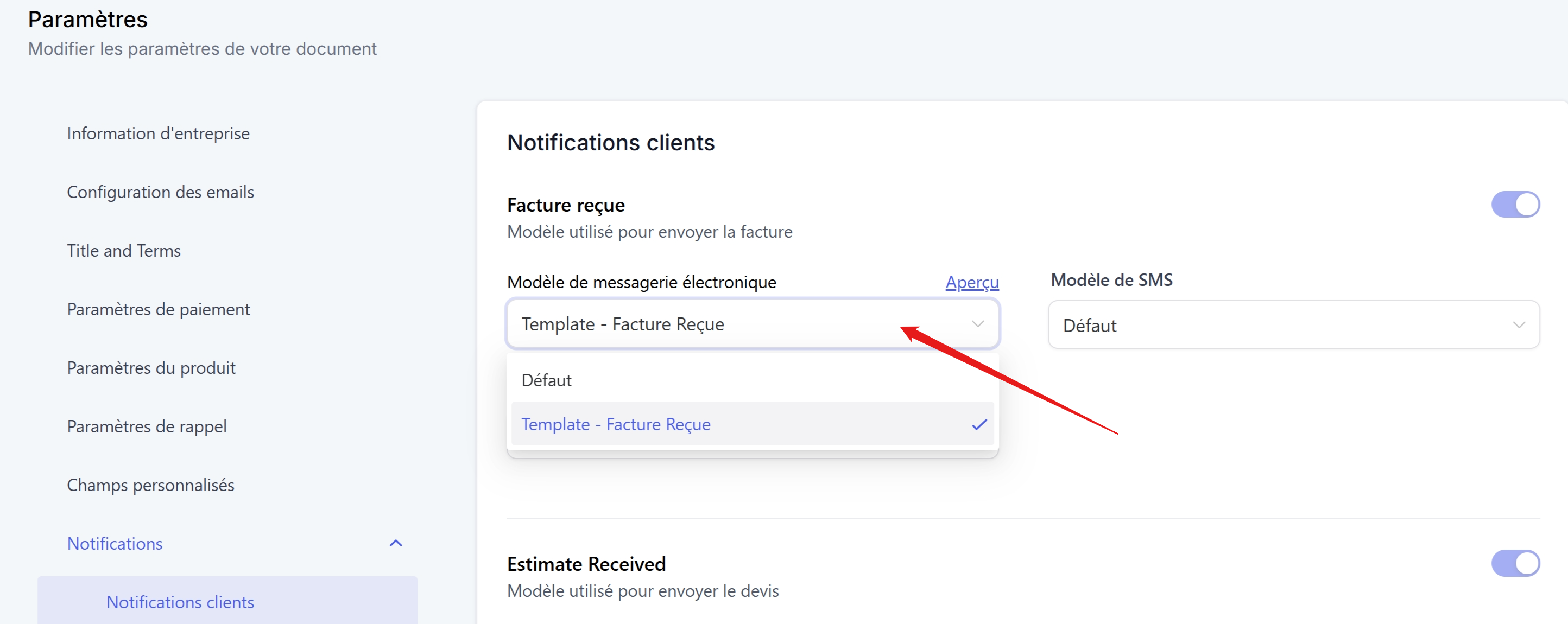
Once you have finished making your changes, be sure to select your new template as the default template forsending invoices.
Conclusion
With these simple steps, you can customize your communications to provide a better experience for your customers while maintaining flexibility for future adjustments. Don't forget to also configure your company information on your invoices.