Distribute a CrocoLive to other platforms
Broadcast your CrocoLive webinars on Facebook, YouTube and via RTMPS, with a comprehensive guide to setting up your external feed and expanding your live audience.
Written By Baptiste Lorreyte
Last updated 6 months ago
CrocoLive lets you stream your events live simultaneously on your platform and on other services such as Facebook, YouTube, or any RTMPS-compatible platform.
Initial Setup
Go to the viewing room for your live webinar. Click the settings icon, then click the "Configure" button next to "Stream to other platforms."
In the window that opens, select your destination platform: Facebook, YouTube, or Custom.
Important: We recommend starting your stream on the external platform BEFORE starting your webinar in CrocoLive. This prevents the message "The webinar hasn't started yet" from appearing to your external audience.
Broadcasting to Facebook
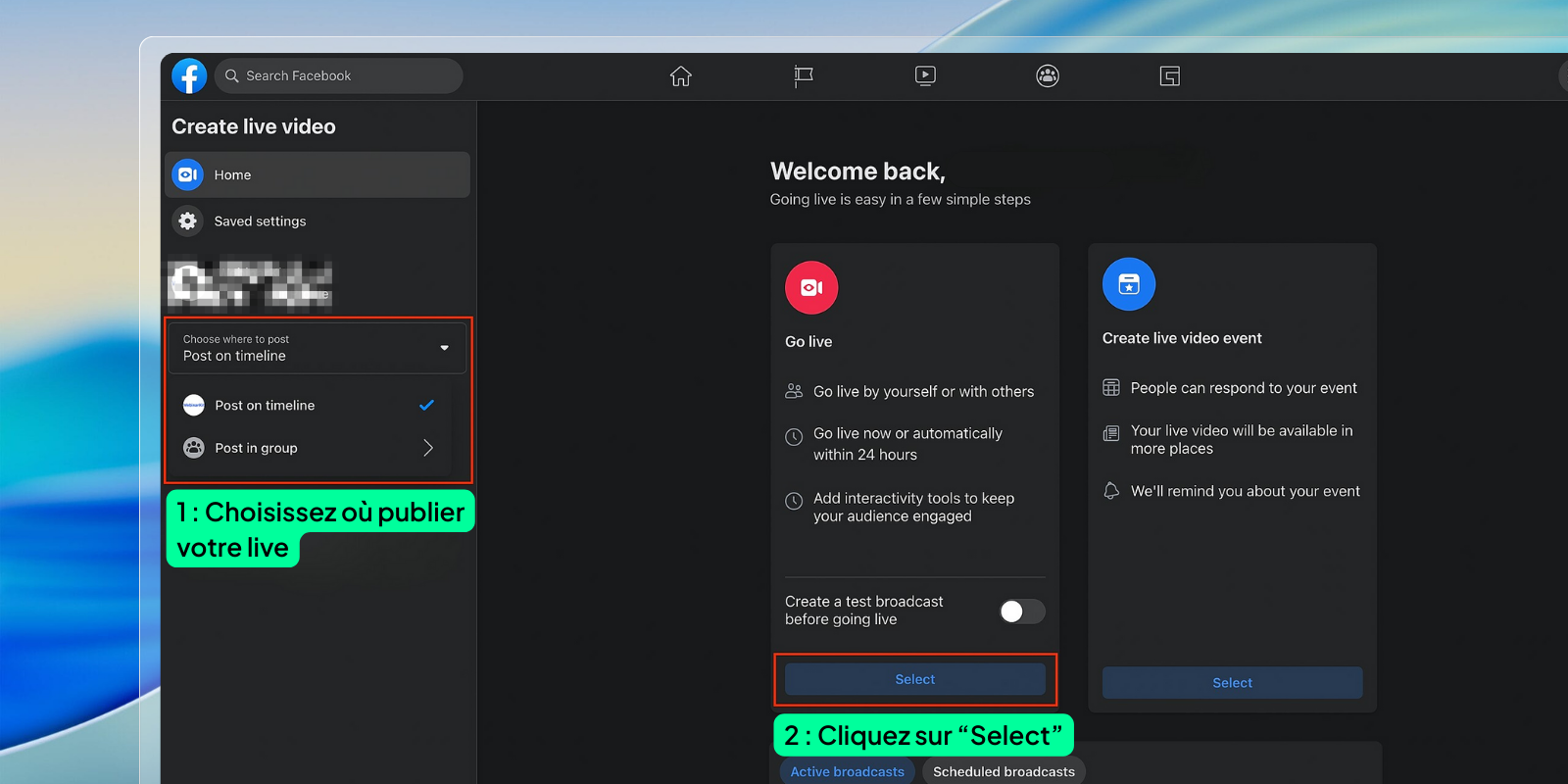
Go to facebook.com/live/producer and follow these steps:
Choose where to post: your News Feed, a Facebook Page, or a Facebook Group
Click "Select" in the "Go Live" section
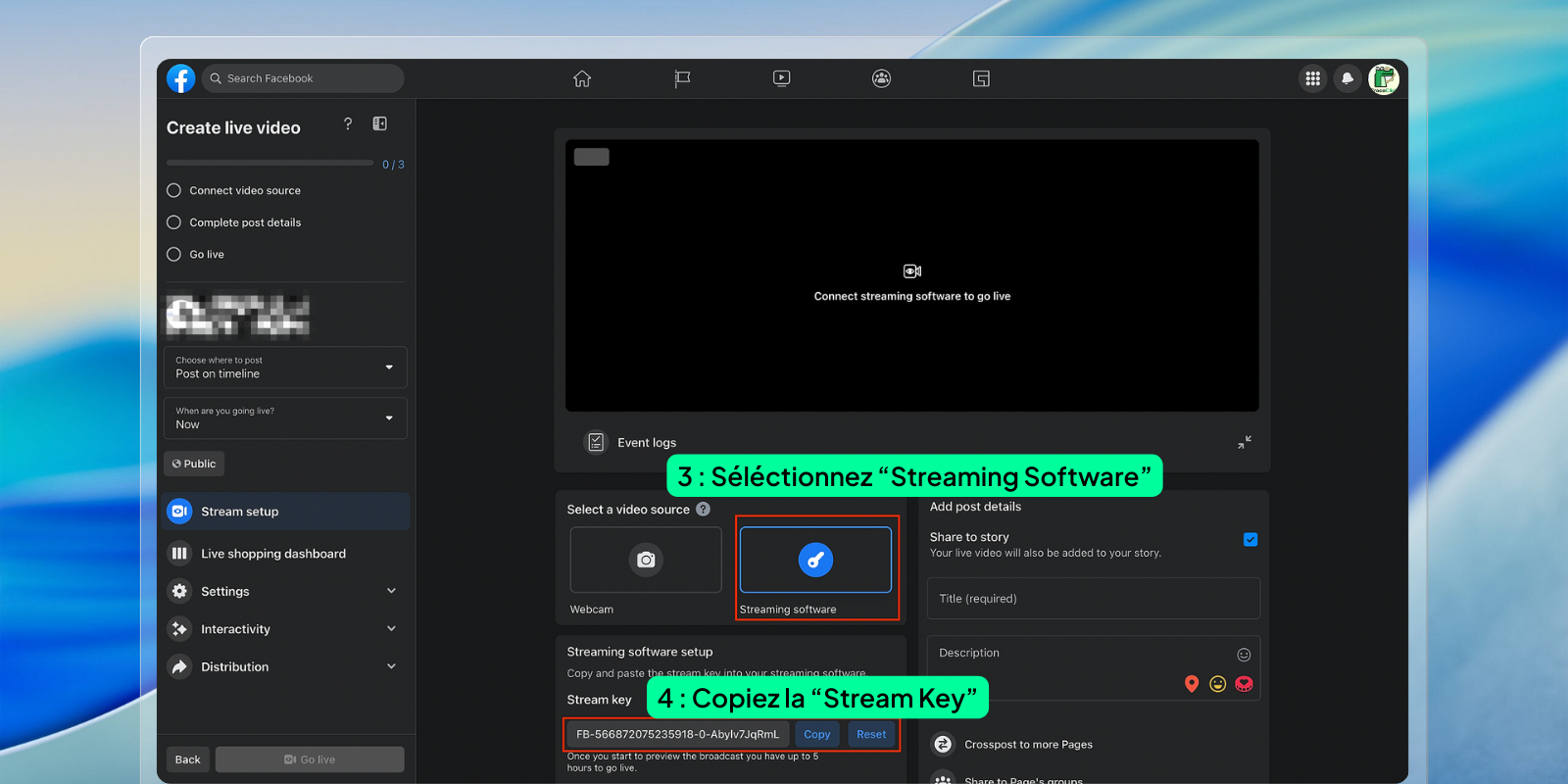
Select the "Streaming software" option
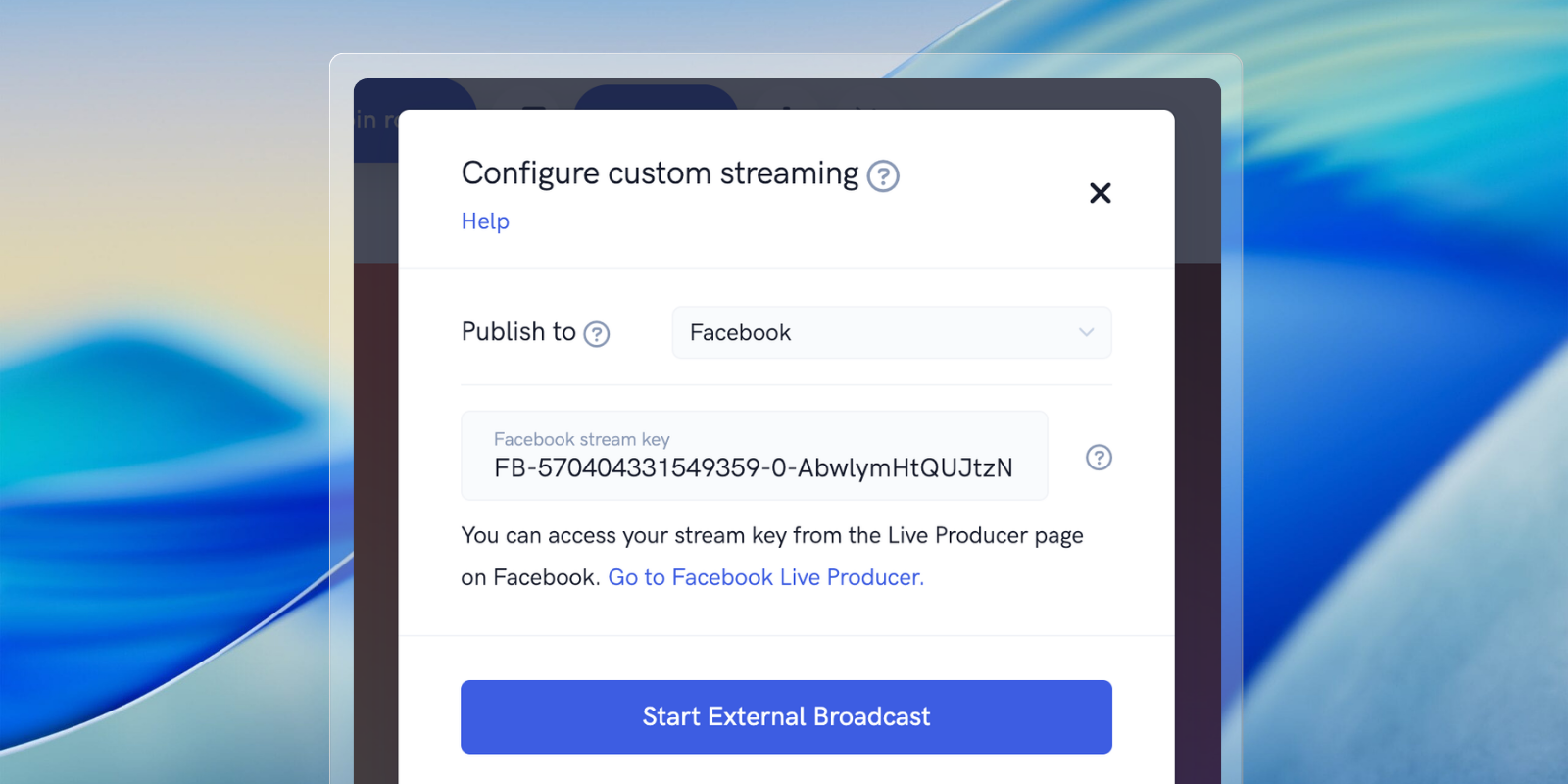
Copy your "Stream Key" and paste it into the corresponding field in CrocoLive
Click "Start External Broadcast" in CrocoLive
Add a title and description on Facebook (required)
Click "Go Live" on Facebook
Return to CrocoLive and start your webinar to stream simultaneously on both platforms
Note: If the Live Producer page does not receive the video stream immediately, refresh the page and wait about 60 seconds. Facebook may require a short delay to synchronize the stream.
Broadcasting on YouTube
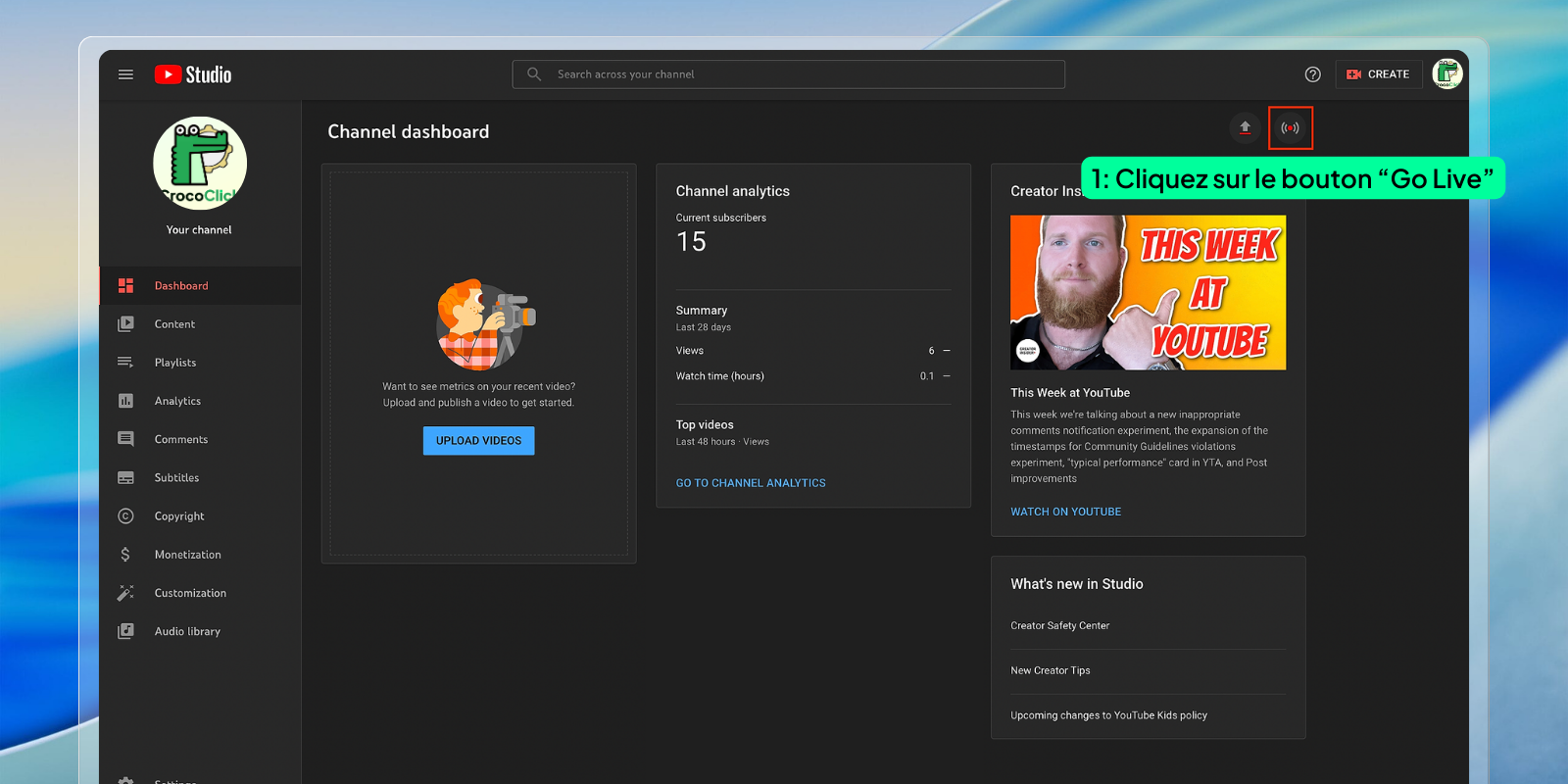
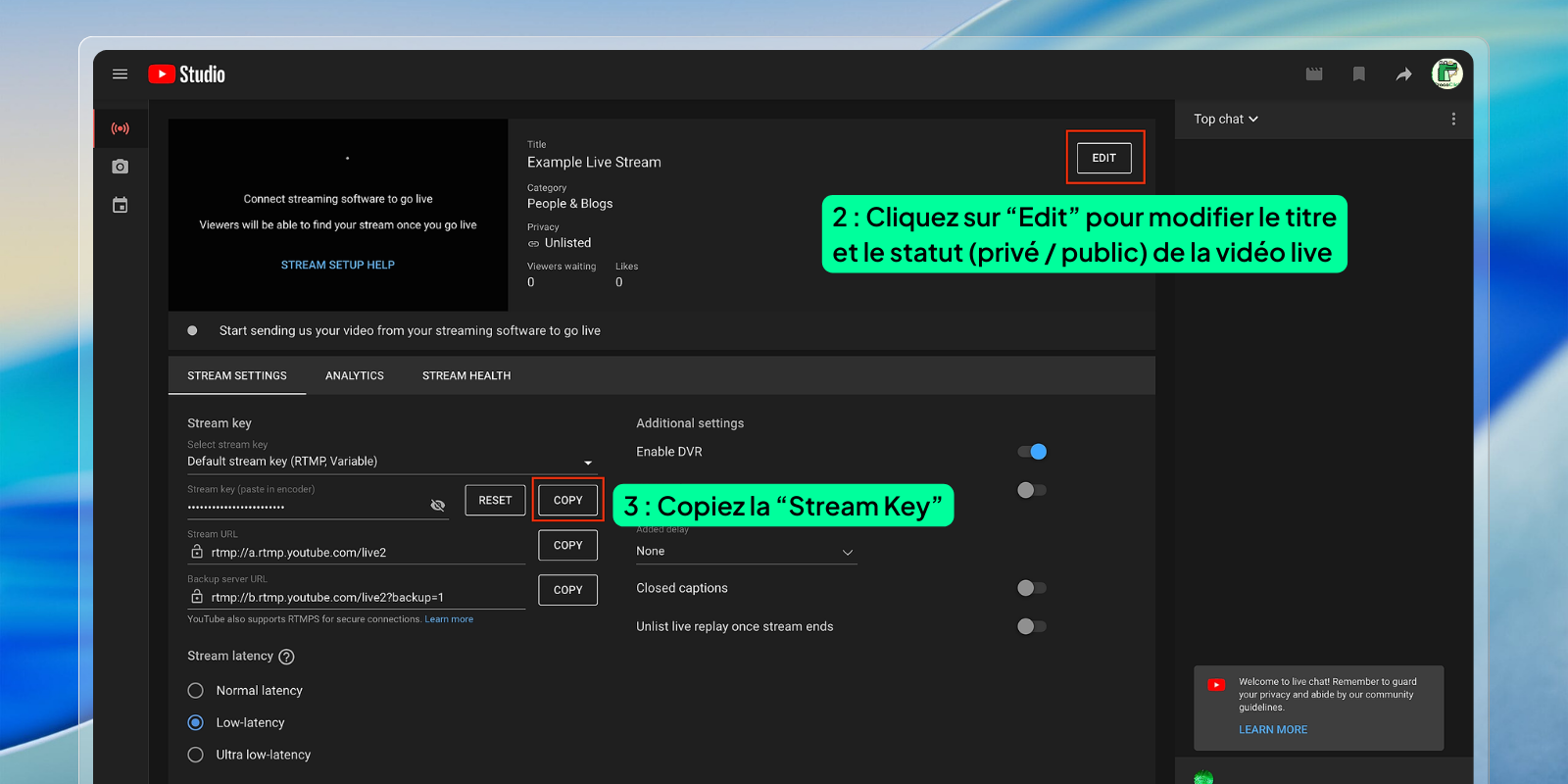
Go to studio.youtube.com and follow these steps:
Click "Go Live"
Adjust your live video settings (title, privacy)
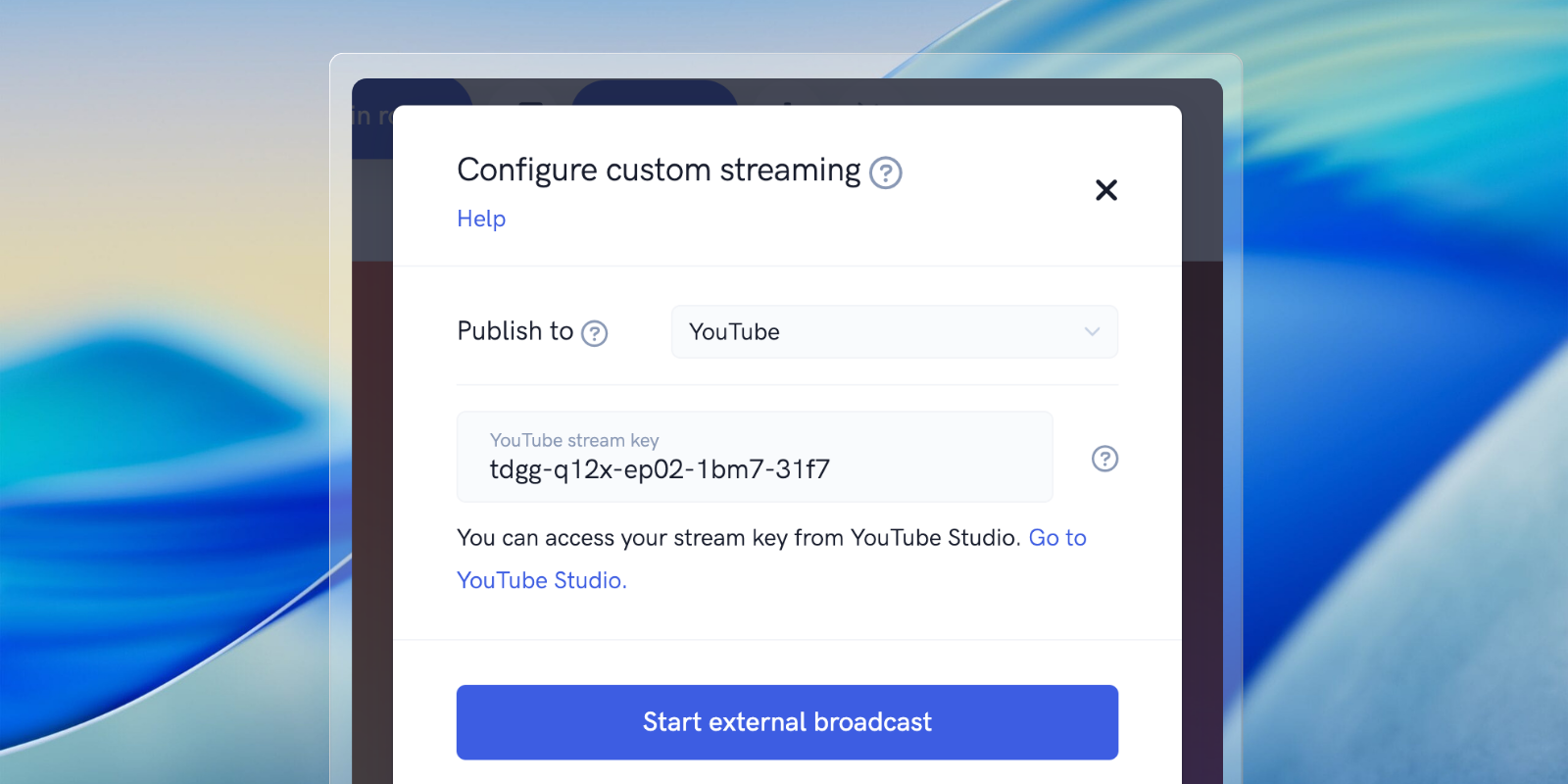
Copy your "Stream Key" and paste it into CrocoLive
Click "Start External Broadcast" in CrocoLive
Return to CrocoLive and start your webinar to stream on both platforms
Broadcasting to a CrocoClick community
If you want to learn how to stream a CrocoLive webinar to a CrocoClick community, read our article 🎥 How to use CrocoLive to stream your community live streams
Custom streaming
To use another streaming platform, you must obtain that platform’s RTMPS ingest URL. Note: Only the RTMPS protocol is compatible. The RTMP (unsecured), HLS, and DASH protocols do not work with CrocoLive.
Ending your external broadcast
You have two options for ending your stream:
Complete stop: Click "End Webinar" as usual. This will end the stream on CrocoLive and on all external platforms.
External stop only: Reopen the configuration window and click "End external broadcast." Your webinar will continue on CrocoLive but will stop on external platforms.
Current limitations
CrocoLive supports streaming to only one external platform at a time. This feature is currently available only for live webinars. Support for multiple simultaneous streams and extension to automated webinars are planned for future updates.