Access detailed CrocoLive statistics
Access detailed statistics on your CrocoLive: visitors, registrations, attendance rates, replay, clicks on the offer and minute-by-minute analysis.
Written By Baptiste Lorreyte
Last updated 6 months ago
CrocoLive statistics allow you to analyze:
Traffic
Registrations
Live viewership
Replays
Clicks on your offer
Participant behavior during the session
Here’s how to access them.
Open the statistics for a CrocoLive
🔎 Step 1: Access the list of webinars
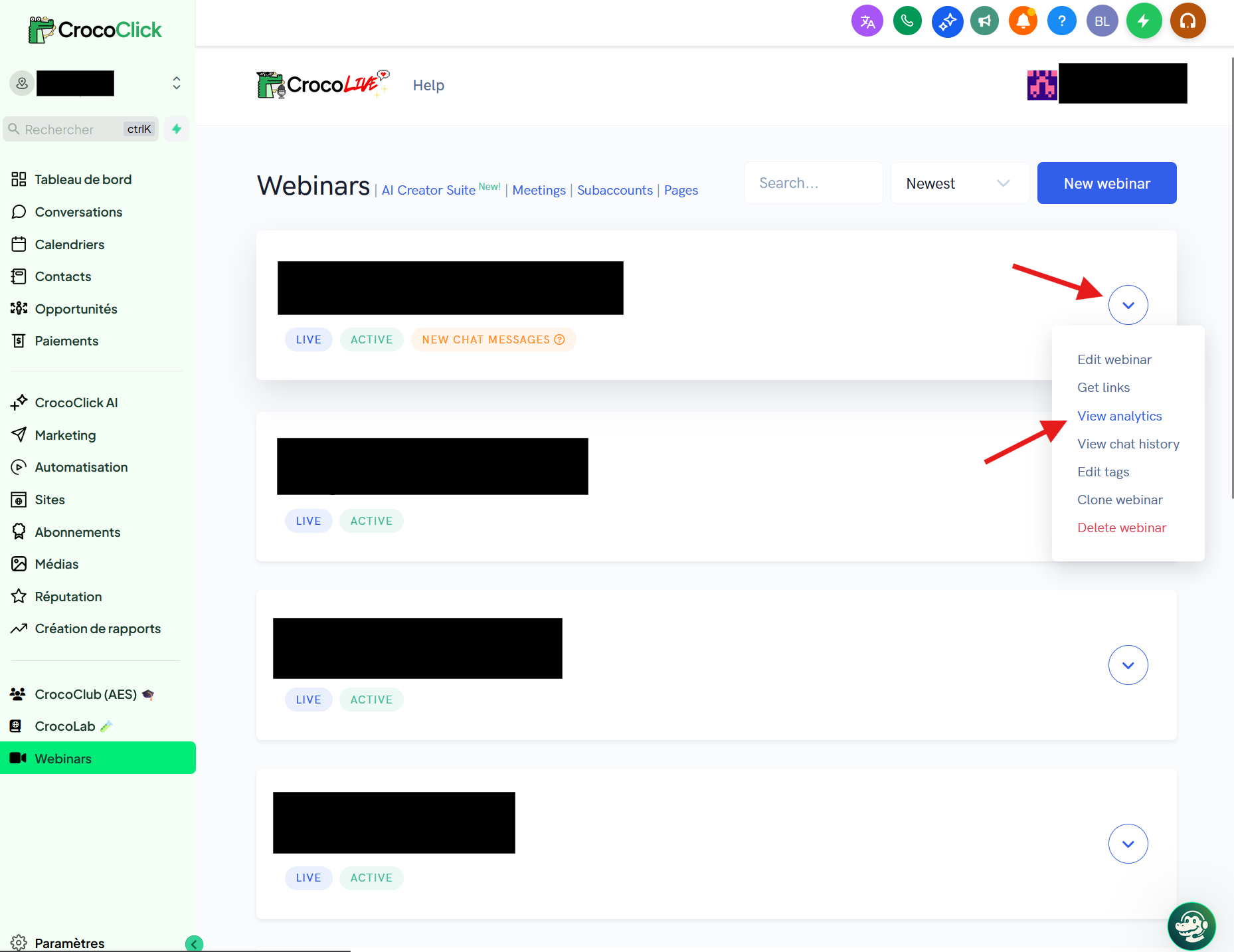
From the main menu, click on Webinars.
You’ll be taken to your list of CrocoLive sessions.
⚙️ Step 2: Open the statistics for a CrocoLive
On the relevant CrocoLive, click the ⋯ button (dropdown menu) on the right.
Click on View analytics.
You are now on the detailed statistics page.
Understanding the available statistics
1️⃣ Traffic, conversions & engagement
At the top of the page, you will find:
Visitors → Total number of visitors to the registration page
Registrants → Number of registrants
Registration Rate → Conversion rate from visitor to registrant
Attendees → Number of live participants
Attendance Rate → Attendance rate
👉 This allows you to analyze:
The performance of your registration page
The effectiveness of your reminder emails
2️⃣ Live performance metrics
Webinar Completion Rate → % of participants who stayed until the end
Average Time in Webinar → Average time spent in the live session
Offer Clicks in Webinar → Number of clicks on your offer during the live session
If you have 0 clicks:
Check that your offer button was enabled
Check the timing of when the button appears
3️⃣ Replay Analysis
Replay Attendees
Replay Attendance Rate
Average Time in Replay
Button Clicks in Replay
👉 Very useful if you sell primarily through replays.
4️⃣ Trend chart
You can view:
Visitors
Registrants
Participants
This allows you to identify:
Traffic spikes
The days when your emails were effective
The highlights of your promotion
5️⃣ Minute-by-minute attendance curve
The "Attendance over session time" section shows:
How many people are present each minute
Times when the audience drops
👉 Ideal for:
Identifying a section that is too long
Spotting a boring section
Adjusting the timing of your pitch
6️⃣ Detailed list of attendees
At the bottom of the page:
Email
Name
Phone
Registration source
Custom fields
You can:
Export the list
Identify your best traffic sources
Manually follow up with certain contacts
Best practices
✔️ Always compare:
Registration Rate
Attendance Rate
Completion Rate
Offer Clicks
✔️ A successful live event:
20–40% attendance rate
30–60% completion rate
5–15% offer clicks among attendees