Connect the Pixel and the Facebook Conversion API to CrocoClick for your funnels
Connect Facebook Pixel and the Meta conversions API to CrocoClick for precise tracking of your advertising campaigns.
Written By CrocoTeam
Last updated 8 months ago
Discover how to integrate both the Facebook Pixel and the Conversion API (CAPI) into your conversion funnels via CrocoClick, so you can benefit from comprehensive and accurate tracking of your marketing activities.
What is Facebook Pixel?
The Facebook Pixel is an essential tool for tracking visitor actions on your website or conversion funnels.
It is a small piece of JavaScript code that you integrate into your web pages. This code records various events (such as visits, clicks, conversions, etc.) directly from users' browsers and sends this data to Facebook. Here are some key points:
Action tracking: The Pixel collects information about user interactions (visits, purchases, registrations, etc.), allowing you to analyze and optimize your advertising campaigns.
Advertising optimization: With accurate data on user behavior, you can adjust your ads to better target your audience and improve your return on investment.
Conversion measurement: The Pixel allows you to accurately measure the effectiveness of your advertising campaigns by identifying which actions lead to conversions on your site.
Using Facebook Pixel is simple and forms the basis of effective tracking for your marketing strategies.
However, to further improve the accuracy and reliability of your tracking, we recommend combining the Pixel with the Conversion API.
What is the Facebook Conversions API (CAPI)?
The Facebook Conversions API (CAPI) was designed to enable businesses to offer personalized advertising experiences to their customers while maintaining data privacy.
Unlike Facebook Pixel, which simply tracks events via the browser, CAPI allows you to send events (such as visits, conversions, or actions on your site) directly from your server to Facebook.
This approach offers several advantages:
Tracking quality: More accurate and comprehensive tracking of actions taken on your site, even when cookies are limited or blocked.
Improved reliability: By bypassing certain restrictions imposed by browsers, CAPI allows you to maintain accurate data on interactions, which improves the measurement of the effectiveness of your advertising campaigns.
Off-site tracking: With CrocoClick, you can send platform data (such as a status change in a pipeline) to Facebook, even if it is not an event that occurred in your funnels or website.
💡TIP: It is still important to add the Pixel code to your conversion funnel.
Combining the Pixel with the
Conversions API allows for more robust data collection and greater accuracy in analyzing the performance of your campaigns.
How to create the Facebook Pixel and configure the Conversions API
To get started, you need to create a Facebook Pixel, which is the basis for event collection. Here are the detailed steps:
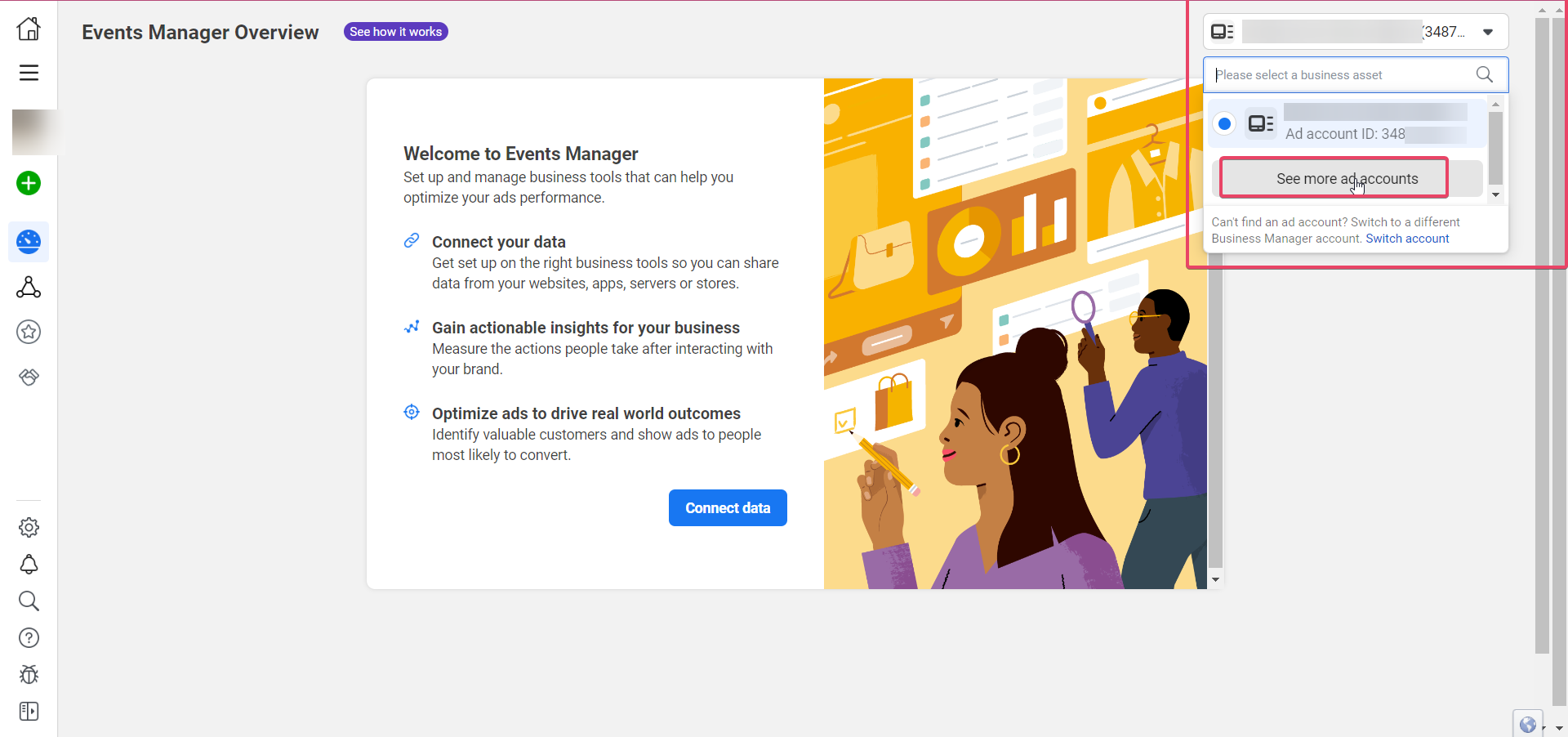
Access Business Manager: Log in to your Facebook Business Manager (or Meta Business Suite). In the left-hand menu, click on the "Events Manager" tab.
Verify that you are on the correct advertising account: Ensure that you are logged into the correct advertising account and that you have the necessary rights on the associated Facebook page.
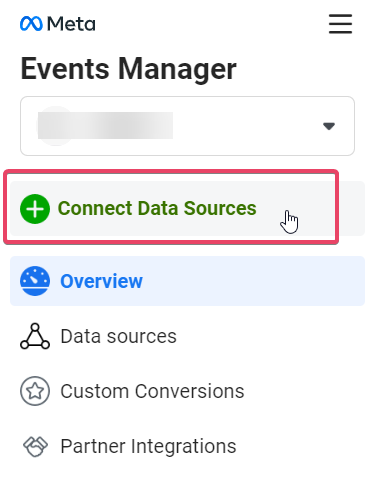
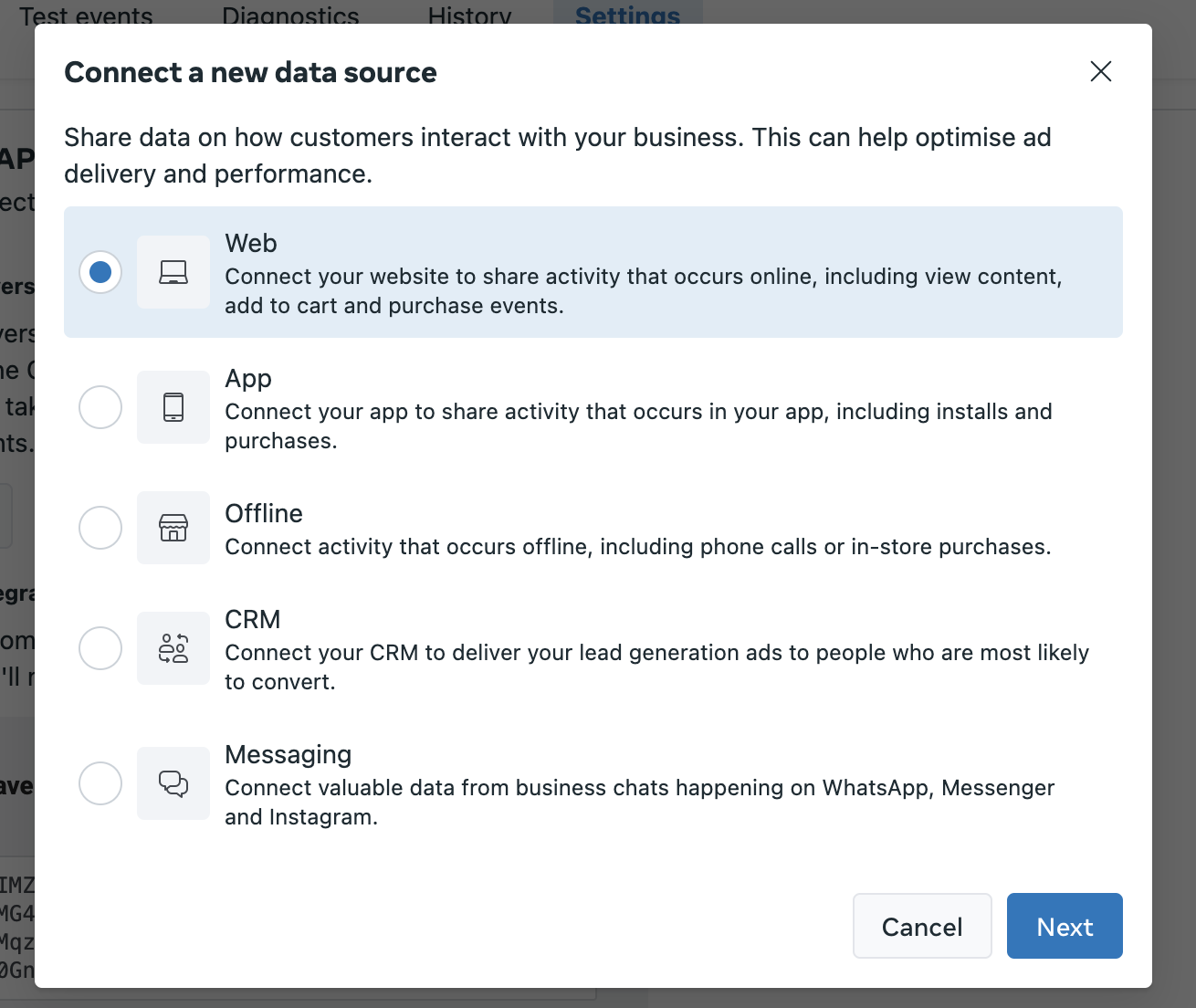
Connect a data source: In the sidebar, click on "Connect Data Sources." Select the "Web" option and then click on "Next."
Choose "Web"
Create or use an existing Pixel: If you already have one or more Pixels, you can choose to create a new one or use an existing one.
To get started, click on "Create a new Pixel" or choose a Pixel from the list that suits your needs, then click on "Continue."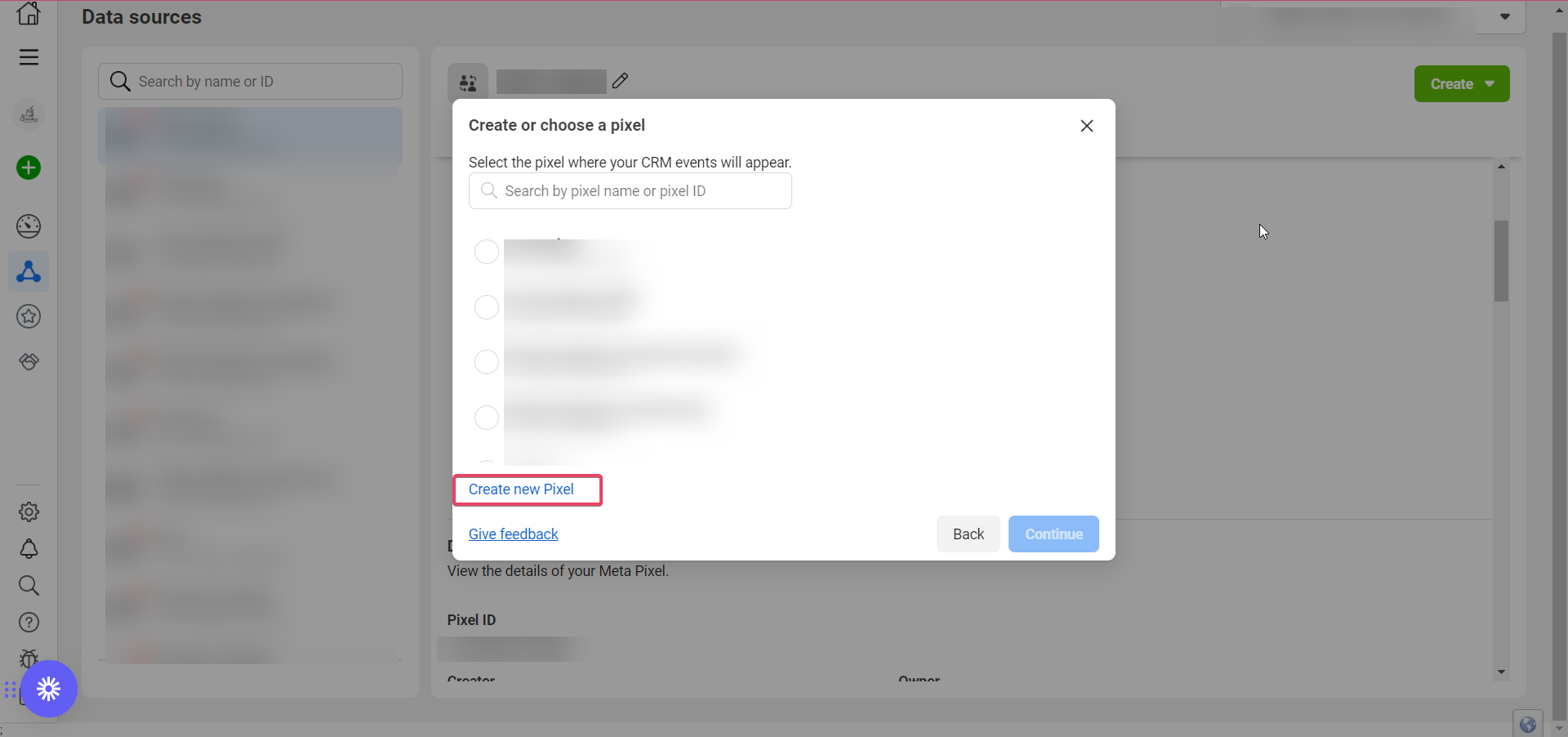
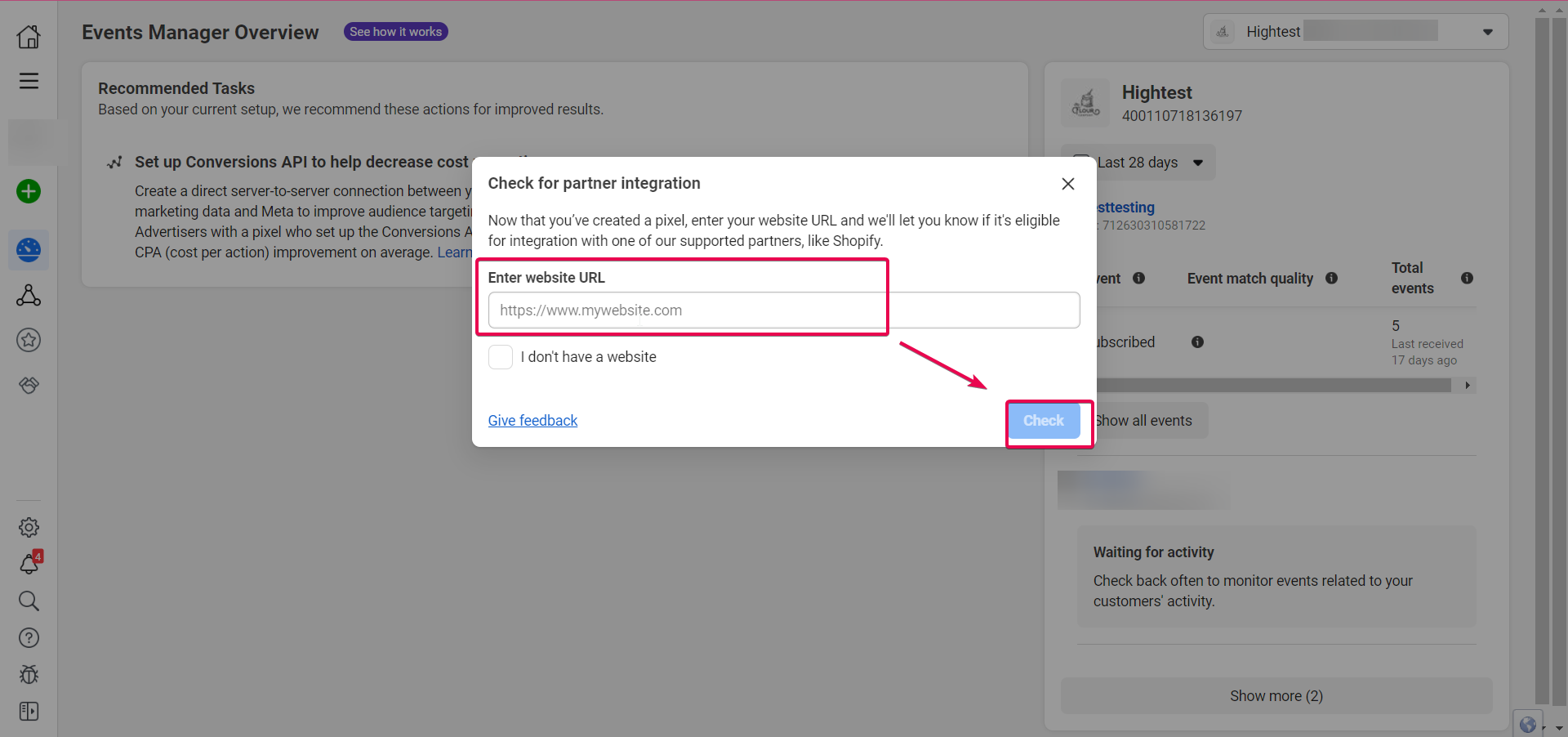
Registering the funnel or site URL (if it is a new pixel): You will be asked to enter the URL of the CrocoClick site or funnel where you will integrate the Pixel code. Enter the corresponding domain, then click "Verify." If the domain is eligible, a validation symbol (a green check mark) will appear. Then click "Next."
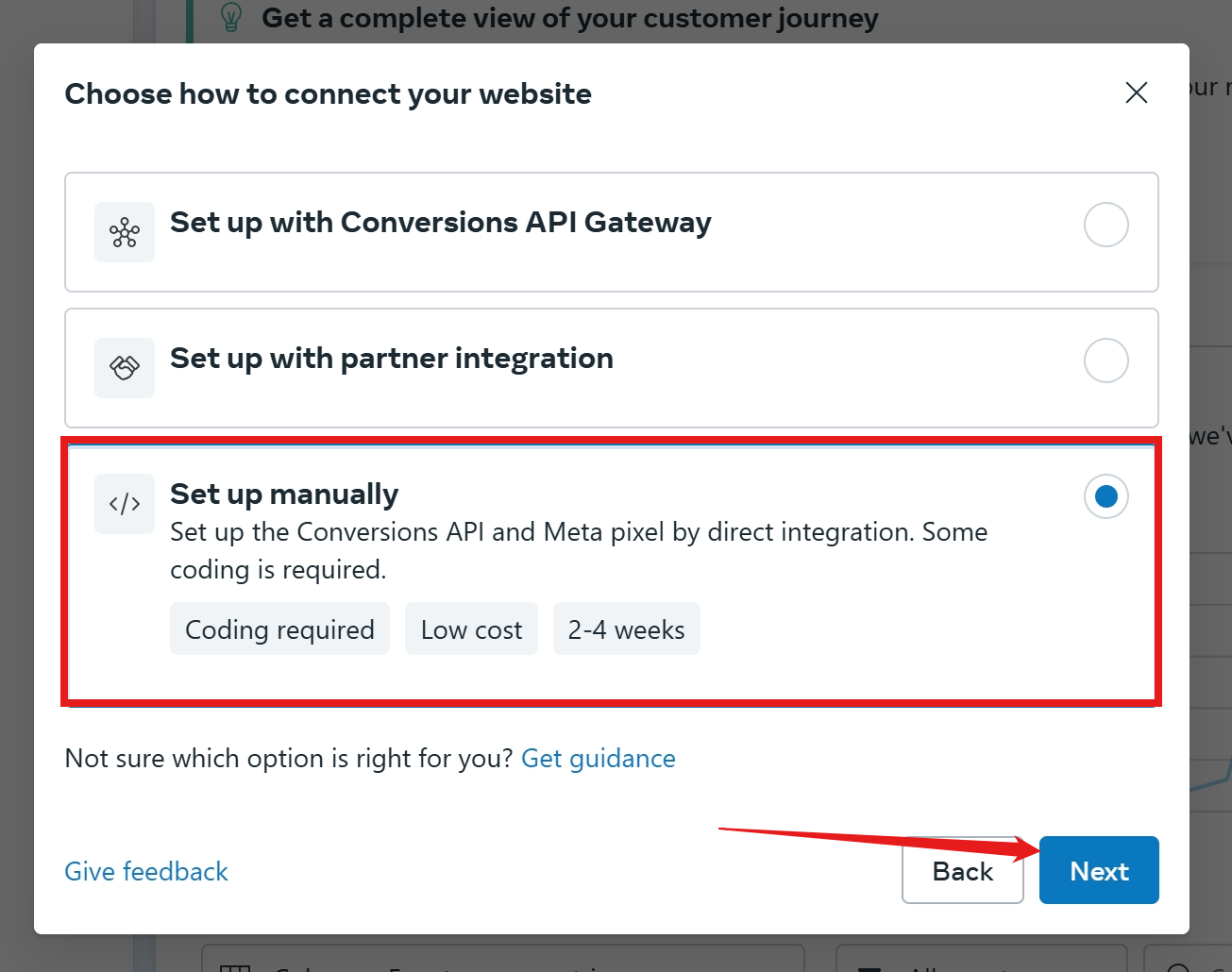
Choose a manual configuration
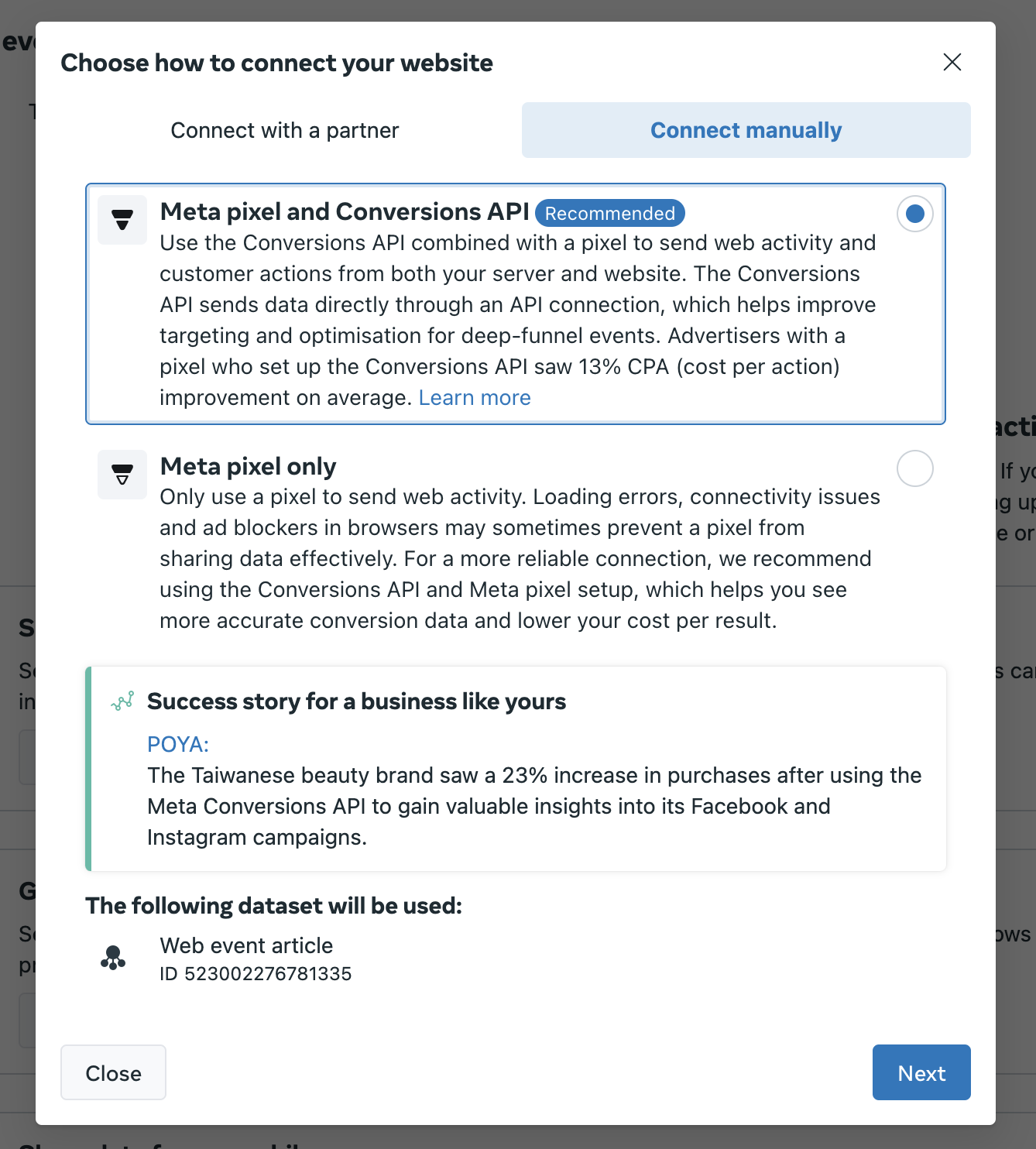
Choosing the connection mode: A pop-up window will appear offering you several connection options. Select the first option, entitled "Meta Pixel and Conversions API."
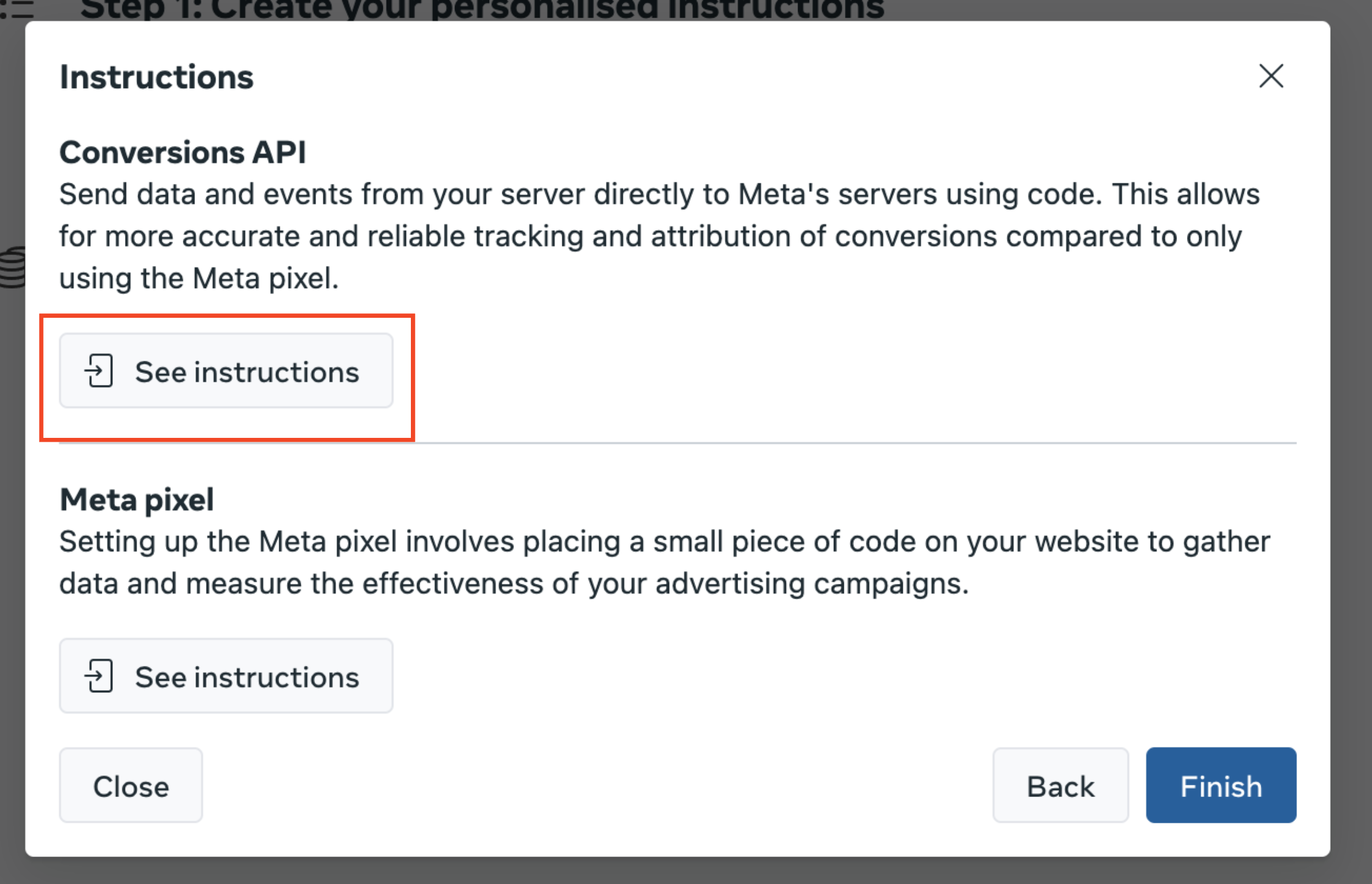
Access instructions and manual configuration: Click "View instructions" under the Conversions API tab. You will be directed to the "Overview" tab of the manual implementation method. Take the time to read the instructions, then click "Continue."
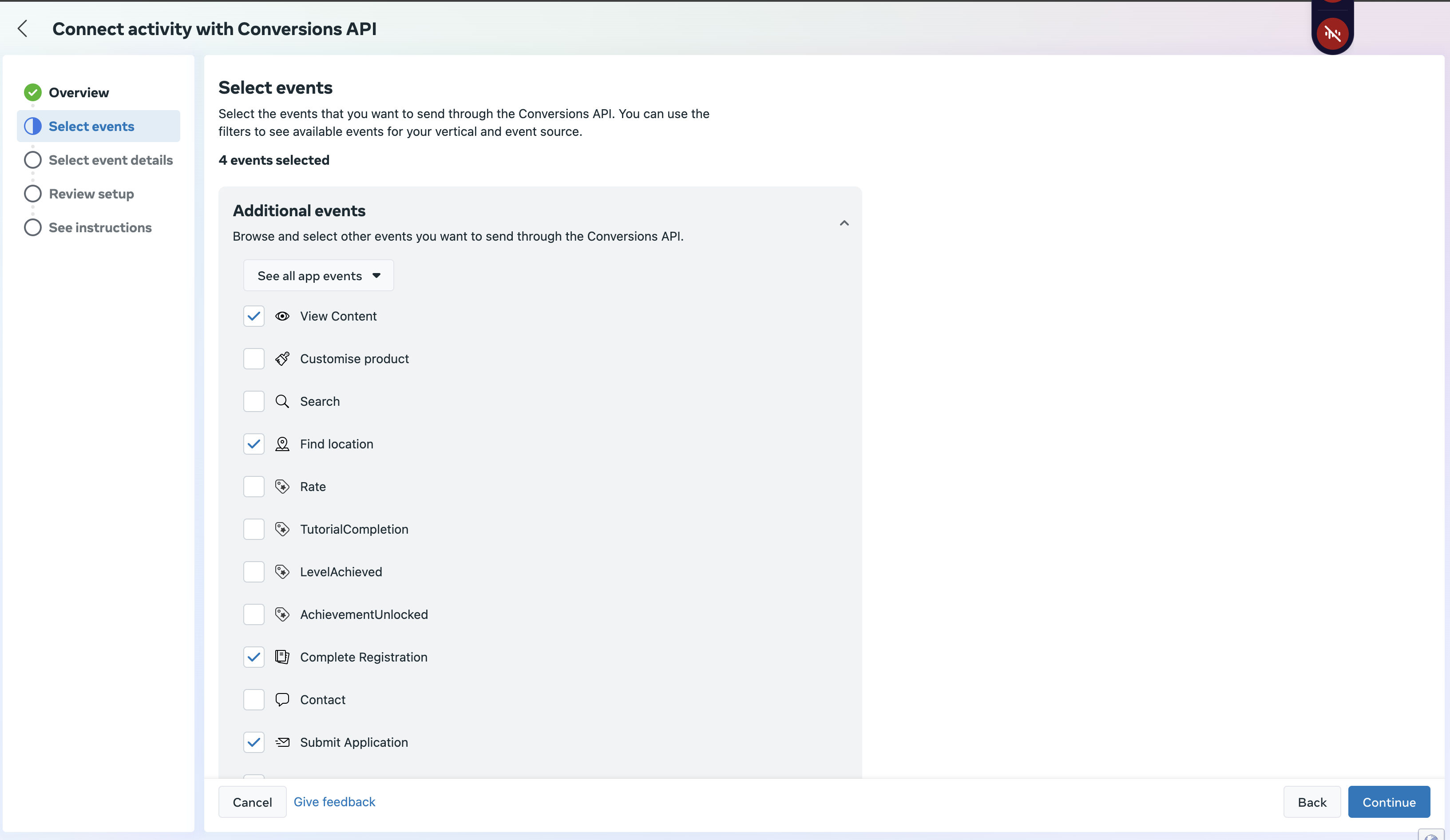
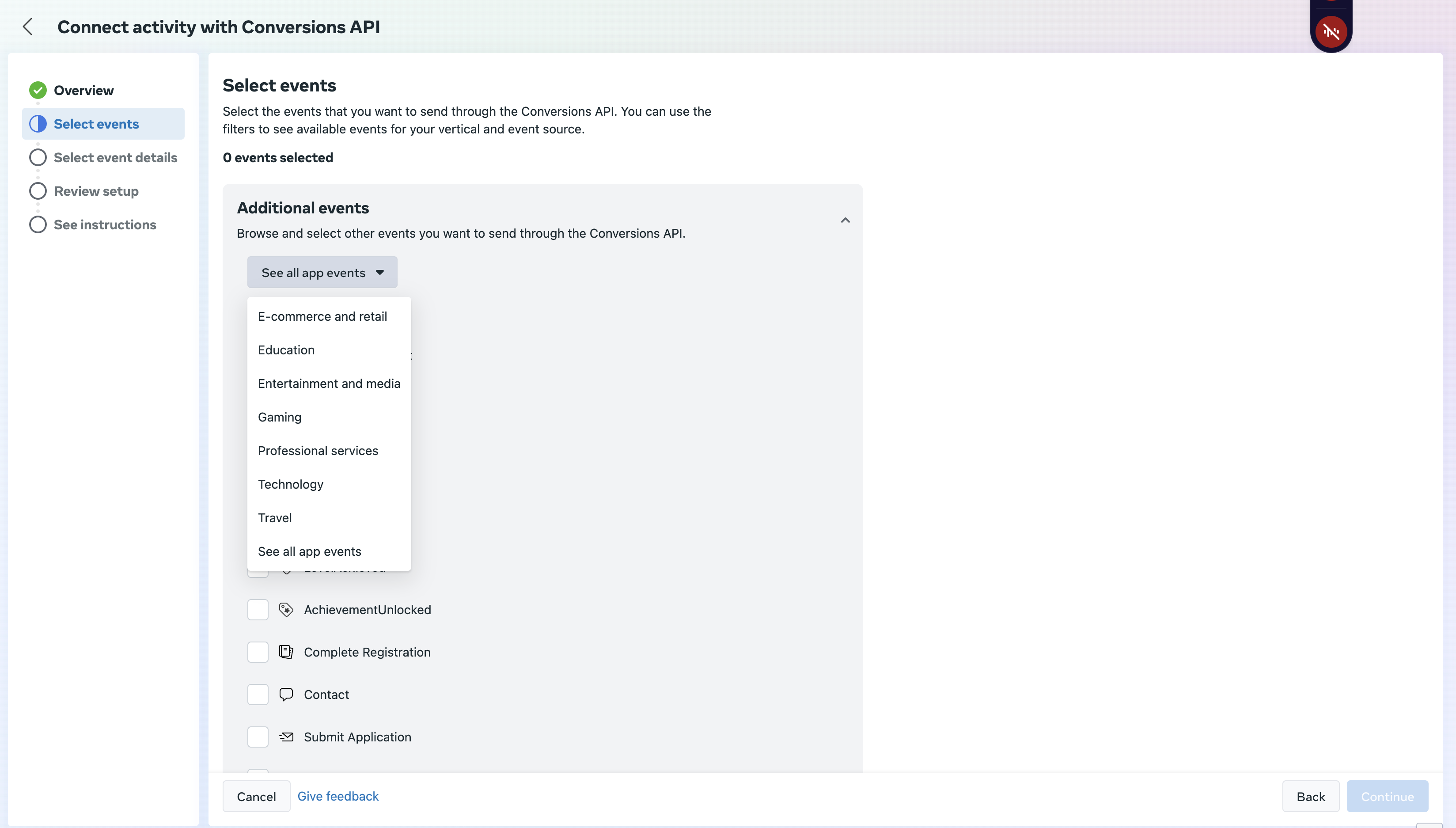
Selecting the industry and events: In the "Select Events" tab, a drop-down menu allows you to choose the industry that corresponds to your business.
Select the most relevant option. Then, choose all the events you want to send to Facebook and click "Continue."
Configuring event details:
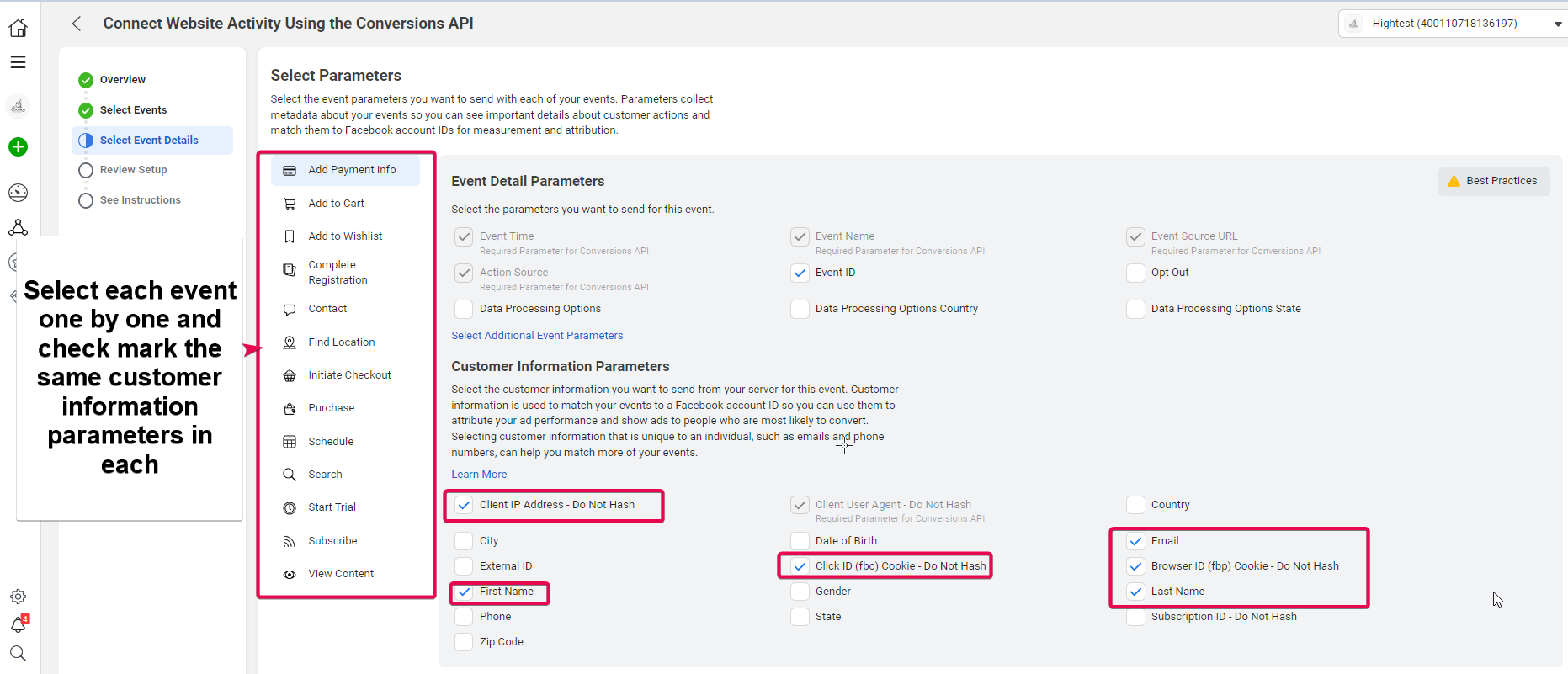
You will then be taken to the "Select Settings" tab. Some settings, such as the event ID, are already checked (based on best practice recommendations).
Under "Customer Information Settings," verify that "Customer User Agent" is selected. You must then check the corresponding boxes for:Client IP Address
First name
Client ID
Email
Company ID
Last name
It is essential to check these same options for each event you add to this Pixel.
Validation and finalization:
Review the configuration to ensure that all the selected settings are correct, then click "Continue." In the next step, click "Finish."
Find and note the Token (API access token) and Pixel ID
To continue configuring your Conversion API, you must retrieve two key elements:
The API Access Token
The Pixel ID
Here are the steps to obtain them:
Go to Facebook Business Manager and open the Events Manager tab.
Navigate to Data Sources: Select the data source corresponding to the Pixel you just created or are using.
Go to Data Source Settings: In your Pixel settings, scroll down to the section dedicated to Conversion APIs.
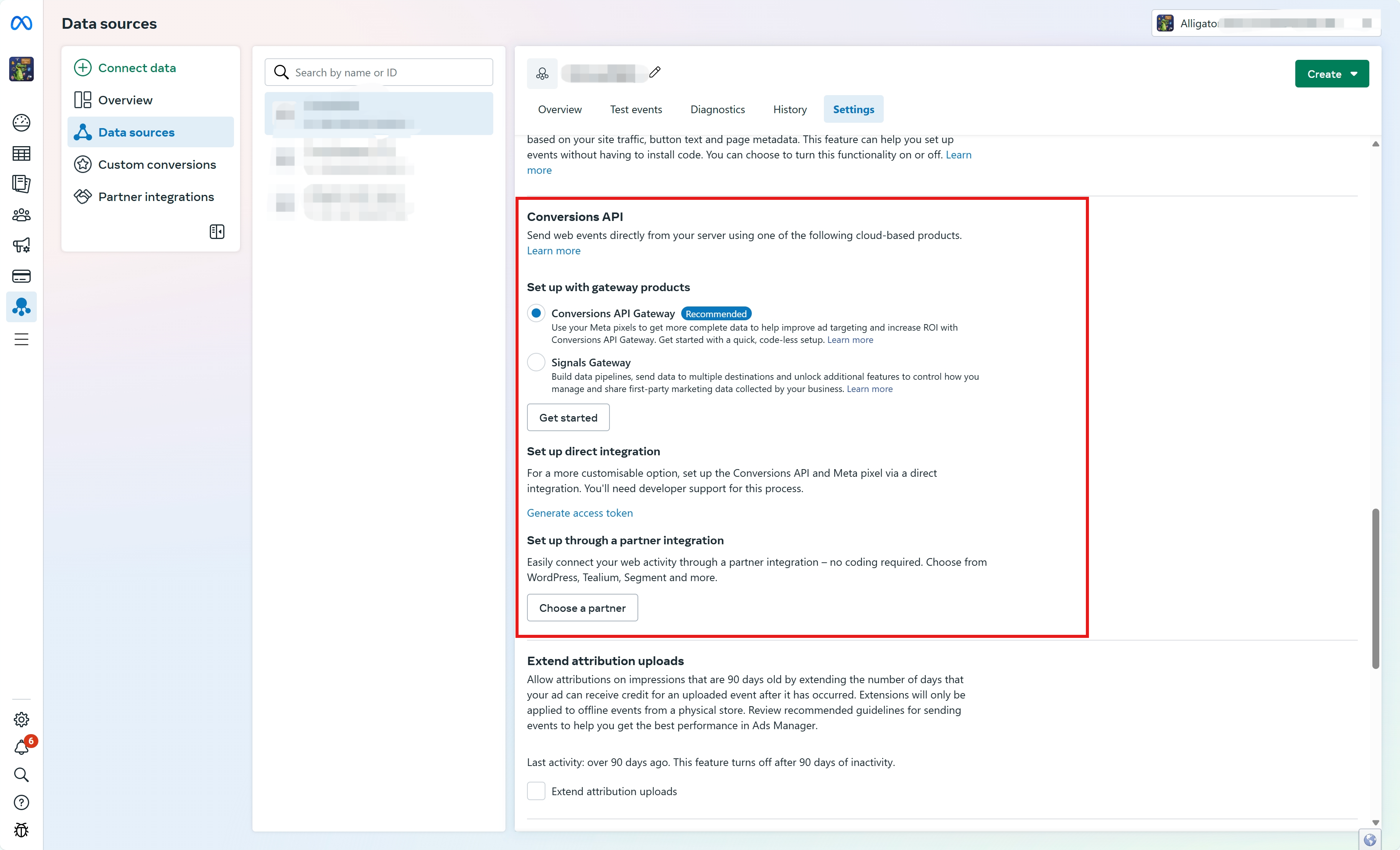
Generate and Copy the Access Token
Look for the Generate Access Token option.
Click on it to generate the token, then carefully copy it somewhere.
This token will allow you to authenticate event submissions via the API.
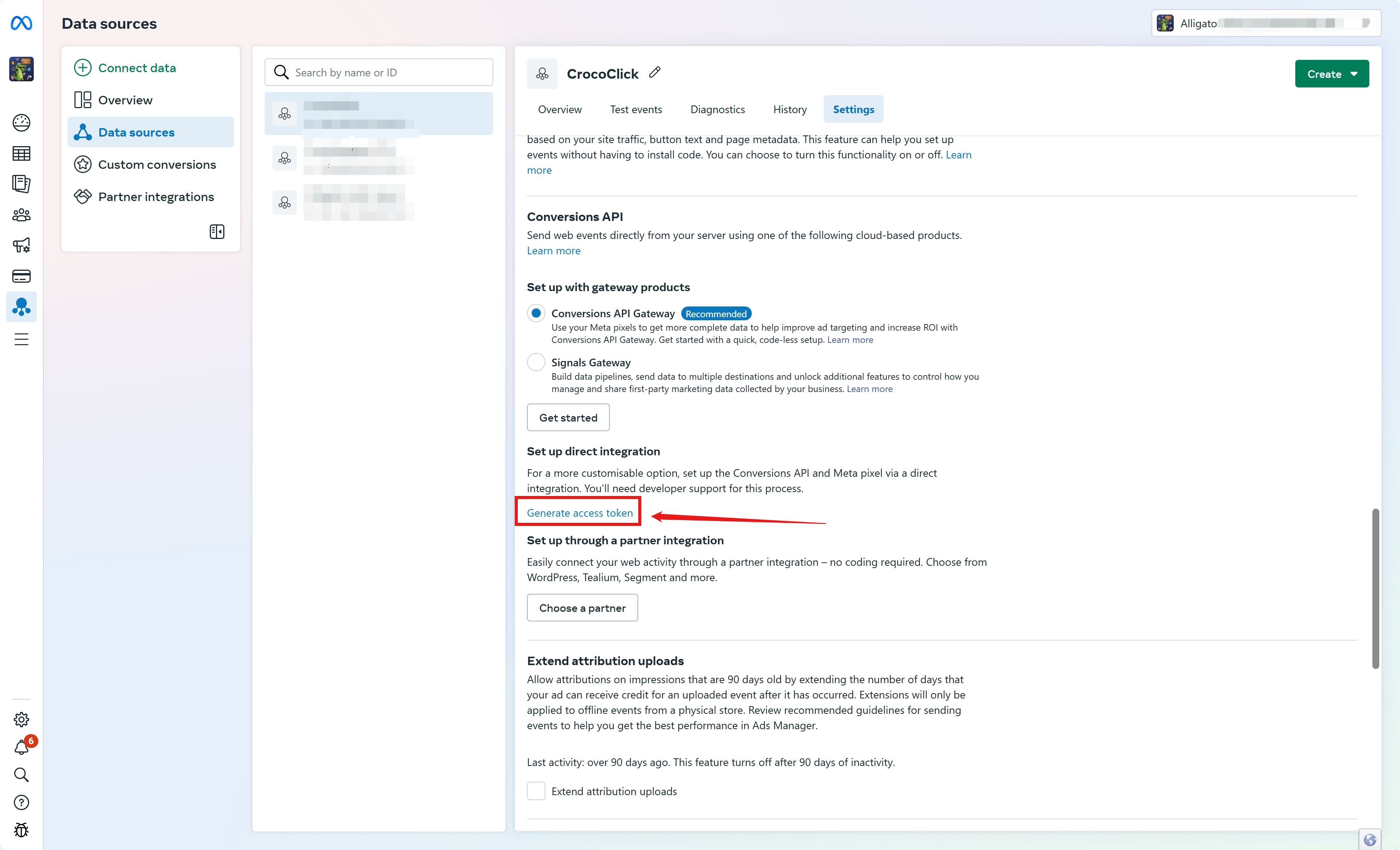
Identify and Copy the Pixel ID
Still in your data source settings, locate the Pixel ID (often called Dataset ID).
Copy this identifier somewhere to use it in your configurations.
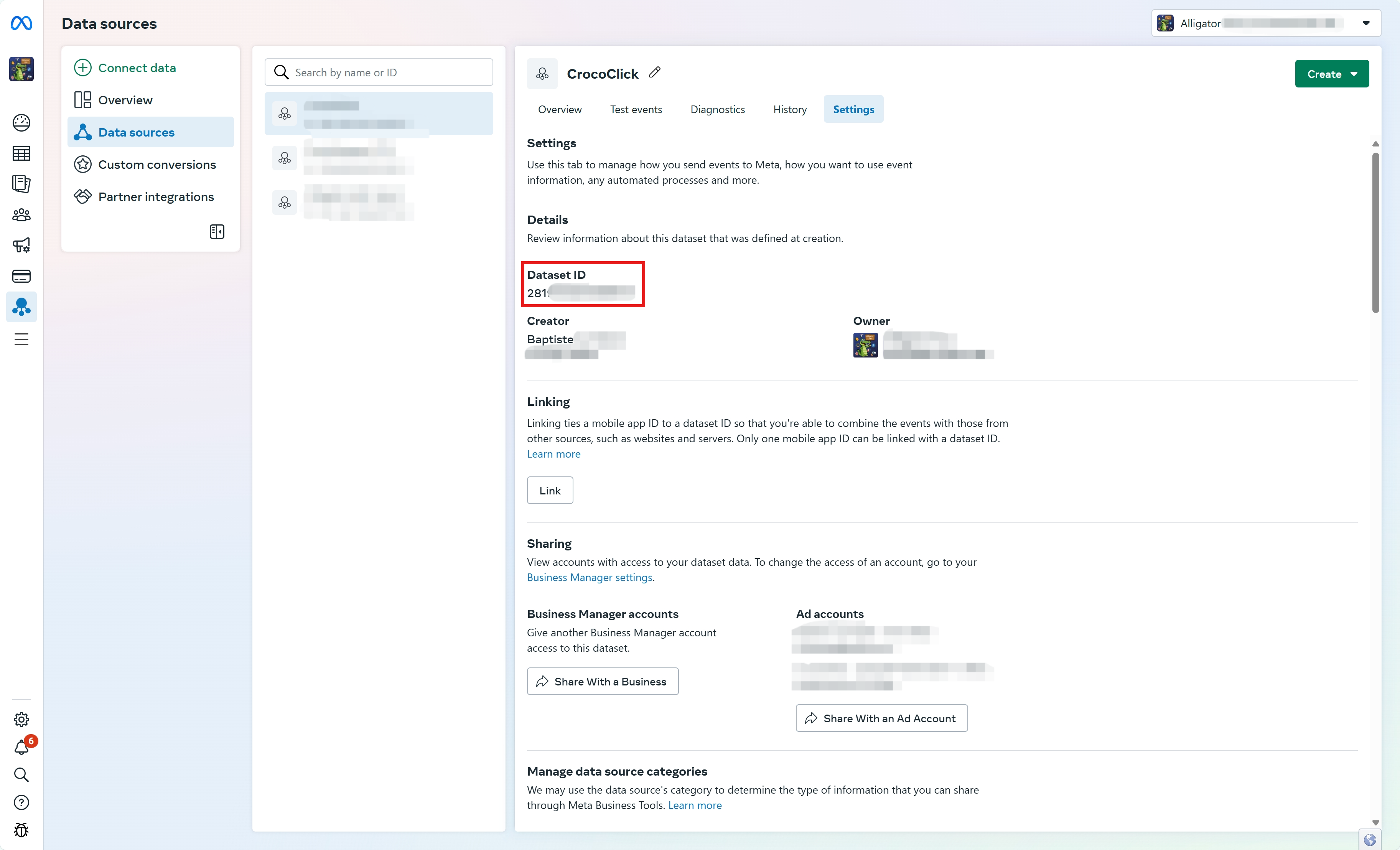
Keep this information in a safe place: These two elements will be essential for connecting your Conversion API to CrocoClick via automations or funnel configuration.
By following these steps, you will have gathered all the necessary elements to finalize the integration of the Facebook Conversions API and optimize the tracking of your conversion funnels.
How to connect the Pixel and Facebook Conversions API to CrocoClick
1. Via the "Event" feature in your funnels
This method allows you to add an event directly to your conversion funnel configuration. It is particularly suitable for:
Immediate tracking integrated into your funnel creation tool.
Quickly configuring specific events for each stage of your funnel.
This is the ideal method for implementing your Facebook pixel throughout your funnel.
2. Via the "Automations" section of your CRM
By creating a dedicated workflow, you can trigger events to be sent via the Conversions API even outside your traditional web pages. This approach is ideal for:
Automating tracking across all your processes, for example when a stage in a pipeline changes or when a prospect makes an appointment.
Managing more complex scenarios and centralizing your marketing actions.
💡TIP: You can combine these two methods. For example, use automations to send information to CAPI when a prospect changes stage in one of your pipelines, while configuring classic event tracking directly in your funnels for accurate tracking of actions performed on your pages.
Step 1: Integration via the "Event" feature in your funnels
Access your Funnel on CrocoClick: In your CrocoClick space, open the funnel on which you want to implement the Conversions API.
Add an event: go to "Events" and click on "Add an event."
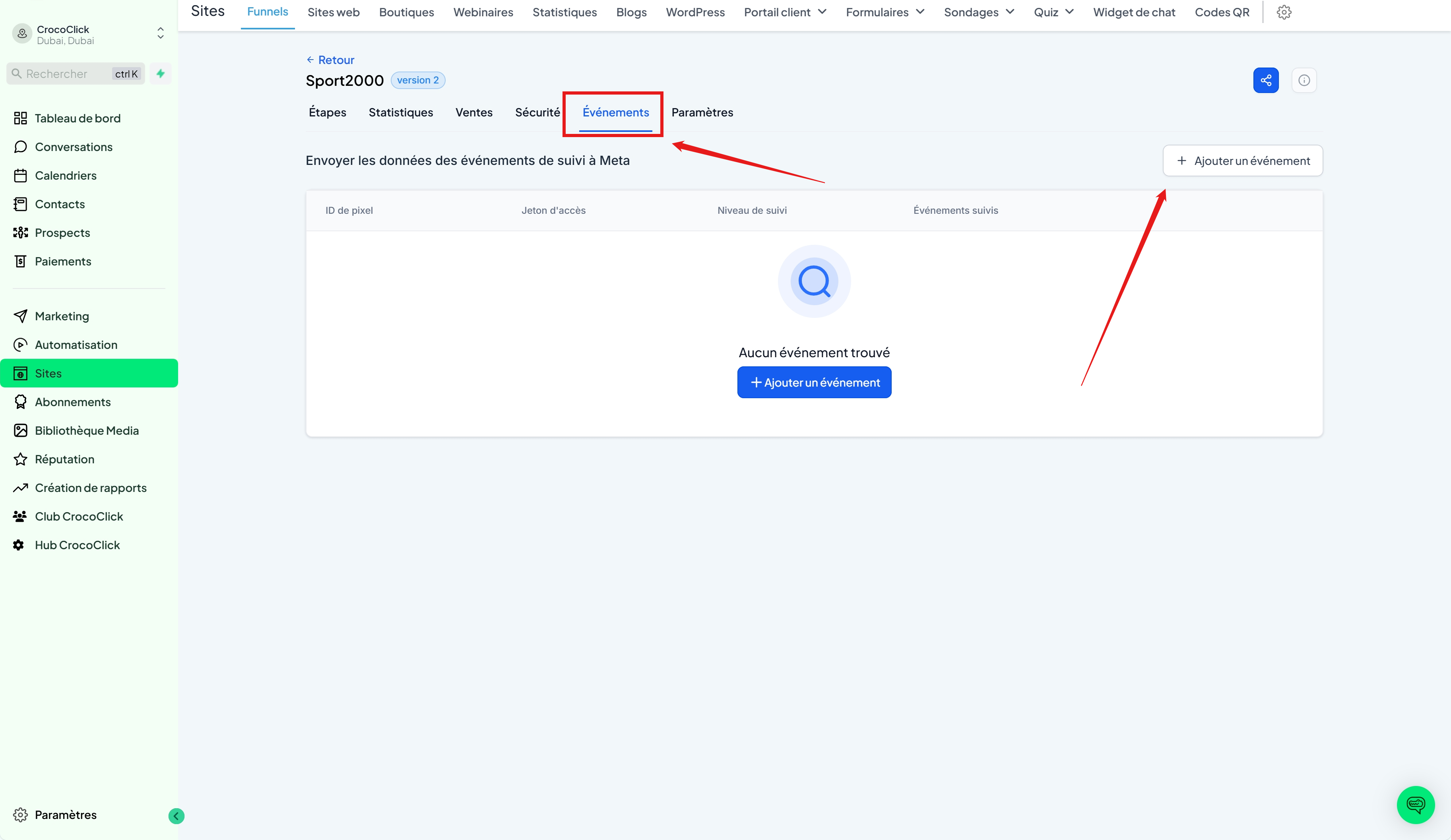
Configure the event settings: To do this:
Add your Pixel ID
Choose whether you want to track the entire funnel or specific pages
Choose whether or not to send events via the conversion API. If yes, enter your CAPI Token (access token)
Choose the events you want to track
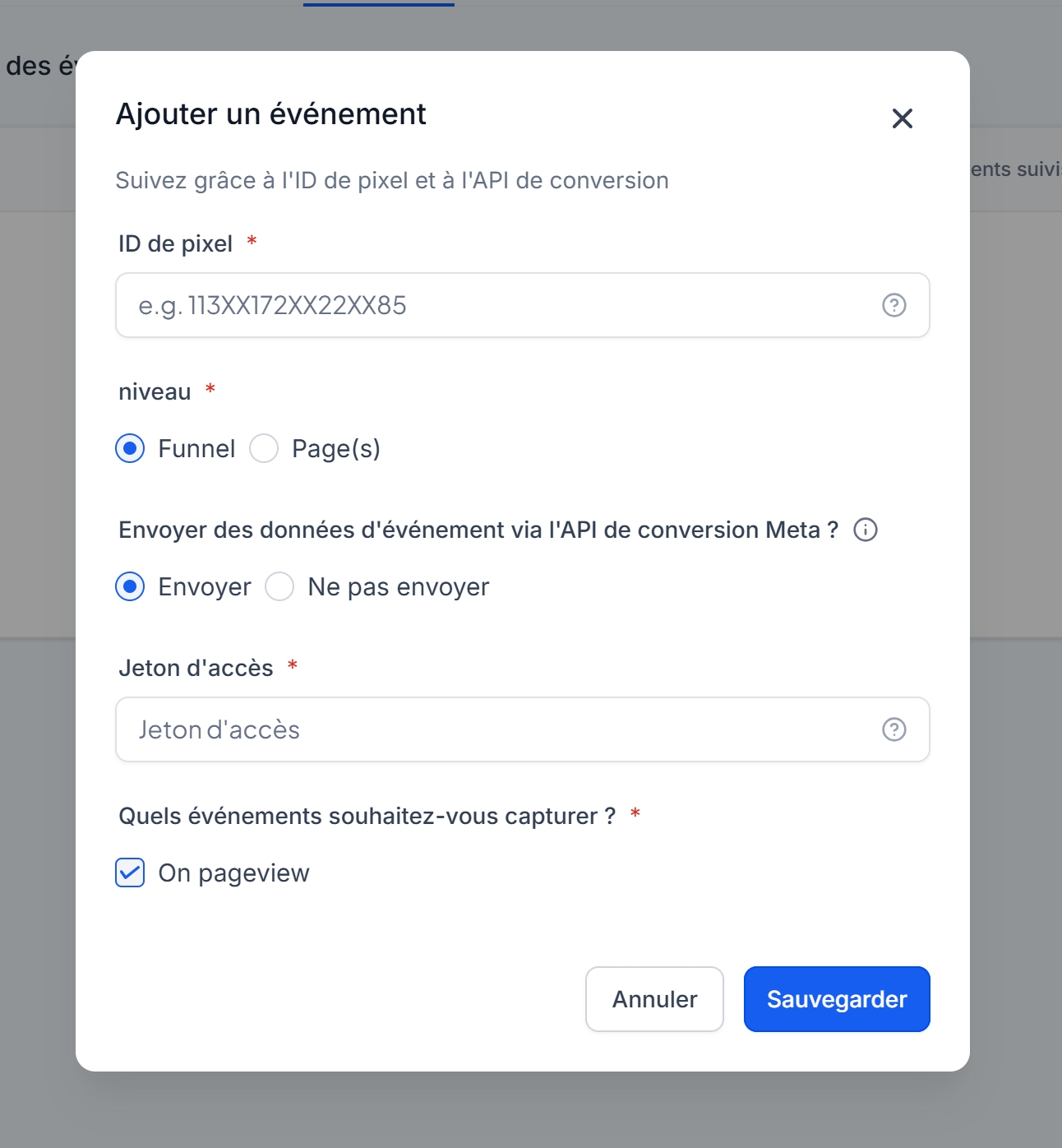
Save and test: Save your changes and check via the Facebook Events Manager interface that the events are being received correctly.
Step 2: Via the "Automations" section of your CRM
Create a dedicated workflow: In your CrocoClick account, go to "Automation" and select "Create a workflow."
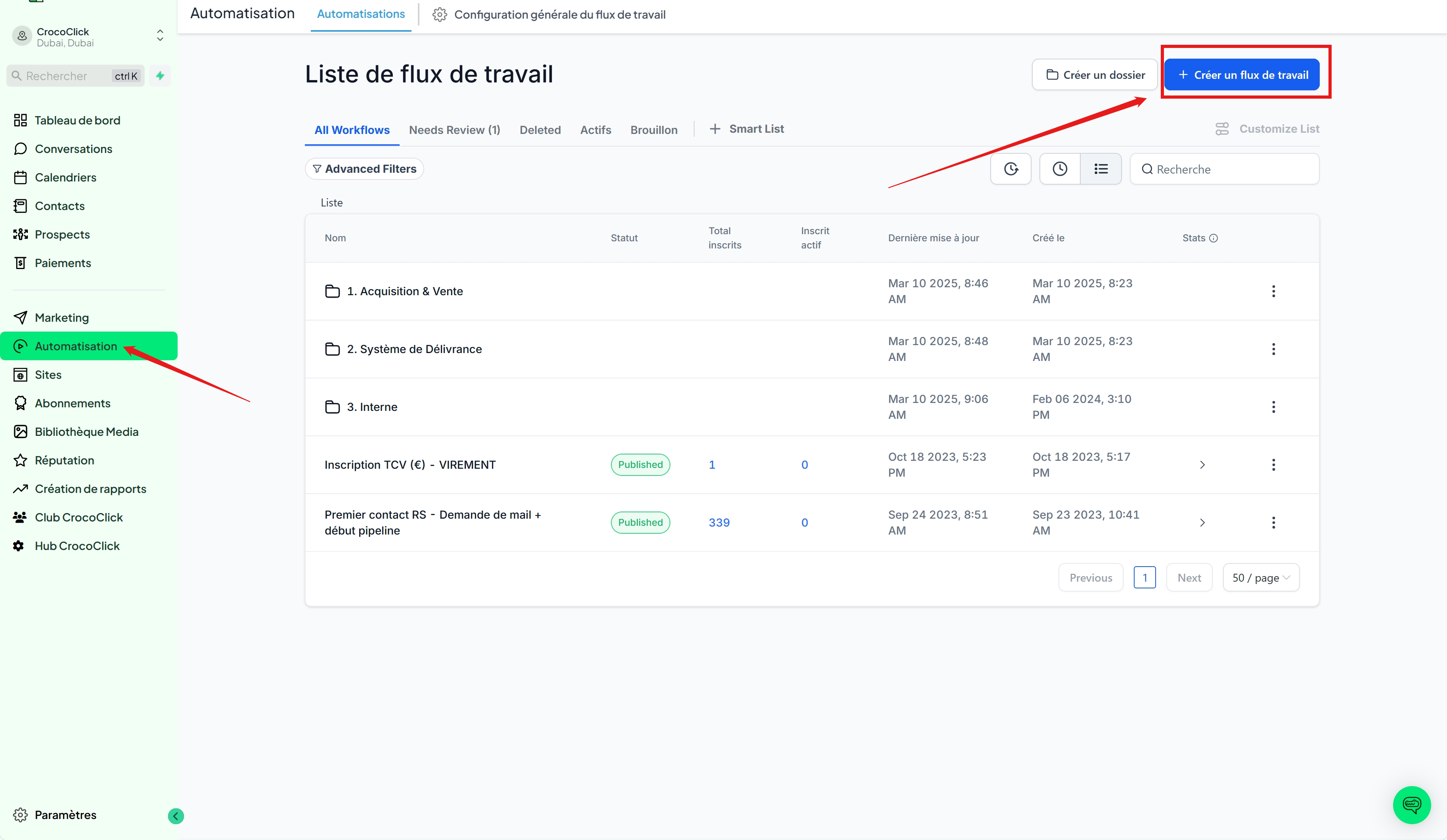
Define the trigger: Choose a suitable trigger (e.g., form submitted, appointment made, change of stage in a pipeline, etc.).
Add the "Conversion API" action: In the automation, add the action "Send to Facebook Conversion API."
Select "Integration" if you are not using CrocoClick's ad manager option.
Choose "Funnel Event" to track more data.
Enter the Pixel ID and access token (CAPI).
In "Facebook Event Name," choose the type of event you want to trigger.
If necessary, enter a value for this event
CAUTION: If you enter the API test code, don't forget to delete it when you have finished your tests
Save
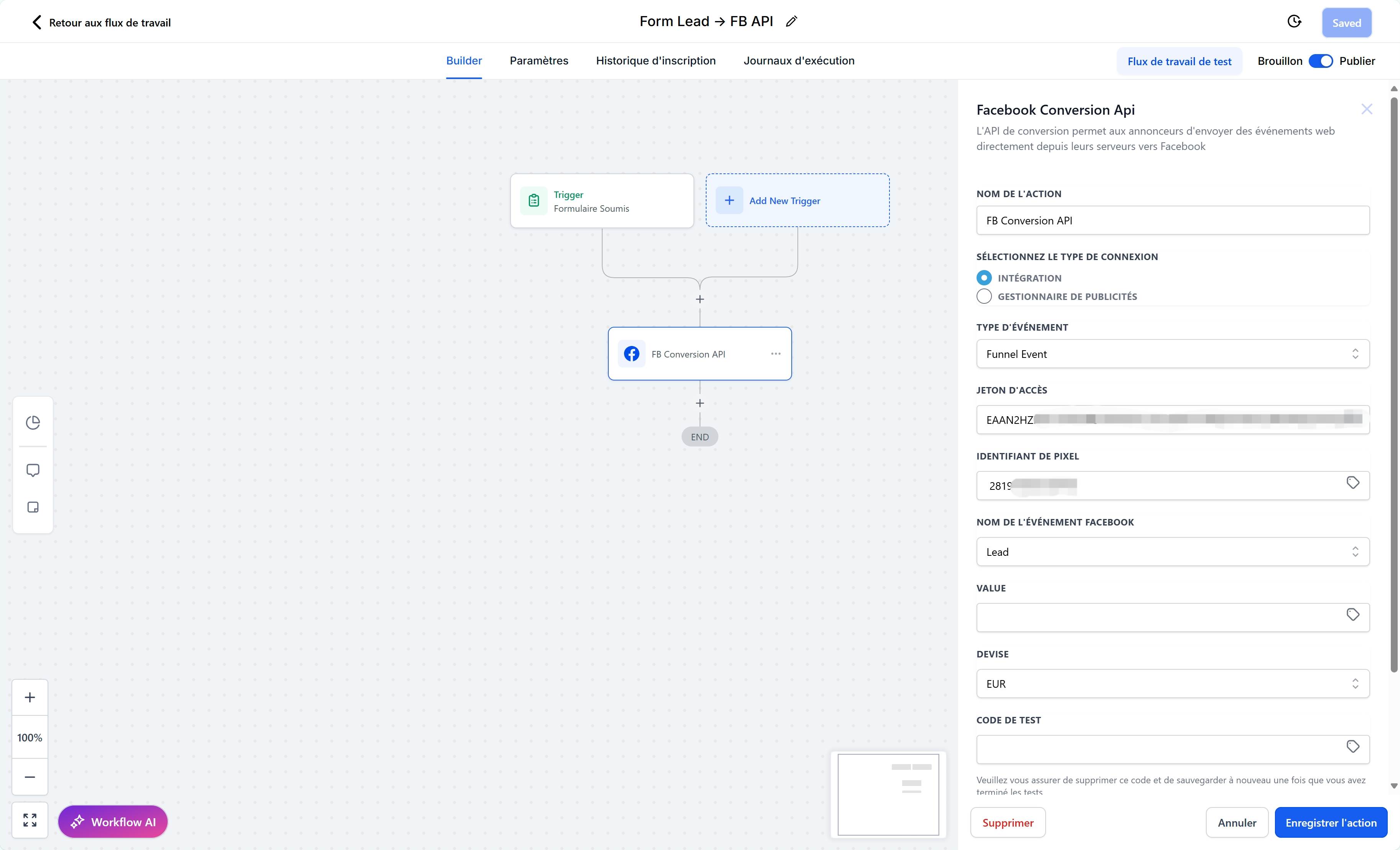
Test and publish: Save the workflow and verify that events are being transmitted correctly to Facebook.
Benefits of Joint Integration
Detailed information on user behavior
A comprehensive view of your conversion metrics, allowing you to optimize your campaigns.Optimization of advertising strategies
Use accurate data to refine targeting and improve the effectiveness of your marketing campaigns.Enhanced flexibility and control
Centralized and flexible event management via CrocoClick allows you to configure and combine different tracking methods according to your needs.
Conclusion
By connecting the Pixel and Facebook conversion API to CrocoClick, you maximize the accuracy of your conversion funnel tracking.
This hybrid solution allows you to benefit from immediate tracking via Pixel and more robust data collection thanks to CAPI, even in an environment marked by cookie restrictions.