Add a user to your CrocoClick account and configure access rights
Add users and configure their access rights in CrocoClick for secure, personalized management of your team.
Written By CrocoTeam
Last updated 6 months ago
This article provides a step-by-step guide to adding a new user to your CrocoClick account and configuring their access rights in detail. This allows you to precisely control which features and data are accessible to each of your employees.
Step 1: Add a new user
Log in to your CrocoClick account.
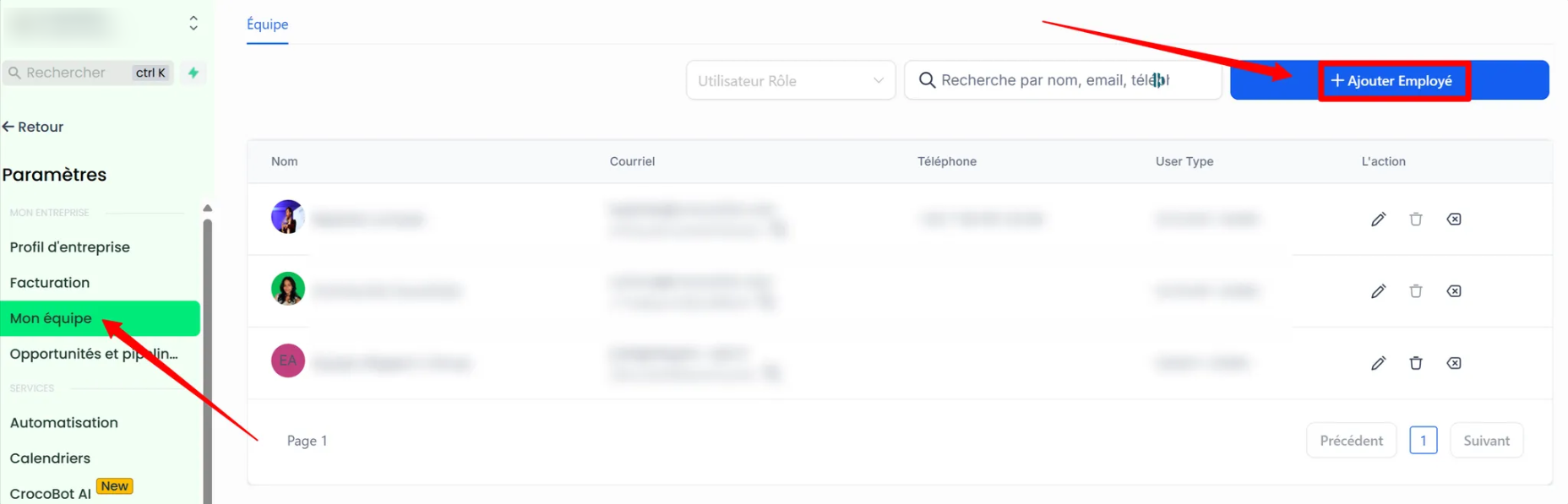
Go to Settings > My Team.
Click Add Employee.
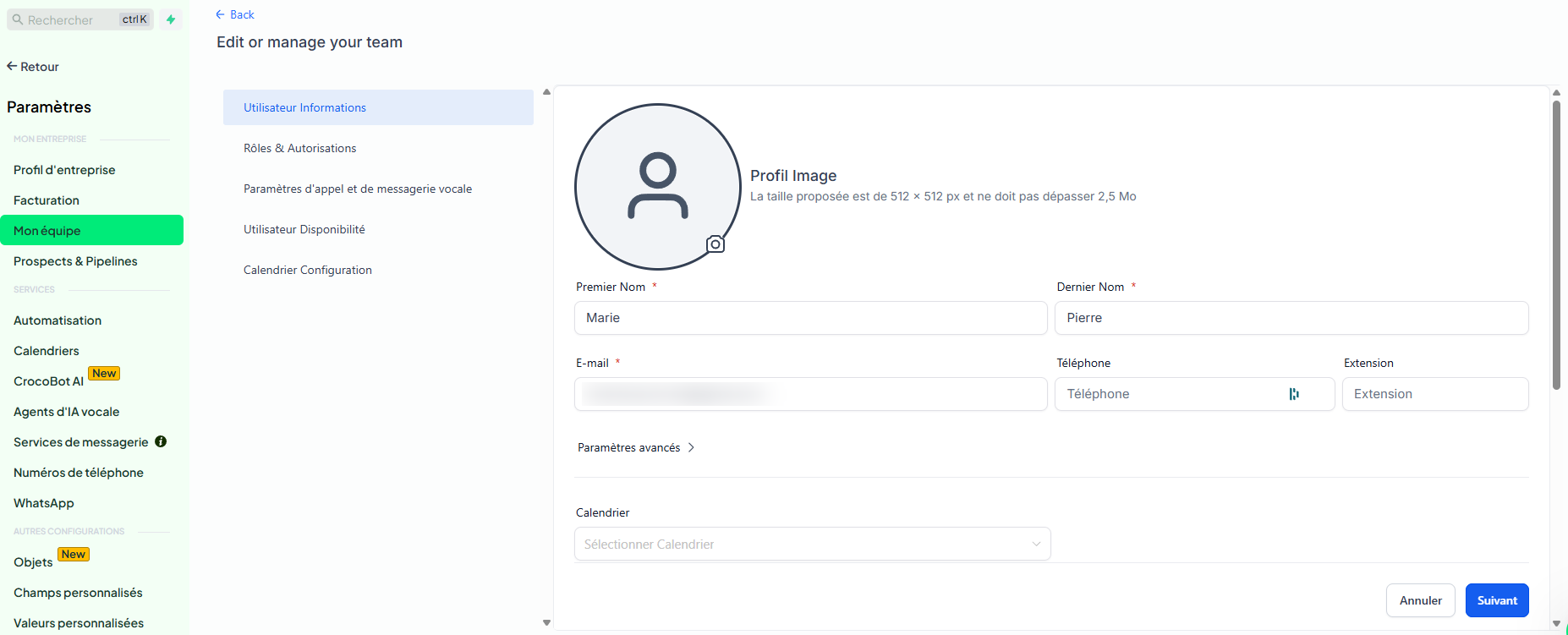
Enter the required information (name, email address, etc.) and click Next.
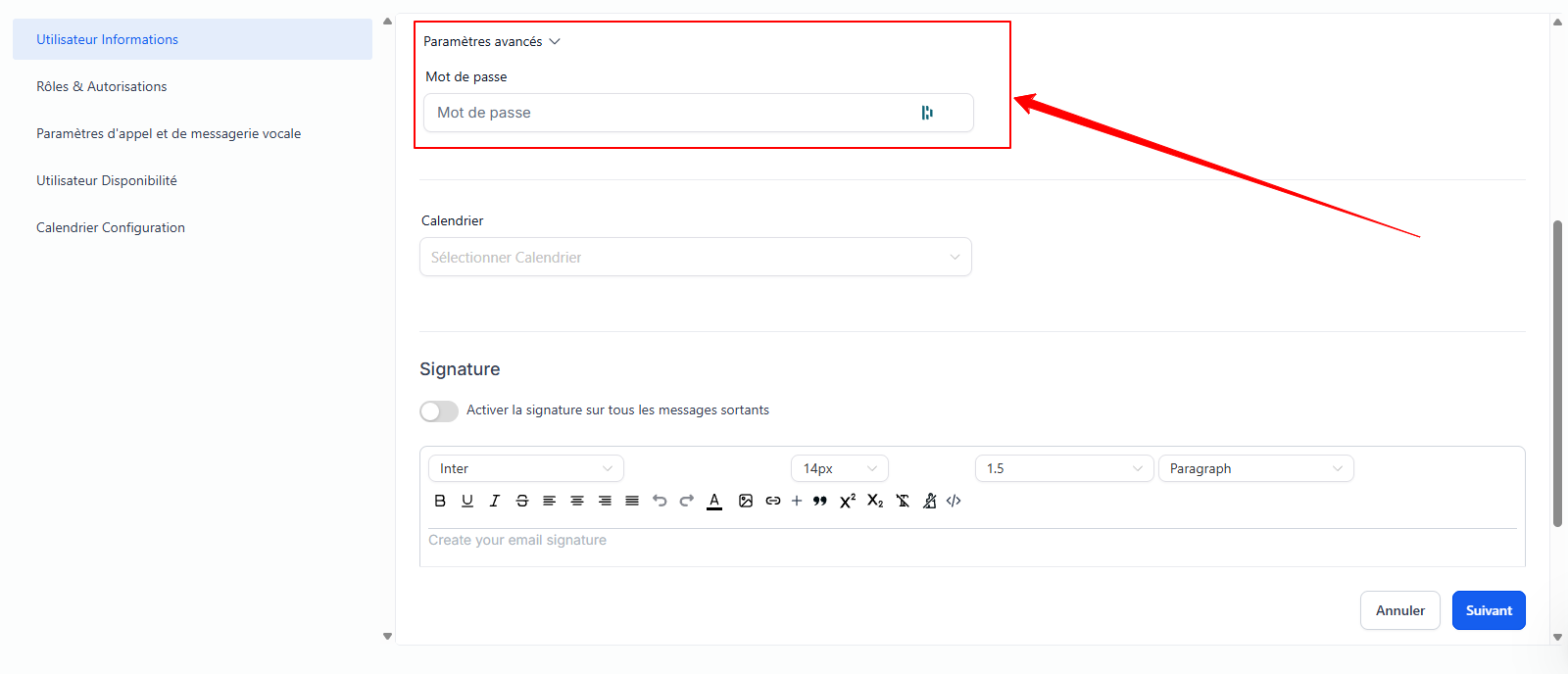
By clicking on Advanced Settings, you can set up a password
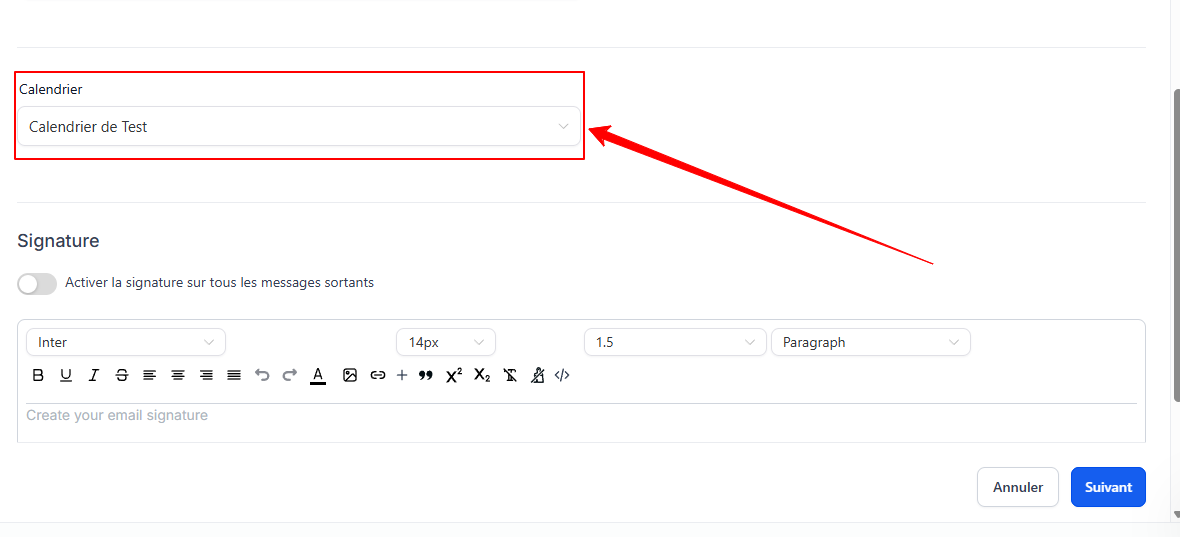
You can add the new member to a calendar if needed
💡 TIP: If the user is already a member of another CrocoClick space, follow these instructions: How to be added to several CrocoClick accounts with the same email address
Step 2: Configure access rights
1. Assigning a role
Choose the user’s role, such as Admin or User.
Admins have full access, while users have restricted permissions.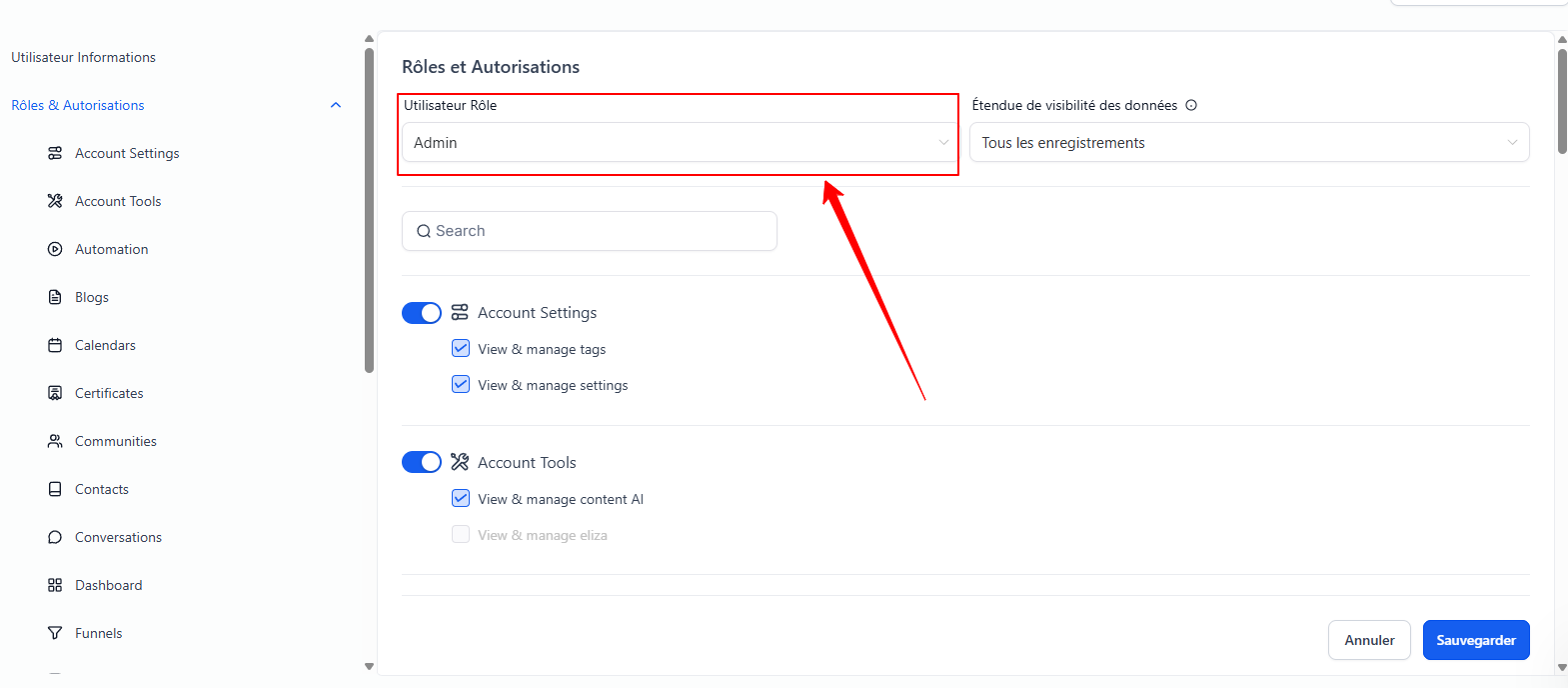
2. Assigning detailed permissions
Permissions by module:
For each module, enable or disable access using the "toggles."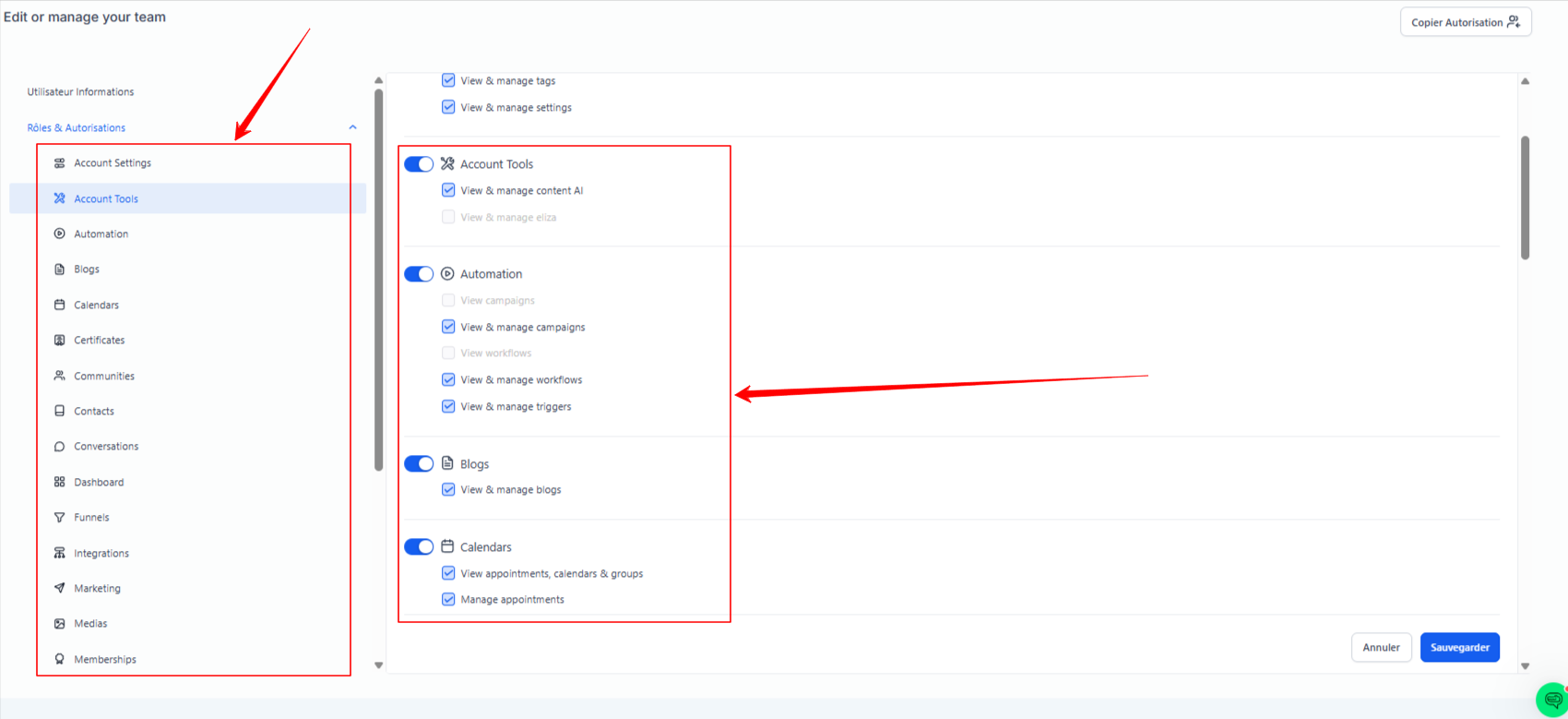
Granular permissions:
Use the checkboxes to define the specific actions (add, edit, delete) allowed for the user.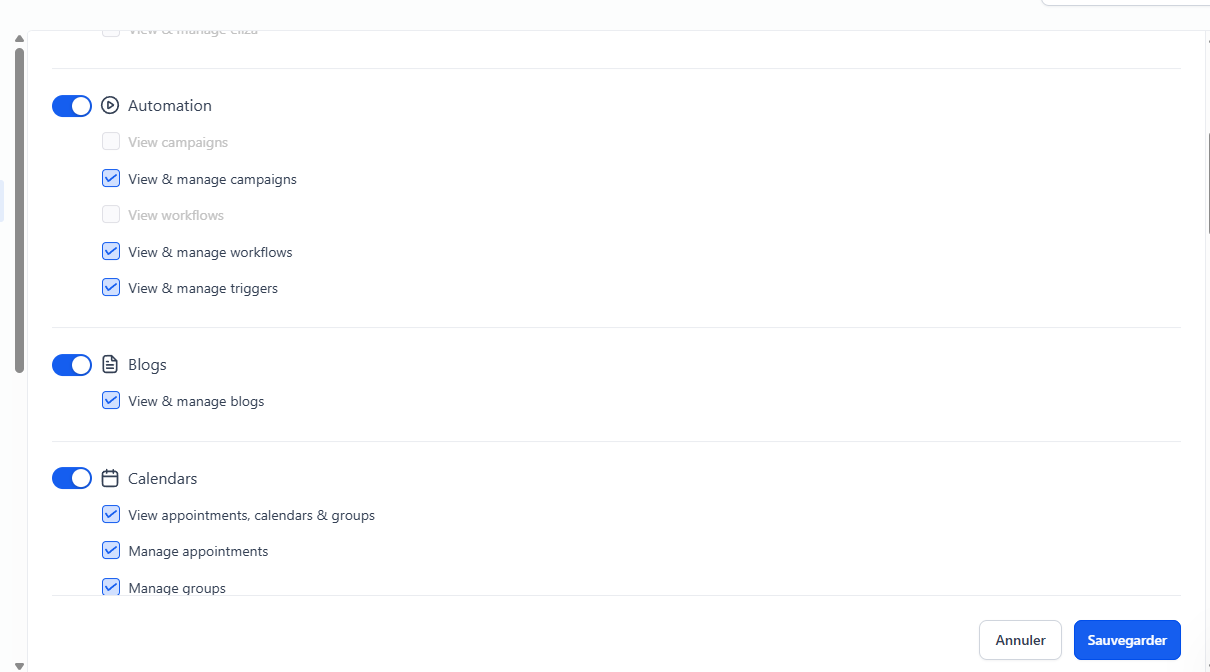
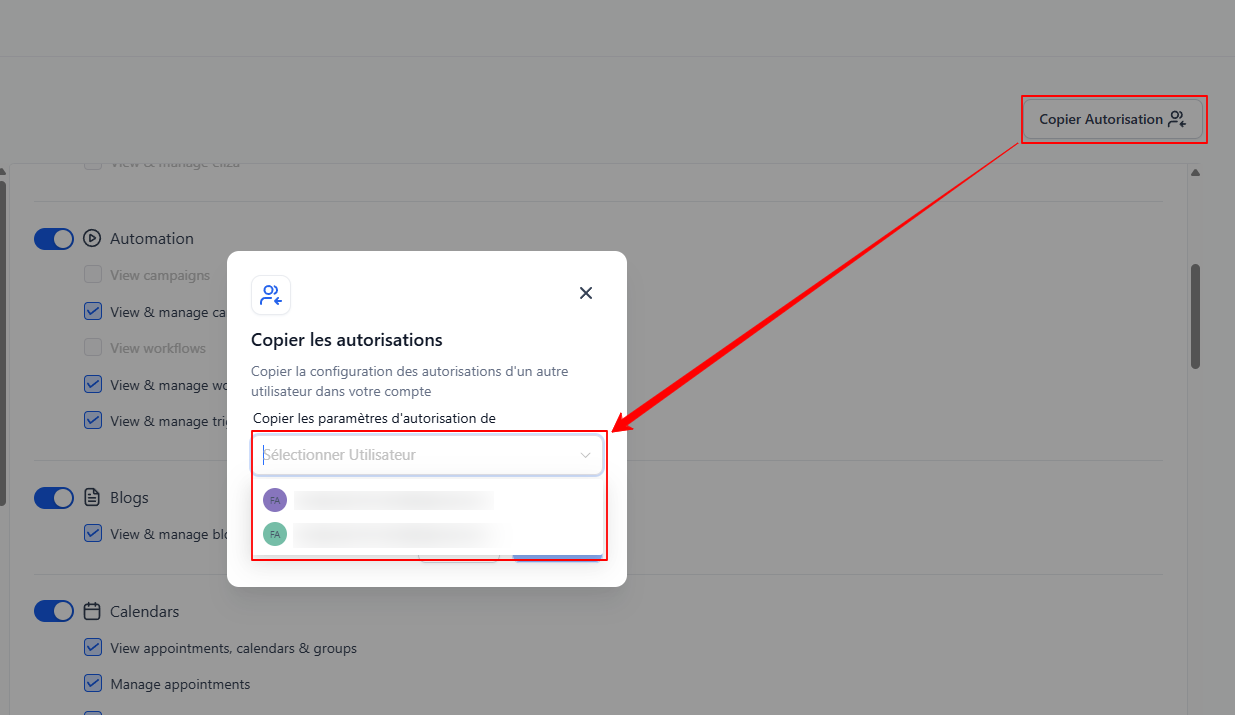
3. Copying permissions
If you want to apply the same configuration to another user, you can copy permissions from an existing user to save time.
Conclusion
By adding and configuring your users’ access rights in CrocoClick, you ensure secure and personalized management of your team. This guarantees that each employee has access only to the information and features necessary for their responsibilities, thereby improving productivity and data security.