Automate a Quiz submission action
Automate the sending of emails and other actions following quiz submission with CrocoClick to optimize your workflows.
Written By CrocoTeam
Last updated 8 months ago
The Quiz Submission Trigger feature allows you to automatically trigger actions as soon as a quiz is completed. This solution helps businesses, trainers, and marketers streamline engagement, automate responses, and optimize quiz-based interactions.
Examples of use: Send a personalized email based on quiz results, segment contacts based on their scores, etc.
How does it work?
When the quiz is completed, the trigger is activated, allowing you to:
Conditional filtering: Apply specific conditions (e.g., quiz name, score thresholds, or category-based scores) to determine when the trigger should activate.
Automated actions: Send emails, text messages, assign tasks, or initiate other workflow steps.
Seamless integration: Connect with your CRM, marketing automation, or lead management tools.
Step-by-step guide
Step 1: Access automation settings
Log in to your CrocoClick account.
Go to the Automation section.
Click + Create Workflow or edit an existing workflow.
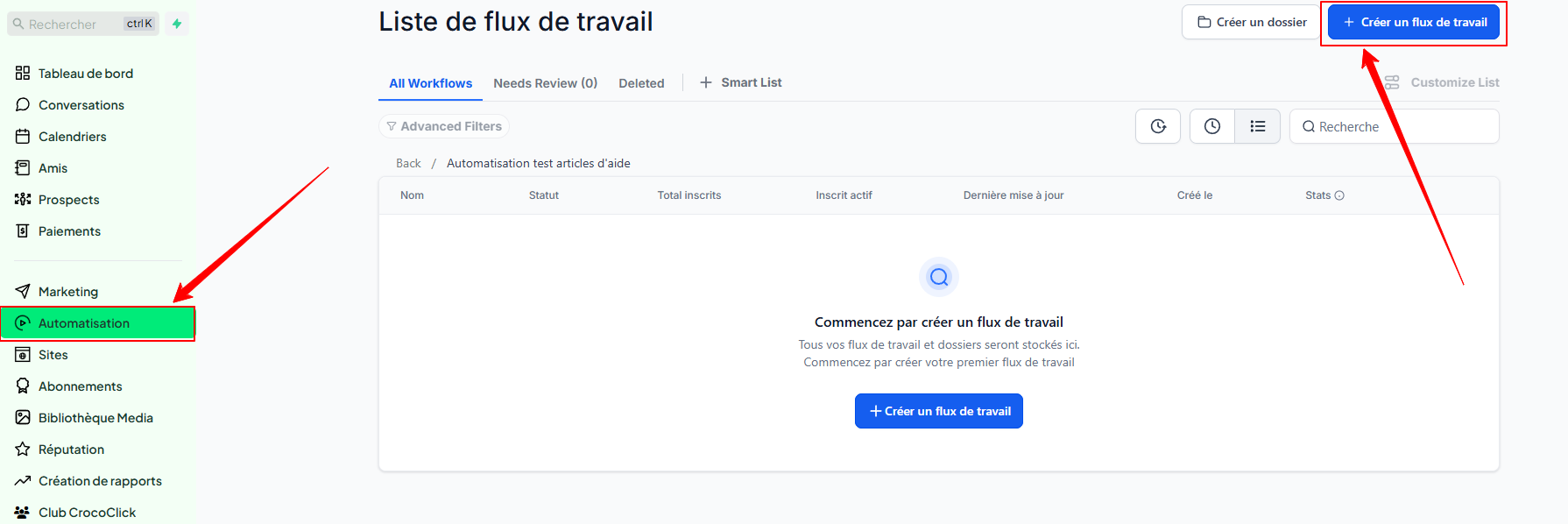
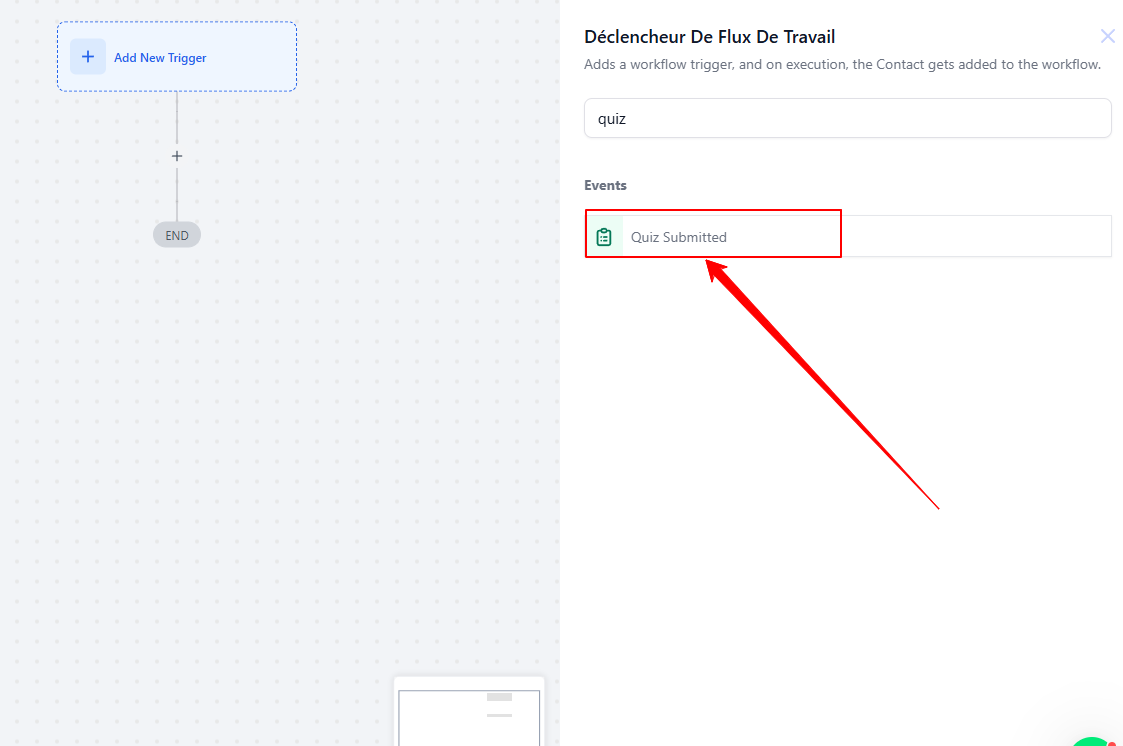
Step 2: Add the quiz submission trigger
Click Add new trigger to add a trigger.
Select Quiz Submitted from the list of available triggers.
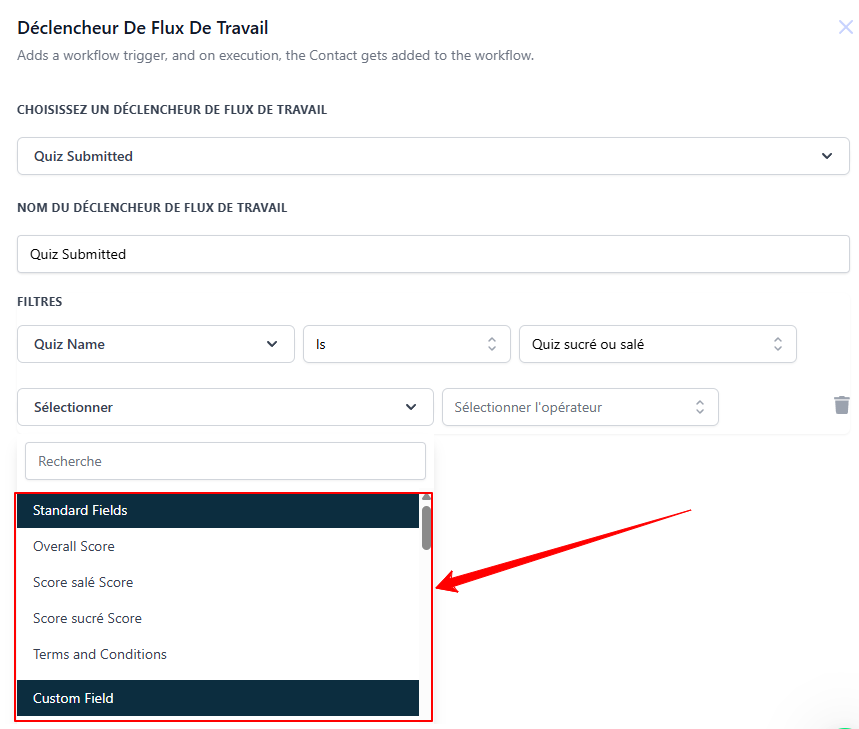
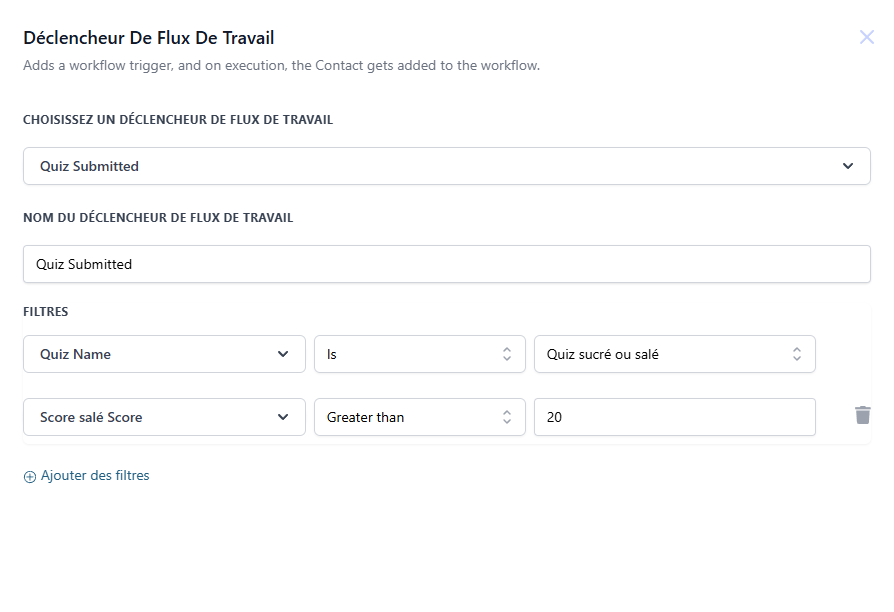
Step 3: Set the conditions
Specify filters to determine when the trigger should activate, for example:
Quiz Name: Select the specific quiz.
Score Thresholds: Set minimum or maximum score conditions.
Scores by Category: Apply logic based on answers in different sections of the quiz.
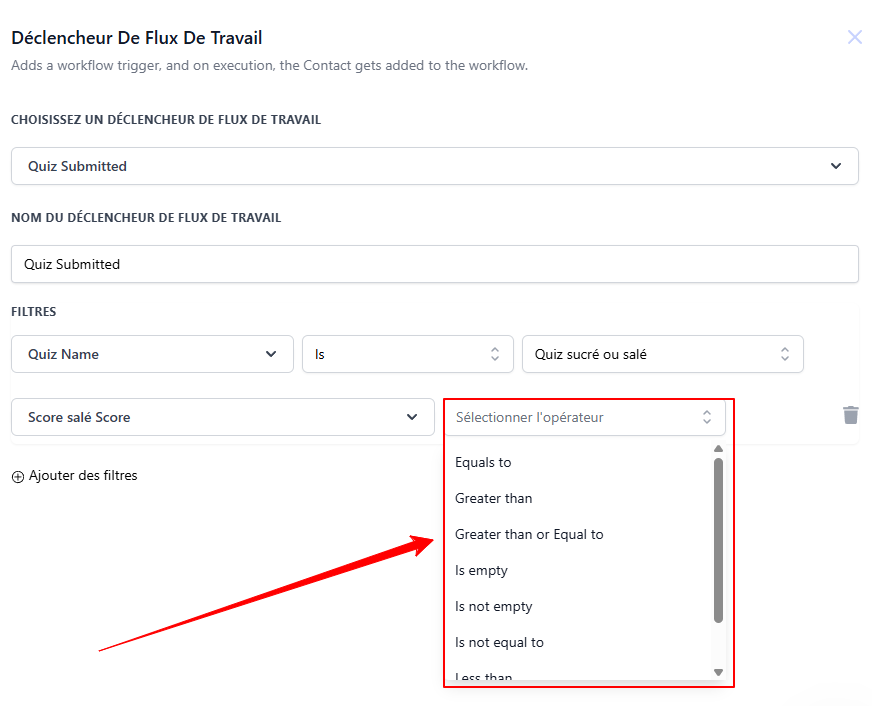
Step 4: Configure automated actions
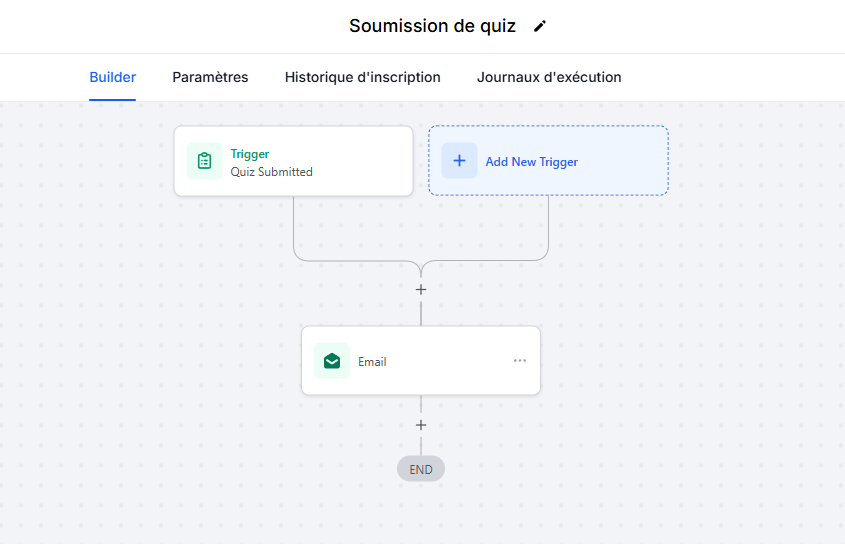
Once the trigger conditions have been defined, configure the actions that will be triggered automatically:
Send an Email: Schedule personalized emails to be sent based on the scores obtained.
Send an SMS: Notify users immediately via SMS after submission.
Assign a Task: Create a follow-up task for your team.
Add a tag: Add a tag to the contact based on the quiz results.
Step 5: Save and activate the automation
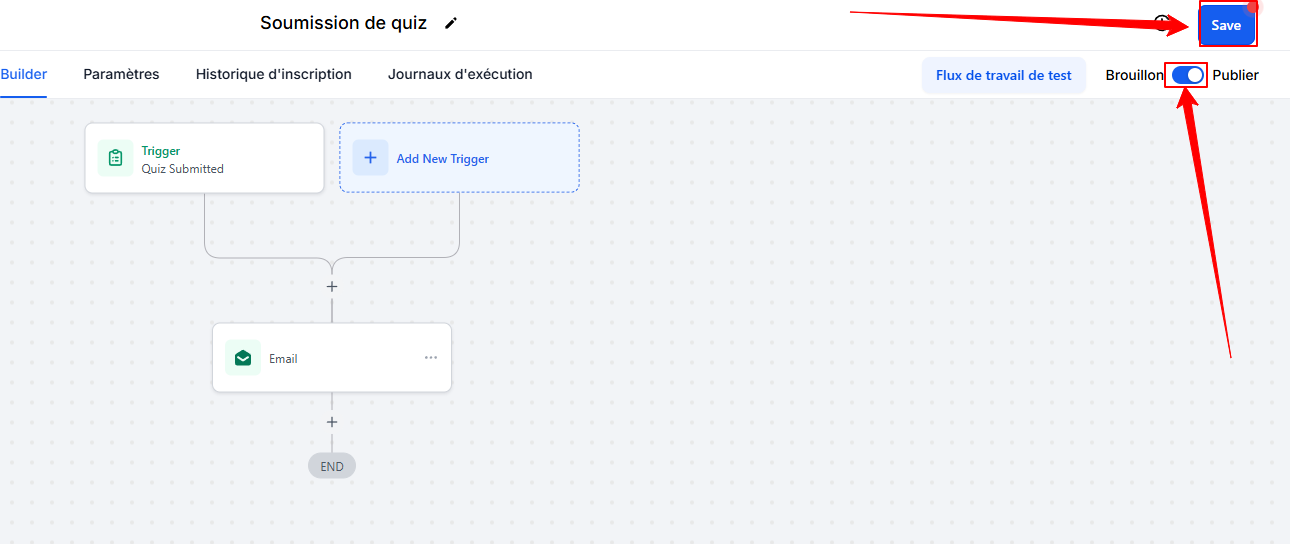
Click Save to save your automation.
Activate it so that automated actions are triggered as soon as a quiz is submitted.
Practical use cases
Personalized feedback for learners: Automatically send feedback emails based on scores, helping learners improve their performance.
Lead segmentation and scoring: Classify participants into different categories based on their scores and update your CRM data for targeted marketing campaigns.
Training or product recommendations: Suggest relevant training or products based on quiz performance, improving engagement and conversions.
Automated follow-up for sales teams: Automatically assign high-scoring leads to the sales team for personalized follow-up.
Event participation tracking: Trigger actions to send certificates or rewards based on quiz results.
FAQ - Quiz Submission Trigger
Q: Can I trigger different actions based on scores?
A: Yes, it is possible to configure multiple conditions in the same workflow to trigger specific actions based on score ranges.
Q: Does this trigger work with all quizzes?
A: Absolutely, the trigger can be applied to any quiz created on the platform.
Q: Can I integrate this trigger with third-party tools?
A: Yes, you can connect the quiz submission trigger with external tools, such as CRM systems, email marketing platforms, and automation tools via integrations.
Q: Can I use multiple actions in the same workflow?
A: Yes, you can configure multiple actions (send emails, update the CRM, notify teams, etc.) in a single workflow based on the quiz results.