Discover the "Conversations" tab
Manage all your communications in one place with CrocoClick: messages, calls, SMS, emails and social networks organized efficiently.
Written By CrocoTeam
Last updated 8 months ago
In the "Conversations" tab, you can efficiently manage communication with your prospects and customers through messages and emails.
This feature allows you to monitor all incoming and outgoing communications—including calls, texts, and emails—from a centralized interface.
For businesses that integrate social networks such as Facebook, Instagram, WhatsApp, or Google My Business, this tab brings all your interactions together in one place.
💡TIP: Access to certain items may vary depending on your user permissions.
Conversation Types
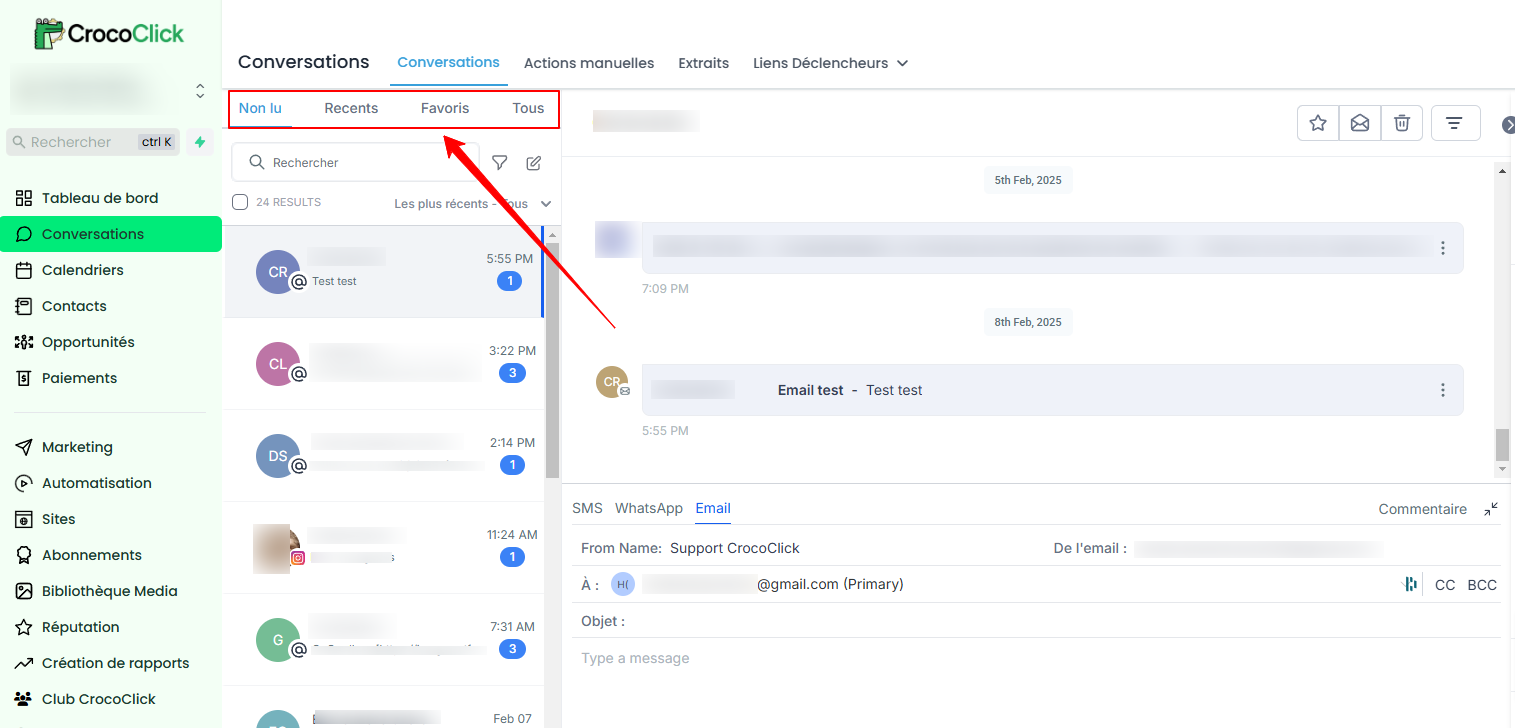
Use the filter bar at the top left to select the desired view from the following options:
Unread: Displays incoming messages as well as those marked as unread, requiring special attention.
Recent: Shows the most recent interactions for quick follow-up.
Favorites: Allows you to access conversations that you have identified as important.
All: Displays all of your conversations. You can scroll through the list or use the search bar to find a specific interaction.
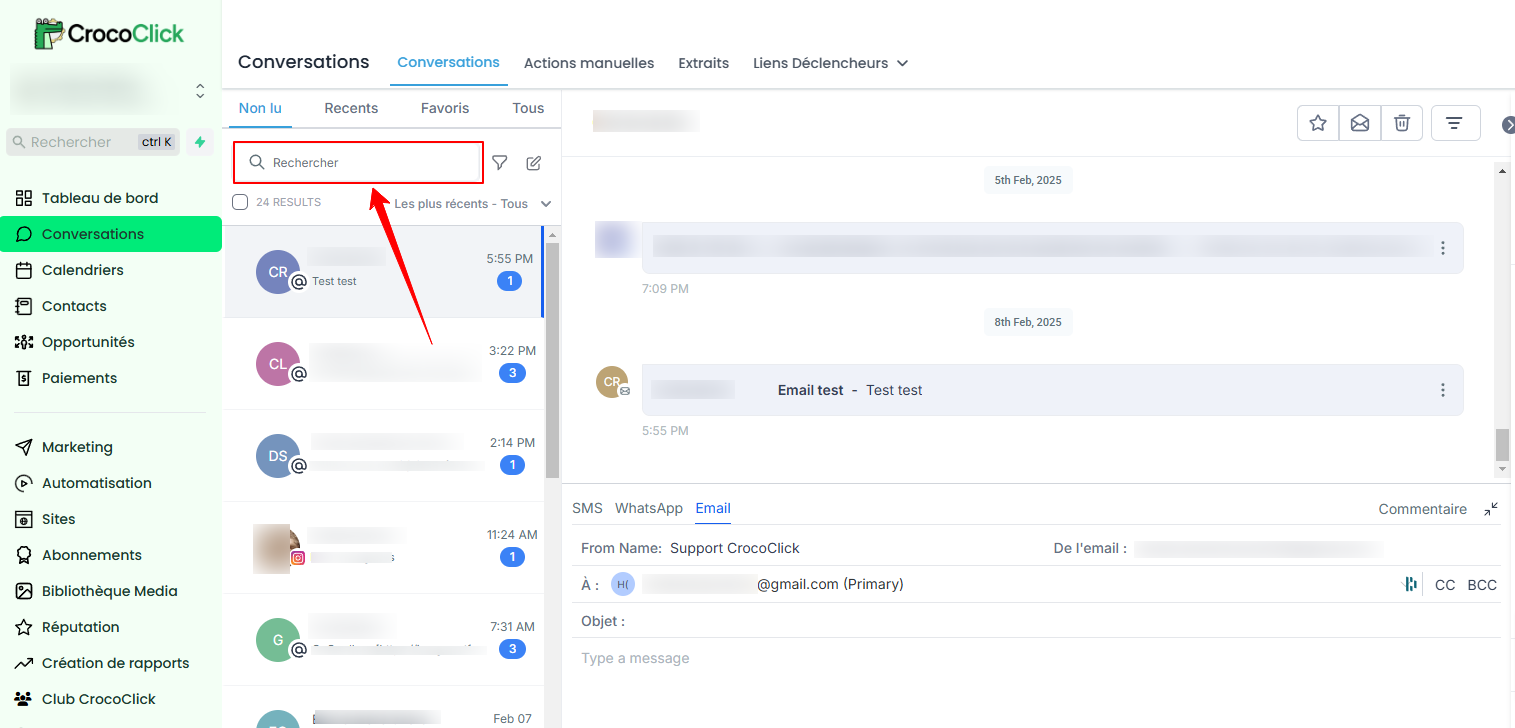
Search Bar
Use the search bar to quickly find a conversation by entering the contact's name, email address, or phone number.
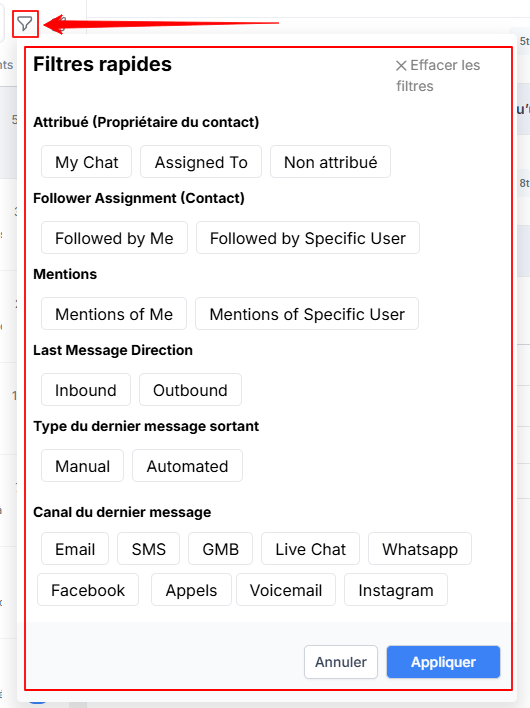
Filters
Apply quick filters to tailor your view to your current needs or priorities. This makes it easier to manage and respond to different conversations efficiently.
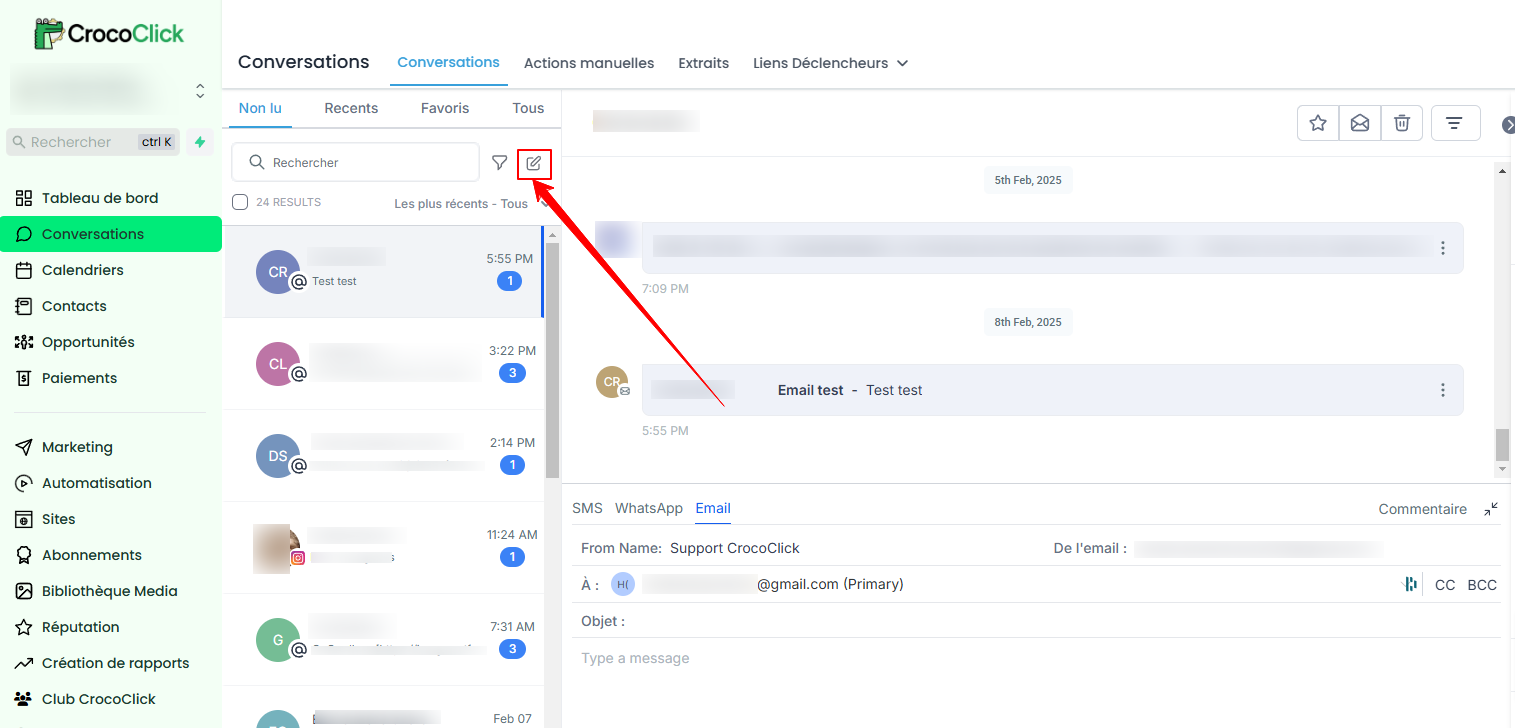
Create a New Message
To initiate a new interaction, click on the button to create a new message. You can then send a text message, email, or use any other integrated messaging channel to follow up, send a reminder, or start a discussion.
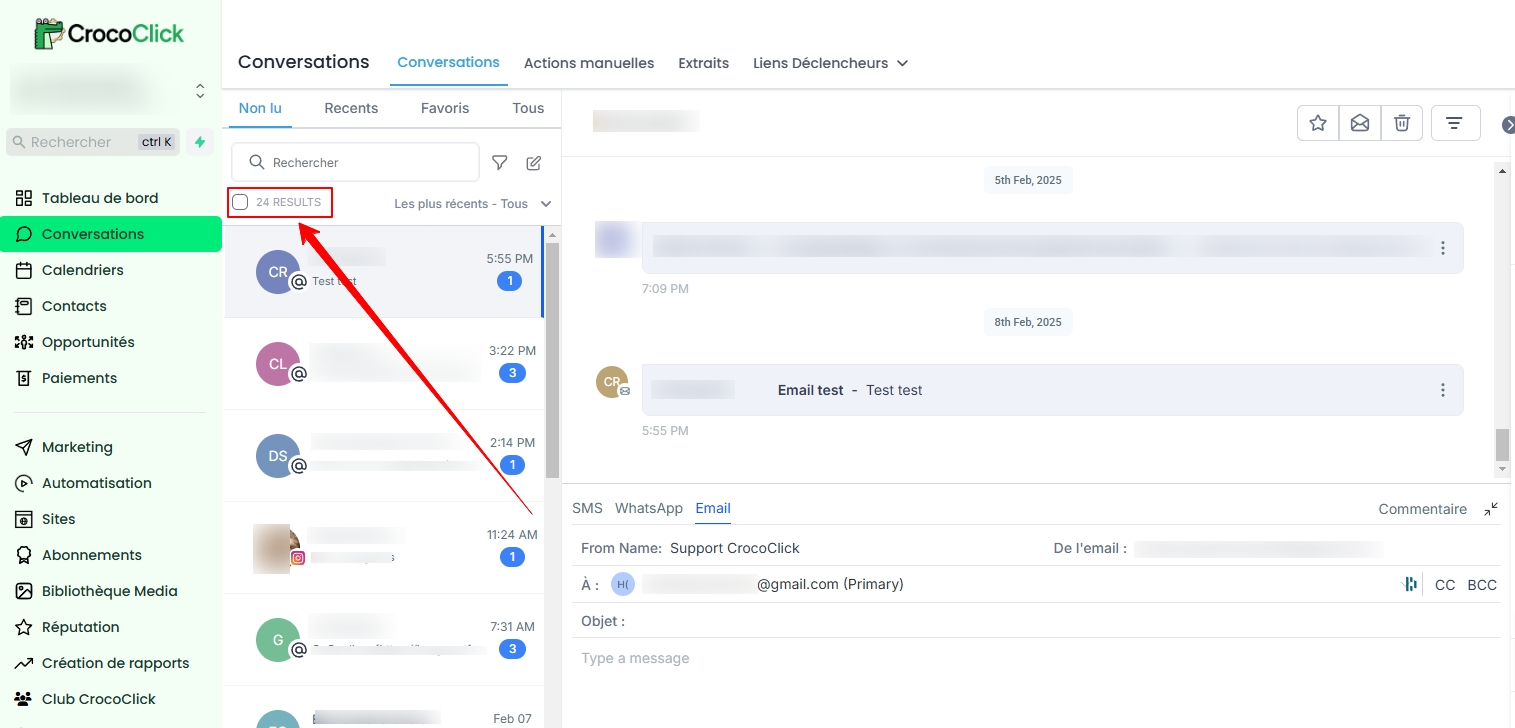
Bulk Actions
Select the bulk actions option to process multiple conversations in a single operation. For example, you can mark all messages as read/unread, delete conversations, or add/remove conversations from favorites simultaneously.
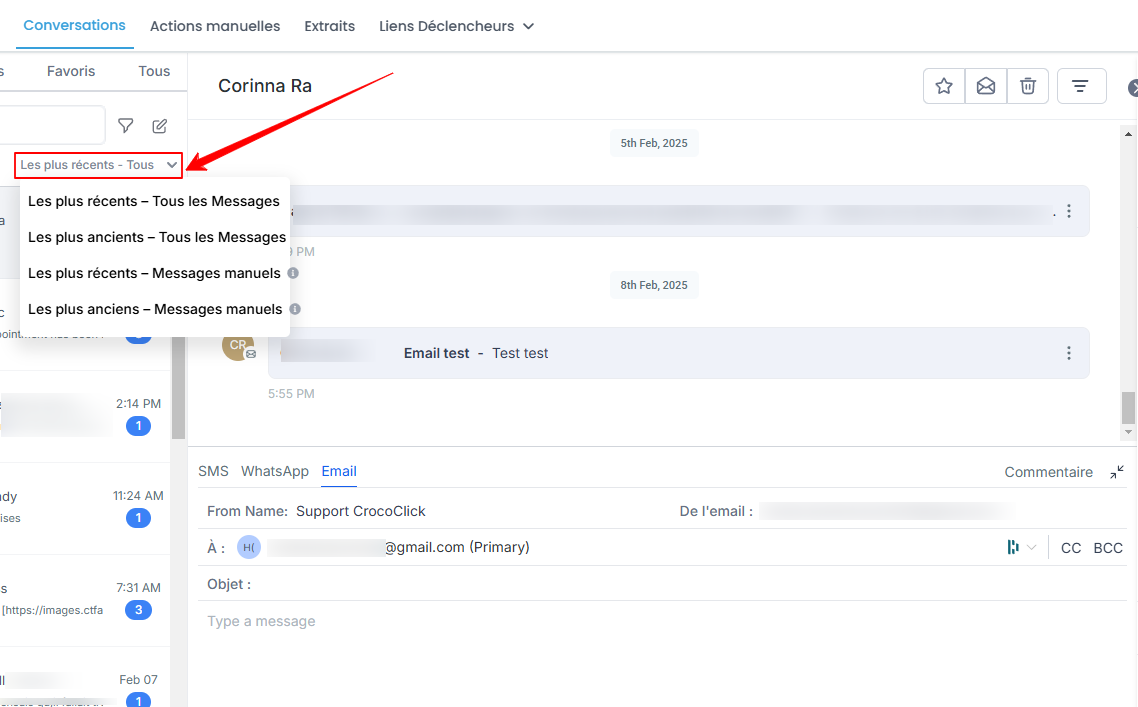
Sorting Conversations
Customize the display of your conversations using the sorting feature. You can organize your exchanges according to different criteria for more intuitive management.
Conversation Header
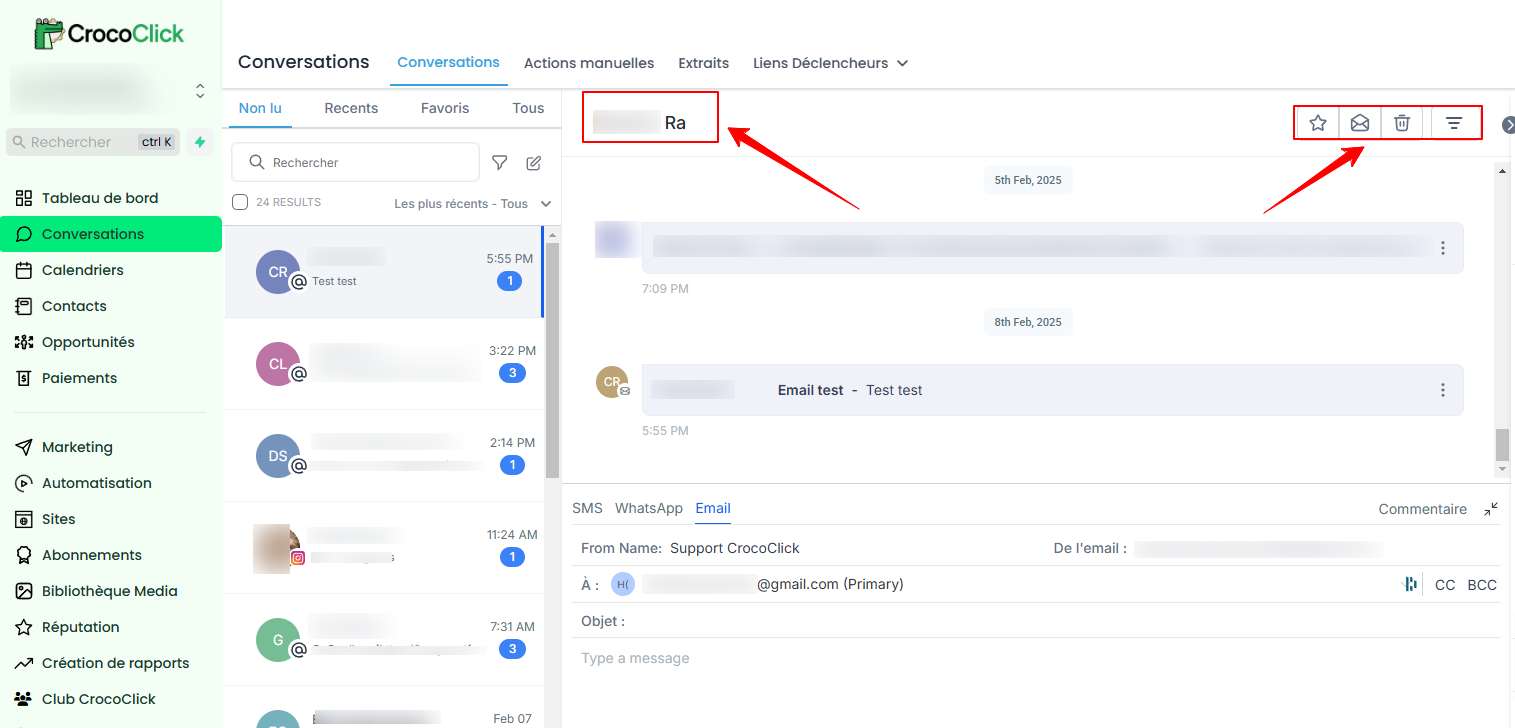
The conversation header provides a complete overview of the current exchange.
It includes:
Client Name: Displayed at the top as soon as you select a conversation.
Mark as Favorite/Unfavorite: Click the corresponding button to highlight an important conversation or to cancel this action.
Mark as Read/Unread: Indicate that the conversation has been read or, conversely, mark it as unread for easier follow-up later.
Delete: Permanently remove unnecessary conversations. Note that this action cannot be undone.
Filter: Apply filters to view conversations from specific channels or based on certain activities.
Conversation Log
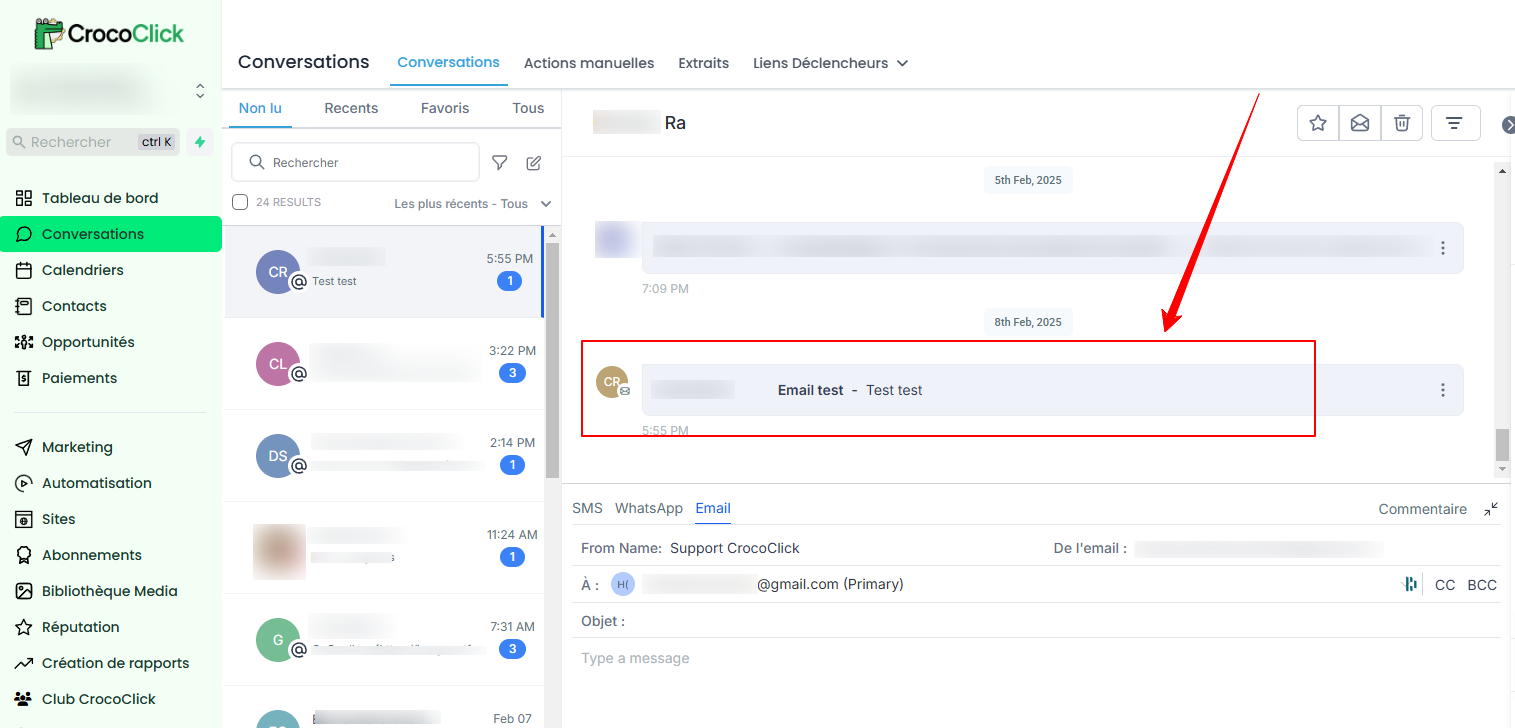
The conversation log provides a detailed history of exchanges with a given contact. Messages are organized by source or type and are time-stamped for quick and easy reference.
Conclusion
By centralizing all your interactions in the Conversations section of CrocoClick, you can take advantage of this unified interface to streamline your message management and provide quality customer service.