How to send a file (ebook, pdf, etc.) in an automated e-mail with CrocoClick
Learn how to send a file (Ebook, PDF, etc.) in a campaign or automation with CrocoClick via a button or as an attachment
Written By CrocoTeam
Last updated 13 days ago
If you want to automatically send a file (e-book, PDF, etc.) in an email with CrocoClick, here are the detailed steps to follow.
This method will allow you to include a download link, attach the file directly to your email, or add it as an attachment.
Method 1: Insert the file link into an email
STEP #1: Add the file to the Media library
Go to CrocoClick and log in to your account.
Add the file to the media library:
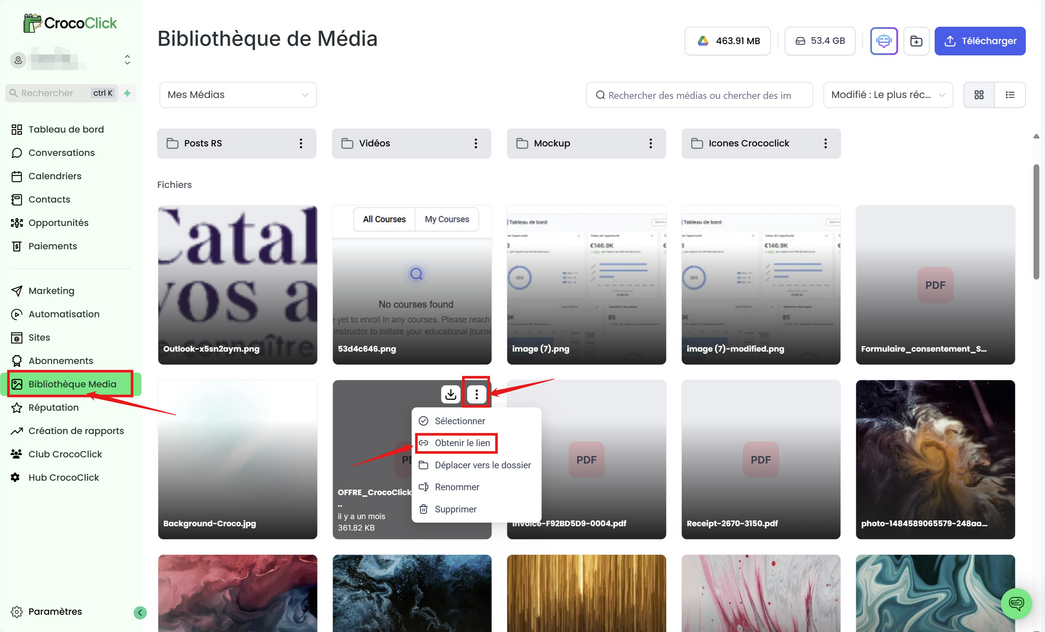
Click on "Media Library" in the left-hand menu.
Click on "Upload" and select your PDF, eBook, or other document.
Retrieve the file link:
Once the file has been uploaded, click on the three dots (
...) next to the file.Select "Get Link" and copy the URL provided.
STEP #2: Add the file to the Media library
Go to Marketing > Email Marketing > Templates in CrocoClick.
Select the email to which you want to add the file.
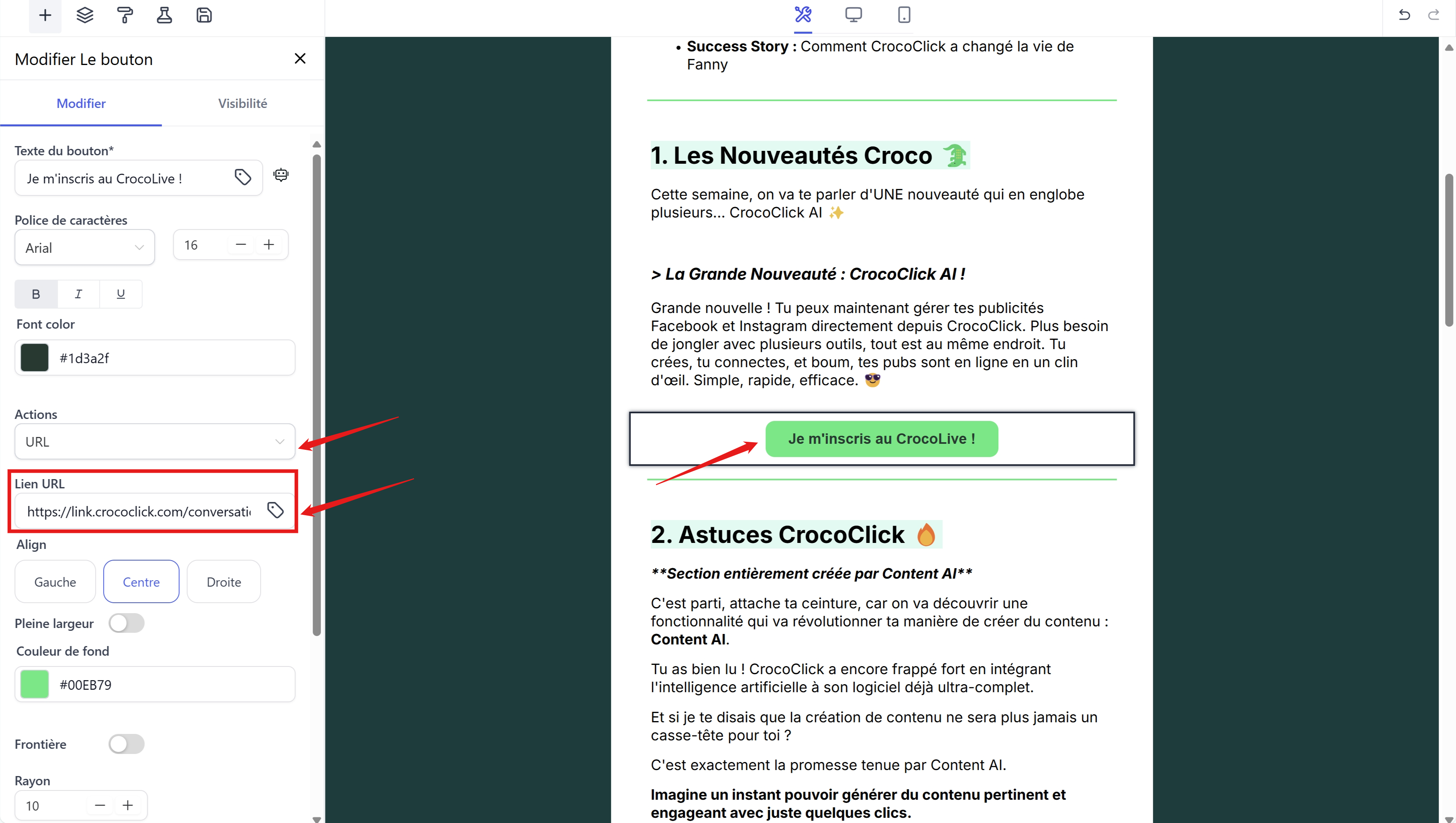
Add a button
Choose "URL" as the click action
Paste the file URL.
Save and test the email
💡TIP: Put the ebook URL in a trigger link and choose this trigger link as the button's URL link
Use a CrocoClick trigger link to track clicks and see how many people have downloaded your ebook.
You can also easily change the file URL in all your emails with a single click.
For more information on trigger links, visit click here
Method 2: Attach the file directly
Add your file to the media library by following the steps in Method 1.
Add the file directly to the email:
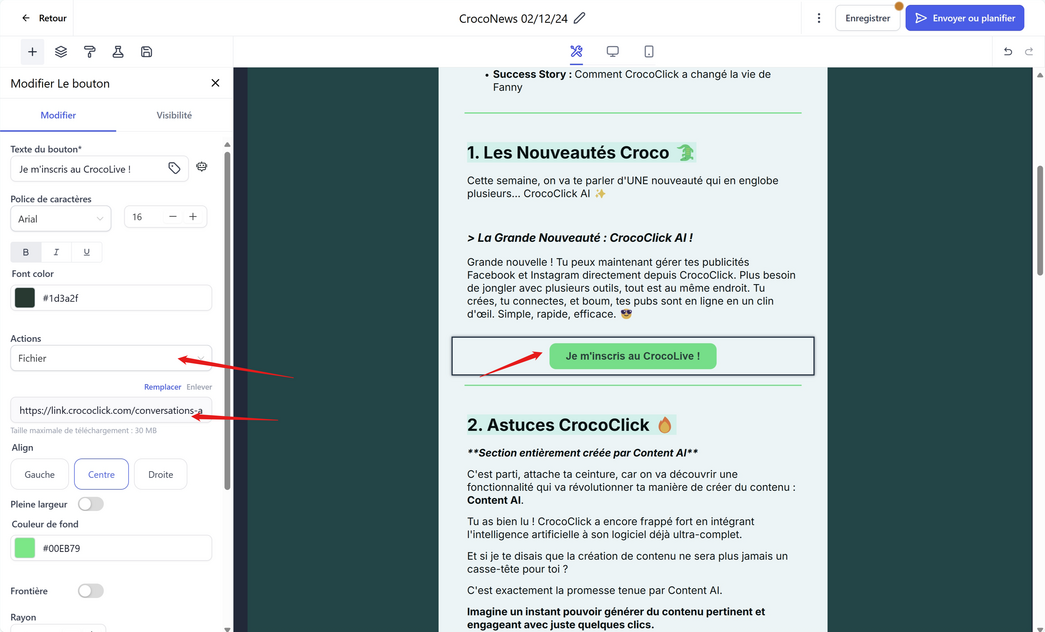
In the email editor, click on the edit button.
In the "Actions" section, select "File."
Double-click on the file in your media library.
Save and test the email.
Method 3: Add the file as an attachment
In your email, click on the "..." in the top right corner and select "Attachments."
Add the file as an attachment:
Save and test the email to make sure the attachment is included.
💡TIP: These methods can be combined. For example, you can attach your file AND insert a button to your file in the body of the email.
Conclusion
With CrocoClick, you can easily automate the sending of files to your subscribers. Whether via a link, direct attachment, or email attachment, this method ensures efficient and smooth distribution.