How to create and manage a contract on CrocoClick
Easily create, customize and send contracts with CrocoClick's step-by-step guide.
Written By CrocoTeam
Last updated 6 months ago
CrocoClick allows you to easily create, customize, and send contracts to your customers or partners. With this feature, you can track contract status in real time and ensure professional document management. Follow this step-by-step guide to create your first contract.
Step 1: Access the contracts section
Go to Payments > Documents and Contracts.
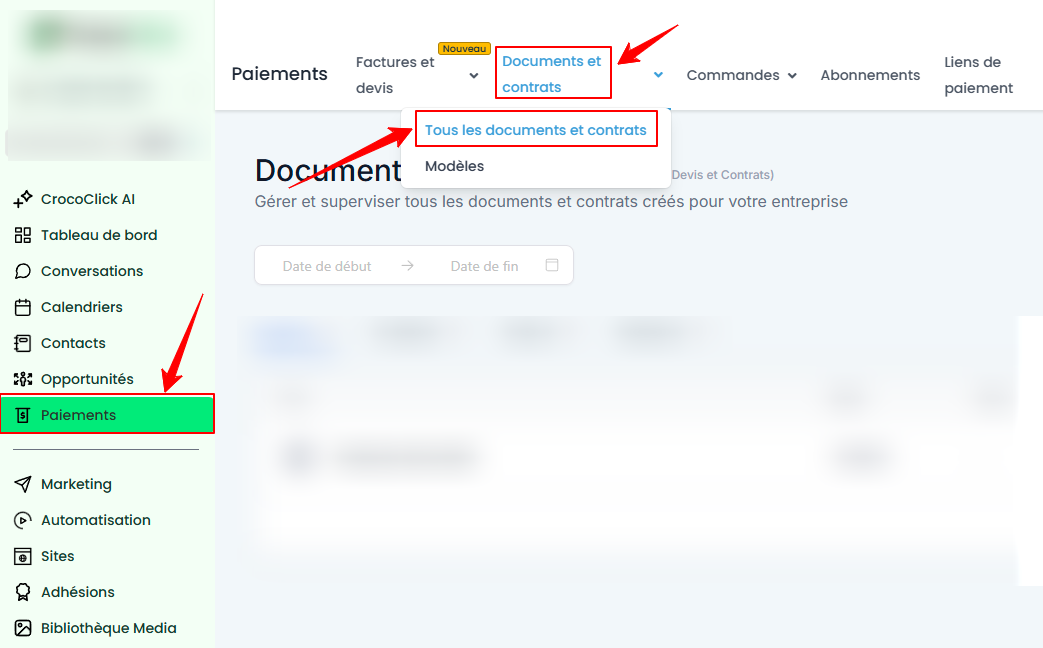
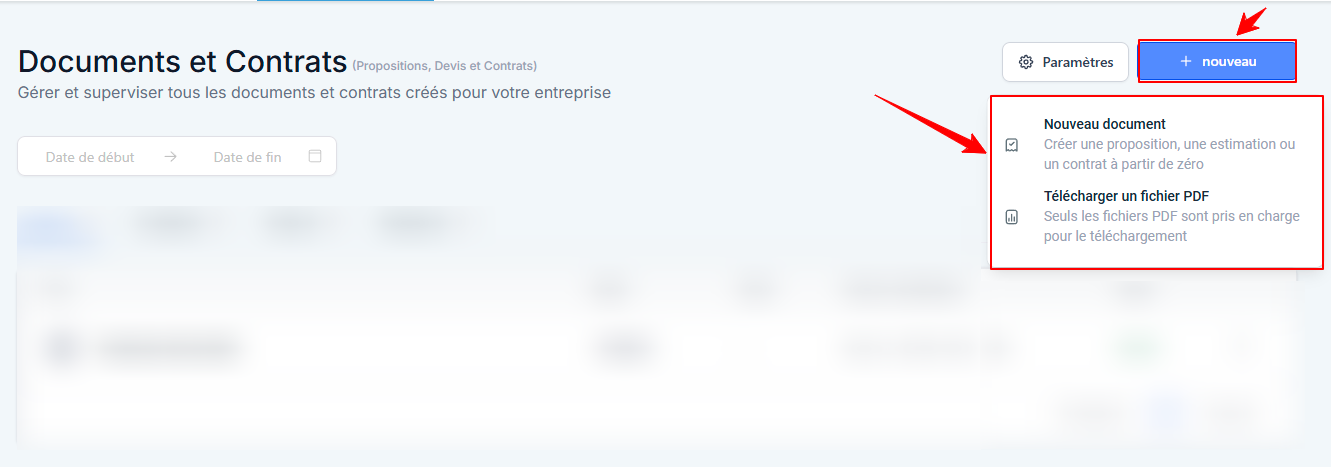
Click New to start creating a new contract.
You can choose to create a document directly in CrocoClick or import a PDF if you already have a pre-established contract.
Step 2: Add items to the contract
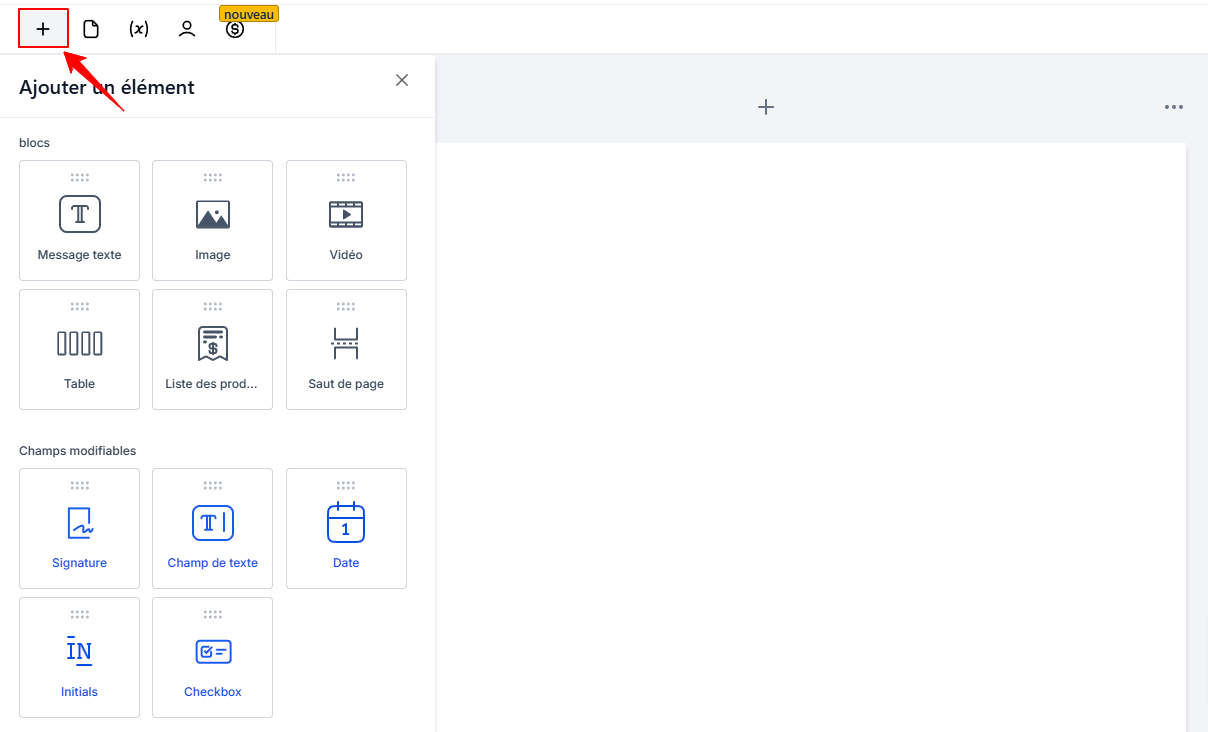
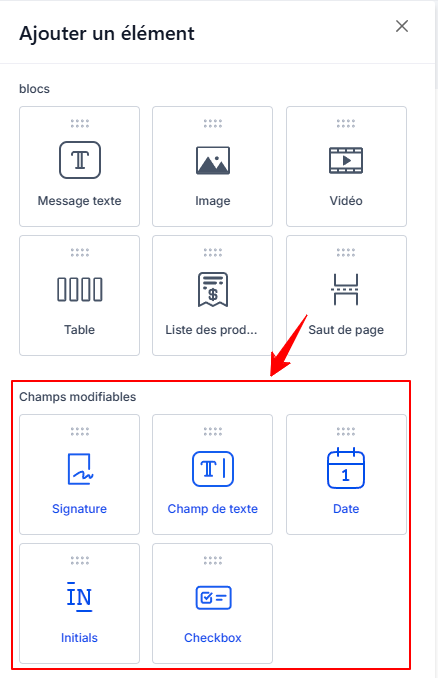
Click on the + icon on the left to add items to your contract
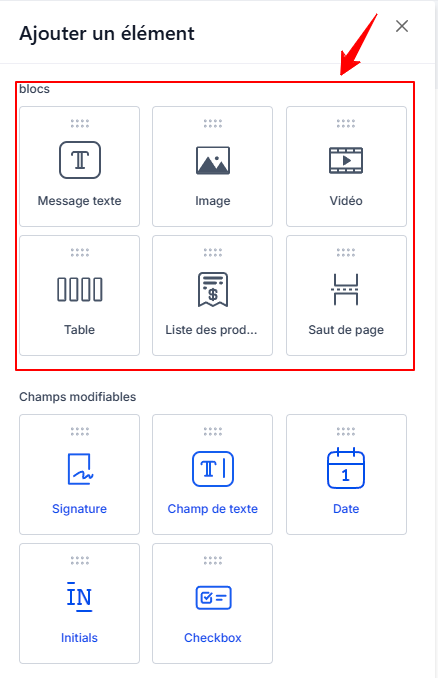
Fixed blocks:
Add non-editable elements, especially if you are creating your contract directly in CrocoClick. These may include:
Text
Images
Videos
Tables, etc.
Editable fields:
Add fields that your recipients can fill in or sign. For example, you can include:
Signature: For electronic signatures.
Text fields: To enter specific information (name, address, etc.).
Date: For the date of signature.
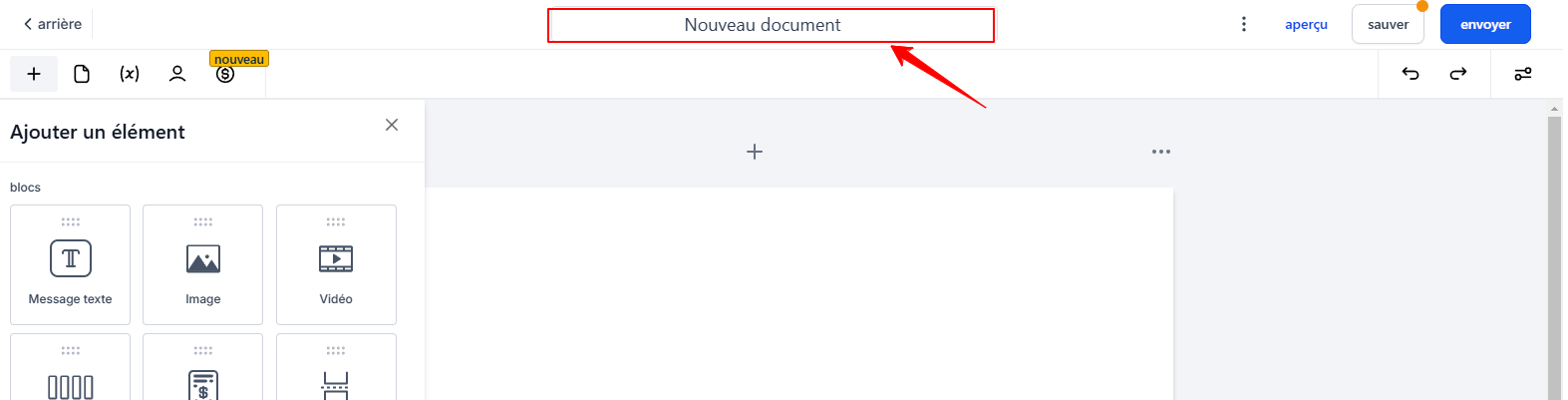
💡 TIP: Rename your document so you can easily find it later
Step 3: Set up recipients
Click on the person icon to add one or more recipients
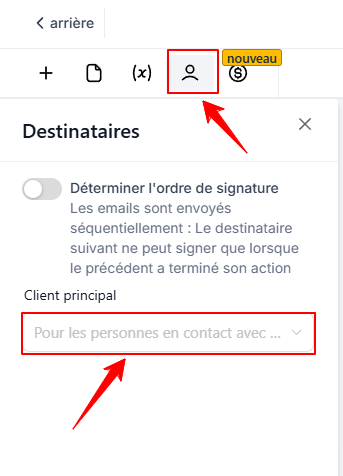
💡 TIP: You can set the signature order if several people need to sign in a specific order.
Step 4: Send the contract
Once the contract is ready, click Send to send it to your recipients.
Each person will receive an email notification with a link to access the contract.

Step 5: Track the contract status
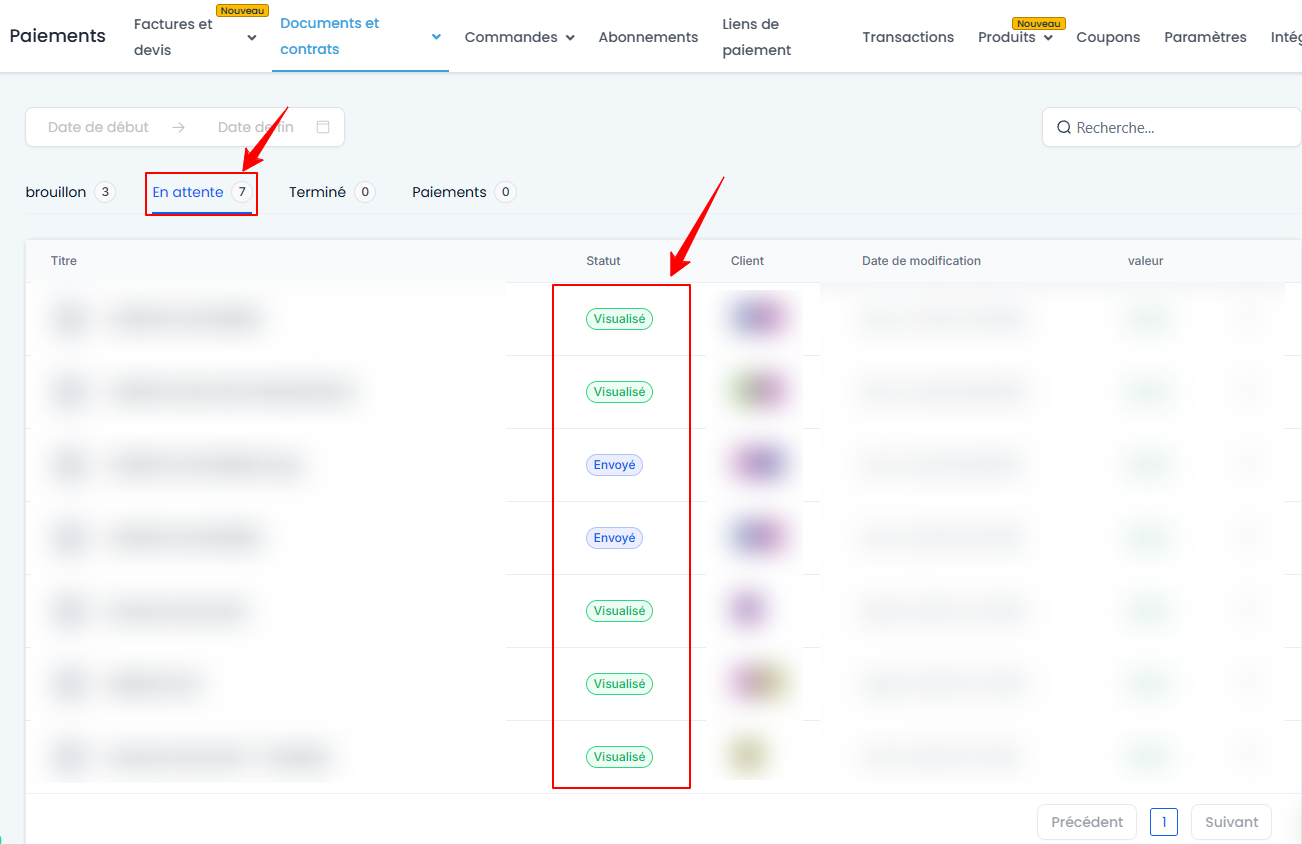
After sending the contract, you can track its status directly in the Pending section
💡 TIP: If you need to make changes after sending, you will need to recreate a new version of the contract.
FAQ
1. Can I modify a contract after sending it?
No, once sent, the contract cannot be modified. You will need to create a new version and resend it.
2. How do I add multiple signatories?
Add multiple recipients in the settings section and configure a signing order if necessary.
3. How do I track contracts in progress?
You can view their status in Documents and Contracts > Pending.
Conclusion
Creating and managing a contract on CrocoClick is a quick and easy process that ensures efficient document management. With intuitive tools to customize and track your contracts, you can save time while providing a professional experience for your clients.