How to connect your Social Networks to the CrocoClick Social Planner
Connect and manage your accounts, schedule posts, and track your performance on social networks from a single dashboard.
Written By CrocoTeam
Last updated 8 months ago
CrocoClick is a convenient solution for centralizing and automating the management of your social media accounts.
Connecting your platforms to CrocoClick allows you to publish, schedule, and analyze your performance from a single dashboard. In this article, we will explain how to connect major social platforms such as Facebook, Instagram, LinkedIn, X (formerly Twitter), Google My Business, YouTube, Pinterest, and TikTok to CrocoClick.
📢 Important Information 📢
In this article, we detail how to connect your networks to the social planner.
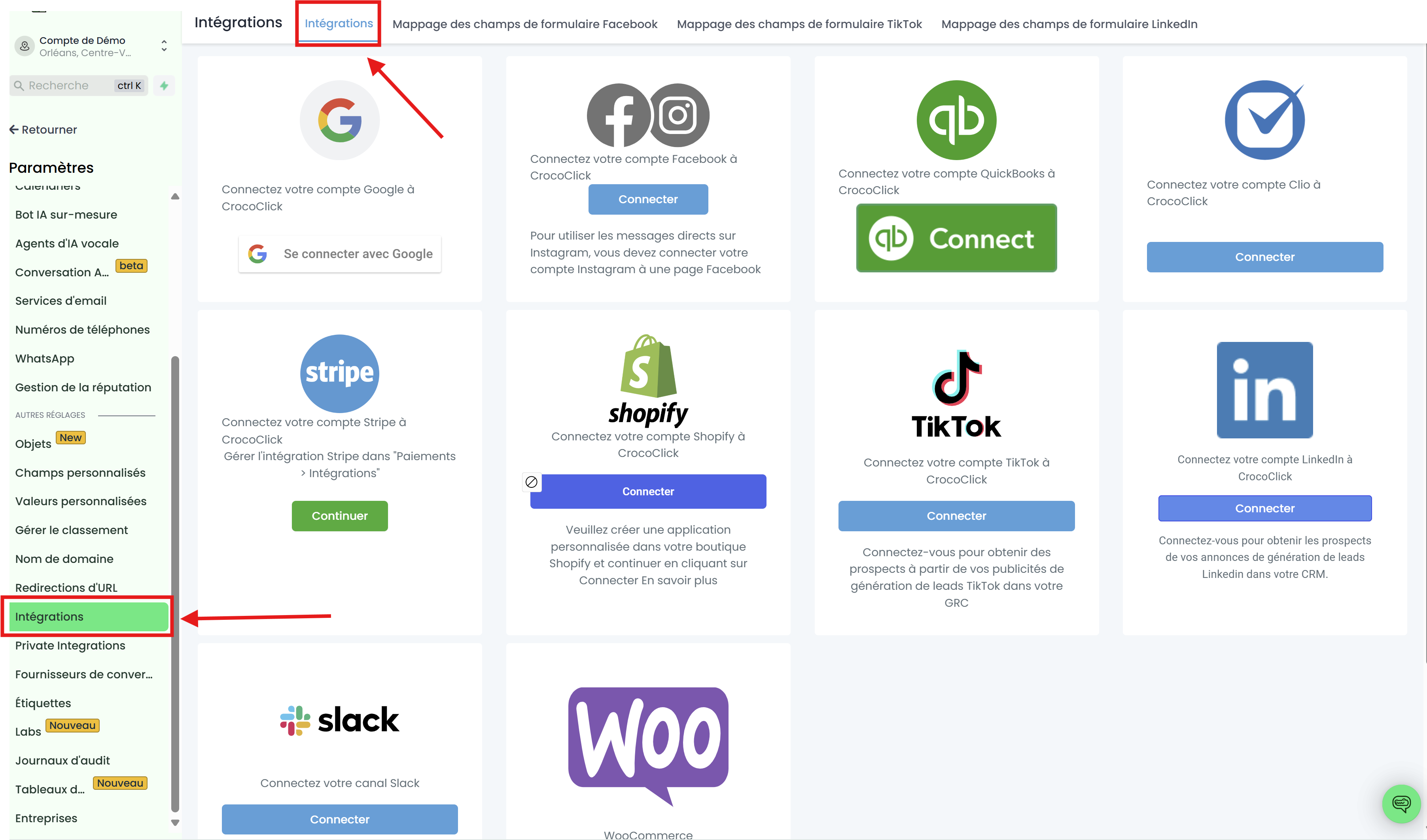
However, if you want to connect your social channels to ALL parts of CrocoClick, go to Settings > Integrations
You will then find a comprehensive page allowing you to integrate Facebook & Instagram with CrocoClick so that you can receive your Messenger and DM messages directly in CrocoClick within the "Conversations" tab.
Connect a Facebook account to CrocoClick
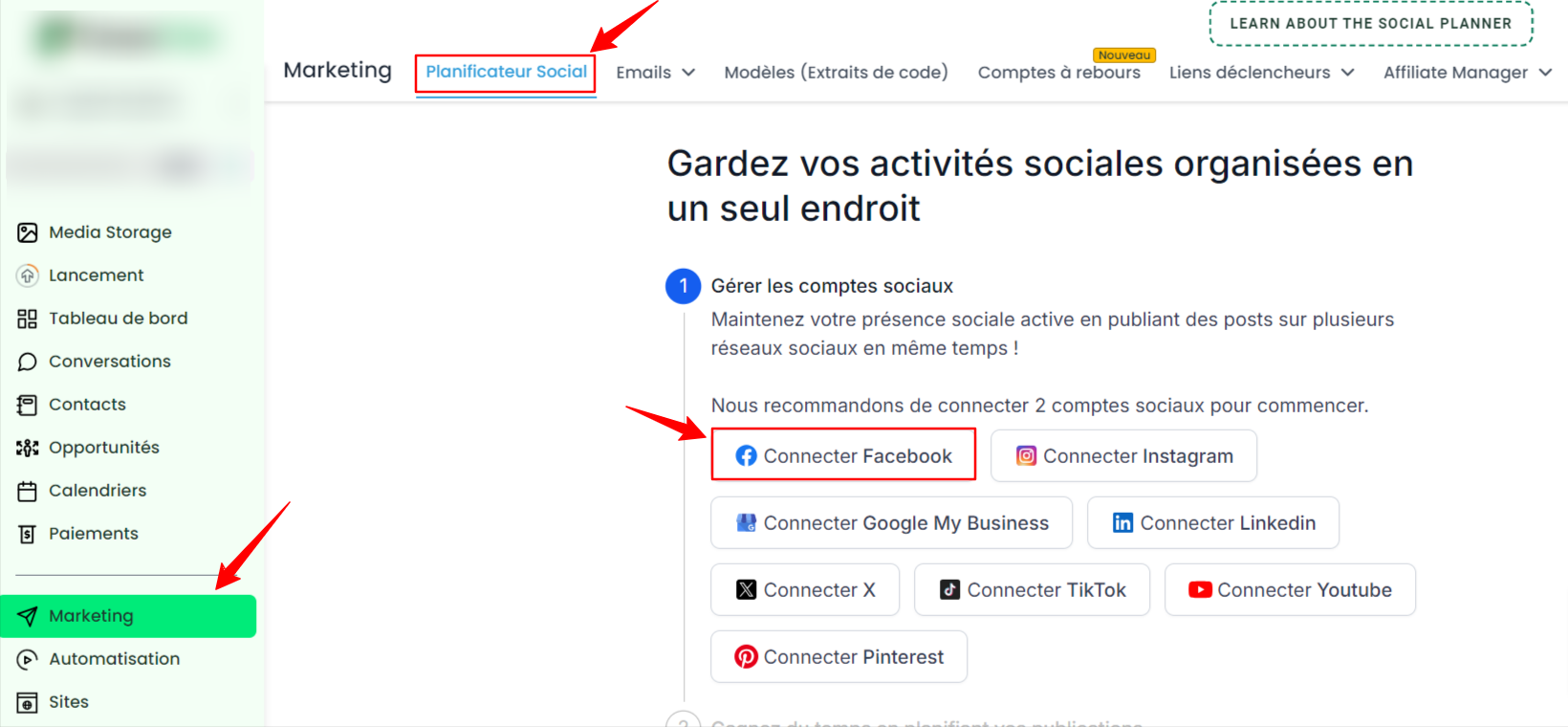
Access CrocoClick: From your dashboard, go to the Marketing tab, then select Social Scheduler.
Select the "Connect Facebook" option: Click on Connect a new Facebook account. A new window will open allowing you to log in. Facebook will ask you to grant permissions to LeadConnector, the application used by CrocoClick to post on your behalf.
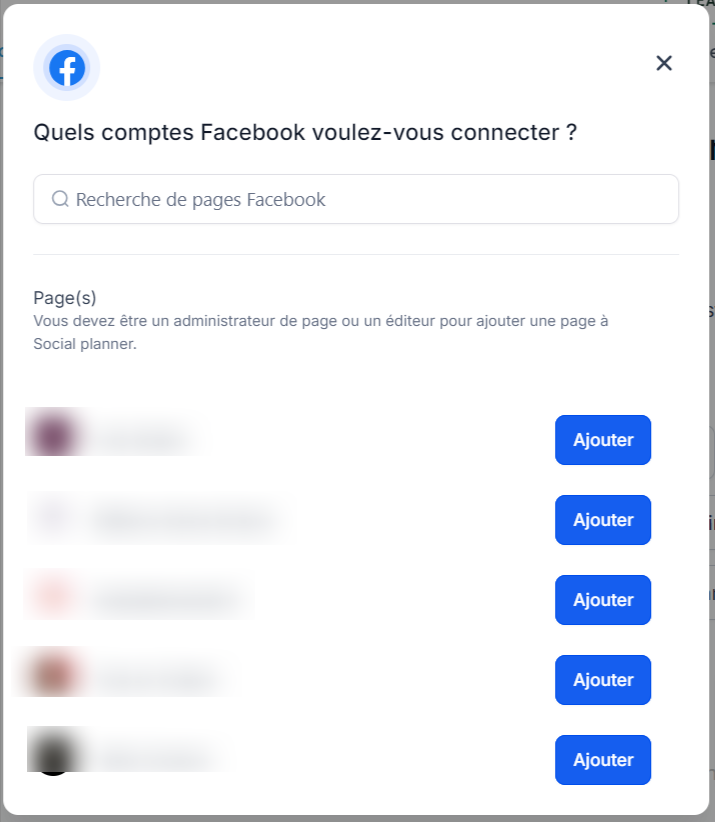
Select the Facebook Page: A list of Facebook pages associated with your account will appear. Select the one you want to connect to CrocoClick by clicking Add.
Confirm connection: After selecting the page, the connection will be established.
Notes:
Administrator role required: To connect a Facebook page or group, you must be an administrator. You cannot post to personal pages.
Managing Facebook groups: For groups, be sure to add LeadConnector as an authorized application. You can do this in the group settings under the Applications tab.
Session expired: Facebook connections are sometimes time-limited for security reasons. You will receive a notification if the access token has expired, and you will need to reconnect the page by following the same steps.
Connecting an Instagram account to CrocoClick
Link your Instagram account to a Facebook page: For Instagram to be connected to CrocoClick, it must be linked to a Facebook page. Follow the steps on the screen to link your Instagram account to the Facebook page you administer. Facebook requires this connection for security and rights management reasons.
Select the Connect to Instagram option: From your dashboard, go to the Marketing tab, then select Social Planner, and Connect to Instagram.
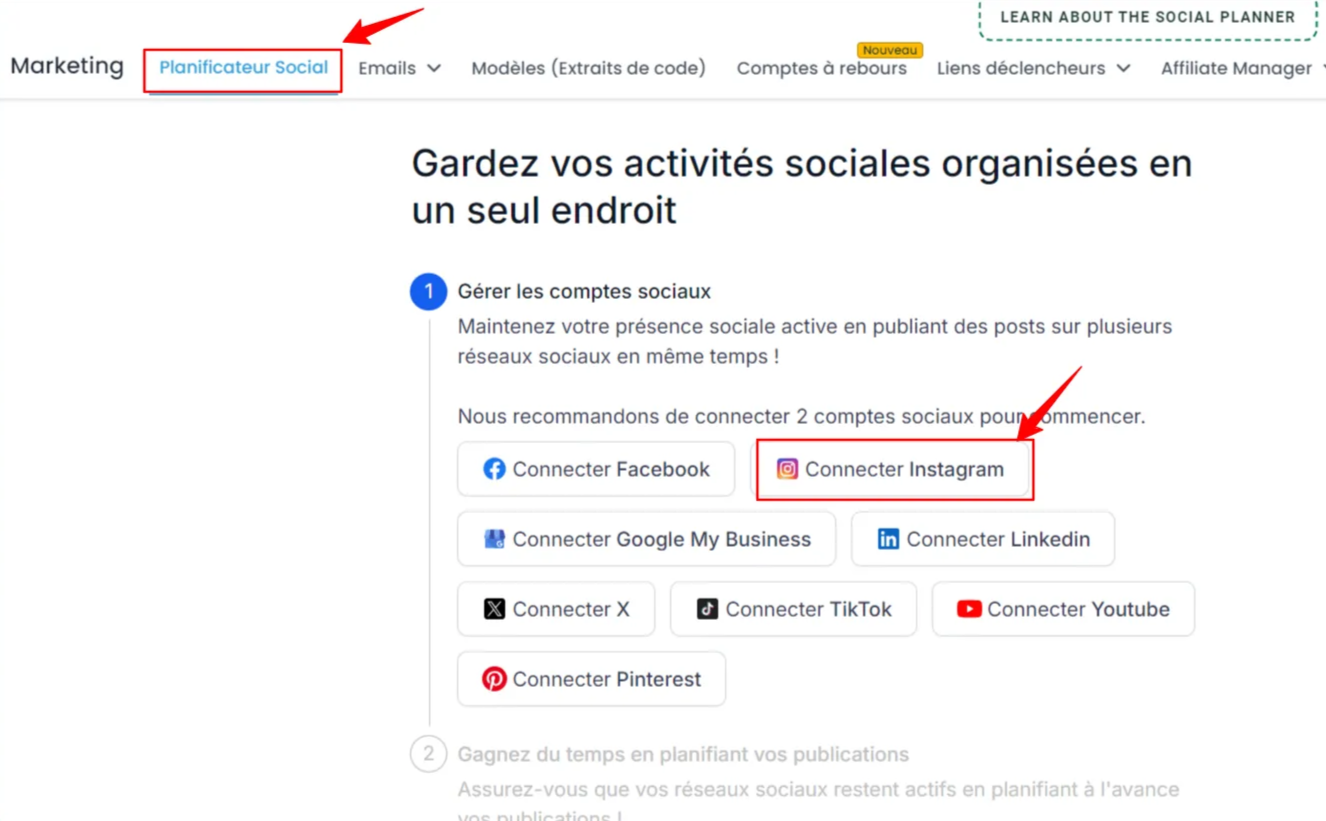
Connect to Facebook: You will be asked to choose Facebook and grant the necessary permissions for the social planner to access the connected Instagram page. Use your Facebook account that is connected to your Instagram Business account, enter the details, and click Connect to Facebook to continue.
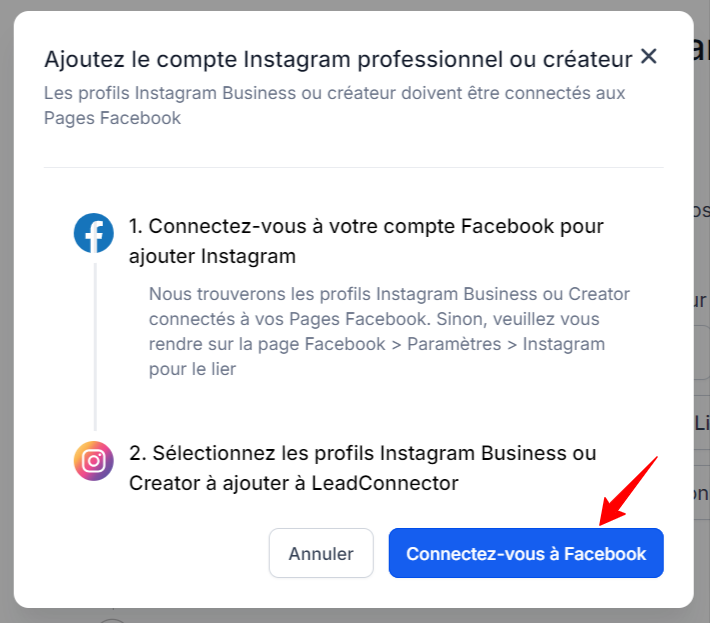
Select the Instagram account: A list of Instagram accounts associated with your Facebook account will appear. Select the one you want to connect to CrocoClick by clicking Add.
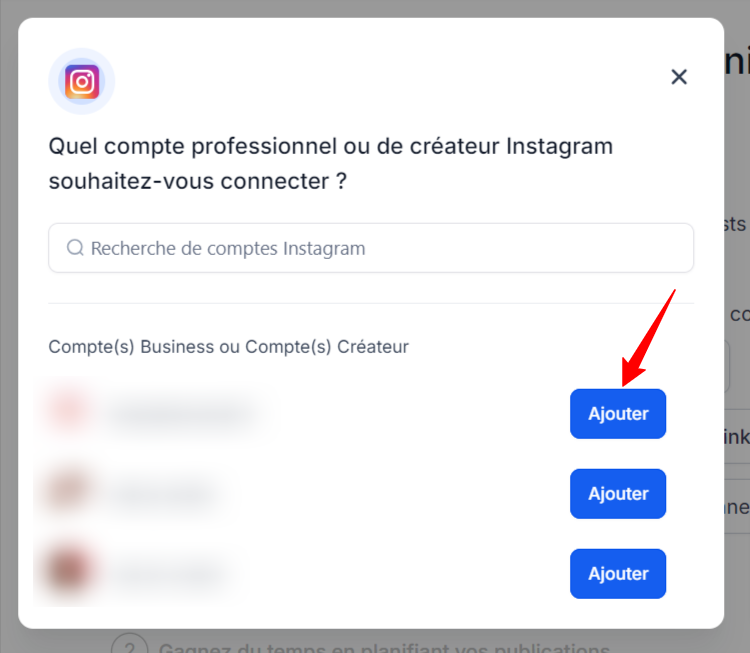
Confirm connection: After selecting the page, the connection will be established.
Notes:
Business or creator account required: Only Instagram business or creator accounts can be connected. If you have a personal account, you will need to convert it to a business account via Instagram settings before proceeding with the connection.
Connection via Facebook: Since Instagram is owned by Facebook, the connection must go through Facebook. You must link your Instagram account to a Facebook page to finalize the connection.
Managing Instagram posts: Once connected, you will be able to publish not only classic posts, but also Reels and Stories, directly from CrocoClick. This allows you to centralize all your social activity in one place.
Session expired: If the Instagram connection is interrupted (for example, due to a password change), CrocoClick will ask you to reconnect the account by following the steps above.
Connecting a Google My Business page to CrocoClick
Access CrocoClick: From your dashboard, go to the Marketing tab, then select Social Planner.
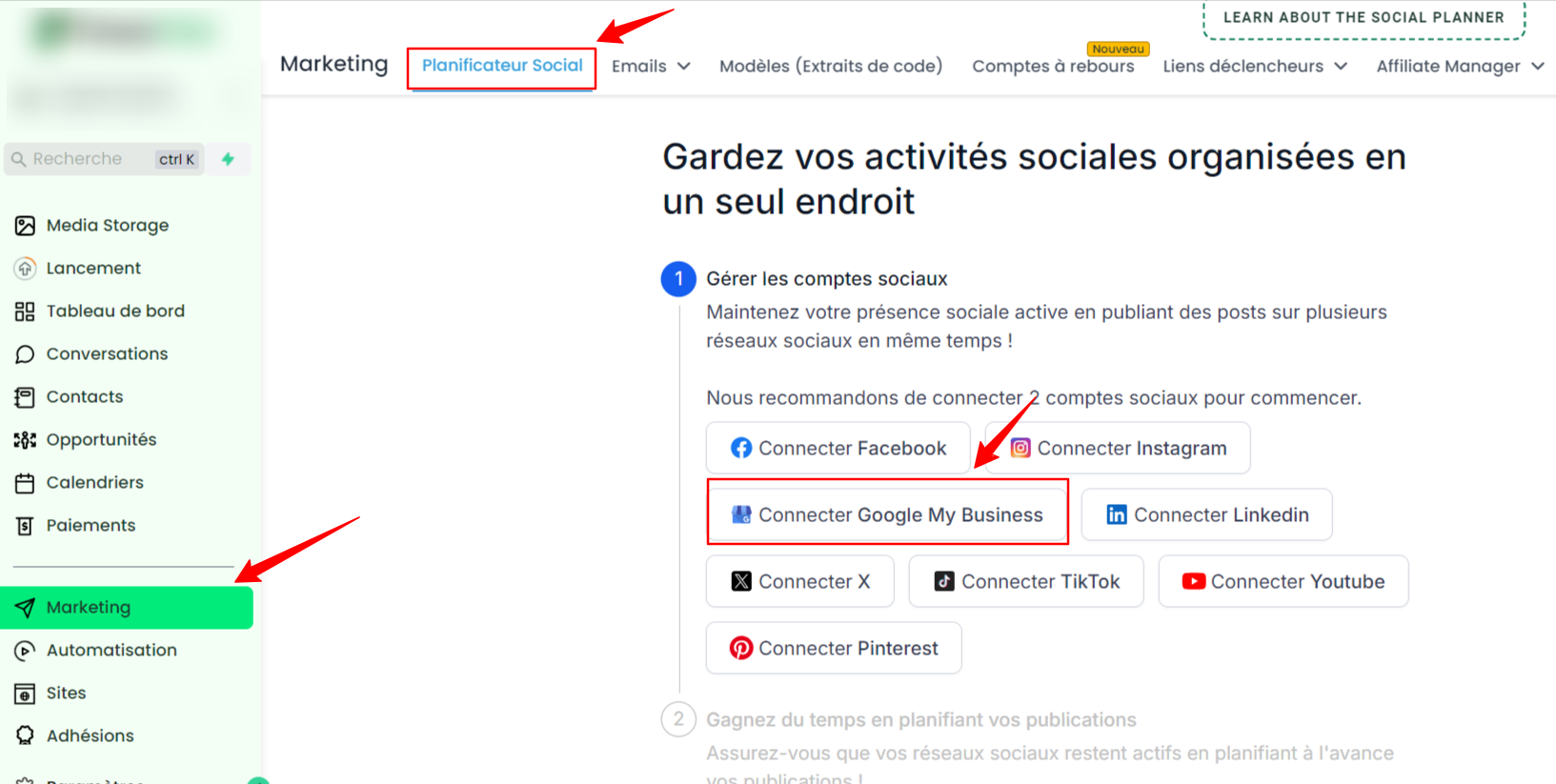
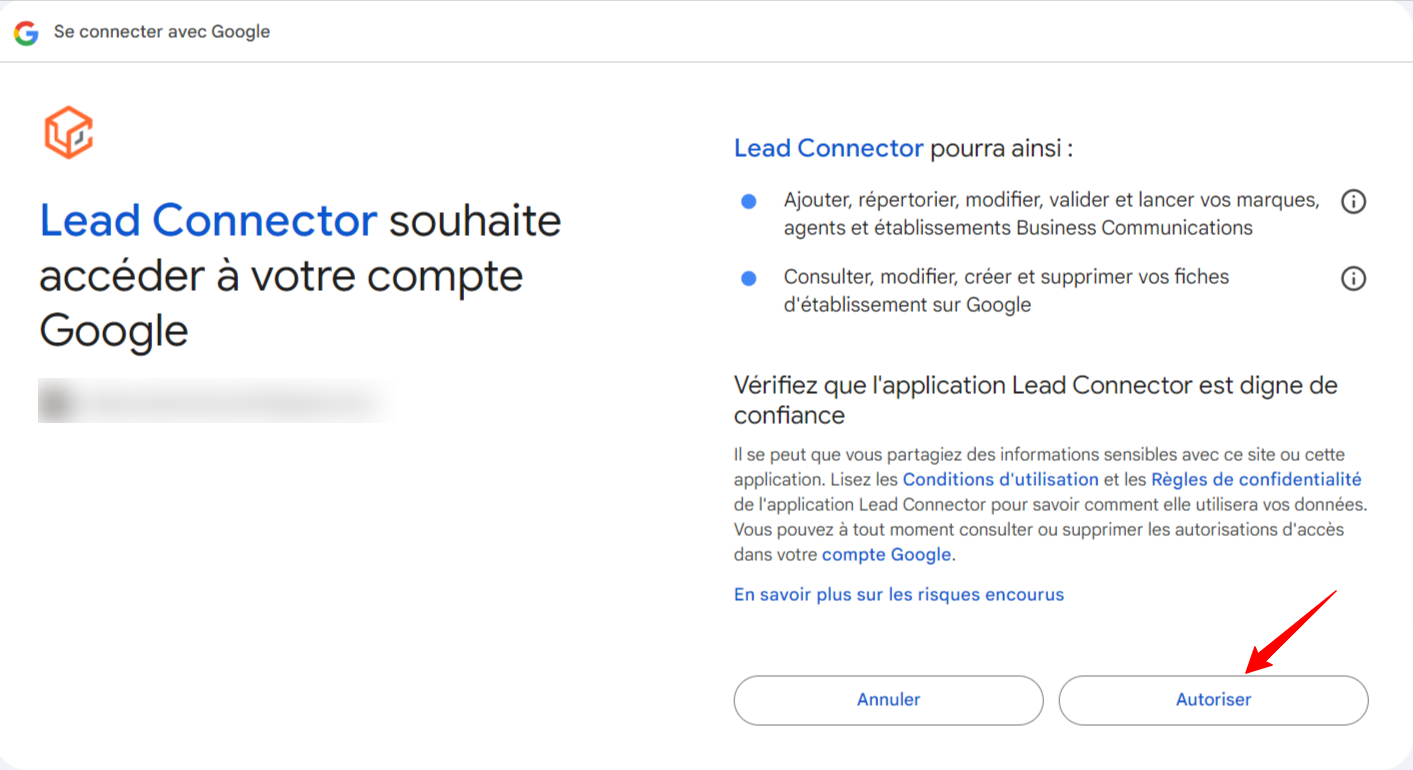
Select the Connect Google My Business option: Click on Google My Business. A new window will open asking you to log in to your Google account. Google will ask you to grant permissions to LeadConnector.
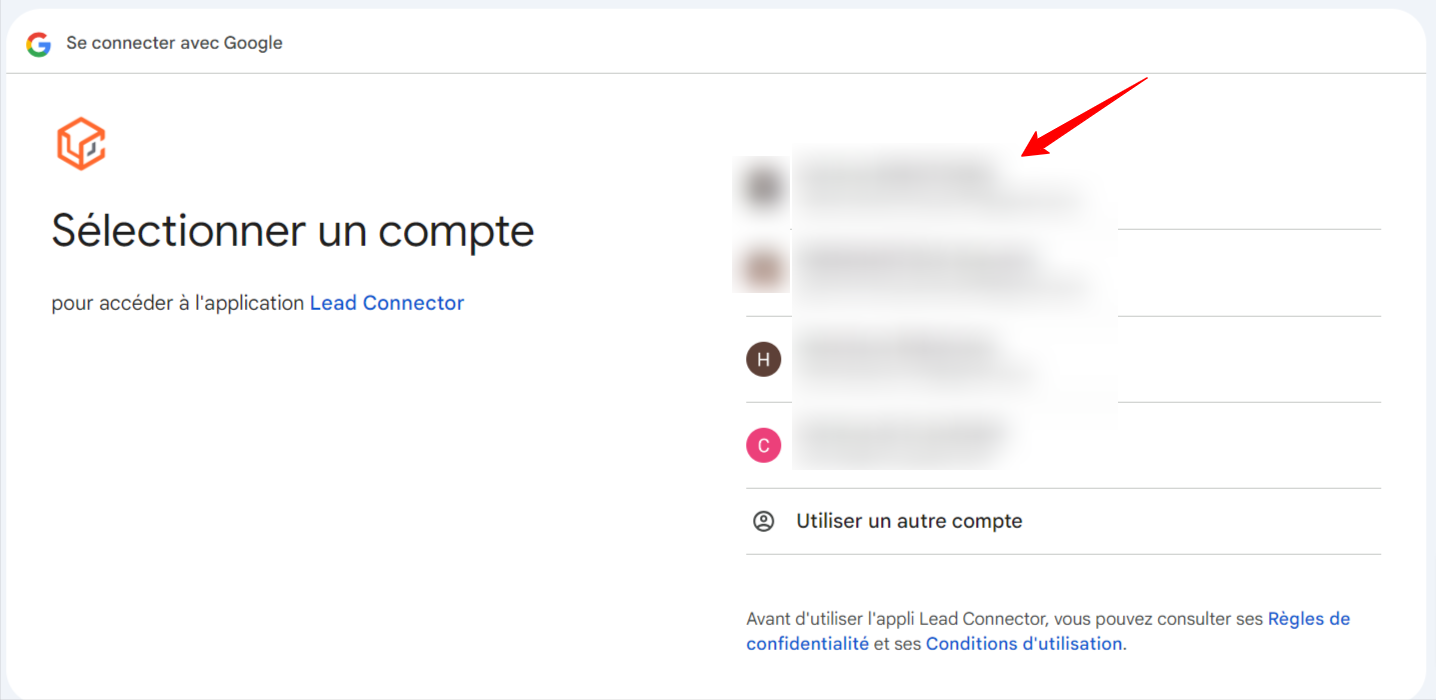
Enable permissions for LeadConnector: If you are connecting a profile for the first time, you will have enabled permissions for LeadConnector.
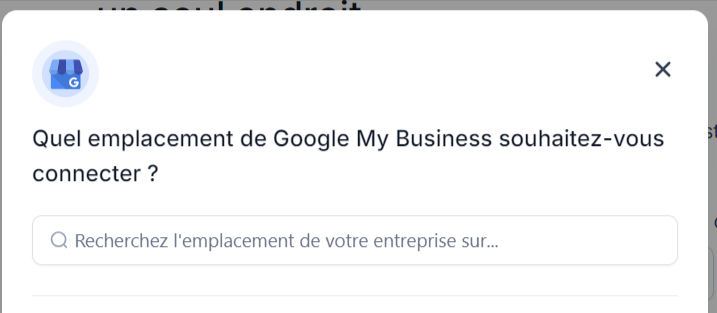
Select the Google My Business page: You will see a list of all the pages connected to your profile. Select the one(s) you want to connect to Social Planner.
Connect LinkedIn to CrocoClick
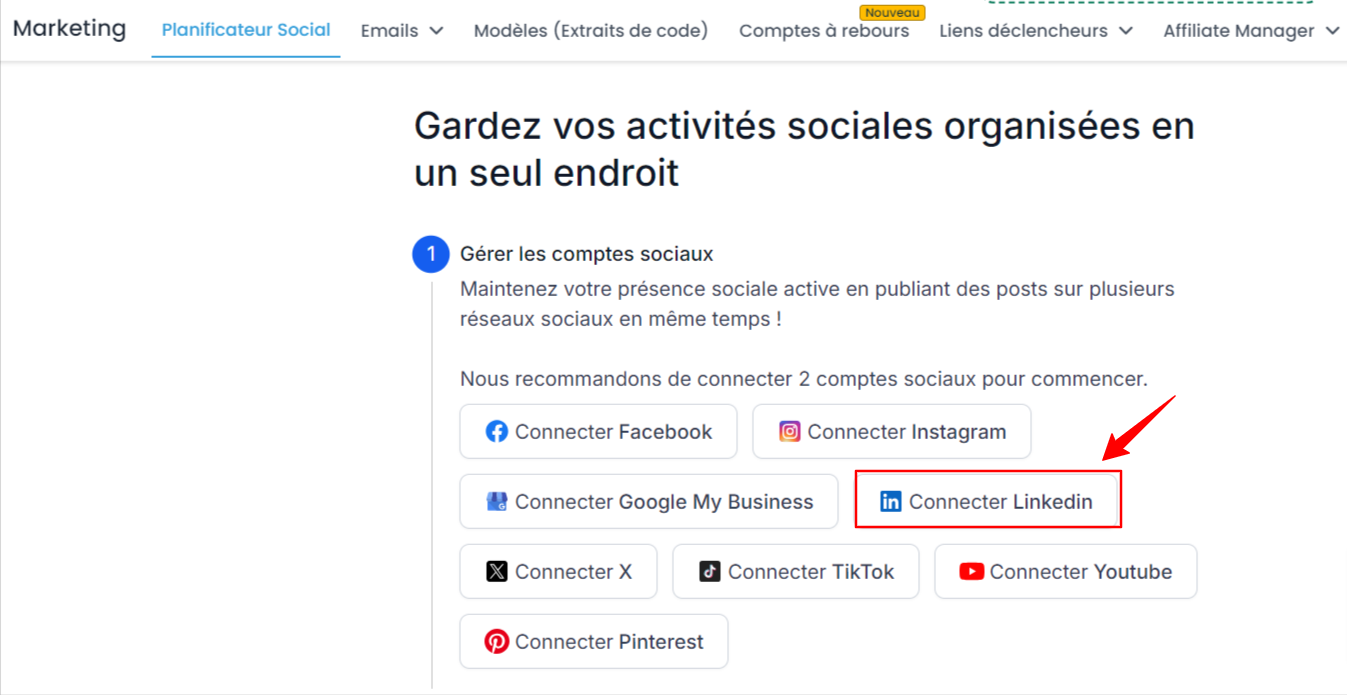
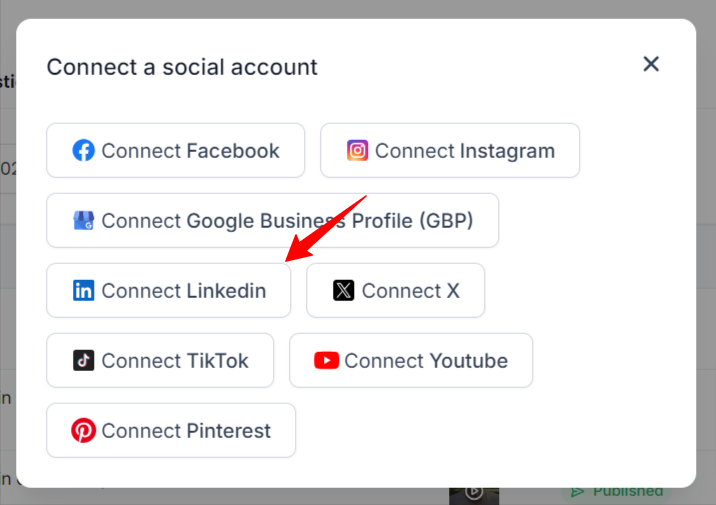
Select the Connect LinkedIn option in the social planner: Click Connect LinkedIn. A new window will open asking you to log in to your LinkedIn account. Google will ask you to grant permissions to LeadConnector.
💡 NOTE: If you have already connected platforms to the social planner, click on the connected accounts tab, then on + New account.
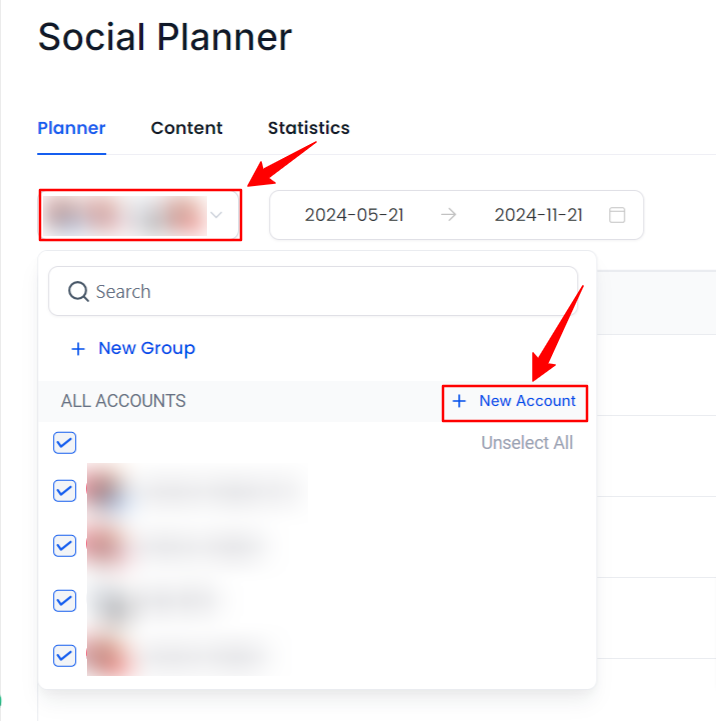
2. A window will appear, and you can then select the social network you
want to connect to CrocoClick.
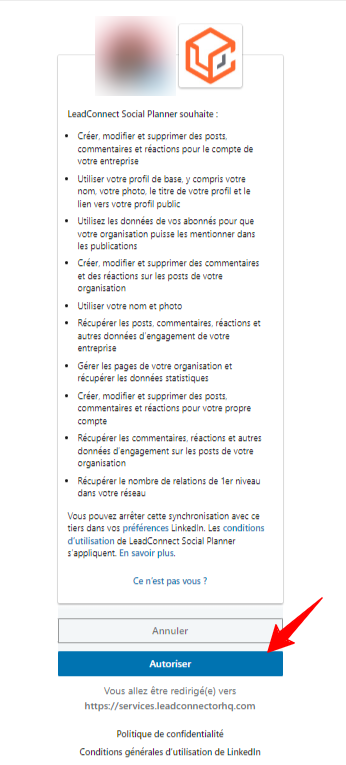
3. Authorize LeadConnector to connect to LinkedIn: You will need to provide permissions for LeadConnector to access LinkedIn. Click Authorize to enable permissions for the connection.
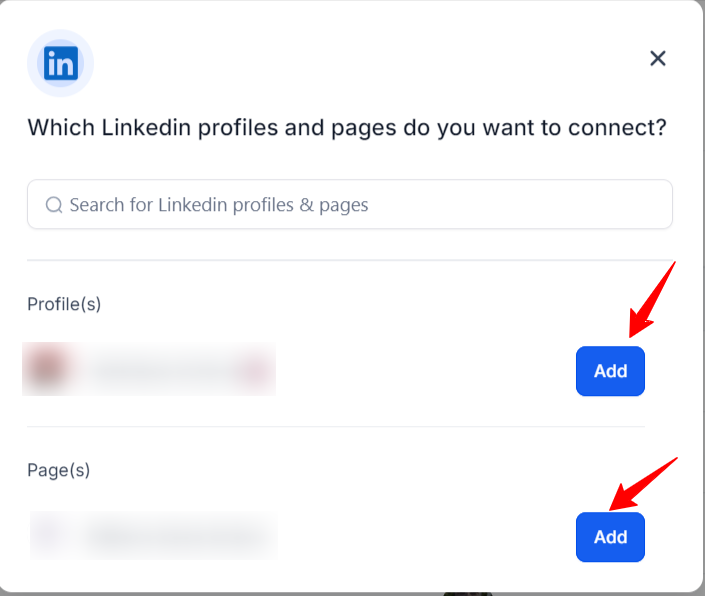
4. Choose the account or page to connect to Crococlick: A window will appear asking you to choose which account(s) and/or page(s) you want to connect to the social planner.
Notes:
Company pages and personal profiles: You can connect both company pages and personal LinkedIn profiles to CrocoClick. Make sure you are an administrator for the company pages so that you can manage them. You can connect as many pages as you want to the social planner.
Authorized content: Once connected, you can publish articles, updates (simple posts), carousels, and photos on LinkedIn.
CrocoClick also allows you to preview your posts before scheduling them to ensure they are properly formatted for LinkedIn.
Session expired: If you change your LinkedIn account password or encounter connection issues, you will need to revalidate the account by following the steps above.
Connect an X account (formerly Twitter) to CrocoClick
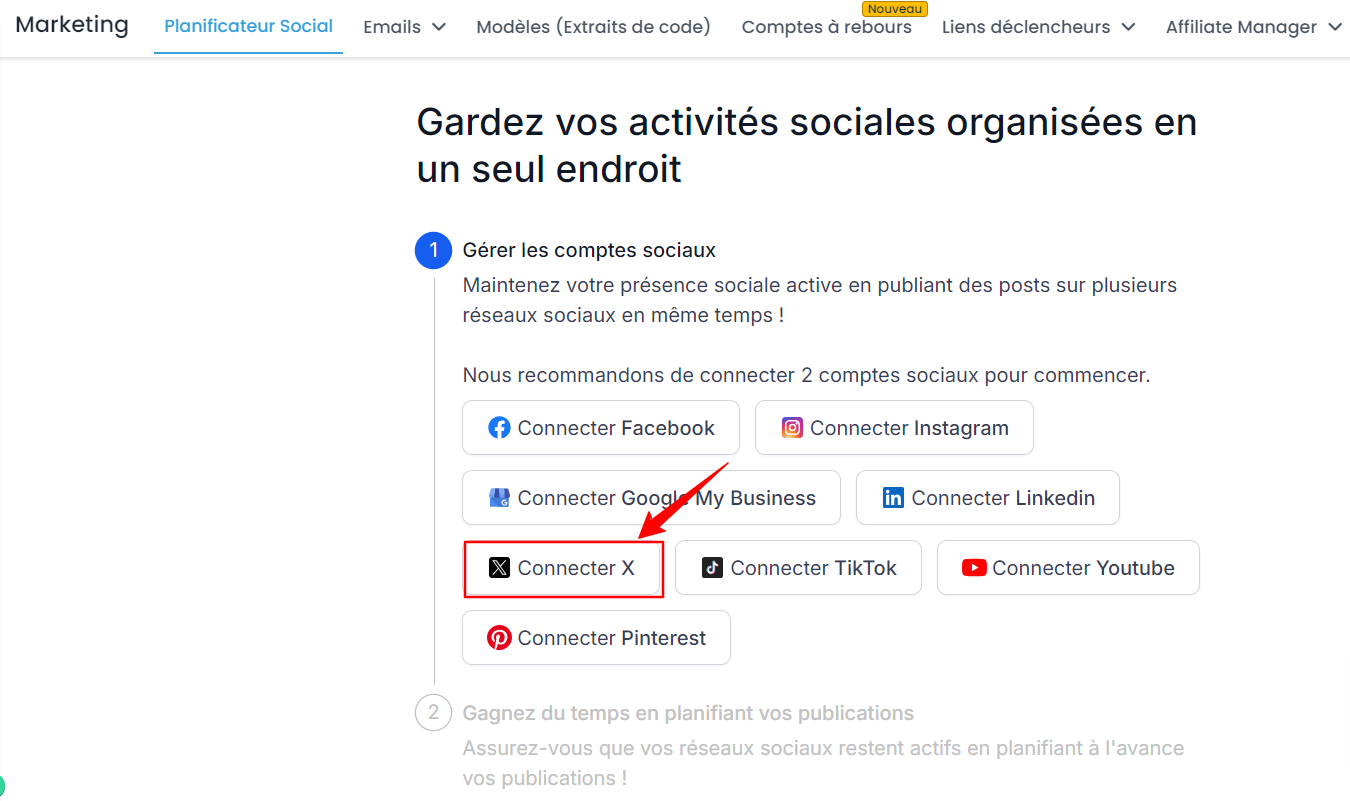
Select the Connect X option in the social scheduler: Click Connect X. A new window will open asking you to log in to your Google account. Google will ask you to grant permissions to LeadConnector.
Authorize LeadConnector to connect to X: Click "Authorize App" to allow LeadConnector to post to your Twitter/X account.
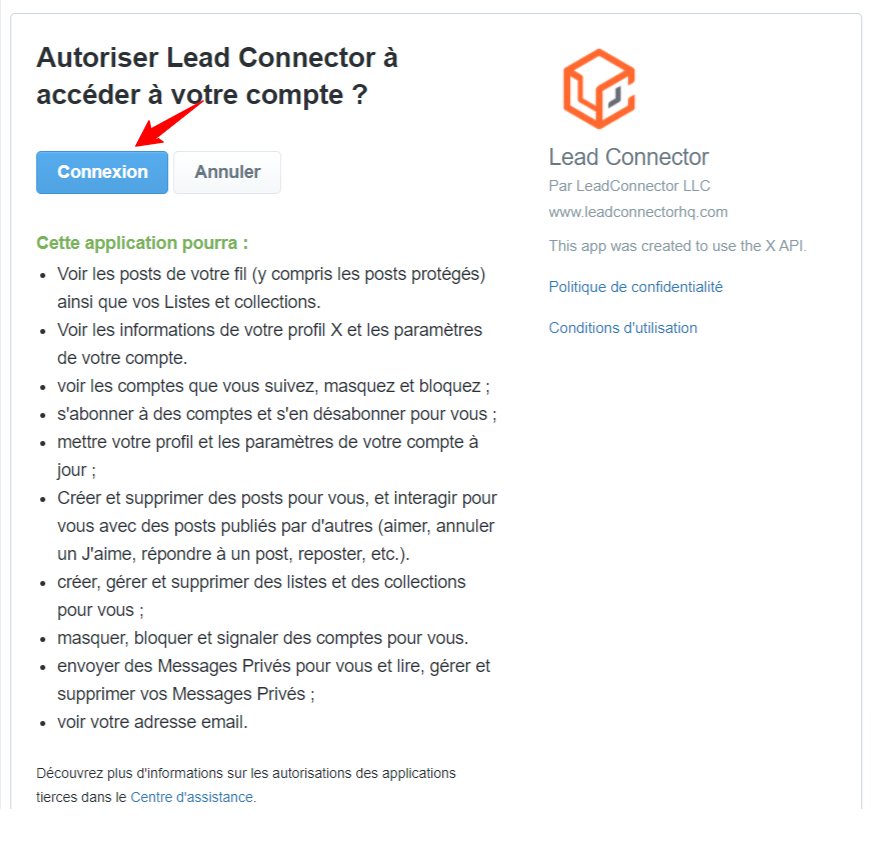
Connect your X account: You will be able to see the successfully connected Twitter/X pages on your Social Planner settings page.
Notes:
Administrative role: Make sure you have the necessary permissions if you manage a business or brand account.
Twitter permissions: For proper functioning, CrocoClick must have permissions to post, access statistics, and manage interactions on your account.
Character limits: When scheduling your tweets, remember the 280-character limit imposed by Twitter/X.
Connect TikTok to CrocoClick
Select the Connect TikTok option in the social scheduler: Click Connect TikTok. A new window will open asking you to choose between Individual and Business.
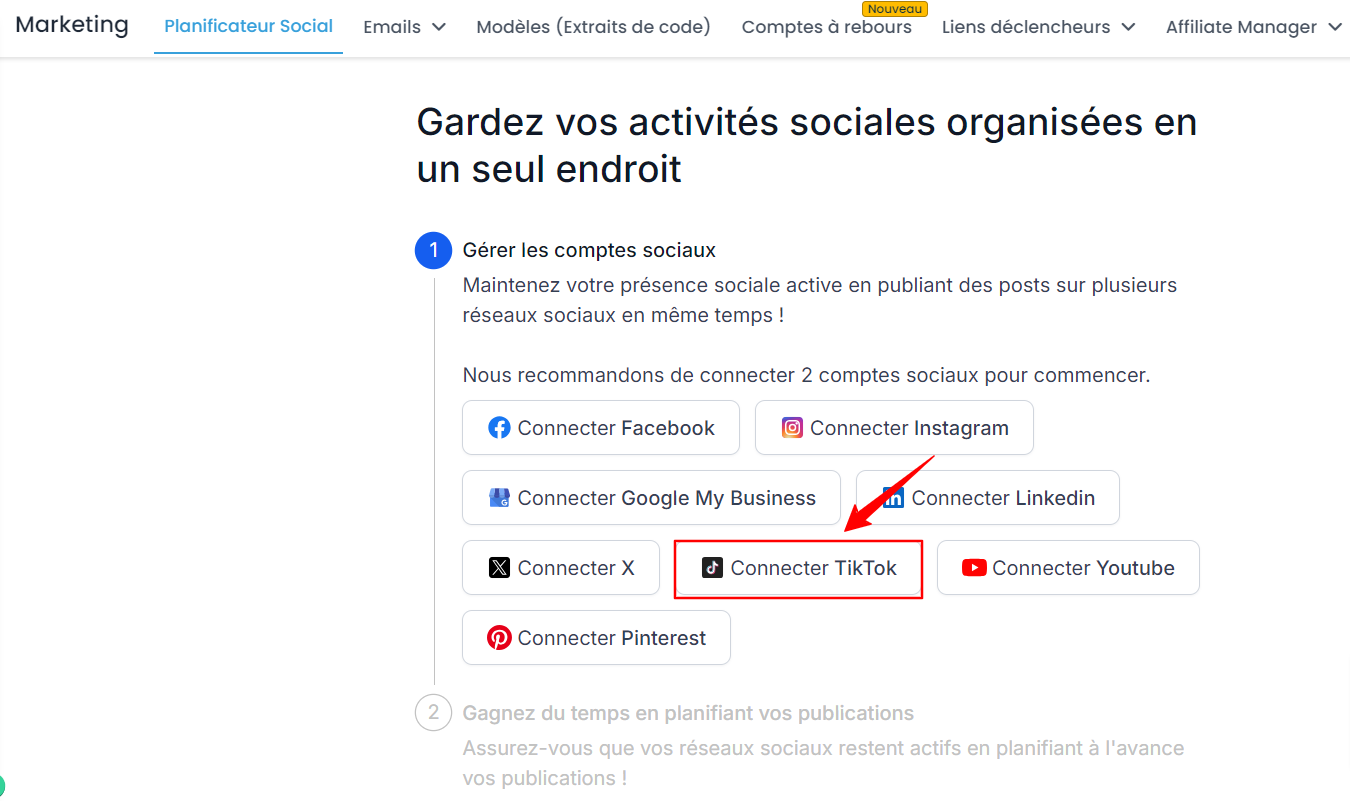
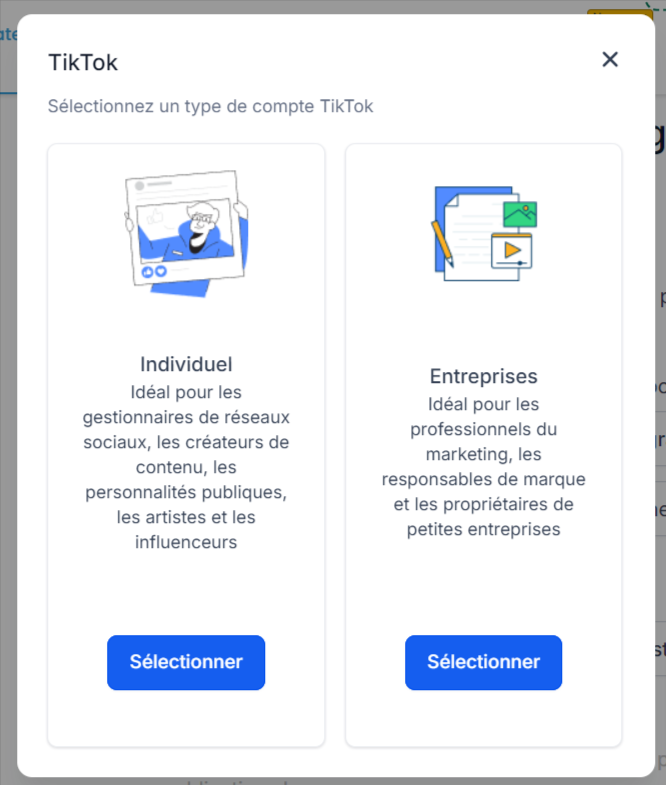
Connect your TikTok account: Choose from the available login options and log in to your TikTok account.
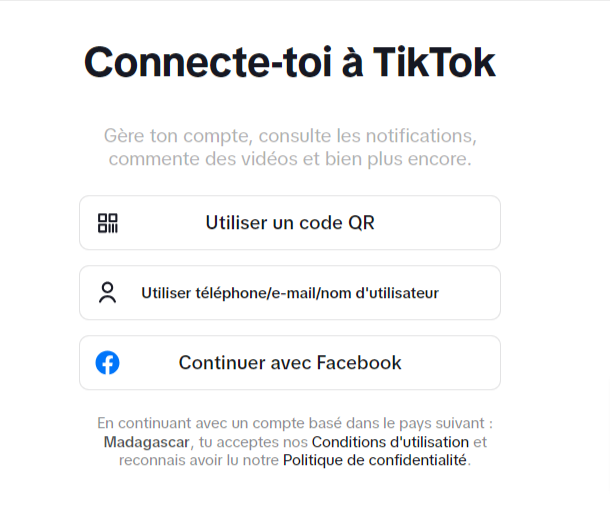
Choose your TikTok account: After logging in, choose the TikTok account you want to connect to the social scheduler.
Notes:
TikTok video format: Make sure your videos comply with the formats and maximum length supported by TikTok. CrocoClick allows you to manage videos and preview them before publishing.
Multiple posts: You can schedule your TikTok videos alongside other platforms such as Instagram or YouTube, saving time by posting to multiple channels at the same time.
TikTok statistics: After publishing a video, use CrocoClick to track your TikTok statistics, including views, interactions, and followers gained.
Connect YouTube to CrocoClick
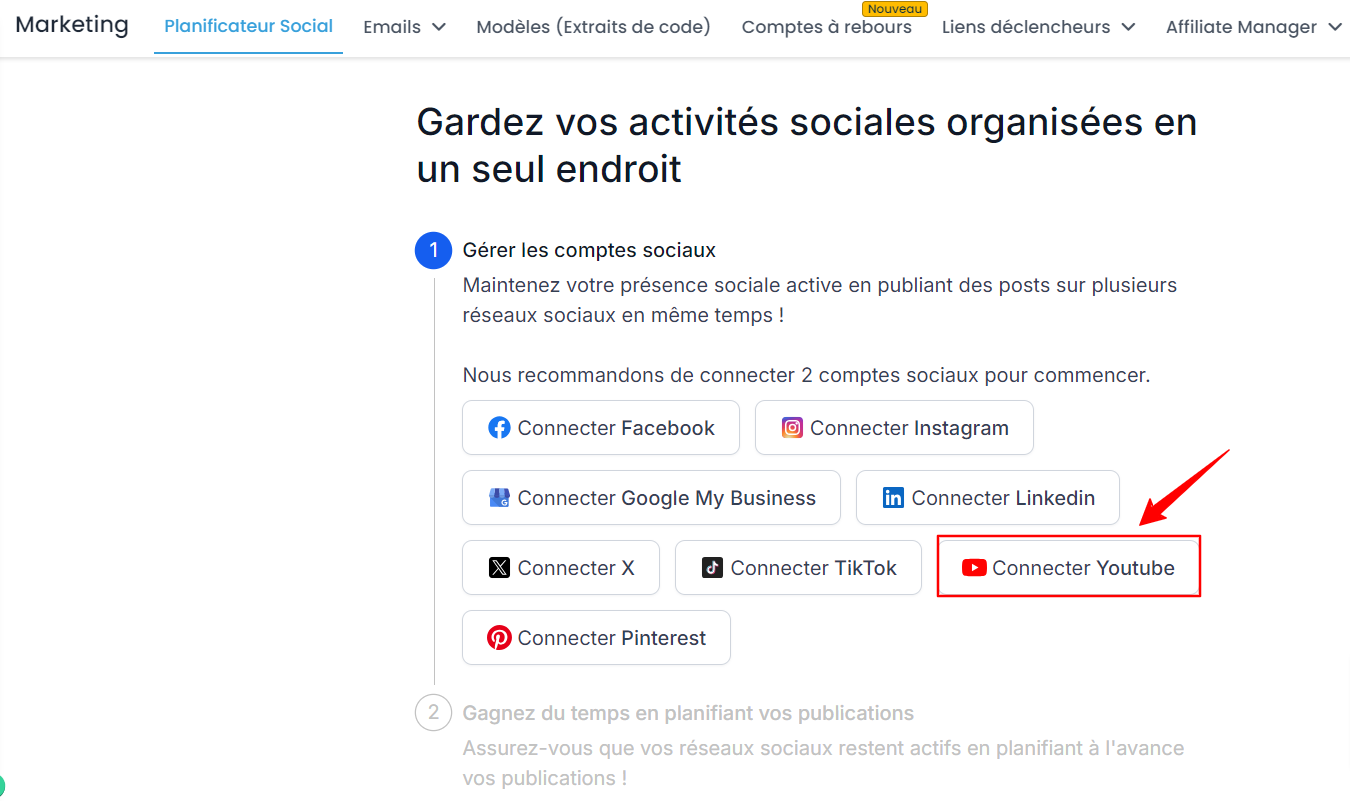
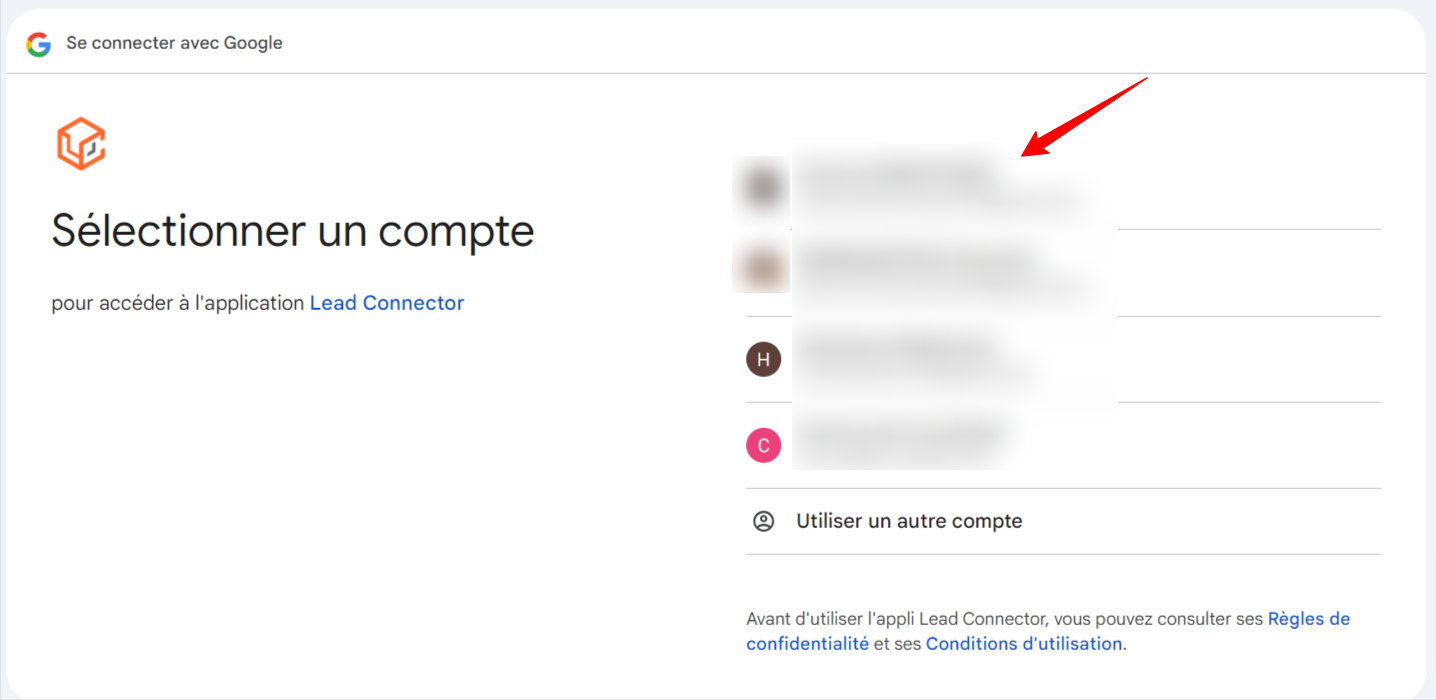
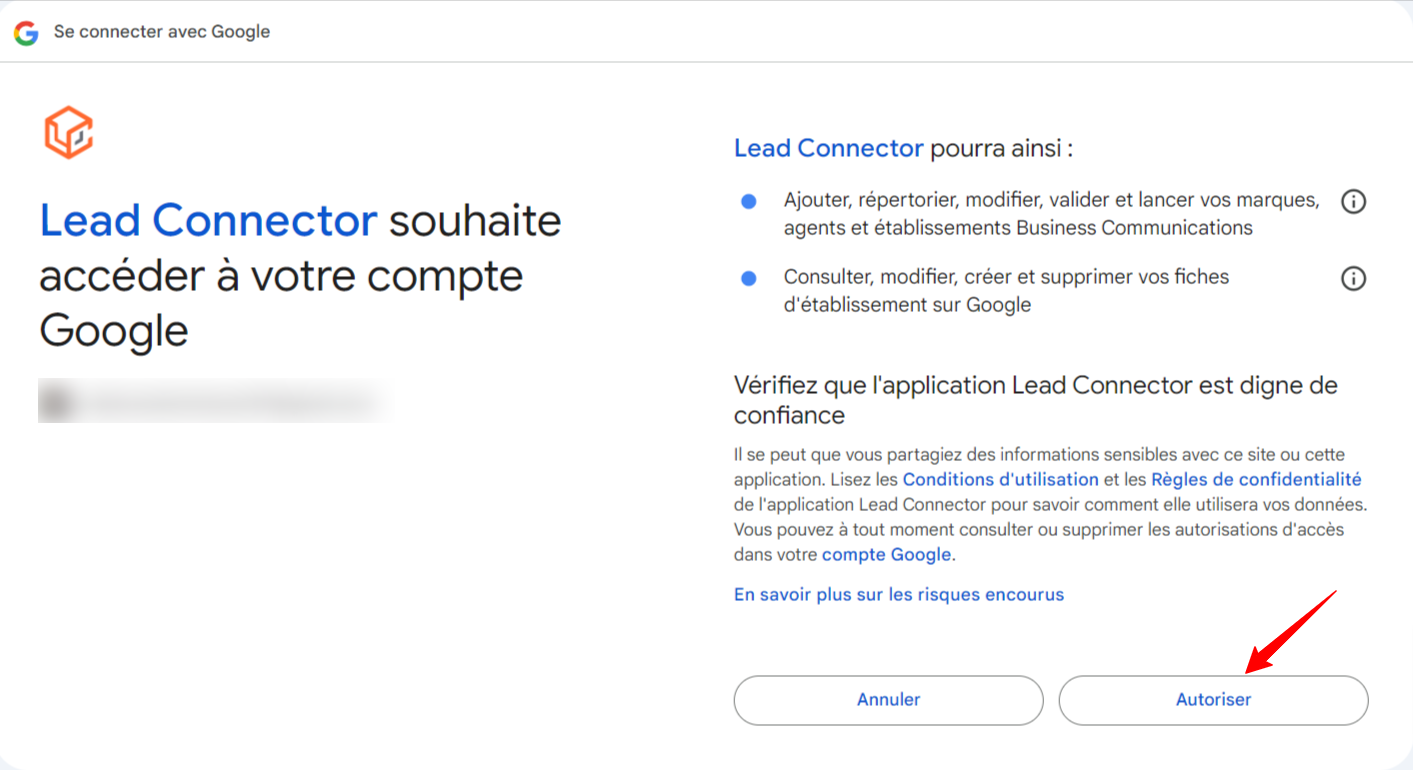
Select the Connect YouTube option in the social planner: Click on Connect YouTube. A new window will open asking you to log in to your Google account. Google will ask you to grant permissions to LeadConnector
Enable permissions for LeadConnector: If you are connecting a profile for the first time, you will have enabled permissions for LeadConnector.
Notes:
Supported video formats: Make sure your videos comply with the formats and maximum length supported by YouTube. CrocoClick supports MP4 and MOV videos with a maximum size of 1 GB.
Simultaneous publishing: You can use CrocoClick to schedule the publication of your YouTube videos in parallel with other platforms such as Instagram or TikTok, thereby optimizing your social media presence.
YouTube statistics: After publishing your videos, use CrocoClick to track your YouTube performance, including the number of views, likes, comments, and subscribers gained.
Connect Pinterest to CrocoClick
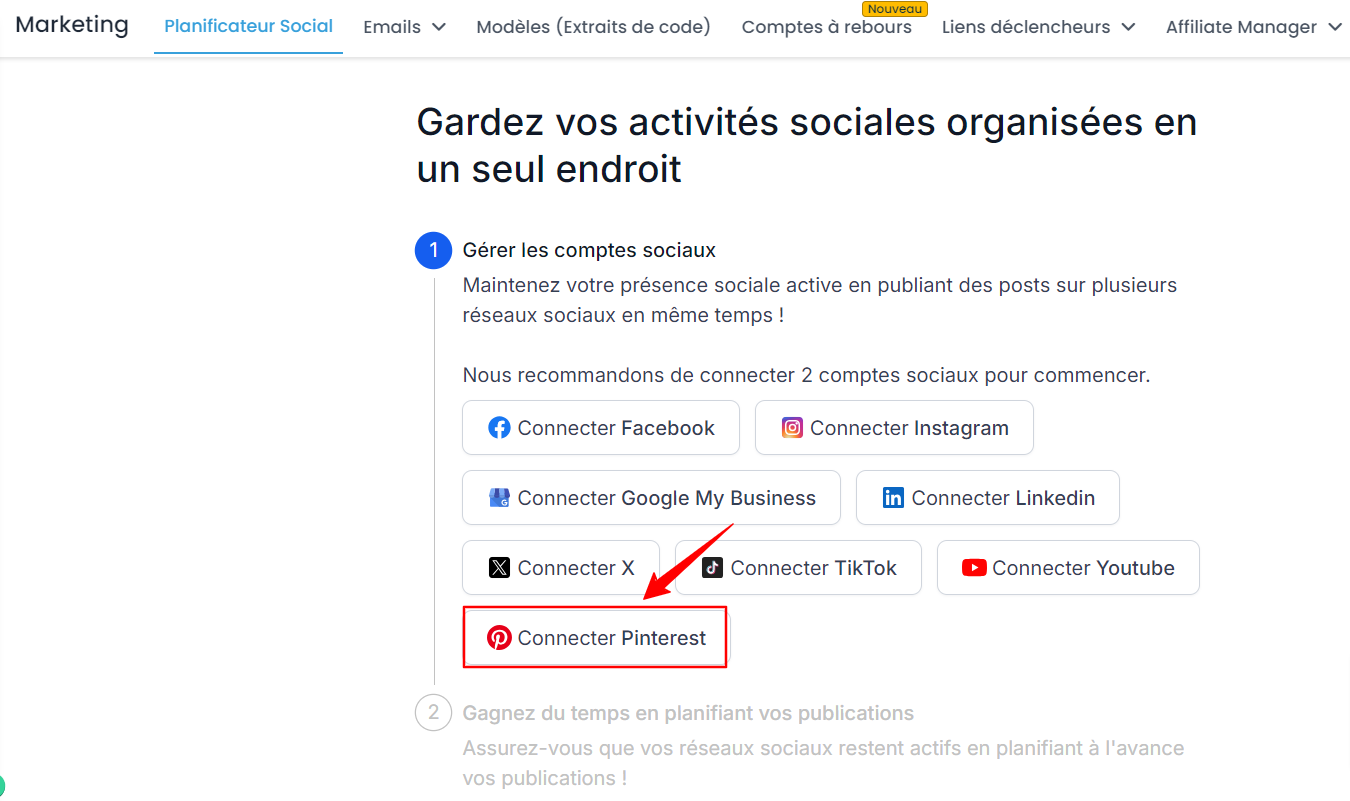
Select the Connect Pinterest option in the social planner: Click on Connect Pinterest. A new window will open asking you to grant permissions to LeadConnector.
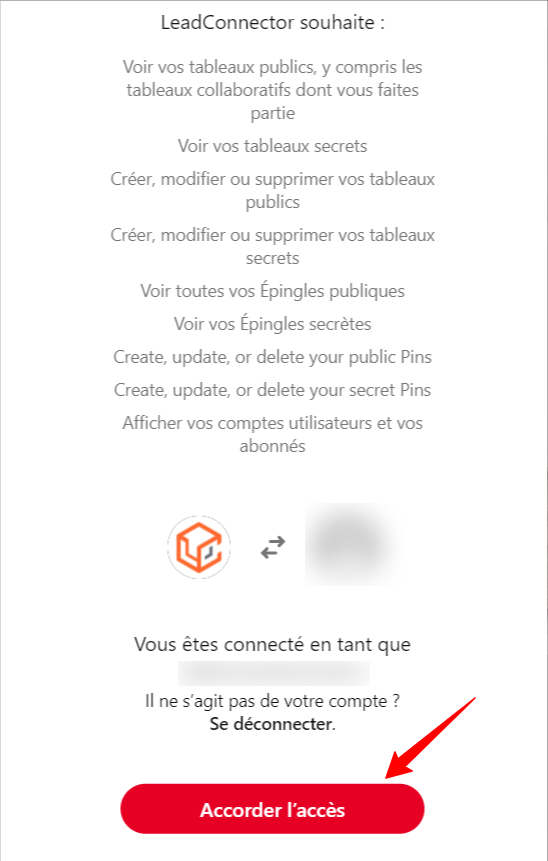
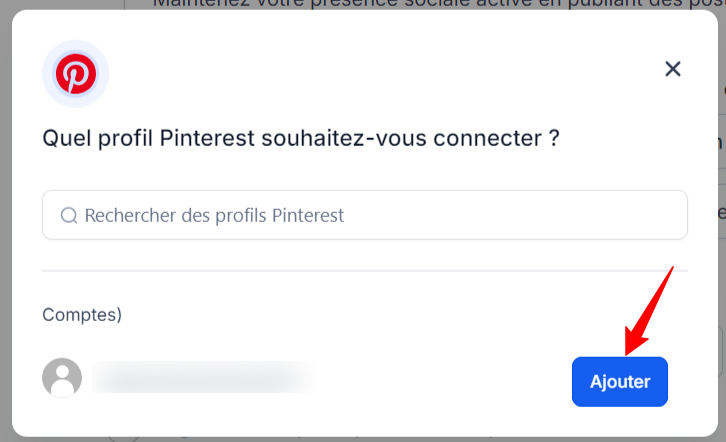
Choose the account to connect to Crococlick: A window will appear asking you to choose which profile you want to connect to the social planner.
Notes:
Image requirements: Images must be in PNG or JPG format and less than 10 MB in size.
Video requirements: Videos must be in MOV, MP4, or WEBP format, with a maximum size of 1 GB and a duration between 4 seconds and 5 minutes.
Pin optimization: Use CrocoClick to schedule pins at strategic times to maximize engagement and reach a wider audience.
Private/public boards: Be sure to select the right boards when scheduling your pins. Private boards are marked with a lock icon, while public boards are visible to everyone.