Create, Organize and Manage Custom Fields
Organize your custom fields to collect and manage specific data efficiently.
Written By CrocoTeam
Last updated 7 months ago
Custom fields are essential for capturing specific information about each contact, tailored to your business needs, which you can reuse later.
Once a custom field has been added to the system, it appears on each of your contacts' detail pages.
You can use these custom fields to keep track of company-specific information and use it as a reference point in other areas such as emails, text messages, notes, etc.
This article explains how to effectively organize and manage your custom fields in CrocoClick to centralize and optimize data collection.
💡TIP: To learn more about this topic, visit see our article on customized values and learn how to use them on all your marketing materials.
Why organize your custom fields?
Organizing your custom fields ensures better data management and simplifies their use. Here are some of the main advantages:
Efficiency: Well-organized fields allow you to quickly find the information you need.
Data clarity: Makes it easier for your teams to understand and process data.
Simplified reuse: Organized fields are easy to find and reuse for new forms, surveys, and other integrations.
Step 1: Create custom fields
There are two ways to configure specific fields for your needs:
Either directly from a Form or Survey
Or from the "Custom Fields" tab
METHOD #1: Create a custom field directly from a form
Access a form or survey
Access the elements:
Click on the + icon on the left > Custom Fields
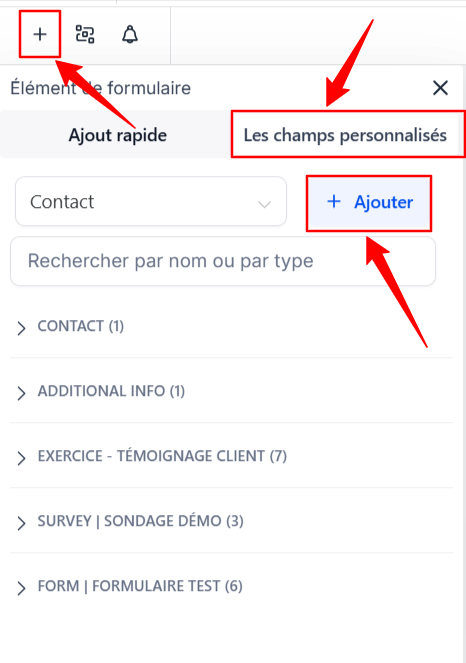
Create a custom field:
Click Add Field to open the creation window.
Select the desired field type from a variety of options: Text, Numeric, Phone, Monetary, Checkbox, Single Choice, Multiple Choice, etc.
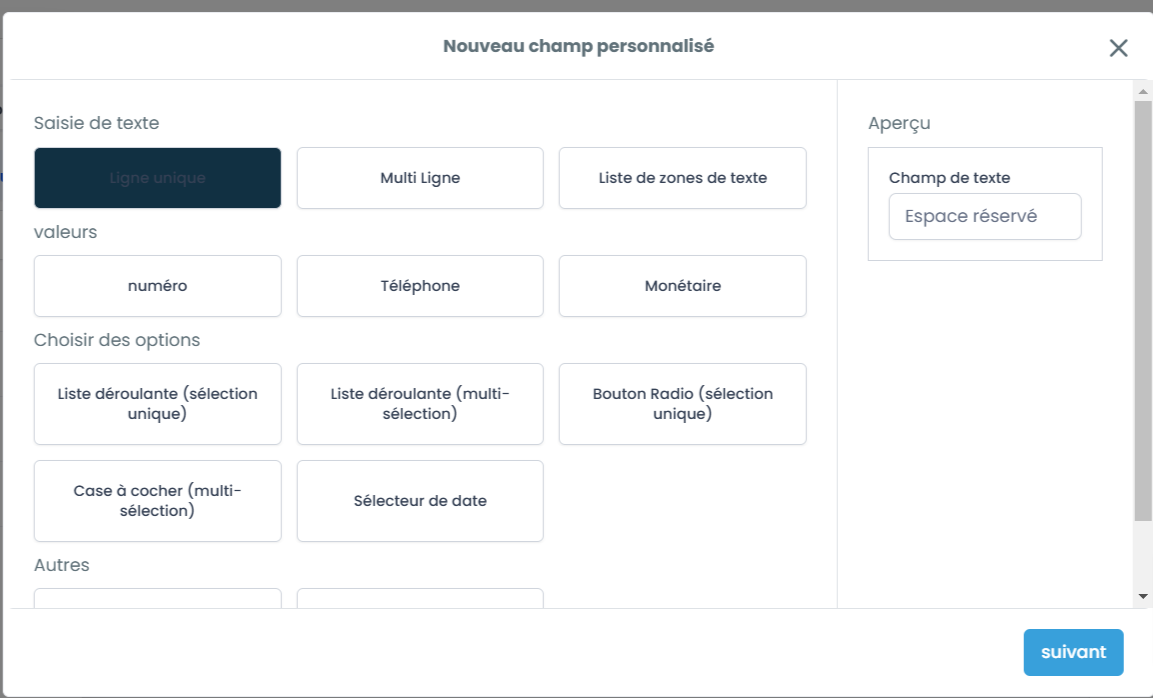
Configure field options:
Field name: This name will appear in the custom fields list and in forms, surveys, or quizzes.
Purpose: Select whether you want to collect data in opportunities or contacts.
Group: Organize your fields by assigning them to a specific folder that you have created beforehand. This makes management and visibility easier.
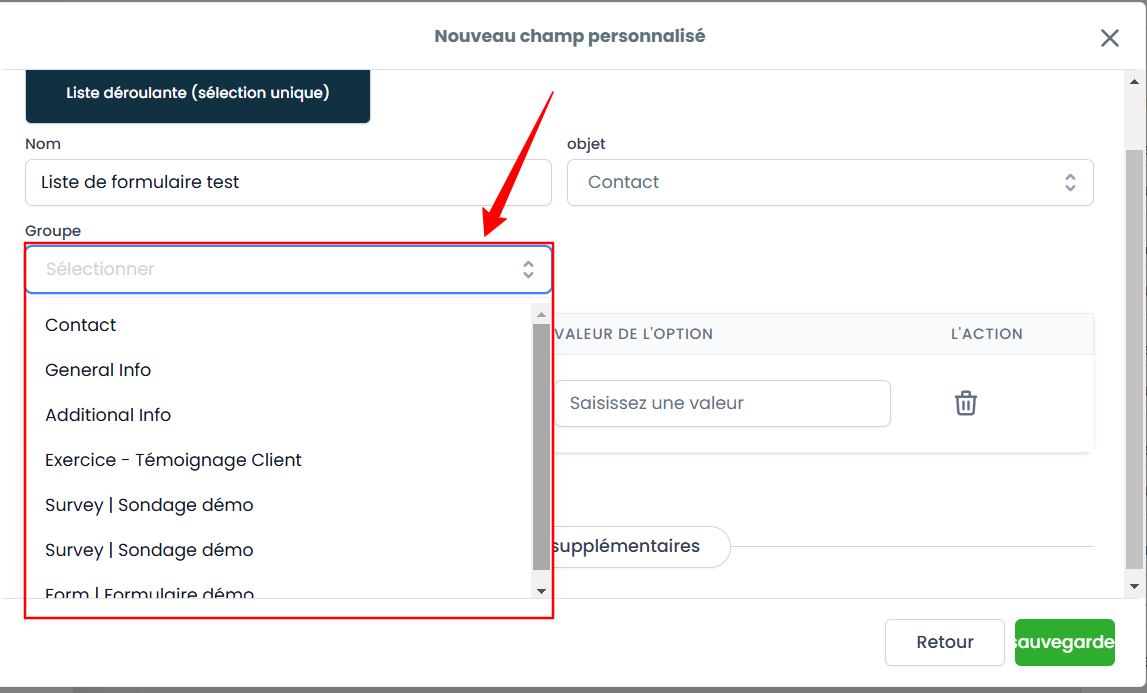
Save the field:
Click Save to save the custom field. It will now be available in the Custom Fields section for future use in your forms and surveys.
💡 TIP: Once a custom field has been created, you will no longer be able to change its type. To change the type, delete the field and create a new one.
💡 TIP: By default, each new form or survey creates a new group, and all new custom fields are created in that group.
METHOD #2: Create a custom field from the dedicated tab
To create a custom field, go to Settings > Custom Fields.
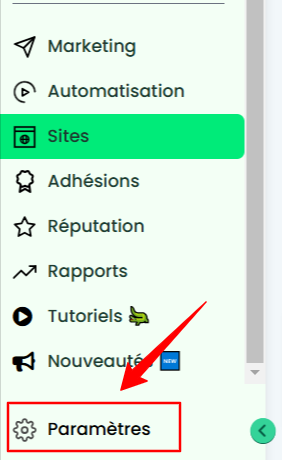
Click on "Add Field."
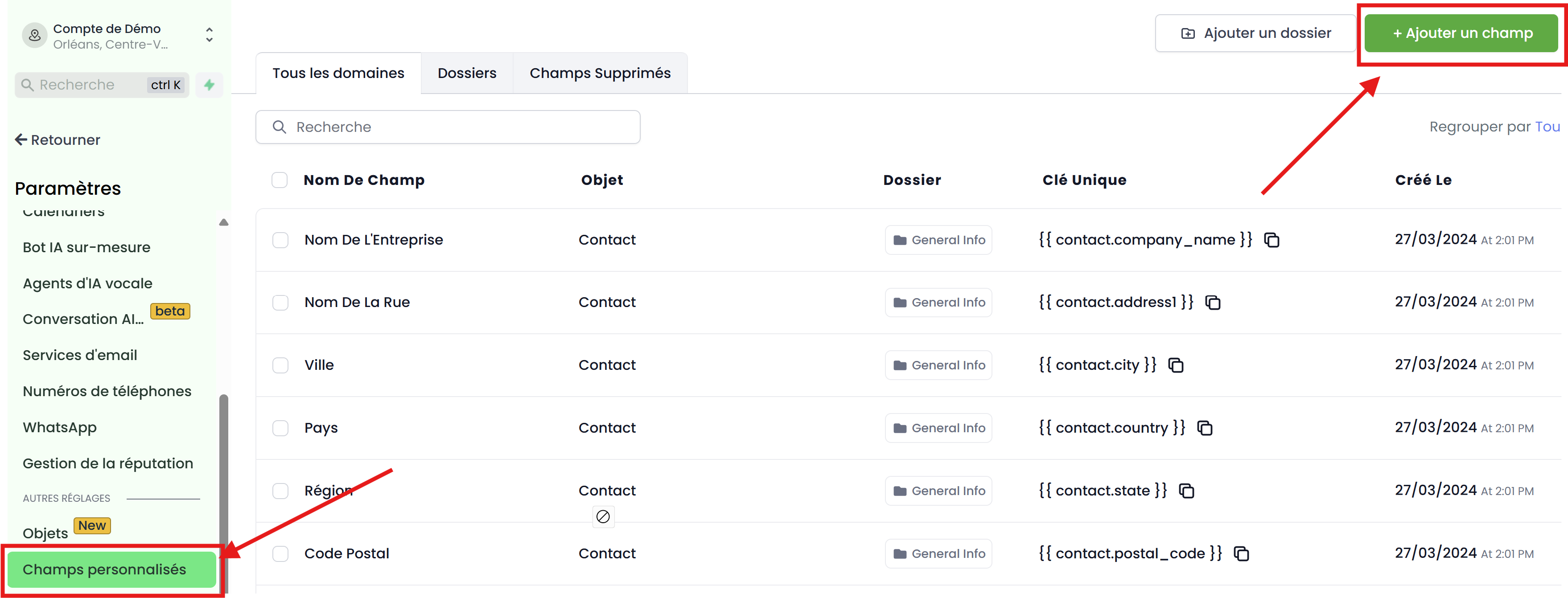
Follow the instructions to create a custom field (same as for method #1).
Step 2: Use custom fields
Custom fields can be easily integrated into your forms, surveys, and quizzes.
Add to forms, surveys, and quizzes:
Go to the form, survey, or quiz builder and drag and drop fields from the Custom Fields section.
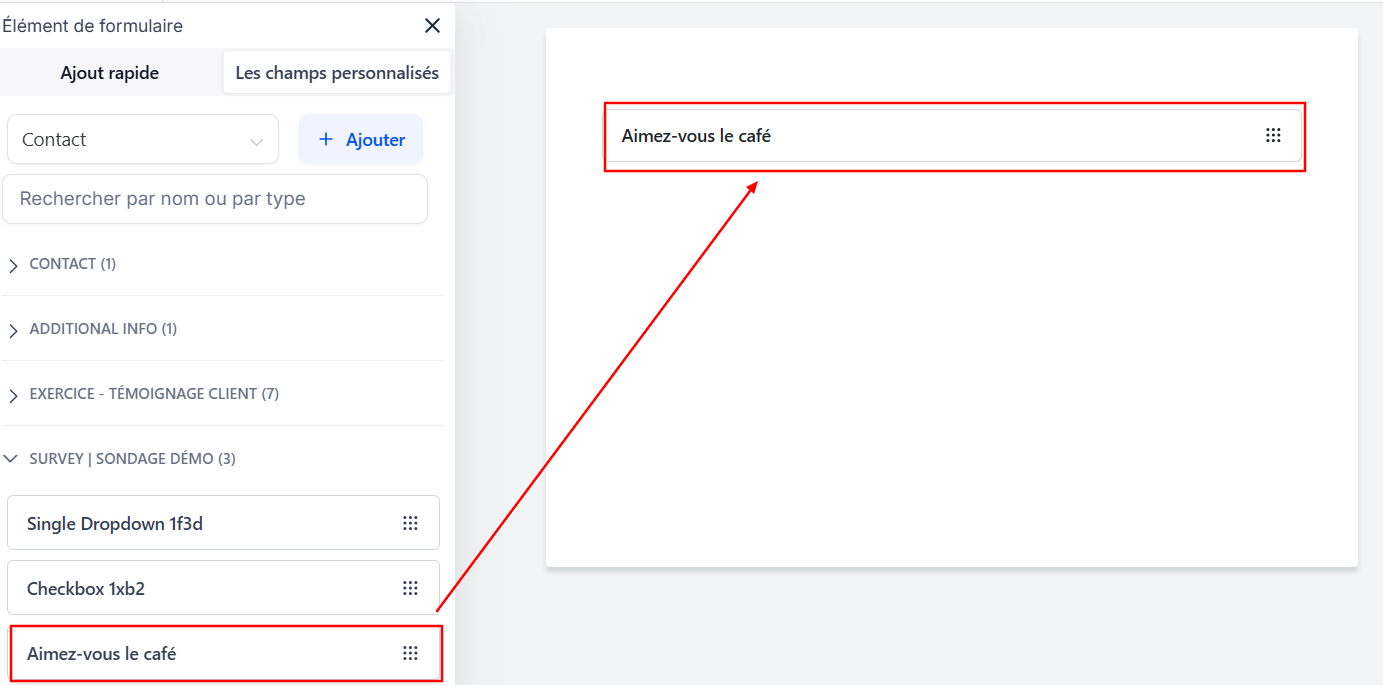
Once inserted, you can adjust the specific settings for each field to meet the requirements of your form or survey.
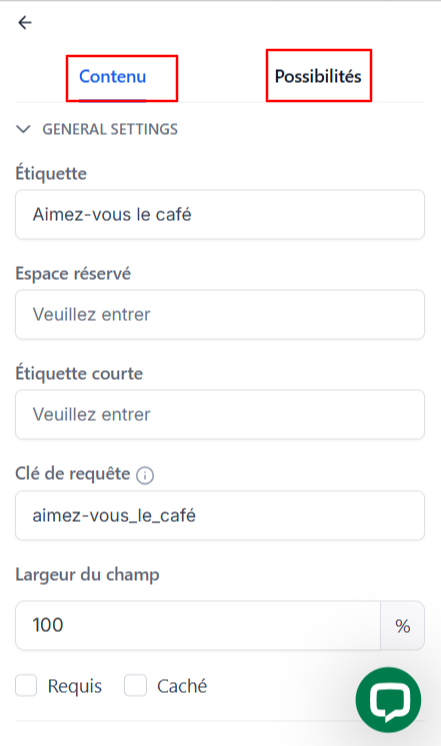
💡 TIP: Create fields directly in the form or survey generator for quick needs, but keep in mind that they will be automatically centralized in the Custom Fields section for future use.
Step 3: Edit and delete custom fields
To edit or delete a custom field, go to Settings > Custom Fields
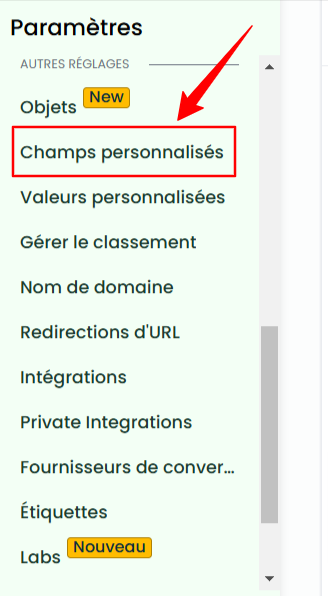
Click on any custom value, then click on bulk action
Click on edit or delete
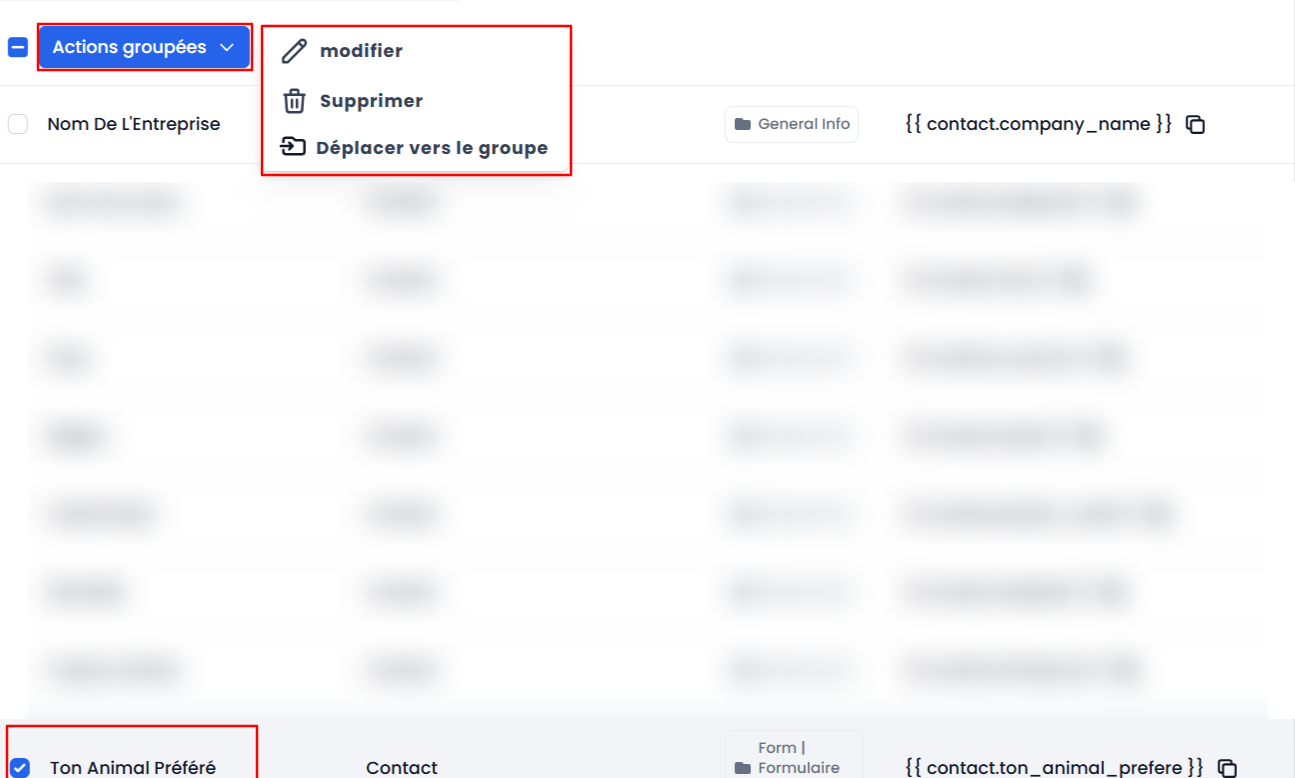
💡 TIP: Once a field is deleted, all associated data will also be deleted. Make sure you have saved any important information before proceeding.
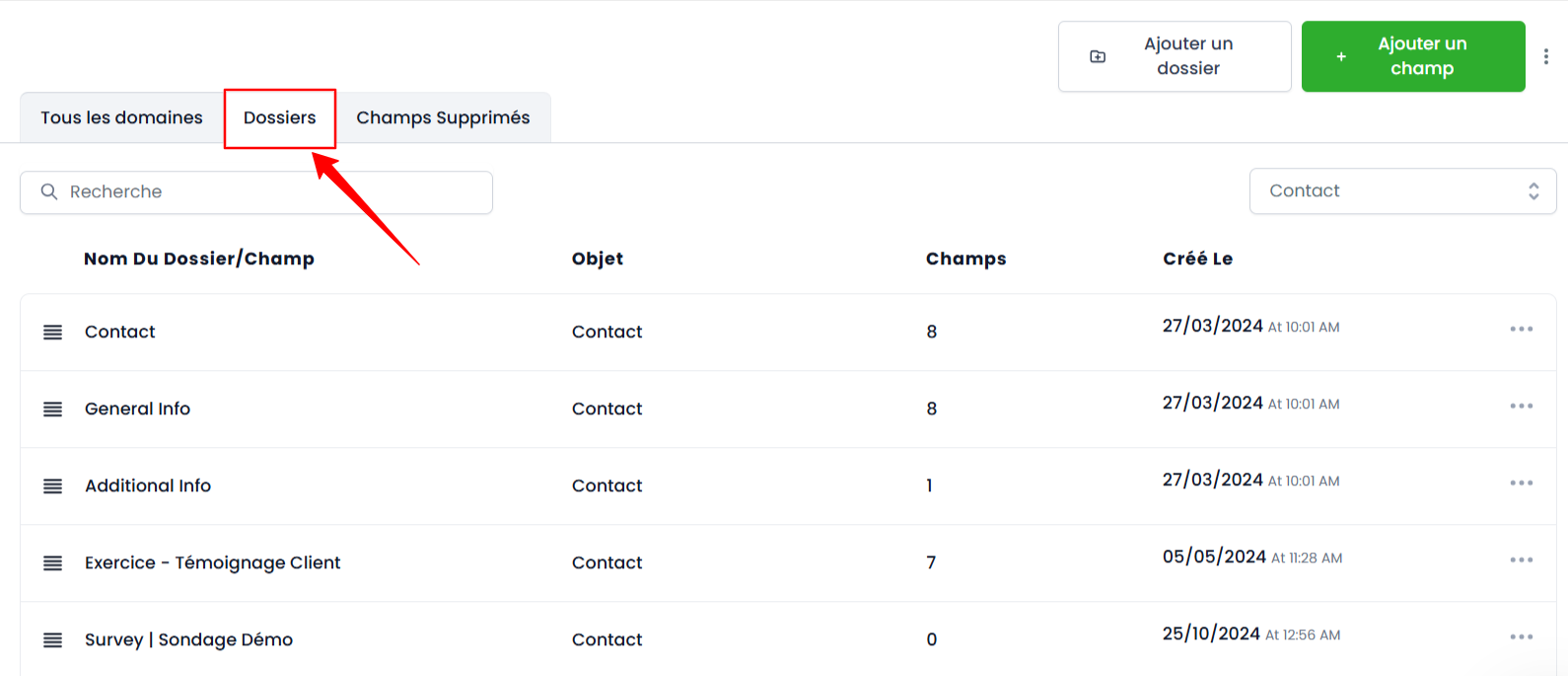
You can organize your custom fields by placing them in folders, which makes it easier to manage and track data:
Create and organize folders: Create specific folders to group your custom fields and easily move each field to the corresponding folder
Simplified tracking: Folders also appear on the contact record under the Additional Information section, giving you a clear and organized view of the data collected for each contact.
Easy reorganization: To adjust the display order of fields on the contact card, click on the three horizontal lines to the left of each field and drag them into the desired order.
Pro tips
Plan your custom fields in advance: Identify the information you need and define the appropriate field types before creating them. This simplifies management and reduces future changes.
Use descriptive names and placeholders: Clear names and placeholders help users immediately understand what is required in each field.
Regularly review and clean up your fields: Periodically review your fields to remove those that are no longer needed, ensuring relevant and efficient data collection.
Leverage fields across all available features: Custom fields are centralized and available in forms, surveys, and workflows. Use them to seamlessly integrate information across your entire system.
FAQ
Q: Can I change the type of a custom field once it has been created?
A: No, the field type is locked after creation. To change it, delete the field and recreate it with the desired type.
Q: How can I organize my custom fields?
A: Use folders to categorize your fields and adjust the display order in the contact record by dragging and dropping them for optimal organization.
Q: Can I add custom fields from the form or survey generator?
A: Yes, you can create custom fields in the generator, but they will be centralized in the Custom Fields section for reuse.
Q: What should I do if a field is no longer needed?
A: Go to Settings > Custom Fields, select the field, and delete it. Note that all associated data will also be deleted.