How to delete a store on your CrocoClick site (without deleting the entire site)
Easily remove the store from your CrocoClick site by removing the automatic pages from the Shop module. A simple, quick and secure guide to disabling the store completely without affecting the rest of your site.
Written By Baptiste Lorreyte
Last updated 3 months ago
When you enable the Store feature, CrocoClick automatically creates several dedicated pages (product list, product details, shopping cart, checkout, thank-you page, etc.).
If you created a store for testing purposes or no longer need it, you can easily delete it by removing any pages automatically created when “e-shop” mode was activated from the page builder.
Here’s how to do it in this article:
💡TIP: Deleting a store permanently deletes all associated data
Products
Store settings
Automatically generated pages
Content associated with the store module
This action cannot be undone.
Steps to remove the “store” feature without deleting the entire site
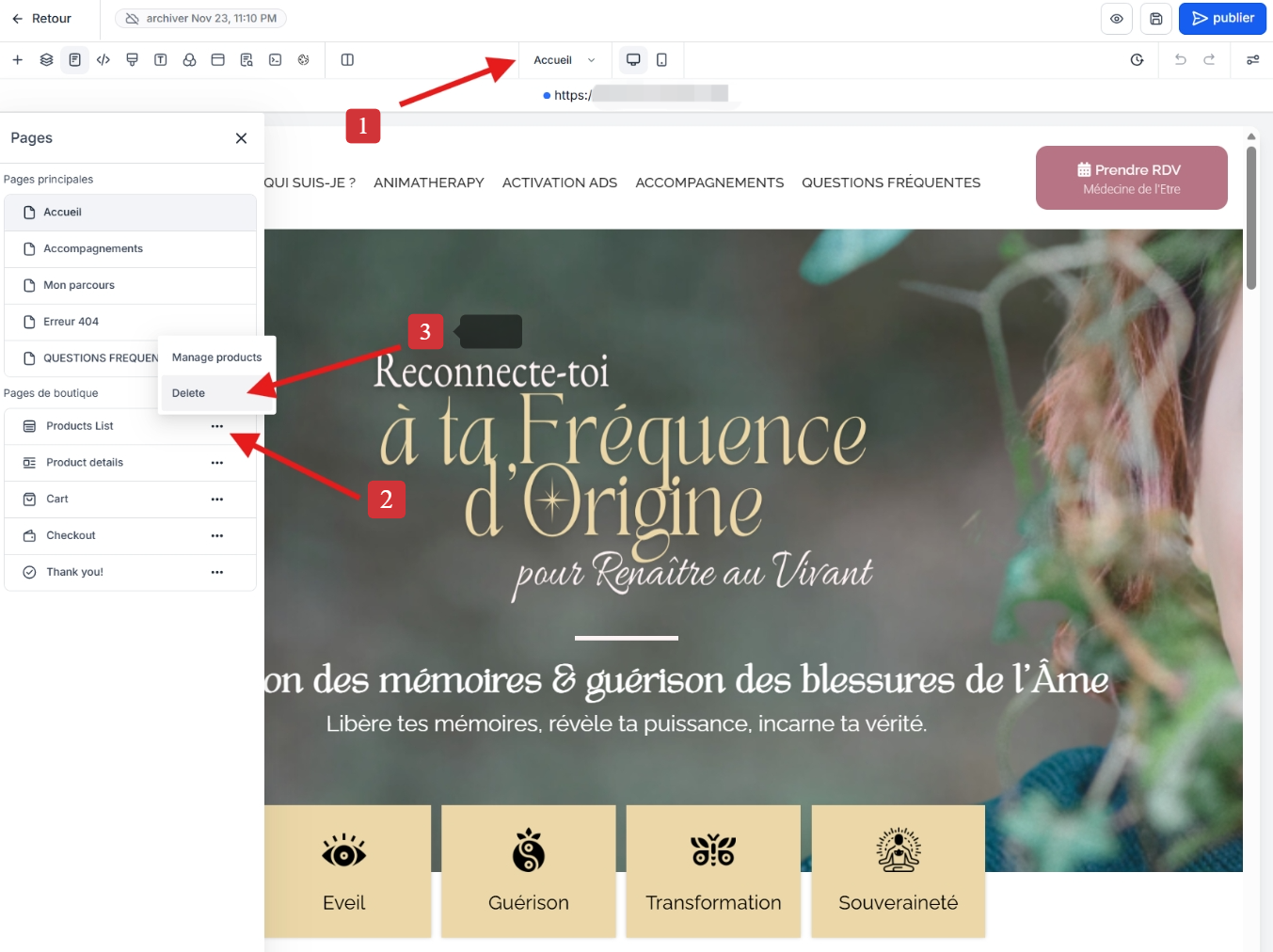
To completely remove the store, simply delete one of the automatically generated pages:
Open any page on your “classic” site in the page builder.
In the top bar, click on the name of your current page to display the “Pages”menu.
Scroll down to the Store Pages section. There
you will see:Products List
Product Details
Cart
Checkout
Thank You
Click the three dots (⋮) next to one of these pages.
Select Delete.
Confirm the deletion.
👉 Once confirmed, CrocoClick automatically deletes the entire store, as well as all remaining pages linked to the store module.
Result
Your site reverts to a standard website, with no store section, no products, and no visible e-commerce pages.