HubSpot: Actions and Triggers in CrocoClick Automations
Connect HubSpot to your CrocoClick automations: new contact trigger, creation, search, and linking of HubSpot contacts.
Written By Baptiste Lorreyte
Last updated 4 months ago
HubSpot is one of CrocoClick’s native integrations. This means you can connect your HubSpot account directly to your automations without using a third-party tool. In practice, your two CRMs communicate in real time: an event in HubSpot can trigger an automation in CrocoClick, and a CrocoClick automation can create, retrieve, or link contacts in HubSpot.
This guide explains the available HubSpot triggers and actions, how to set them up, and a few practical use cases for syncing your contacts, avoiding duplicates, and streamlining your follow-ups.
💡 TIP: This integration covers actions and triggers in the automation builder. If your goal is to import your HubSpot data once and for all, check out the articles dedicated to the HubSpot importer and the migration guide instead.
What the HubSpot Integration Enables
This integration is particularly useful when you manage your marketing, lead capture, and communications in CrocoClick, while continuing to use HubSpot as your primary CRM.
Automatic contact creation: Create a HubSpot contact from a CrocoClick event (form submission, appointment, tag, or any other trigger).
Fewer duplicates: Search for an existing HubSpot contact before creating a new one to keep your database clean.
Faster lead routing: Launch a CrocoClick automation as soon as a new contact is created in HubSpot.
Flexible field mapping: Send standard or custom information from CrocoClick to HubSpot contact properties.
Consistent automations: Build repeatable workflows that reduce manual effort for your sales, marketing, and operations teams.
Better CRM coordination: Keep your HubSpot and CrocoClick processes aligned when both platforms are part of your organization.
The HubSpot trigger is available
A trigger starts your CrocoClick automation as soon as a matching event occurs in HubSpot.
New contact created
The “New Contact Created” trigger launches a CrocoClick automation as soon as a contact is created in the connected HubSpot account.
Use this trigger when you want CrocoClick to take over after a contact is added in HubSpot: send an internal notification, create a task, apply a label, or launch a follow-up sequence.
🟢 Important: The “New Contact Created” trigger relies on a HubSpot webhook. It fires for any new HubSpot contact, whether it comes from a form, manual entry, import, or another integration. Be sure to add filters if you want to restrict entry into the automation to specific sources or lifecycle stages.
Available HubSpot actions
HubSpot actions allow your CrocoClick automations to send or retrieve contact information in HubSpot. Configure them carefully to ensure the correct data is mapped, retrieved, or created.
Create a contact
The Create Contact action creates a new contact in HubSpot using information mapped from your CrocoClick automation. Use this action when a CrocoClick event captures a new lead or customer that you want to automatically add to HubSpot.
Frequently mapped fields:
First Name
Last Name
Email
Phone
Company Name
Website
Life Cycle Stage
Lead source
Custom HubSpot properties
💡 TIP: Place a "Search for a contact" action before "Create a contact" to check if the contact already exists in HubSpot and avoid duplicates.
Search for a contact
The "Search for a contact" action searches for an existing contact in HubSpot based on a selected identifier, such as an email address. Use it before creating a new contact to verify that no matching record already exists.
Avoid duplicate HubSpot contacts.
Route contacts differently depending on whether a match is found or not.
Confirm whether a lead already exists in HubSpot before creating a record.
Build automation conditions based on whether or not the contact was found.
Retrieve a contact by ID
The "Retrieve a contact by ID" action retrieves a HubSpot contact using its HubSpot record ID. Use this action when a previous step in the automation already has the HubSpot contact’s ID and you need to retrieve more details about it.
View a contact’s data after a HubSpot trigger.
Pass HubSpot contact properties to subsequent steps in the automation.
Verify a specific HubSpot record before continuing the automation.
Search for a contact by email
The “Search for a contact by email” action searches for a HubSpot contact based on the email address provided in the automation. Use this action when email is the most reliable way to identify an existing contact.
Match CrocoClick contacts to HubSpot contacts.
Avoid duplicate HubSpot records.
Vary the automation logic depending on whether an email match exists or not.
Create an association
The "Create an Association" action creates a relationship between HubSpot records, such as associating a contact with a company or a deal. Use this action when your HubSpot records need to remain linked for sales tracking or account management.
Link a HubSpot contact to a company.
Associate a HubSpot contact with a deal.
Connect related HubSpot records after a contact has been created or found.
Connect HubSpot in the automation builder
Proper setup involves four steps: connect HubSpot, choose the right trigger or action, map the correct fields, and then test before publishing. Testing is essential: it confirms that CrocoClick can access HubSpot records and send data in the correct format.
Go to Automation in CrocoClick.
Open an existing automation or create a new one.
Click Add a Trigger or Add an Action, depending on what you want to set up.
Select Apps.
Choose HubSpot.
Click "Connect."
Authorize the HubSpot account you want to use.
Review the requested permissions, then confirm the authorization.
Return to CrocoClick and confirm that HubSpot is connected.
Set up the "New Contact Created" trigger
This trigger is useful when HubSpot is the starting point for your automation. As soon as a contact is created in HubSpot, CrocoClick triggers follow-up actions: notifications, tasks, or internal processes.
Go to Automation in CrocoClick.
Open the automation in which HubSpot will serve as the trigger.
Click Add a trigger.
Select HubSpot.
Choose "New contact created."
Confirm the connected HubSpot account.
Configure any trigger settings.
Click Save Trigger.
Use "Test Trigger" or "Search for New Records" to confirm that CrocoClick is correctly detecting HubSpot contacts.
Publish the automation once the test is successful.
🟢 Important: Use the data provided by HubSpot
After adding the "New Contact Created" trigger, always start by clicking "Test Trigger."
This will allow CrocoClick to retrieve the most recently created contact in HubSpot and make its information available in the following steps.
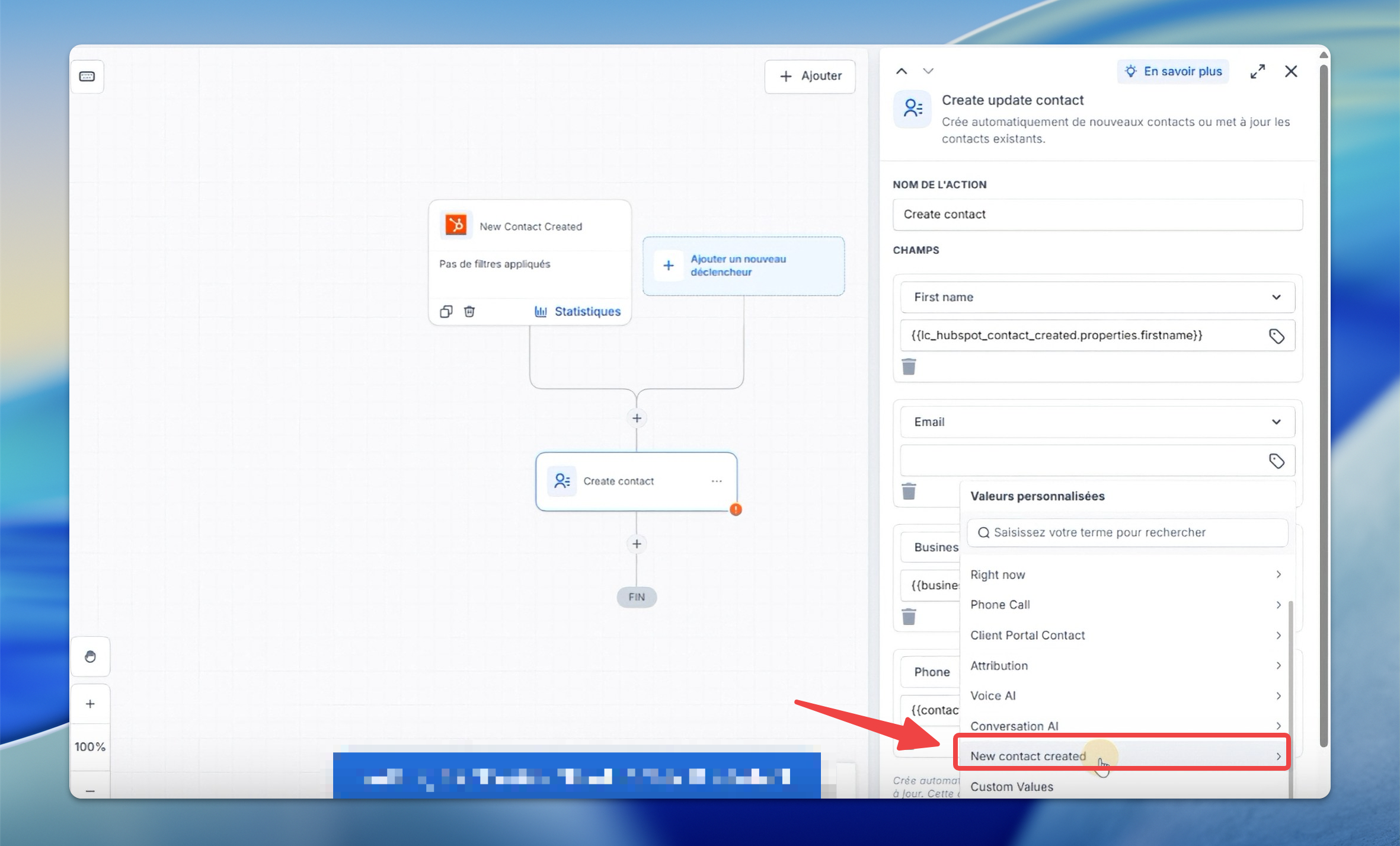
When configuring an action, such as “Create a Contact” in CrocoClick, do not select the generic variables from the Contact category: these correspond to data from a contact already present in CrocoClick.
Instead, select the data coming directly from the trigger:
New contact created → Properties → First name, Last name, Email, Phone, Company, etc.
This will allow you to correctly map each HubSpot property to the corresponding CrocoClick field.
Once the mapping is saved, create a new contact in HubSpot to test the automation from start to finish.
Configure the “Create a Contact” HubSpot action
The “Create a Contact” action sends contact data from your CrocoClick automation to HubSpot. Accurate mapping ensures that each HubSpot contact is created with the correct name, email address, phone number, and custom properties.
Open the automation in which you want to create a HubSpot contact.
Add the trigger that should start the process.
Click Add an action.
Select HubSpot.
Choose "Create a Contact."
Confirm the connected HubSpot account.
Map the required HubSpot fields.
Map the optional HubSpot properties that are useful for your process.
Save the action.
Test the action.
Check the test results in CrocoClick and confirm that the contact was created in HubSpot.
Recommended mapping example:
Real-world use cases
These examples show how to automate contact creation, contact search, and follow-ups when both HubSpot and CrocoClick are part of the customer journey.
Create a HubSpot contact from a CrocoClick form
Ideal when your leads enter CrocoClick via a form and need to be created in HubSpot.
Trigger: Form submitted.
Action: Search for a contact by email (or Search for a contact).
If/Else condition: Was a contact found?
If not: Create a contact in HubSpot.
If yes: Proceed to the next follow-up step.
Launch a CrocoClick automation when a HubSpot contact is created
Ideal when HubSpot is the source of the new contact and CrocoClick handles the follow-up.
Trigger: New contact created (HubSpot).
Action: Send an internal notification.
Action: Add a label in CrocoClick.
Action: Create a task or assign a user.
Action: Send a follow-up message if applicable.
Avoid duplicate contacts in HubSpot
Ideal when multiple lead sources can send the same person to HubSpot.
Trigger: Contact created, Form submitted, or another CrocoClick trigger.
Action: Search for a contact by email in HubSpot.
If the contact exists: Do not create a contact.
If the contact does not exist: Create a contact.
Link a HubSpot contact to a company or deal
Ideal when a contact needs to be linked to another HubSpot record for account management or sales tracking.
Trigger: Contact created or updated in CrocoClick.
Action: Search for or create a HubSpot contact.
Action: Retrieve the company or deal ID.
Action: Create a link.
Verify the association directly in HubSpot.
Frequently Asked Questions
Are HubSpot actions premium actions?
Are HubSpot actions premium actions?
Is the "New Contact Created" trigger also a premium trigger?
Is the "New Contact Created" trigger also a premium trigger?
Do I need a paid HubSpot plan to use this integration?
Do I need a paid HubSpot plan to use this integration?
No. The integration works with HubSpot’s free CRM. Some advanced features on the HubSpot side (specific automations, certain property types) may require a paid Marketing or Sales Hub plan, but these limitations are set by HubSpot, not by CrocoClick.
How does deduplication work when creating HubSpot contacts?
How does deduplication work when creating HubSpot contacts?
Email is the primary key for deduplicating HubSpot contacts. To avoid duplicates, use “Search for a contact by email” before “Create a contact,” and only create a record if no match is found.
Can I create or update custom properties on HubSpot contacts?
Can I create or update custom properties on HubSpot contacts?
Yes. The “Create a Contact” action supports any property defined on the HubSpot Contact object (standard or custom). First, create the property in HubSpot, then map the corresponding automation variable. Unknown property names are ignored by HubSpot during submission.
What is the practical use of the “Create Association” action?
What is the practical use of the “Create Association” action?
"Create a Relationship" links a contact to a Company, Deal, or Ticket in HubSpot. This is useful for account-based selling, deal automation, and support workflows, when you want all related records to remain connected and visible on both sides.
Can I use automation variables in HubSpot fields?
Can I use automation variables in HubSpot fields?
Yes. All fields in HubSpot actions support inline automation variables. This allows you to dynamically map form responses, contact fields, or values from previous steps to HubSpot properties.
Does the trigger fire for contacts created via import or another integration?
Does the trigger fire for contacts created via import or another integration?
Yes. The trigger responds to any new contact created in HubSpot (forms, manual entry, imports, or other integrations), unless you restrict it with filters. Use filters to target specific sources or lifecycle stages as needed.
What happens if a HubSpot action fails?
What happens if a HubSpot action fails?
If an action such as "Create a contact" fails (for example, due to an invalid email address), the error is logged in the automation’s execution details. The automation can continue according to your branches. For critical paths, add a fallback branch (notify an administrator, log to a Slack channel) in case of an error.
Can I use multiple HubSpot steps in the same automation?
Can I use multiple HubSpot steps in the same automation?
Yes. You can chain multiple HubSpot triggers and actions within a single automation. For example: trigger on “New contact created,” then search for the contact, create it on the CrocoClick side, and finally create an association on the HubSpot side for that same contact.
Was this helpful?
Still need help? Ask the team