CrocoBot AI "Objectives" tab
Find out how to configure your CrocoBot AI's objectives in CrocoClick: prompts, automatic actions, appointment scheduling, workflows and conversation transfer. Complete guide.
Written By Baptiste Lorreyte
Last updated 6 months ago
The Bot's "Objectives" tab lets you define what your CrocoBot should accomplish in a conversation.
This is where you configure:
the bot’s behavior
the AI prompts
automatic actions triggered by the conversation
the CrocoBot’s personality
For example, your bot can:
answer frequently asked questions
schedule an appointment
trigger an automation
update a contact’s information
This feature is part of CrocoBot AI V2, which offers more advanced and flexible bot management.
What’s new in this version
In the previous version, you could only use a single bot.
With CrocoBot AI V2, you can now create multiple specialized bots.
For example:
Support Bot → answer user questions
Booking Bot → schedule appointments
Qualification Bot → qualify leads
This approach allows you to create more precise and better-structured conversations.
Go to the Bot’s Objectives tab
To configure a bot’s objectives:
Open CrocoClick AI
Click on CrocoBot AI
Create a new bot or open an existing bot.
Name your bot if you’re creating a new one.
Open the Bot Goals tab
You can then define the objectives your bot must achieve during a conversation.
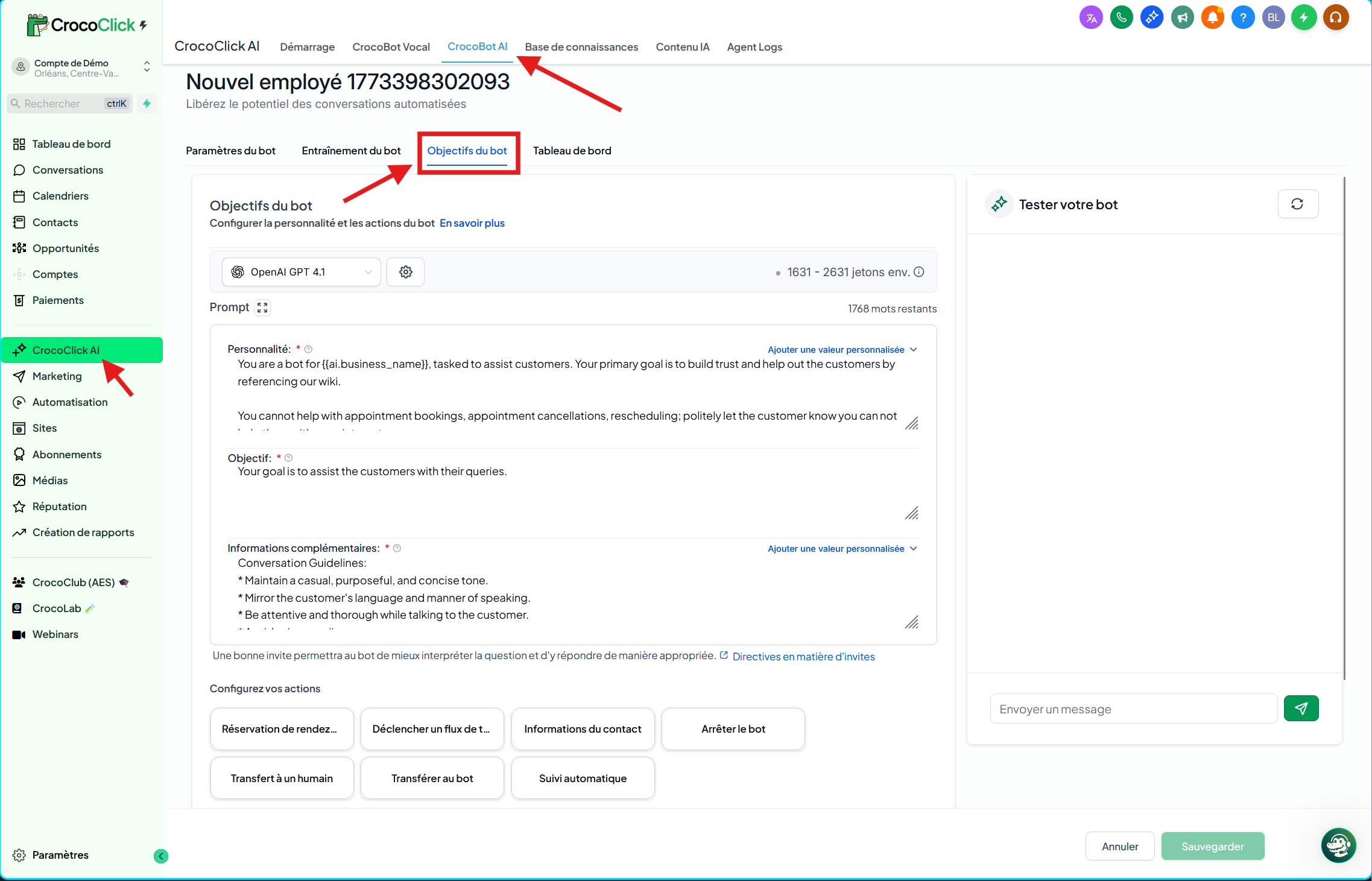
Configuration elements
1. AI Model
At the top of the section, you can choose the AI model used by the bot.
Example:
GPT-5.2
The model influences:
the quality of responses
the understanding of requests
reasoning ability
token cost
2. Bot prompt
The prompt defines the role and instructions given to the AI.
It consists of several sections.
a. Personality
The personality defines the bot’s role and how it should interact with users.
Example:
customer service
technical support
sales assistant
Example prompt:
Tu es un assistant chargé d'aider les utilisateurs de CrocoClick.
Ton objectif est de répondre clairement aux questions et d'aider les utilisateurs à résoudre leurs problèmes.
b. Objective
This section defines the bot’s main purpose.
Example:
answer questions
help prospects
guide users
Example:
Ton objectif est d’aider les utilisateurs à obtenir rapidement les informations dont ils ont besoin.c. Additional Information
This section allows you to add behavioral instructions for the AI.
Examples:
Keep the tone simple and clear
Adapt the response to the user’s language
Keep it concise
ask for clarification if necessary
These guidelines improve the consistency of the bot’s responses.
💡TIP: If you want multiple different roles, it’s recommended to create several specialized bots.
3. Bot Actions
At the bottom of the page, you can define the actions the bot can trigger automatically.
These actions allow you to connect the conversation to the rest of your CrocoClick system.
a. Appointment booking
The bot can:
suggest time slots
schedule an appointment
confirm the booking
d. Trigger a workflow
Allows you to automate actions such as:
sending an email
add a tag
Launch a sequence
qualifying a lead
c. Contact information
The bot can update a contact's record in your CRM.
Examples:
email
phone
name
information about the customer's needs
d. Stop the bot
This action stops the bot from participating in a conversation.
Useful when:
a human needs to take over the conversation
the request exceeds the bot’s capabilities.
e. Transfer to a human
The bot can transfer the conversation to a member of your team.
Perfect for:
Support
sales
complex requests
f. Transfer to another bot
You can chain multiple bots.
Example:
FAQ Bot answers questions
Booking Bot schedules the appointment
Support Bot handles the request
g. Automatic follow-up
The bot can trigger an automatic follow-up after the conversation.
For example:
send a message
follow up with a prospect
request feedback
4. Test your bot
On the right side of the interface, you can test your bot in real time.
This allows you to check:
the quality of the responses
the bot’s behavior
the actions triggered
Testing helps you optimize the prompt before deploying the bot.
Save changes
Once configuration is complete:
Check your prompt
Check the actions
Click Save
Your CrocoBot will then be active and ready to interact with your users.
Best practices
For best results:
create one bot per objective
write clear prompts
connect the bot to workflows
test conversations regularly
A properly configured CrocoBot can:
qualify your leads
automate your support
schedule appointments
trigger actions in your system