Migrate your Kajabi training courses to CrocoClick in 1-click
Migrate your Kajabi training courses to CrocoClick in just a few simple steps. Import your courses, videos and content quickly and without interruption for your students.
Written By Baptiste Lorreyte
Last updated 7 months ago
The Kajabi Importer allows you to quickly transfer your courses created on Kajabi to the CrocoClick Courses module.
This guide provides step-by-step instructions to ensure a smooth and seamless migration for your students.
✅ Best practices before migration
To avoid errors or configuration losses:
🔹 1. Avoid custom CSS
Using custom CSS can cause display incompatibilities after migration.
🔹 2. Back up your themes
Create a backup of your current themes so you can revert back if necessary.
🔹 3. Run the migration outside of peak hours
It is best to migrate during off-peak hours so as not to impact your active learners.
🚀 Steps to import a course
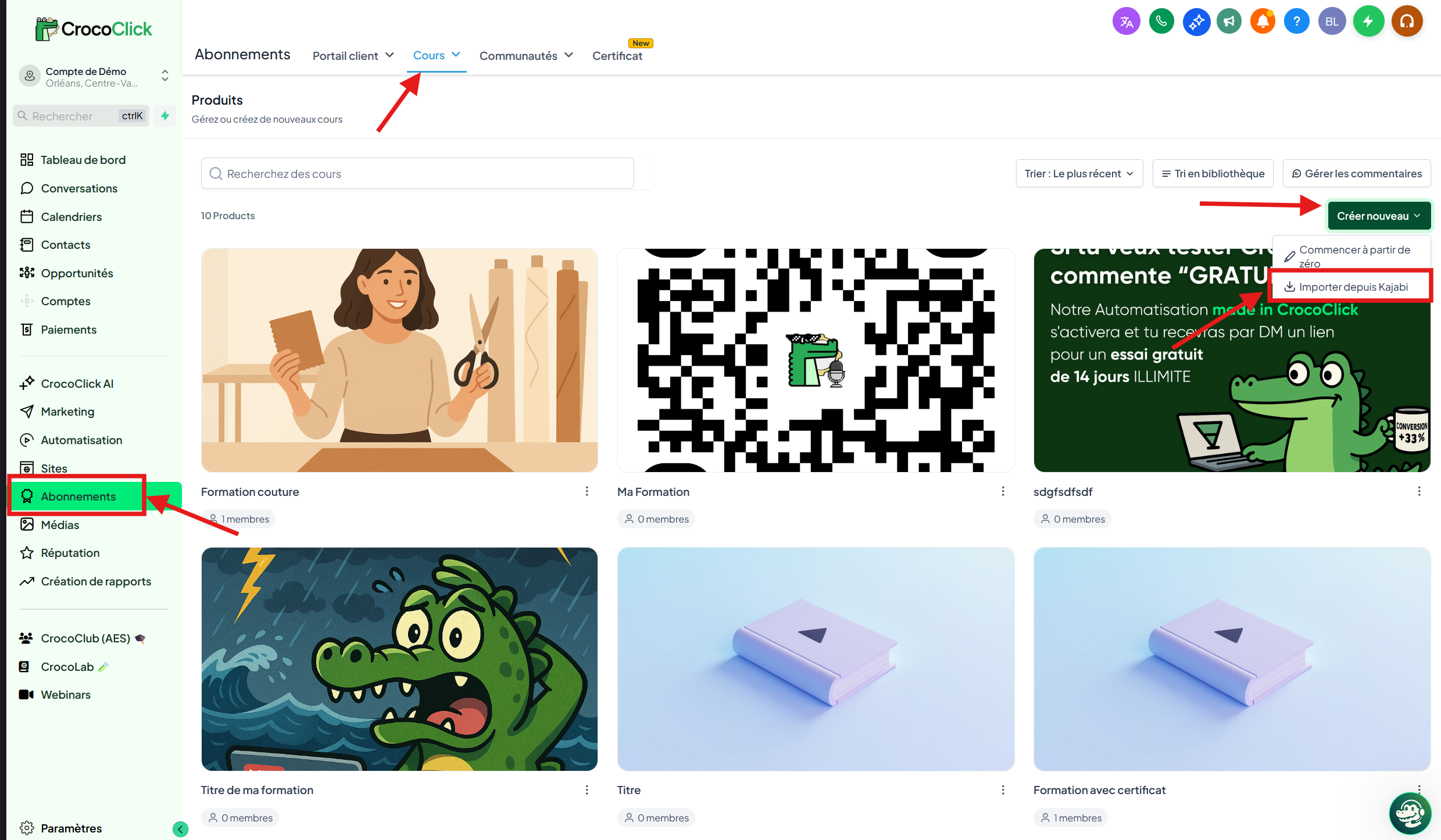
🖍️ Step 0: Access the Kajabi importer
Log in to your CrocoClick account.
Go to:
Formations > Cours > Produits > Créer un produit > Importer Select Import from Kajabi
🥇 Step 1: Create a learner profile
Before starting the import, you must create a "Learner" profile on Kajabi.
On Kajabi:
Create a new contact/learner
Use a valid email address
Set a password
Return to the import screen in CrocoClick.
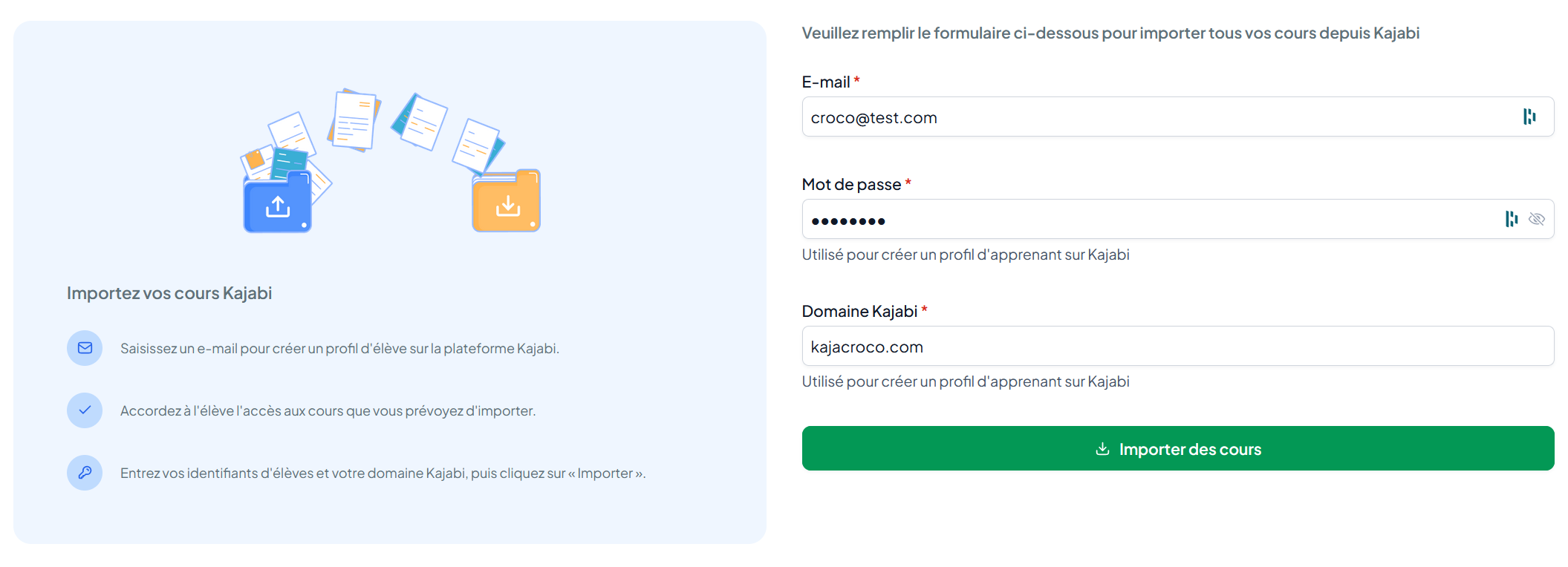
Fill in:
📧 The email address used to create the learner profile
🔐 The associated password
🌐 The learner login domain (example:
votredomaine.com)
👉 The domain must allow access to the login page via:
votredomaine.com/loginClick Import.
🔄 Step 2 — Import process
Once the import has started:
CrocoClick automatically connects using the learner's credentials.
The import of courses begins.
A progress bar is displayed.
⚠️ Important
Click Refresh regularly to see the current status.
You can switch tabs during the import.
❌ Do not close the window or tab.
You can click Cancel to interrupt the import.
📦 Imported content
✔ Videos
✔ Images
✔ Texts
✔ Structure of published lessons
❗ Not included in the import
Assignments
Quizzes
Assessments
Unpublished lessons
🎨 Recommended themes
For better compatibility, first select in Kajabi:
Library → recommended theme: Encore Site
Product → recommended theme: First Product
✅ Step 3 — Import successful
Once completed:
Your courses will appear in:
Formations > ProduitsThe Import section will display the date of the last import.
❓ FAQ — Error resolution
🔐 Authentication error
Cause:
Incorrect credentials
Incorrect domain
Solution:
Check your email and password
Ensure that
votredomaine.com/loginis working correctly
❌ "Race import failed" error
Possible causes:
Incorrect theme
Check that you are using a compatible theme.
Incorrect login details
Double-check your email address and password.
Invalid domain
The domain must redirect to a functional login page via
/login.
Import interrupted
If the import fails, click Retry to resume where it left off.
Import canceled
If you click Cancel, a new import will start from the beginning.
🧠 Good to know
The Kajabi importer allows you to quickly migrate your educational content, but it is recommended that you:
Check each module after import
Test the student experience
Optimize the layout
Take advantage of CrocoClick automations to go further