Creating a Brand Board in CrocoClick
Create a Graphic Charter in CrocoClick to centralize your logos, colors and typography, and ensure a consistent visual identity across your emails, funnels and sites.
Written By Baptiste Lorreyte
Last updated 5 months ago
You want your branding to stop looking like a 2009 PowerPoint patchwork.
Good news: the Brand Board lets you centralize logos, colors, and fonts in one place… and reuse them across all CrocoClick modules 😎
What is a Brand Board?
A Brand Board in CrocoClick is a centralized space where you define your company’s visual identity. It contains:
Your logos (primary and secondary)
Your color palette
Your fonts
Once configured, you can apply these elements everywhere:
Emails
Funnels
Web pages
Websites
Templates
The result: a consistent brand rather than a visual circus.
Key benefits
🎯 1. Brand consistency
All your visual elements are stored in one place.
You use the same colors, logos, and fonts everywhere.
Your brand becomes recognizable.
⏱ 2. Time savings
No more searching for your logo on your desktop.
No more digging through old Google Docs for your HEX code.
Everything is accessible in just a few clicks.
🛠 3. Simplified management
You make a change to an element in your Brand Guidelines.
Use it immediately in your new projects.
Clear. Organized. Efficient.
How to create a Brand Guidelines
🥇 Step 1: Create a new brand guide
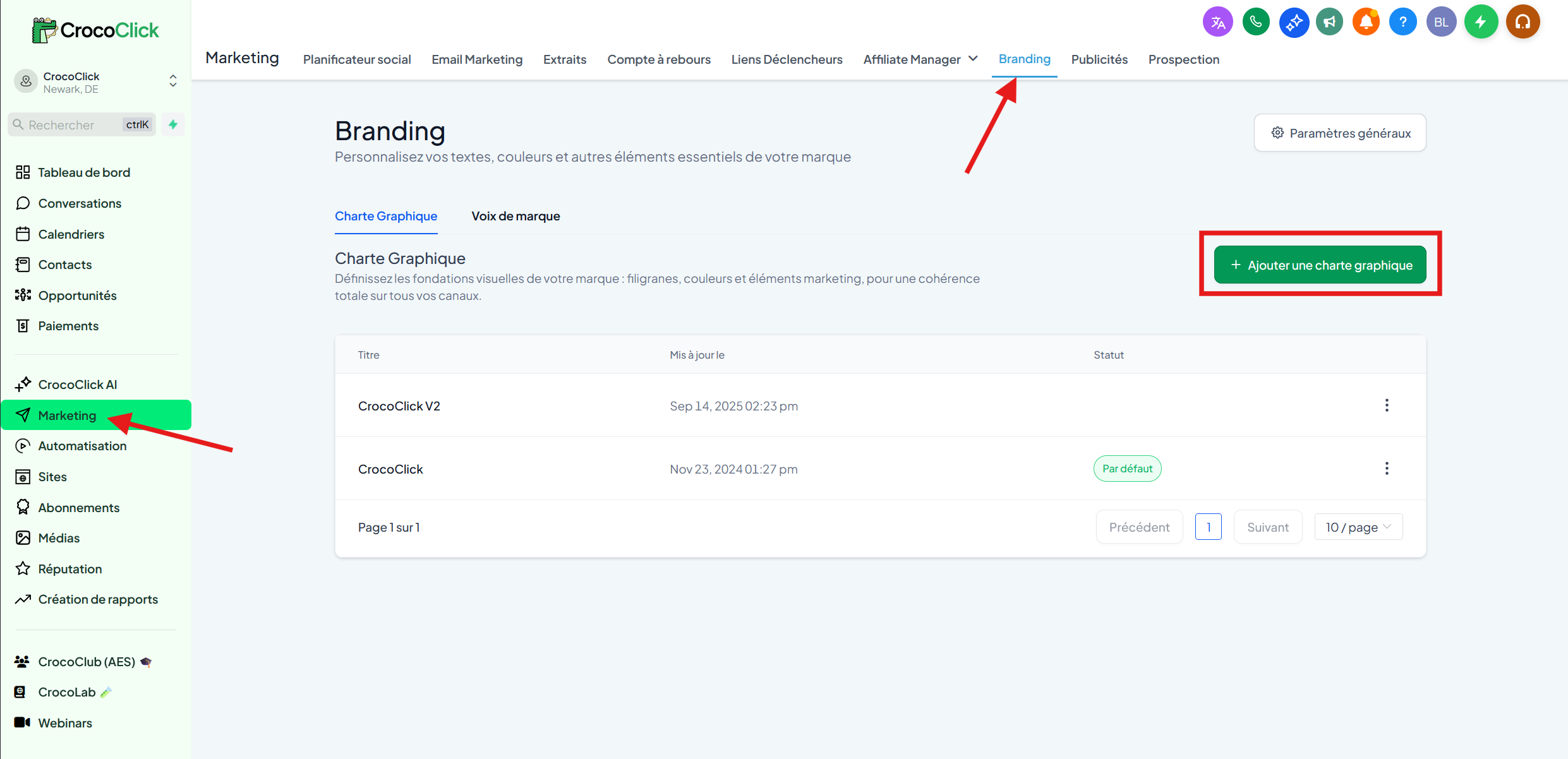
In the left-hand menu, go to Marketing
At the top, click on Branding
Click the blue + Add a Brand Guide button
🥈 Step 2: Choose a template or start from scratch
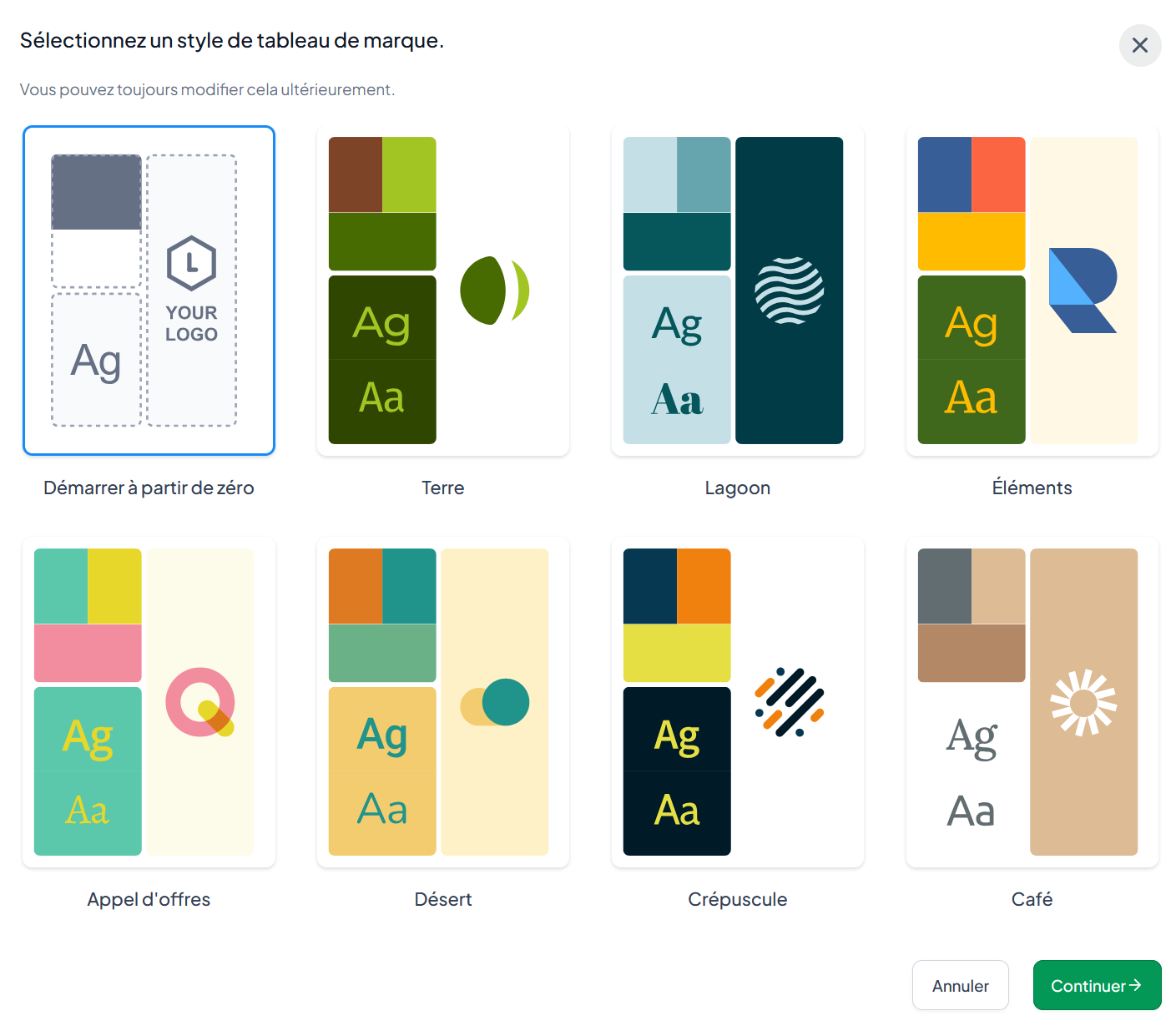
Select Start from scratch to configure everything manually
or
Choose a Template to start with a pre-configured style
Then click Continue.
🥉 Step 3: Add your logos
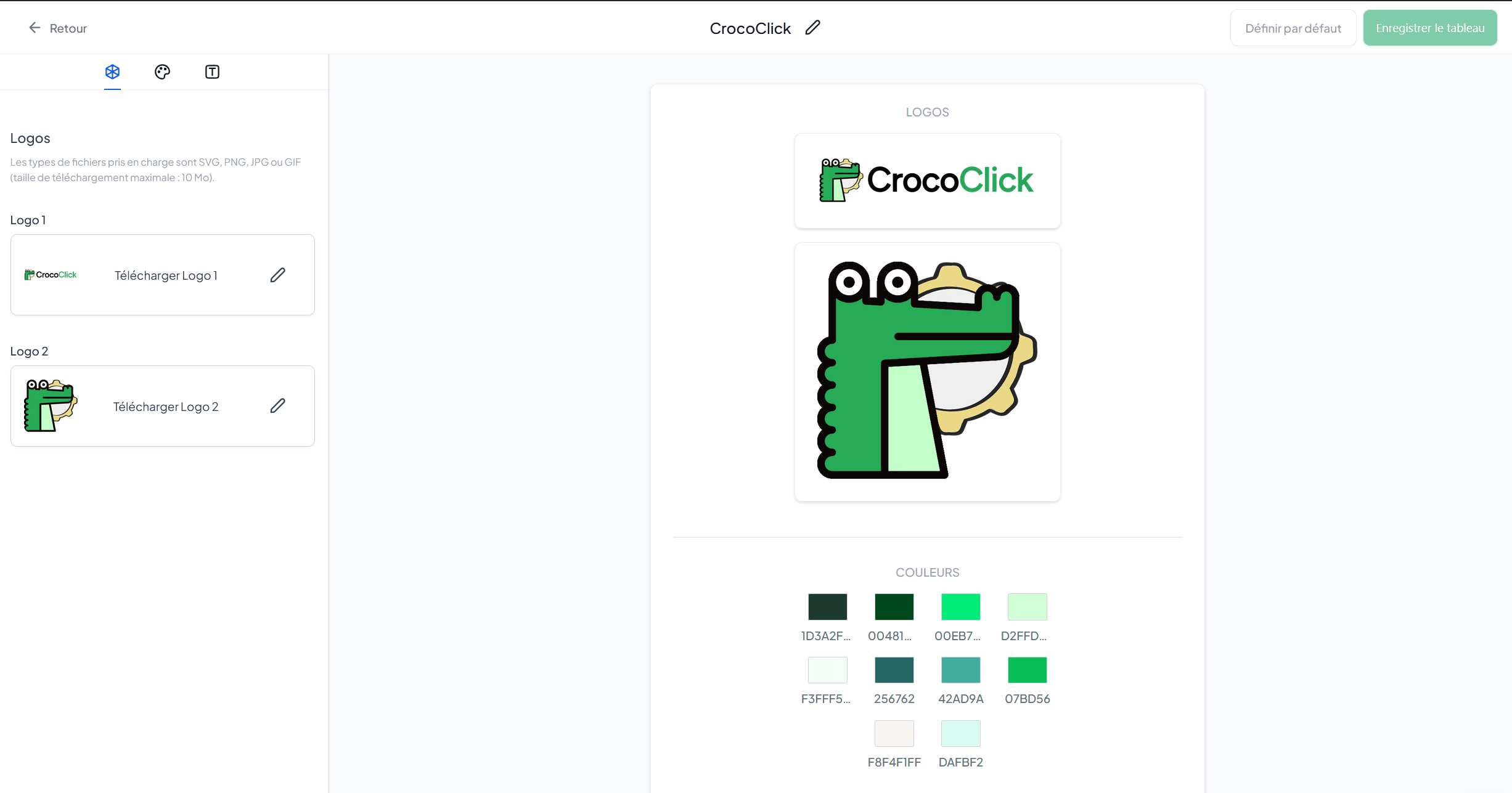
Click the Logos tab
Import:
Your main logo
Your secondary logo
🎨 Step 4: Add your colors
Click on the Colors tab
Add your colors using the HEX or RGB selector
Rename each color (e.g., Primary, Accent, Background)
🔹 Minimum: 2 colors
🔹 Maximum: 10 colors
🔤 Step 5: Configure your fonts
Click on the Typography tab
Select your fonts using the dropdown menus
🔹 Minimum: 1 font
🔹 Maximum: 5 fonts
And there you go.
Your Brand Guidelines are ready, and your branding is no longer a rough draft
Frequently Asked Questions
A strong brand isn’t complicated.
It’s consistent.
And now, yours is too :)