How to create an XML sitemap for my CrocoClick site
Learn how to easily create, configure and submit your XML sitemap in CrocoClick to help Google crawl and index your site efficiently.
Written By CrocoTeam
Last updated 6 months ago
What is an XML sitemap?
A sitemap is a file that lists all the important pages on your website.
It helps search engines like Google understand your site’s structure and crawl it more effectively.
Specifically, it indicates:
The pages to be indexed.
The date of the last update.
The frequency of updates.
Any language versions.
Do I need an XML sitemap?
Google notes that most small sites are discovered automatically, but a sitemap is still strongly recommended if:
Your site is large or complex.
You have a lot of isolated content (not linked by internal links).
Your site is new or receives few inbound links.
You use a lot of media (videos, images) or appear in Google News.
How to create or edit an XML Sitemap in CrocoClick
Step 1: Access the XML Sitemap settings in CrocoClick
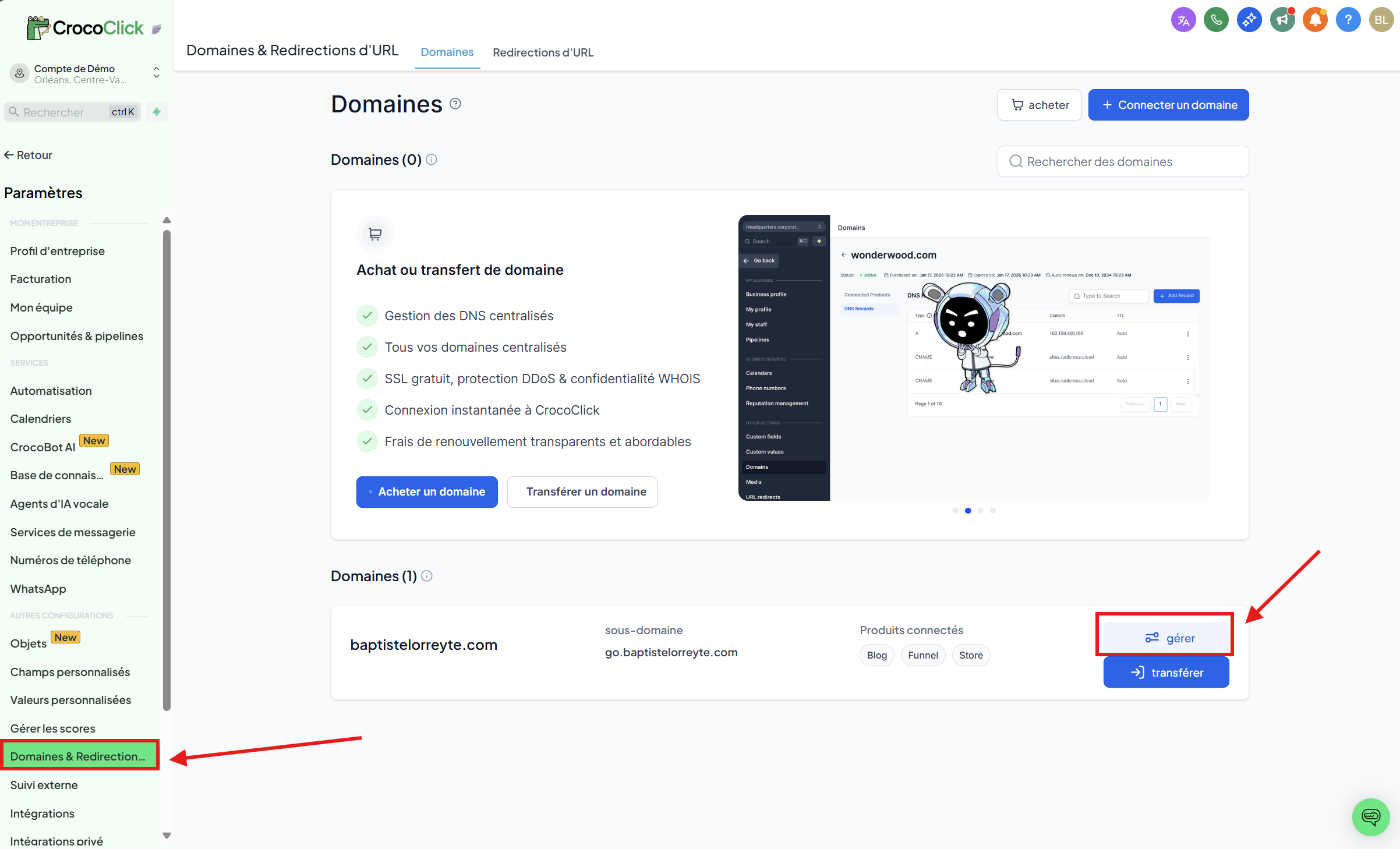
Go to "Settings" in the CrocoClick side menu
Click on the "Domains & Redirects" section.
Click "Manage" to the right of the relevant domain.
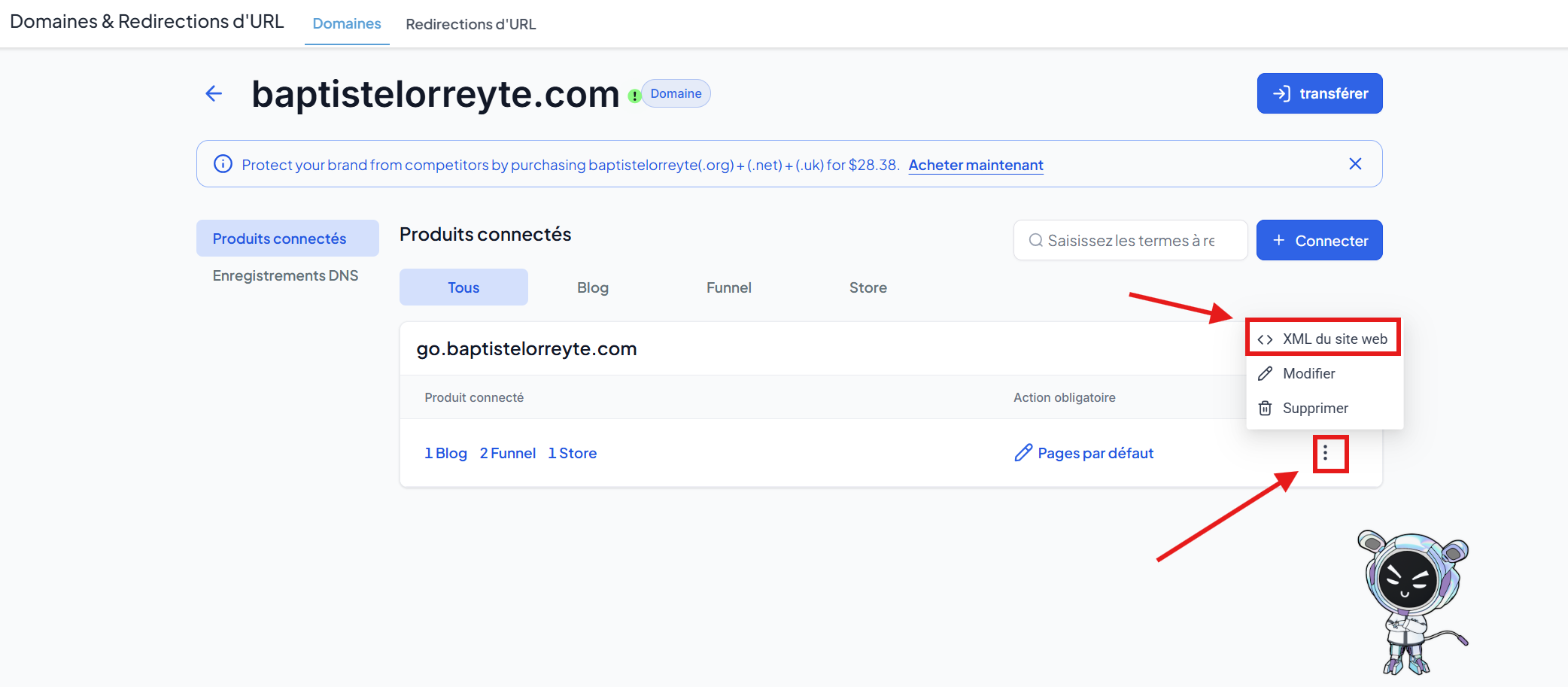
On the connected products page, click the three dots next to the domain or subdomain for which you want to create an XML sitemap.
Select XML Sitemap (Website XML in older versions).
👉 If no domain has been added yet, start by linking your domain before you can see this option.
Step 2: Configure and create the XML Sitemap in CrocoClick
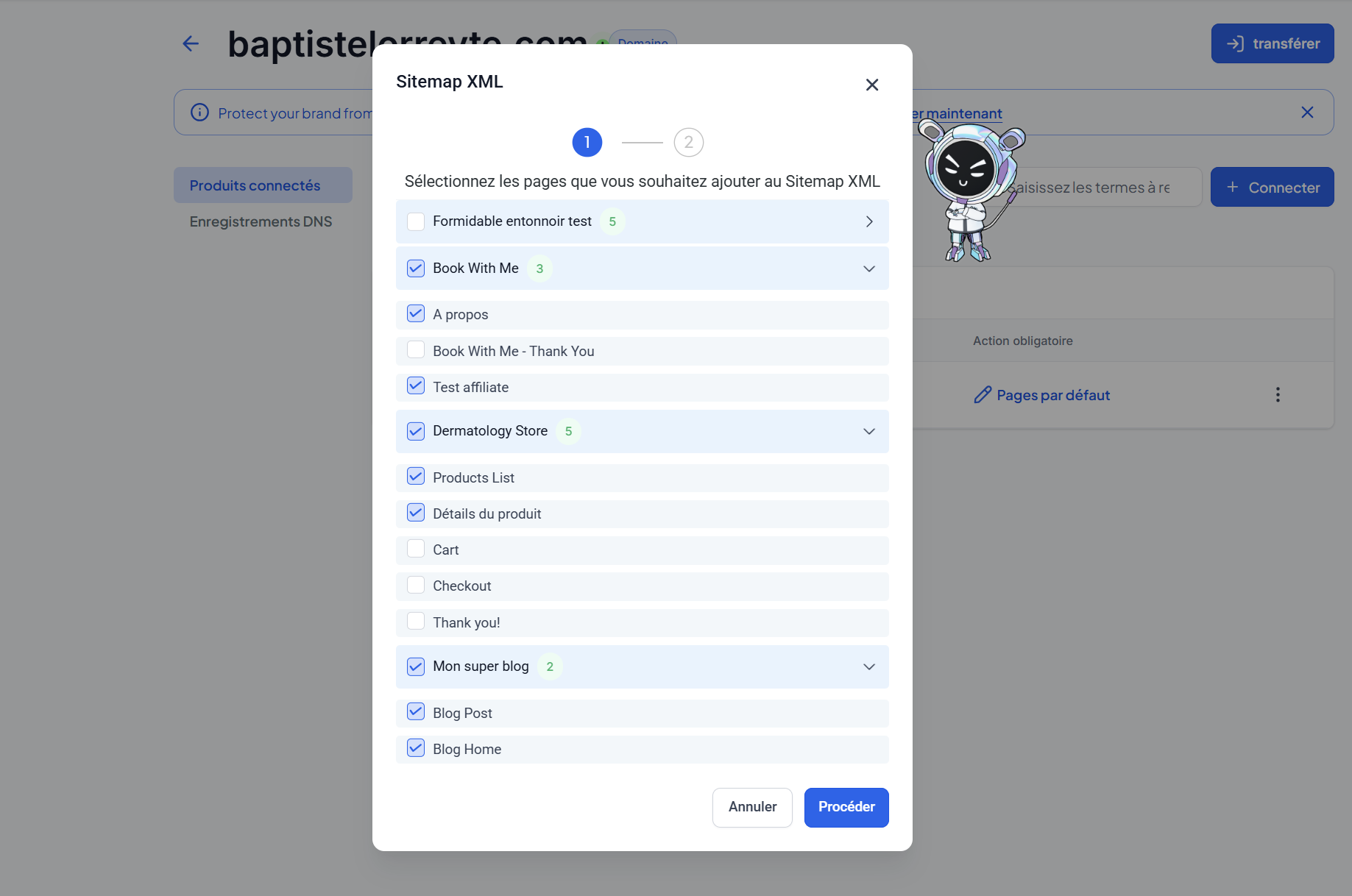
Click the arrow (˅) to the right of the sites and/or funnels you’re interested in to view all the pages within them.
Check the pages you want to include in the sitemap.
Click "Proceed."
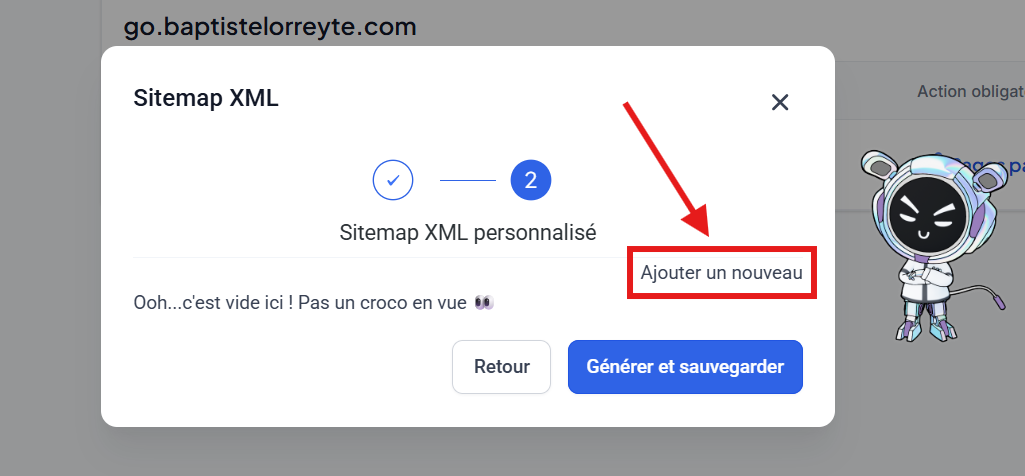
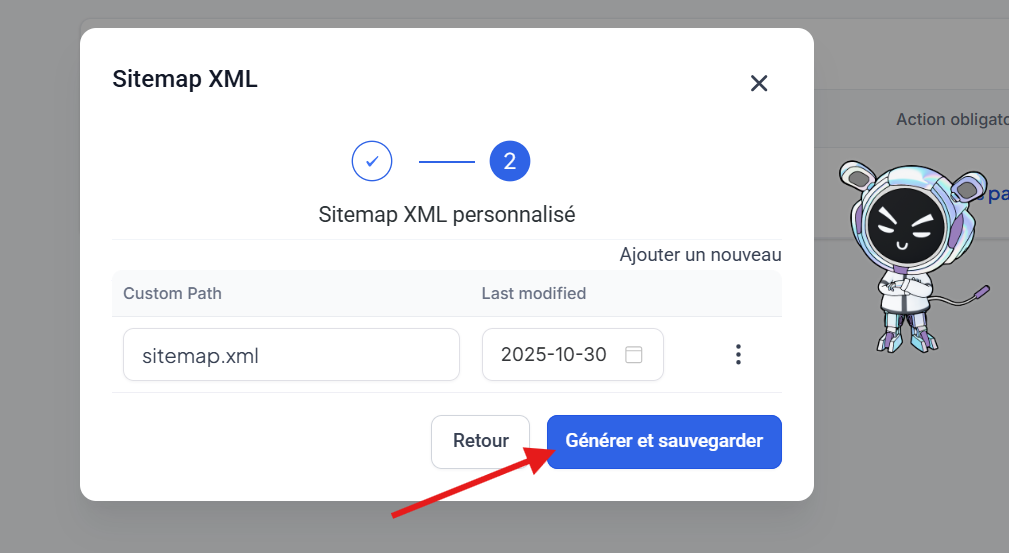
Select "Add a new one" if this is your first time.
Configure the custom path for the sitemap (e.g.,
/sitemap.xml).Click Generate & Save.
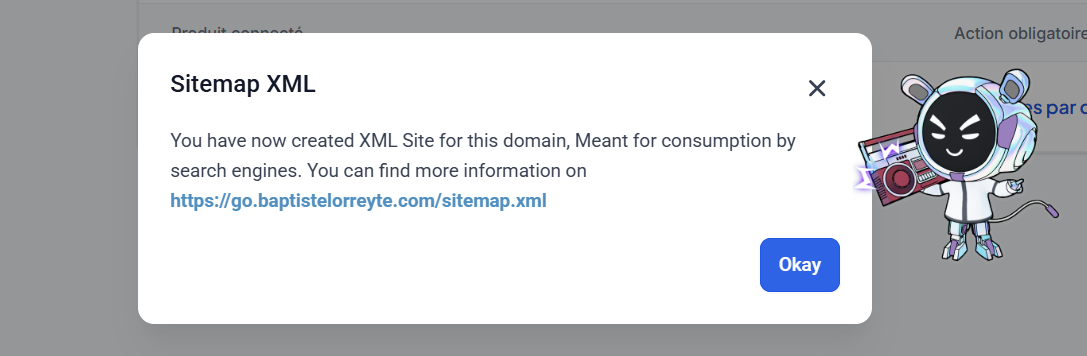
You will then see:
The exact URL of your sitemap.
The date of the last modification.
The Edit or Delete options via the ⋮ menu.
💡TIP: Not including a page in your sitemap doesn’t necessarily prevent it from being indexed. To completely block a page from being indexed, read our article "Deindex some of your CrocoClick pages"
How to submit your sitemap to Google using Google Search Console
Google recommends using Search Console and its “Sitemaps” report.
This is the most reliable method, and it also provides valuable insights into your SEO:
The active status of the sitemap
The total number of crawled pages
Any crawl errors
And much more
Step 1: Open the “Sitemaps” report
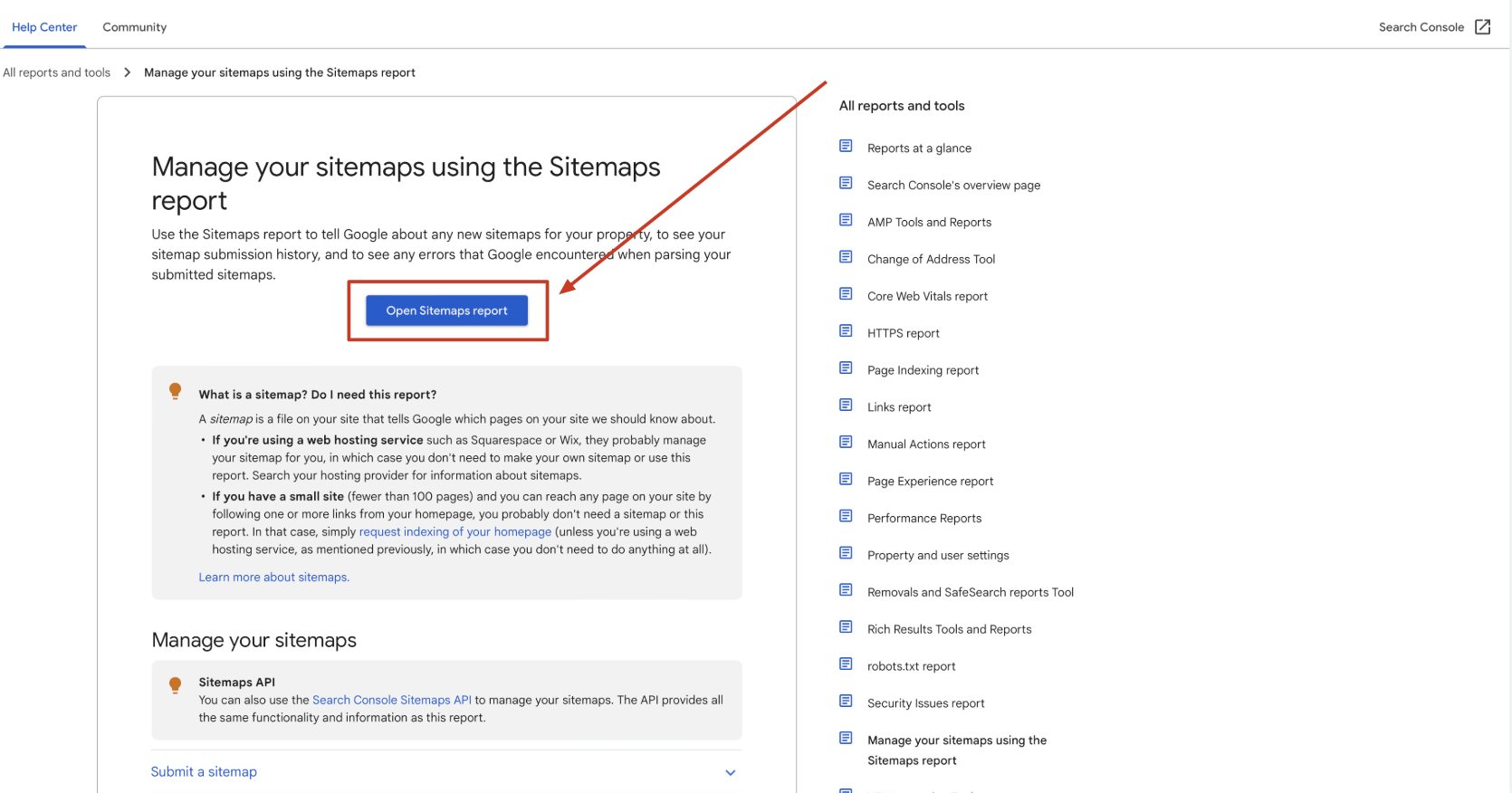
Go to Google’s official help page 👉 https://support.google.com/webmasters/answer/7451001
Then click the “Open Sitemaps Report”button. This will take you directly to your Google Search Console dashboard.
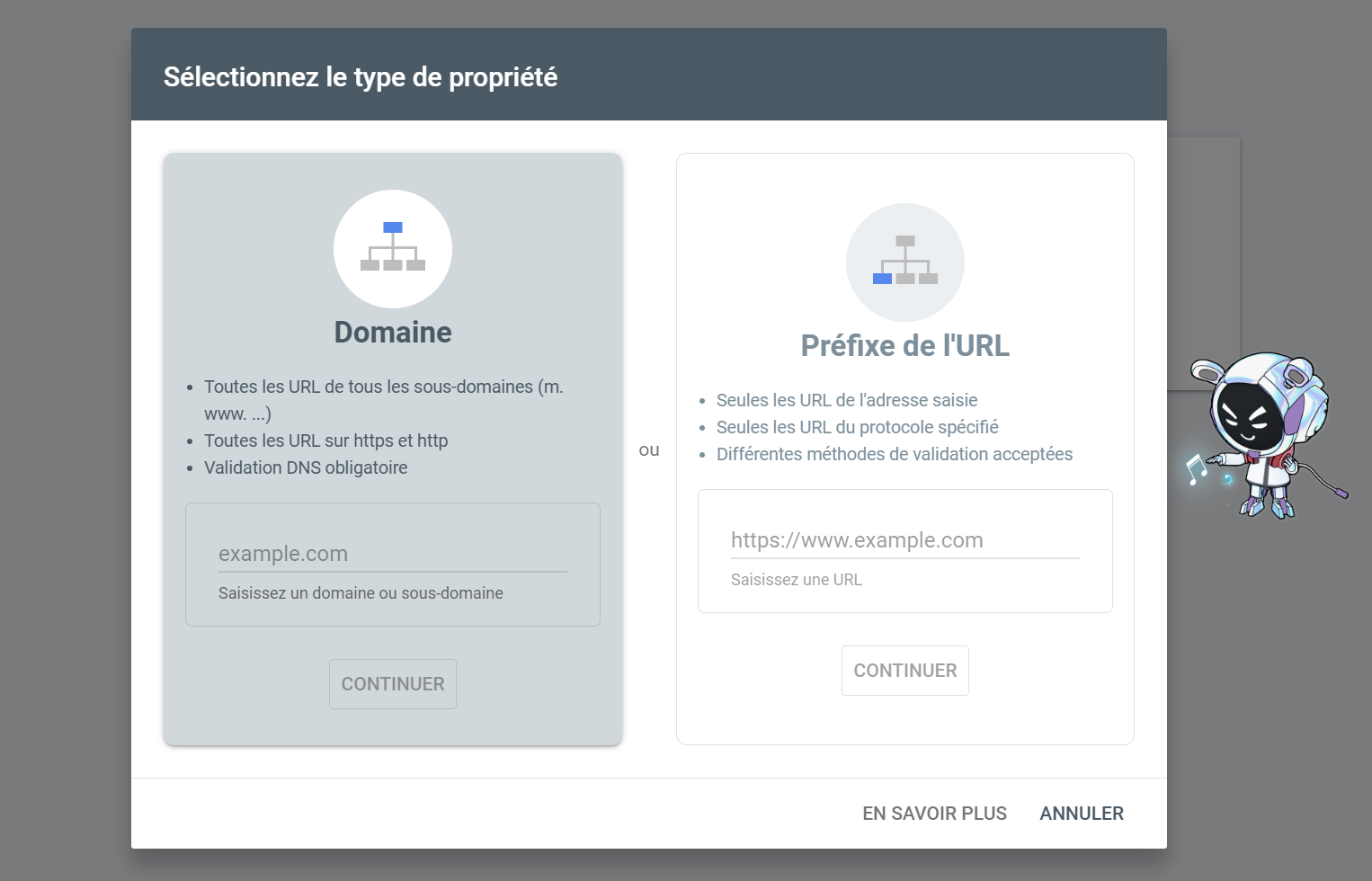
Step 2: Add your property (domain)
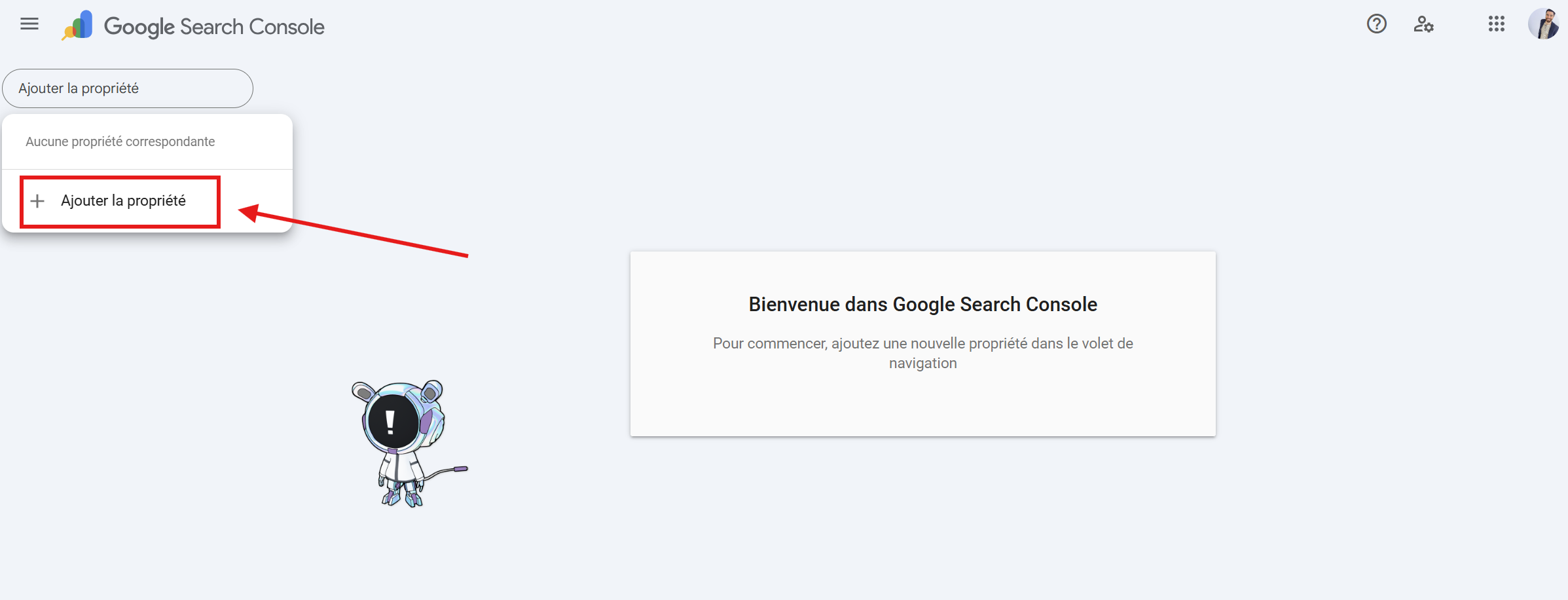
If your site hasn’t been added to Search Console yet, you need to do so now.
Simply enter the full domain name (e.g., https://votresite.com) and confirm.
If your domain is already configured, you can skip directly to Step 4.
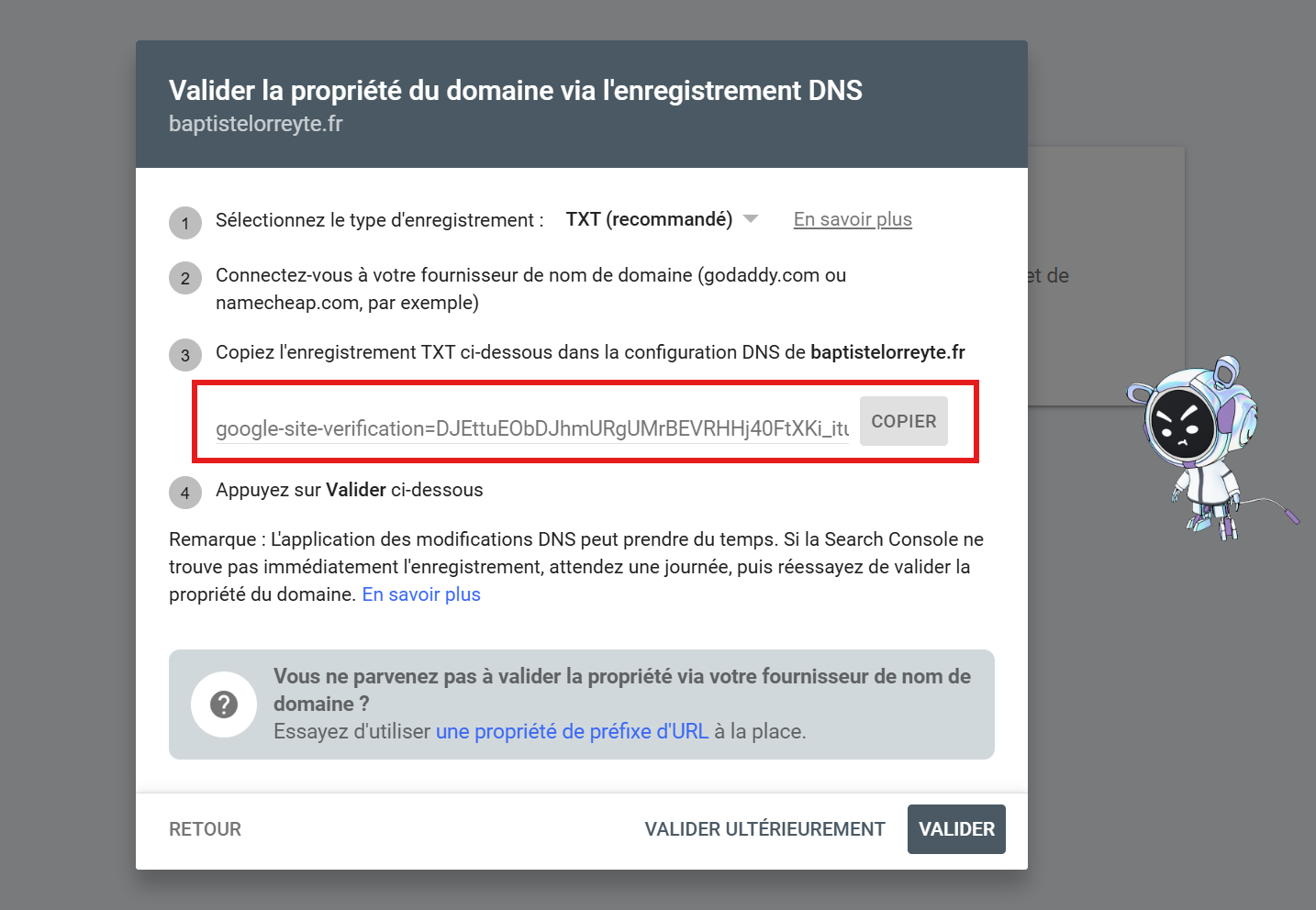
Step 3: Verify your domain
Google needs to verify that you are the owner of the domain. You can verify ownership by:
Either by adding a DNS record,
Or via an HTML file,
Or by using your Google account linked to your hosting provider or domain manager.
💡 TIP: If you registered your domain with CrocoClick, the easiest way to verify your domain is to add a DNS record
Step 4: Go to the “Sitemaps” tab
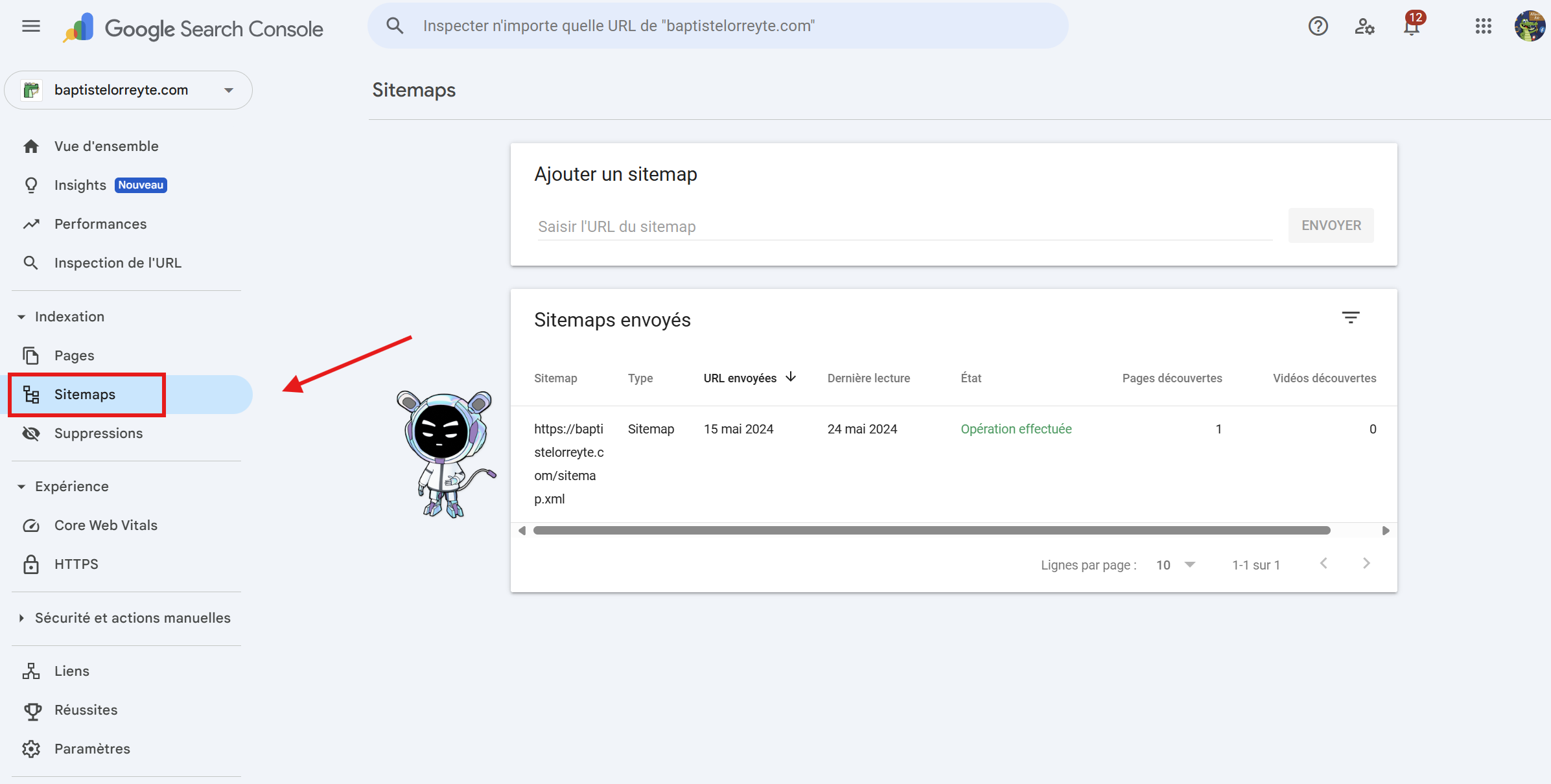
Once your ownership is verified, open the left-hand menu and click on “Sitemaps.”
This is where you can add and monitor your XML sitemap files.
Step 5: Submit your XML Sitemap
Copy the full URL of your sitemap generated in CrocoClick.
By default, it is located at this address:
https://votredomaine.com/sitemap.xmlPaste this URL into the field provided, then click Submit.
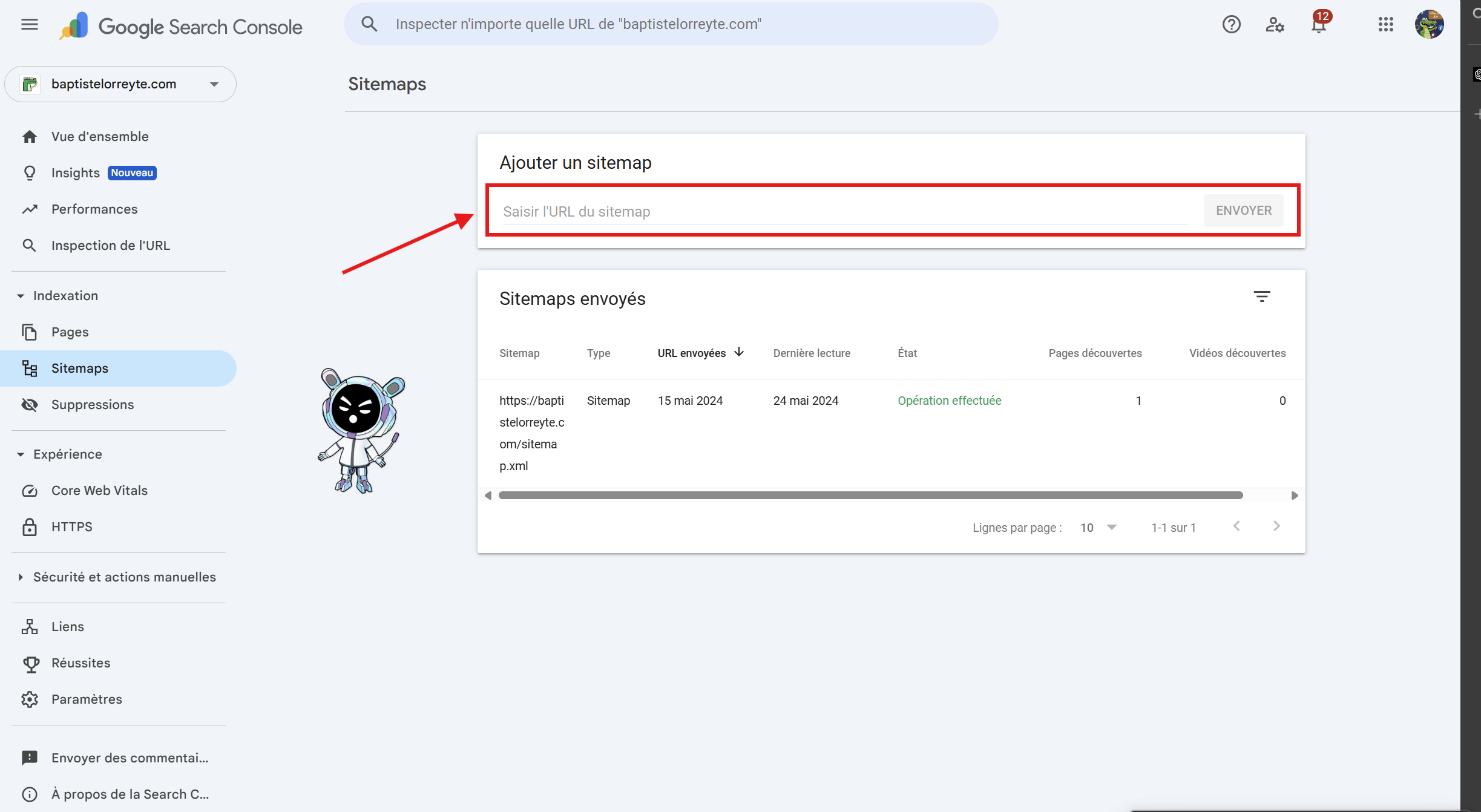
Google will then analyze the file and begin crawling the specified pages. You can track the status and results directly in the table:
Validated → the sitemap has been accepted.
Pending → it is currently being crawled.
Error → a problem is preventing Google from reading it (broken links, blocked pages, etc.).
Once your site has been crawled, go to the Pages section to view:
The number of indexed pages
The pages that were ignored
Any errors
This data will help you better understand how Google interacts with your site.