Change the email address of your CrocoClick account
Learn how to change the email address of your CrocoClick account in just a few clicks via the team settings and validate the new address.
Written By CrocoTeam
Last updated 6 months ago
Why change your email address
There are several reasons why you might want to change your primary email address:
You’ve changed your work email address.
You want to consolidate all your accounts under one address.
You want to separate your work and personal use.
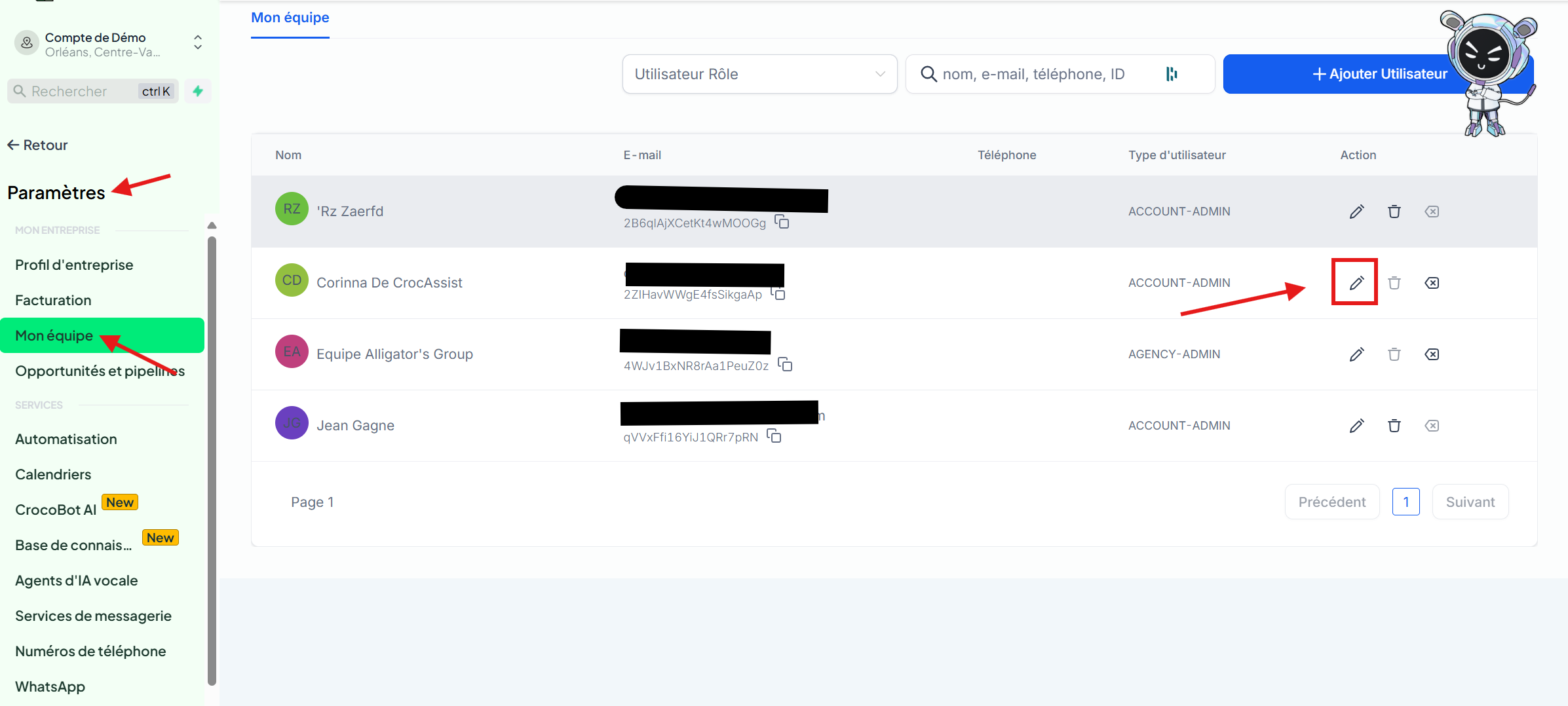
Step 1: Go to the "My Team" tab
Log in to your CrocoClick account
Click on Settings in the left-hand menu.
Select My Team.
Find your profile in the list and click the pencil icon ✏️ on the right to edit your account.
Step 2: Change your email address
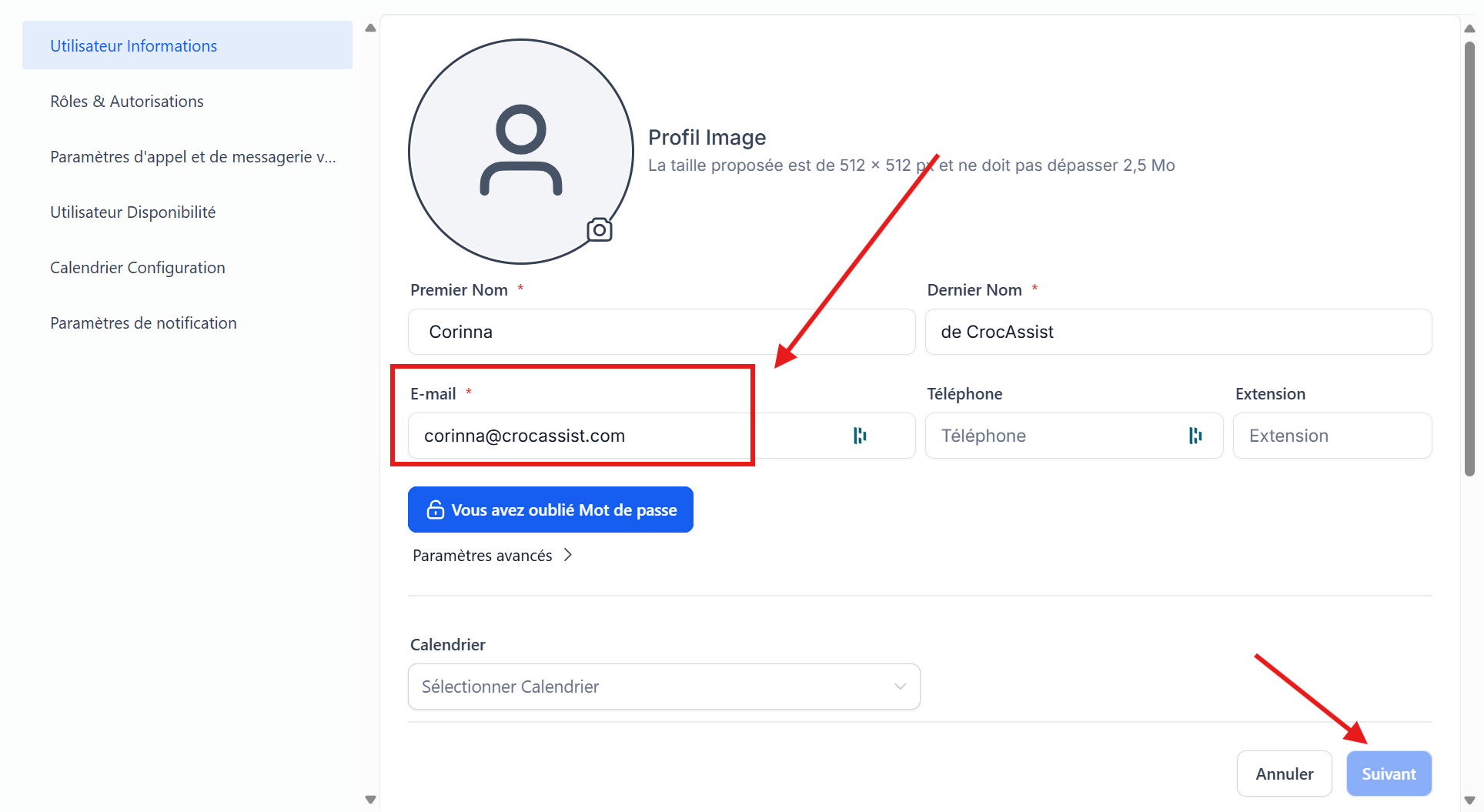
In the User Information section, locate the Email field.
Replace your old address with your new email address.
Click the Next button at the bottom right.
Step 3: Verify your new email address
A confirmation email is automatically sent to the old address you were using.
Open this email.
Click the link to confirm the change.
Until you click on this link, your old email address will remain active.
💡TIP: If you no longer have access to your old email, you can send a message to support via chat and we’ll update your email for you 💪
Step 4: Log back in
Once the change is confirmed:
Log out of your account.
Log back in with your new email address (your password remains the same).
If you encounter any issues...
If you don’t receive the verification email:
Check your Spam / Junk / Promotions folders.
If the email isn’t there, contact our support team at support@crococlick.com or via chat.