[GUIDE] Discover our Advanced Automation Builder and its Visual Canvas to manage your most complex workflows with ease
Create, visualize and optimize your automations with the CrocoClick Advanced Builder. A free visual canvas for connecting triggers, parallel branches and complex actions - clearer, faster, more powerful.
Written By CrocoTeam
Last updated 7 months ago
The Advanced Builder is a free visual canvas that revolutionizes the creation of your automations in CrocoClick.
It allows you to visualize, organize, and execute complex workflows on a single interface—without writing a single line of code.
💡 Overview
The Advanced Builder is a free visual environment for creating powerful automations.
You can:
Connect multiple triggers to different customer journeys,
Create parallel or independent branches,
And visualize the entire logic of a workflow at a glance.
🎯 Concrete example: Imagine a customer onboarding workflow.
If the contact registers via your website → send a welcome email.
If they come from a webinar → send another sequence with a special offer.
In the Advanced Builder, these two paths appear side by side, without duplicating the workflow.
🔐 Access & Prerequisites
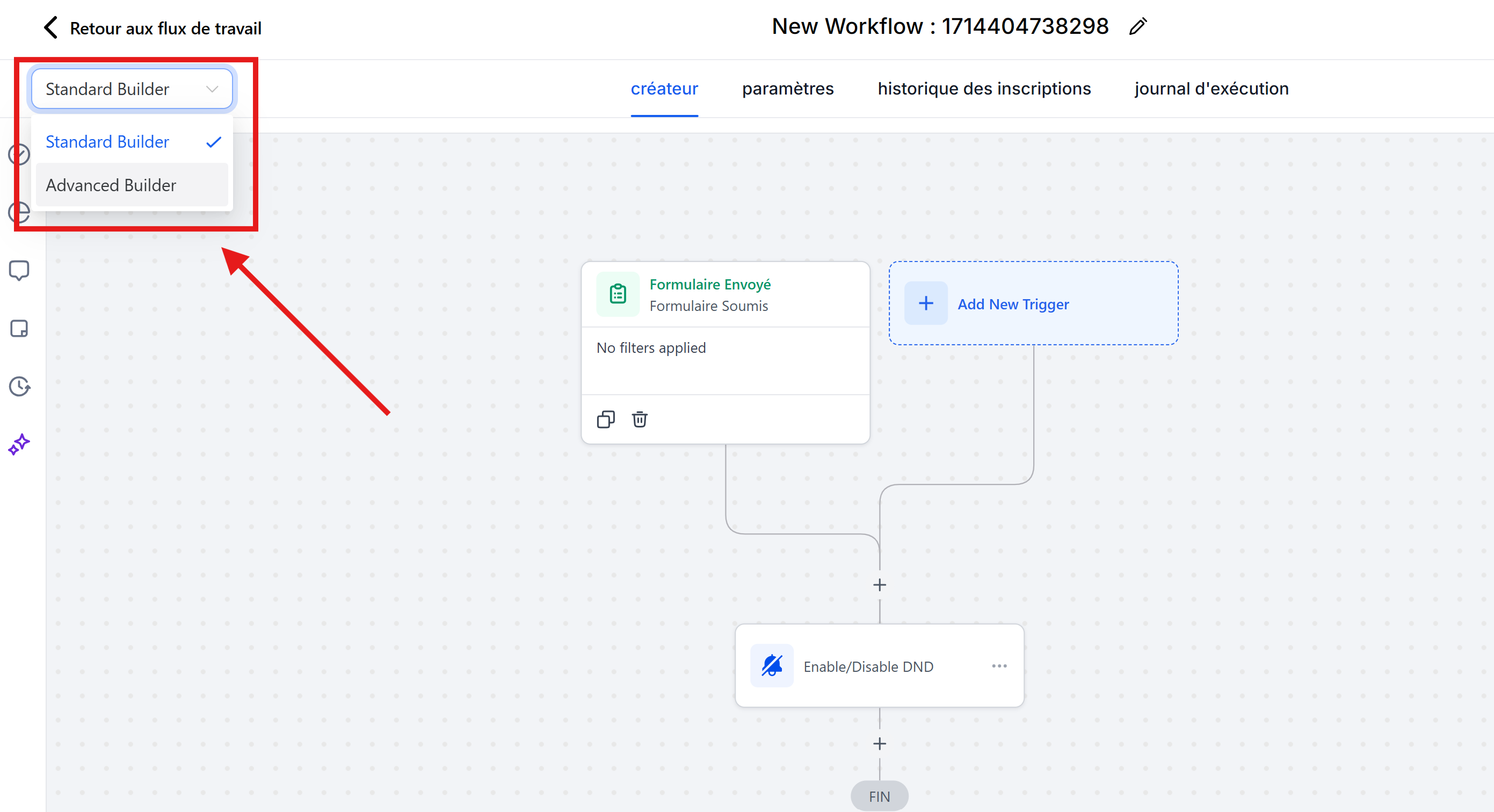
Where to find it:
→ Open an automation in CrocoClick.
→ At the top left, activate "Advanced Builder."
Switch between views: You can switch freely between Standard and Advanced mode.
The content remains the same—only the presentation and visual logic change.
⚠️ Warning: some features such as Go-To connections and detached branches are ONLY available in Advanced mode. Once used, you will not be able to return to the "normal" builder for this workflow.
🎨 The Canvas: Create, Connect, and Organize
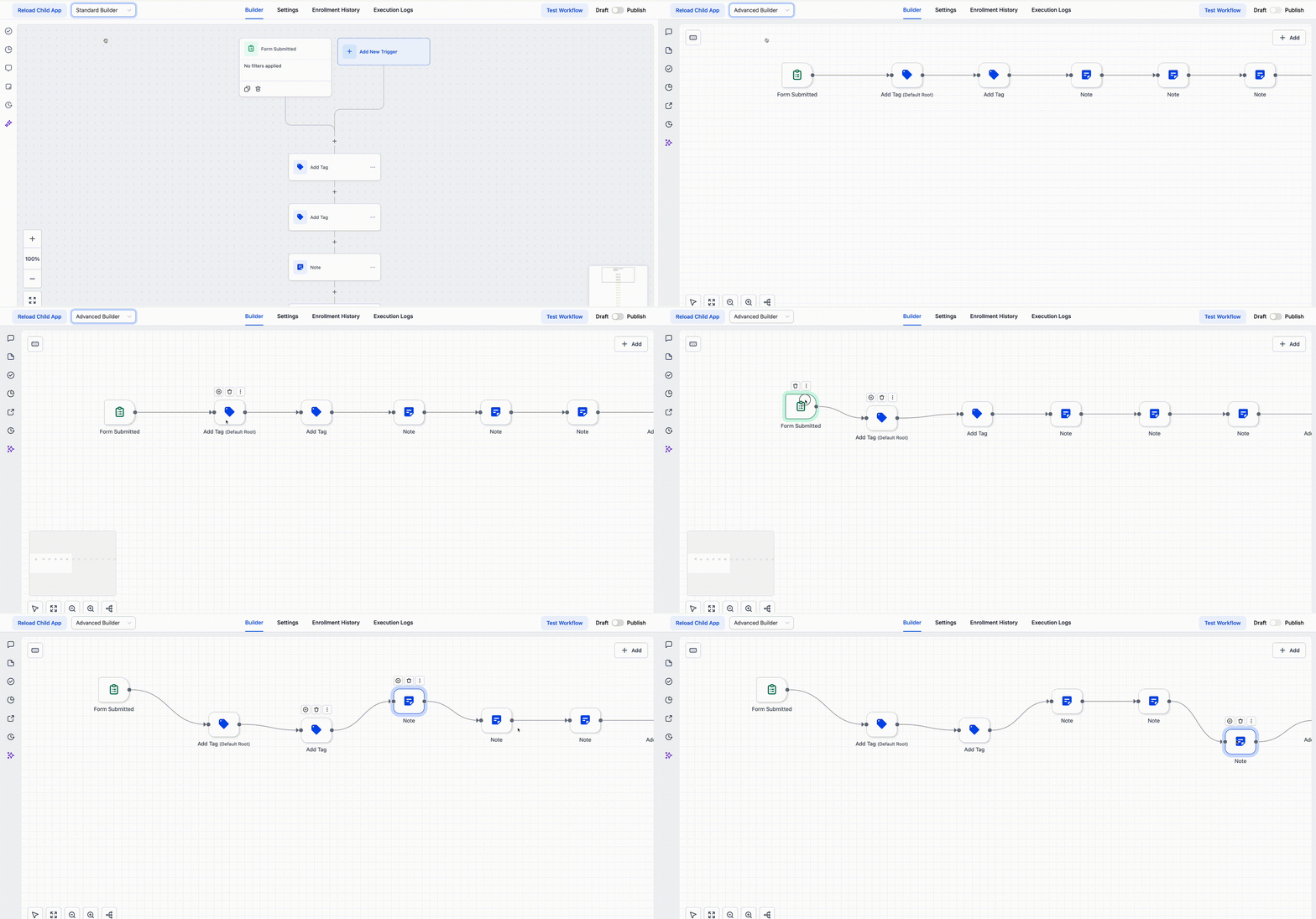
Add & connect steps
Open the Triggers & Actions panel.
Drag the actions onto the canvas: "Email → Delay → Condition → WhatsApp Message."
Connect them with the connector (+).
💡 Example: You can connect a "Form submitted" trigger to a "Send a thank you email" action, then to a 2-day delay, followed by an automatic reminder.
Pro tip
Use multiple selection (Ctrl + click) to select (and move) a set of actions.
Copy/paste entire branches to reuse your automation templates.
Example: You can copy your "Lead nurturing" sequence and paste it into another workflow in 2 seconds.
🔁 Triggers & Detached Nodes (Parallel Branches)
Go-To Trigger — Redirect a trigger to a specific action
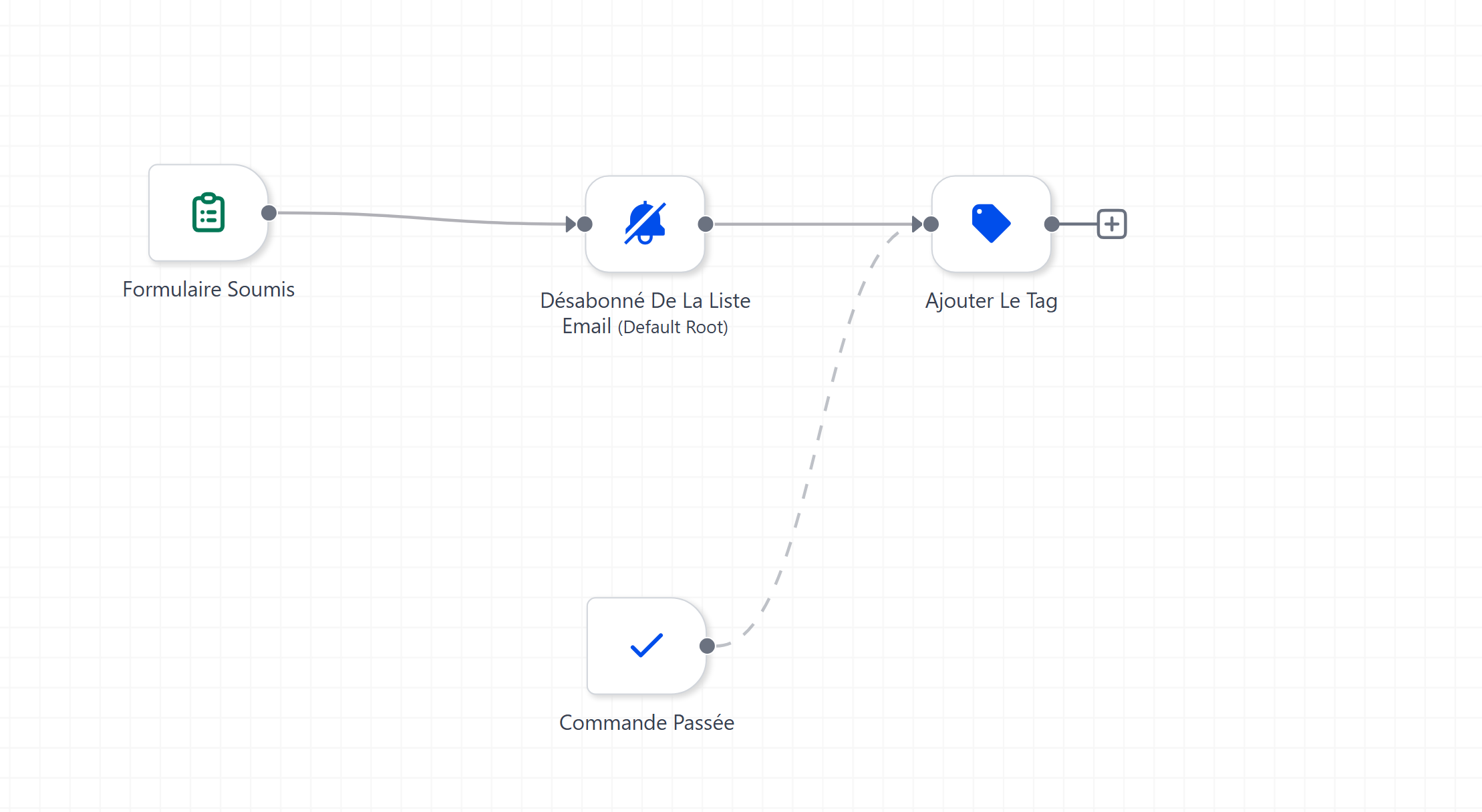
A Trigger allows you to define where a scenario begins in your workflow.
And you can even do what's called a logical "jump": instead of following the linear path, you can create a trigger that goes directly to a specific step.
How to do it:
Click on your trigger.
Drag its "Go-To" connector to the target action.
Visually:
🔹 Solid line → normal sequence
🔸 Dotted line with arrow → Go-To link
🧠 Concrete example:
The same workflow manages contacts from different pages:
Trigger A: "Coaching Page" → Go-To to the "Send Coaching Offer" action.
Trigger B: "Consulting Page" → Go-To to "Send B2B Offer."
👉 A single workflow now manages several personalized customer journeys.
Detached Nodes — Create independent branches
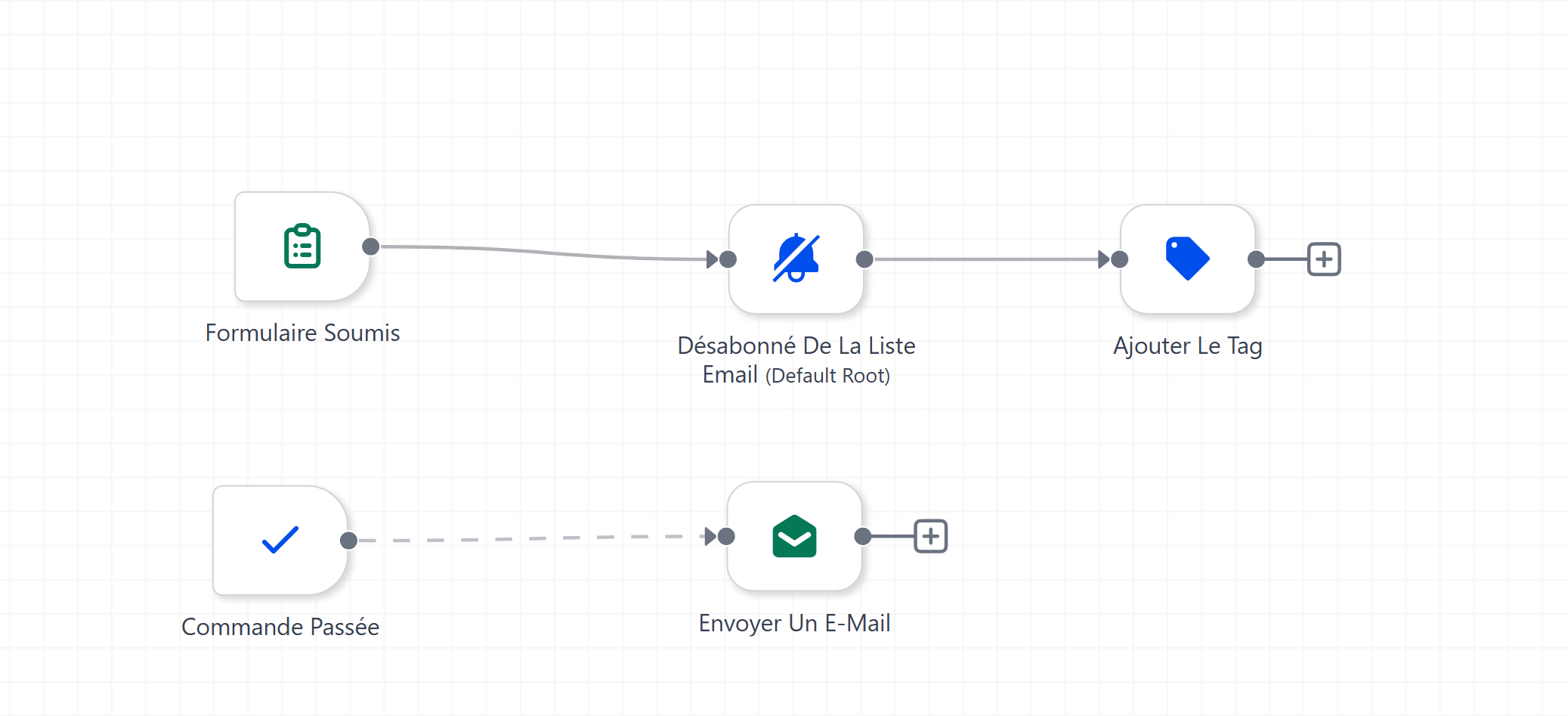
Detached nodes allow you to add parallel branches that are not connected to the main sequence.
They run independently, in the same context.
🔧 Example:
You want each registration to trigger:
An email is sent immediately (main branch).
A task is created for a sales representative (parallel branch).
→ Two different actions, in the same workflow, without interfering with each other.
Visual cues
Enable/Disable Nodes
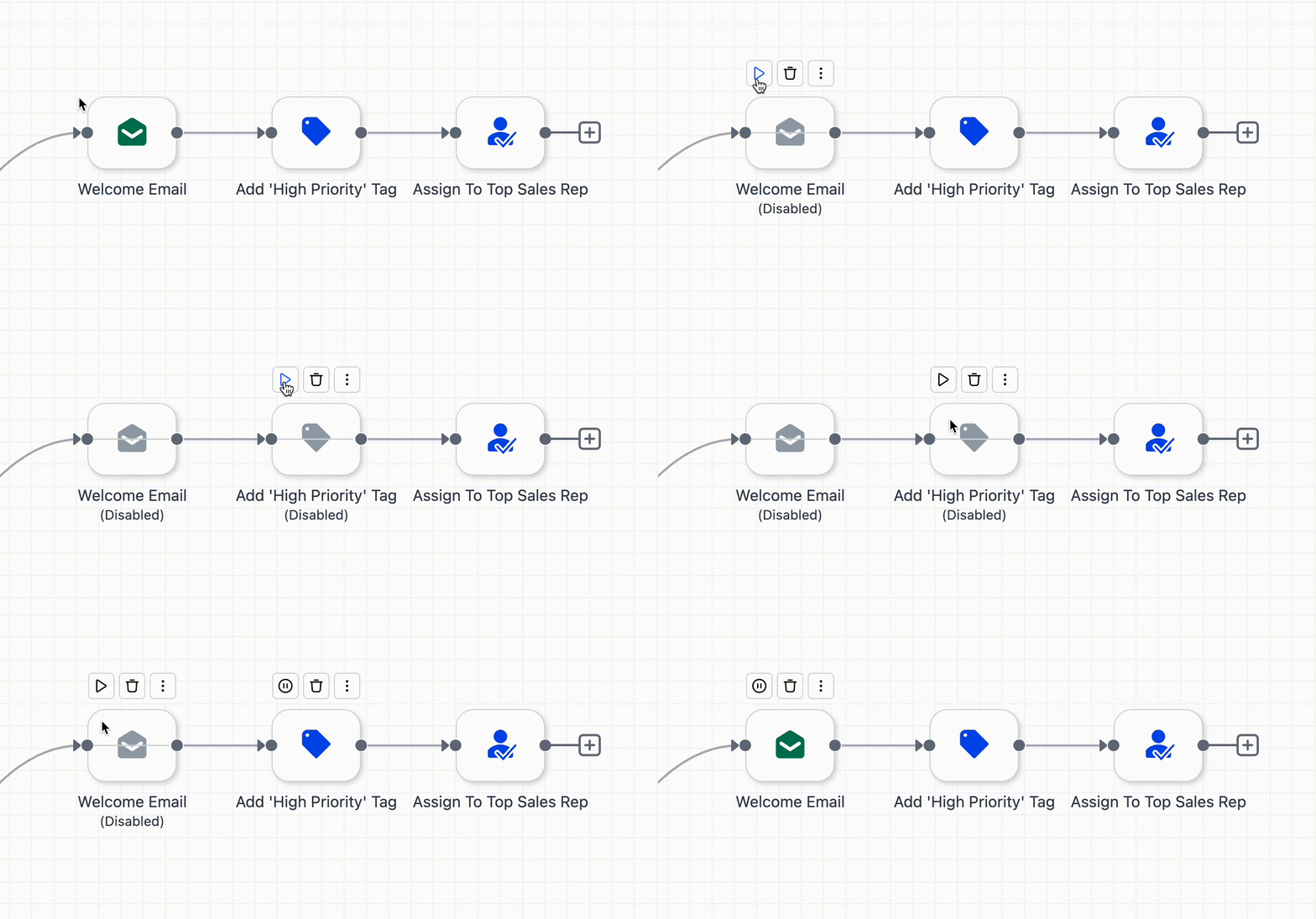
You can temporarily disable an action without deleting it.
How to do it:
Hover your mouse over an action → click Pause.
To reactivate it, click Play.
🧪 Example of use: You are testing a new scenario. You temporarily disable SMS sending to check only the email part. Connections remain intact, the action is simply bypassed.
🗒️ Notes & Color Codes
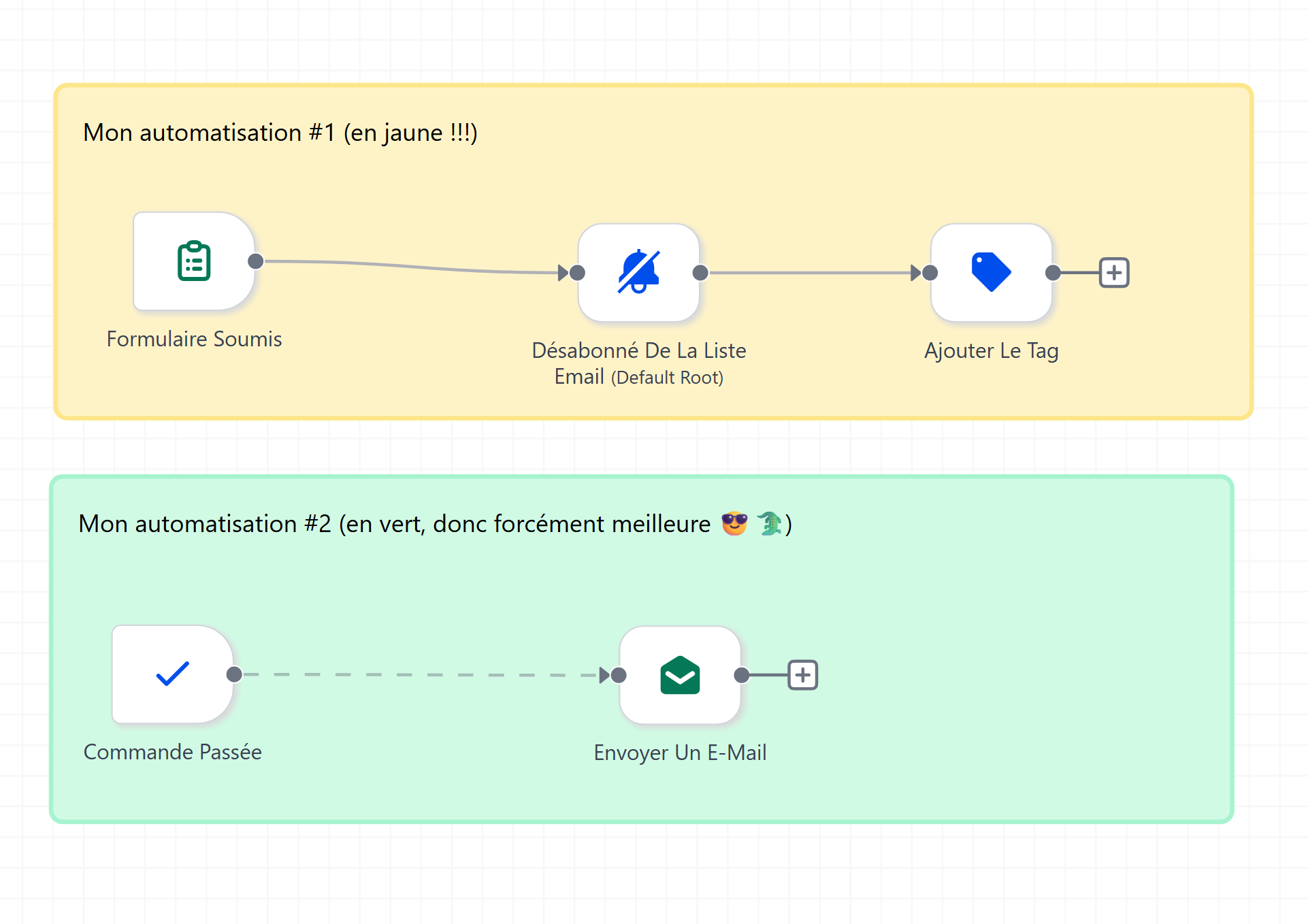
Notes allow you to document your logic for your team members (or your future self!).
Click on Note in the left sidebar.
Choose a color and write your comment.
Add links, images, or reminders.
And the great thing is that your notes can now be UNDER your actions to create a color code for the different automations within your automation.
💬 Example:
🟢 Green → tests or verification branch
🟡 Yellow → sales sequence
🔴 Red → critical condition (e.g., payment validation)
🧩 Concrete example:
A note next to a condition might say:
"⚠️ Verify that the 'premium customer' tag is applied before continuing."
⌨️ Keyboard Shortcuts & Quick Navigation
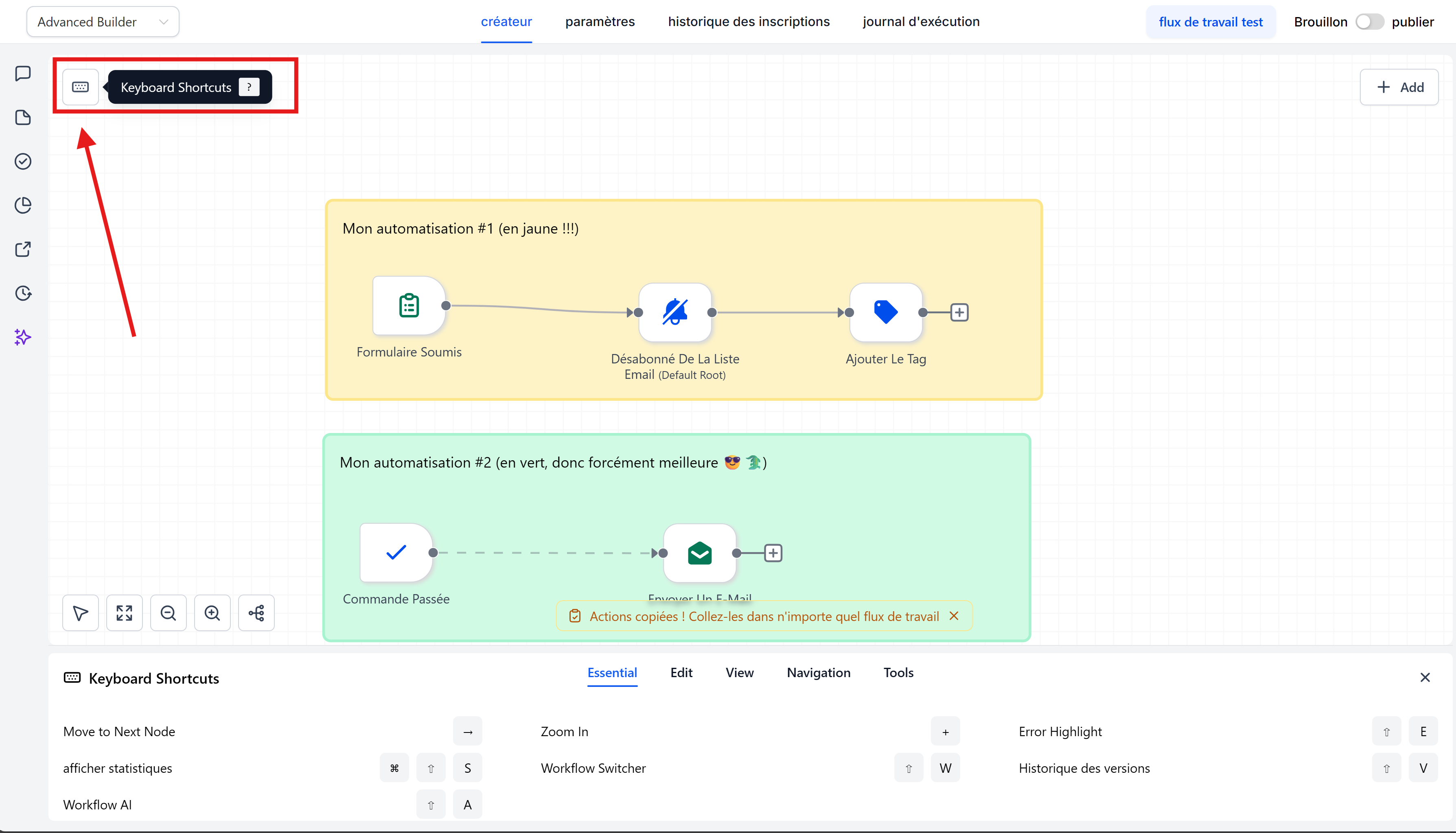
The Advanced Builder is optimized for speed. That's why we allow you to use many keyboard shortcuts.
Open the keyboard icon (top left) to see all shortcuts.
Useful examples:
Arrow keys → move a selection.
Cmd/Ctrl + C / V → copy / paste blocks.
Space → move the canvas freely.
Cmd/Ctrl + Z → undo an action.
⚡ Example:
You can build an entire workflow without ever touching the mouse—just using the keyboard.
🧹 Tidy Up (Automatic layout)
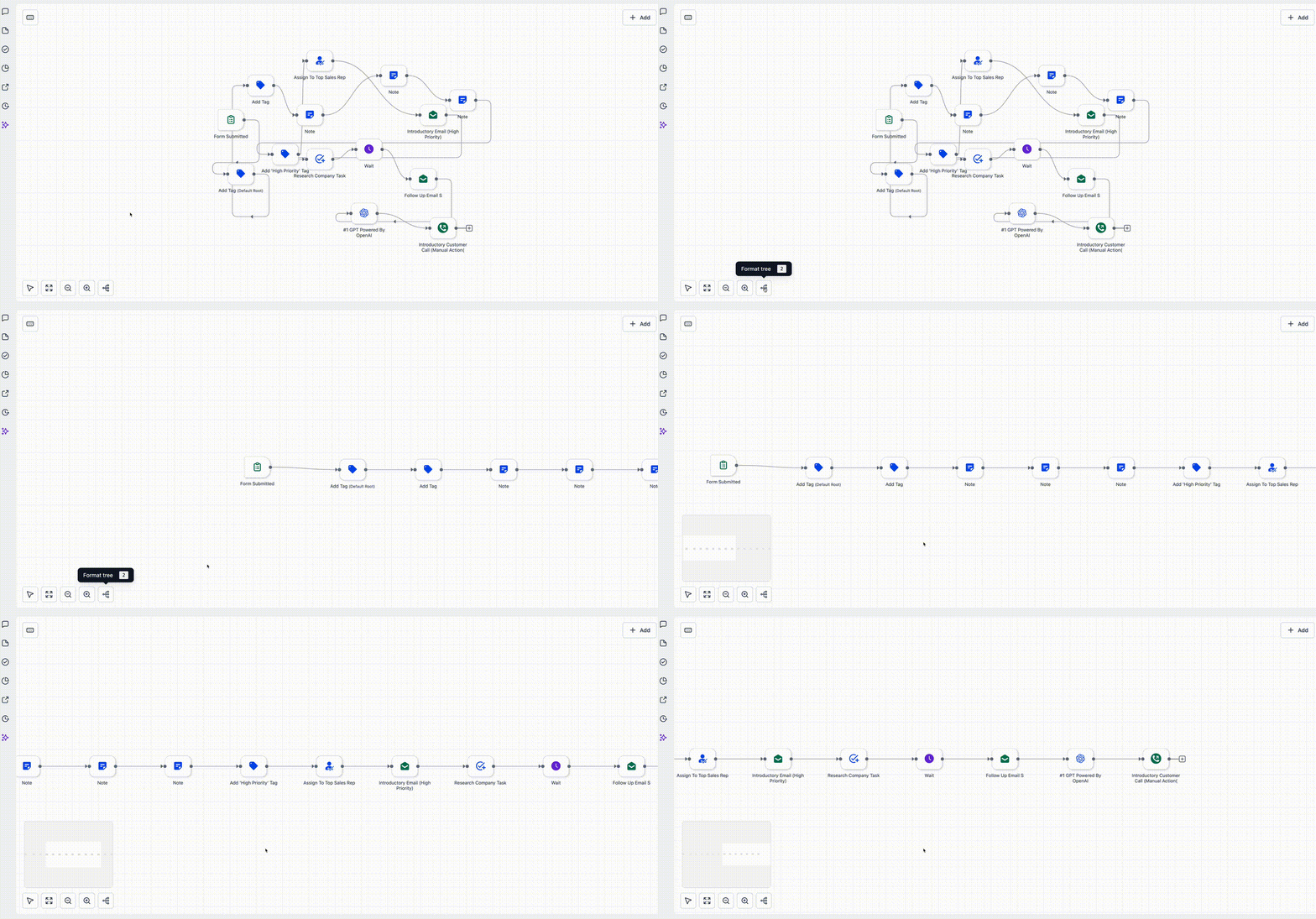
Does your canvas go haywire after 30 minutes of work? It's the same for all CrocoTeam members ^^'.
That's why we've created an automatic optimization feature for your automations.
To do this, click on the "tree" icon and CrocoClick will automatically reorganize your blocks.
Perfect alignment
Optimized spacing
Clear reading
💡 Example: You import an old, messy workflow → one click on tree organization and everything is clean and aligned.
🔀 Workflow selector
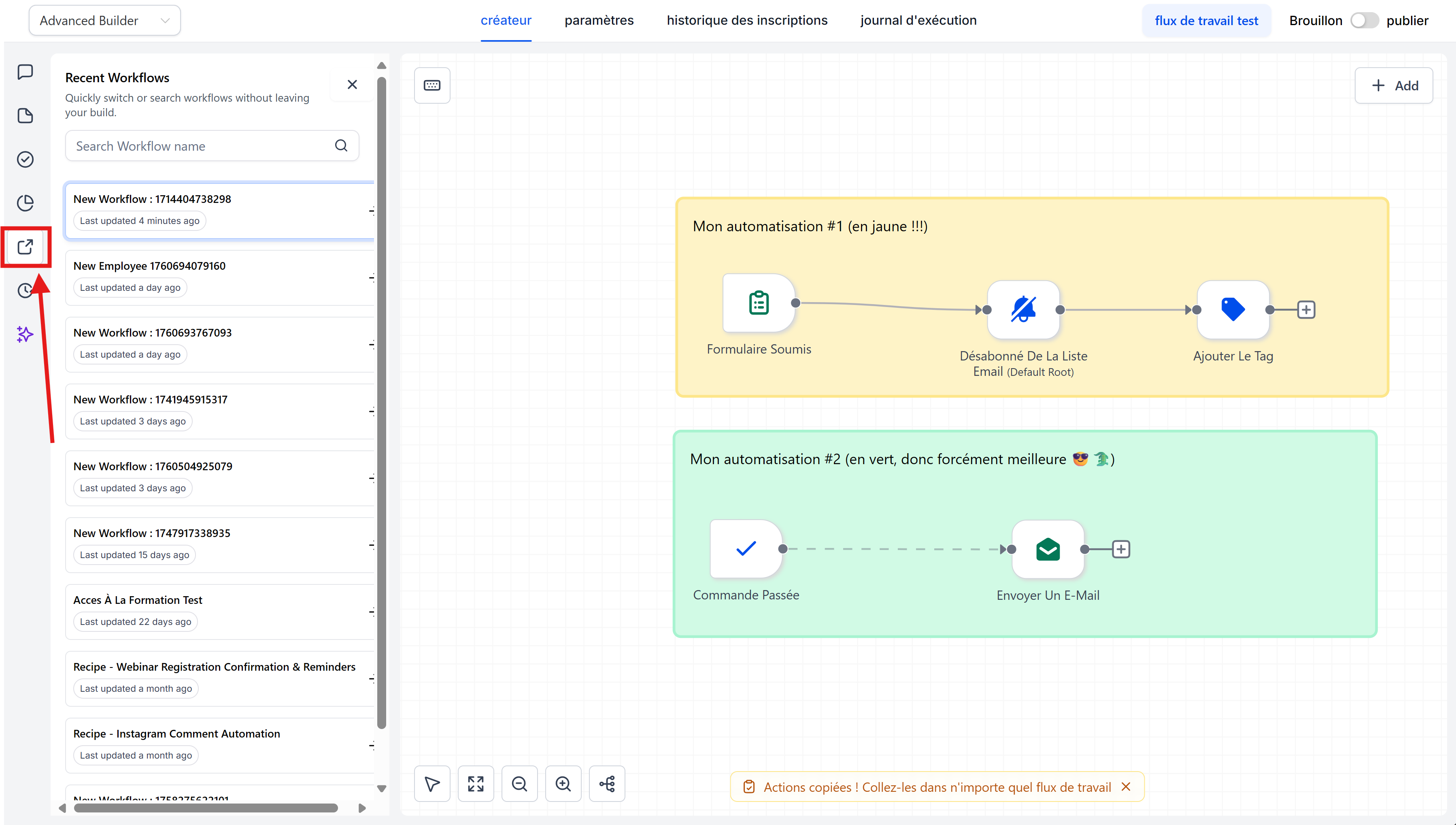
Switch from one workflow to another without leaving the canvas, saving you precious loading time:
Open the Workflow Selector (in the left sidebar).
Search by name or tag.
Click: the automation opens in a new tab.
🧭 Example: You compare "Email Follow-up" and "SMS Reminder" side by side, without closing one to open the other.
🧱 Saving, Versions & Publishing
The builder automatically saves your changes.
You can access the version history and restore a previous version.
Click Publish to activate your changes.
💡 Example: You test a new logic → if it doesn't perform well, return to the stable version with one click.
📘 Notes, Limitations & Best Practices
Best Practices
Organize early: use colors and notes from the outset.
Name clearly: "Email #1 - Welcome" is more readable than "Action 2."
Group by logic: e.g., one color for each phase of the customer journey.
Important Limitations
The same contact can only be enrolled in one automation at a time, even with parallel branches.
Before returning to Standard mode, delete:
Go-To connections,
detached nodes,
and disabled nodes.
💬 Example: If a contact triggers the same workflow twice, only the first execution will be taken into account.
❓ Troubleshooting & FAQ
➡️ Can I copy a branch to another workflow?
Yes! Select the area → Ctrl/Cmd + C / V → paste it into another workflow.
➡️ Can I combine multiple triggers?
Yes. Use parallel branches to manage multiple entry points in the same process.
➡️ Do disabled nodes affect the logic?
No, they are simply ignored, but remain connected.
➡️ Can I do everything with the keyboard?
Almost! Shortcuts allow you to build, navigate, and test without the mouse.
➡️ What if my canvas becomes unreadable?
Use Tidy Up to automatically realign your entire workflow.