How to use the "Services" tab in CrocoClick
Learn how to use the Services tab in CrocoClick: create bookable services, manage variations, add-ons, resources, staff and payments for smooth, simple online booking.
Written By CrocoTeam
Last updated 7 months ago
Want your customers to book their appointments hassle-free? Welcome to the Services tab.
The Services tab allows you to create services that can be booked online so that your customers can easily purchase and schedule their own appointments.
You can manage variations (duration, price), offer additional options (add-ons) to increase the value of the order, and control available resources (rooms, equipment, etc.).
In short, it's an improved version of Calendars, tailored for businesses that sell services online.
What is a Service?
A Service in CrocoClick is simply your offer:
a coaching session,
a massage,
a yoga class,
etc.
Each service can be enhanced with:
Variations → e.g., 30 min, 60 min, 90 min
Add-ons → e.g., VIP supplement, premium kit, oil massage
Resources → e.g., meeting room, hairdressing chair, workstation
You define who delivers the service (your team members, if you have a team ^^), its price, duration, and all its conditions.
Key benefits
Creating your services in CrocoClick gives you access to the following features:
Variations → multiple options within a single service
Add-ons → automatic upsells at the time of booking
Resources → no double booking of rooms or equipment
Processing time & buffers → allow for margins before/after appointments
Staff & Availability → assign the right person at the right time
Categories → organize your public page clearly
Private services → hide a service and share it only with a direct link
Payments & deposits → collect payment immediately or only a deposit
Go to the "Services" tab
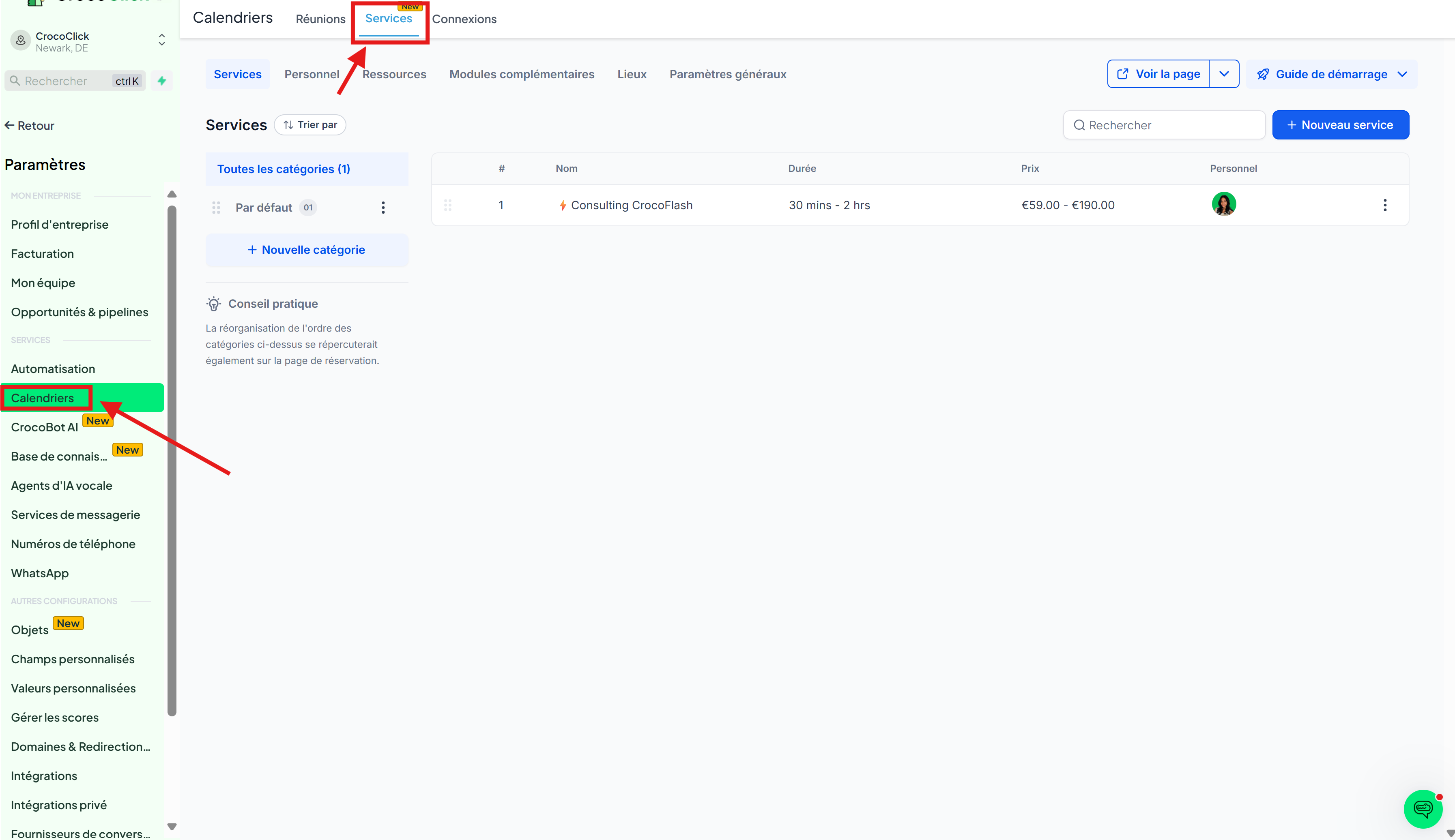
Go to Settings
Click on Calendars
Open the Services tab
There you will find:
A list of all your services (name, duration, price, staff)
Categories (left column)
Quick actions: edit, duplicate, delete, share
A View booking page button (as your customers will see it)
Create and manage categories
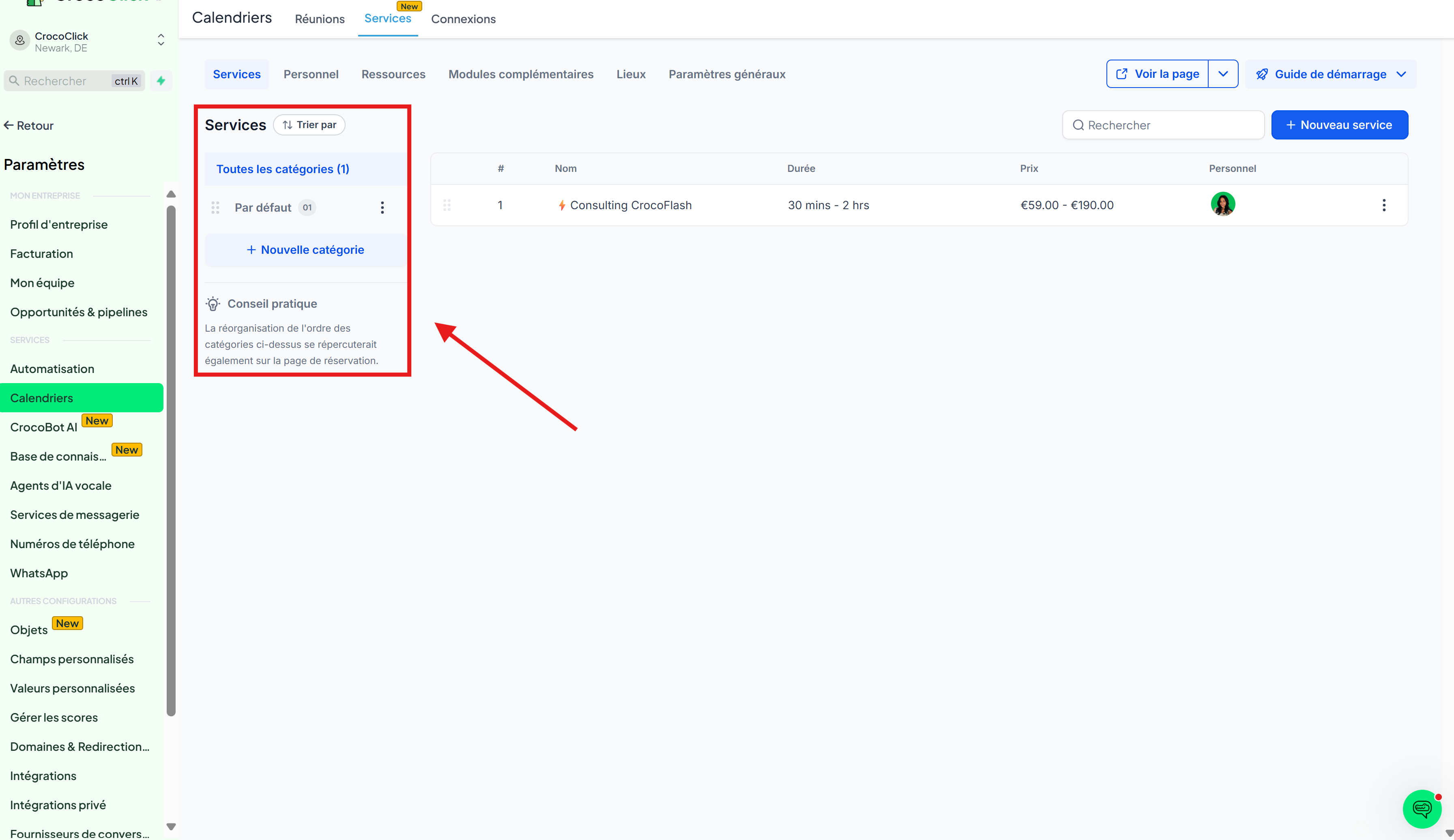
Click on + New category to add one
Use the ⋮ three dots to edit or delete
Drag and drop categories → the order will be displayed as is on your public page
What you can add to your Services
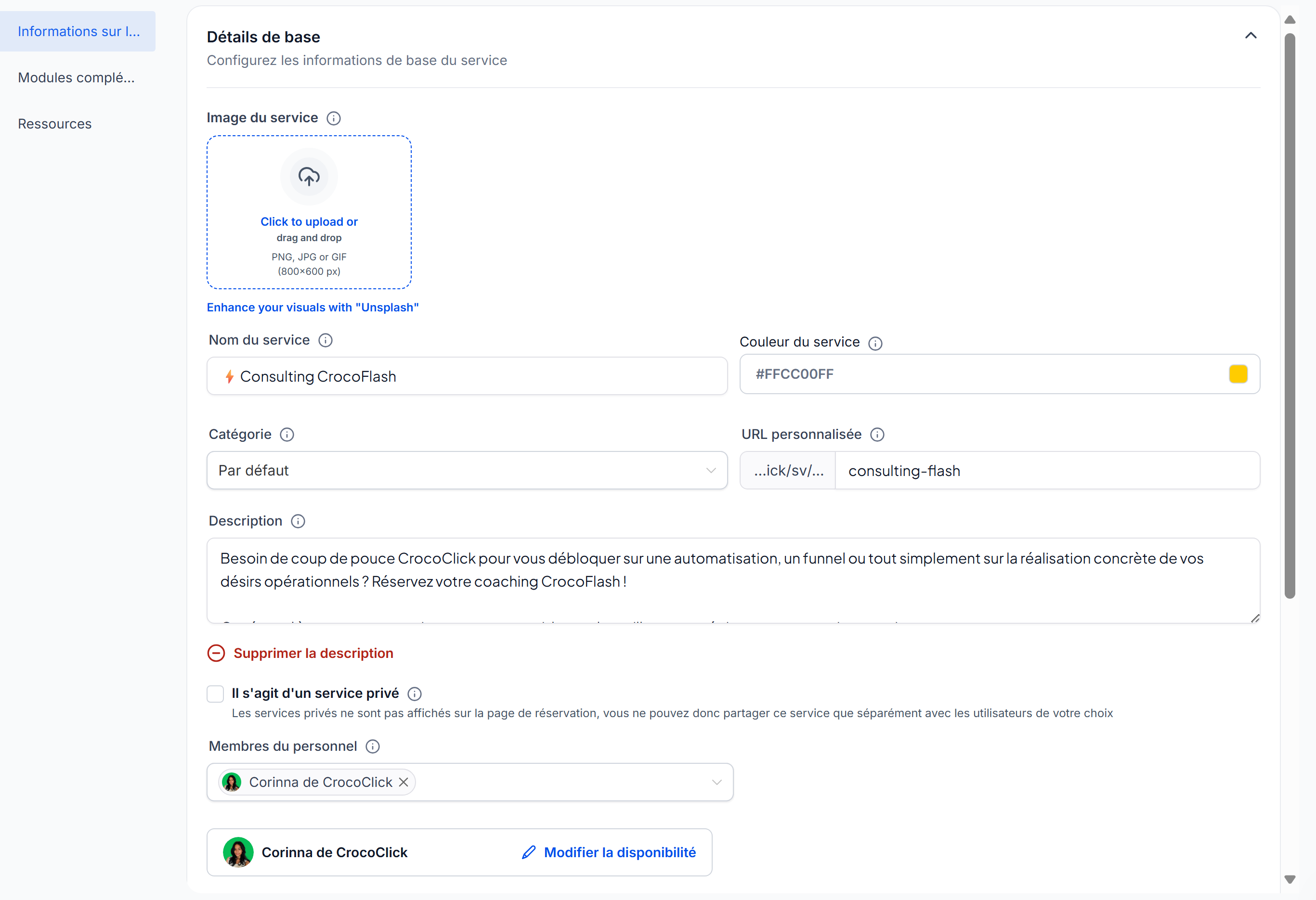
In the service editor (⋮ > Edit), you can manage:
Details → duration, staff, variations, buffers, price, deposit, etc.
Add-ons (additional services) → additional options related to the service
Resources → rooms, necessary equipment
Variations
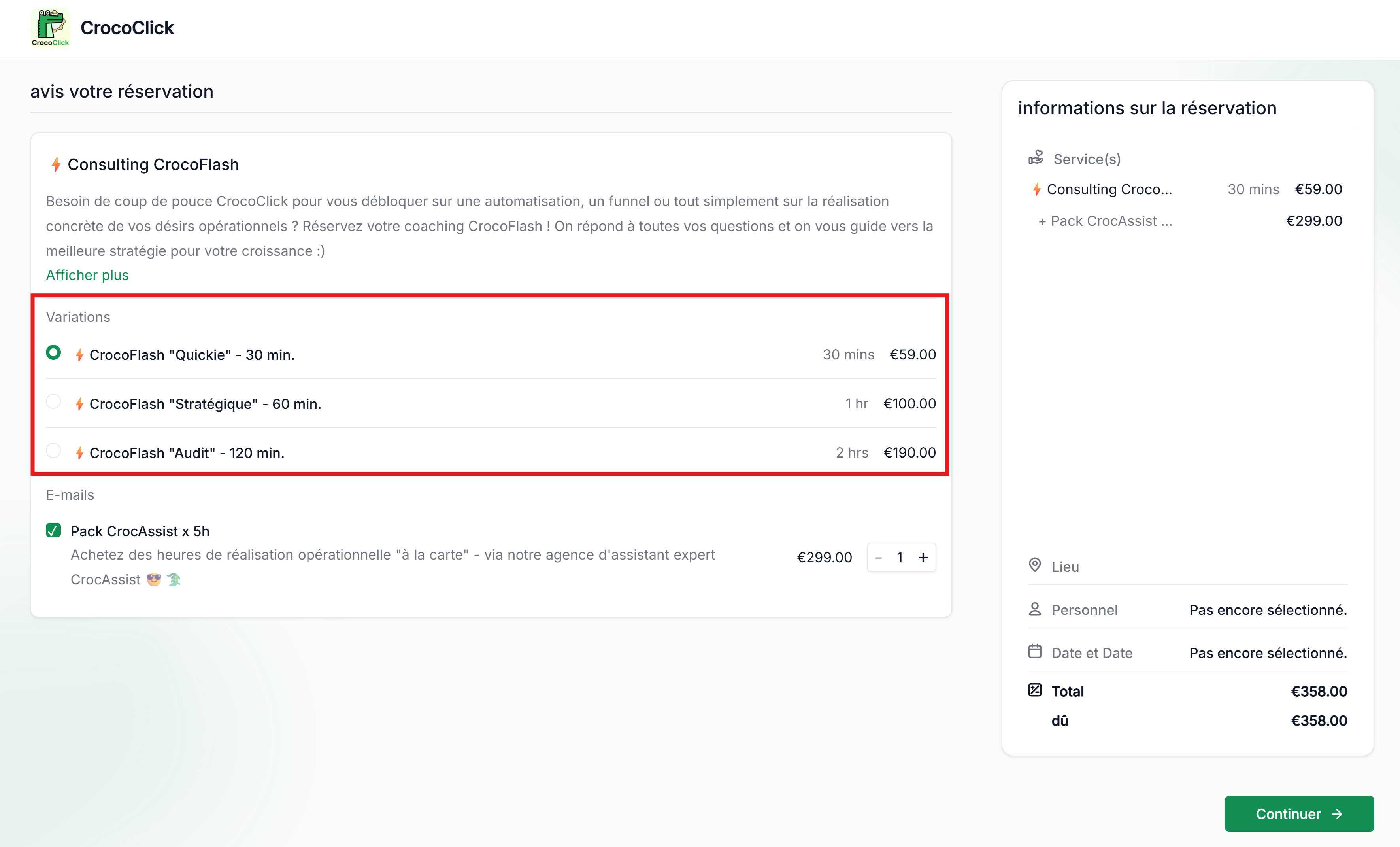
Variations allow you to offer several options for the same service.
Rather than creating three different services (e.g., 30-min massage, 60-min massage, 90-min massage), you can group them under a single service with multiple choices.
Each variation can have:
A name (e.g., "Introductory Session" or "Premium Package")
A duration (e.g., 30 min, 1 hr, 1 hr 30 min)
A specific price
A customized processing time or buffer
👉 Result: your booking page remains clear and simple, your customers can directly choose the package that suits them, and you can keep your schedule perfectly organized.
Add-ons (additional services)
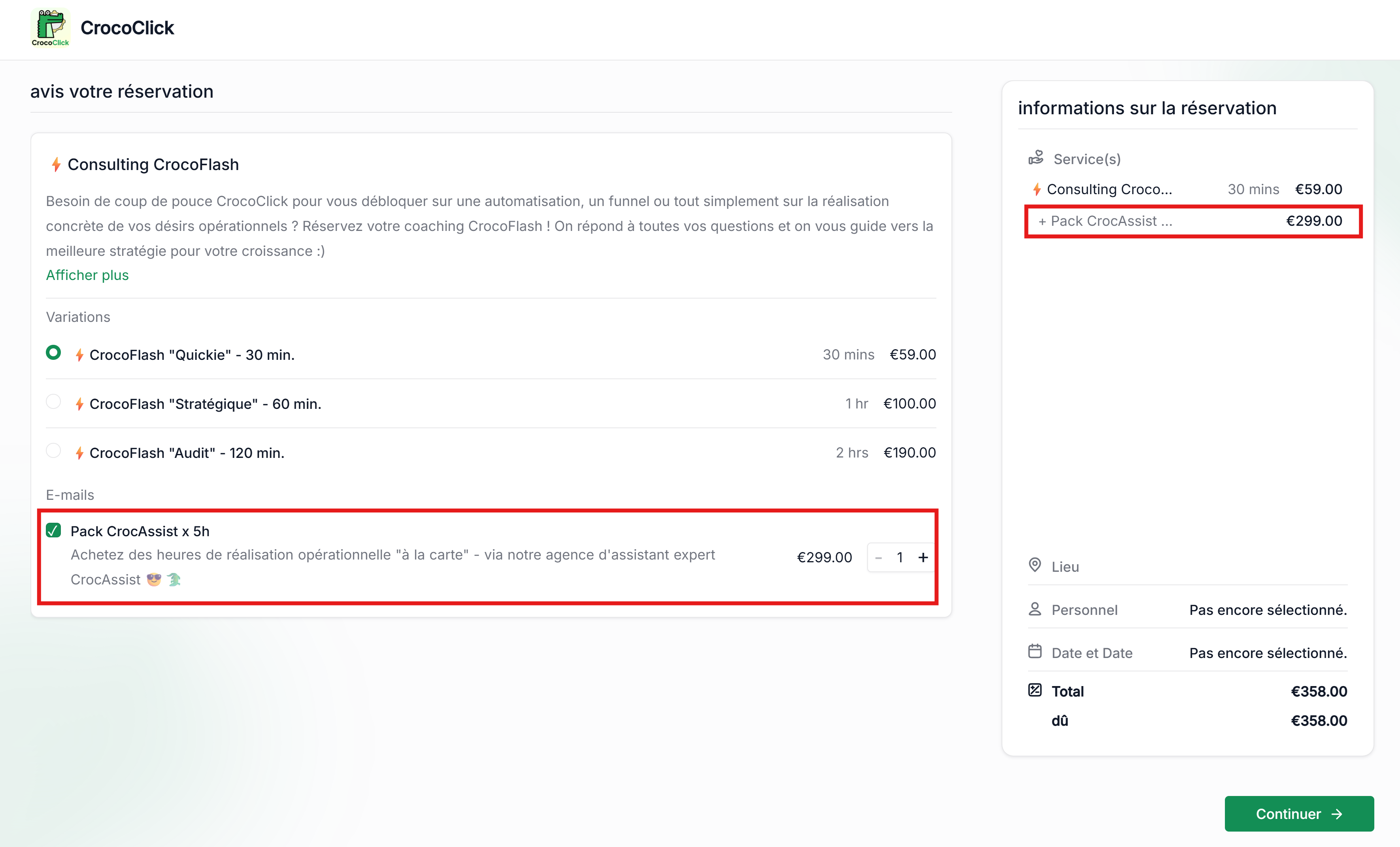
Add-ons are the cherry on top 🐊
These are additional options offered to customers at the time of booking. Examples: complimentary drink, extended session, premium package, upgrade to premium massage oil, etc.
They are displayed as checkboxes on the booking page
Their price and duration are added automatically
You can also create add-ons that are only visible internally (to your staff)
Resources
Resources represent items shared between several departments (rooms, workstations, machines, etc.).
For each one, you define:
Its location (by site)
Its capacity (maximum number of people)
👉 Result: no more scheduling conflicts or double bookings.
Create a new Department (step by step)
Click on + New Service
Fill in the basic details → image, name, color, category, description, staff, duration
Add advanced settings → processing time, buffers
Configure payment → fixed or variable price, deposit, payment on site or online, etc.
Add your variations → e.g., 30 min, 1 hour, 90 min
Click Save and check with View the booking page
Best practices
Always assign staff, otherwise your service will not be bookable (staff can be limited to "you" if you are a solopreneur 😎)
Organize your services into clear categories
Use Add-ons to boost the average value
Activate Resources to manage... your resources (totally optional: if you do online coaching, you probably don't need to add resources)
FAQ
Can I hide a service from the public?
Yes, check Private Service. Only the direct link allows you to book it.
Do categories change the display in my service menu?
Yes, they structure the order and grouping on the public page.
What is the difference between processing time and buffer?
Processing = part of the appointment (e.g., rest time)
Buffer = margin before/after (e.g., preparation, cleaning)