Sync Changes" function in your Automation emails
Keep your automation emails and templates always in sync with Sync Changes, or customize them to suit your automation. Ideal for
Written By CrocoTeam
Last updated 7 months ago
The new Sync Changes feature allows you to control whether changes made in a workflow email should also update the associated template—or not.
A simple checkbox allows you to enable or disable synchronization when selecting a template.
What is the "Synchronize changes with template" feature?
When you create or modify an email action in a workflow and select an existing template, a new box appears.
It gives you the choice between:
ON (enabled) → emails in the workflow and the template remain synchronized in both directions: any changes made in the workflow email update the template, and vice versa.
OFF (disabled) → they become independent and can be modified separately: changes remain isolated; neither the template nor the workflow affect each other.
What is this for?
When Sync is ON
Content is always perfectly aligned.
Save time: update once and everything is synchronized.
Ideal for maintaining consistency across multiple workflows.
When Sync is OFF
You can customize your emails without risking changing the original template.
Perfect for specific cases where each workflow must have its own version.
More flexibility to test, adapt, or create variations.
How to use it?
1. From Automations
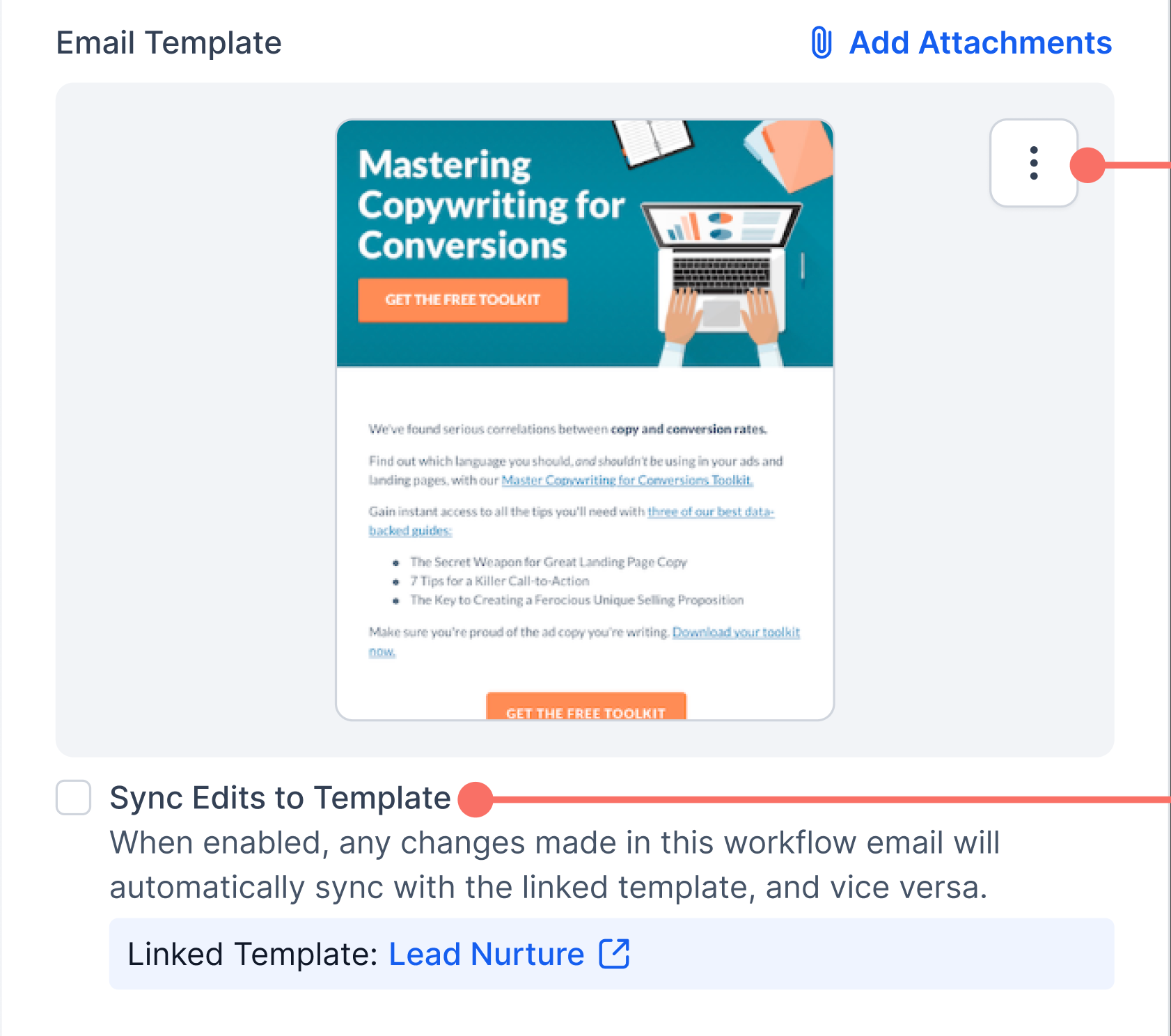
Add or modify an email action in your workflow.
Choose an existing template.
Decide whether or not to enable Sync:
Check the box → a window will confirm that everything will be synchronized.
Leave unchecked → a window will confirm that the email and template will be independent.
Example:
Sync ON: you change a sentence in the workflow email → the template is automatically updated.
Sync OFF: you change a sentence → only the workflow is affected.
2. From Mail Templates
You can also manage synchronization directly in your templates:
Open the (...) menu in the email editor → click on Sync Changes.
You will see:
The list of all workflows linked to this template.
Their status (synchronized or not).
For unsynchronized actions, you can launch a one-time synchronization ("Sync Once").
For actions already in continuous sync, the status remains locked.
FAQ
Q1. What is the "Sync Edits to Template" feature?
It automatically keeps workflow emails and related templates up to date.
Q2. When does the Sync option appear?
When you select a template in a workflow email action.
Q3. What happens if I enable Sync?
Changes in the workflow and in the template are reflected in both directions.
Q4. What if I disable Sync?
The workflow email and the template become independent.
Q5. Where can I see which workflows are linked to a template?
In the (...) menu of a template → "Sync Changes."
Q6. Can I change the setting later?
Yes, you can enable/disable Sync at any time. A modal will ask for confirmation.
Q7. What is the default behavior?
Existing email modified via a template → OFF.
Existing email without modifications → ON.
New workflow based on a template → OFF.