Use the "Public Documents" function to standardize document creation with electronic signature
CrocoClick Public Documents: Create a document that can be shared via a link, get signatures without creating a contact, centralize responses
Written By CrocoTeam
Last updated 7 months ago
Public Documents make it easy to share and collect signatures on standard contracts, without having to create or add a contact in your CRM and without having to manually send the document.
With a simple link, anyone can access the document, view it, and sign it. It's the ideal solution for quick agreements, one-time signatures, or self-service.
💡TIP: If you want to collect specific information before sending a contract (IBAN, company address, favorite crocodile color, etc.), we recommend sending the contract via automation after the recipient has filled out a form that you have created in advance.
Overview of the "Public Documents" feature
Creating public documents: generate ready-to-sign templates directly from the Documents & Contracts > Templates tab.
Shareable links: each published public document is linked to a unique link that can be easily sent by email, chat, or button.
Centralized management: view and download all signatures and responses in one place.
Compatible with workflows: you can continue to use your usual templates and send them via your automations. Public documents work in parallel, independently.
How to create and use a public document
1. Create a public document
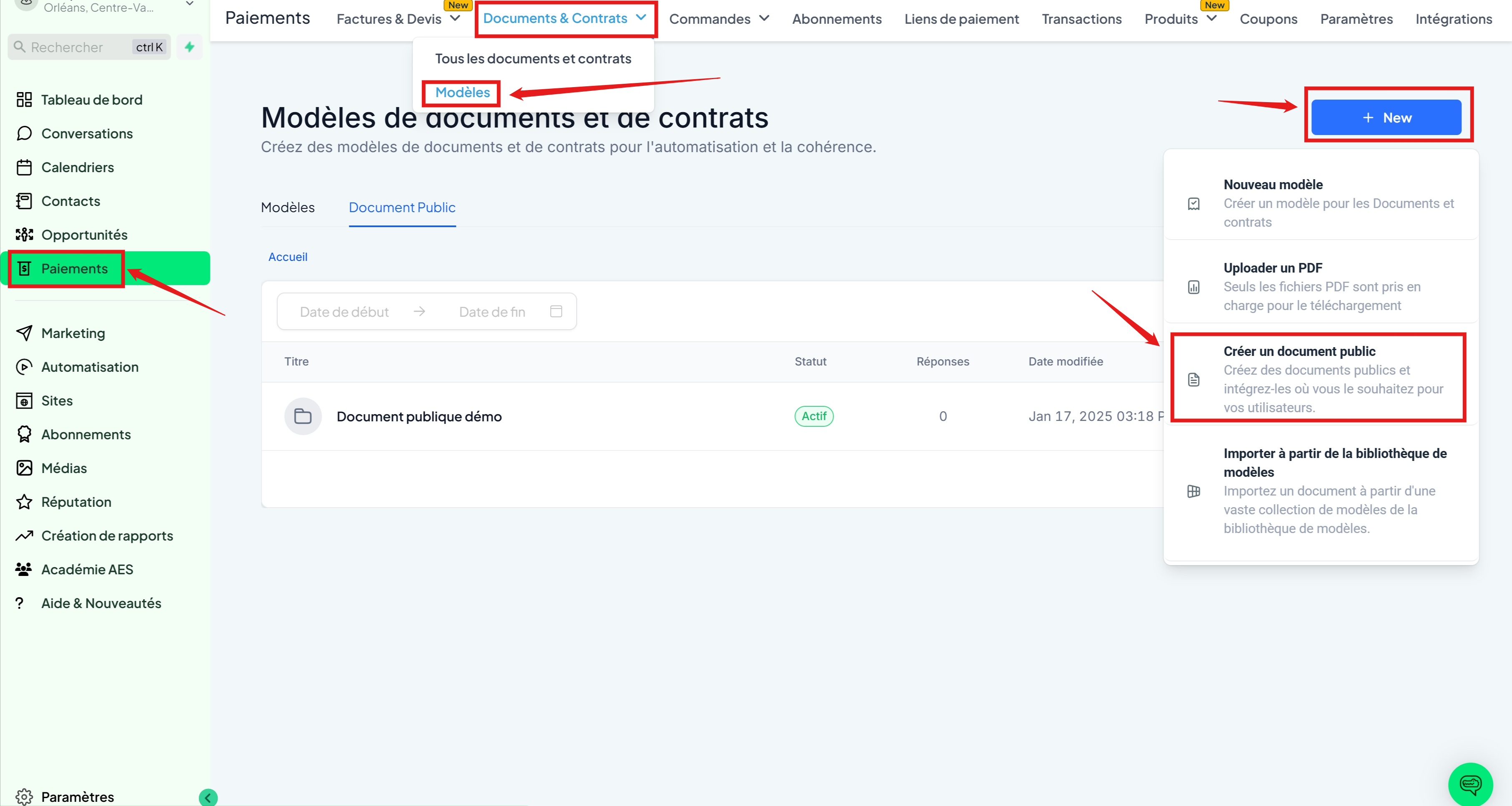
Method 1: Create a public document directly
Go to Payments > Documents & Contracts > Templates.
Click + New > Create a public document
Method 2: Convert a template into a public document
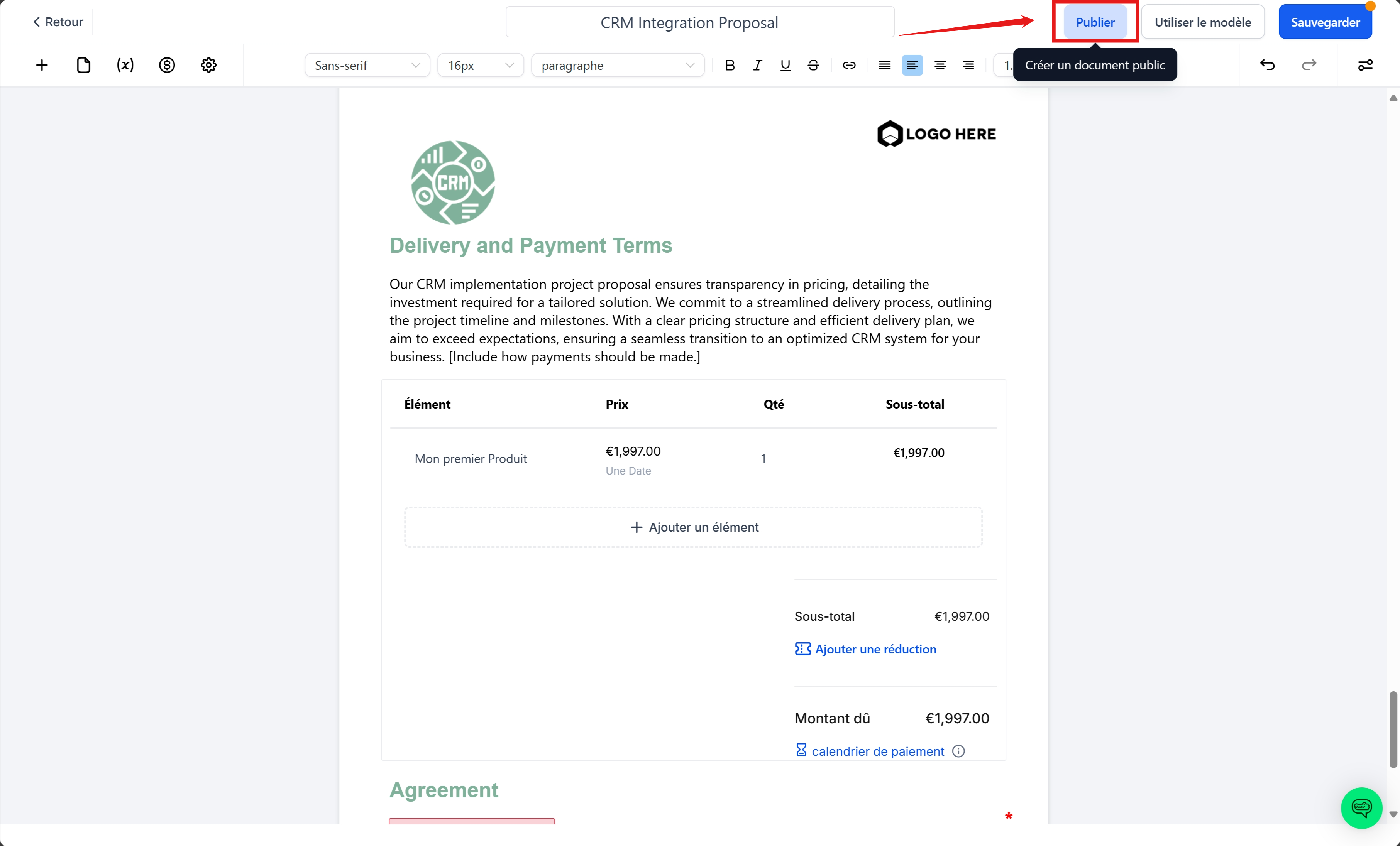
Go to Payments > Documents & Contracts > Templates.
Click on one of your templates
Click on the Publish button
Click on Generate links
💡TIP: Converting a template into a public document still allows you to use the template as a template. It simply adds the ability to share the contract via a link, without altering the "classic" functionality of your template

2. Share the document
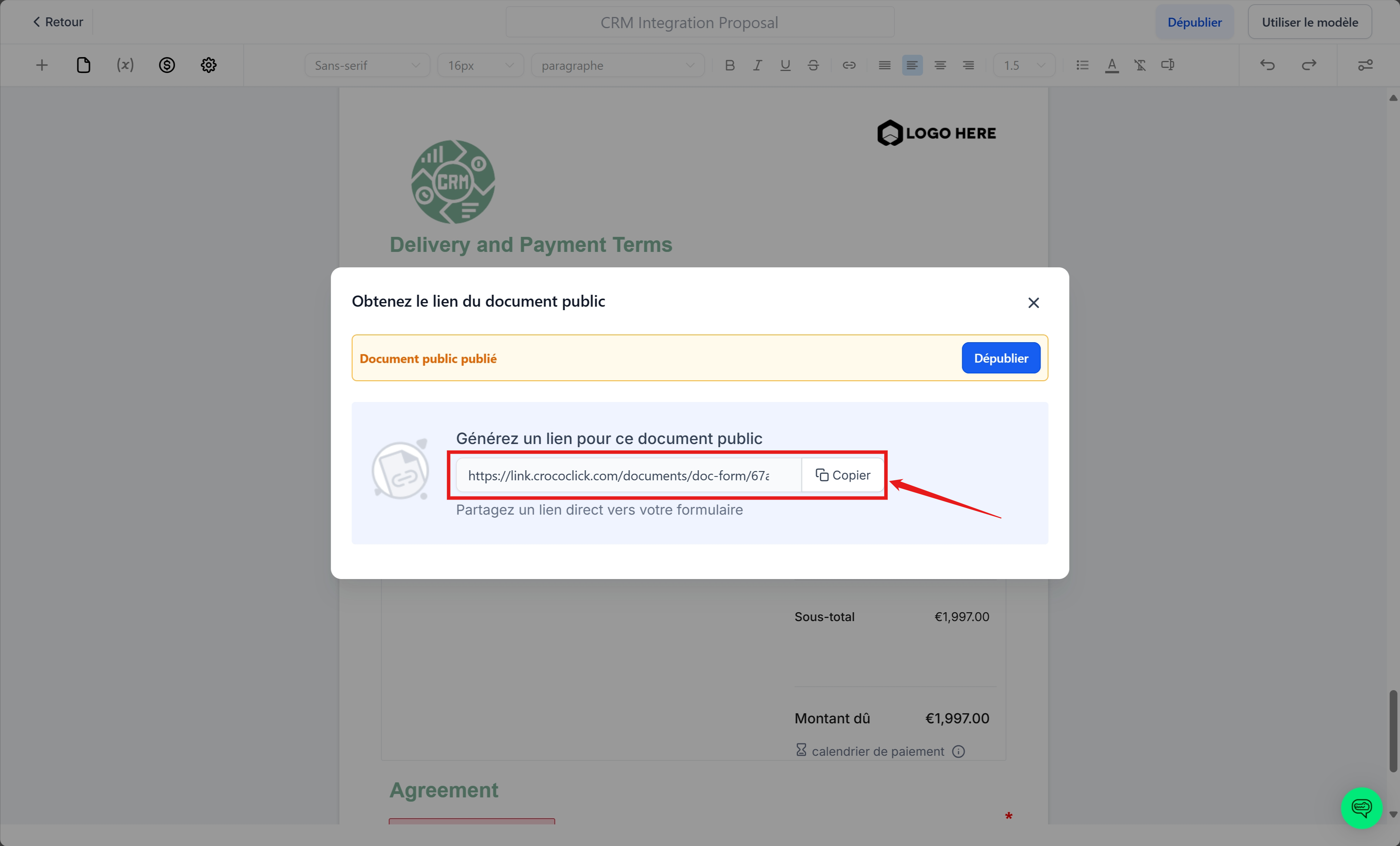
Once published, copy the automatically generated link.
You can share it via email, WhatsApp, chat, or even insert it into a button on your website.
3. Signature by the recipient
The signer opens the link, enters their last name, first name, and email address, then signs.
A signed copy is automatically sent by email.
4. Manage responses
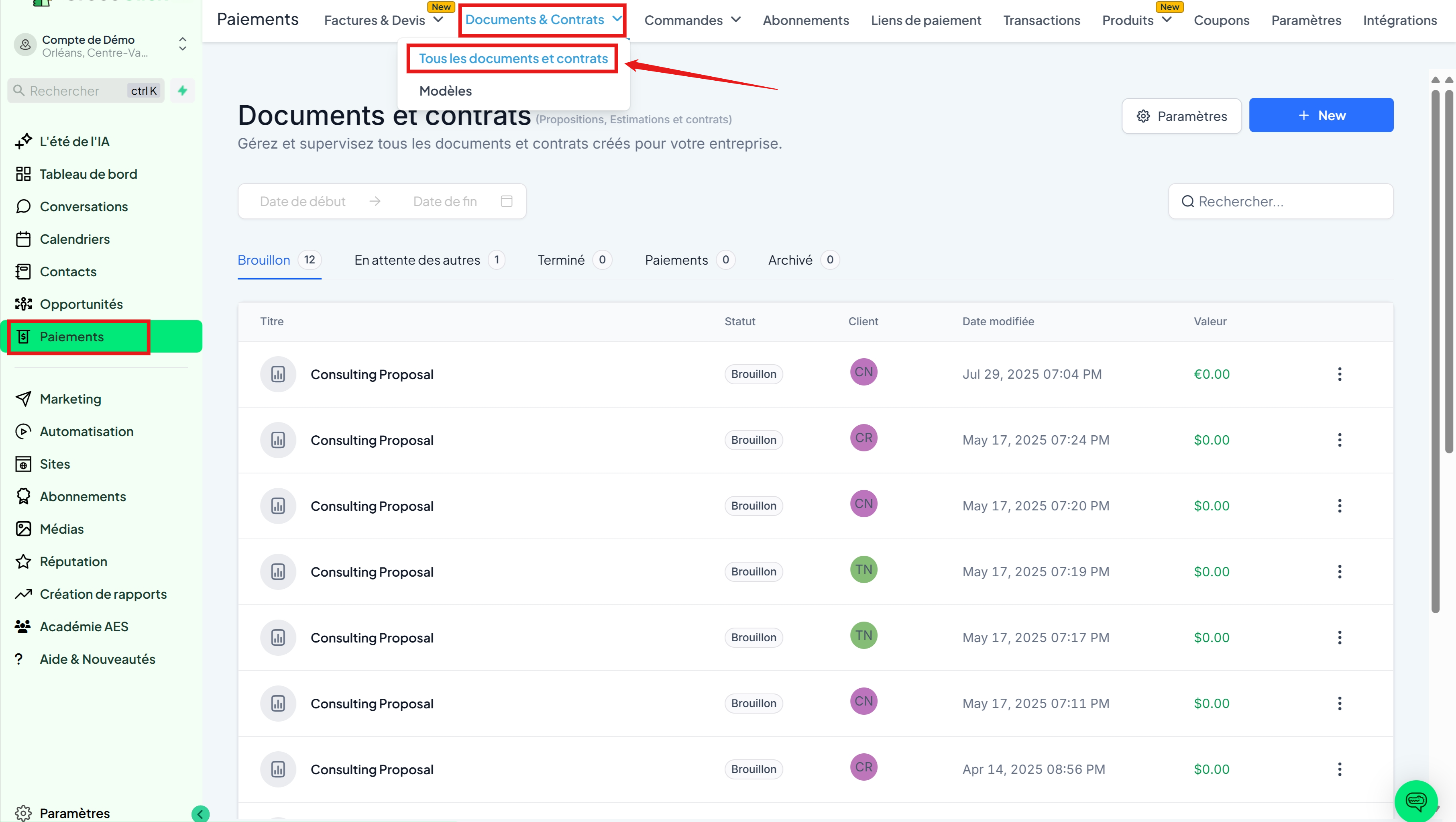
As with traditional contracts, go to Documents & Contracts > All Documents & Contracts to access signed/completed documents.
Click on the "..." to the right of a document to download the signed document
5. Deactivate a document
You can stop collecting signatures and deactivate the public document link.
To do this, go to your public document and click Unpublish.
The link will be deactivated immediately.
Why and when to use Public Documents
You don't need to add a contact to your CRM.
You want a signed agreement quickly, without going through a custom form and automation.
You want a reusable template that is accessible via a simple link.
You only need the name, email, and signature on your contract.
FAQ – Frequently Asked Questions
Can I continue to use my templates in automations?
Yes. Public Documents are an additional option. Your current templates
can still be used as normal.
Q: Does the signer need a CrocoClick account?
No. They just need to enter their name and email address to sign.
Q: Where are signed documents stored?
In the Responses section, where you can view and download them.
Q: Does the signer receive a copy?
Yes, a signed copy is automatically sent by email.
Q: Can I deactivate a link after sharing it?
Yes. Unpublishing the document immediately cuts off access to the link.
Q: How many people can sign via the same link?
As many as necessary, until the document is unpublished.
👉 With Public Documents, you make signing faster, easier, and more flexible for both you and your customers.