How to change the language and preferences of your CrocoClick calendars
Learn how to change the language and preferences of your CrocoClick calendars in just a few clicks to tailor the experience to your customers.
Written By CrocoTeam
Last updated 7 months ago
In CrocoClick, you can customize your calendars to match your habits and the language of your users.
This article provides step-by-step instructions for changing the language, the first day of the week, and other settings.
Step 1: Access calendar preferences
Log in to your CrocoClick account.
Go to settings
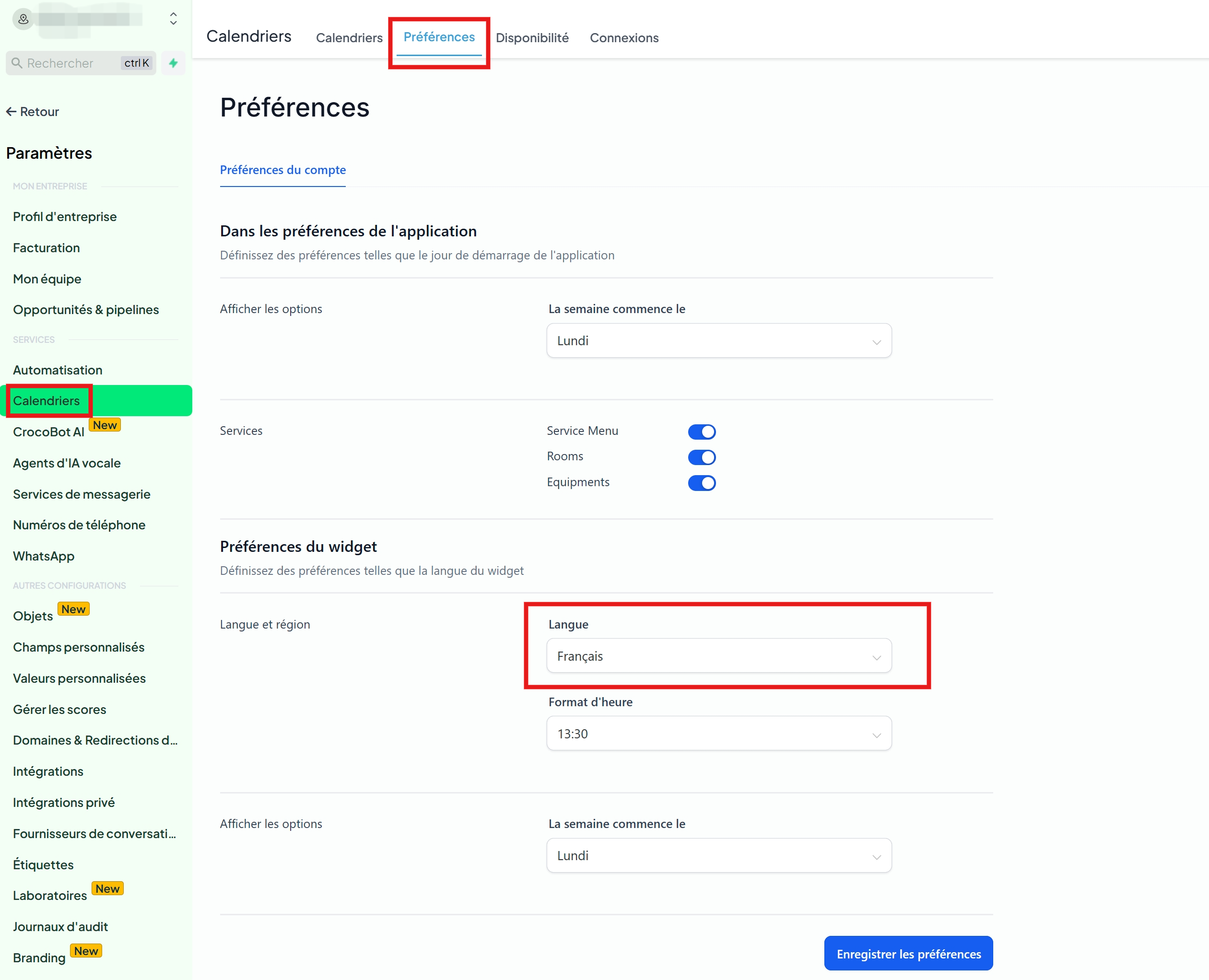
In the left-hand menu, click on Calendars.
At the top of the page, select the Preferences tab.
Step 2: Change the start day of the week
In the Preferences section of the application:
Find the option "Week starts on."
Choose the day that suits you (default is Sunday).
Step 3: Change the widget language
In the Preferences section of the widget:
Find the Language and Region option.
Click on the Language drop-down menu.
Select the desired language (e.g., French, English, etc.).
💡 This change applies to the interface visible to your customers when they use your calendars.
Step 4: Configure other settings
Still in the Preferences tab, you can also enable/disable:
Service Menu
Rooms
Equipment
These options allow you to tailor the booking experience to your needs.
👉 In just a few clicks, you can:
Choose the start day of the week
Change the language of the widget (visible to your customers)
Manage options such as services, rooms, and equipment
This allows you to tailor your CrocoClick calendars to your business and audience.