Add your CrocoBot AI to a Live Chat (on your site)
Written By CrocoTeam
Last updated 7 months ago
Want your visitors to be able to chat directly with your CrocoBot AI from your website or funnel page?
Good news: with CrocoClick, it only takes a few minutes.
In this guide, we'll show you how to create a web chat interface for your bot, from configuration to integration on your page.
1. Create a CrocoBot AI for Live Chat
First and foremost, your bot must be ready to respond on the "Live Chat" channel.
Go to Settings → CrocoBot AI
Click Create a bot or edit an existing bot
In the bot settings, enable Live Chat as a response channel
Define the first message that the bot will send to visitors
Save
💡 TIP: Once this option is enabled, the main CrocoBot will respond by default to ALL conversations on your Live Webchats.
If you want to set advanced conditions and assign other secondary bots to certain webchats, you will need to use the automation method detailed in this article (COMING SOON)
2. Create a Live Chat in CrocoClick
Now that your bot is ready, let's create the chat widget that will appear on your site.
Go to Settings → Messaging → Live Chat
Click on Create a Live Chat
Customize:
Color and theme to match your brand
Display name (e.g., "Talk to our CrocoBot assistant")
Welcome message
Save
💡 TIP: Add a photo or custom avatar to your Live Chat to give your bot a more human touch.
3. Create a page in a funnel (optional)
If you don't have a page to integrate the chat into yet, you can create one directly in CrocoClick.
Go to Sites → Funnels
Click Create a new funnel or edit an existing one
Add the page where you want to display the Live Chat (e.g., contact page, offer page)
Save
4. Add Live Chat to the page
Last step: connect the Live Chat widget to your page.
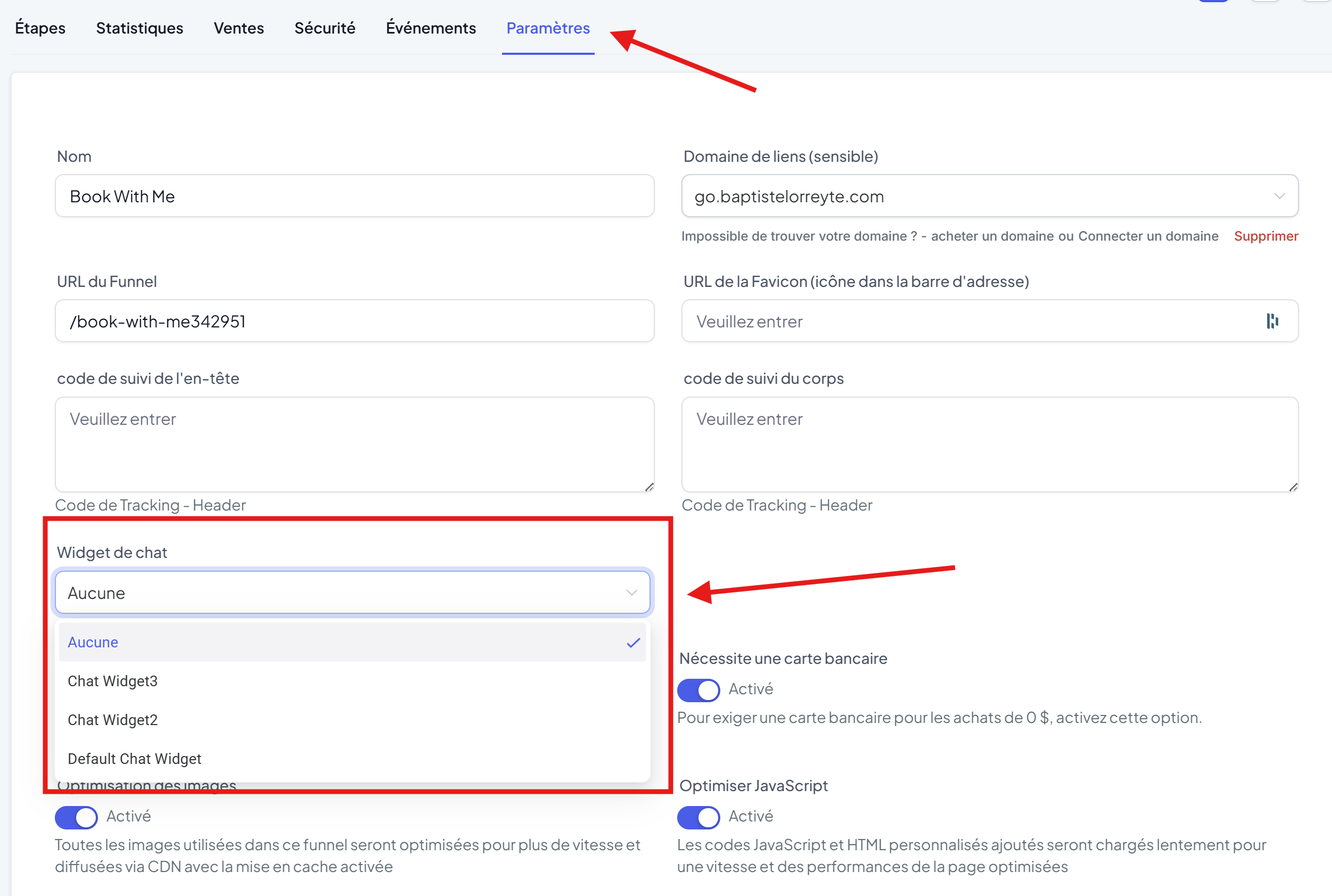
If it is a CrocoClick page:
Open your funnel
Click on Settings (top right)
Activate Live Chat and select your widget
Save and publish
If it's an external site:
Go to Settings → Messaging → Live Chat
Copy the integration code
Paste this code into your site's
<head>or<body>Publish
You now have a CrocoBot AI ready to chat with your visitors directly on your website or funnel pages.
It can respond instantly, qualify your leads, and even schedule appointments, without you having to lift a finger.