How to create your first CrocoBot AI in CrocoClick
Find out how to configure, customize and activate your bot to automate conversations, appointments and workflows.
Written By CrocoTeam
Last updated 7 months ago
Have you ever dreamed of having an assistant who:
Understands your prospects
Responds 24/7 with your brand's tone
Automatically qualifies leads
Triggers the right actions in your CRM
And NEVER takes vacations or asks for raises?
That's exactly what CrocoBot AI does.
Based on our own technology, coupled with the power of CrocoClick, and optimized for the French-speaking market, it combines conversational power and intelligent automation.
Understanding CrocoBot AI
CrocoBot AI is a conversational agent capable of:
Understand the intent behind each message
Hold a natural conversation over several exchanges
Trigger actions (CRM updates, sending emails, making appointments, etc.)
Adapt to each prospect thanks to personalized data
Learning from your corrections and feedback
We have designed three modes to meet your needs:
OFF: Bot inactive (for configuration and testing)
Suggestions: The bot suggests responses that you can approve or modify before sending
Autopilot: The bot responds automatically without human intervention
Steps to create your first CrocoBot AI
Step 1: Go to CrocoBot AI
Log in to CrocoClick
Go to Settings → CrocoBot AI
Step 2: Create your first CrocoBot
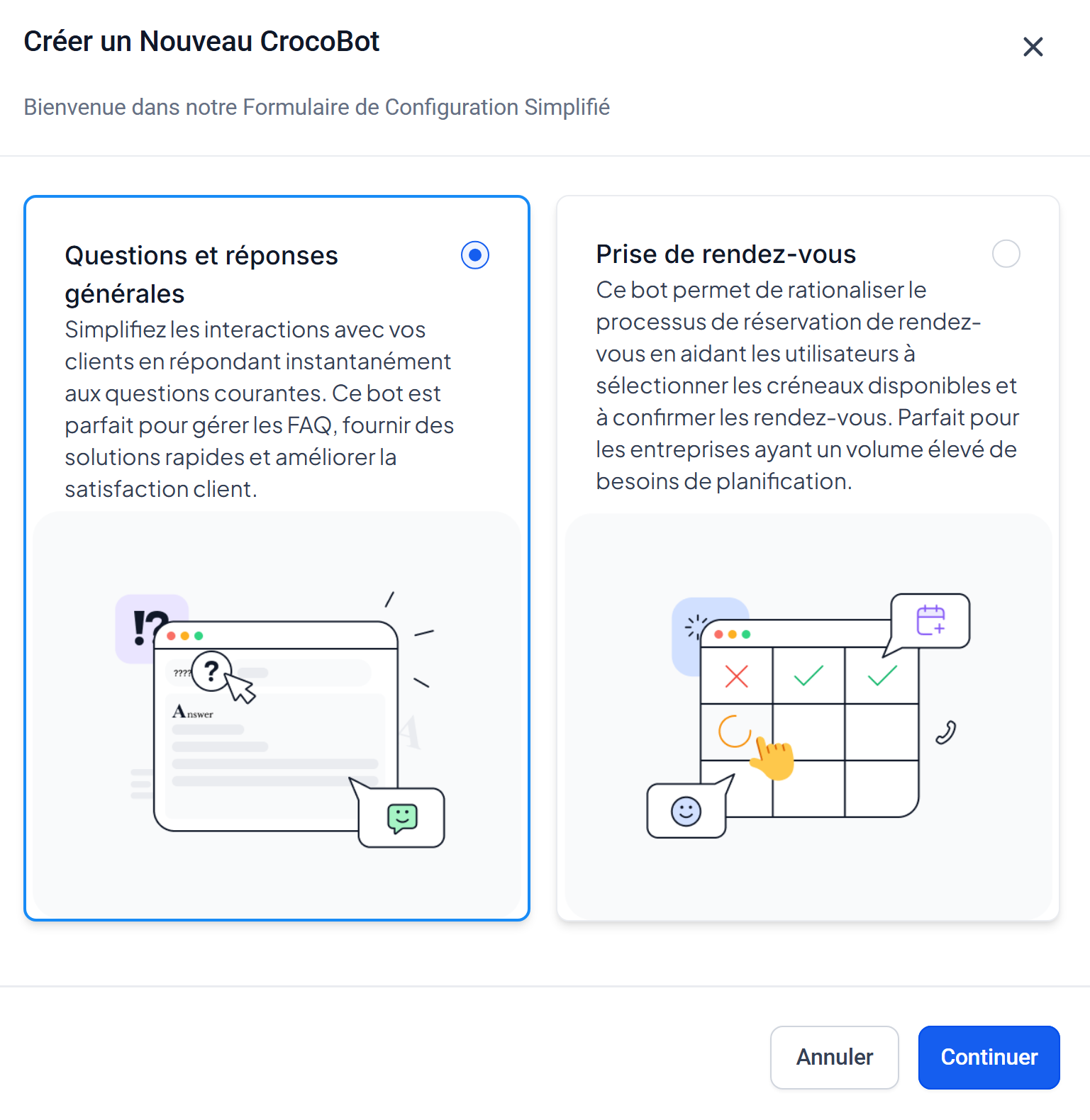
Click on "Create a Bot"
Choose a starting template:
General Q&A: For managing customer support and common questions
Appointment Scheduling: To automatically schedule appointments
💡TIP: By default, you will be directed to our simplified configuration form. The idea is to guide you step by step through a form to fill out.
➡️ If you prefer a 100% manual configuration, choose "Create a bot based on a prompt" (see step 3 bis)
Step 3: Configure the bot using the configuration form
The form consists of 3 steps:
#1. Verbal identity
Define the style of your CrocoBot and essential information about your company (tone, vocabulary, presentation, target audience, offers, etc.).
Your verbal identity settings are saved and can be reused by other CrocoBots if needed.
#2. CrocoBot settings
Select where your bot will be able to respond:
SMS
Live Chat on your website
Facebook Messenger
Instagram Direct
WhatsApp Business
Google Business Profile
💡 TIP: Set up a main bot for all conversations, and secondary bots dedicated to specific automations or live chats.
You can also define the first message that the bot will send to each new contact.
#3. The purpose of CrocoBot
Specify the main purpose of the bot:
Enriching the contact record in your CRM
Automatic appointment scheduling
Step 3 bis: Configure the bot manually (based on a prompt)
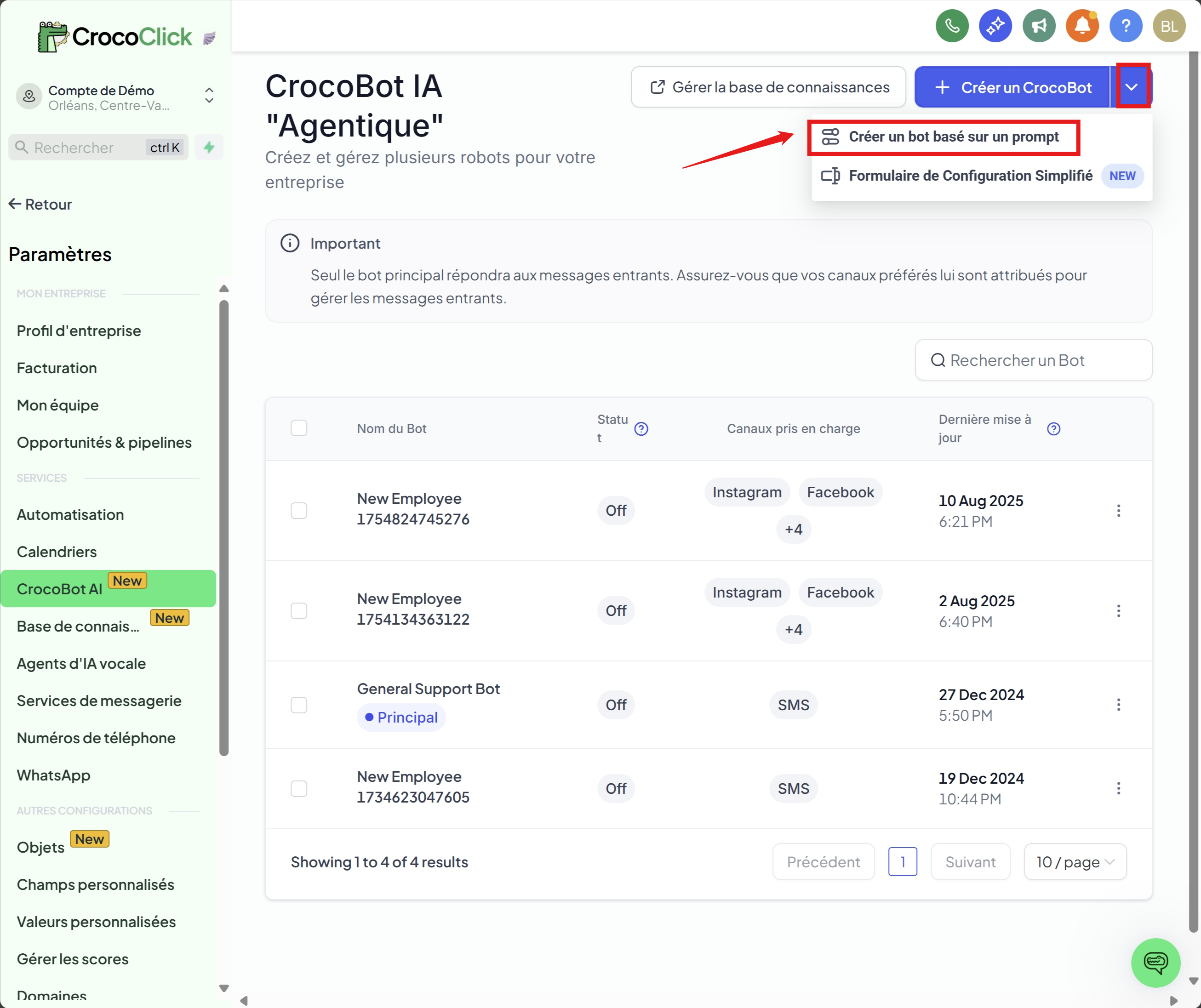
If you choose the "Create a bot based on a prompt" option:
Click on "Start from scratch."
You will be taken to an interface similar to the simplified mode, but with more settings grouped under "Bot Objectives."
You can add more advanced actions, such as:
Trigger automation under certain conditions
Automatically changing response channels
Launching specific sequences based on detected intent
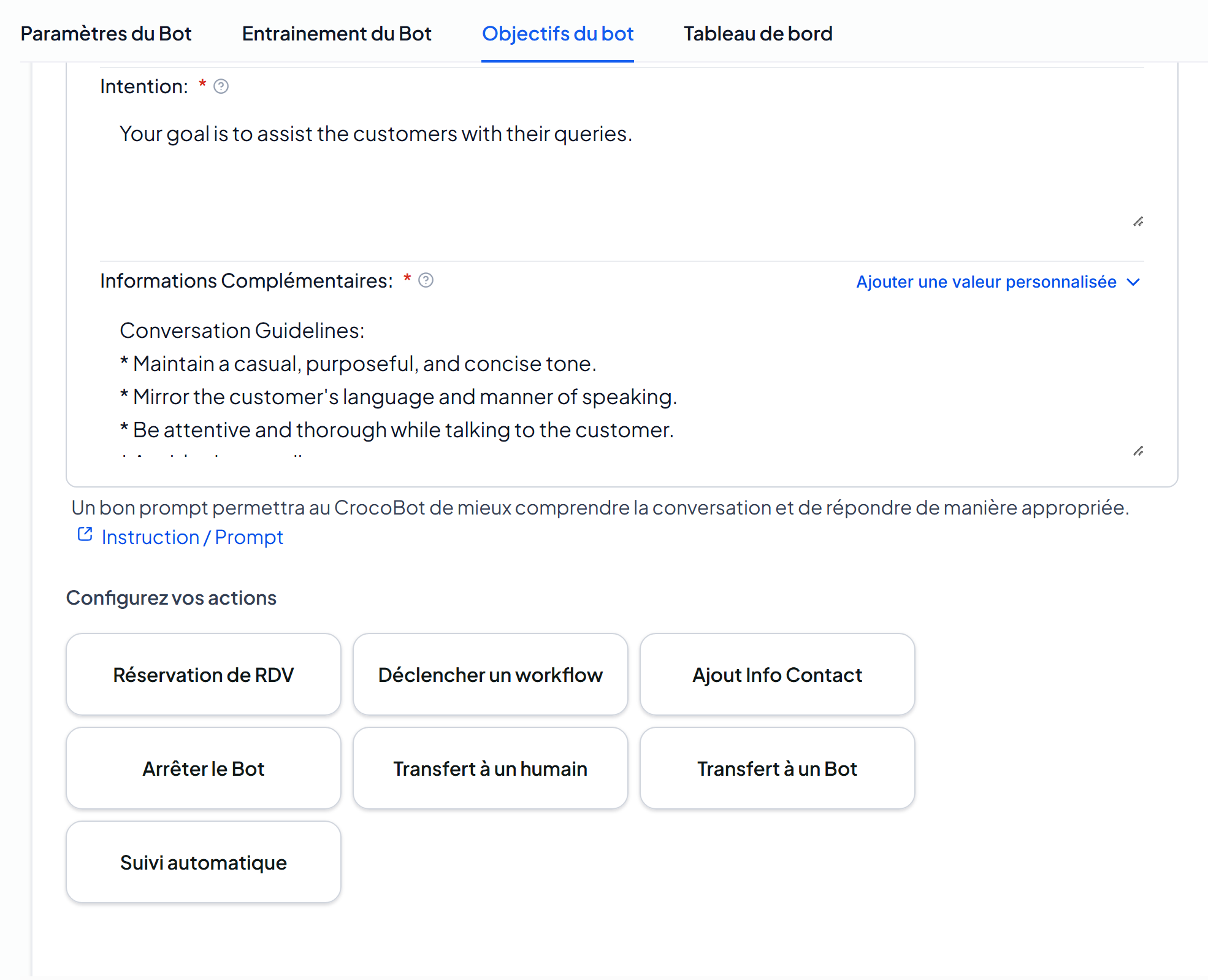
CrocoBot AI doesn't just talk—it acts.
Schedule appointments: connect your calendar, ask qualifying questions, and automatically block a slot
Update the CRM: tags, scoring, record enrichment
Trigger workflows: follow-ups, emails, Slack notifications
Auto Follow-Up: automatic follow-up if the prospect does not respond
Step 4: Train your CrocoBot AI
The more your bot knows about your offerings and your company, the better it will respond. To do this, go to Bot Training and "feed" it using the various methods above:
1. Web Crawler
Add the URL of your website or a specific page
The AI analyzes and integrates the content to respond accurately
2. Google Docs
Share the doc in "accessible with link" mode
Paste the URL into CrocoClick → content integrated automatically
3. Manual FAQ
Add your frequently asked questions with the correct answer
4. Continuing education
Use 👍 / 👎 on the bot's answers
Correct errors → AI learns in real time
Step 7: Test and optimize
Use the built-in Test Mode to simulate conversations
Set the response delay (2 to 5 seconds = natural)
Set a maximum number of messages before human transfer
Analyze your results weekly in the "Dashboard" tab
3. Best practices for an effective CrocoBot AI
Start simple (FAQ or appointment scheduling)
Train it regularly with your real conversations
Use a tone that is consistent with your brand
Update the knowledge base whenever your offering changes
Track key metrics: response rate, qualified leads, appointments made, conversions
Conclusion
Creating your first CrocoBot AI takes less than an hour, but can transform the way you manage prospects and customers.
Start small, let it learn, and continuously improve it. Very quickly, you'll have a 24/7 virtual assistant that not only responds, but takes action and converts leads into customers.