Community Live: how to broadcast a Live event in your CrocoClick community + replay
Deploy the live community function and benefit from the power of meetings within your private group thanks to our CrocoLive technology
Written By Baptiste Lorreyte
Last updated 7 months ago
The "Community Live" feature allows you to host live streams directly within your community.
No need to use Zoom, Google Meet, or external links—everything happens within CrocoClick 🐊
Ideal for your workshops, group coaching sessions, important announcements, or masterclasses, CrocoLive keeps your members connected and engaged in your space.
What is the difference between "CrocoLive" (the software) and "Community Live Streams"?
There are two ways to host a live event in the CrocoClick universe:
👉 via crocoLive software,
👉 or via the Community Live feature
1. CrocoLive (the complete software)
This is a standalone software program that is fully integrated with CrocoClick and available as a paid option.
It allows you to organize real webinars, challenges, or large-scale marketing events.
Main features:
Creation of personalized registration pages
Integrated offer system (call-to-action, purchase button, etc.)
Interactive polls and live questions
Public and private chat, detailed message management
Advanced statistics (registrants, attendance rates, viewing time, etc.)
Professional webinar mode, designed for sales and conversion
Up to 500 simultaneous participants and 20 presenters
👉 In summary: CrocoLive = webinar/event tool, perfect for selling, training, or launching a product.
2. Community Live
This option is included in all CrocoClick plans—no additional modules are required.
It allows you to organize simple, collaborative live sessions directly within your community (similar to Zoom).
Key features:
Camera & microphone can be activated for members
Live chat with reactions and emojis
Screen sharing
Automatic recording and replay within the community
Collaborative mode (ideal for workshops, coaching, group discussions)
👉 In summary: Community Live = interactive tool for live exchanges with your members, without advanced marketing features.
💡TIP: If you have the CrocoLive option, you can host your CrocoLive directly on your community to get the best of both worlds! Find out how by reading our article "Broadcast your CrocoLive in your CrocoClick community."
3. Summary
👉 There are two ways to go live in the CrocoClick universe:
With CrocoLive software, for your professional events—webinars, challenges, masterclasses—with all the advanced options (offers, polls, statistics, public/private chat, etc.).
With the "Launch CrocoLive" feature integrated into CrocoClick Communities, for your internal sessions, workshops, or collaborative coaching, where members can activate their microphone and camera just like on Zoom.
These two options are complementary:
CrocoLive software focuses on conversion and staging.
Community live streaming focuses on human connection and small group interaction.
Now let's see how to actually launch a Community Live in your CrocoClick community 👇
How to launch a Community Live
Step 1 — Open your community
Go to your community created on CrocoClick.
Click on the 📹 Community Live ❤️🔥 button at the top right of the discussion thread.

Step 2 — Set up your Community Live
In the window that opens:
Live title → give it a clear and attractive name.
Description → explain the content of the live stream or add useful links.
Broadcast channel → choose where to publish the live stream.
Notifications → check "Notify members" if you want to notify everyone.
(Optional) Enable "Keep live stream as post" so that it remains visible after the broadcast.
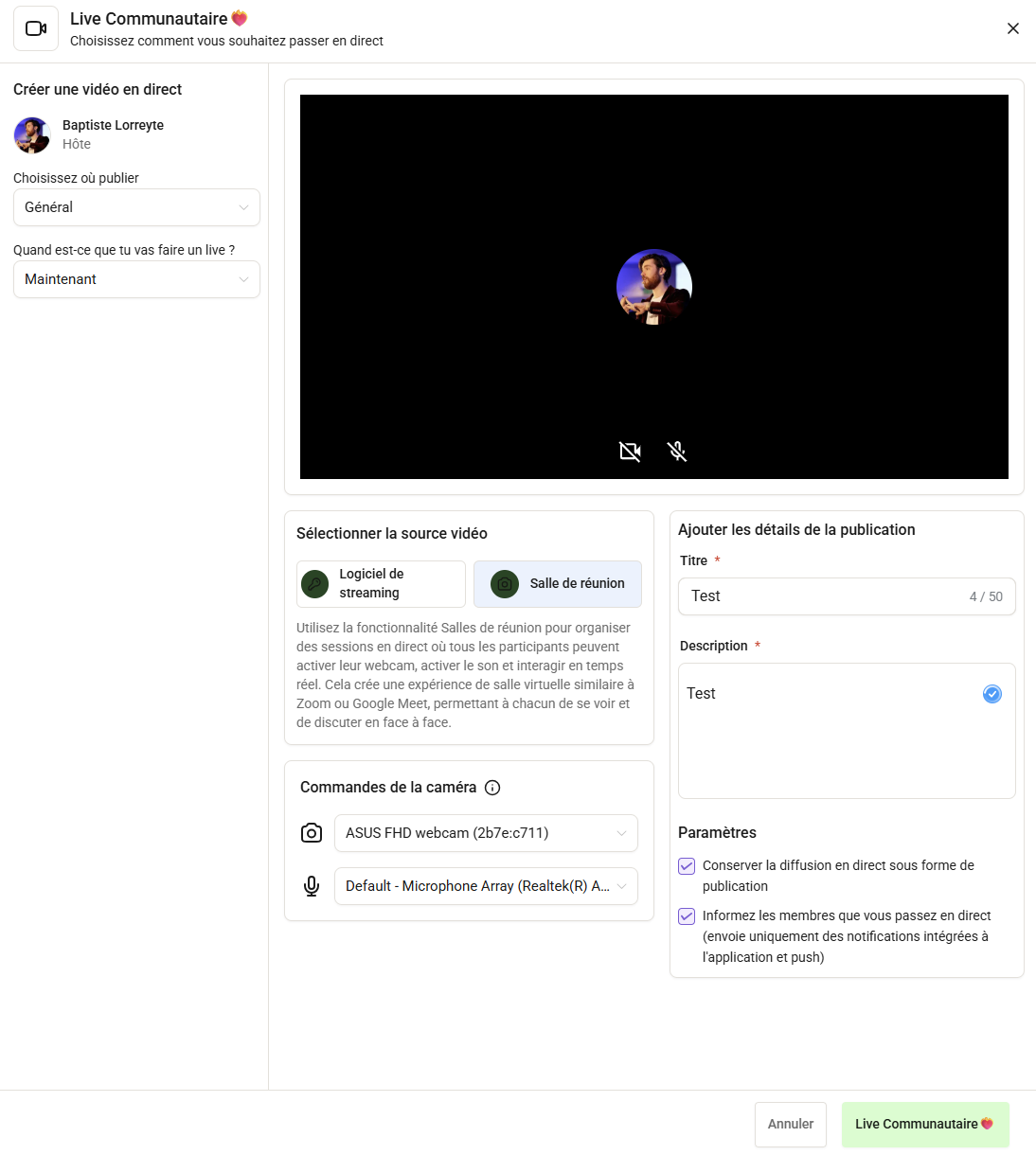
Step 3 — Choose the broadcast mode
🔸 Option 1: Meeting room
Select Meeting Room as the source.
Allow access to the camera and microphone.
Click Start Live.
You are now live 🎙️
Members can join, chat, react, and raise their hands.
You can give them the floor, share your screen, and change the view (Speaker/Gallery).
💡TIP: This is the equivalent of a Zoom, Google Meet, or Teams room.
🔸 Option 2: Streaming software (CrocoLive, OBS, Zoom, etc.)
Select Streaming Software as the source.
Copy the streaming key and server URL.
Paste them into your software's RTMPS settings.
Start streaming from your tool → it will appear live in CrocoClick.
💡TIP: This is ideal for organizing a live stream with the power of a tool like CrocoClick AND rebroadcasting it live to your community.
Read this article to understand specifically how to use CrocoLive for your community livestreams.
Step 4 — End the live stream
When the session is over:
Click End Session → Confirm.
An automatic post will appear in the channel with the message "Recording being processed."
The replay will appear as soon as the file is ready (if you have enabled the automatic replay publication feature).
Access the replay of your community live stream
Go to your Community
Open your post containing the completed live stream.
From the three dots (⋯), select Download recording.
A video will open → right-click → "Save video as..." to save it.
❓ FAQ
Do members need to install anything?
No, everything works directly from CrocoClick (web or mobile).
Can access to a live stream be restricted?
Yes, you can launch it in a private channel or a paid group.
Can we invite speakers?
Yes, by giving them microphone/camera permissions during the live stream.
Can the replay be reused?
Yes, you can republish it in a course, training session, or future event.