Customize the "cart abandonment" email sequence for E-Commerce Boutiques
Configure the delay and content of emails sent after a shopping cart abandonment in your store.
Written By CrocoTeam
Last updated 5 months ago
When a customer adds items to their cart without completing the purchase, this is known as a cart abandonment. It can happen for many reasons: a distraction, second thoughts, a technical issue… Fortunately, CrocoClick lets you automatically send an email to follow up with these potential buyers.
This article explains how to customize this automated follow-up to increase your chances of conversion.
1. Why customize the cart abandonment sequence?
By default, CrocoClick sends an email 1 hour after the cart is abandoned. But you can:
Change this timeframe
Create a custom email featuring the abandoned products
Redirect to the cart or the entire store
Goal: Maximize conversions and recover lost sales.
2. Steps to customize your cart abandonment sequence
Step 1: Create a custom email template
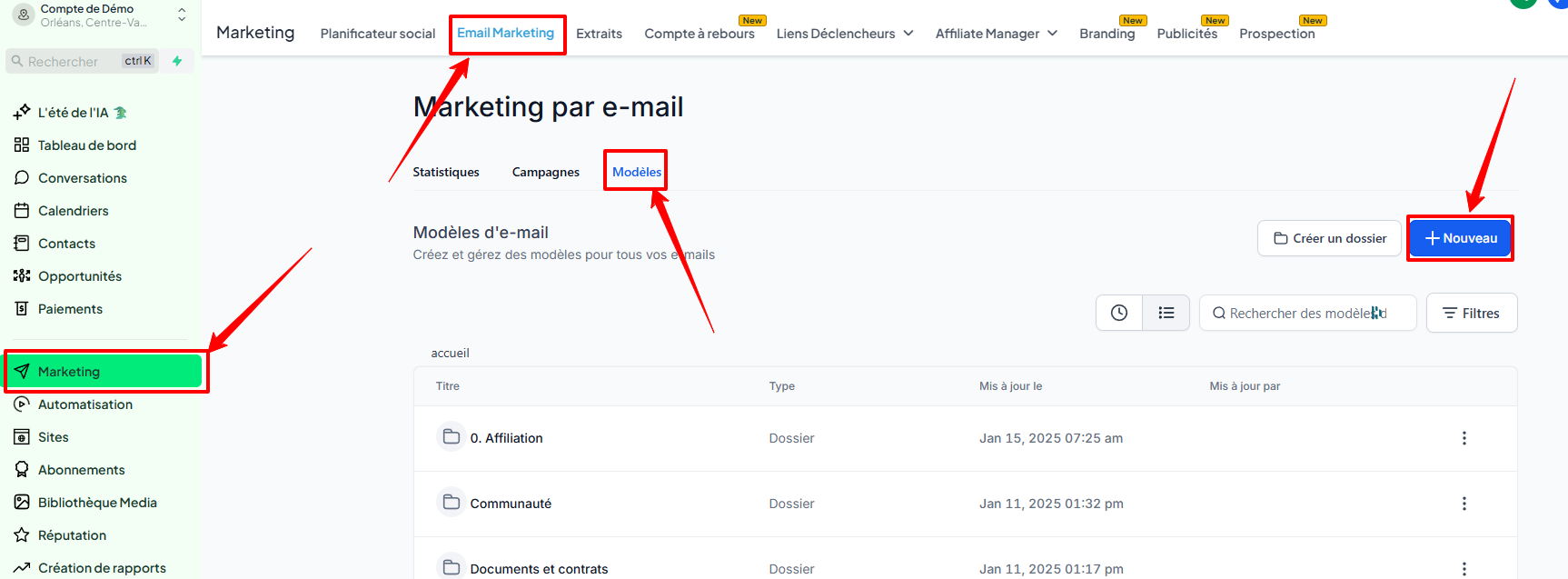
Go to Marketing > Emails > Email Templates
Click New Template
Choose a blank template or duplicate an existing one
Step 2: Add the Cart block to the email
In the email builder, drag and drop the Cart element
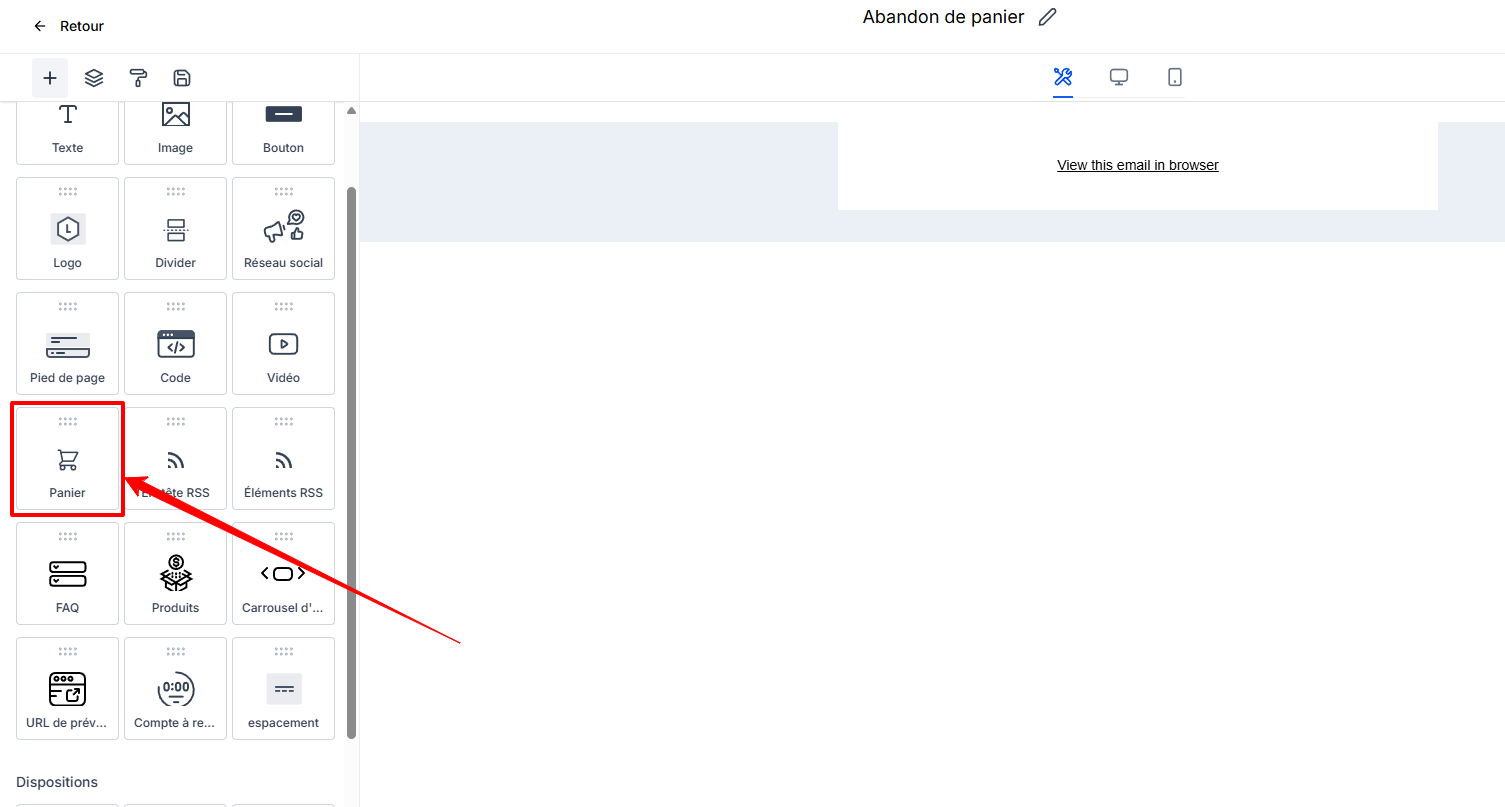
It will automatically adjust to the items in the customer’s cart
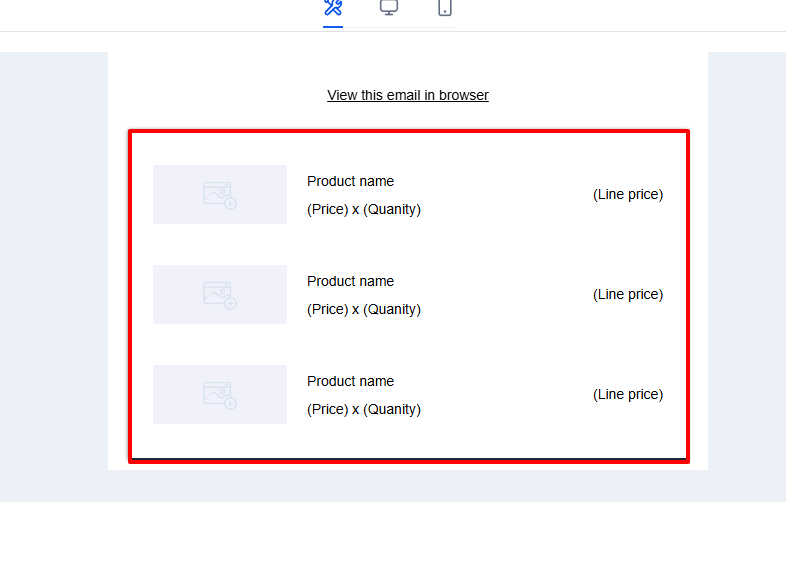
This allows you to dynamically display abandoned products in the email, including the image, name, and price.
Step 3: Add custom text and dynamic values
Add:
An engaging message (e.g., "It looks like you forgot something...")
Dynamic values such as:
{{checkout_page_url}}→ redirects to the abandoned cart{{product_list_url}}→ redirects to the full store
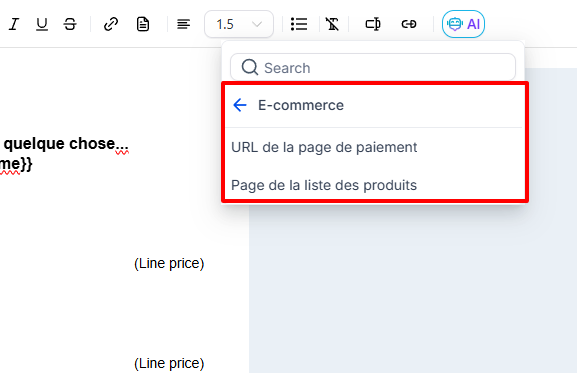
Remember to save the template.
Step 4: Apply the template to the abandonment sequence
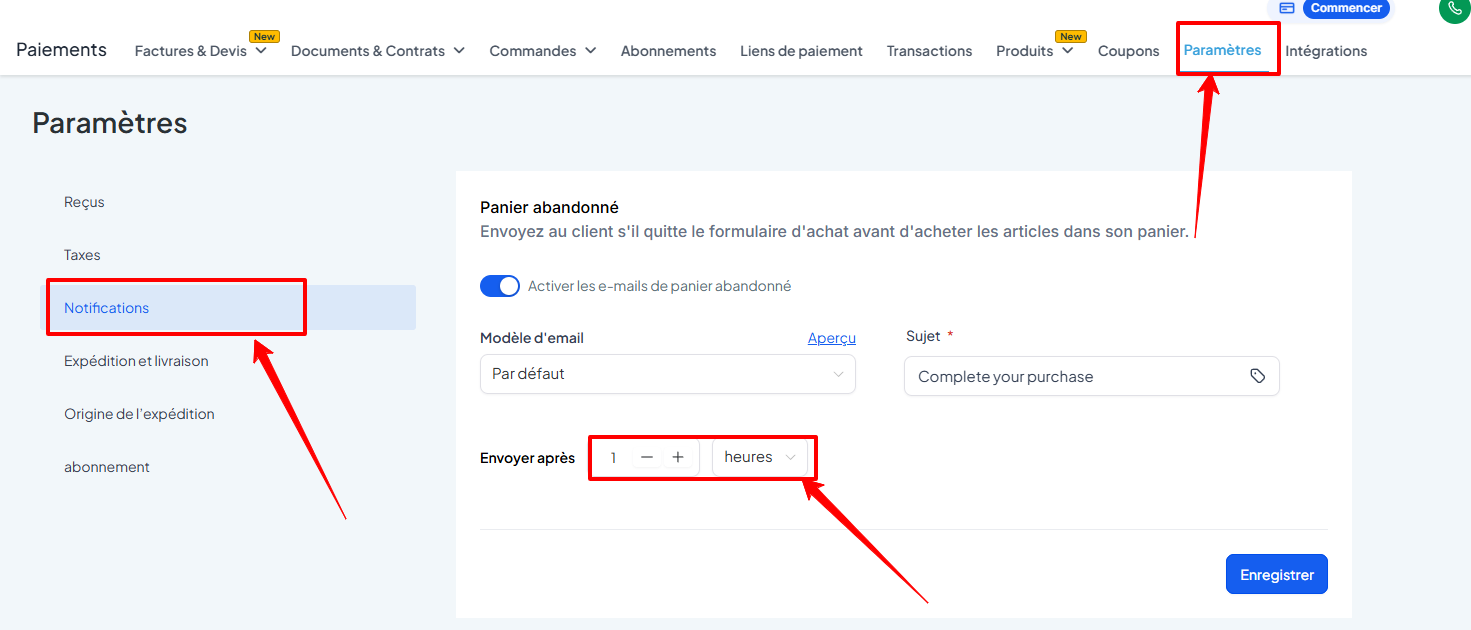
Go to Payments > Settings > Notifications
In Cart Abandonment Email, select the template you created
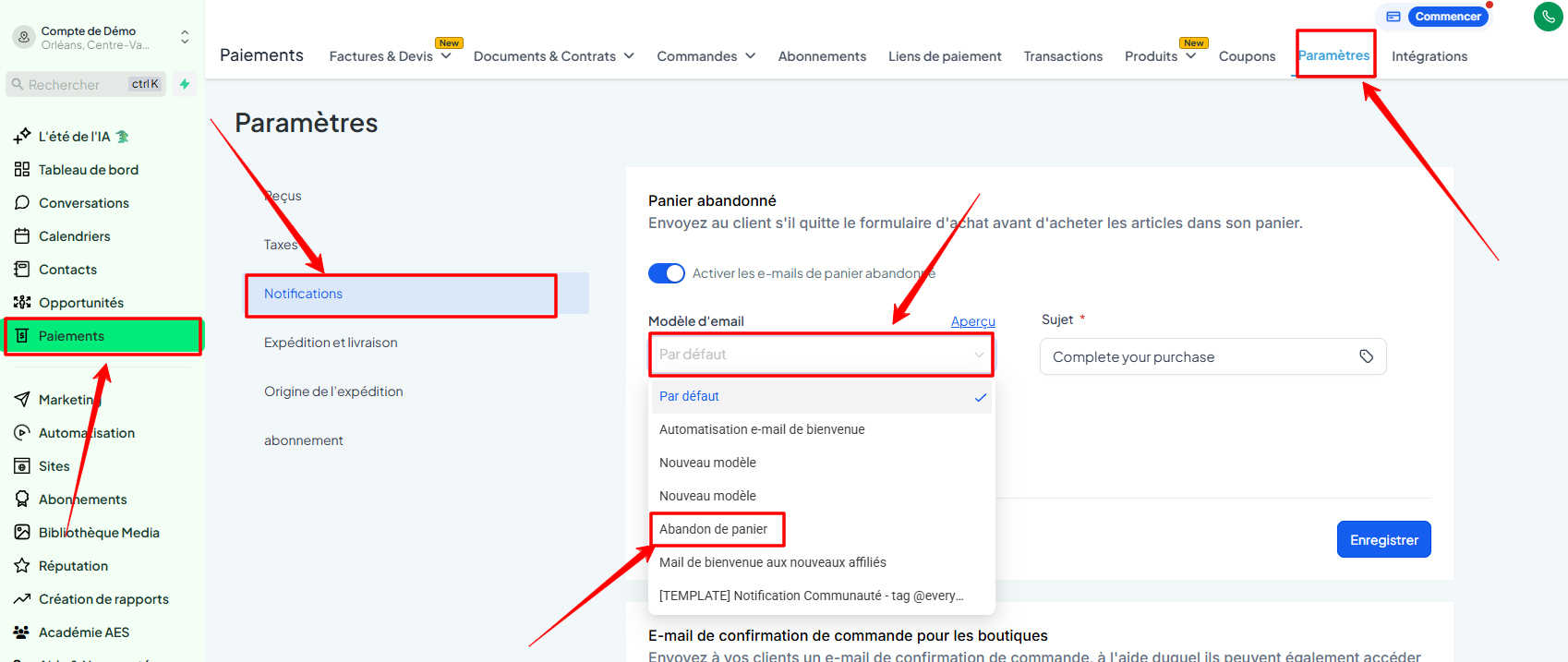
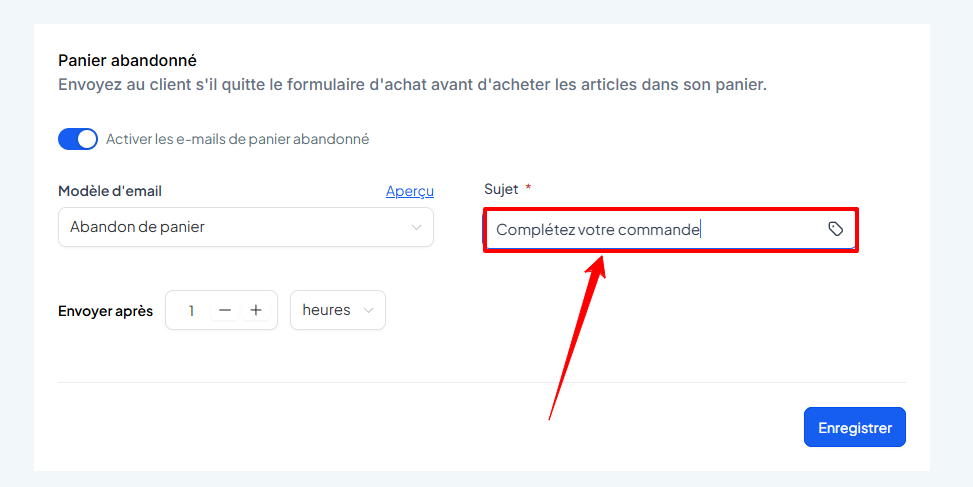
Edit the email subject
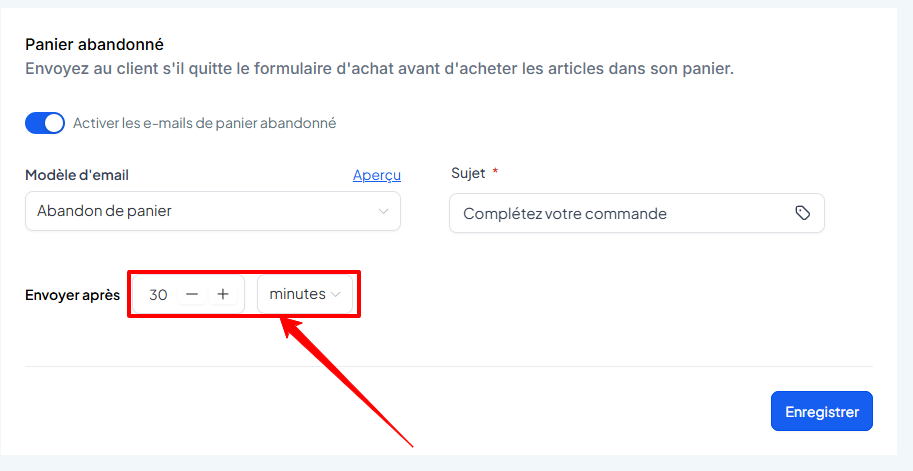
Change the send time if necessary
3. FAQ
Q: Is the email sent automatically?
A: Yes, as soon as a visitor leaves without paying and their email address is recorded.
Q: Can we send multiple follow-ups?
A: Currently, only one follow-up is possible. You can automate a more advanced sequence using workflows.
Q: Can I disable this follow-up?
A: Yes, under Payments > Settings > Notifications.